Category: Dynamics 365 Finance

  • Take advantage of configuration data templates for seamless data import and export management in your Dynamics 365 For finance and operations implementation

    Take advantage of configuration data templates for seamless data import and export management in your Dynamics 365 For finance and operations implementation

    The Data Management Framework of Dynamics 365 For Finance and Operations – Enterprise Edition provides advanced data management capabilities, which makes the overall data export and import really seamless easy, for both standard Dynamics 365 data entities, as well as any custom entities that you might have developed for your business requirements. This framework provides an easy to use front end interface for data export and import management, so that regular pro-users of Dynamics 365 can interact with it, without requiring advanced knowledge of development and database.

    In this post today, let us discuss about one of the features of this Data Management framework called the “Data Templates“, which will help you accelerate the data configuration and export/import management in your Dynamics 365 Implementation.

    Data Config Templates

    So, what are these data configuration templates ? One of the things you would have always done in every D365FO (Dynamics AX earlier) implementation, is probably use an excel spreadsheet to keep track of setup and master data configuration checklist and their sequence of import. While this works, it also requires extensive manual tracking, supervision and may lead to lot of human errors and mistakes.

    Data configuration templates in D365FO are basically a predefined list of data entities for each module area, which are sequenced , so the data import will be processed in correct order automatically. This reduces human error in the data import sequence, save a huge amount of time in data import/export.

    The templates are sequenced using Units, levels and sequence numbers and predefined dependencies between data entities. For example, before you import/upload your customer master data, you need to make sure all the number sequences formats, customer groups, payment terms etc. are imported prior to that. The data configuration templates addresses this and takes care of sequencing.

    Let us now understand what is underneath these data templates and how these are managed in D365FO.

    • Microsoft started releasing these predefined data templates with the July 2017 update and these are right now made available directly within D365FO. From home page of D365FO, Navigate to System Administration > Data Management Workspace > Click Templates tile and click the Load default templates button. This will load all the default templates which are made available by Microsoft.

    Load Default Templates

    Note: In future, these will be made available in the shared asset library of LCS(Lifecycle Services), just like other assets such as the Power BI report models, Software deployable packages etc. 

    • You can use these out of the box templates, modify them to meet your business requirement, or you can even create your own templates and define the entities under it. For example you might have customized D365FO to meet your business needs and you might have created various custom data entities for this. So you can create your own templates and include those entities.
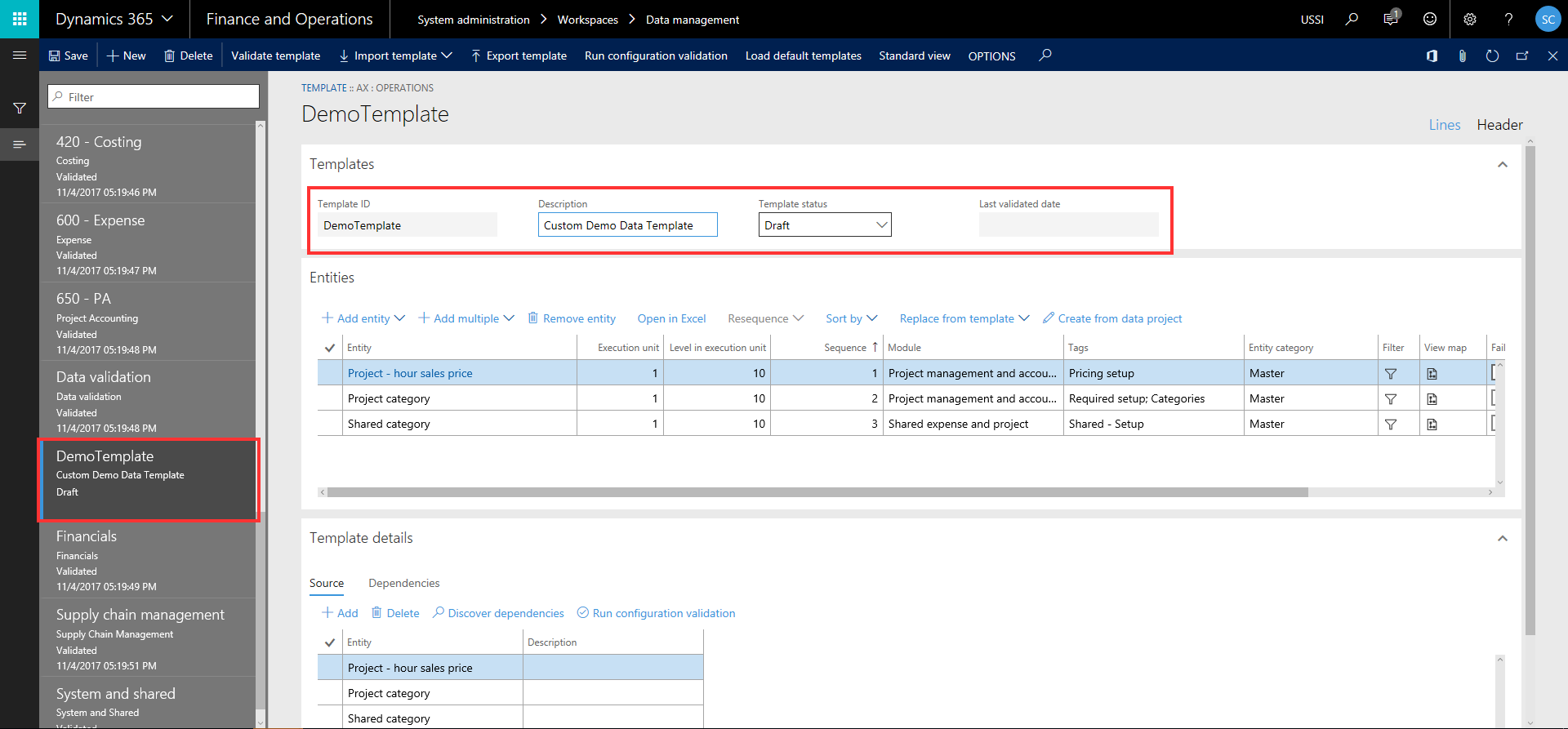
    Custom Data Template

    • How are these entities sequences within a data template for processing? The “Execution unit”, “Level in execution unit” and “Sequence” fields under the Entities tab of the templates defines how the entities are sequences for processing.
      • Execution Unit: Entities that have different units are processed in parallel.
      • Level in execution unit: Entities that have the same level within an unit are processed in parallel.
      • Sequence number: With the same level, entities are processed according to their sequence numbers.

    Note: At some point in future, Microsoft will make it possible for the sequencing to happen automatically when you add entities to a template and will they will try to provide templates for every standard D365FO configuration and setup.
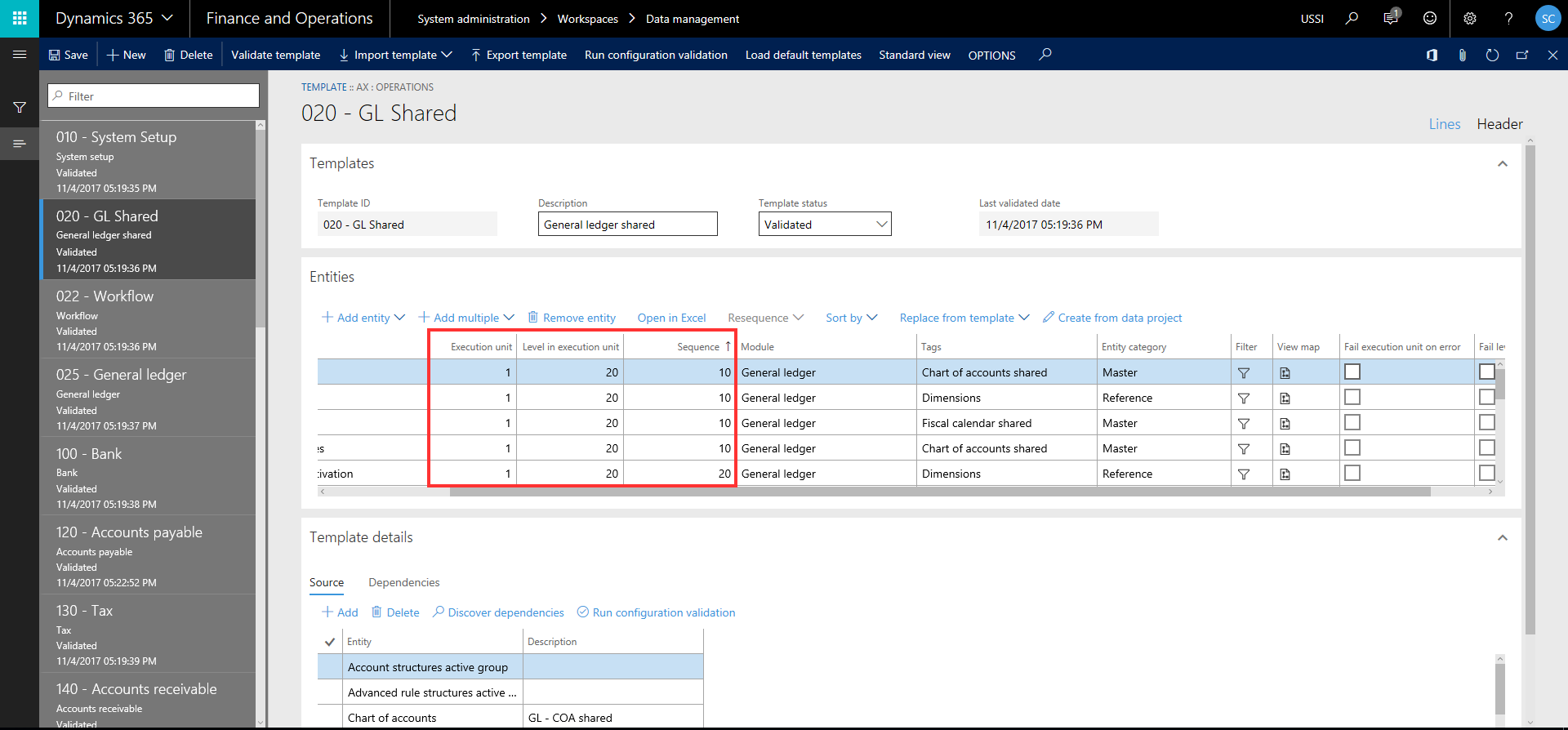
    Unit Level and Sequence Numbers

    • The Module, category and Tags represent the entity category or classification for better understanding. Module represents the actual module name of D365 to which the entity belongs, Entity category shows if the entity is related to setup data, reference data or master data and the tags shows additional information tags.

    Module Tag And Category

    • There are other miscellaneous features on this templates so that you can export and import templates, Open the list of entities within a data template in Excel to make changes to Units, levels, sequences, module, tag etc., or you can even create the templates from a data project.

    Other Misc Features

    Now, let us see how we can use these data templates (Predefined or custom created) in an actual Data project for export or import.

    • Navigate to System Administration > Data Management > Click Import tile.

    Demo Template Import Data Project

    • Enter a name for the project and click Save. Now click “Apply Template” button. You will see all your data templates that you can select and add them to the data project. You can add more than one data template. Let us say I want to use the GL-Shared data template to load all the data for the GL shared area. I can select that and select preferred source type (EXCEL, CSV etc.) and click OK button.
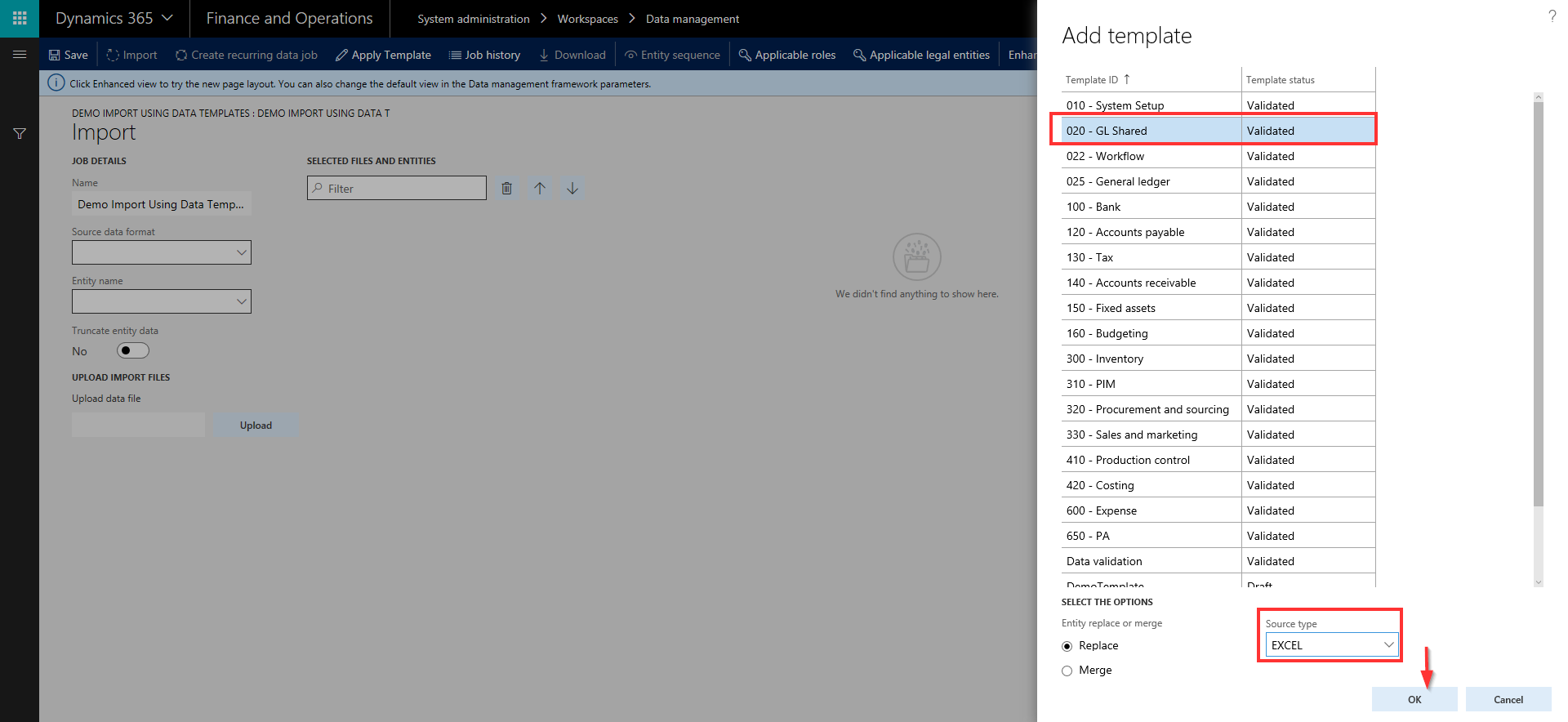
    Select Data Template on Data Project

    • Notice here that all the data entities that were part of the General Ledger-Shared data template are automatically loaded and all the level and sequencing of these entities is also inherited from the template setup. Now, you can just upload the excel/source data files for all these entities and schedule the data project to run. It will run and automatically process the entities in the correct sequence as per the definition in the template.

    This is certainly a huge time saver and you don’t have to select individual entities and import them one by one remembering their sequence.
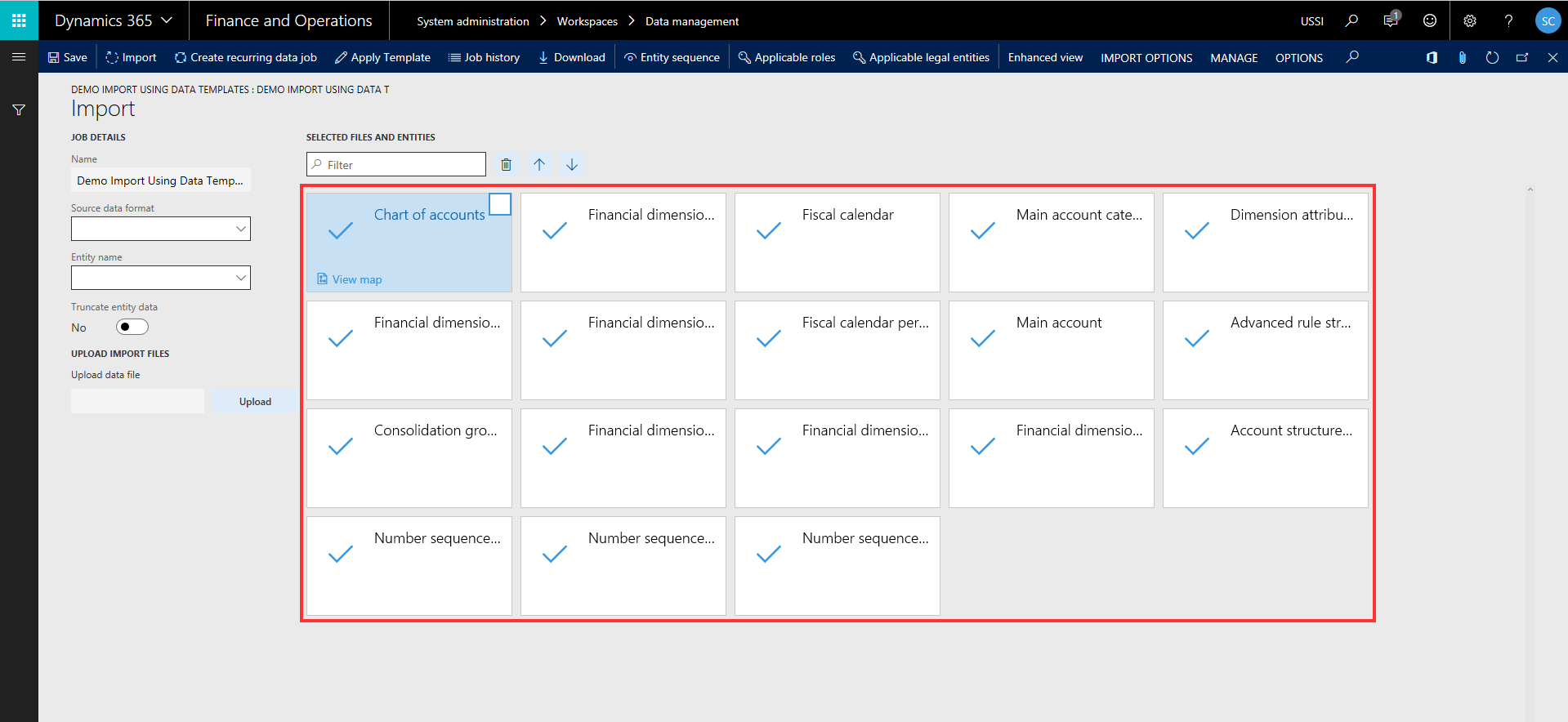
    Data Entities loaded in DP

    • Similarly, you can use the templates for exporting too, so that system will automatically provide all the source files for each module, depending on the data template you selected in the project.

    Export Using Template

    • As an example, I have exported the same GL Shared template in a data project and it exported all my relevant data entities with more than 500 records within few seconds.
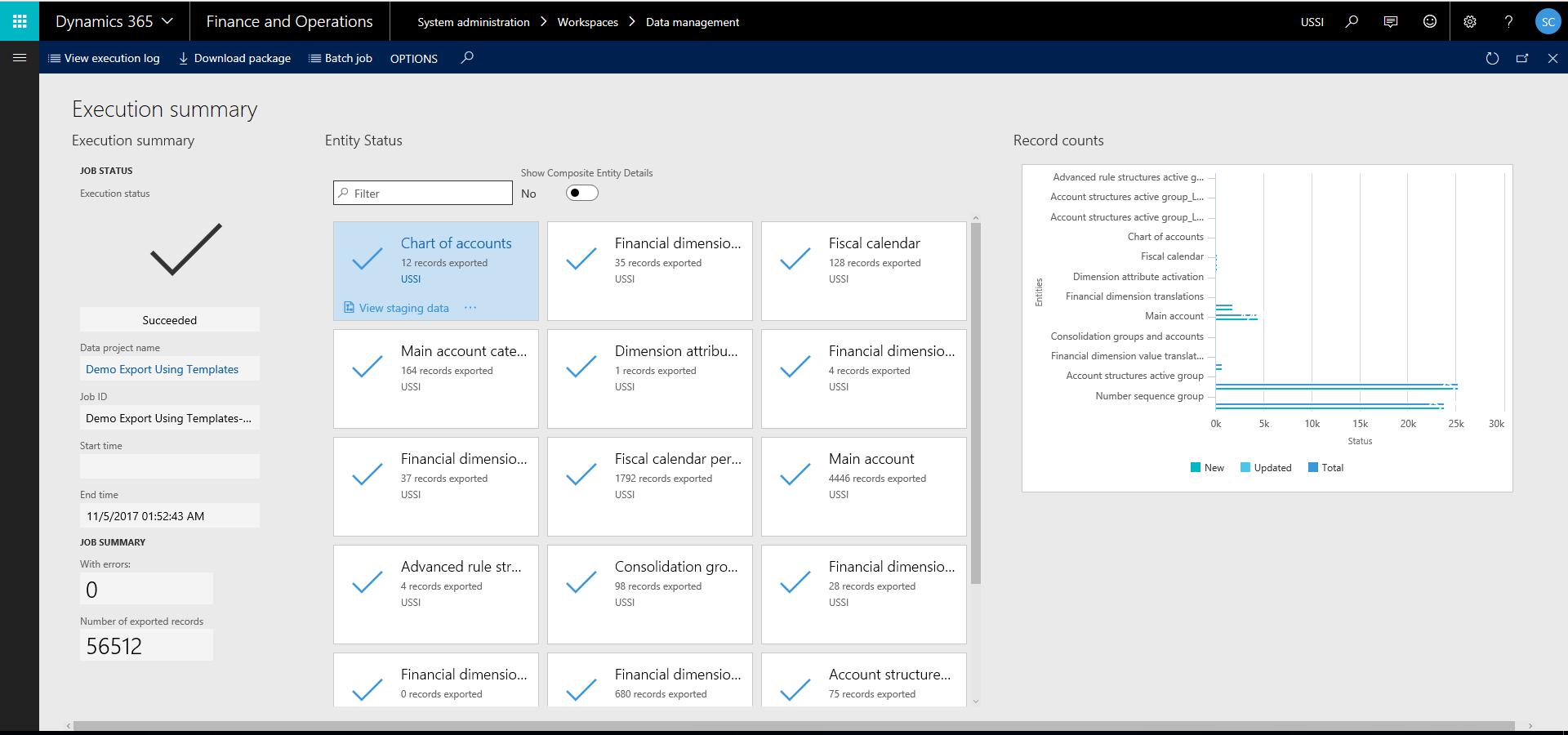
    Data Entities Exported

    • I can now download these packages and see the data on the files. See screenshot below.
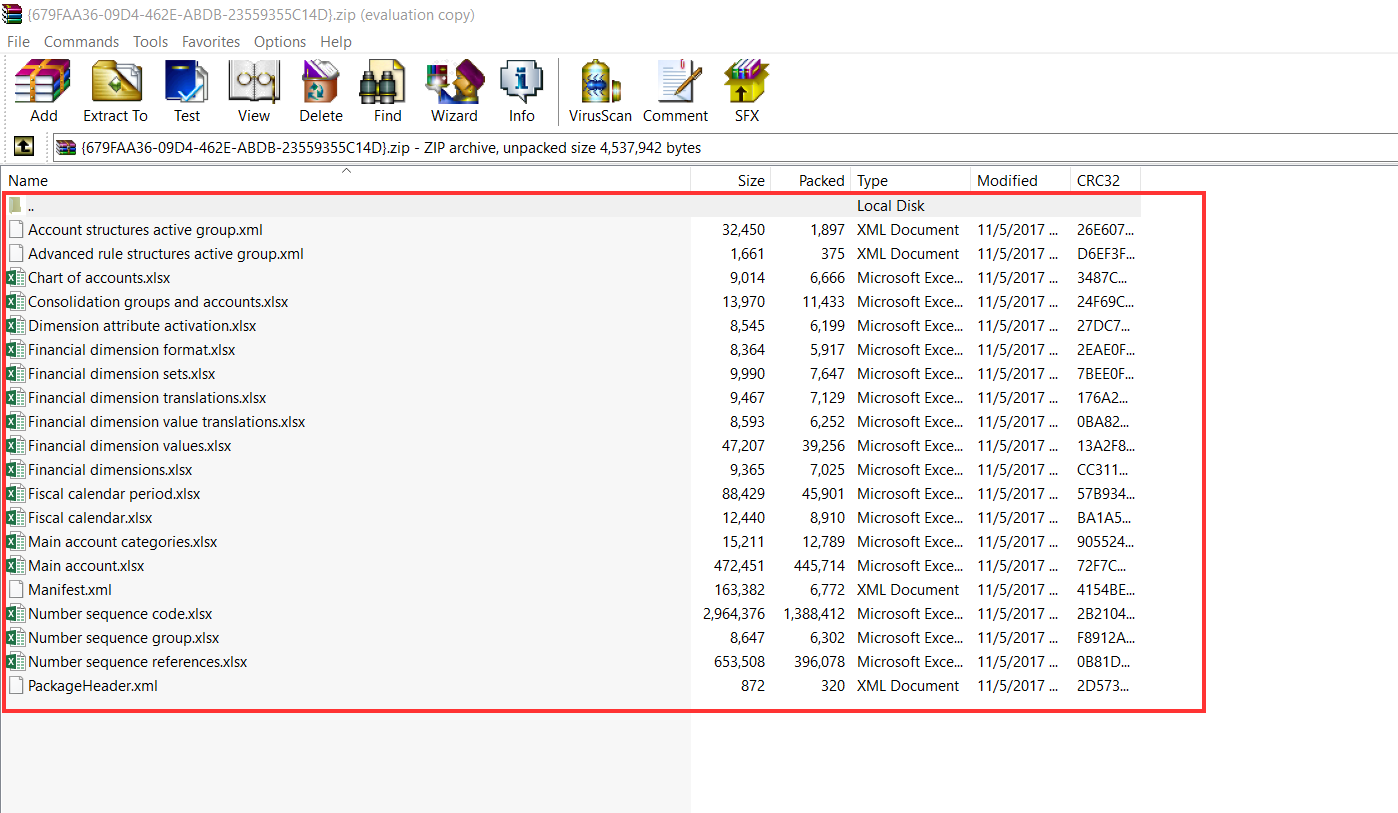
    Data Package Export

    Exported Data.png

    I find this feature very useful and this will help save significant time in data export/import and will also enable users who are not experts of the system to seamlessly export and import data for all required modules by leveraging these templates. This is also a great step towards standardizing data configs as much as possible, so that customers don’t have to reinvent the wheel in every implementation.

    That’s it for this post. Stay tuned !!

    Sandeep Chaudhury


  • My favorite features from July 2017 update of Microsoft Dynamics 365 For Finance and Operations – Enterprise Edition

    One of the most awaited releases of Dynamics 365 For Finance and Operations is now available (The July 2017 and Platform Update 8). Lot of new capabilities and exciting new features across all the functional modules and quite a few technology stack improvements!!In this post, I will highlight some of the most important new features that are my favorites so far, that I think are going to helpful for customers in big time.

    First thing first! Starting with the July release, there is a change in the naming of the Dynamics 365 apps . Earlier we had “Dynamics 365 For Operations”, which basically represented the Enterprise edition of Dynamics 365 and “Dynamics 365 For Financials’ which represented the Business edition targeted for SMB customers.

    Starting with the July release, the naming will be as below.

    Dynamics 365 For Operations => Dynamics 365 For Finance and Operations – Enterprise Edition (For Enterprise Customers)

    Dynamics 365 For Financials => Dynamics 365 For Finance and Operations – Business Edition  (Suitable For SMB Customers)

    You should notice this name changes, when you login to the new version.

    Default Landing Page

    Here are some of my personal favorite features and functionality fro this latest update of Dynamics 365 For Finance and Operations.

    Embedded PowerBI and Analytical Workspaces for all D365FO licensed users:

    Microsoft Power BI is the backbone of Dynamics 365 for delivering critical business intelligence to all users of an organization with rich interactive visuals, dashboards and reports, with appropriate drill downs, data filter options etc. When Dynamics 365 was first released, users had the option of consuming preconfigured or customized Power BI dashboards and reports from their PowerBI online workspaces right into their workspaces within Dynamics 365. This is a great capability and allowed users to mash up data from Dynamics 365 or even from external data sources and then see them all together right on their workspaces. However, this required every users to have at least a free PowerBI.com subscription to be able to do this.

    With the July 2017 update, Power BI Embedded services are integrated into Dynamics 365. Embedded Power BI is a Microsoft Azure Service that allows to embed the dashboards and reports directly into Operations workspaces of Dynamics 365. Embedded Power BI is an ideal way of presenting near real time data insights, with Direct Query to the Entity Story (Data warehouse for Dynamics 365). These embedded dashboards and reports are available for all users with the base license of Dynamics 365 for Finance and Operations and does not necessarily require the user to have a PowerBI.com subscription.

    The diagram below shows the key difference between the PowerBI Online and PowerBI Embedded services.

    Power-BI-Embedded-Overview

    The good news is, Microsoft has already shipped several out of the box PowerBI asset files within Life Cycle Service starting with the July 2017 release, which can be simply included in the Dynamics 365 deployment options to get instant access to readily available dashboards and reports across all major business areas. Below are some of the sample examples of these embedded Power BI dashboards and workspaces in Dynamics 365.

    This slideshow requires JavaScript.

    Prospect to Cash Integration between Dynamics 365 for Sales and Dynamics 365 for Finance and Operations using Common Data Services:

    This one is a HUGE step forward!! Since Dynamics 365 launched back in February 2016, the Primary objective and goal for Microsoft was to combine the best of Dynamics CRM and ERP worlds and provide a unified experience to end users, so that they can advantage of best of breed functionalities within the Modular apps for Sales and Financials & Operations and still be able to integrate the data flow between these apps seamlessly to get a 360 degree view of their business. We have seen steps Microsoft has taken in last several months to get the Common Data Service (Azure Public Cloud data storage) Platform ready for prime time along with the supporting surrounding services such as Microsoft Flow and PowerApps. With the July release, these all are coming together as a first significant step towards truly unifying the CRM and ERP worlds. This is the beginning of the departure from the traditional custom 3rd party integrations between CRM and ERP.

    The following key scenarios are supported currently with this integrations, primarily in the Supply Chain side. More to come in future. I have not got chance to test this end to end yet. Will share some details when I am able to test it in coming weeks.

    • Maintain accounts in Dynamics 365 for Sales and sync them to Finance and Operations as customers.
    • Maintain contacts in Dynamics 365 for Sales and sync them to Finance and Operations.
    • Maintain products in Finance and Operations and sync them to Dynamics 365 for Sales.
    • Create quotes in Dynamics 365 for Sales and sync them to Finance and Operations.
    • Generate sales orders in Dynamics 365 for Sales for existing products and sync them to Finance and Operations.
    • Generate invoices in Finance and Operations and sync them to Dynamics 365 for Sales.

    Mobile Apps/Workspaces:

    Mobile workspaces/apps were introduced with the Update 3 release of Dynamics 365. Since then, these workspaces have been evolving and Microsoft continues to deliver more and more mobile workspaces covering various mobile business process scenarios. Some of the key mobile workspaces that were released in the July 2017 update are as below.

    This slideshow requires JavaScript.

    The highlight of these workspaces is the mobile app for Project Timesheet Entry and the Expense Management app. I provided my views on the preview version of these mobile workspaces in my earlier post. These workspaces have added significant amount of new features with the July 2017 release. The Expense management workspace now support end to end expense management from receipt capture, new expense report creation, submission, expense approvals and expense status inquiry and so on. Below are some screenshots of the mobile workspaces released in the July Update.

    Employee Expenses Management and Reimbursement related enhancements:

    There are several new features and usability enhancements that are introduced for Employee Expenses management in the July Update. From all these features and enhancement, my favorites are as below.

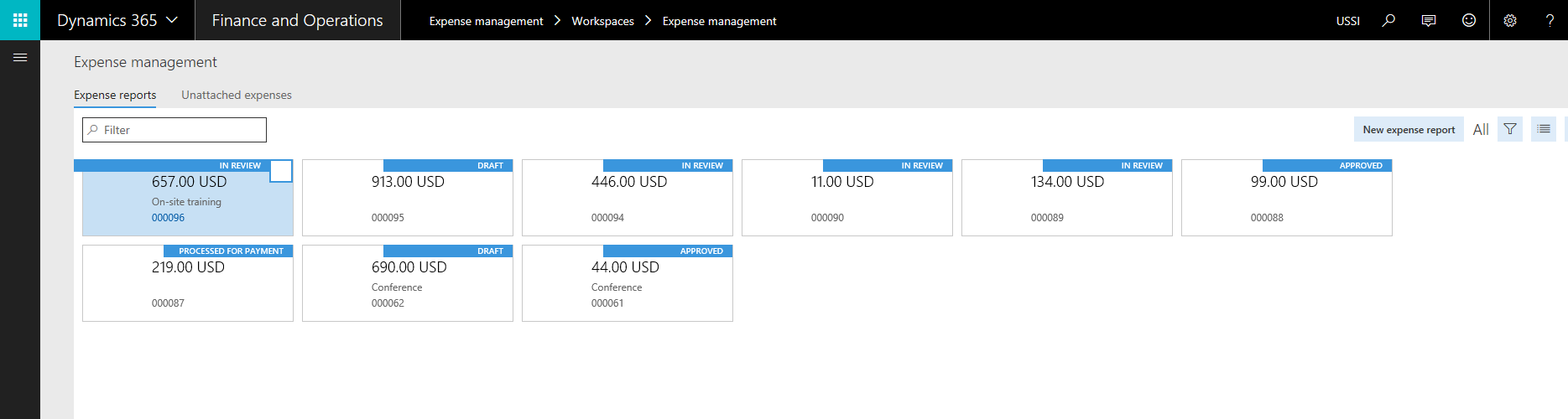
    • Dedicated Expense management workspace

    Expense Workspace

    • Grouping of vendor invoices for different expense lines of an expense report, as opposed to create separate vendor invoices for each expense line, for reimbursement. This was one of the most talked about concerns in the earlier version (AX 2012), since it was causing problems creating individual invoices for each expense lines and there by causing issues in Check printing etc. Now with this release, you can optionally group all expense lines with the same method of payment to post as grouped vendor invoice instead of individual invoices. If you enable the grouping of vendor invoices, this functionality basically posts all the expenses of the expense report with same payment method on the recent transaction date from the list of expense lines.
    • Several usability enhancements in some key screens. Also, Employees can now track payment information for their expense reimbursements. Nice and very useful functionality, as this is one point that customers usually ask and they used to customize it in AX 2012.

    This slideshow requires JavaScript.

    OCR interface for capturing vendor invoices automatically:

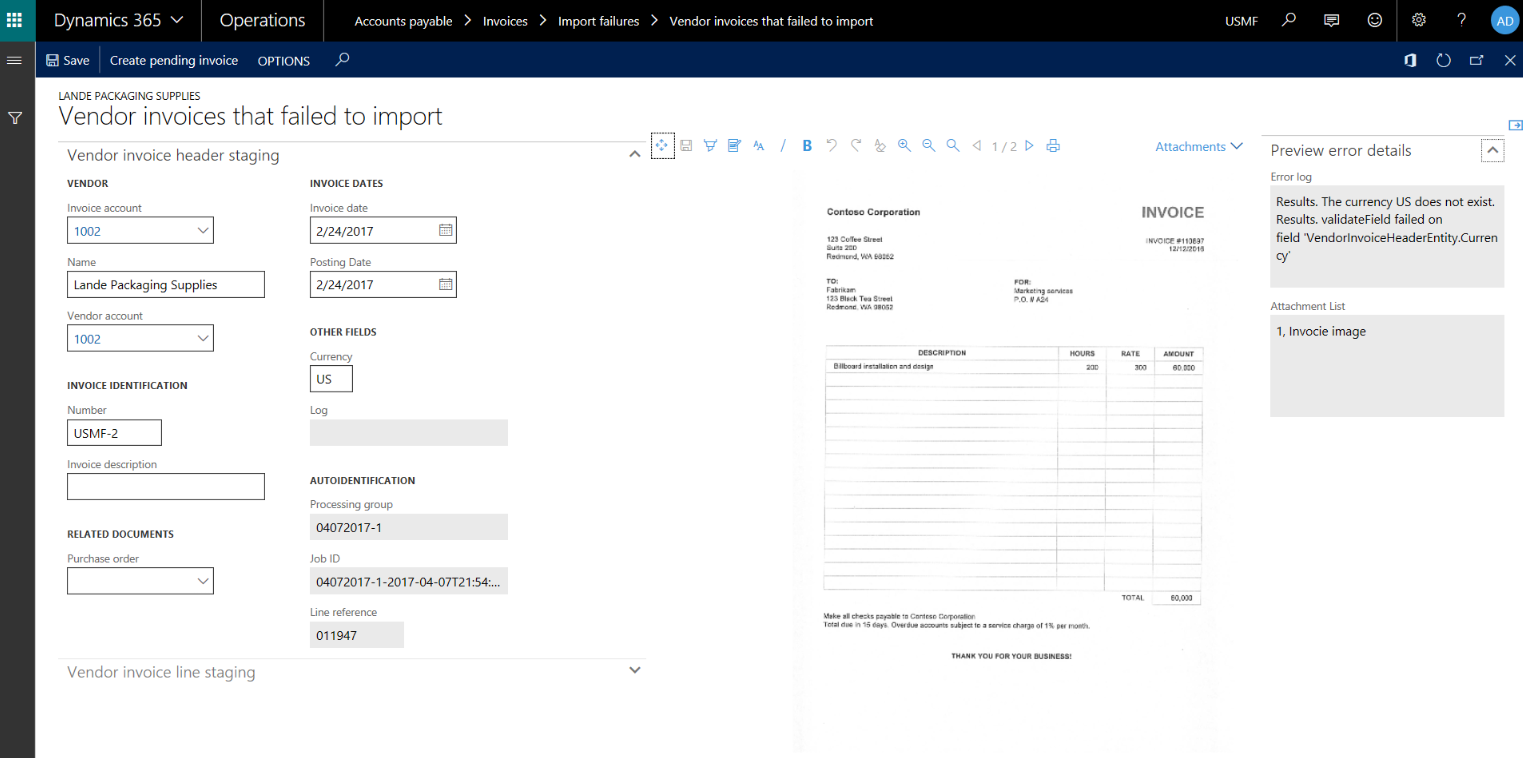
    One of the most common asks from customers in the AP invoicing area is the functionality of OCR and vendor invoice automation. Organizations often offload the paper invoice processing to 3rd party OCR reader service providers. These service providers provide machine readable metadata for the invoice along with scanned imaged the invoice headers and lines. In the July 2017 release, the solution/standard interface to read these invoice metadata and invoice scanned attachments is in-built into the AP invoice process of Dynamics 365. 3rd party OCR service provider systems will be able to send metadata feed for invoices directly to D365FO.

    This new functionality basically provides the following.

    • Out of the data entities invoice header, invoice lines, and invoice attachments.
    • Exception processing for invoices. A frontend UI for users to make it easy to track failed invoice imports.
    • A side by side invoice attachment viewer to imported invoices and exceptions.

    Vendor Invoice

    PowerBI reporting with Financial Dimensions:

    This feature will be available with July 2017 Update and you will also need to have the most recent Platform update of Dynamics 365, which is Platform Update 8. This features let’s the power users or the BI report creators to add financials dimensions to the readily available aggregated measurements or custom built aggregated measurements in the Entity store.

    With that, when the Entity store is periodically updated/refreshed, the financial dimension information of all the General ledger transactions will automatically be included in it. Then you can use those aggregated measurements to write joins, queries within Power BI to create any sort of financial report/dashboard within Power BI itself. Screenshot below shows just an example.

    Publish financial reports from Dynamics 365 to SharePoint:

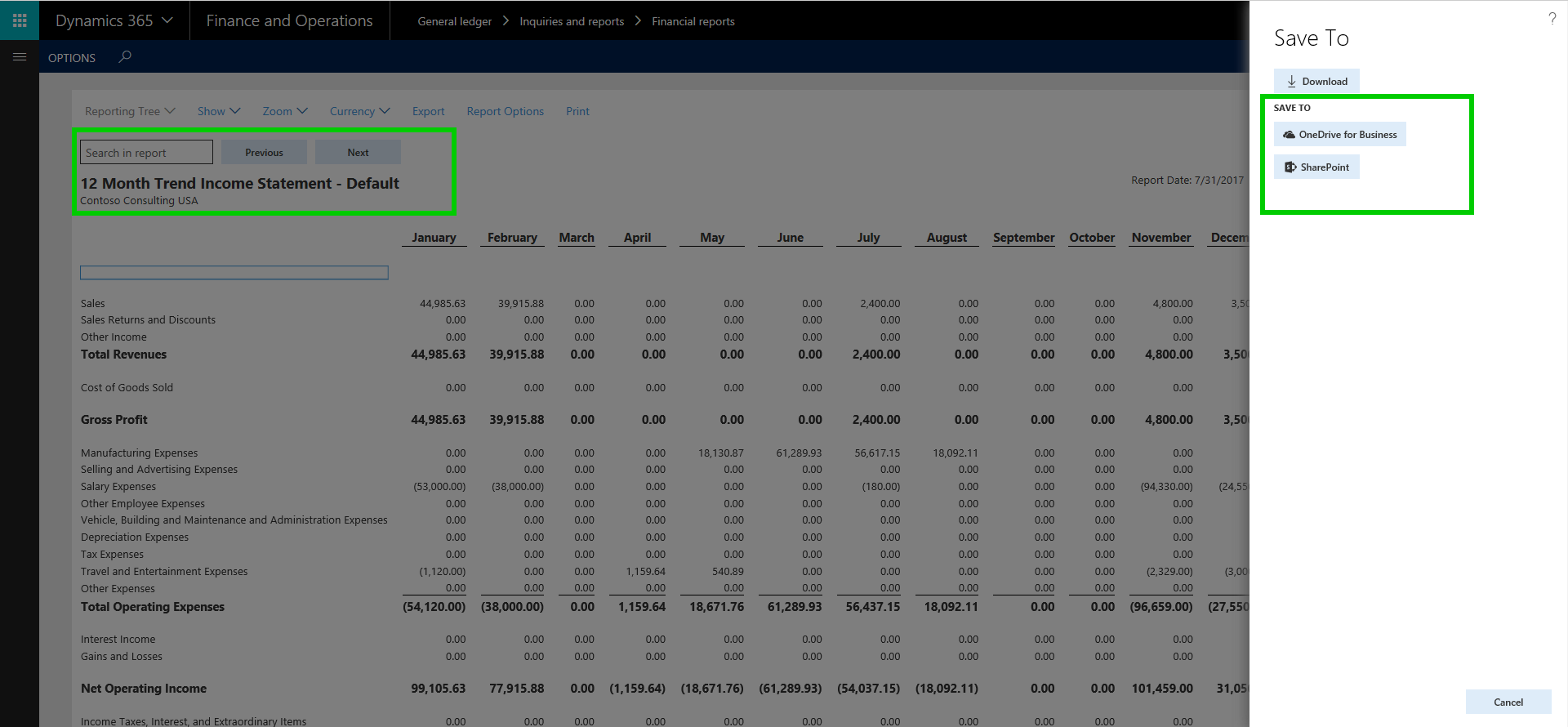
    In the earlier versions/releases, you could generate financials reports and export/save it to your local computer. With the July 2017 release, you can now save financial reports directly to a SharePoint document library. The benefit of this is, you can setup alerts within SharePoint to notify you when new reports are available.

    Note: I don’t have SharePoint configured in the demo environment, so not able to show the full experience.

    FInancials Statement to Sharepoint

    You could also extend this further and write a Microsoft Flow, to automatically send the reports directly to your inbox from SharePoint. Endless possibilities !!

    Tools for upgrade from AX 2012 or AX 2009 to Dynamics 365:

    You can upgrade from Dynamics AX 2012 to Dynamics 365 for Finance and Operations, Enterprise edition. The complete Dynamics AX 2012 database can be brought forward, and your AX 2012 codebase can be upgraded to Finance and Operations. You can migrate from Dynamics AX 2009 to Finance and Operations via a migration toolset to bring forward master data and opening balances. It would be interesting to test these upgrade experiences and tools as opportunity comes !! 

    The Upgrade is now more predictable, which reduces the overall cost of the upgrade process. Upgrade starts with an automated analysis phase, which defines the preparation tasks required to reduce the time and cost to upgrade, as well as the ongoing future cost of Finance and Operations. Post upgrade, an automated validation phase provides statistics and metrics on the success of the upgrade process. The validation details can be used to quickly assess the state of the upgrade, so you can continue with functional testing and sign off.

    In Finance and Operations there are no expensive upgrades needed to stay current and take advantage of continuous innovation. You can update to the latest versions of the product with a click of a button.

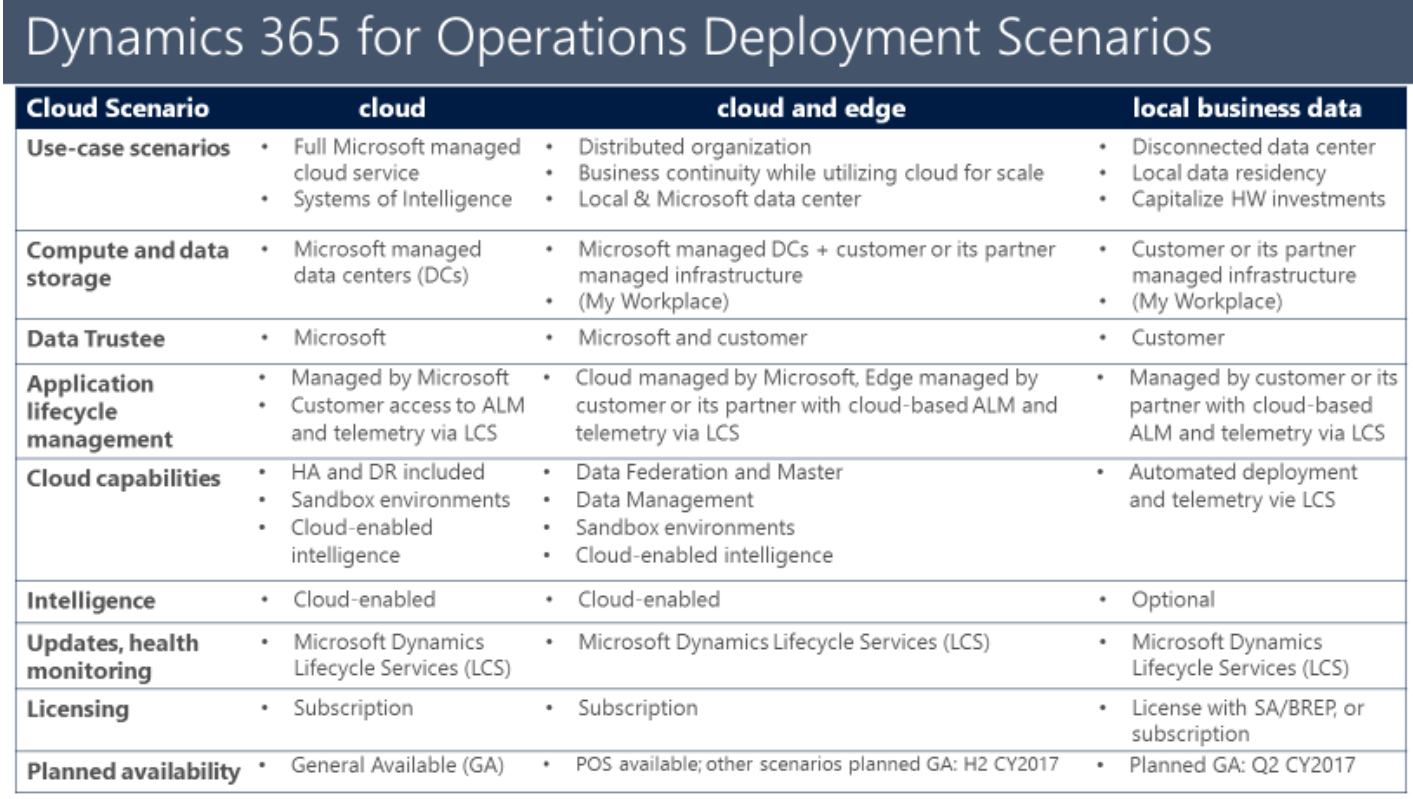
    Support for Hybrid Cloud (Cloud + Edge) and Op-premise (Local Business Data) Deployment scenarios:

    In one of my earlier posts, I explained some details about the 3 different deployment options that Dynamics 365 is going to provide. Starting with the July 2017 Update, both these deployment options are available. Customers who are keen on having an On-premise deployment of Dynamics 365 for Finance and Operations to capitalize on their existing infrastructure investments or due to data security and compliance requirements, will have the option to deploy D365FO in Hybrid as well as On-Premise model.

    d365-opr-deployment-scenarios

    Microsoft published system requirements documentation explaining the detailed system requirements for an On-premise deployment of D365FO. You can find the information at this URL

    There was system requirements document also that Microsoft published. See URL below.

    https://www.microsoft.com/en-us/download/details.aspx?id=55496

    I will share more info about this in future as we move with some testing and some actual deployments for customers.

    That was a long enough post :). There are several other features and functionalities across technology stack, Retail and manufacturing modules, that I have not highlighted here in this post. There is a lot to explore and learn!!!

    Stay tuned and stay current !! Till next time..

    Regards, Sandeep

  • Powerful Mobile Workspaces/Apps in Dynamics 365 For Finance and Operations, for Android and iOS, Get more done on the Go!

    Starting with the Update 3 release of Dynamics 365 For Finance and Operations (I will refer this as D365FO from here on), Microsoft introduced the concept of “Mobile Workspaces” for D365FO. This works across all major mobile platforms, i.e. Android, iOS and Windows. The idea behind the mobile workspaces is to create and enable business process experiences for users of D365FO on mobile devices of any form factor, with purpose-built workspaces for various functions such as, Expense entry, Expense approval, timesheet entry, timesheet approval, invoices approval and more. All these workspaces are contained within one app, that you can download from Google Play Store or Apple Appstore. These are NOT individual mobile apps to address specific business process functions.

    One of the key advantages of these workspaces is that, these are more configurable, that power users of an organization can create , instead of requiring heavy development skills (You would need to have basic level of understanding of the technical concepts of D365FO). I explained these mobile workspaces in one of my earlier blog posts here.

    Today, I was able to use the preview version of ‘Expense Management Mobile Workspace” on my android phone and found it phenomenally usefully. Mobile capabilities in an ERP that is really meaningful and easy to use, FINALLY !!!

    Here is a summary of my experience of using these mobile workspaces/apps.

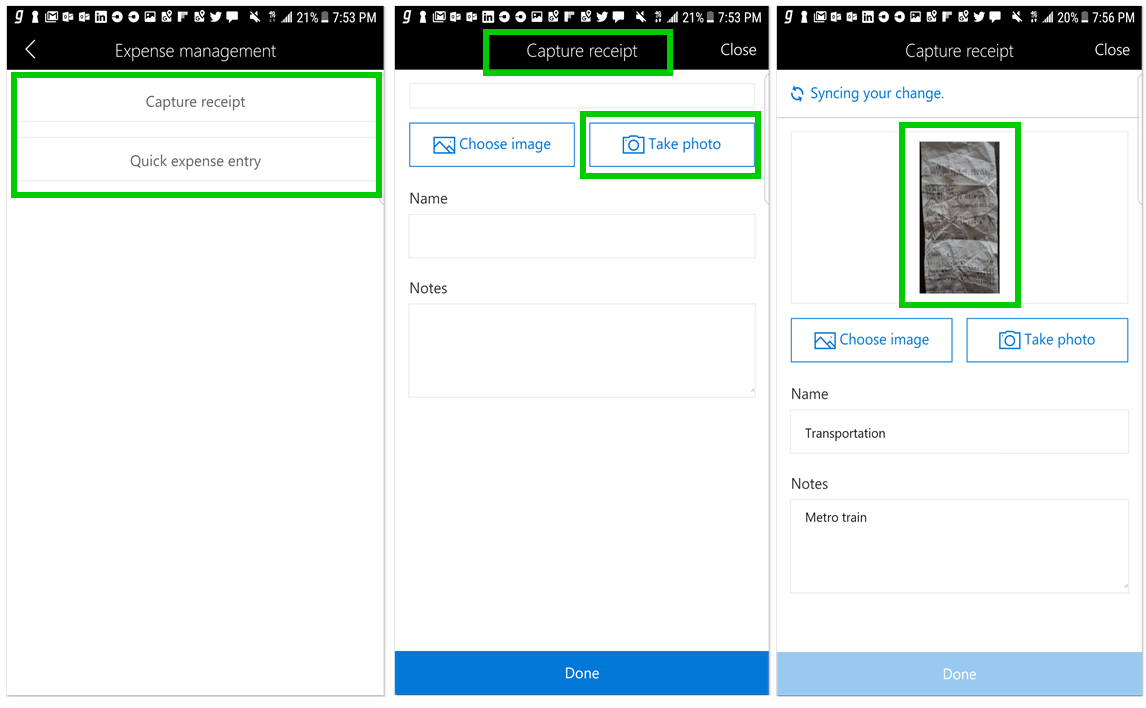
    One of the most important features that everyone needs in an expense reporting mobile app is the ability to easily enter expenses and easily capture receipts and upload them to the expense reports. The Mobile workspace addresses this in a very neat manner. This preview version of the app that I was able to play with, does both of these functions seamlessly in a very convenient way.

    • Easy to use interface. Nice use of the real estate.
    • Clean UI with minimal and key functions
    • Works lightening fast, Almost instantaneous.!!!

    You can download the app for Dynamics 365 for Operations here.

    Android

    IOS

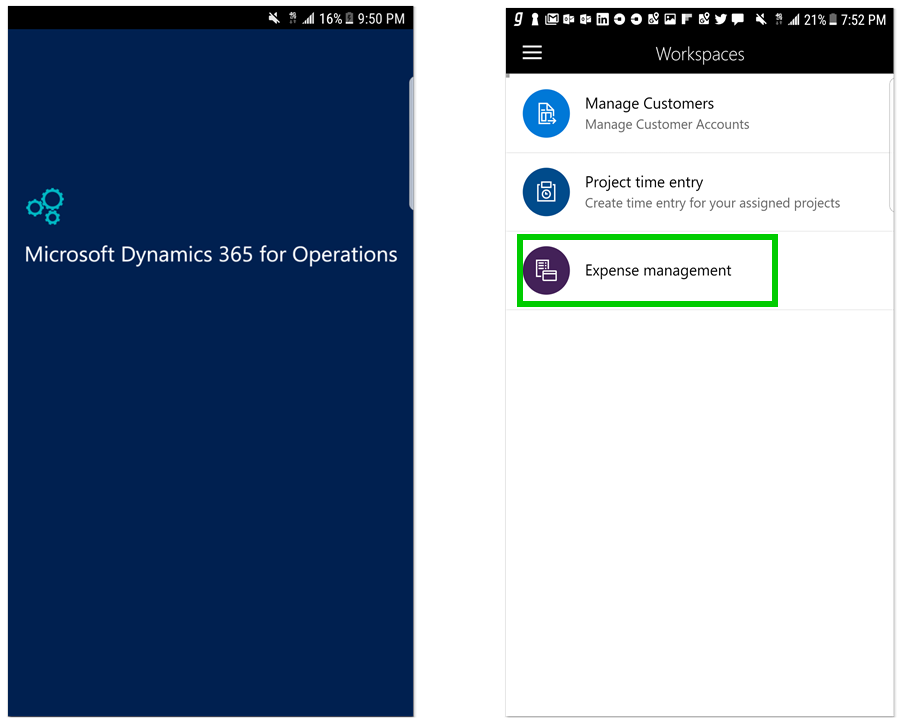
    Login to the app and view all available workspaces. For example, I have a few workspaces in my environment, as seen in screenshot below.

    Home Screen Login

    Quick Receipt Capture using Mobile App. You can take a photo or import an image from gallery and see receipts immediately in self-service workspace.

    Capture Receipts

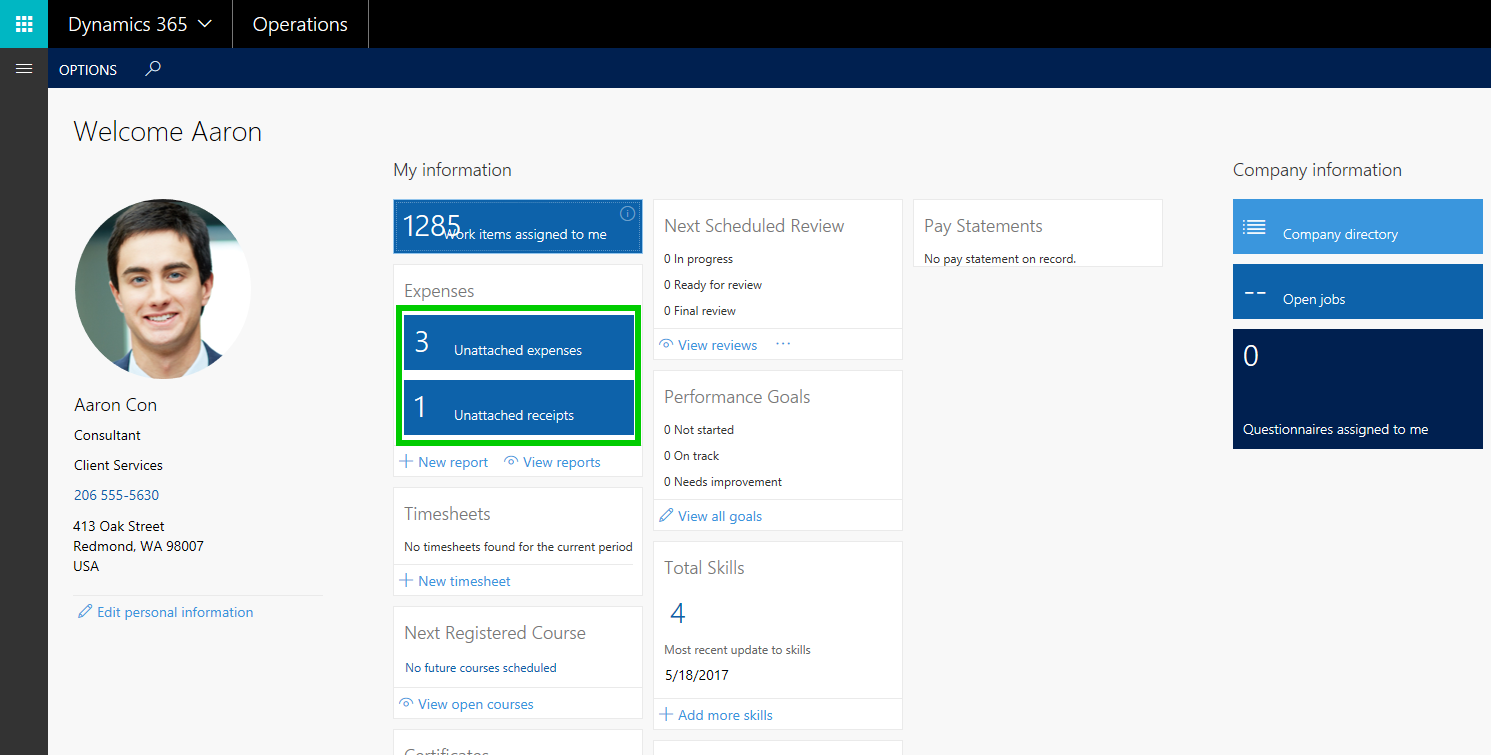
    ESS Workspace

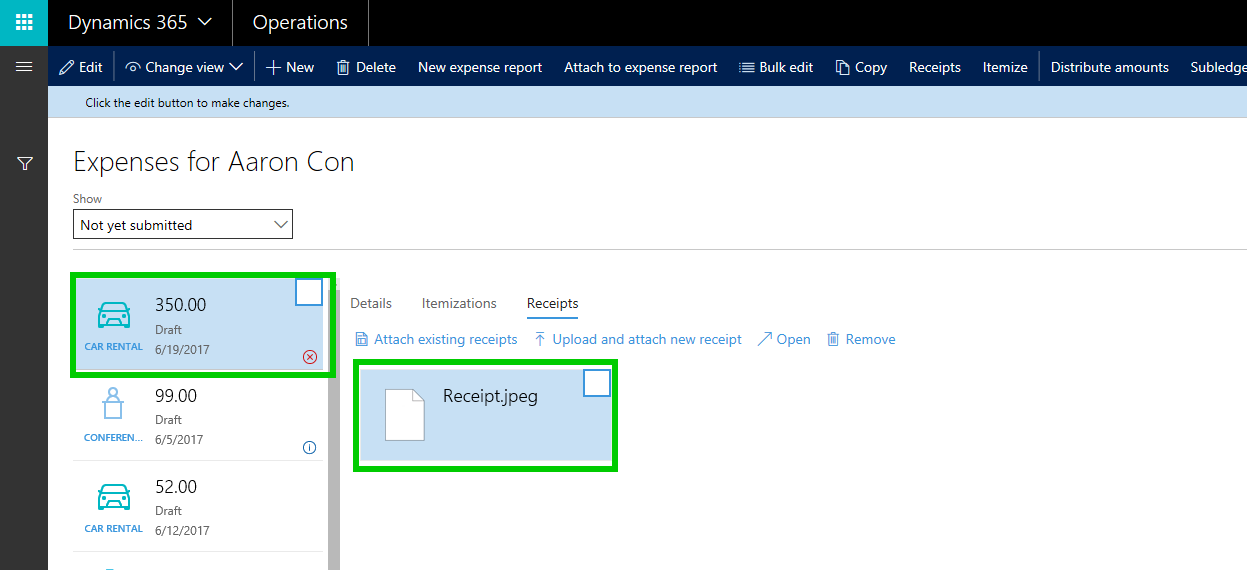
    Uploaded Receipts Available in ESS

    Enter Quick Expense lines using the mobile app and see the expense line instantaneously in Expense reports in self-service workspace.

    Quick Expense Entry

    Quick Expense Entry available in ESS

    The Mobile workspace and app for D365FO supports Offline capabilities also. You can enter your time and expenses and upload receipts when you are not connected or even when in airplane mode. The changes will sync immediately when you come back online. I was able to test this too and it worked flawlessly!!

    This was just a preview version of the Expense management workspace that I tested. When the Spring release 2017 is available for download in next few days, the full-fledged app/workspace  will be available, which will have a lot more capabilities such as  below.

    1. Create and submit expense reports using the app for reimbursement.
    2. Create expense report details such as expense itemization, guest expense split as per policy and more.
    3. Attach credit card transactions for expense reporting.
    4. Expense policies validated in real-time within the app.
    5. Review and approve expense reports in the app.

    Along with this, there will be several out of the box mobile capabilities for Project Time Entry (I was able to test the preview version of this app and it worked great too), Project time approval, Invoice approvals, Sales Orders management etc. and the list is going grow soon.

    Stay tuned for the next post on my analysis of the Spring 2017 release of Dynamics 365 For Finance and Operations, which should be available for download in next few days.

    Till next time !!

  • Manage your Project Resources efficiently with Resource request workflow in Microsoft Dynamics 365 For Operations

    In some of my earlier posts, I discussed about the various capabilities of the Project resource management feature of Dynamics 365 For Operations and how it can help Professional Services firms manage their project resources, to ensure optimum resource utilization, and drive better project profitability, by deploying the right people at the right time in the project..

    Continuing the conversation the this topic, I will discuss about some of the additional features that you can take advantage of, to manage your central pool of project resources even more efficiently. Your Project managers can better coordinate with Resource Managers, for finding and deploying the right resources by having visibility into resource’s capability and availability in real time.

    Resources

    In Dynamics 365 For Operations, you can optionally enable the Resource request workflow. When you enable the workflow, project managers can create and submit requests for resources whom they want for their projects. The Workflow can be configured to assign the resource requests to the required Resource Managers. Let us see in the few screenshots below, how this experience looks like for the Project Managers and Resource Managers.

    Resource Request approval Workflow :

    I have a very simple workflow setup, where the project resource request will be assigned to a designated Resource Manager of the Organization.

    Workflow

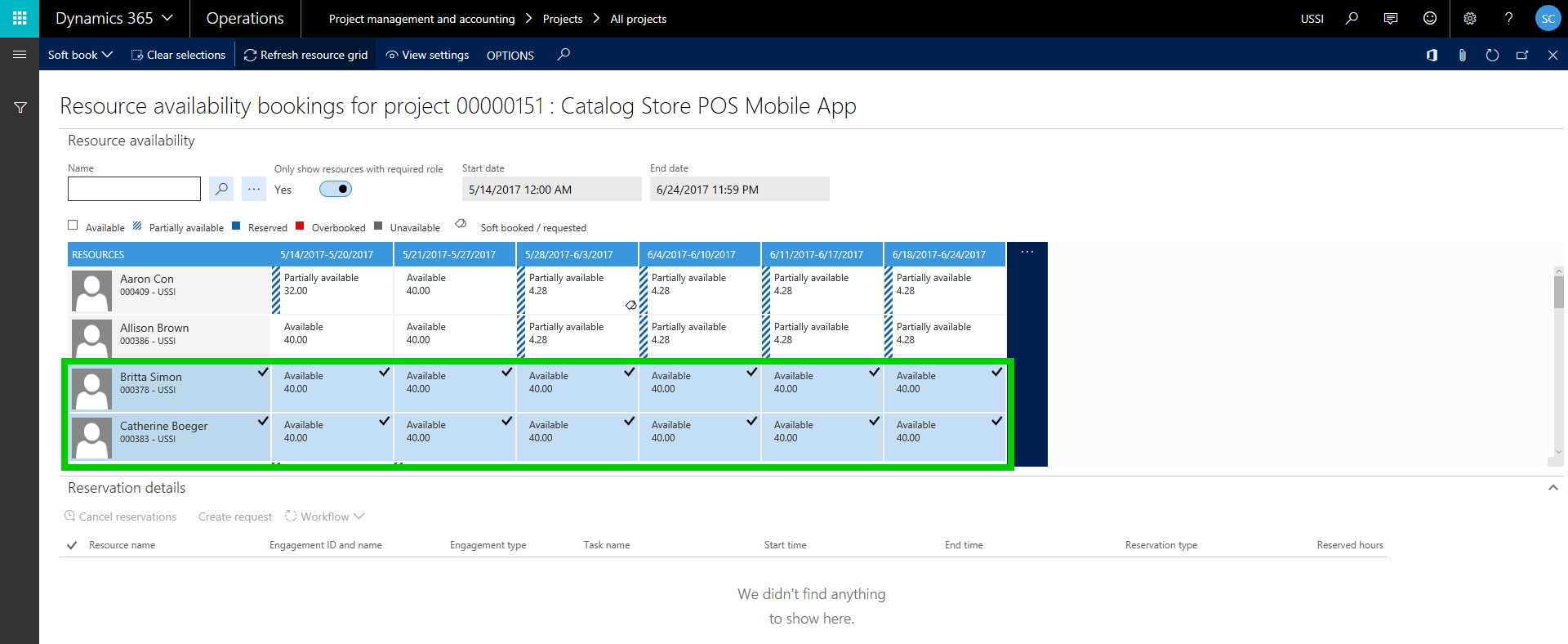
    Project Manager creates Project Team and submits request for resources: The Project managers can create the Project Team, where they can select available resources and submit the request for approval of the resources. The project manager requires 2 Software developers for this project. He is able to view the Resource pool of developers and testers and is able to view their availabilities.

    Developers

    The project manager then submits the request for these resources by soft booking (Tentative booking) them on the project.

    Create Resource request

    After the resource request is submitted, notice that the indicator shows that these resources have been requested.

    Resource Requested

    Resource Manager gets notified and reviews the resource request and approves the request:

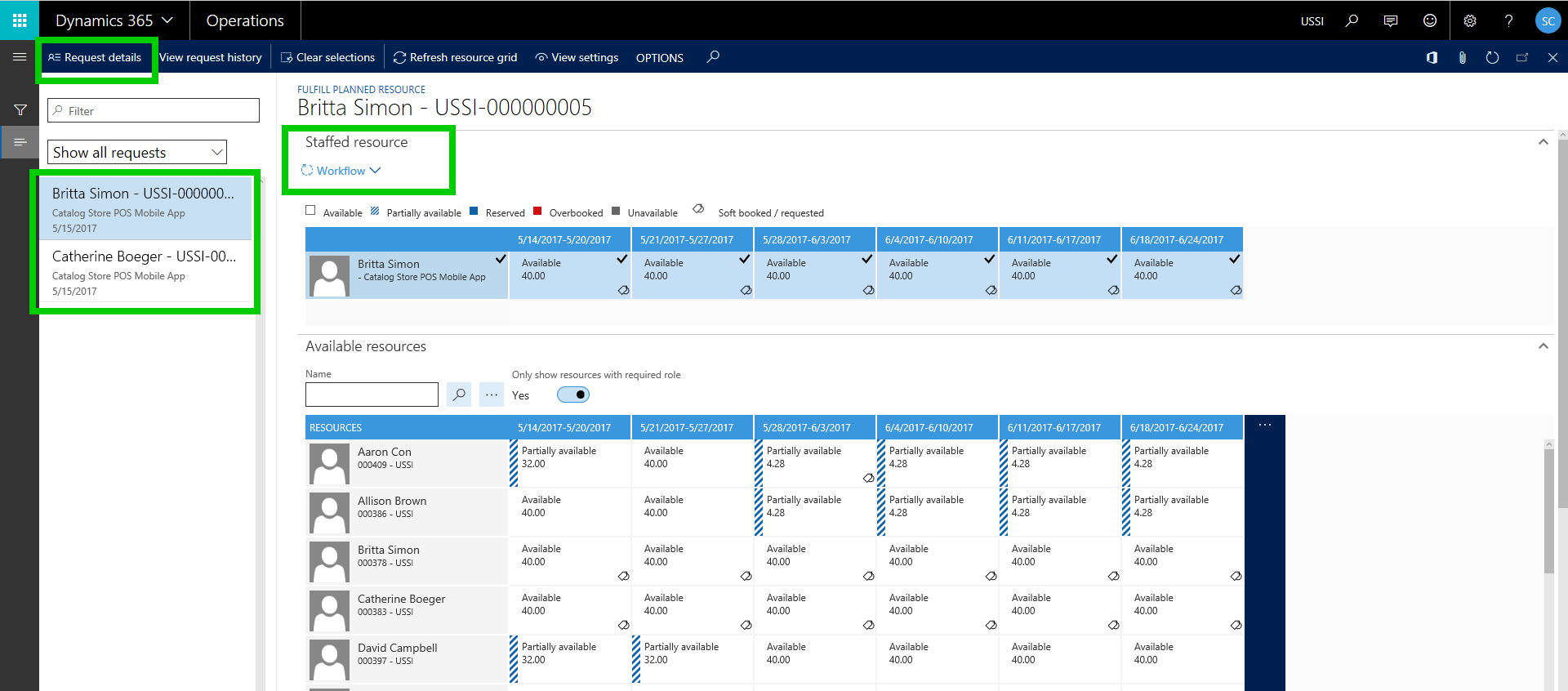
    Under My Resource Requests page, the resource manager gets to see all the resource requests where they can review the requests and approve/reject them. The resource manager also gets to see the other available resources and their current reservation details, in case they want to refer to those information. They can also see the details of resource request by clicking the Request details button.

    Resource Approval

    At this point, the Resource Manager approves the request and as soon as this is done, the resources will be automatically hard booked (Committed/booked to the project) and can be assigned to Tasks of the project further.

    Developers Booked

    That was a quick post about the new Resource request workflow feature for better project resource management in Dynamics 365 for Operations. Keep exploring !!

    -Sandeep Chaudhury

  • Vendor Prepayments and Revenue Recognition For Fixed Price projects in Dynamics 365 For Operations

    Vendor Prepayments and Revenue Recognition For Fixed Price projects in Dynamics 365 For Operations

    Hello, Good to be back here on the blog !!! Jumping straight into topic here today about a new addition of a feature for vendor prepayments in relation with fixed price project revenue recognition !!

    Issuing large amounts of prepayments to vendors is often a common business requirement for large scale, long term fixed price projects, which involves a lot of sub-contracted work. Vendors often request prepayments for the subcontracting services they are contracted to deliver for these projects. These prepayments can sometimes be just a flat amount based on mutual decisions, or it can sometimes be a percentage of the total cost of the subcontracting service. There can be several months of gap between when the prepayments are issued and when the vendors actually delivers the services.

    For such projects, customers usually recognize revenue on a percentage completion basis and need the ability to include these vendor prepayments in the project percentage completion calculation of the project for revenue recognition/revenue estimates calculations.

    In this post, we will evaluate one of the new features of Dynamics 365 For Operations (Referred as D365 – Operations from here on), which allows to consider these vendor prepayments automatically when running the monthly revenue recognition/estimates for fixed price projects for calculating the % completion of the project.

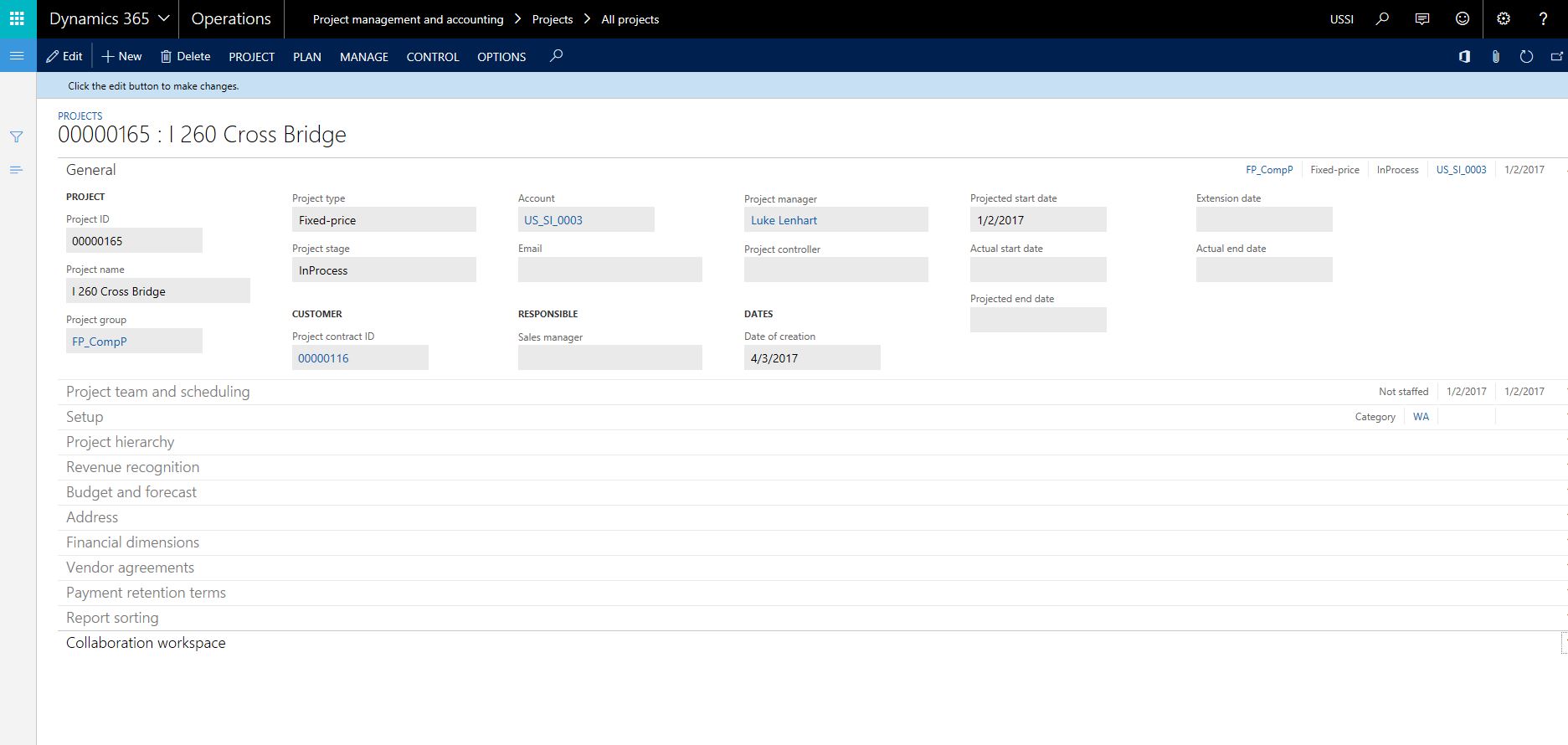
    For this demonstration, I have setup a fixed price project and the associated contract already. This project is setup to recognize revenue on a % completion basis.

    Contract Setup

    Project Setup

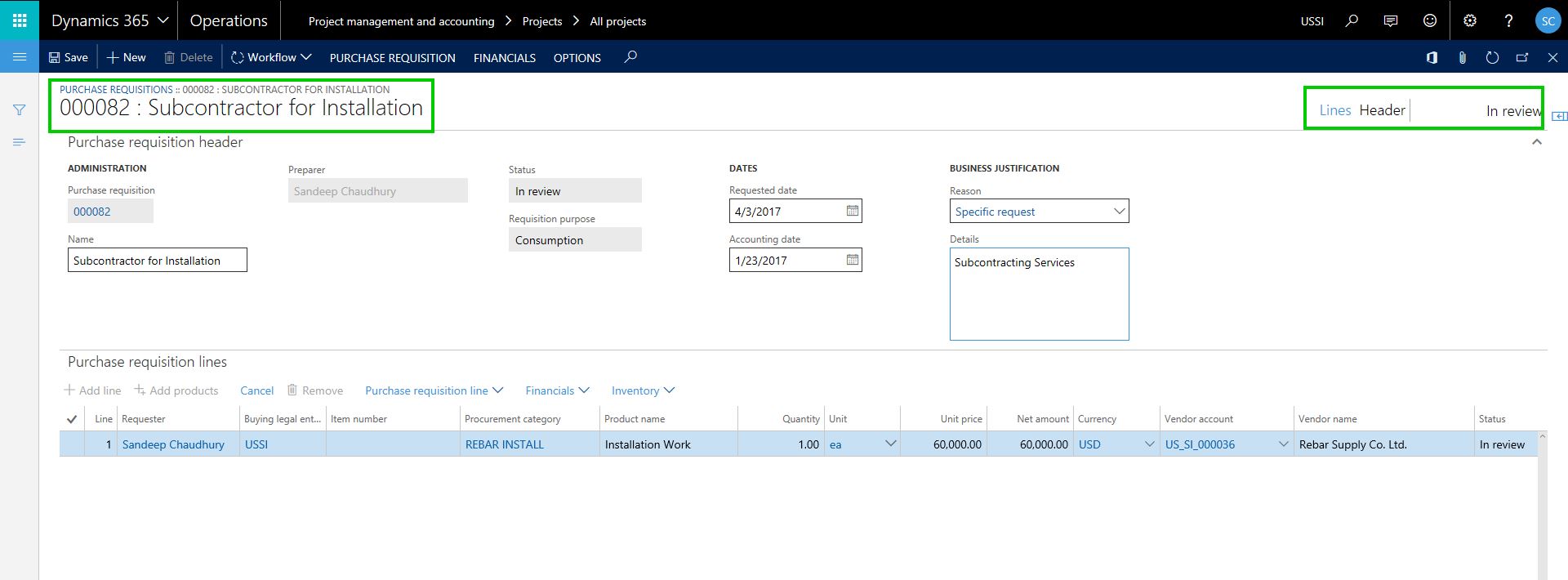
    The Project Manager has created and submitted the purchase requisition for approval, so that the services can be procured from Rebar Supply Co. Ltd. See screenshot below.

    PR Submitted

    The purchase requisition gets approved by the designated manager and the Purchase order is automatically crated. See screenshot below.

    PR Approved

    The Project procurement team/Project manager then sets up the prepayment details on the project purchase order that was automatically created upon approval of the requisition.

    PrepaySetupOnPO

    Finance and Accounting team now processes the prepayment invoice to initiate the prepayment to the vendor.

    Prepay Invoice

    Prepayment

    Now that the finance team has processed the vendor prepayment for the subcontracting work, let us now go ahead and see what happens when they run the monthly revenue recognition process for this project.

    Notice that system was able to consider the vendor prepayment cost for the project and was able to determine the percentage completion based on the total project budget/forecast defined. See screenshot below

    PComp

    When this revenue recognition entry is posted, the revenue amount (based on Percentage complete and the total contract value) will be posted to general ledger. We all know how it works from here :)

    That’s it for today !!

    Sandeep Chaudhury **