Category: Dynamics 365 Project Operations

This page focuses on D365 Project Operations Topics

  • Time & Expense Entry: The Task no one loves but is critical for all project/service-based organizations – Now Handled by AI Agents in Dynamics 365

    Time & Expense Entry: The Task no one loves but is critical for all project/service-based organizations – Now Handled by AI Agents in Dynamics 365

    Let’s dive into the new innovative Time Entry and Expense Entry AI Agents, which are now available in a production-ready preview within Dynamics 365 Project Operations and Dynamics 365 Finance & Operations! These are not just another feature; it’s a significant step forward in Agentic business applications that can truly transform how we handle project management.

    If you missed my last post about the AI Agentic T&E Approvals capability, you can read it here. That post mainly focused on simplifying and automating approval tasks for project managers.

    Why First Party Agents for Time & Expense Entry:

    Microsoft has released new AI agents in Dynamics 365 to make time and expense entry easier, a task often disliked in project work. These agents automate the process from capture to submission, cutting down on manual effort and mistakes. The integration with Dynamics 365 and Teams supports secure, efficient workflows. This is part of Microsoft’s effort to integrate AI into daily tasks, allowing employees to concentrate on more valuable work.

    The Benefits are aparent:

    • Reduced administrative overhead: Agents create Time and Expense Entries based on project bookings and receipts, saving time for employees. They review and submit these entries, allowing Finance teams and project leads to spend less time on follow-ups.
    • Accelerated billing cycles and cash flow: Real time and accurate capture of time and expenses ensure reduction is missed and incorrect T&E and faster invoice processing.
    • Improved Employee Experience: Employees interact with AI Agents within the flow of their work, i,e., Microsoft Teams. This reduces friction and improves adoption.

    Who this is for:

    If your organization uses Dynamics 365 Project Operations and/or Dynamics 365 Finance and Operations, you can use these new agents. If you only use Dynamics 365 F&O for expense reporting, you can deploy the Expense Entry agent.

    Let’s see the Agents in Action:

    The Time Entry Agent understands your project assignments and bookings and does automated time entry for you. It can check previous weeks’ timesheets and create current week entries based on that. It also generates smart comments for entries by looking at the project task details like the description and project name. Additionally, it can analyze your Outlook meeting invites to make comments based on meeting event titles.

    You can review time entries created by the agent directly in Microsoft Teams, make changes as necessary and submit for approval. The agent also tracks unsubmitted entries and notifies you for proactive submission.

    The Expense Entry agent on the other hand is even more powerful. All I need to do as an employee is capture my receipts on my phone and send the captured images or PDF files to the mailbox used by the Expense agent. The rest is done by the agent for you. Here is what does for you.

    • Process the receipts from your email or the ones you uploaded via the expense app.
    • Extracts receipt info and create expense lines automatically.
    • Not only that, it goes ahead and creates the expense report for you based on trip or by project (based on config) and sends a live summary of the expense reports in Teams for you to review and submit.
    • Additionally, it can intelligently identify active projects and assign those based on project location matching if you do project-based expense reporting. If you do your reporting by trip, it can create reports based on the location of travel and associate receipts. The agent can read your calendar events to look into details which may have key details such as location, project ID/name and use it identify project IDs that the expenses needs to be associated to.

    As an employee, you go from just sending receipts to the agent to just reviewing your fully prepared expense report within Microsoft Teams for corrections or submissions. Putting things into perspective, I can see saving an average of 20-30 mins per expense report. More than the amount of time it saves for you, it is the tedious manual work you don’t have to do.

    How can you deploy these for your employees today:

    To deploy the production ready(preview) agents today for your workforce, you will need to ensure the underlying features are enabled and the agentic automation infrastructure is setup correctly. This is more of an administrative one-time setup to get the agents up and running.

    For the Time Entry Agent:

    • Ensure you are on version 4.140.0.239 or late for Project Operations.
    • Enable the Feature for Time and Expense Agent in Project Operations.
    • Activate the power automate flows (used by the agent to complete actions on behalf of the employees, such as create time entries, expense reports etc.)
    • Finally, publish the agents in Microsoft Copilot Studio and optionally share in Teams channel/apps for your employees to get the full experience.
    • Follow Microsoft official guidelines here.

    For the Expense Entry Agent:

    • Ensure you are on D365 F&O version 10.0.44 or later
    • Enable the features for “Immersive home and Agent management in F&O.
    • Setup the Agent behavior under the Expense management parameters.
    • Setup a shared mailbox (This is where your employees can send their receipts to or just upload via the expense mobile app).
    • Activate the power automate flows (used by the agent to complete actions on behalf of the employees, such as create time entries, expense reports etc.)
    • Finally, publish the agents in Microsoft Copilot Studio and optionally share in Teams channel/apps for your employees to get the full experience.
    • Follow Microsoft official guidelines here.

    Under the hood

    The agent orchestration is managed by Copilot Studio along with a set of key Power Automate flows for both the agents. For the expense agent, these flows perform actions such as extracting expense details from receipts, identifying project IDs, reviewing calendar events when necessary, generating expense reports, and sending them to employees via Teams cards. The process begins with a Power Automate flow that runs periodically to process emails containing receipts and added to the unattached receipts entity. The agent subsequently parses these receipts to extract information, creates unattached expense lines, links the receipts, identifies project IDs, and assembles the final expense report.

    Config Parameters that control the behavior of the Expense agent for report creation:

    Take the agents for a spin today and encourage your employees to take advantage of these.

    Regards

    Sandeep

  • Bridging Stocked Inventory and Project Delivery in Dynamics 365 Project Operations Integrated ERP Deployment – A True Game Changer!

    Bridging Stocked Inventory and Project Delivery in Dynamics 365 Project Operations Integrated ERP Deployment – A True Game Changer!

    Microsoft has just closed a critical gap in Dynamics 365 Project Operations with the release of Manage Stocked Products for Integrated ERP Deployments. For leaders overseeing material-intensive projects in construction, engineering, field services, this is the missing link that finally aligns inventory control with project delivery in a unified ERP architecture.

    With this feature, organizations can now:

    • Gain real-time visibility into on-hand inventory via Dynamics 365 Finance & Supply Chain Management
    • Track material usage across the full project lifecycle—from estimation to invoicing
    • Automate cost and revenue recognition tied to stocked product consumption
    • Eliminate reliance on Project Management and Accounting module in F&O and start thinking about migrating to the modern architecture of Project Operations

    For project executives and operations leaders, this capability is more than a feature, it’s a strategic lever. It streamlines material tracking, strengthens cost control, and enables real-time inventory visibility, driving smarter decisions and faster execution across complex, resource and material intensive projects.

    I was finally able to get my hands on this preview feature, and I am excited to share some insights. I am not going to discuss the step by step of how to enable the new feature. You need to make sure you are on the latest versions of D365 Project Operations (4.1.142.0 or later) and F&O (10.0.44 or later) and work your way through the necessary dual-write setups.

    Let’s get to the crux of what this new feature offers.

    Viewing Inventory Products in Project Operations:

    Dynamics 365 F&SCM serves as the main source for managing inventory. Both stocked and non-stocked products are created and managed in D365 F&SCM. New products are immediately visible in Dynamics 365 Project Operations for project managers and stakeholders.

    When this new feature is enabled, you will see the new Products menu/site map where you can view all products that came in from D365 F&O SCM automatically. This leverages the “unified products management/integration” between F&O ERP and Microsoft Dataverse.

    Product Cost and Sales Prices:

    D365 F&SCM offers comprehensive pricing engine for products and is the source of truth for the cost and sales price data for products. The standard cost and sales prices specified for the product in D365 F&SCM automatically sync over to Project operations again using the “unified product integration architecture”, where they sync the prices into the cost and sales price lists within D365 Project Operations.

    For now, this feature uses the defaults prices for the products, however I am fully expecting this to mature into leveraging the “On demand D365 SCM pricing engine” at some point in the future.

    Viewing available on-hand for stocked inventory products:

    On the Products page within Project Operations, Project managers/stakeholders can view on-hand inventory products if required. This comes in handy where they get visibility into real time inventory without having to navigate to D365 F&O.

    Include stocked products in project estimates, quotes/contracts:

    Project Managers and stakeholders who are working on project quotations, estimations or project contracts can now include stocked inventory products.

    Buying stocked inventory for projects:

    Project managers or Procurement managers can now include stocked inventory materials on purchase orders they created for a project in the integrated ERP deployment.

    Important Note: Project Operations in the Integrated ERP deployment already supports non-stocked items/procurement category-based purchase orders, however with the introduction of the support for stocked inventory products, there is a difference in when the costs of the stocked materials are posted to the project and general ledger. As soon as the PO is confirmed, the necessary accounting distributions are created using the ledger posting profile for Items for projects. This accounting distribution is used to post the cost to the project and GL as soon as the vendor invoice associated with the PO for the stocked product is posted in F&O. This behavior is different than how it posts in case of a PO that has non-stocked products or procurement categories where the costs are posted to a temporary procurement integration account and synced later from Project Ops Dataverse using the actuals integration journal. Little technical details, but important for consultants!

    Posting vendor invoices for stocked products on projects:

    When vendor invoice for the purchase order for stocked products is recorded and posted, the project costs are posted in D365 F&O into the project sub-ledger. The vendor invoice information automatically syncs over to Dataverse to generate cost and unbilled sales actuals and unbilled sales actual details comes back into F&O using the actuals integration journal.

    Note: As products are received at the warehouse, the product receipt transactions are not recorded in the Project actuals in Dataverse and don’t post to project sub-ledger in F&O. As this feature matures and adds more capability, I am hoping we will see capability where we can consume the cost of stocked products immediately upon product receipt. It is not supported at this in this release at least.

    Viewing on-hand and Consuming stocked inventory into projects:

    For existing inventory in stock, project managers can not only view real time available on-hand information for stocked products but also consume them into projects using the materials usage log of Project Operations.

    Dynamics 365 Project Operations validates the available on-hand inventory in real time here. If a material usage request was submitted for a quantity that is more than the available quantity for the Site and Warehouse, then the system throws error message there by blocking the submission. Similar validation is done upon approvals of material usage logs.

    Note: You can also consume stocked materials using the journal entry option if required.

    Inventory Costing, Project Costing & Adjustments:

    When materials are consumed using the material usage log in project operations, it uses the default cost price available for the product/material that was last synced from F&O.

    However, for stocked products, the consumption of inventory always happens at the weighted average cost of the item regardless of the costing method for the material.

    If the costs of the material transactions that came in the integration actuals journals differs from the weighted average cost of the material, the difference is synchronized back to Dataverse. This value is stored in a distinct data field named “Adjustment value” and it updates the Extended amount accordingly. There is a new batch job as part of this new feature that needs to setup and run which will basically sync these adjustments if any after the “Inventory Closing and adjustments” have been run in D365 F&O.

    That’s it for this post!!

    Best,

    Sandeep

  • Unlock faster time tracking, approvals, reduced revenue leakage, and accelerated billing with the new Time and Expense Agent in D365 Project Operations

    Unlock faster time tracking, approvals, reduced revenue leakage, and accelerated billing with the new Time and Expense Agent in D365 Project Operations

    For project and service driven organizations, accurately capturing and processing time and expenses is a balancing act between operational efficiency and revenue integrity. Manual entry delays, inconsistent submissions, and incomplete data can cause serious ripple effects—ranging from incorrect approvals, billing errors to delayed client invoicing and, ultimately, revenue leakage.

    Enter the new Time & Expense agent in Microsoft Dynamics 365 Project Operations, a game-changer designed to automate and streamline this critical process. Built on Microsoft Copilot Studio and the Power Platform, this intelligent agent not only empowers your employees to submit time and expense entries more quickly and accurately by staying in their flow of work within Microsoft Teams but also automates T&E reviews for project managers giving real-time visibility into project costs. The result? Faster time and expense approvals processing cycles, improved project accounting, and minimized revenue loss.

    The Agent is now in Production Ready Preview! If you’ve updated your solution to version 4.140.0.239 or later, you should already see it in action. While I’m still diving into the details of the Time and Expense Entry experience, I wanted to share a few quick thoughts on the Approvals Experience today. More insights to come soon—stay tuned!

    The new T&E Agent in Project Operations will transform the way your organization thinks about processing T&E entries and approvals. By simply uploading your organization’s T&E policy document, the agent intelligently interprets approval rules—automatically distinguishing which entries are “Ready to Approve” and which ones “Need Review.”

    Furthermore, it can process approvals for compliant entries on its own, significantly reducing the manual effort involved in reviewing each submission. This means project managers and approvers can focus their attention where it’s truly needed, while the agent takes care of the rest.

    The T&E policy document can look something like the below screenshot.

    You can just upload the policy document into D365 Project Operations under the Agent setup parameter area and agent does the rest of the work for you.

    Now that the policy document is in place, let’s see how the approval experience helps accelerate the T&E approvals.

    Let’s now go ahead and create, submit time entry. Bye the way, screenshot below shows the newly released Calendar view of the time entry which is Awesome. I strongly recommend you explore this further!

    Under the hood is an Approvals agent trigger which is a Cloud Flow that runs on a recurrence and gets the input parameters of each time entry lines that were submitted, parses JSON and passes on the dataset to the Copilot agent in Copilot studio.

    The agent configured in Copilot Studio has the detailed instructions, access to the policy document that we uploaded in Project Operations and agent tools (AIPlugin actions) to process the approval actions.

    Let’s now get back to D365 Project Operations and see how the agent flagged and/approved the submitted time entries. You can see the agent was able to flag the time entries as “Needs review” since they violated several of the policies. However, it was able to automatically approve the time I submitted on the “Holiday” project since my policy had an exception for that.

    It looks like our organization’s T&E policies are quite detailed—they even account for factors like resource assignment periods, task start and end dates and require all time entries to align with those parameters. The good news? The new agent gives you full flexibility to configure approval rules based on what best suits your business. Whether your policies are light-touch or highly granular, the agent adapts to reflect your organization’s expectations.

    Notice the agent was able not only able to flag but also was able to tell what policy the time entry line violated. From here, the approvers can take further actions on the time entry such as Approve/Reject or reassign to agent.

    So, what are the key take aways and how does the Approvals Agent benefit your organization?

    1. With the T&E agent, what was once a reactive, error-prone process is now a proactive, intelligent system that supports compliance, accelerates cash flow, and empowers teams to focus on delivering value—not chasing down hours and receipts.
    2. Reduces administrative effort and approval errors for Project Managers while speeding up T&E processing and project throughput. Project Managers gets to focus only on the flagged transactions and not thousands of lines that already meets the policies of the organization.
    3. Accelerates billing and enhances financial accuracy through automated, compliant time approvals. As long as time entries meet policies, they are automatically approved.
    4. As your organization adopts new changes according to changing business conditions, they just need to keep their policy document up to date and upload them in Project Operations and the agent will keep up.

    Next up, we will see how the Time and Expense Entry experience of the agent works and how it can benefit you.

    Stay tuned!

  • Multiple revenue recognition options/rules under one project in Dynamics 365 Project Operations Non-stocked/resource deployment

    Multiple revenue recognition options/rules under one project in Dynamics 365 Project Operations Non-stocked/resource deployment

    One of the common asks I hear from customers is the need to handle revenue recognition differently for different phases of a project. An example of this is “Contoso Electronics is working on a NextGen EV Electronics Design and Prototype build project for one of its customers. This is a fixed price contract/project that has 3 distinct phases.

    1. Design phase that runs for 3 months. This phase is billed in 2 milestones and revenue needs to be recognized upon Design completion.
    2. Prototype build phase that runs for 9 months. This phase is billed in multiple milestones and revenue needs to be recognized on a monthly basis based on % of completion.
    3. Post prototype support for enhancements work for 1 year. This is a fixed fee billed upfront and revenue needs to be recognized monthly on a straight-line basis.

    There is now a new feature Microsoft released in Dynamics 365 Project Operations Resource/Non-stocked deployment which allows you to accomplish this easily. Before this feature, we were needed to split these phases into 3 different projects, but that is no longer needed.

    The new feature is called “Enable contract line-based revenue recognition with Project Operations for non-stocked/ resource-based scenarios” and this was released in preview last week.

    When you enable this new feature, Project Operations will basically create a separate revenue estimate project for each contract line under the project contract. This allows you to setup one Project Contract that has multiple contract lines, where each contract line represents the work that will be done in each phase of the project. You can then associate separate cost and revenue profiles to each of the revenue estimate projects the system creates and handle the revenue recognition differently for each phase.

    So, for the example scenario I provided above, I have setup a Project Contract that looks like below. Each of the contract lines/project phase have their own invoice schedule and associated contract amounts.

    Screenshot below shows that system has automatically created 3 separate revenue estimate projects, one for each contract line. So basically, we now have a revenue estimate project setup automatically with their own contract amounts for each phase of the project, but the phases belong to one main project.

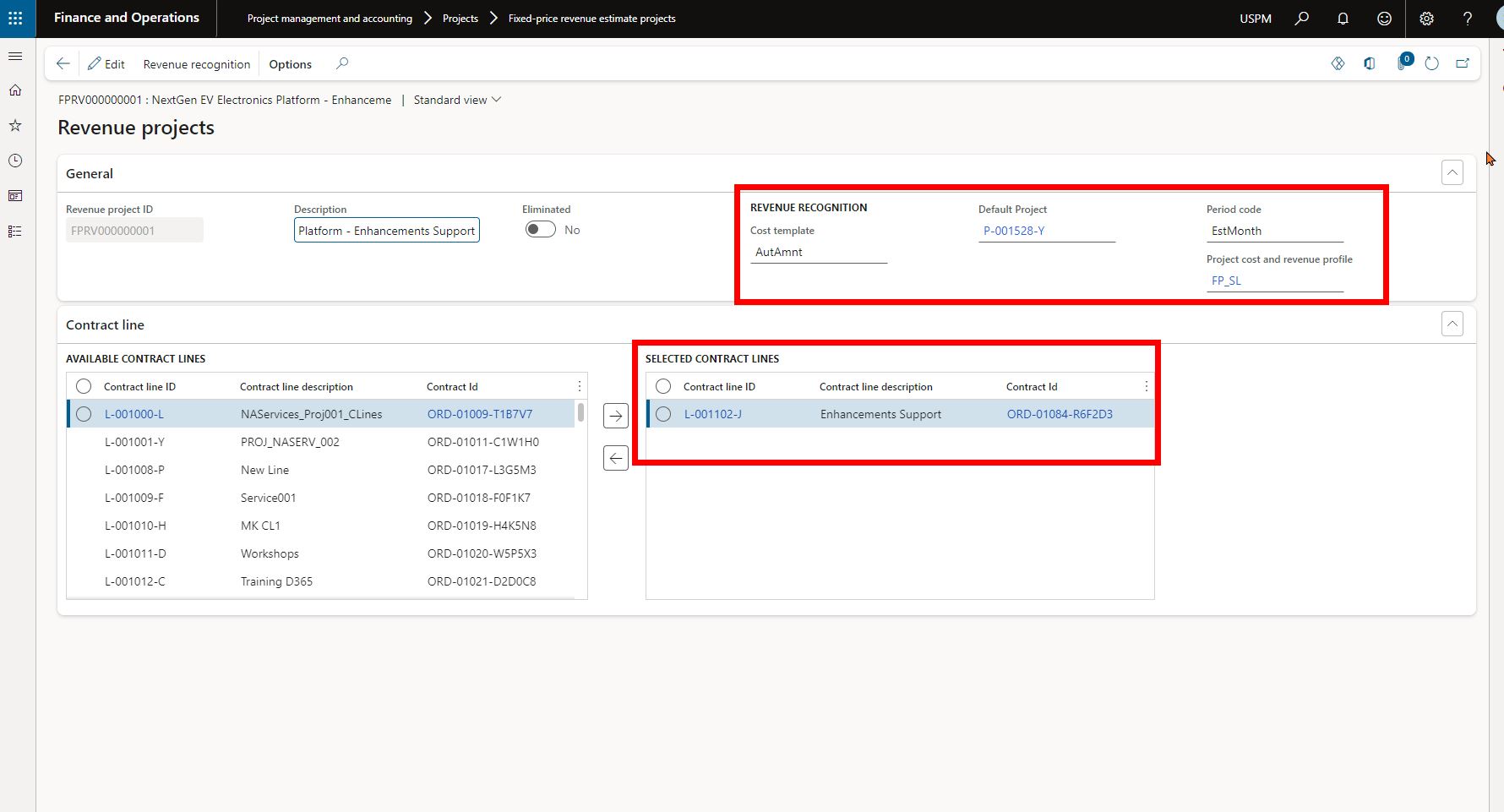
    Also notice that each of these revenue estimate projects is associated with a different Project cost and revenue profile ID, which allows you to process revenue recognition using different rules for each phase of the project. You will need to select the default parent project for each of these revenue estimate projects.

    The Design phase of the project has revenue estimate project that is associated with the corresponding contract line and is setup with a Completed Contract revenue recognition principle.

    The Prototype build phase of the project has revenue estimate project that is associated with the corresponding contract line and is setup with a Completed % based revenue recognition principle.

    The Enhancement Support phase of the project has revenue estimate project that is associated with the corresponding contract line and is setup with a Stright line revenue recognition principle.

    For the contract line that needs to follow straight line revenue recognition principle, you will additionally need to setup the start and end dates of the revenue recognition under the contract line in the project contract default accounting setup. See screenshot below.

    That’s it. From here on, when you run the job for revenue recognition, system will automatically calculate revenue recognition amounts based on the associated contract amounts for the contract lines and the cost and revenue profile setup.

  • Manage Retainer agreements/contract billing in Dynamics 365 Project Operations

    Manage Retainer agreements/contract billing in Dynamics 365 Project Operations

    For project based service organizations such as the Marketing agency, Legal and IT consulting world, it is very common to require their customers to partially or fully pay for professional services in advance of the work getting done. This type of billing agreement is called “Retainer agreement” or in simple terms you can call it as pre-billing. In some cases you may also need to define an automatic schedule for retainer billing. In this agreement, the service provider agrees to receive the cash in advance and commits to deliver the services when needed.

    When retainers are billed, the revenue is typically deferred and when the actuals on the projects are reconciled against the retainers/advances monthly, revenue is recognized

    The Project Management and accounting module of D365 F&O provides this functionality called “Customer advances”, which lets you bill retainers or advances to customers for projects. With the release of version 4.5.0.134, D365 Project Operations solution now has the Retainers and Advances functionality available to general public. This blog post highlights the capabilities of this functionality.

    There are 2 ways you can create retainers and advances for a project contract in D365 Project Operations.

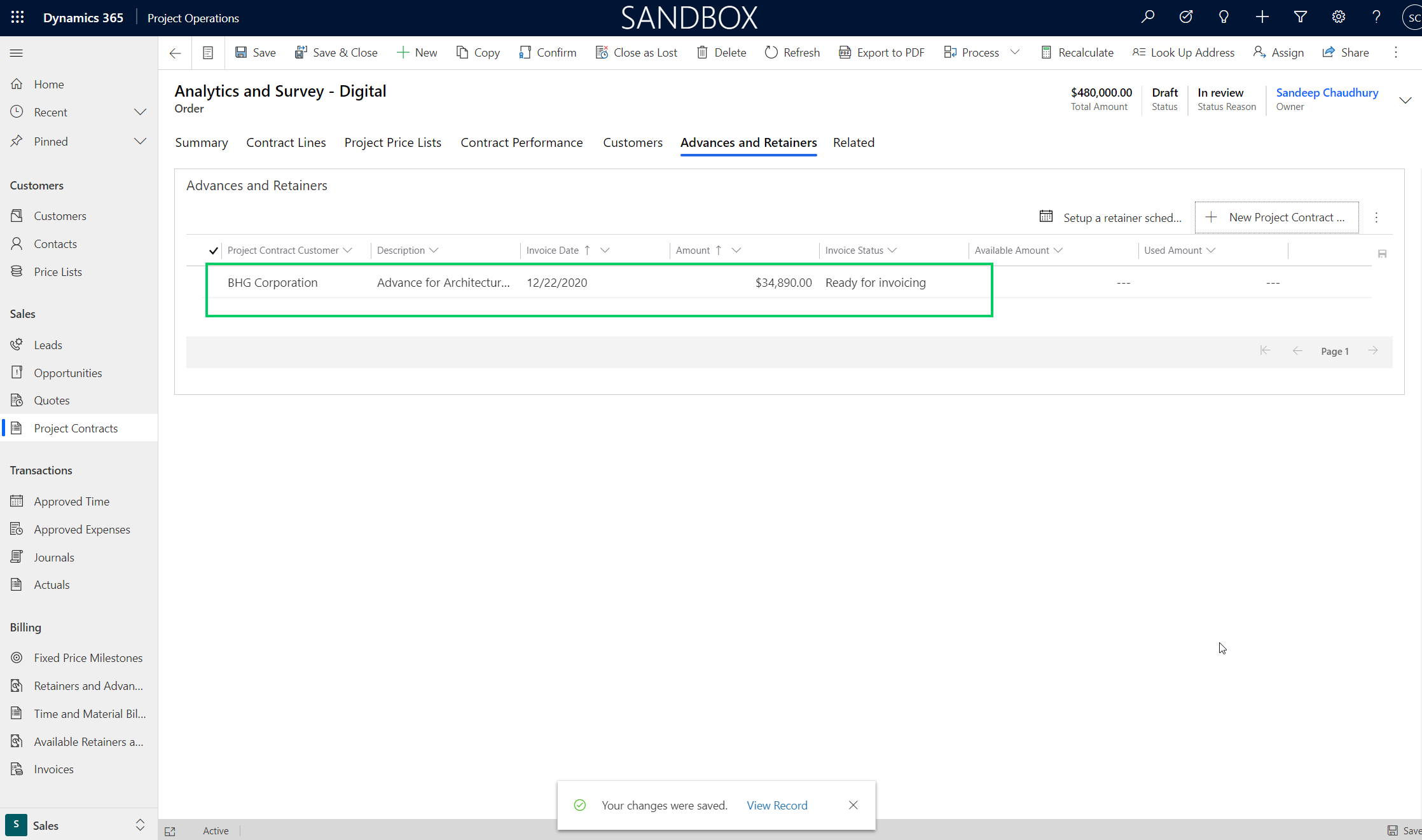
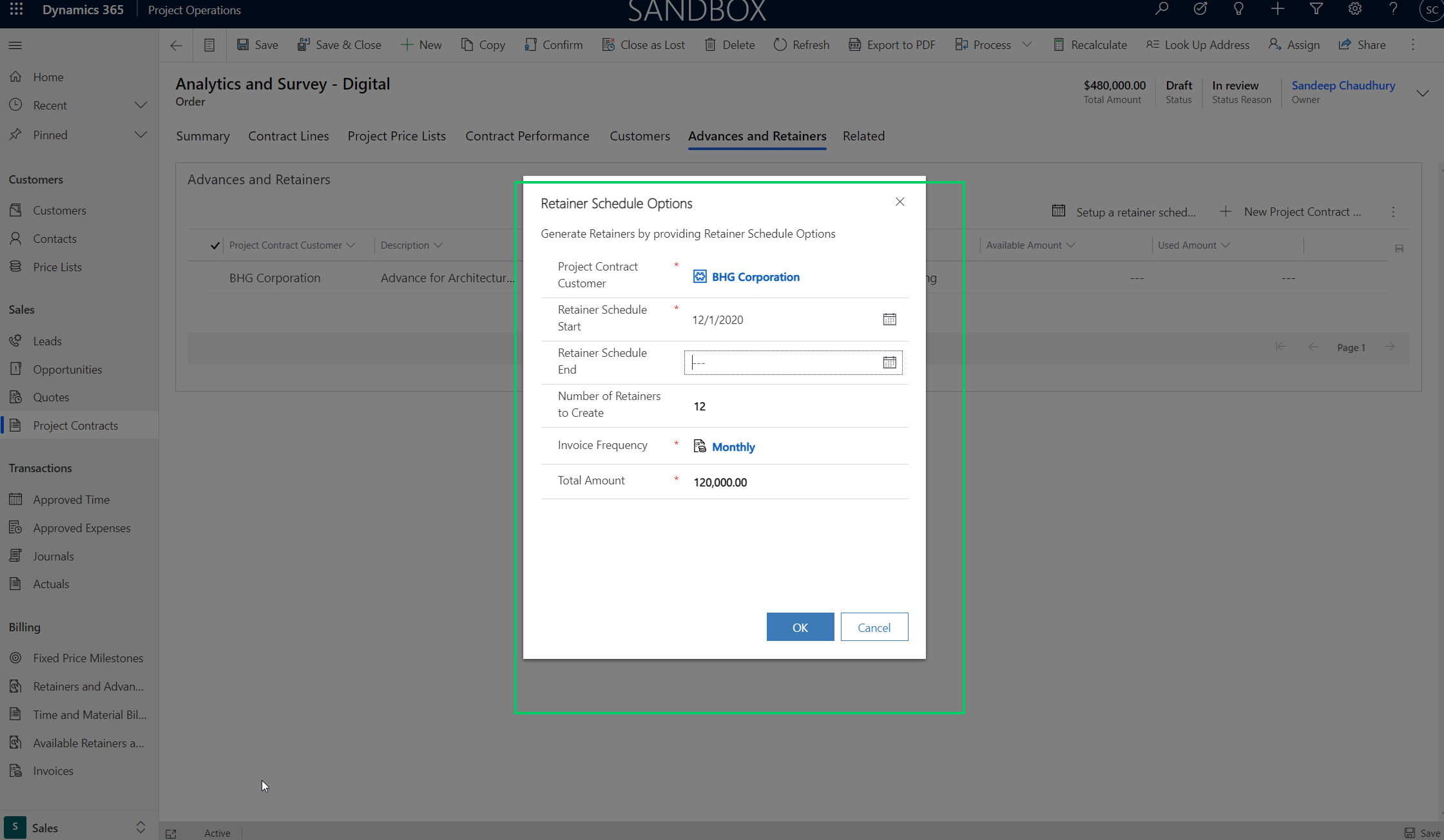
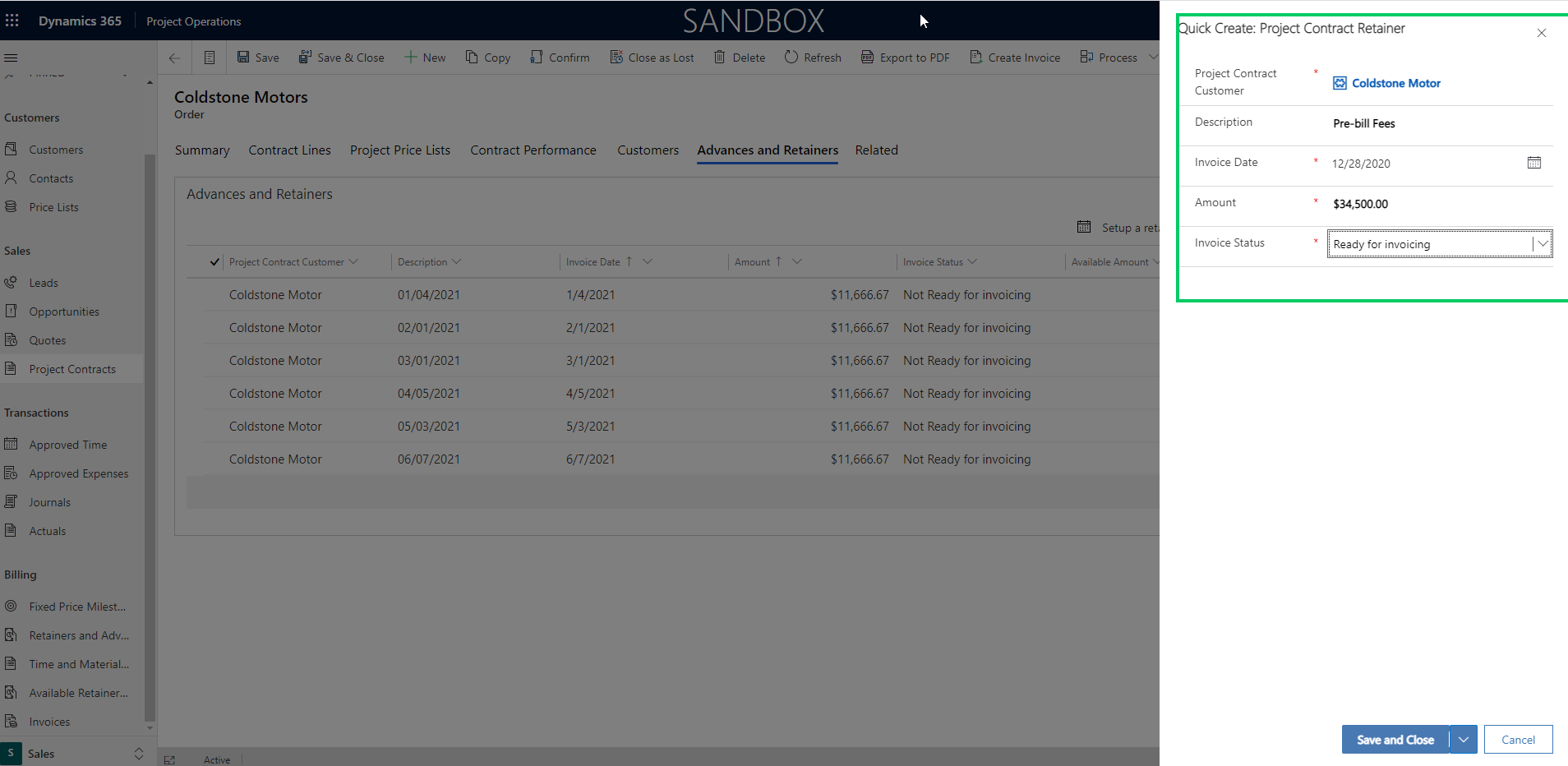
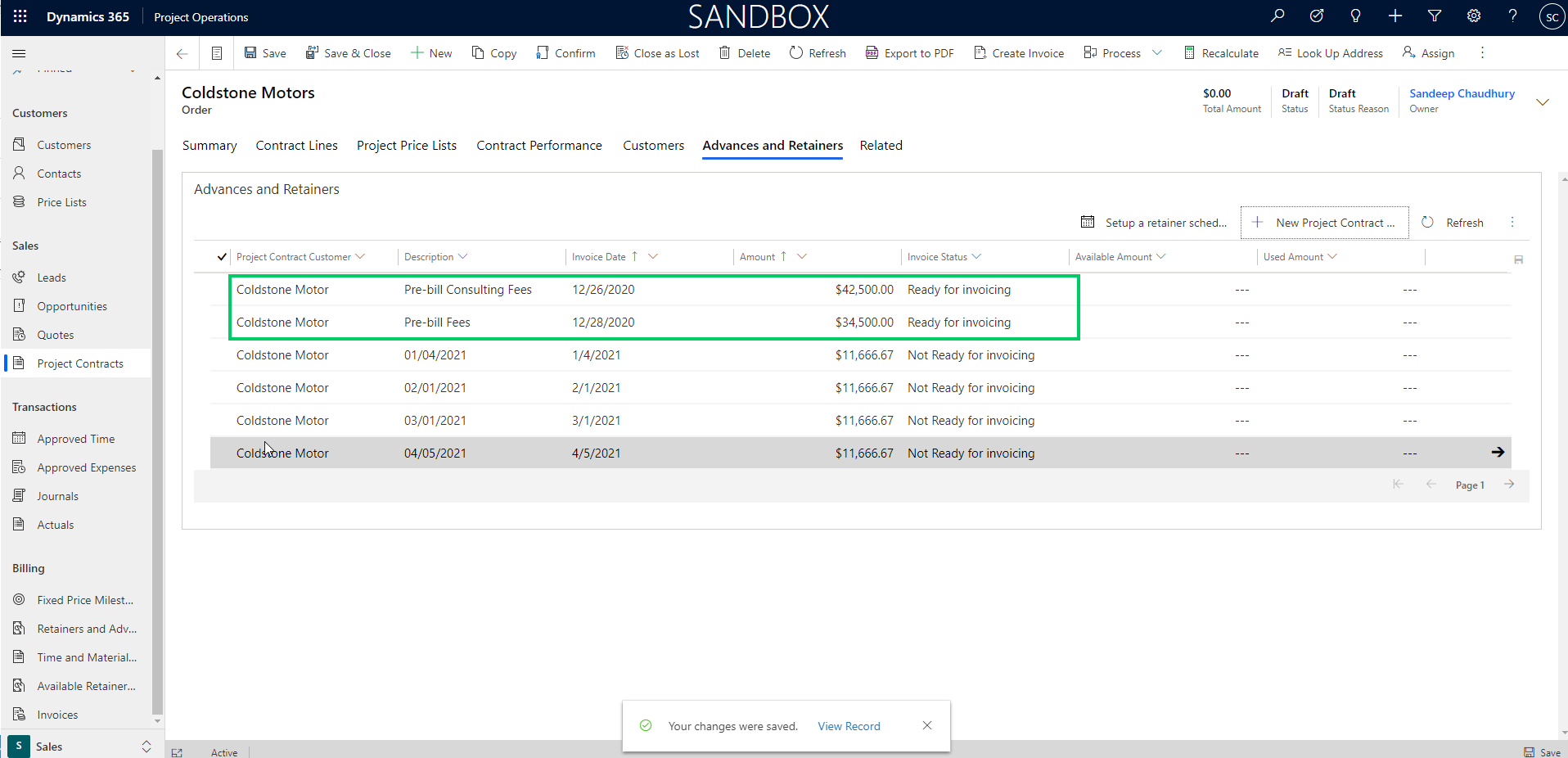
    1. Create an automated schedule of retainers to be billed for a certain period of time for a specific amount. System will automatically create the scheduled lines and if you have a automated batch job running for invoice creation, the retainer invoices will be automatically created based on the schedule.

    2. You can create them manually as needed on an ad-hoc basis.

    When you create the retainer/advance record on the Project contract, those amounts are just ready to be billed to the customers, once you have marked the lines as “Ready for invoicing”. Until you have billed the retainer, they are not available to be applied/reconciled against actuals.

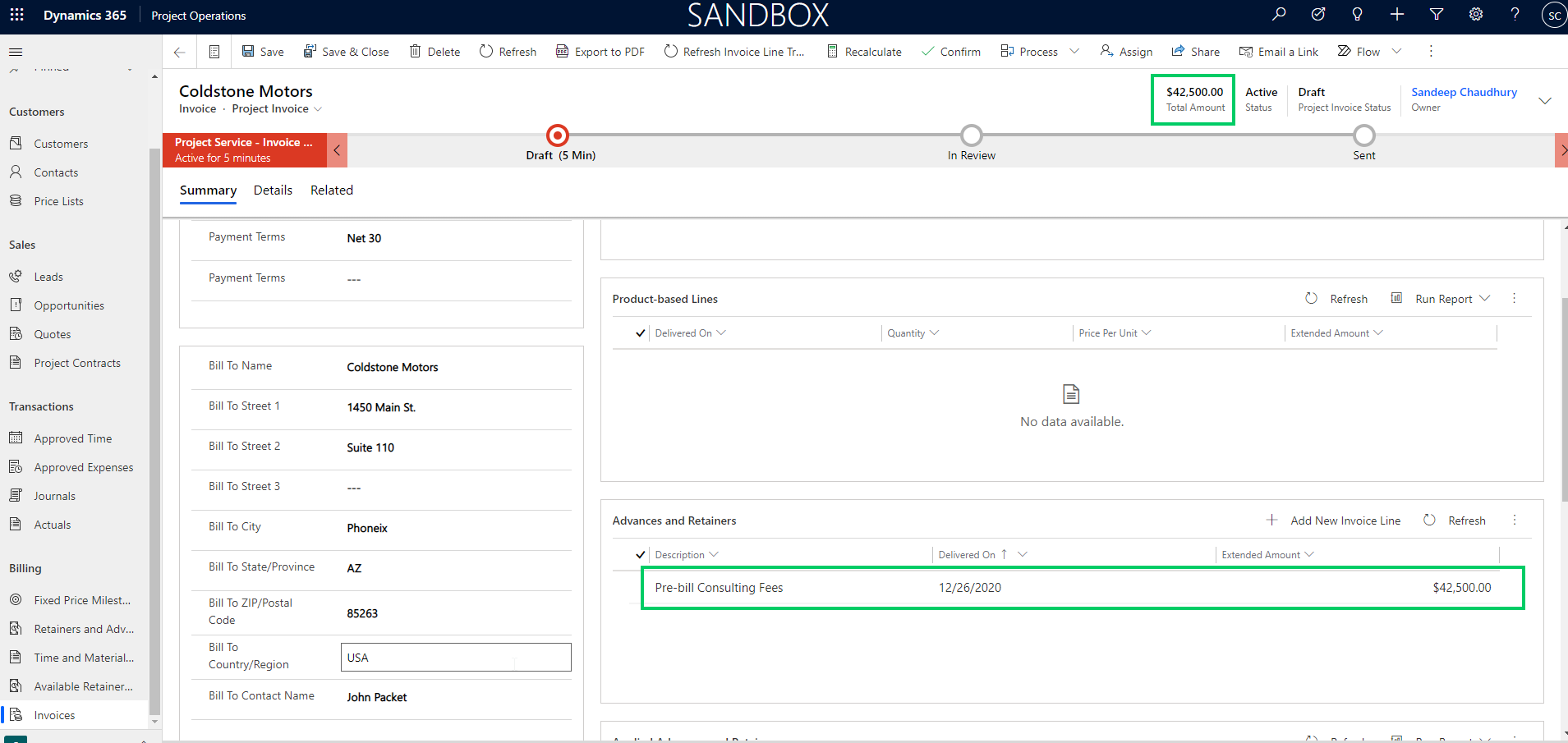
    You can create the retainer/advance invoice just like you create any other invoice in Project Operations. The retainer lines will appear under the Advances and Retainers section of the proforma invoice.

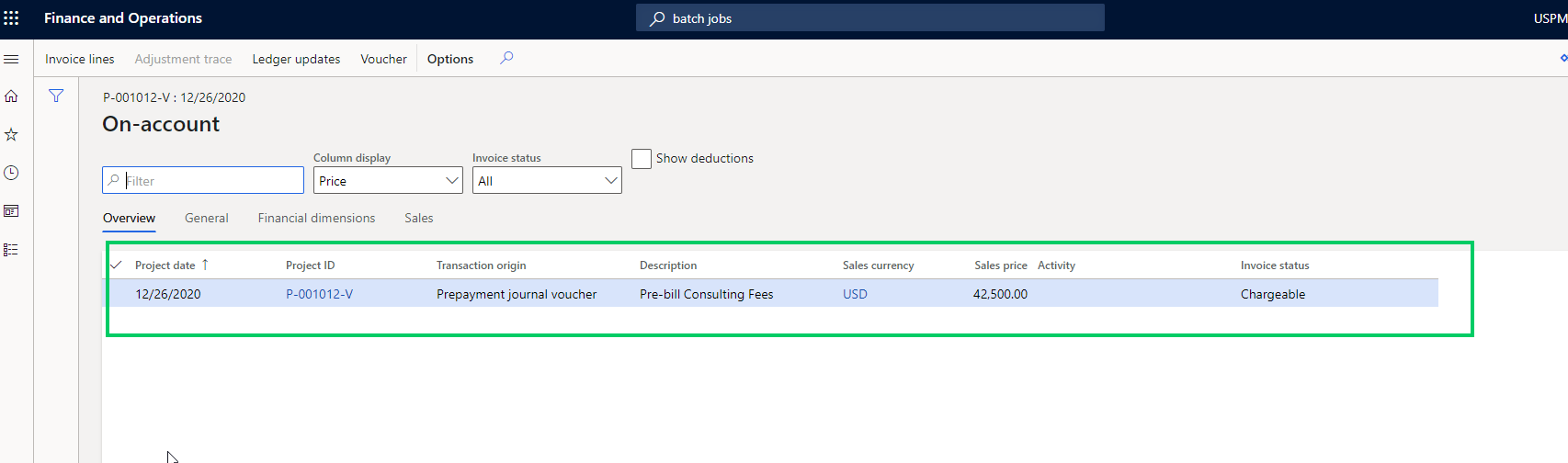
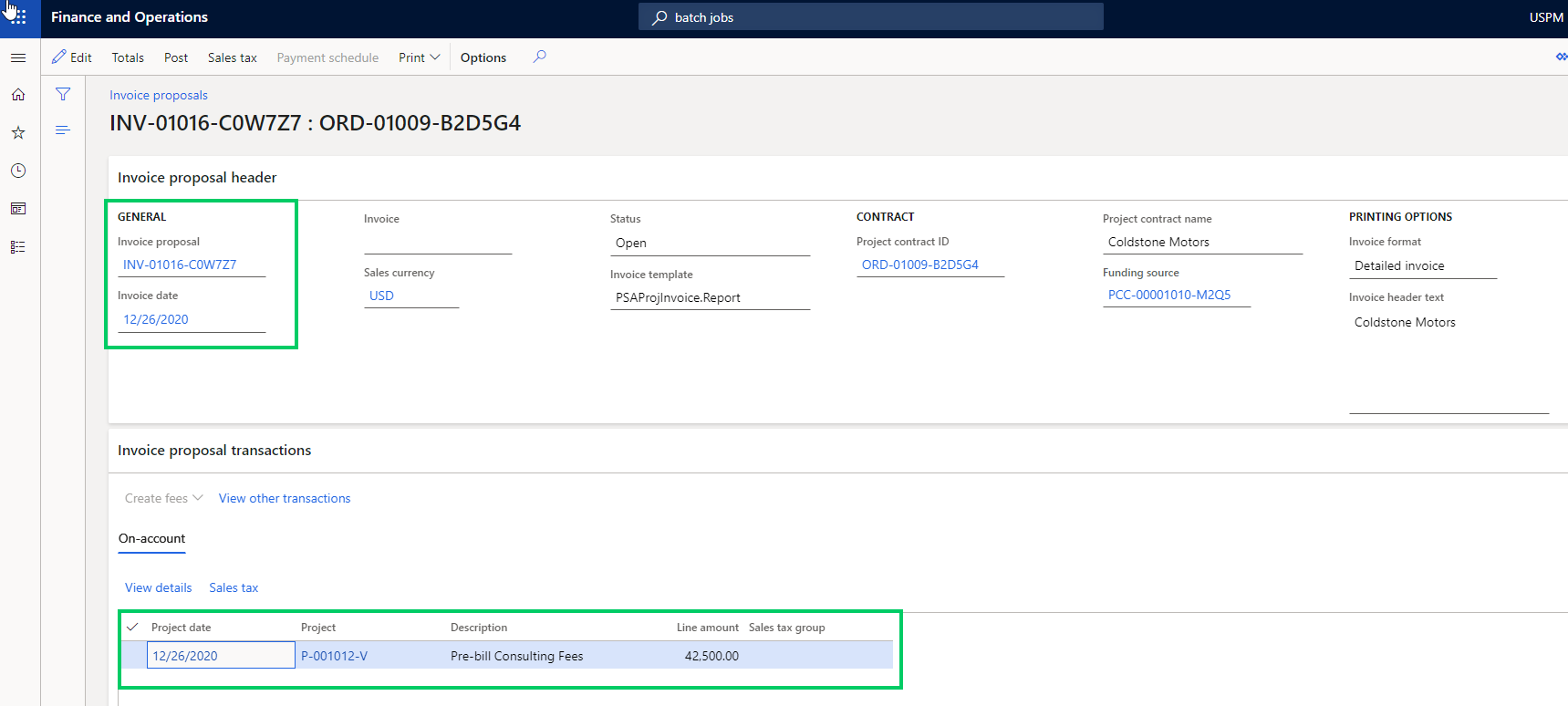
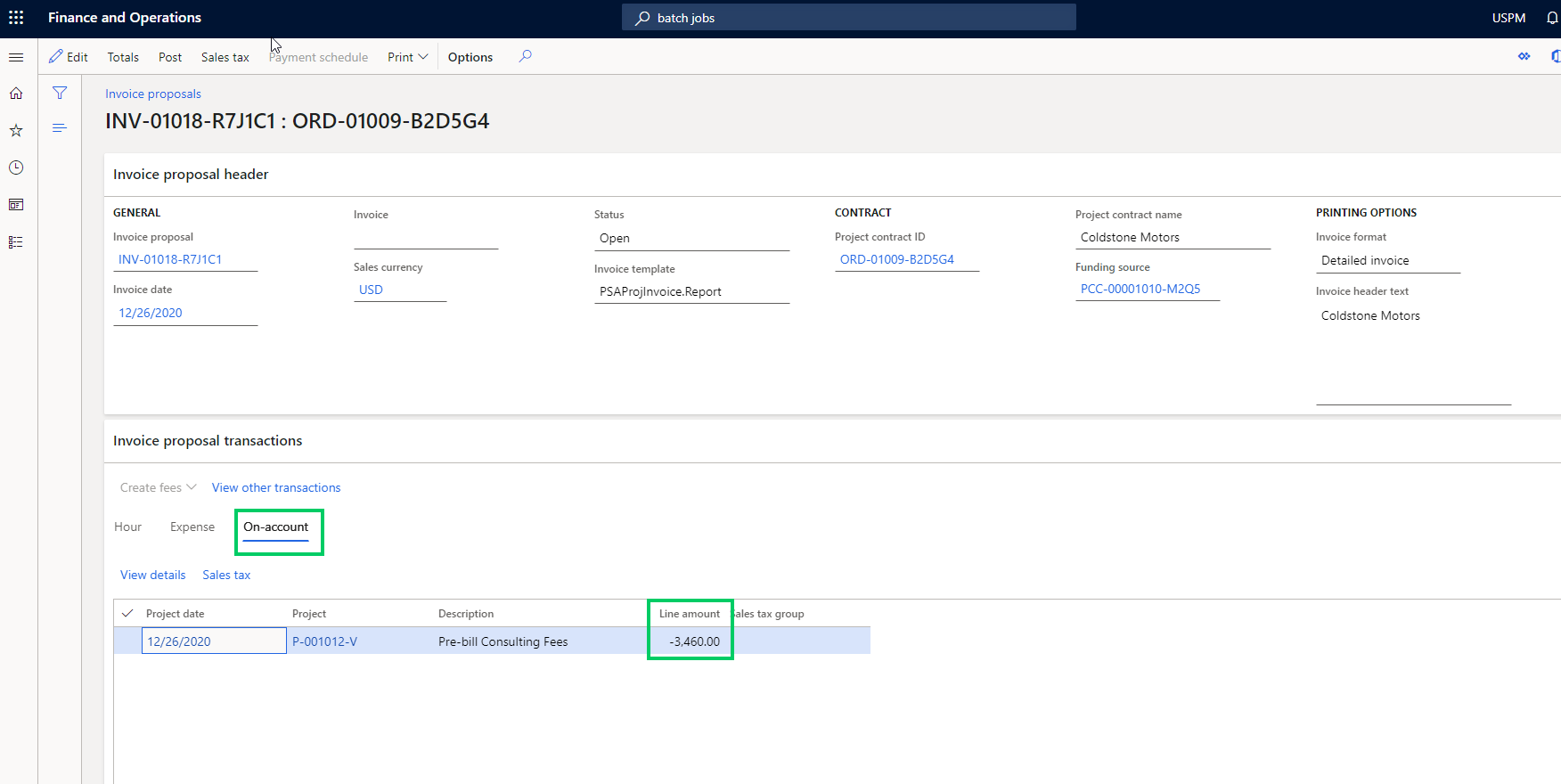
    After you confirm the proforma invoice, the Project invoice proposal is created and is ready for review and posting. Note that the retainer/advance line is created as an on-account transaction on the project, on the in finance side of the solution.(Those who worked on D365 F&O project module can relate this how the customer advance functionality in the project accounting module of F&O works).

    When you post the retainer/advance invoice, the revenue is deferred and AR is debited. (Note here that the ledger posting depends on the cost and revenue profile and project ledger posting setup you have in the entity. For my scenario here, I have it setup for deferring the revenue when i bill retainers. I will recognize the revenue when I reconcile my actuals against the retainers).

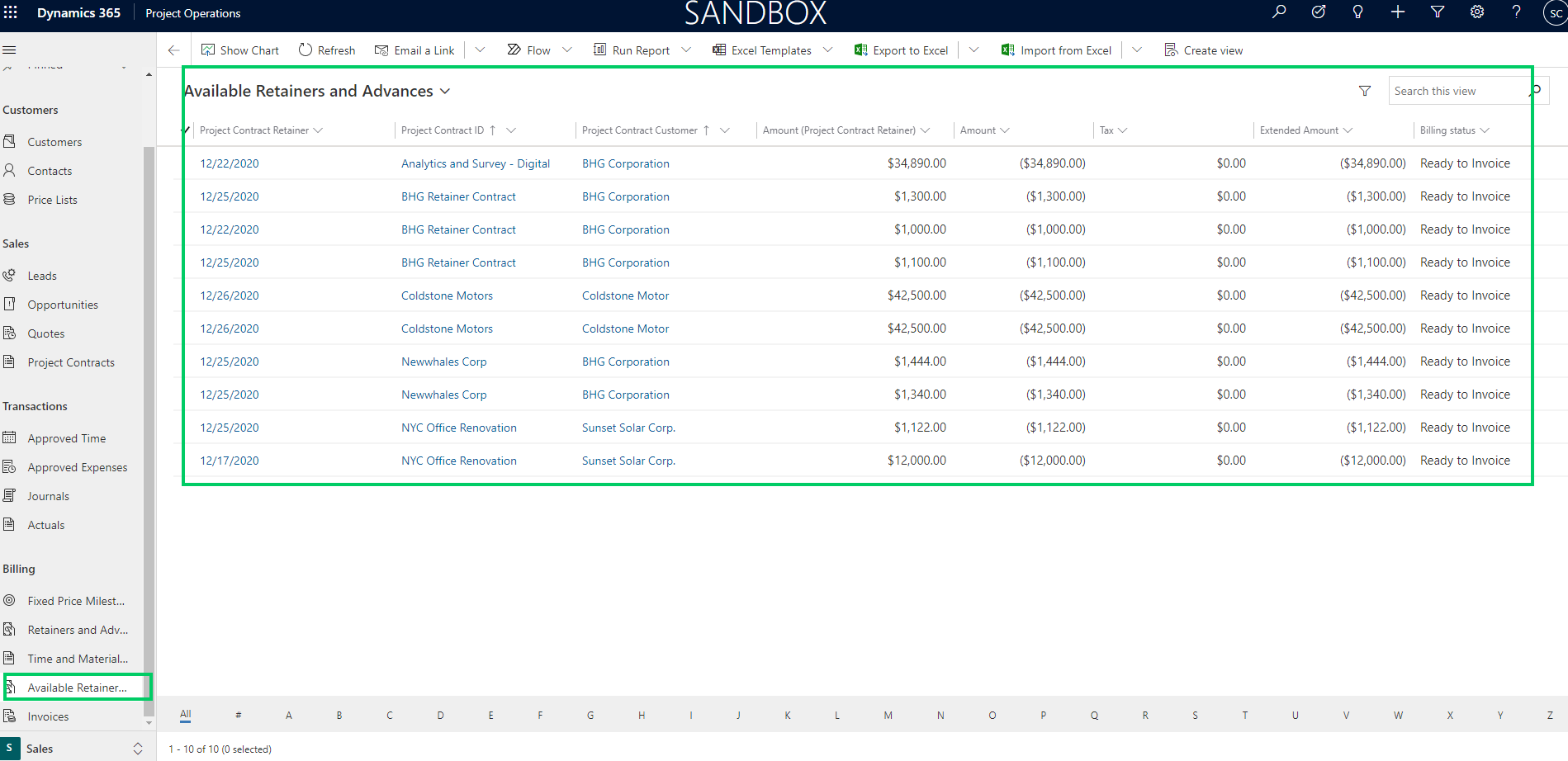
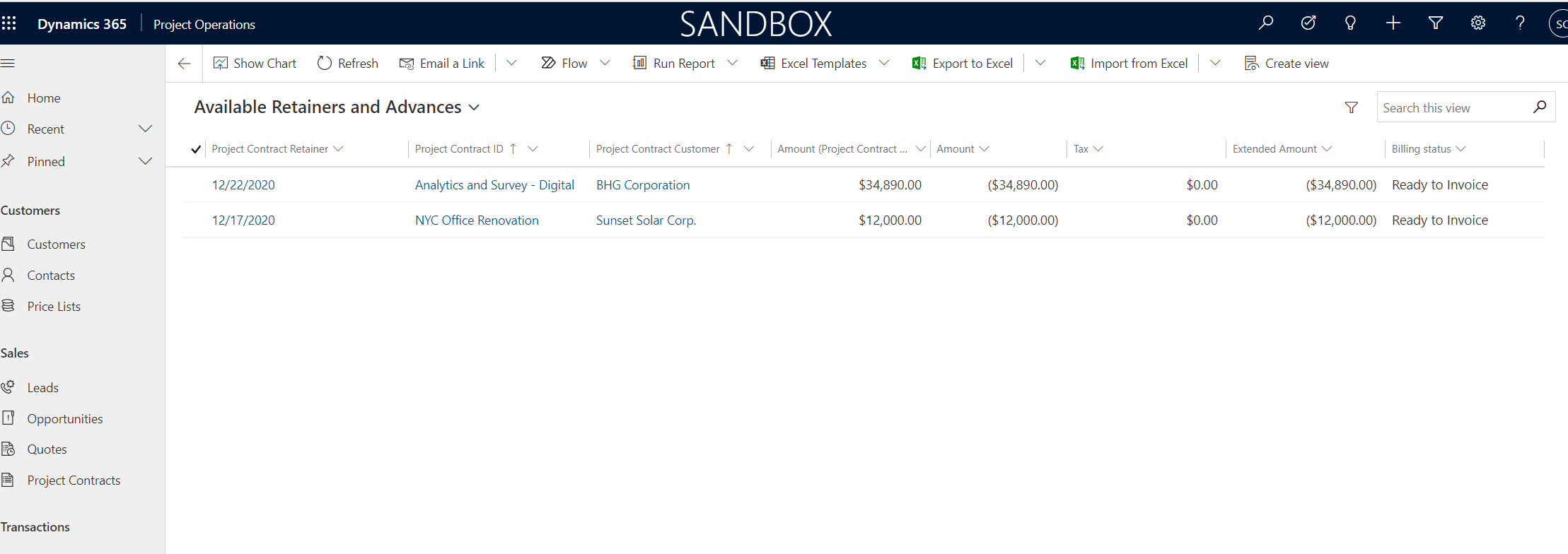
    You can view and track all your available retainers and advances under the Available retainers and advances tab.

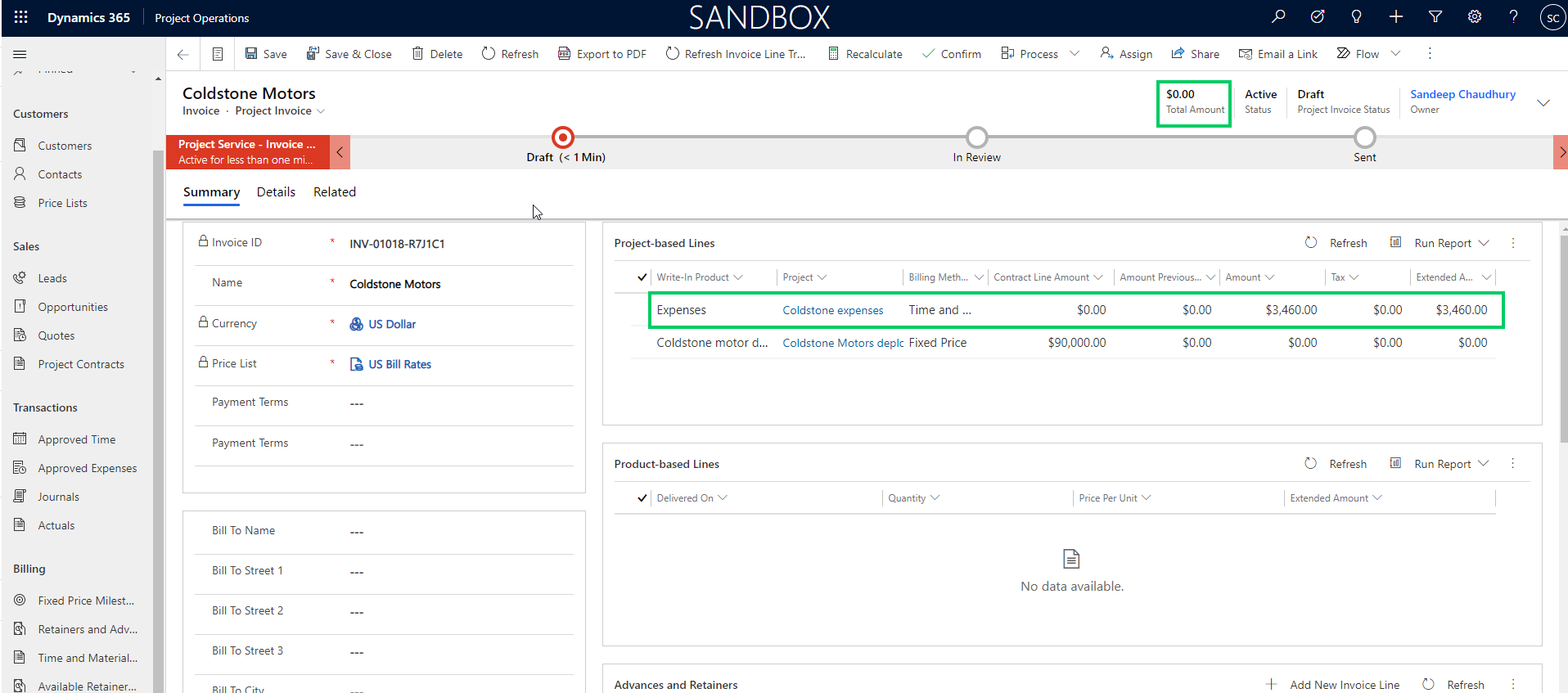
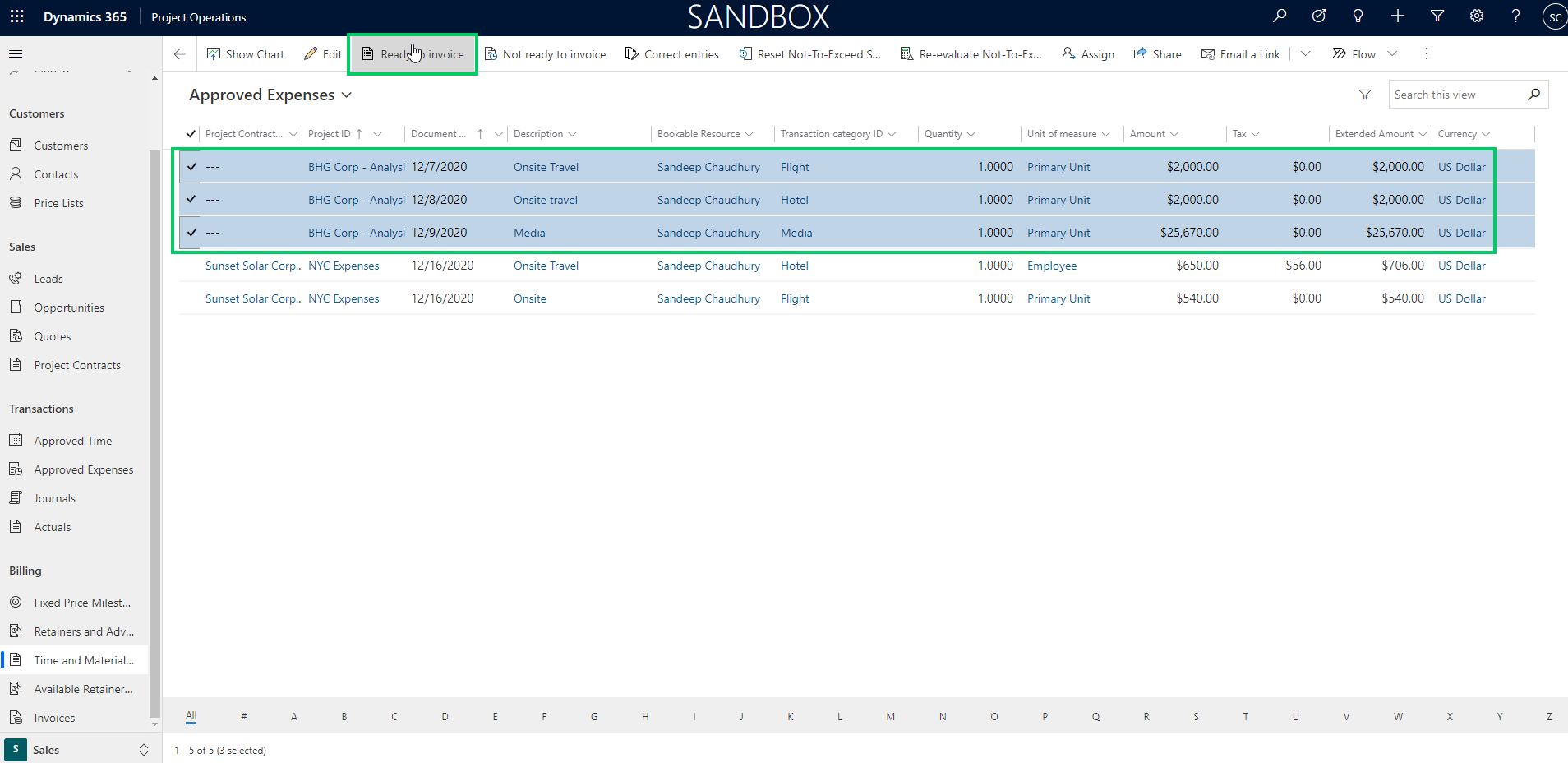
    Let’s now go ahead and reconcile some actuals against the retainers and see what happens. I have some time entries and expenses entries already approved and ready to be reconciled against the retainers now.

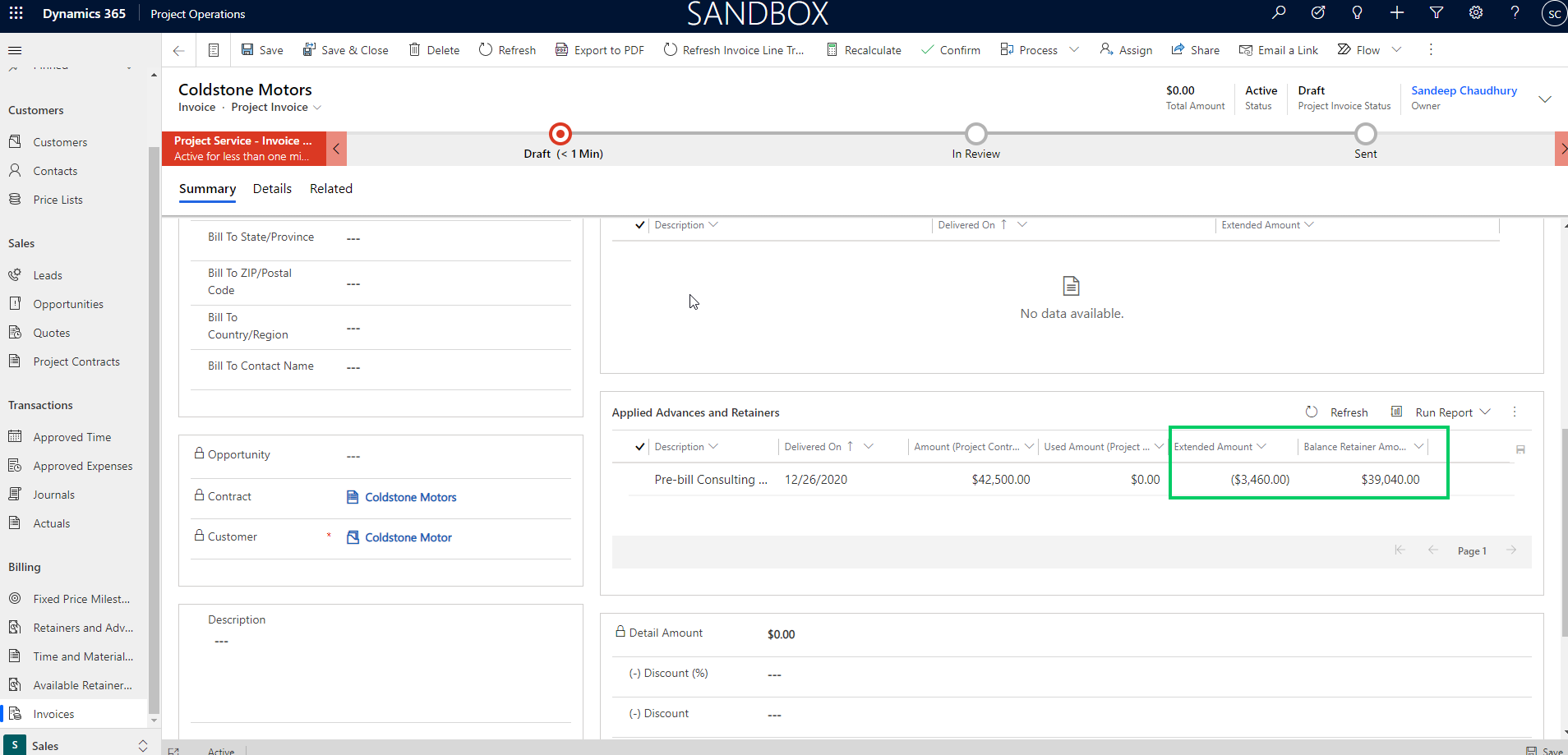
    Notice that when I create the invoice for the project contract now, the system automatically applies the available/not used retainer amounts against the actuals and produces a $0.00 invoice.

    At this point, you can modify the amount you want to apply if needed or just confirm the reconciliation invoice as is. After you confirm the reconciliation($0.00) invoice, a project invoice proposal is created automatically on the finance side. This invoice contains the actuals for time and expenses you are reconciling and a deduction on-account line to offset those.

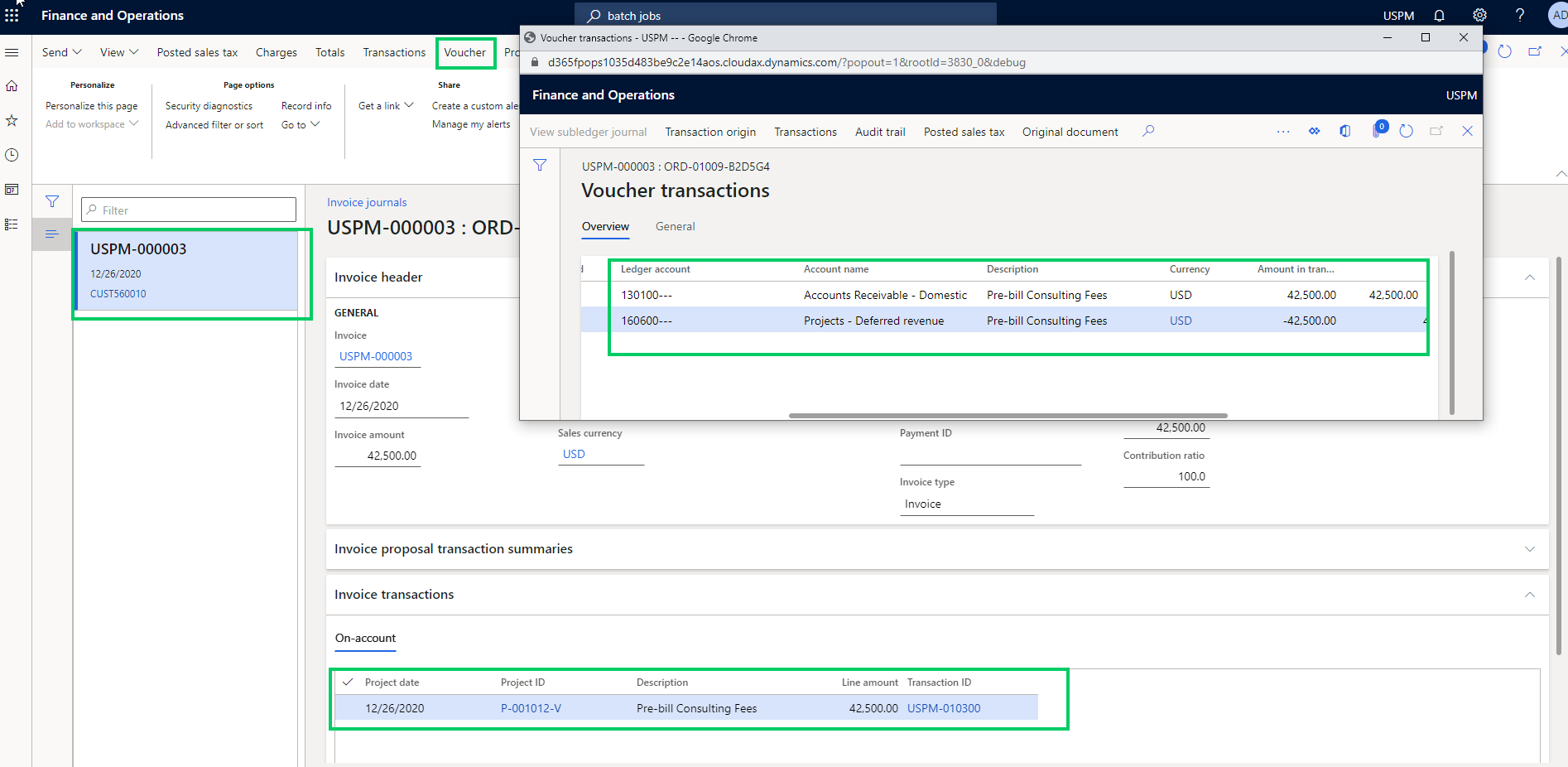
    Let’s go ahead and post this reconciliation $0.00 invoice and validate the results. Below screenshot shows the posted invoice with all the hours, expenses and deduction on-account lines of the reconciliation invoice.

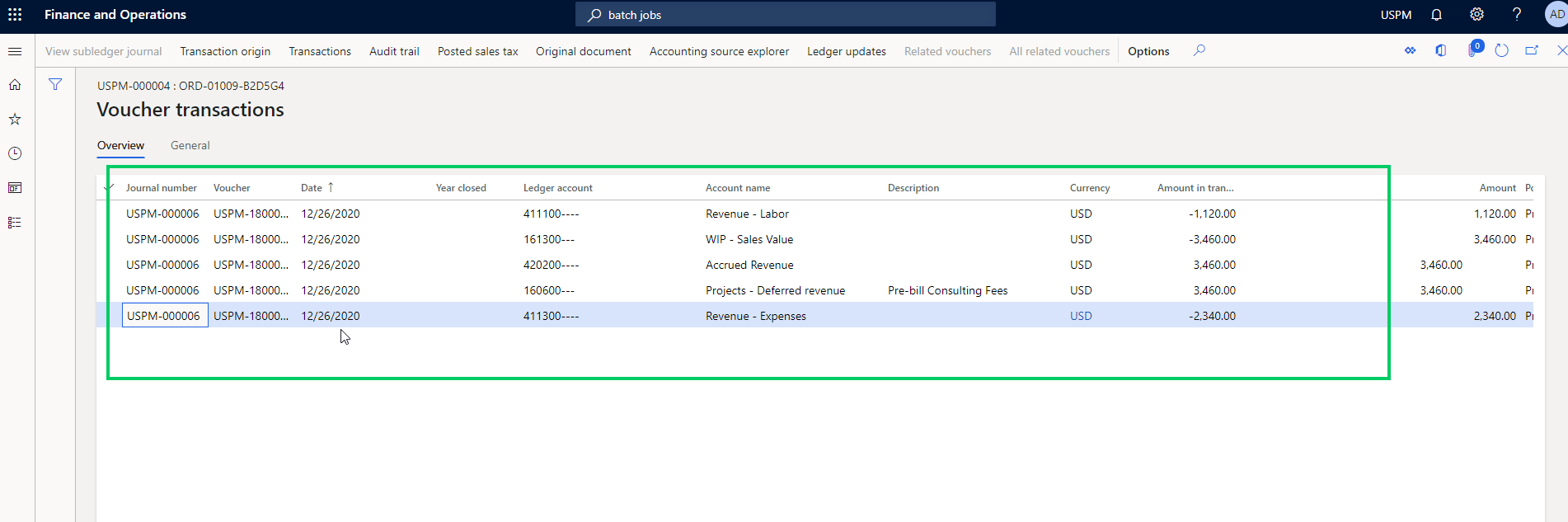
    The voucher shows that the actual revenue accounts were credited and the Deferred revenue was debited and no posting to the AR account, since this was just a reconciliation invoice.

    Back on the retainers tracking page, you will now see that the remaining amount available for reconciling is updated.

    That’s it for today’s post. Till next time!!!

  • Manage complex deals/contract structures with ease in Dynamics 365 Project Operations – Deep dive into project contracts

    Manage complex deals/contract structures with ease in Dynamics 365 Project Operations – Deep dive into project contracts

    In today’s post, we are diving deep into managing complex project contracts/deals in Dynamics 365 Project Operations. We will break down the building blocks of project contracts and understand what each attribute of the contract represents and how it functions.

    Negotiating contracts with customers and prospects can get complicated sometimes and often requires flexibility on how you structure the contract to best match the customer’s needs. With Dynamics 365 Project Operations, you have that flexibility right out of the box.

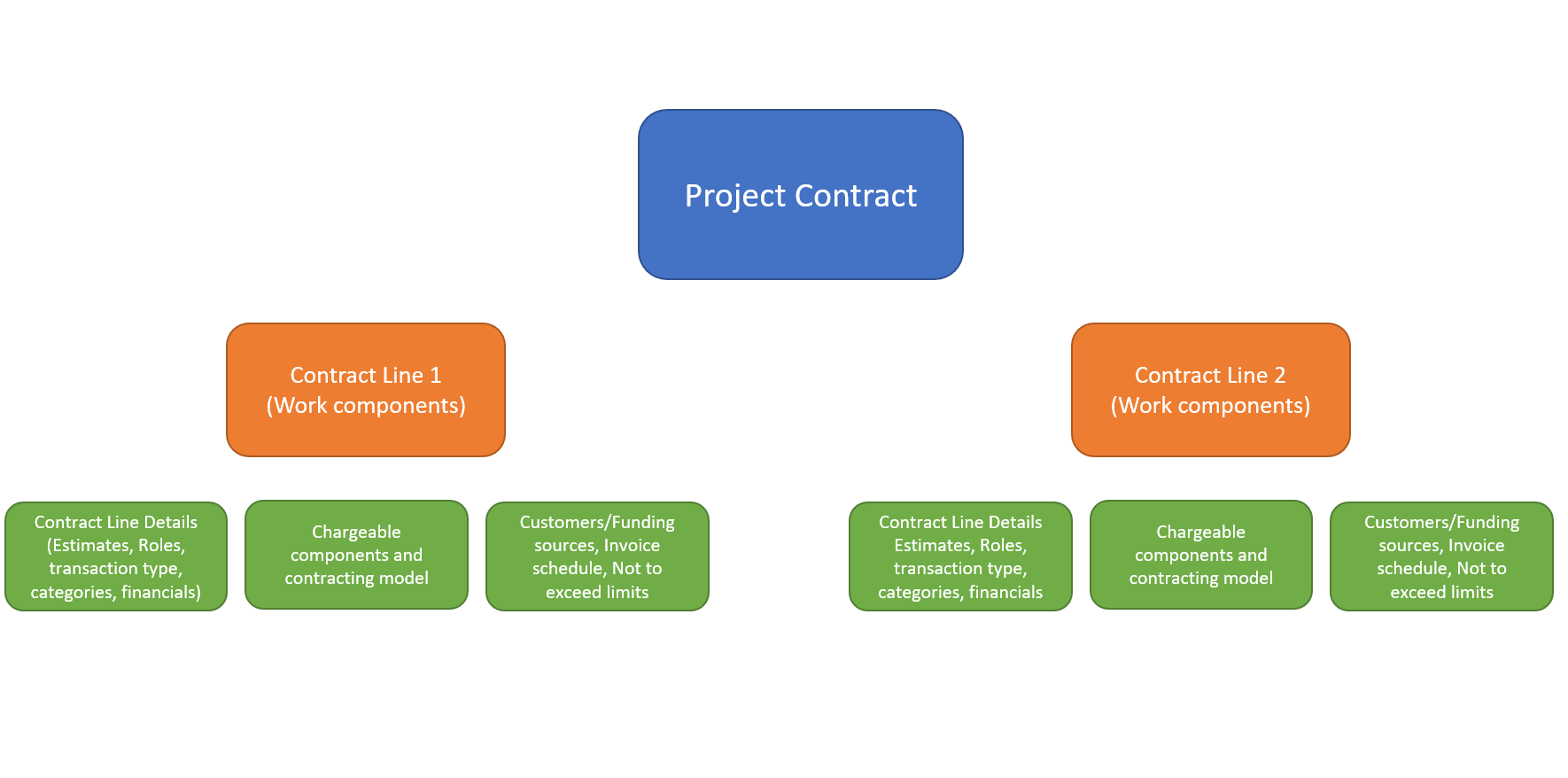
    The Project contract captures the work commitments that are negotiated and agreed upon with the customer. It also contains the associated billing details such as billing frequency, schedule, customers and so on for all the work that will be delivered as part of the contract. The below infographic shows the basic structure of a contract in Project Operations.

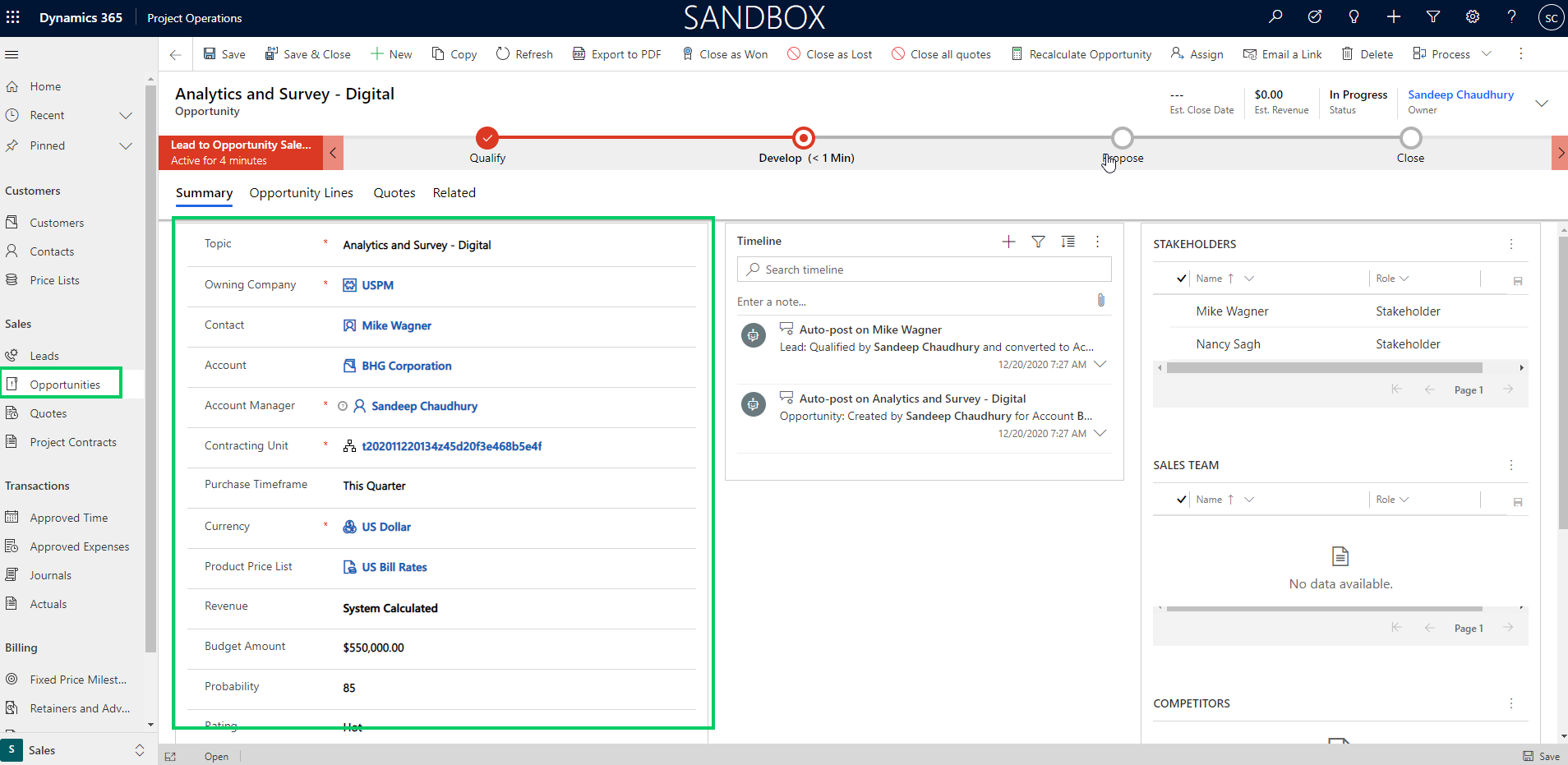
    Project Contracts data is stored in the Order table in Dataverse. You can create Project Contracts manually or the system can create a project contract automatically upon winning an Opportunity. If you are tracking opportunities in the system, then you can transfer over several details into the contract automatically. There are few key data fields that are required when you create a new contract.

    Owning Company: This is the legal entity that owns the contract legally and is responsible for reporting the costs and revenues of the contract. This is the legal entity where the Project contract and project record lives on the D365 Finance side.

    Contracting unit: This is the business unit/division of the legal entity that is responsible for the delivery of the project associated with the contract. The Contracting unit drives the resource costing. When you setup the Cost rate cards, you can setup resource costs for each Resourcing company and Resourcing units.

    Cost & Sales currency: This is the currency in which costs are reported in the front end. Transactions can be recorded in multiple currencies, but are shown in the cost currency of the contracting unit. Sales currency is the currency used for billing. This is also the currency in which project estimates and actuals are shown.

    Price list: This the base price list the contract is associated with. You can override the price list to define the contract specific sales prices/bill rates.

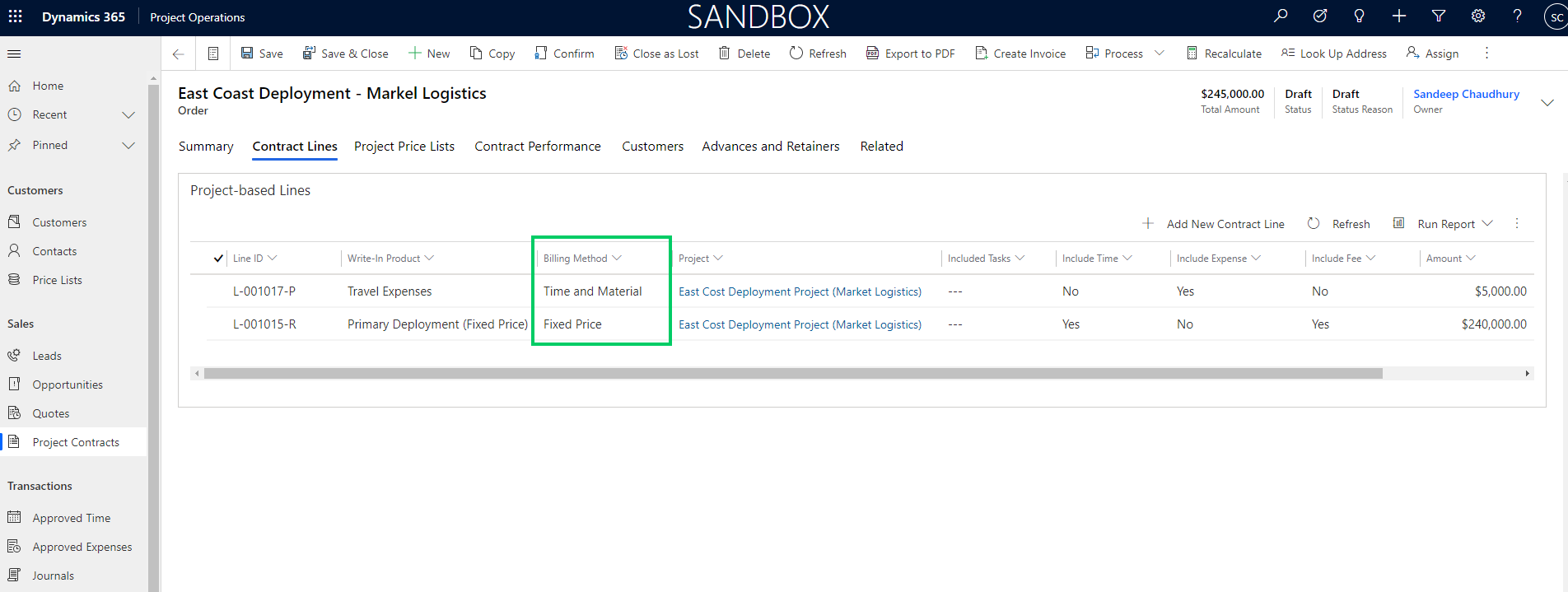
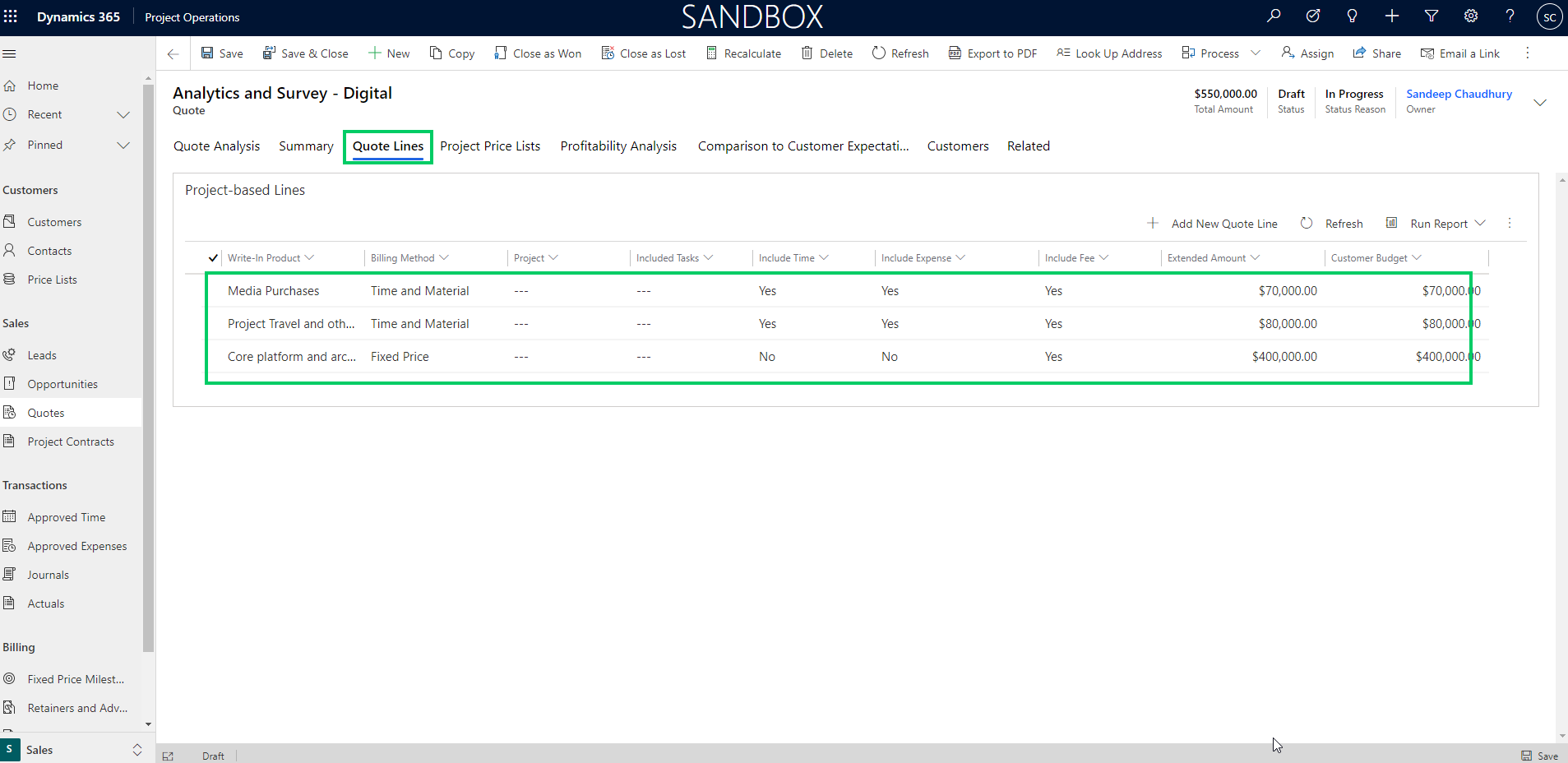
    Contract Lines is where the details of the contracting models and financial information resides. Contract lines are the key part the forms the overall contract. Right now in the Resource/non-stocked deployment scenarios, you can only add Project work based contract lines. Product based lines is not supported yet in this deployment model. In the example contract shown below, I have a fixed price work component and the travel & other expenses are setup to be billed on T&M basis.

    Contract Line Details contains the key details such as,

    Billing method: There 2 billing methods to chose from. You can charge a Fixed price for the work component in the contract. This work component can be a project or a task within the project. It depends on how you have structured your projects and contract. You can also setup a contract line to be billed on a Time & Material basis. An example of this would be travel and misc. expenses on project, which you pass the cost to the client. You can add a mark up if needed as well.

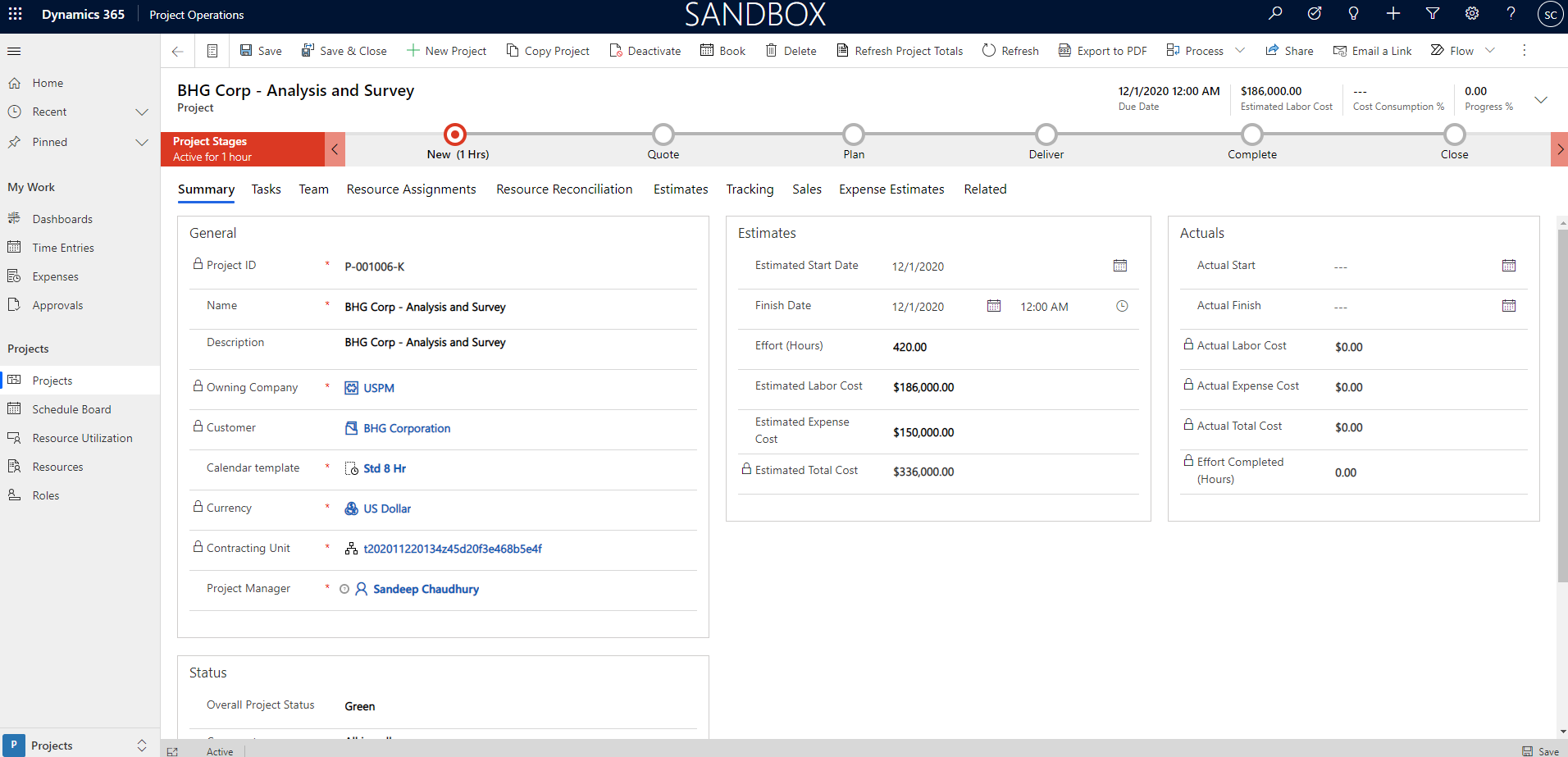
    Project : Each contract line is linked to a Project. The Project record is the heart of the overall Project Operations solution experience. The Project associated with the contract line is used for the management the work component associated with the contract line. We will dive deep into Project setup, project management in a future post soon.
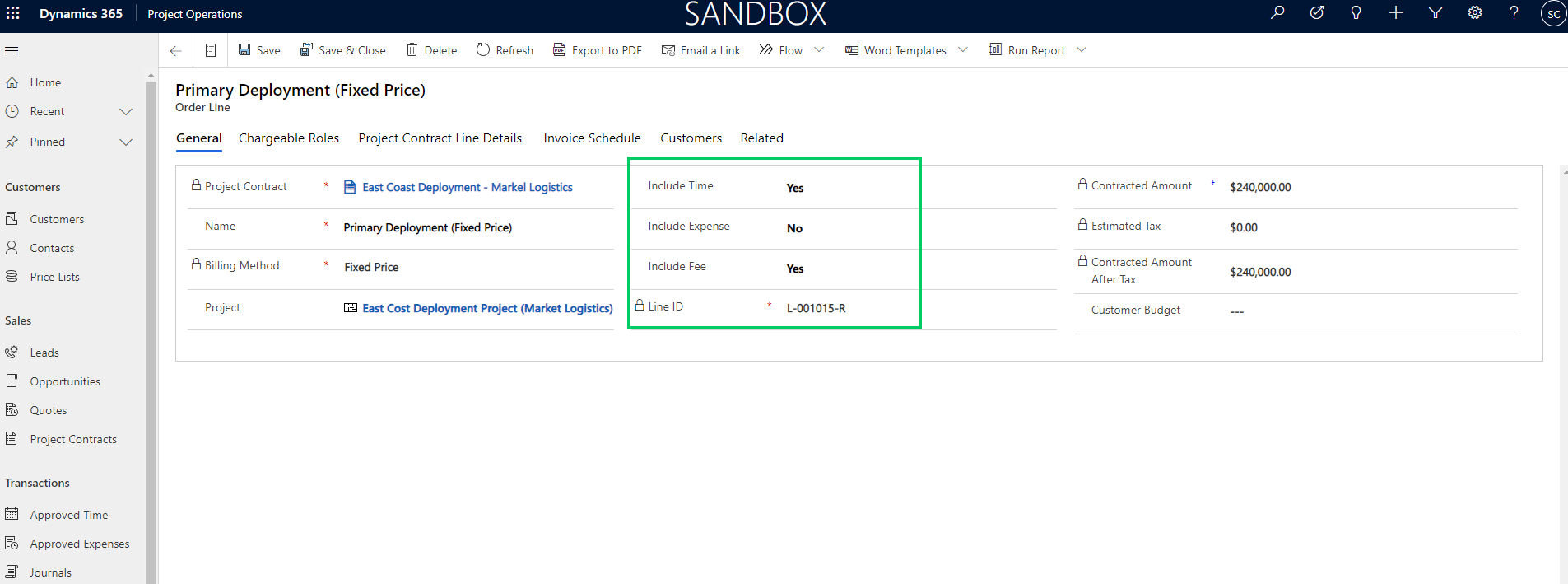
    Transaction types included: On each contract line, you define what type of transactions (Hours/Expenses/Fees) the line includes. You may have one line representing all 3 types, or 3 different lines representing each type or Hours and Fees represented by one line and expenses represented by another line.

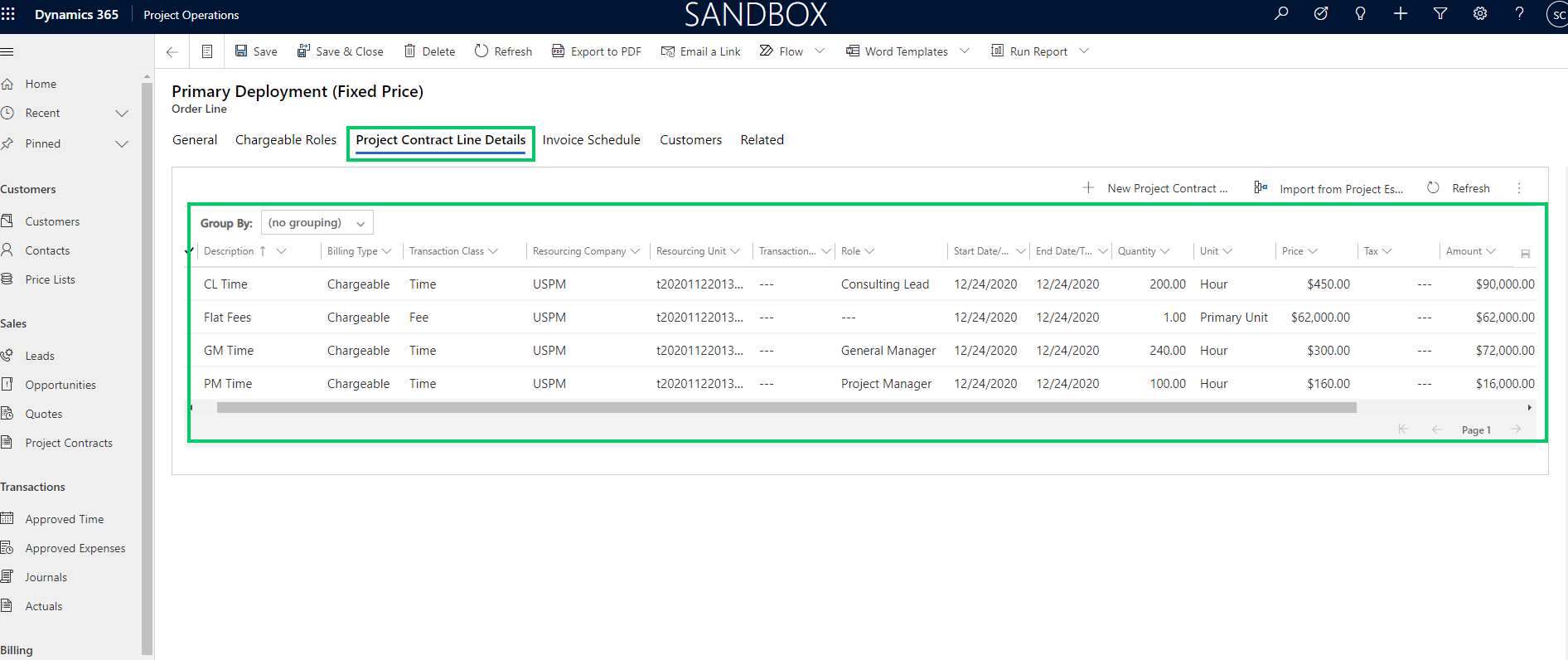
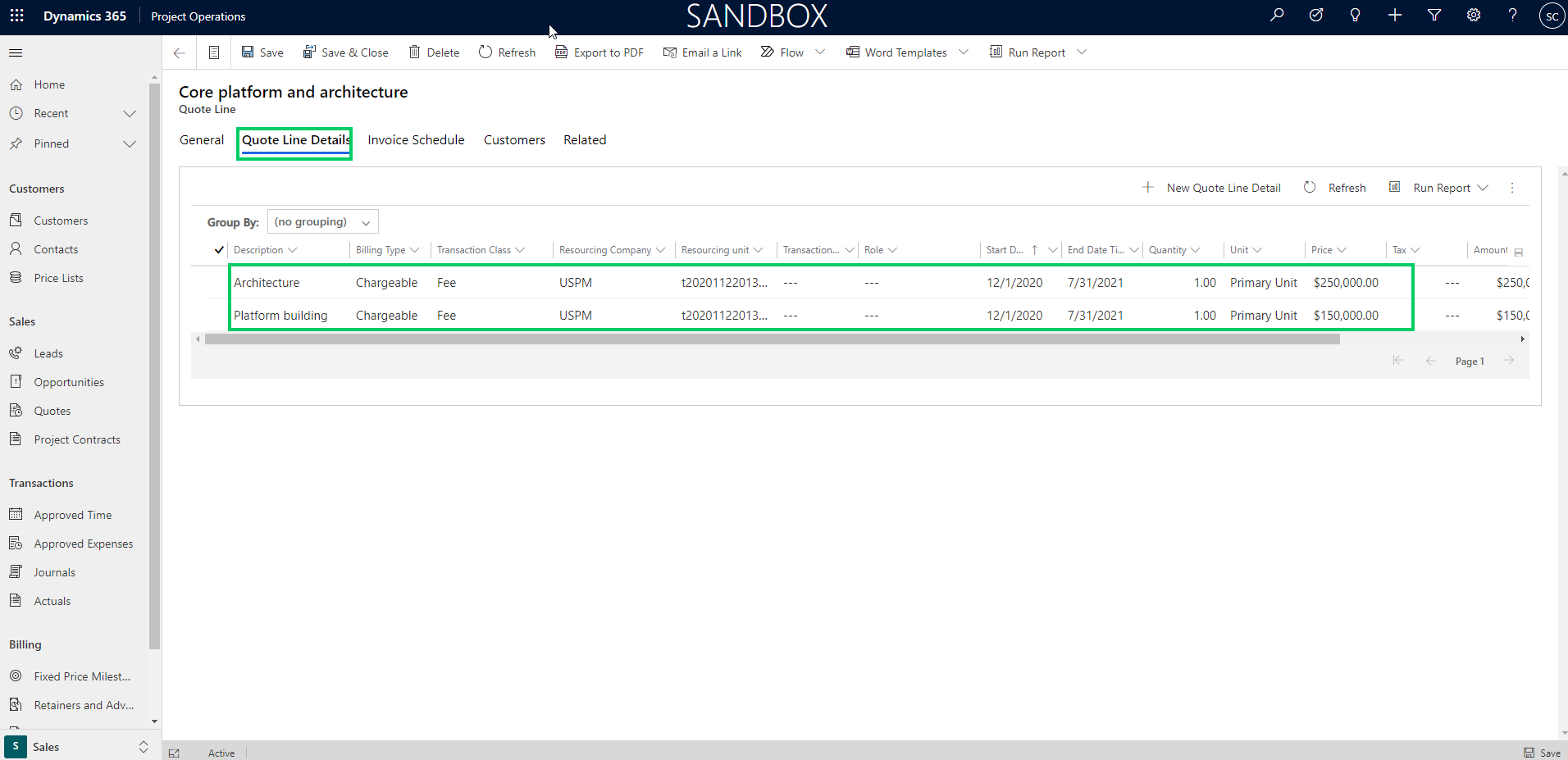
    Contract line item details: Each contract line has associated line details that sums up the the total value of the contract line. The lien details contains information about transaction class, resourcing unit, Role, category, dates, quantity etc. You can create these lines manually or you can import them from the Initial project estimates to make the job easier.

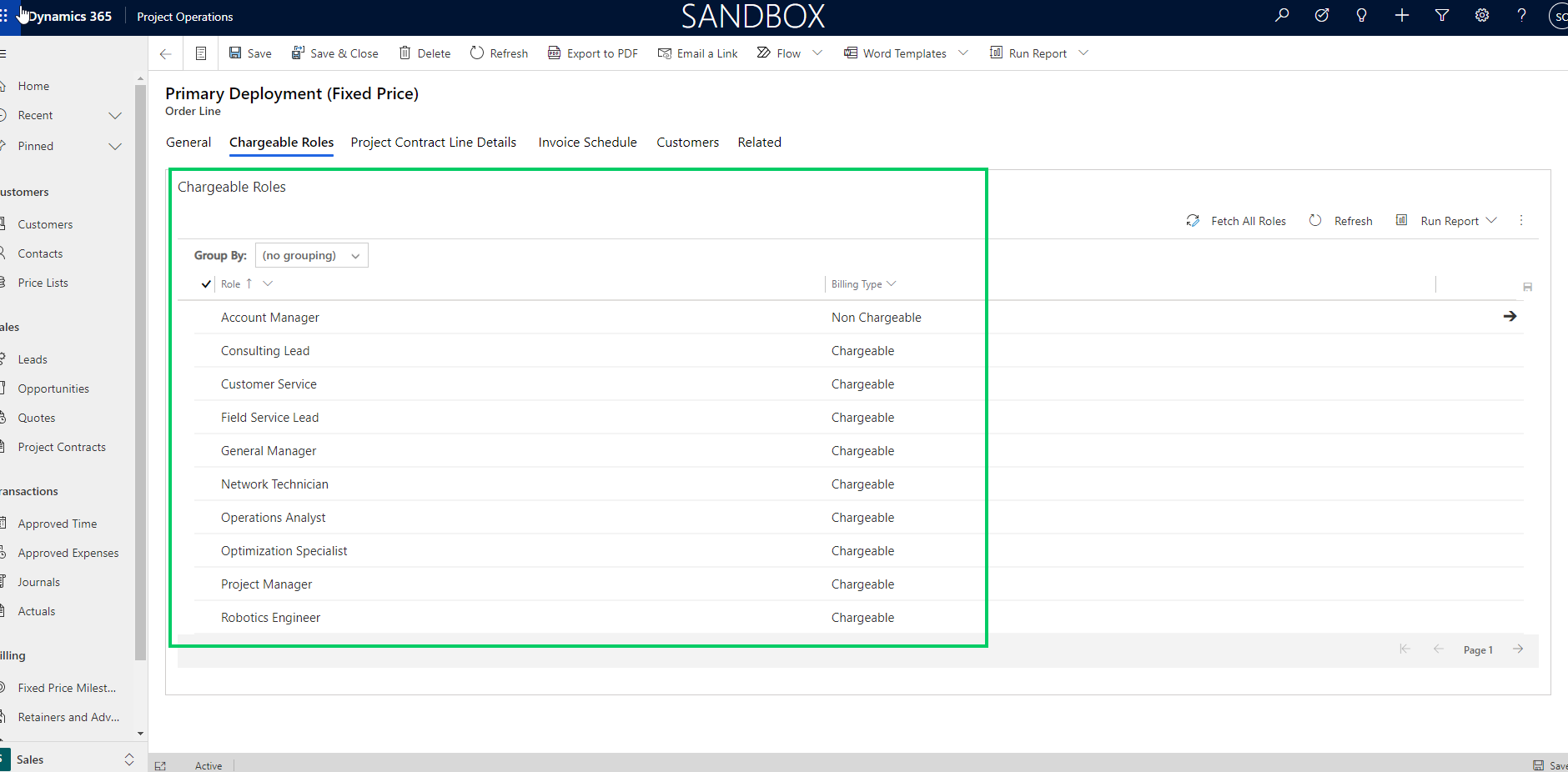
    Chargeable roles and categories: You can define which roles on the contract line/work component will be Chargeable or Non-chargeable.

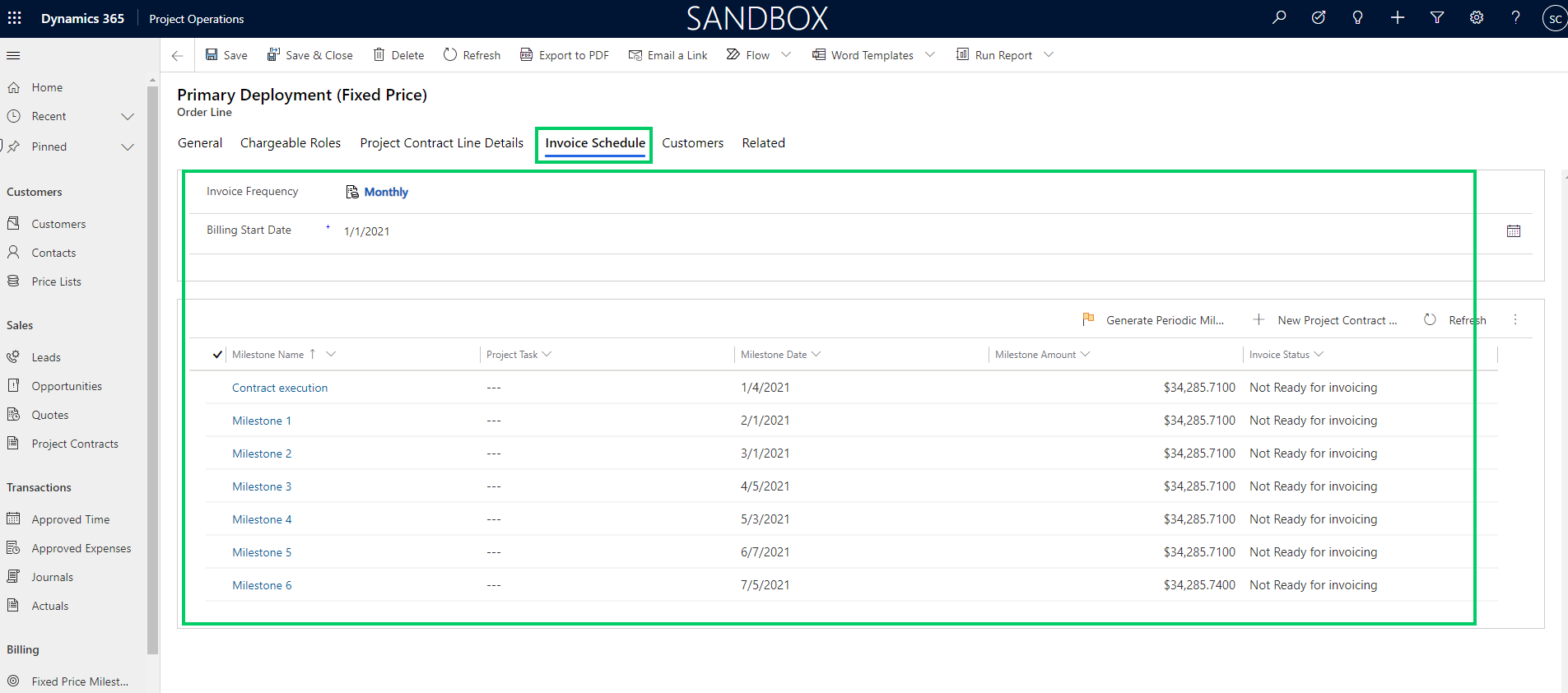
    Invoice Schedule: The invoice schedule defines how frequently you will bill the customer and the milestone dates, and amounts. You can create milestone schedule manually or you can have the system create it for you based on invoice frequency and billing start date. You can associate each invoice milestone to a project task if needed.

    Customers/funding sources paying for the contract line: You can split an overall contract between more than one customer or you can also split each contract line between multiple customers. This reminds me the funding source, funding limit and funding rules feature we have in the classic PMA module in D365 F&O.

    You can split each contract line to be billed to more than one customers and you can set % of split for each customer and you can also setup Not-to exceed limit for each line.

    That’s it for this post. This was a deep dive on Project contracts and what flexibilities you have to set these up in Project Operations.
  • Unify your Project centric business with Dynamics 365 Project Operations – Best of all Microsoft applications in one package for project based organizations

    Unify your Project centric business with Dynamics 365 Project Operations – Best of all Microsoft applications in one package for project based organizations

    In an earlier post, I wrote about overview of the new Dynamics 365 Project Operations solution from Microsoft and the 3 different deployment modes available for customers today. I was finally able to free up some time to deploy the new general available build of Project Operations. I deployed the fully integrated mode for resource/non-stocked scenarios.

    In this blog post, I wanted to dive into other “Fully integrated D365 Project operations with financials for resource/non-stocked scenarios” and showcase the key capabilities. This deployment scenario is suitable for project based organizations who does not have stocked inventory material and production requirements. The support for non-stocked materials is coming soon on the deployment mode.

    In this post, we will focus on reviewing the end to end lifecycle of a project from lead to invoicing. The objective is not to go granular on each of the functionalities, but rather to review all functionalities you can use from at each stage. We will review specific features in future posts and deep dive into those.

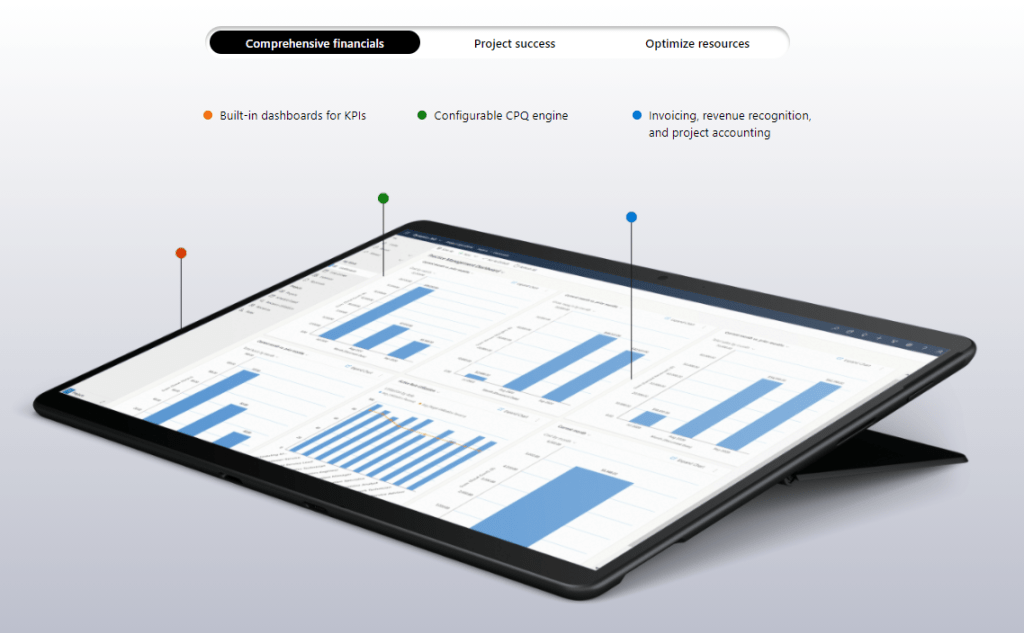
    The infographic below shows the overall capabilities of Dynamics 365 Project Operations.

    Deal management experience (Lead > Opportunity > Quote > Contract):

    D365 Project Operations provides comprehensive Lead, Opportunity and Quote management features suitable for project based firms. It leverages the best of the industry leading D365 Sales solution in the Customer Engagement platform and lights up the experience right within the Project Operations app.

    You can track all required Lead information and once you quality the Work based lead, an Opportunity record is automatically created, where you can add the building block of the work.

    In the Resource/Non-stocked based scenarios deployment of Project Operations, you can only add Project based lines right now, but the support for service based items/products is coming soon. (Note: If you have the Lite deployment of Project Operations with no Finance integration, you can still add product based lines, just like you did in the old D365 PSA app).

    You can assign a price list/rate card for the opportunity and you can now build the line items on the Opportunity and specify the details such as Billing method, amount, customer’s budget and so on.

    Once the Opportunity details are fine tuned with the customer, you can build a proposal/quote directly from the Opportunity and all the line item details are carried over automatically. The Quote lines represent the discrete components of the work that you will present on the quote to the customers.

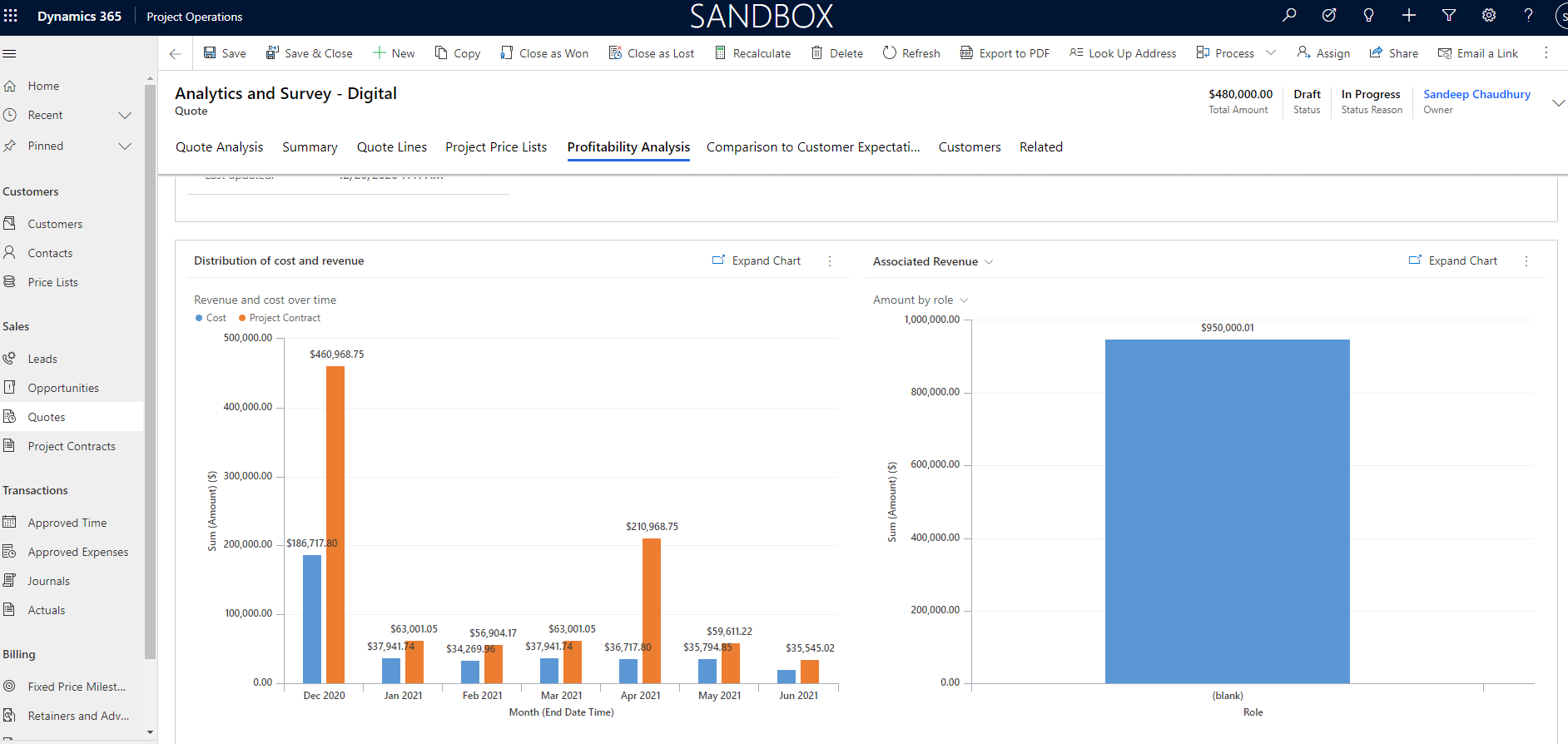
    The Quote line details is where you identify and estimate the details of each quote line/work component such as, schedule, financials, contracting model and so on. This information on the quote line details helps you do profitability analysis on the quote.

    If the Project is funded by more than one entities of the customer, you can add the customers/funding sources on the quote line and designate the amount/percent split of the amount for billing and you can also specify the “Not-to-exceed” limit for each customer. This reminds of the Funding sources, funding limits and funding rules functionality that we all know in the classic Project accounting module of D365 Finance :)

    If the quote line is a Time & Material line, you can specify additional details such as “Chargeable Roles”, “Chargeable Categories”.

    You can also create the project to create the ground up estimates from the project tasks/plan and import those into the quote lines. After you have built the quote details, you can review profitability analysis info.

    You can also how your quote compares to the customer’s expectations.

    When you have won the quote, you can associate the Project ID to the quote/opportunity line and close the Quote as Won. As soon as a Quote is closed as Won, a Project contract is automatically created in Draft status and new project is associated with this contract.

    Project and Resource management experience:

    Project managers can create detailed project WBS/plan using the capabilities of Project for the web(P4W) capabilities built right into project operations. I am not going to focus on discussing details of the individual functionalities around project management and resource management aspects in this post. We will save that for another post.

    Time & Expense management experience:

    Your resources can use the intuitive time entry UI to keep track of their daily time and submit periodically/weekly. You can also keep track of employee expenses with the robust expense management module of Project operations, with features such as expense policies, workflows and credit card integration. The expense management experience comes from the proven D365 Finance app and offers advanced expense management capabilities. They can also use the T&E mobile apps.
    Managers can review timesheets and expenses in the Approvals work bench and process them in timely manner.

    Project transaction corrections and Invoicing

    Project finance/billing team can stay on top of their tasks with intuitive interfaces for transactions corrections/adjustments to make sure any adjustments to transactions are processed prior to billing.

    The dedicated work benches for Time & Material, Fixed price milestone and advance & retainers billing backlogs are handy providing all the billing backlog information at one place . You can review details such as invoice status, Not to exceed limits and statuses of each transaction to make sure the customer invoices are accurate.

    Creating invoices for project contracts is simple. It can be created manually for each contract or an automated batch job can be setup to run on automatic recurrence.

    As soon as you confirm the Draft/Proforma invoice, a project invoice proposal is created, which is then ready to be posted. With the industry leading sales tax engine of D365 Finance solution, you don’t have to worry about complexities of sales tax calculations.

    Project Operations also provides functionality for advances and retainers billing to customers. This is a new feature that was released in version 4.5.0.134. This feature reminds me the good old customer advance functionality we have in the legacy project management and accounting module in D365 Finance.

    Additional you can also setup an automatic retainer schedule to bill customers automatically based on a pre-defined schedule and invoice frequency. You can reconcile actuals against billed retainers and advances.

    Revenue recognition, sales tax and financials management:

    With the ” Fully integrated Resource/non-stocked scenario/deployment mode, you have full coverage of Revenue recognition, sales tax management and comprehensive industry leading project accounting and financials management. This part of the solution is built on the powerful Project management and accounting solution we all are familiar with in D365 F&O. The module is tailored and modified to work with the overall project operations solution. I am working on a separate blog post to explain the details of how the PMA module of D365 Finance is tailored to work with the Project operations solution. I will explain the key changes and how it works in that post.

    That was a happy path blog post on Dynamics 365 Project Operations. This was my second post on the official D365 Project Operations solution on my blog and the idea was to showcase what the solution can do for project based organizations. I am pretty excited about how the different industry leading applications from Microsoft for the project based organizations (Dynamics 365 PSA, Dynamics 365 Finance, Project for the Web) came together powered by Microsoft Dataverse(CDS), providing a seamless application for project based organizations of all sizes

    That’s it for this post! We will discuss specific topics on Project operations in future posts very soon.

  • Azure Data Lake(Gen2) integration with Dynamics 365 for Finance and Operations

    Azure Data Lake(Gen2) integration with Dynamics 365 for Finance and Operations

    Business Intelligence and Reporting has evolved in Dynamics 365 Finance and Operations since it’s launch. Entity store is the default relational database for dynamics 365 for finance and operations containing several aggregate measures and customers rely on it for near real time dashboarding on data from the Production database of D365 F&O. Entity store DB is included in the D365 F&O subscription and Microsoft ships quite a few embedded Power BI content packs that does direct query into the entity store to produce stunning dashboards and reports across various modules.

    It is also possible to make the entity store available in Azure Data Lake (Gen2). This gives flexibility for customers to have the aggregate measures of entity store directly in their Azure data lake and allows them to do reporting and dashboarding by mashing up data from external sources also.

    Another popular option used by many customers is BYOD. Customers can export out of the standard data entities and custom data entities and export them in a predefined schedule to their own Azure SQL DB and then use Power BI or other tools to create reports and dashboards and mash-up the data with external systems data as well if needed. While BYOD offers a good solution for reporting and dashboarding by mashing up data from systems other than just D365, F&O, it comes with it’s own limitations and often requires you to manage and maintain the recurring data exports. The Azure SQL storage is also comes at a cost, depending on what volume of data you want to export and store.

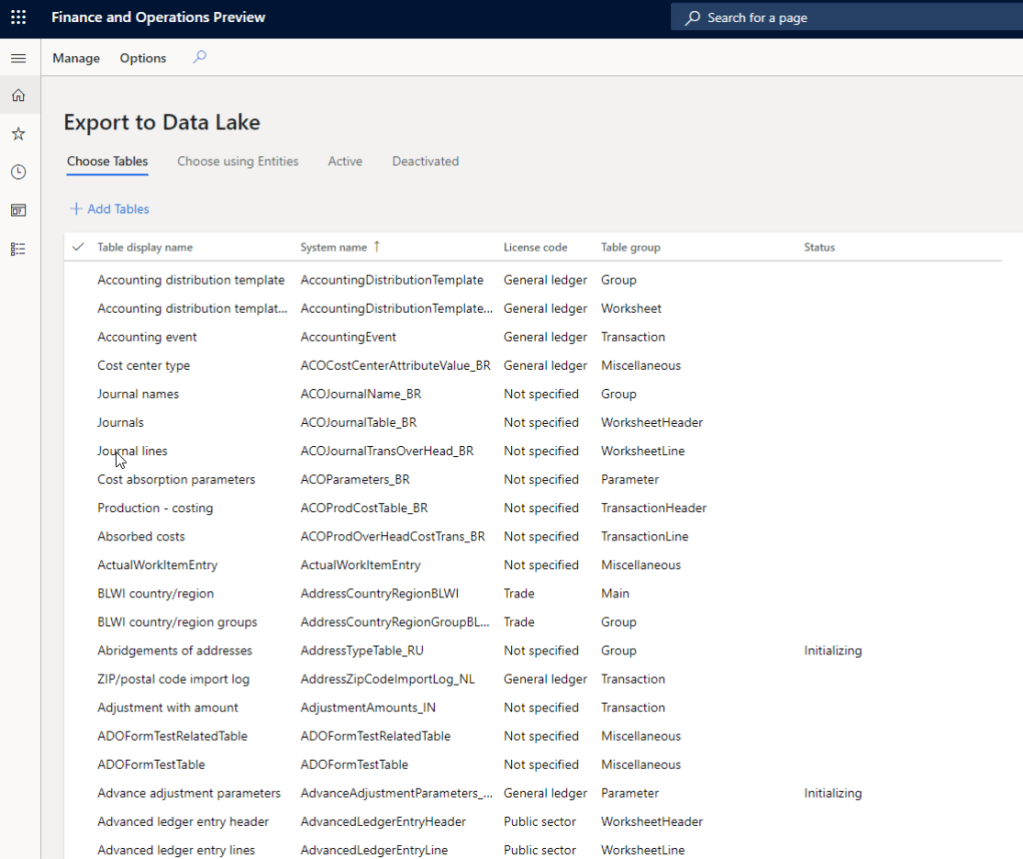
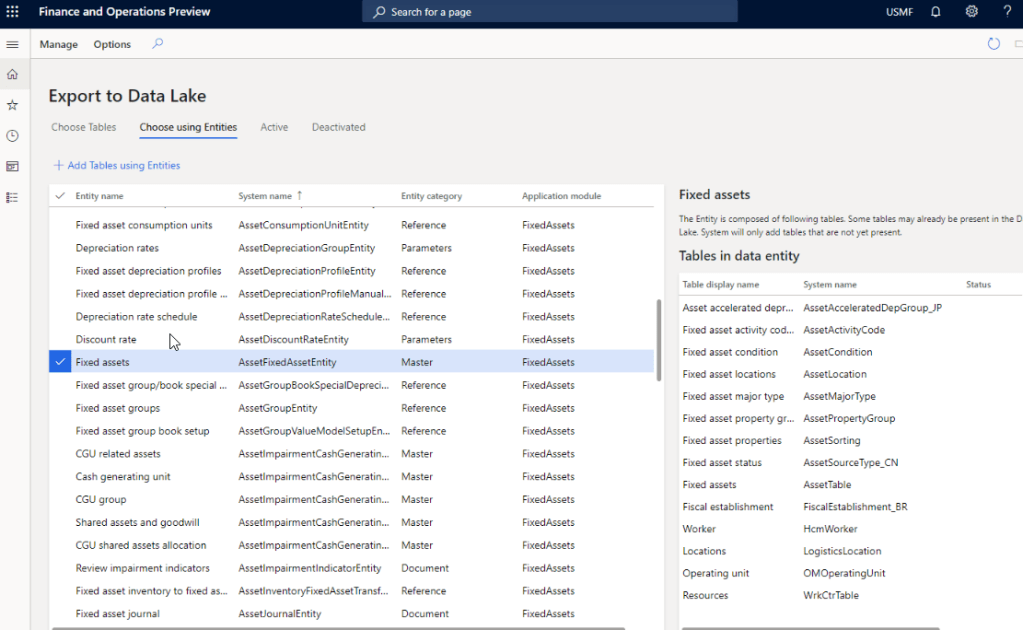
    With the version 10.0.12 launch, Microsoft is now making it possible to replicate you D365 F&O production data into Azure Data Lake (Gen2) storage. This new feature and framework allows you chose the data tables and entities you want to export and will keep the F&O data up to date in Azure Data Lake in almost real time.

    After you setup your Azure data lake storage account, application ID and authorization for D365 F&O to access the storage account you will first need to install the add-in within Lifecycle services(LCS). Then you can enable the new feature within the feature management area of D365 F&O and perform the remainder of the setup.

    Why you should plan the transition to Azure Data Lake: In my view, customers who are invested in BYOD or the analytical workspaces of D365 F&O entity store today should look at taking advantage of Azure Data Lake and should plan the transition for the following reasons.

    1. BYOD requires continuous monitoring and troubleshooting. ADL maintains the data automatically and is always up to date with no intervention needed.
    2. You don’t need to create data entities to expose data in any table that you want. You can literally expose all data tables and fields with ADL integration.
    3. Azure SQL data storage is comparatively expensive than ADL.
    4. ADL cloud storage is more efficient, better for analytics and provides additional capabilities such as AI, and additional programming to transform large volume of data.
    5. Data lakes in Azure are designed for big data and analytics and are capable of handeling big amount of data with less cost. It takes advantage of Azure blob storage behind the scenes.
    6. Data lakes not only allows you to do analytics on the data using Power BI, but also it allows you do additional things like apply machine learning, AI on the data to learn and take meaning and action out of your big data.

    That’s it for today’s post.

  • Dual Write feature for D365 F&O is now generally available – Great news for  Dynamics 365 customers and prospects!!

    Dual Write feature for D365 F&O is now generally available – Great news for Dynamics 365 customers and prospects!!

    If you are in the Dynamics space, you probably know the investments Microsoft has been making in Common Data Service (Aka CDS) platform. All business applications under the Dynamics 365 umbrella are connected to a CDS environment by default and they make data available directly CDS in real time, except Dynamics 365 for Finance and Operations (Also known as F&O). There was never an option to connect an F&O environment directly to a CDS environment until the release of Platform update 32. (Version 10.0.8).

    The CDS platform earlier did provide options to configure connections sets and run data integration projects to connect a F&O environment to a CDS environment. This was actually available in early 2017. Refer to my earlier blog post where I explained how CDS, Data integration projects, connection sets etc. worked back then.

    Even though the CDS platform allowed to connect an F&O environment to CDS using connection sets, data projects etc. earlier, the configurations were rather confusing(somewhat complex), time consuming and always felt like a disjoint admin process. Dual Write is the evolution of the CDS integration features such as Connection sets, Data integration projects and this is now natively built into the F&O app. The underlying complexity still exists, but Microsoft has now moved all the heavy lifting to happen behind the scenes and provided a intuitive , clean user interface, that is built within F&O app.

    In simple terms, Dual Write is a mechanism to sync D365 F&O Data with CDS and vise-versa, which allows customers using other popular D365 apps such as D365 for Customer engagement(Sales/CRM) to connect and share data between with D365 F&O seamlessly, right out of the box. For example, Without Dual write, your customer accounts data in D365 CE/Sales are not readily available in D365 F&O for you to create and fulfil, orders or to do invoice. Dual write solves this problem and makes required data available across the D365 apps using the power of CDS, so that you can use the respective D365 apps to do what they do best and do not worry about the underlying data to be in sync. With Dual write the D365 F&O data is is very tightly coupled and is in near real time sync with CDS always, for the entities you enable for syncing. This also provides bi-directional data sync.

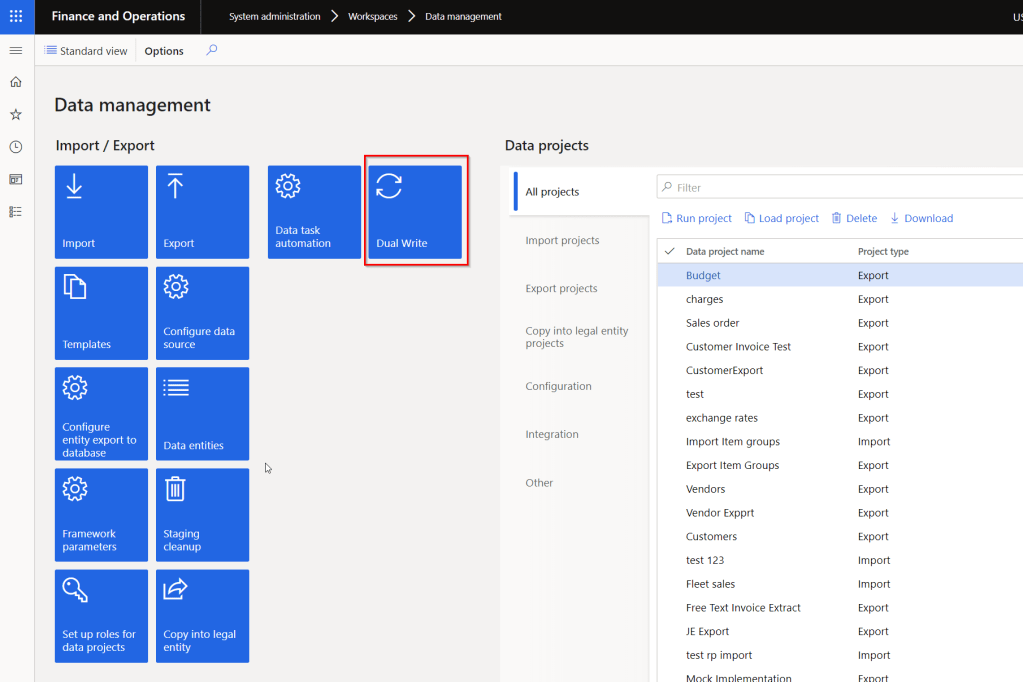
    Starting the Platform Update 33 (Version 10.0.9) of D365 F&O, the Dual write feature is now a built-in embedded experience within the data management workspace of F&O. This means your administrators or integration folks do not have to login to a CDS environment to configure a dozen things to sync data :)

    Microsoft ships several out of the box entity maps between F&O and CDS that you can use right of out of the gate. You can also tweak the out of the mapping to suite your needs. It does not stop there!! If you have custom data fields or custom entities built for your implementation, you can use those as well.

    You should see a new Tile named “Dual Write” under Data Management workspace if you have deployed 10.0.9 deployed.

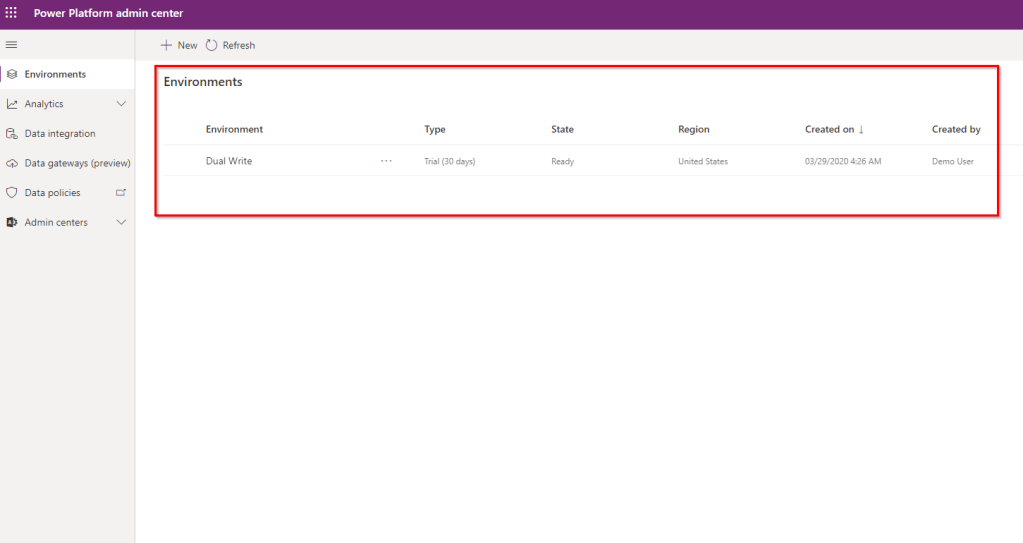
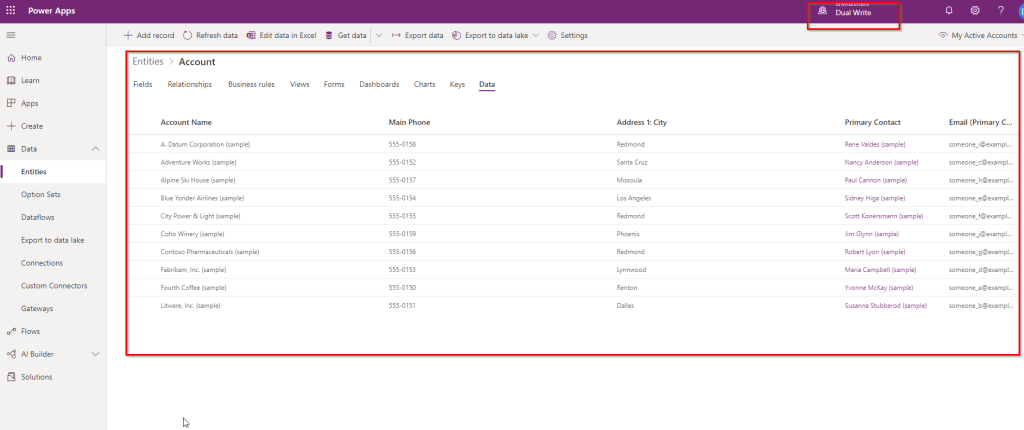
    Make sure you have the CDS environment deployed and ready under Power Platform admin center. For my testing purposes, I have also deployed sample data in my CDS environment, so that I can validate the data sync between F&O and CDS.

    Before you can link a F&O environment to CDS, you need to make sure the following configurations are in place.

    1. Make sure you have version 10.0.9 installed in the F&O environment.
    2. Install Dual Write Core solution from App Source in your CDS environment and enable the dual write entity map solution.
    3. Grant required accesses so that CDS and F&O can connect to each other.
    4. You can see the detailed documentation here.

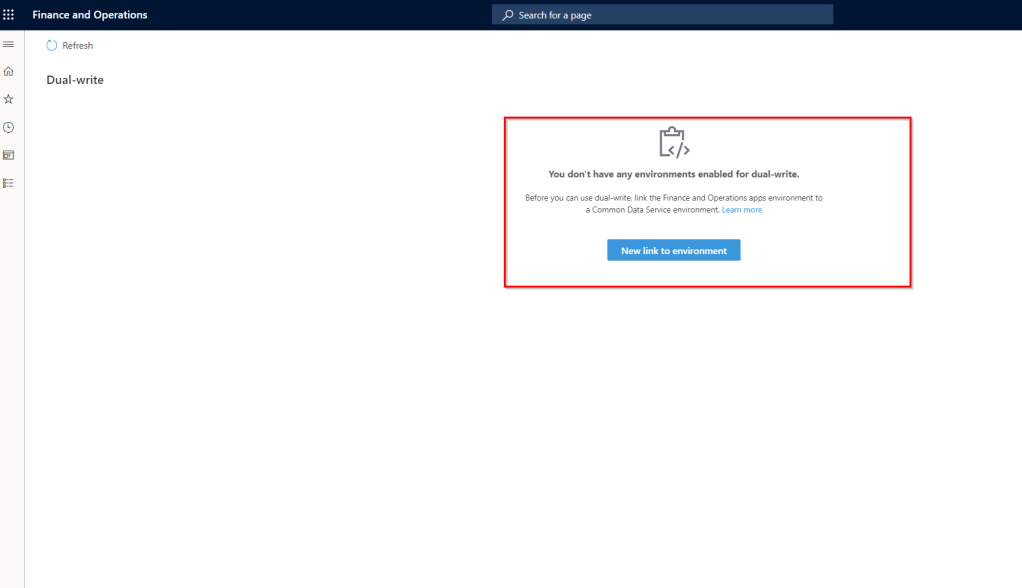
    Now you have to link the F&O environment to a CDS environment and enable entities for dual-write. From the Data management workspace of F&O, go to Dual-write and click “New link to environment“.

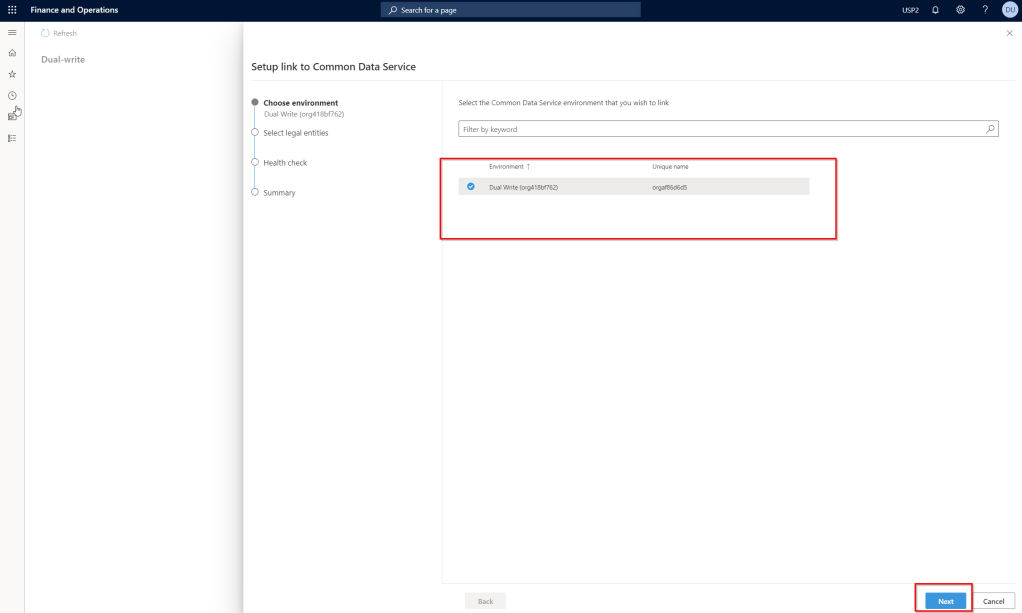
    You should see the list of CDS environments available in there. Select the one you want to use and click Next.

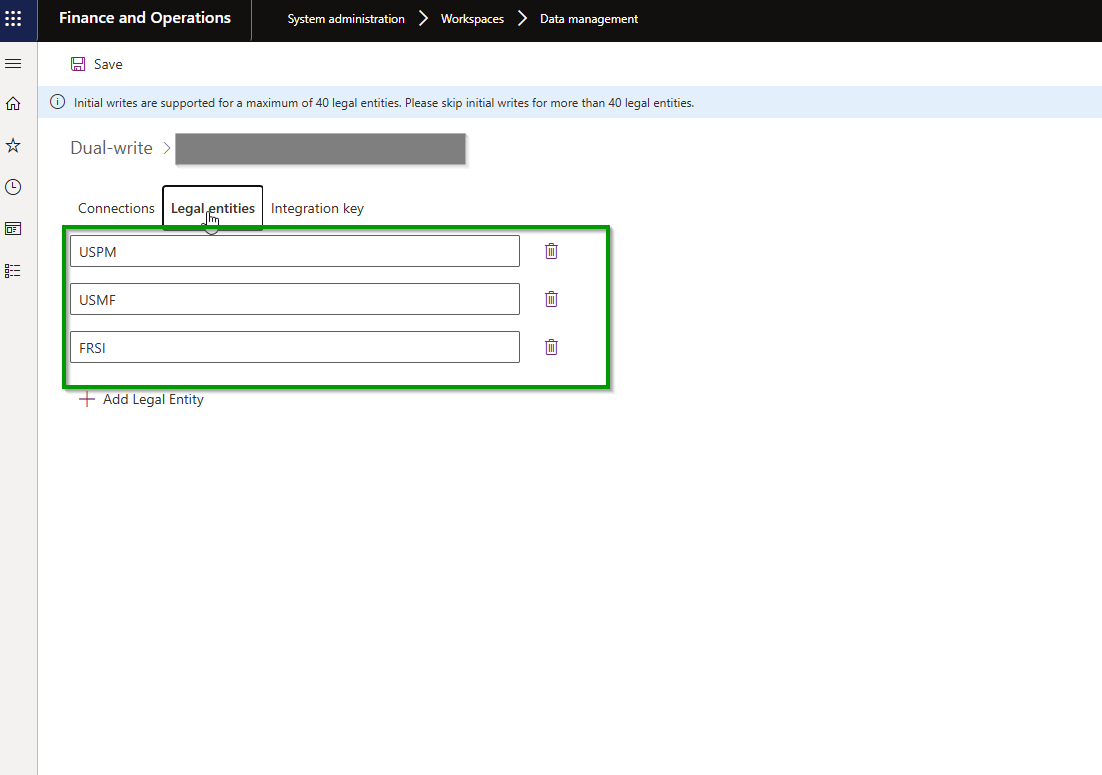
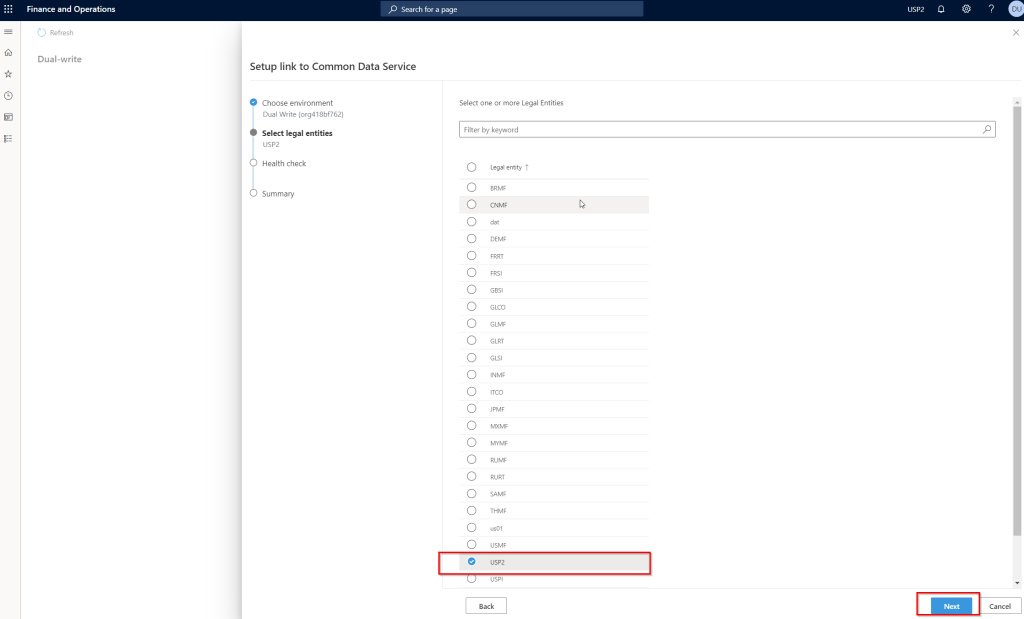
    Select the legal entities you want to connect to CDS and click Next.

    If all your required configurations and installs are correct, the health check of CDS connection should succeed and you should be able to proceed with viewing and enabling entity maps and turn them ON for sync with CDS.

    I just wanted to share my initial thoughts and excitement, now that Dual write is generally available. Customers who are already using D365 F&O and D365 Customer engagement apps should look at leveraging this to sync data between the applications at all stages of the Prospect to Cash scenario.

    I am in the process of fully testing and validating this and I can’t wait to share my test results and additional details on the feature here soon.

    More to come soon!! Stay tuned.

  • Some useful new features of Dynamics 365 for Finance and Operations version 8.1 under Core Financials management module – Part 1

    Some useful new features of Dynamics 365 for Finance and Operations version 8.1 under Core Financials management module – Part 1

    The October 2018 release of Dynamics 365 for Finance and Operations (Version 8.1) introduced several new and very useful features in the core financials management area of the application, along with several other new functionality and enhancements across various other modules, analytics, overall platform, extensibility and more.

    In this blog post, we will review some of the key new features under the core financials area, which a lot of end users will certainly fall in love with.

    Central view of Settlement Transactions: In the past, when you had to see the settlements on a customer or vendor transaction, you always had to make a few clicks and jump to more than one screen to find the relevant information, which was time consuming. With the new “View Settlement” form/option on the Customer and Vendor transactions form, you can now see the full settlement details, related transactions, accounting, history and more, all at one place. Here is an example.

    A customer invoice is posted: The View settlements form shows just the required details of the invoice.

    cust trans8.1
    view settlements

    Let us now settle this invoice against a customer payment along with some cash discount. Here is what you see in the view settlement form.

    view settleemnts after settlement

    On this new “View Settlements” form, you can,

    • View any related transaction lines for the invoice, payment, cash discount lines etc.
    • You can dig into the Settlement history, if there a transaction was settles, unsettled multiple times.
    • You can view the accounting entries directly from this screen, for each individual line.
    • You can also initiate the Undo Settlement process from this new form.
    options on view settlements

    Customer and Vendor data field change approvals: On the Customer and Vendor master records, if you want approval process to be in place, when certain data fields are changed on the customer or vendor records, you can now enable that functionality optionally. This is a pretty neat feature, which let’s you chose which data fields you want to control from being changed accidentally, and then configure a detailed one or multi step approval process, so that the changes can be reviewed and approved, before the new field value comes into effect for the customer or vendor. In the post today, we will see this on the Customer side, but it is the same functionality on the vendor side as well.

    So the first step is to Enable the approval process. As i mentioned, this is completely optional and if you do not need, you just leave the feature turned OFF. To enable this, go to Accounts Receivable > Setup > AR Parameters form and mark the “Enable customer approval” check box under the General tab.

    Enable Customer fields approval

    The next step is to actually configure the approval workflow, which will be used for routing the proposed customer account changes for review and approval. This workflow is similar to other workflows in the system. In my case, i have setup a basic workflow with just one step approval process.

    Once you have the workflow configured, let us now see this functionality in action. Navigate to the customer master and you will notice that the data fields you selected in the parameter screen , will now show as “requires approval” indicator. This is super helpful and easily tells the user that this field if changes will require approval. Let’s try to change the customer credit limit and customer group field.

    Let’s try to change the customer credit limit and customer group field. When you save the changes, system will create and show the change proposal, which shows both current values and the proposed changed. At this point, the user if wishes, can discard the changes they made.

    Notice now that the status of the Customer account says “Changes not submitted”.

    One important thing to note here is, when the changes to the data fields are in process, you can still transact with the customer. System will just use the current values.

    Once you are done with the changes, click Workflow > Submit to submit the changes to the workflow for review and approval. When the changes gets assigned to the approver, they can view the Proposed changes on the customer record directly.

    Important note: There is a periodic option to submit all changes created for customer accounts in bulk. You can do it both manually and in the background/batch.

    The changes to the data fields will come into effect after the change proposal has been approved. It works the same way for vendor records as well.

    Financial Dimension values on Derived Dimensions: In many of the implementations I have done, a common requirement we here is to have some of the master records such as Item, Project, Customer etc. to be configured as one of the financial dimensions, so that customers can do adequate financial reporting on those. We use Derived dimension values for this and often end up having to select the financial dimension value manually on the master data record or we end up doing additional customization to automatically populate this value when new records are created in the master data table.

    With this new functionality, you do not need to do any customization or even setup the dimension value manually when new records are created. If enabled, the system will automatically set these up now. Let us see this in action.

    Additionally, there is another new functionality available on the financial dimensions area, where you can now setup certain dimension values to be defaulted when you select another dimension value. For example, when you select a specific business unit, you can have the system automatically default a cost center value for you.

    To set this up, go under Financial dimensions > Select the dimension record and click Derived dimensions button. Here you can setup the value combinations of the defaulting of dimensions.

    In this case, i have setup to default Cost center and Department values to be defaulted when i select a certain business unit.”. Let us see this in action.

    With the above setup, when I select Business Unit dimension on a master record setup such as Project/Customer or anything else, the Cost center and Department dimensions will be auto populated, and i do not see to select them specifically. This is a pretty handy feature and will certainly save a lot of time for users in some cases.

    For example, when i select Business unit 001 on my customer record, the Cost center and Department values auto populates to what i have setup.

    The same defaulting functionality works on journal entry as well. For example, when I do a general journal entry and select the Business Unit dimension, i can have other dimension values defaulted (as long as they pass other account structure related validations)

    Financial Journal Validation: Additional functionality to simulate posting during journal validation is available, which allows you to basically run the whole posting process, without actually posting the journal. As a result, you can see the possible errors, messages or warnings and you can take corrective actions on the journal.

    Global Shared Number Sequence for Customers and Vendors:  The global shared number sequence functionality allows you to use a single number sequence across many legal entities for customers and vendors. With this, you can also copy customers and vendors easily between legal entities. Since you cannot share master data using virtual companies anymore in D365 F&O, this might be a functionality you want to use to share the customer or vendor master if needed in your implementation.

    Note: This functionality is not a replacement of the Virtual company feature by any means. It is just a possible alternate that can be leveraged to have same customer ID and info for one customer across multiple entities, but they will live as separate data records and have their own transactions.

    The first thing you have to do is configure a Shared number sequence and then you will need to select the same shared number sequence under the Number sequence parameter.

    Then you need to make sure you select the same number sequence code for the customer account under the AR parameters page in all the entities where you want to use the shared customer account ID.


    With that setup, let us now see how you can copy customer accounts from one entity to another and they will use the same customer account number and other related info for the customer.

    In USSI entity, I created a new customer account. Notice that when i create the new customer, system does not assign a Customer account number immediately. This is because, if you want to copy the customer from another entity, it will use the same customer account number. If not, it will assign a new shared number after you save the details on the customer. (We will see this copying feature when we create this same customer in another entity USMF).

    Now i have filled the required details for this new customer and i save the data. System assigned a customer account number using the shared number sequence we had setup.

    We will now copy the customer in the USMF entity. Let us see how that process looks like. I will navigate to the Customer master in the USMF entity and click New on the All Customers page, and then i will type in the customer name i want to copy. System will automatically find the match and if they are an existing customer in another entity, it will present an option to copy the customer account.

    You will now see that the Customer information is copied into the USMF entity and it used the same Customer account number.

    Note: You will need to make sure all the dependent data fields for the customer account are correctly setup in both entities.

    Now that we have the shared customer account numbers setup and customer accounts copied, let us look at another new feature that complements this feature.

    Global Customer and Vendor Transactions List page:  If you are using shared number sequence for customers/vendors and have copied the accounts between multiple entities, you would obviously want to see a centralized view where you can see the transactions of the customer of vendor in all the entities they are copied in. I have already posted some transactions for this new customer “Marshal’s New store” in both USSI and USMF entities.

    Invoice posted in USSI:

    Invoice Posted in USMF:

    Let’s see how the look in the new global transactions list page. I am in the USMF entity now and i will navigate to the global transactions list page.

    Notice that the new page shows me all the transactions for this customer account form multiple entities. You will notice here that when you select the transaction for the specific entity on this page, the system automatically switches the company account, so that you can perform required operations on the transaction correctly.

    That’s it for today’s post. In the next post, we will discuss in detail about another new feature in the core financials module called ‘Dual currency” and learn how it works and what are some of the significant changes that were introduced as part of this functionality.

    Till next time !!!