
The October 2018 release of Dynamics 365 for Finance and Operations (Version 8.1) introduced several new and very useful features in the core financials management area of the application, along with several other new functionality and enhancements across various other modules, analytics, overall platform, extensibility and more.
In this blog post, we will review some of the key new features under the core financials area, which a lot of end users will certainly fall in love with.
Central view of Settlement Transactions: In the past, when you had to see the settlements on a customer or vendor transaction, you always had to make a few clicks and jump to more than one screen to find the relevant information, which was time consuming. With the new “View Settlement” form/option on the Customer and Vendor transactions form, you can now see the full settlement details, related transactions, accounting, history and more, all at one place. Here is an example.
A customer invoice is posted: The View settlements form shows just the required details of the invoice.
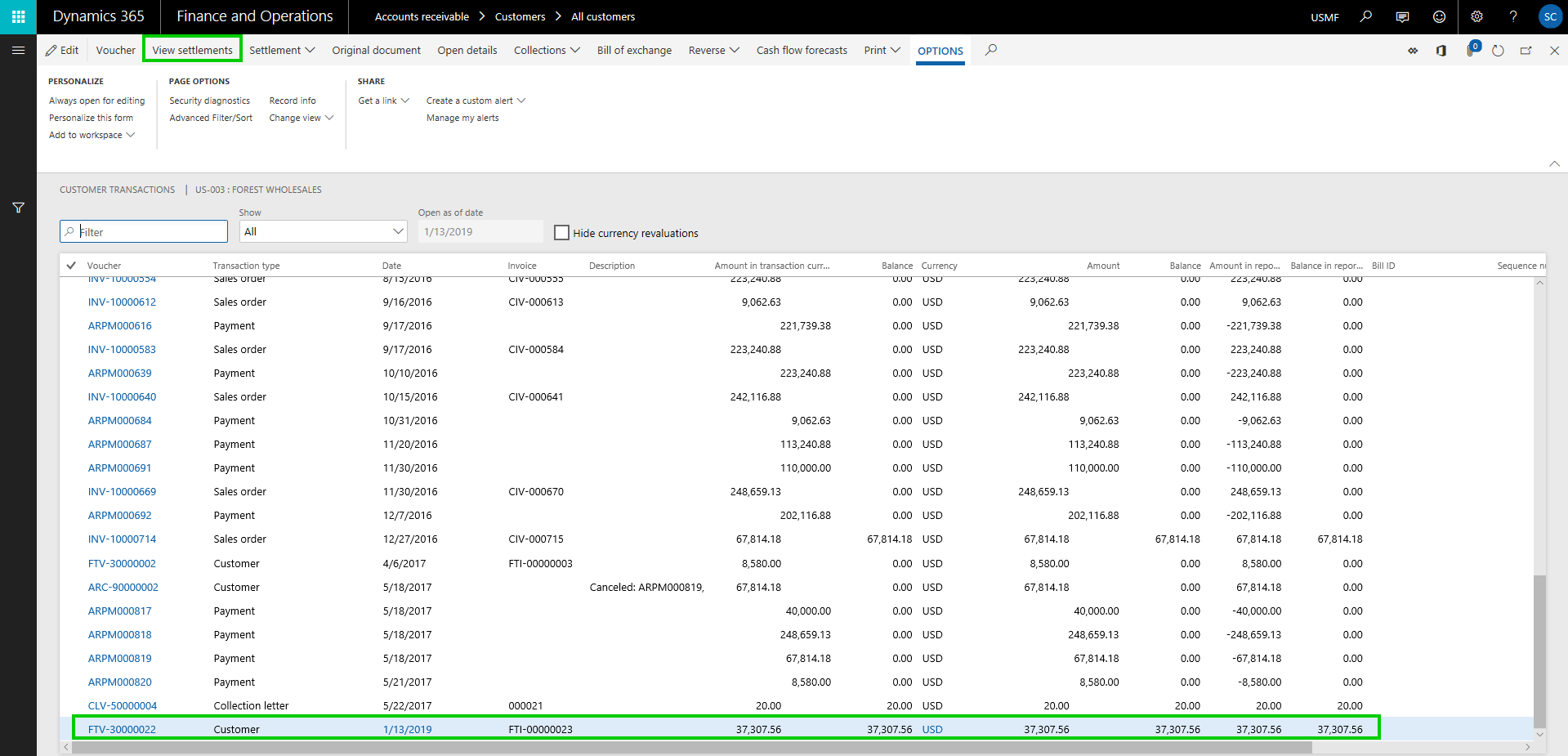
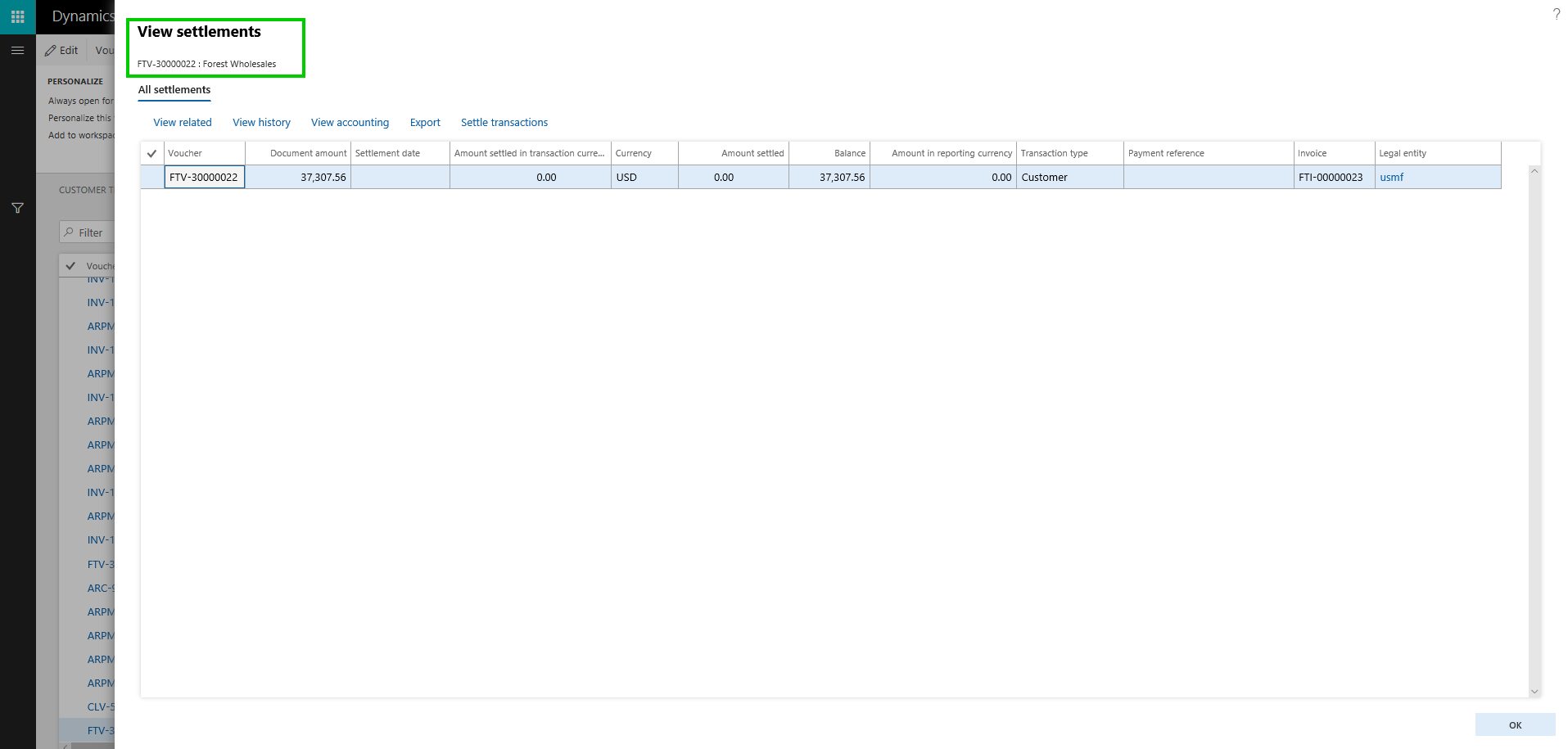
Let us now settle this invoice against a customer payment along with some cash discount. Here is what you see in the view settlement form.
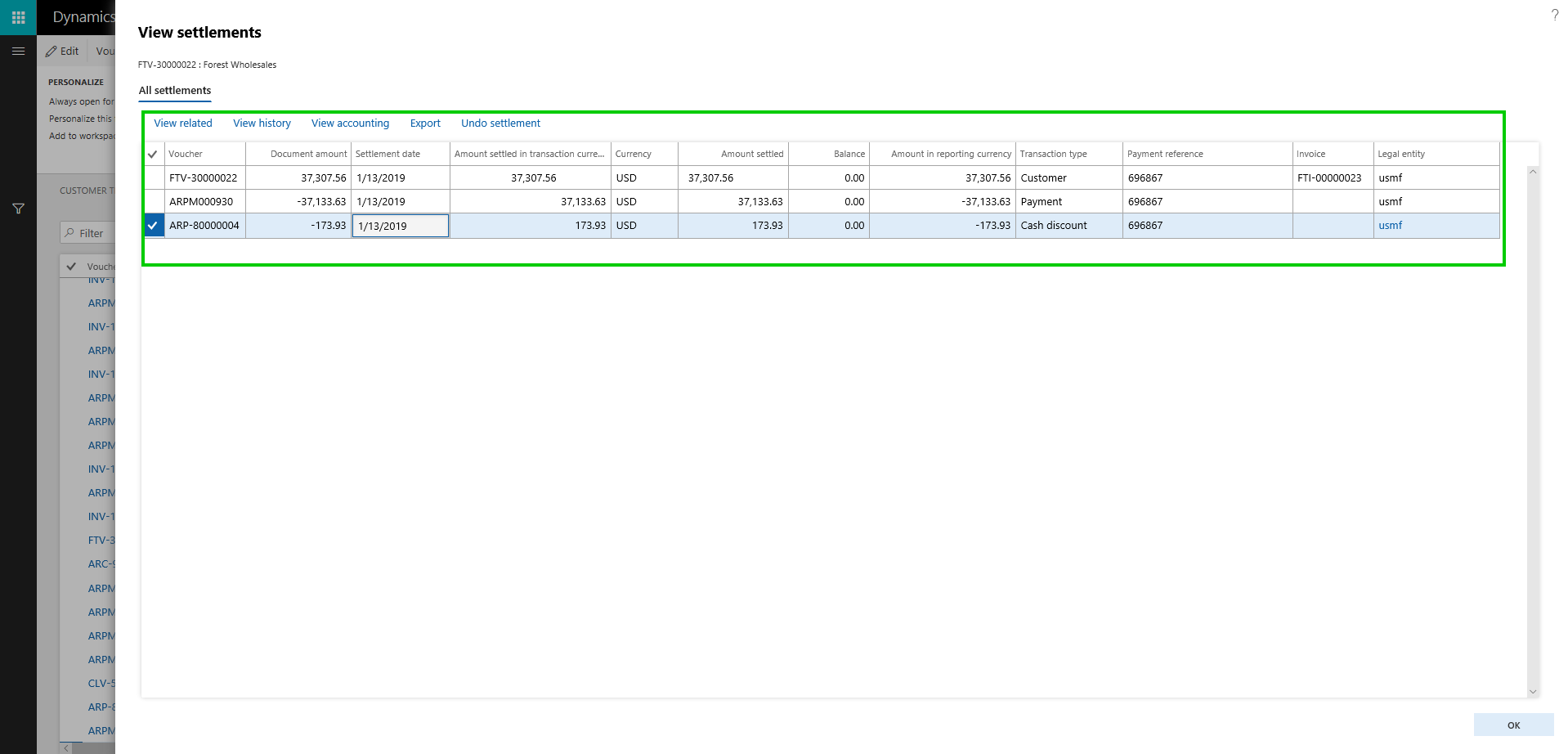
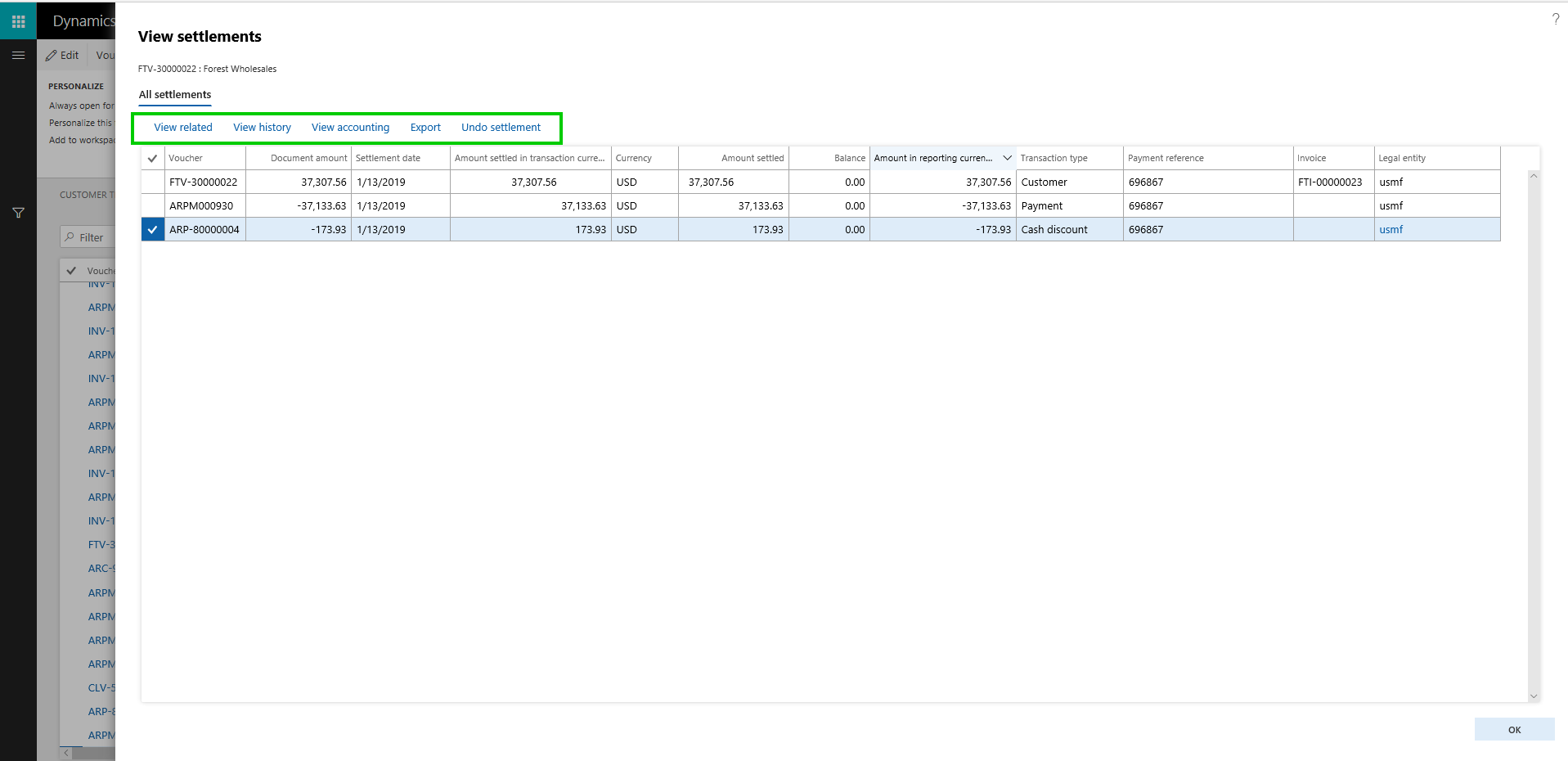
On this new “View Settlements” form, you can,
- View any related transaction lines for the invoice, payment, cash discount lines etc.
- You can dig into the Settlement history, if there a transaction was settles, unsettled multiple times.
- You can view the accounting entries directly from this screen, for each individual line.
- You can also initiate the Undo Settlement process from this new form.
Customer and Vendor data field change approvals: On the Customer and Vendor master records, if you want approval process to be in place, when certain data fields are changed on the customer or vendor records, you can now enable that functionality optionally. This is a pretty neat feature, which let’s you chose which data fields you want to control from being changed accidentally, and then configure a detailed one or multi step approval process, so that the changes can be reviewed and approved, before the new field value comes into effect for the customer or vendor. In the post today, we will see this on the Customer side, but it is the same functionality on the vendor side as well.
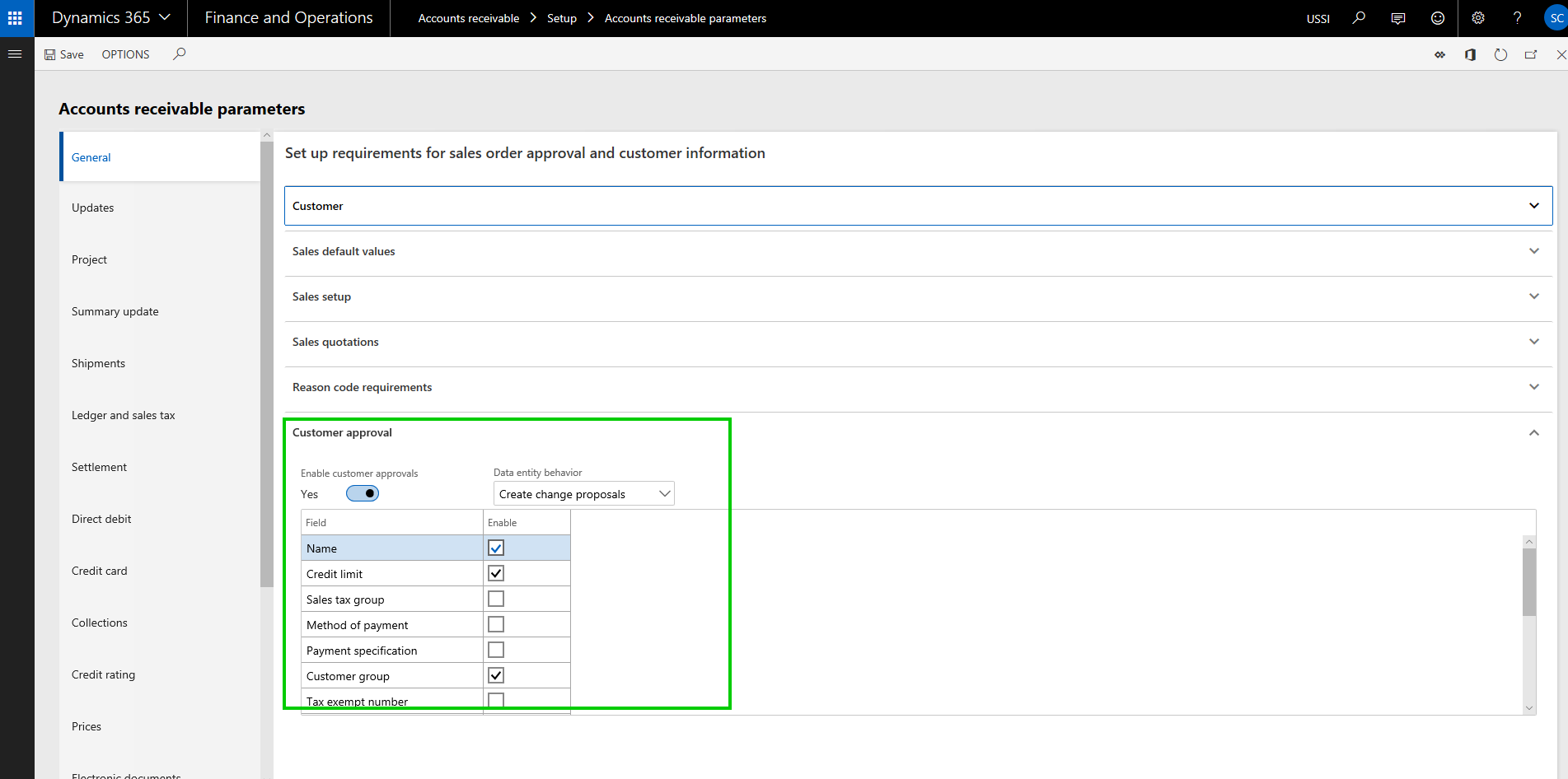
So the first step is to Enable the approval process. As i mentioned, this is completely optional and if you do not need, you just leave the feature turned OFF. To enable this, go to Accounts Receivable > Setup > AR Parameters form and mark the “Enable customer approval” check box under the General tab.
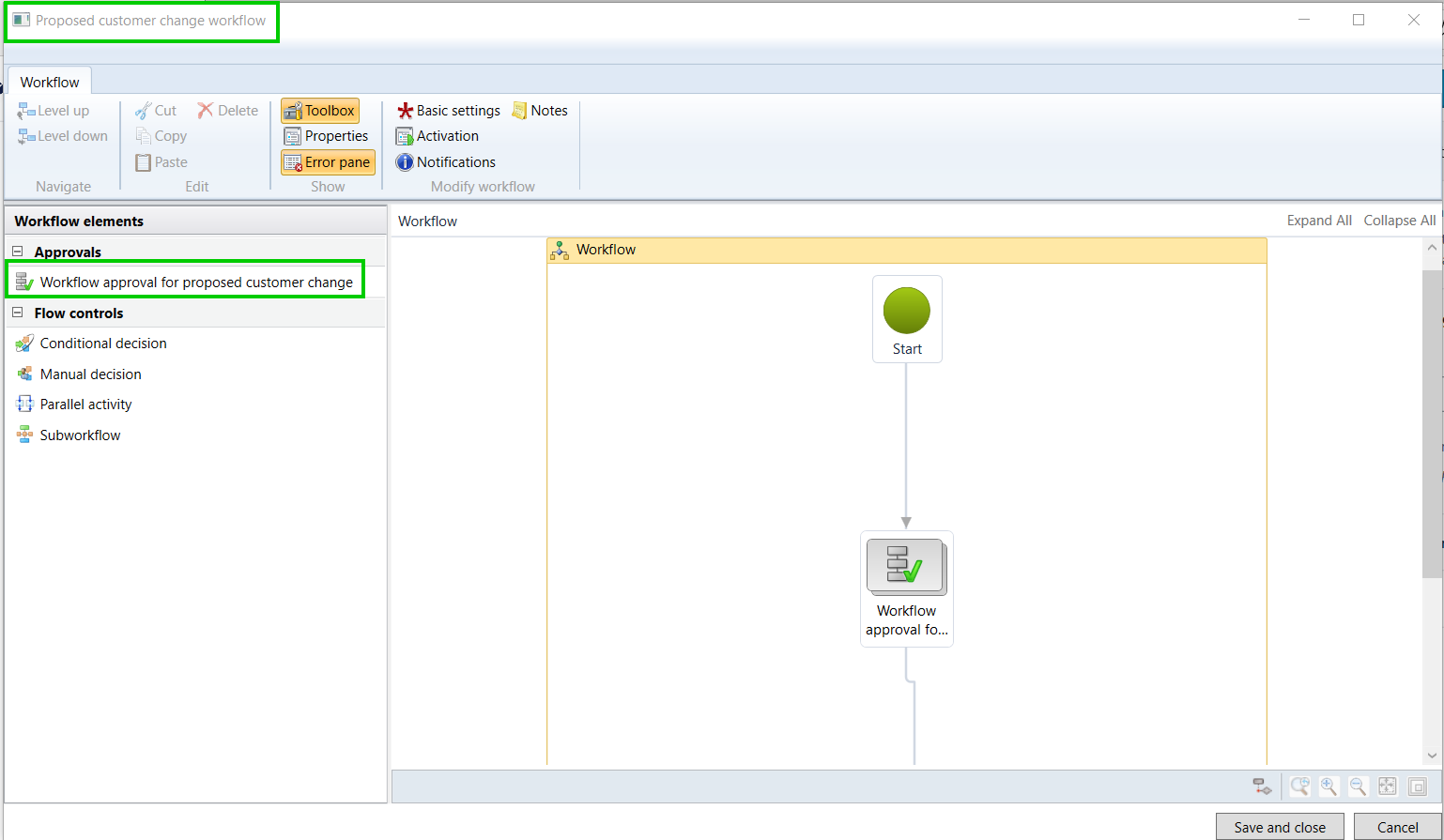
The next step is to actually configure the approval workflow, which will be used for routing the proposed customer account changes for review and approval. This workflow is similar to other workflows in the system. In my case, i have setup a basic workflow with just one step approval process.
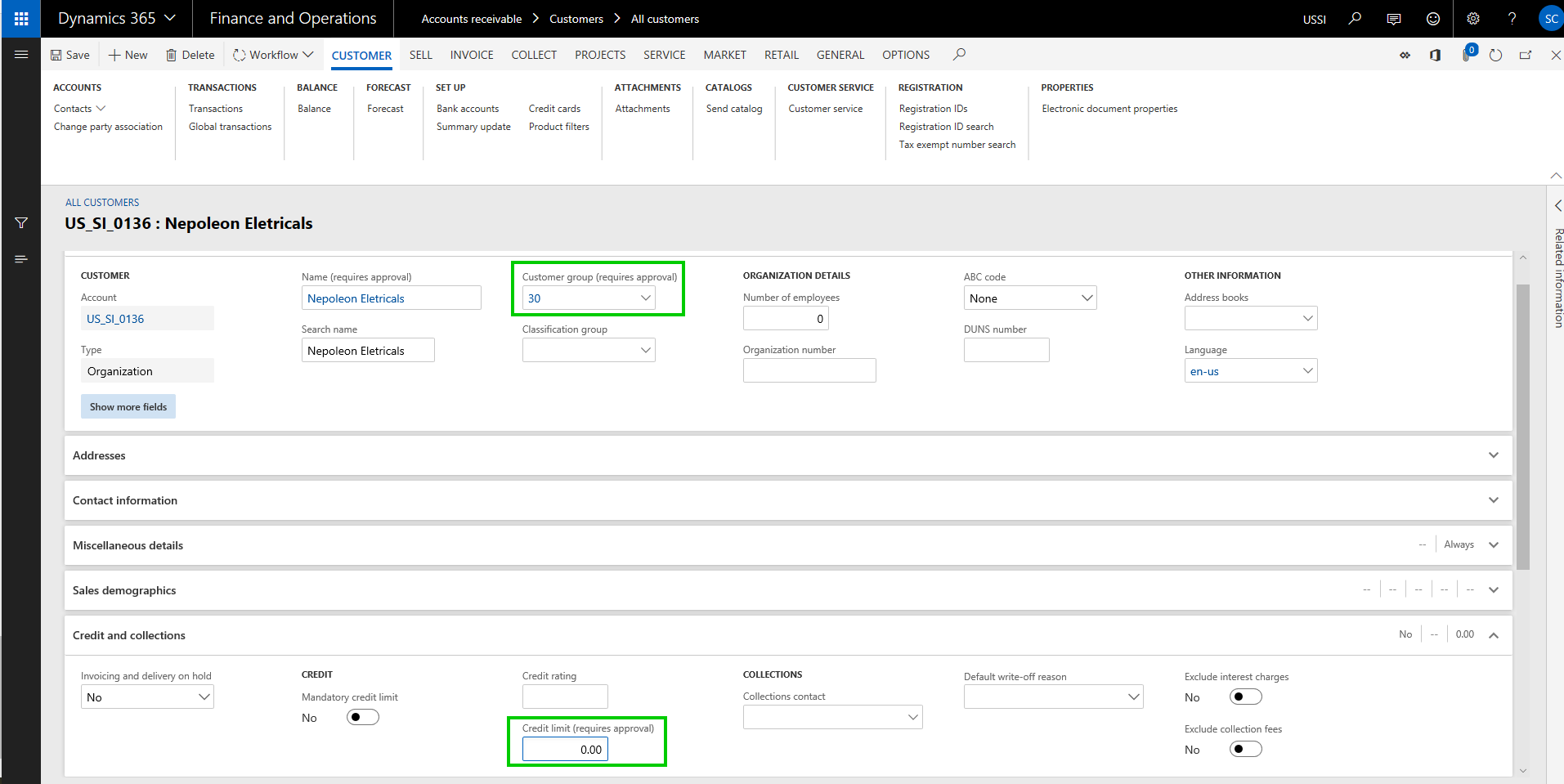
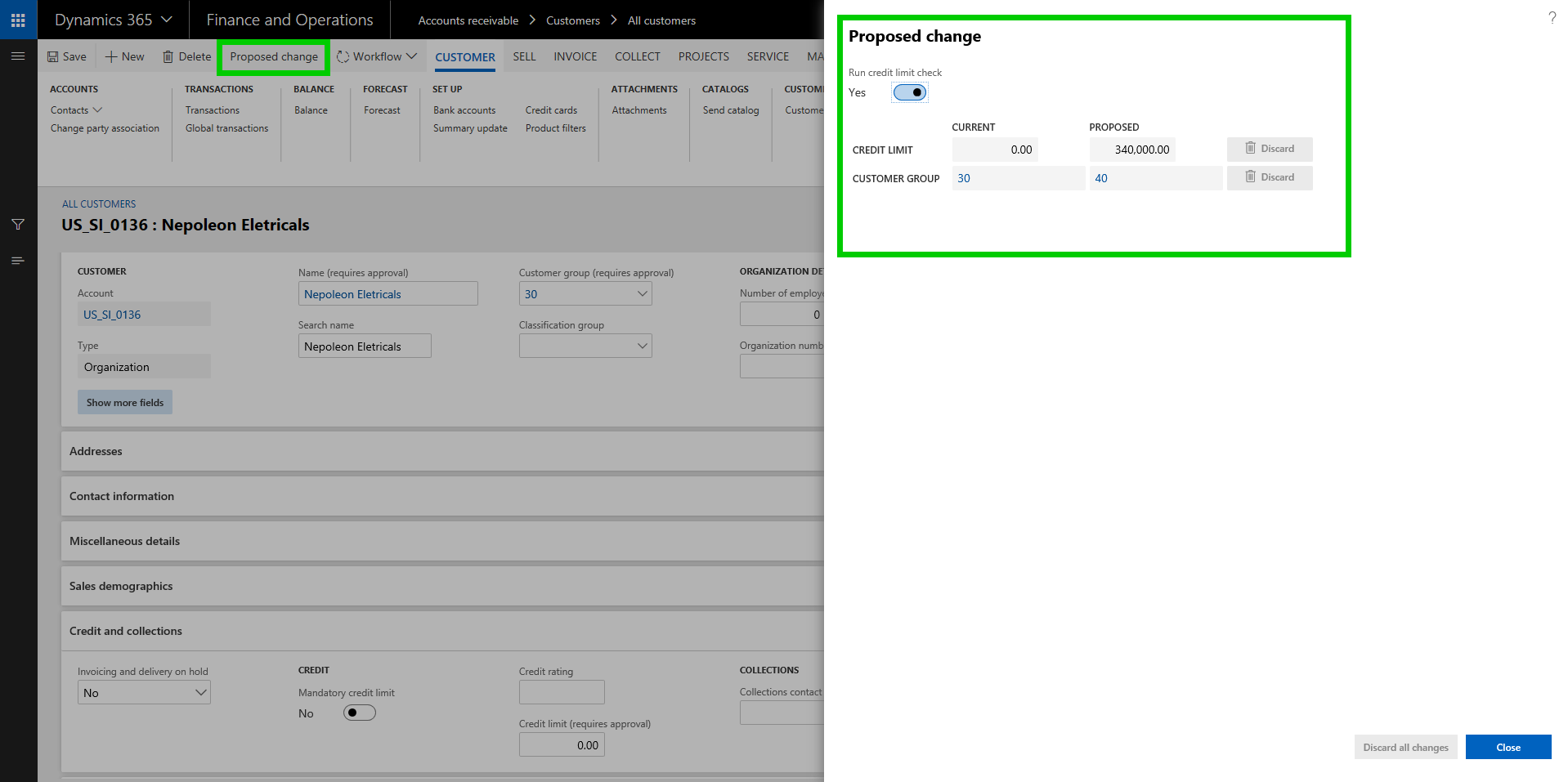
Once you have the workflow configured, let us now see this functionality in action. Navigate to the customer master and you will notice that the data fields you selected in the parameter screen , will now show as “requires approval” indicator. This is super helpful and easily tells the user that this field if changes will require approval. Let’s try to change the customer credit limit and customer group field.
Let’s try to change the customer credit limit and customer group field. When you save the changes, system will create and show the change proposal, which shows both current values and the proposed changed. At this point, the user if wishes, can discard the changes they made.
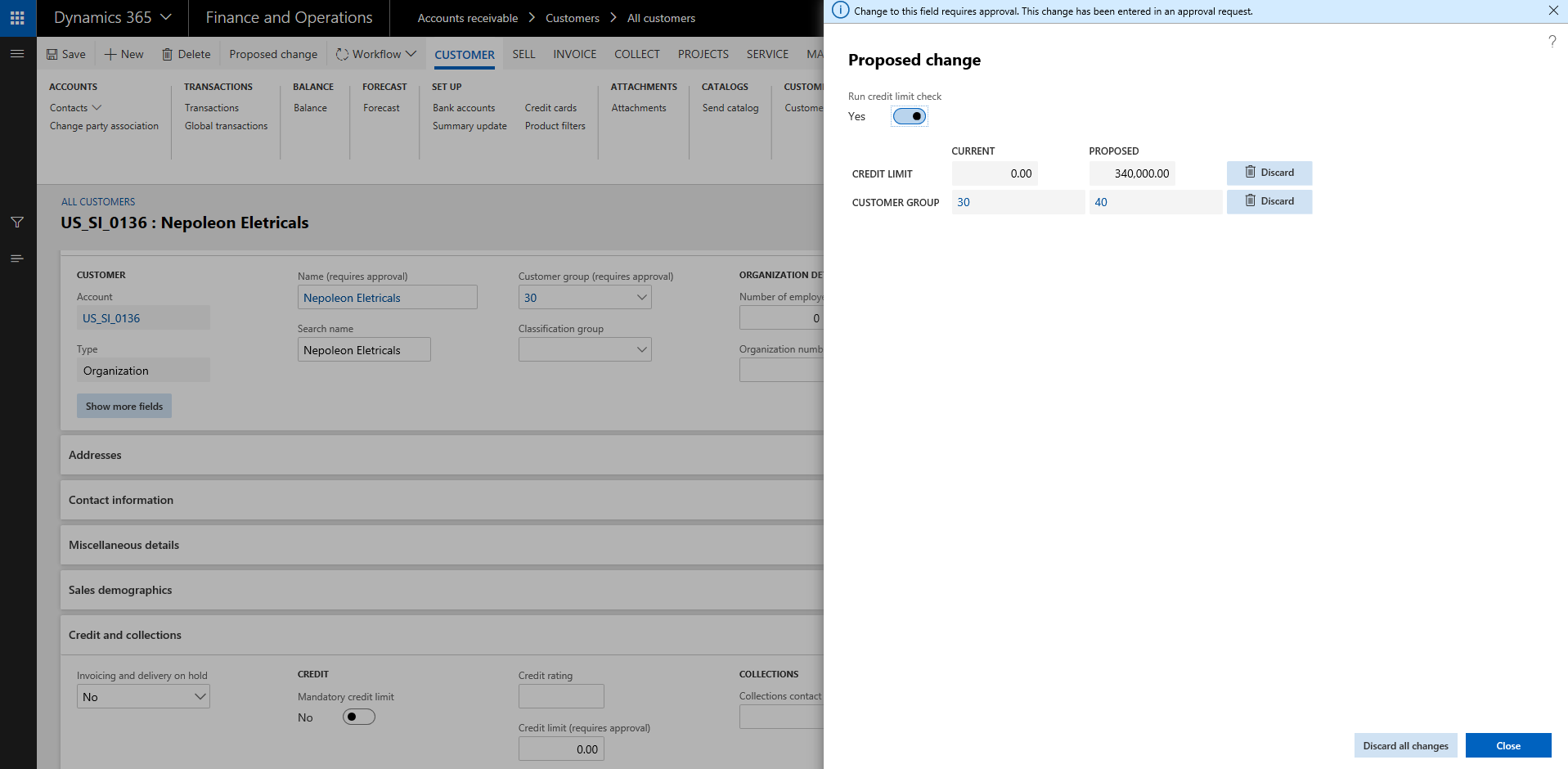
Notice now that the status of the Customer account says “Changes not submitted”.
One important thing to note here is, when the changes to the data fields are in process, you can still transact with the customer. System will just use the current values.
Once you are done with the changes, click Workflow > Submit to submit the changes to the workflow for review and approval. When the changes gets assigned to the approver, they can view the Proposed changes on the customer record directly.
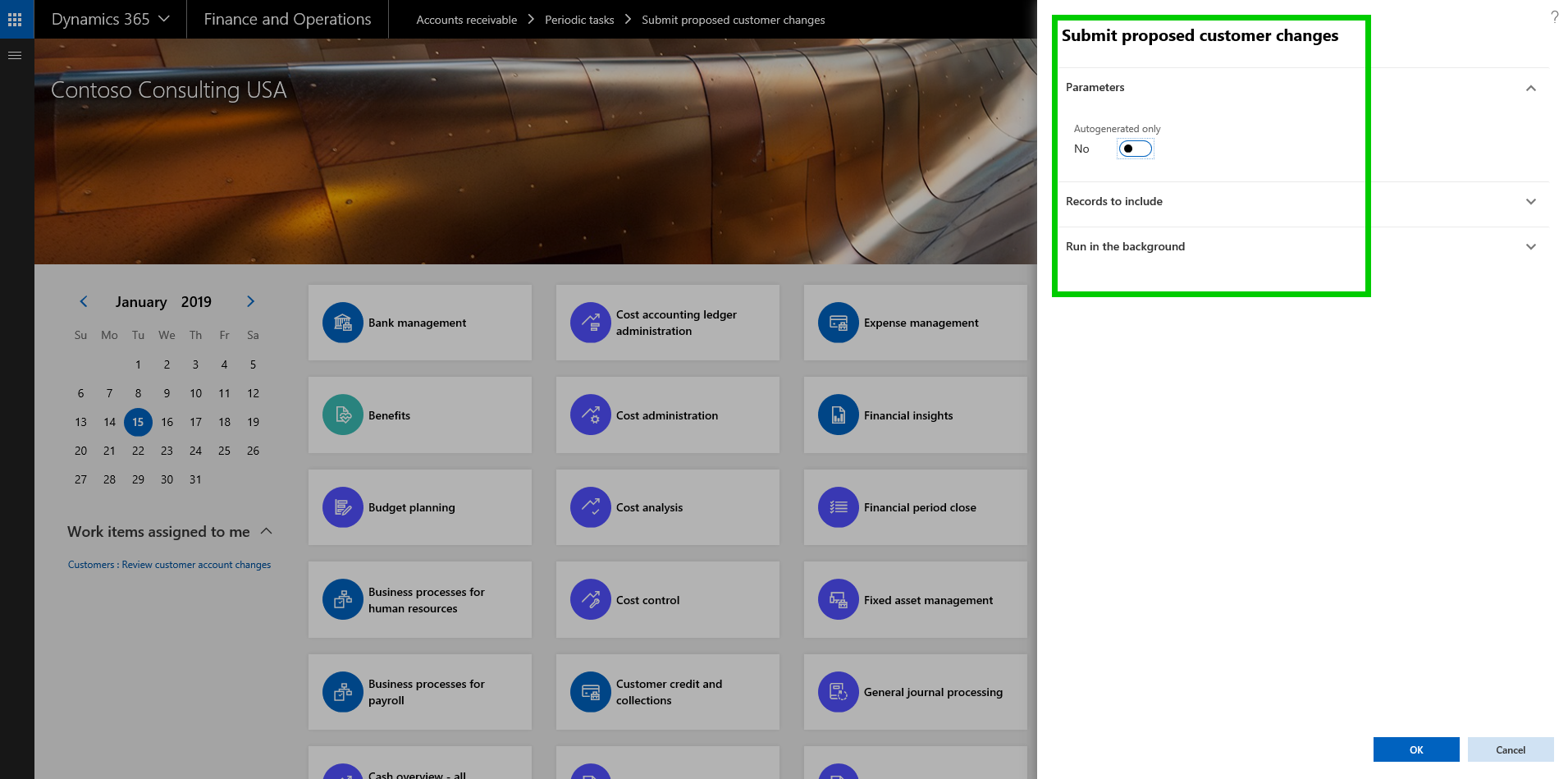
Important note: There is a periodic option to submit all changes created for customer accounts in bulk. You can do it both manually and in the background/batch.
The changes to the data fields will come into effect after the change proposal has been approved. It works the same way for vendor records as well.
Financial Dimension values on Derived Dimensions: In many of the implementations I have done, a common requirement we here is to have some of the master records such as Item, Project, Customer etc. to be configured as one of the financial dimensions, so that customers can do adequate financial reporting on those. We use Derived dimension values for this and often end up having to select the financial dimension value manually on the master data record or we end up doing additional customization to automatically populate this value when new records are created in the master data table.
With this new functionality, you do not need to do any customization or even setup the dimension value manually when new records are created. If enabled, the system will automatically set these up now. Let us see this in action.
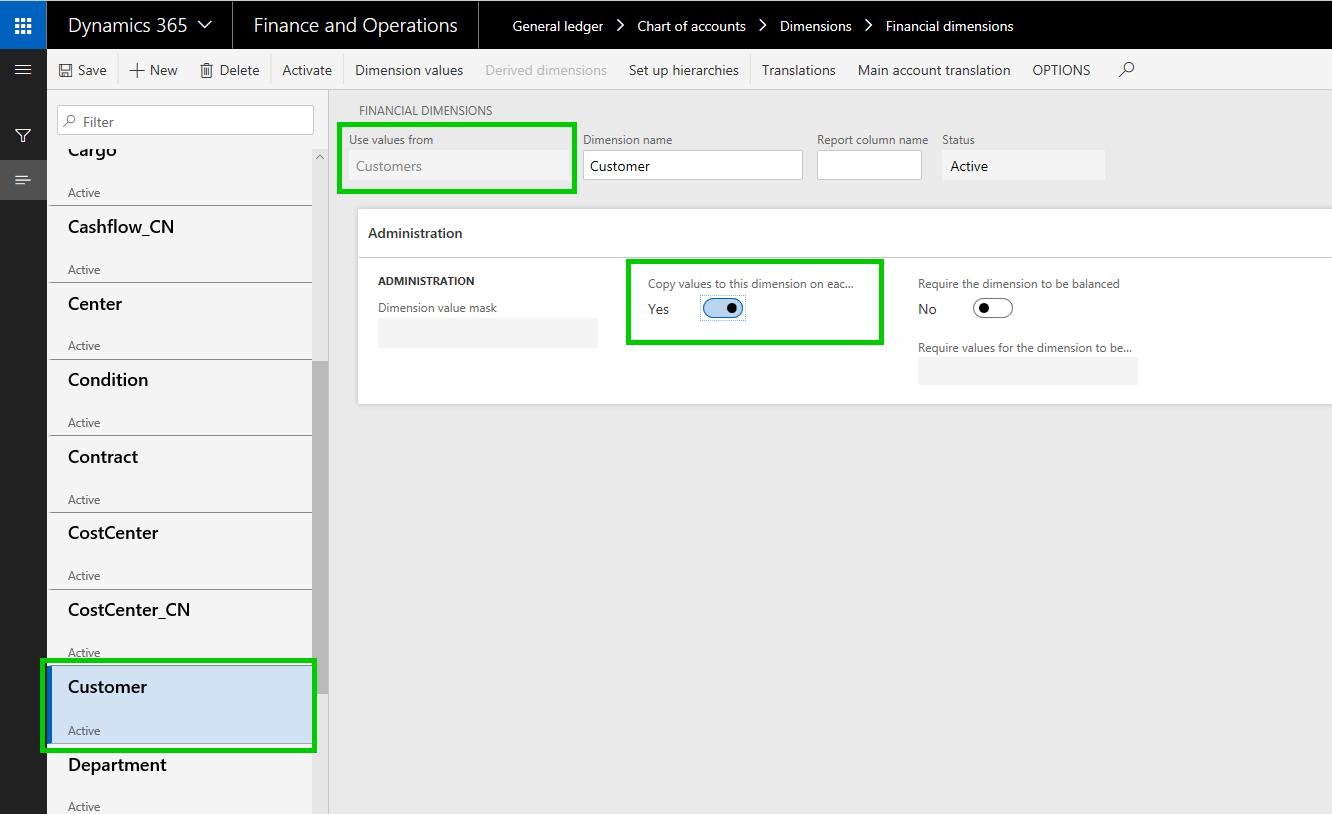
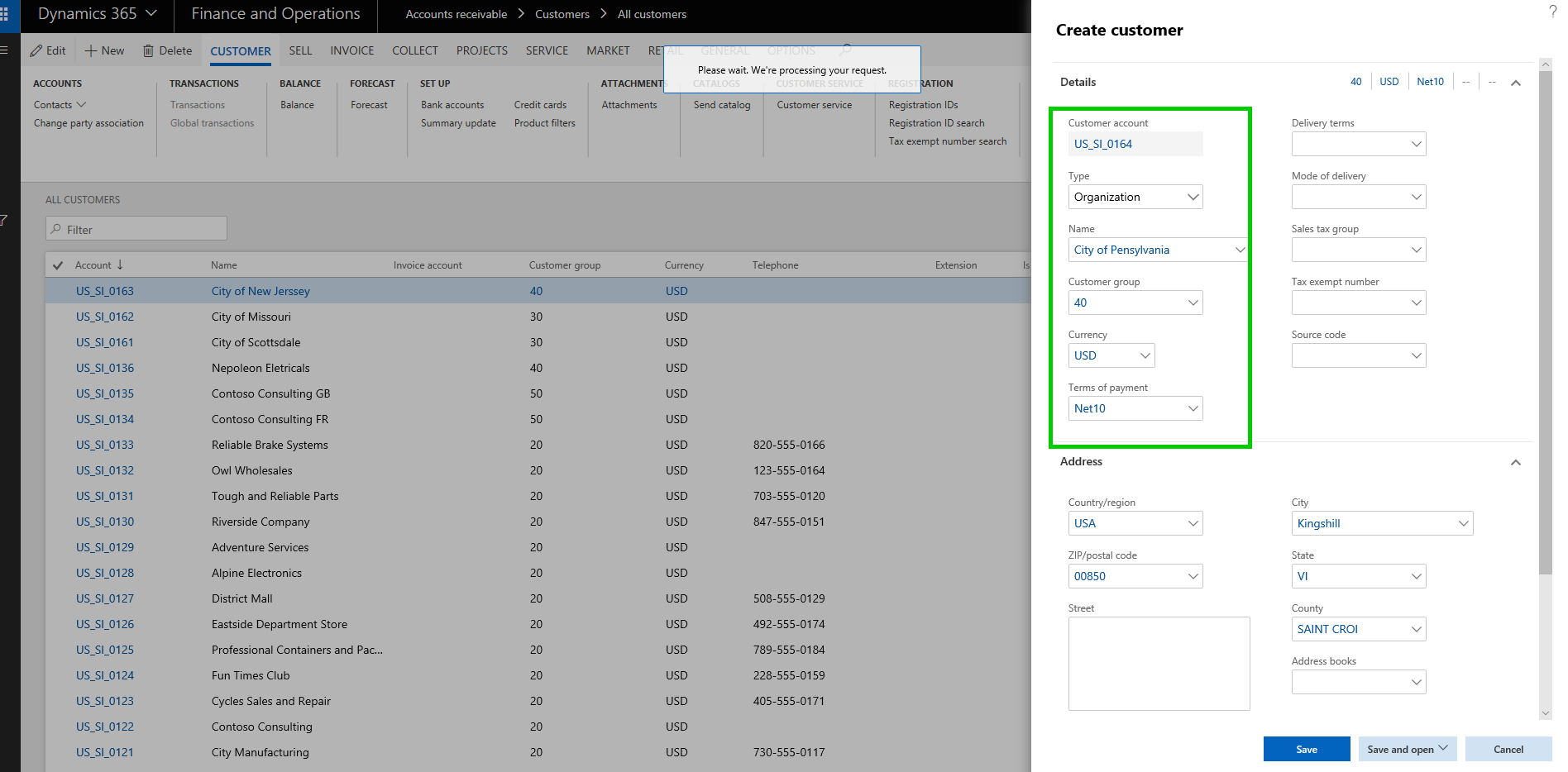
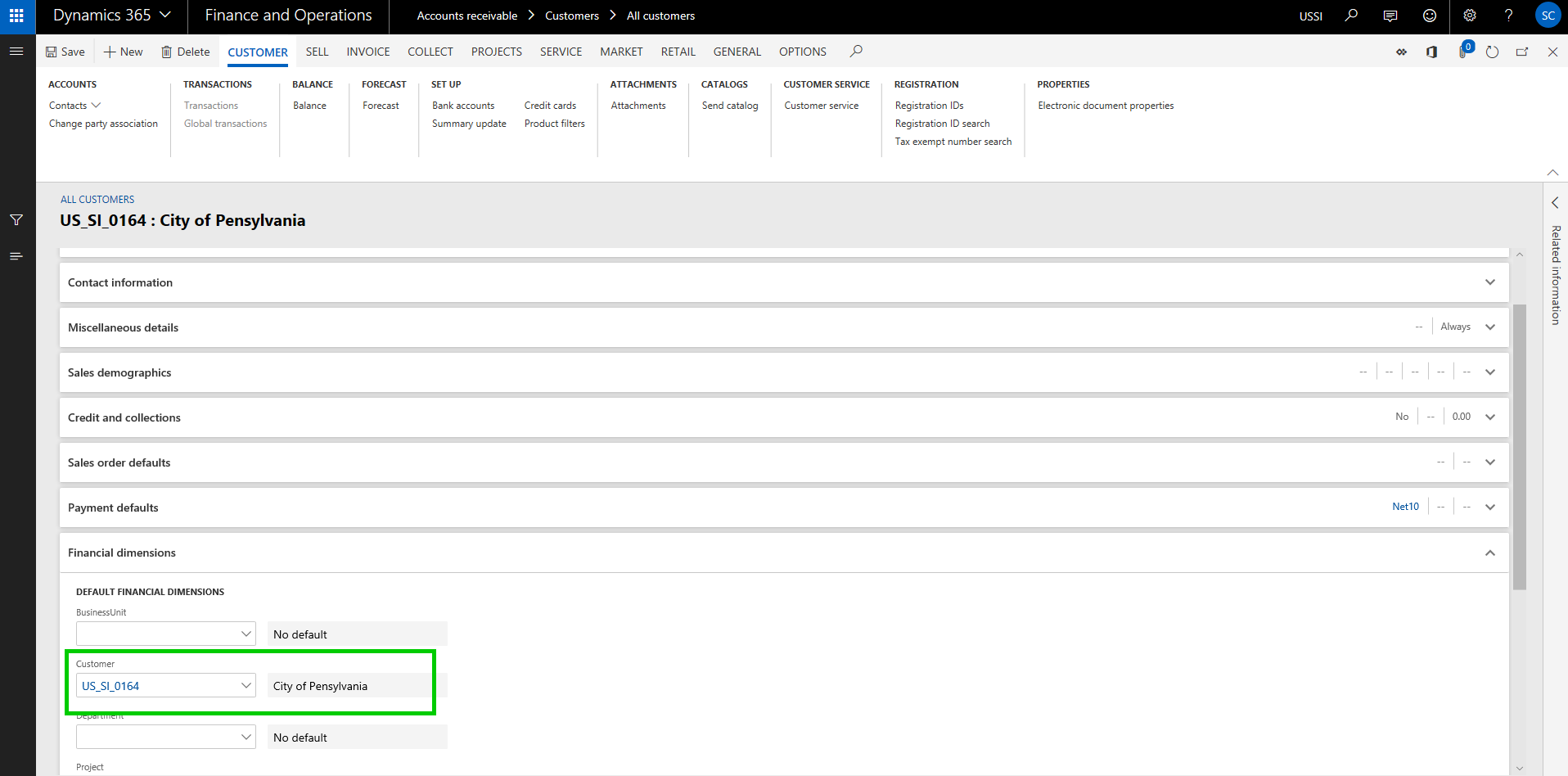
Additionally, there is another new functionality available on the financial dimensions area, where you can now setup certain dimension values to be defaulted when you select another dimension value. For example, when you select a specific business unit, you can have the system automatically default a cost center value for you.
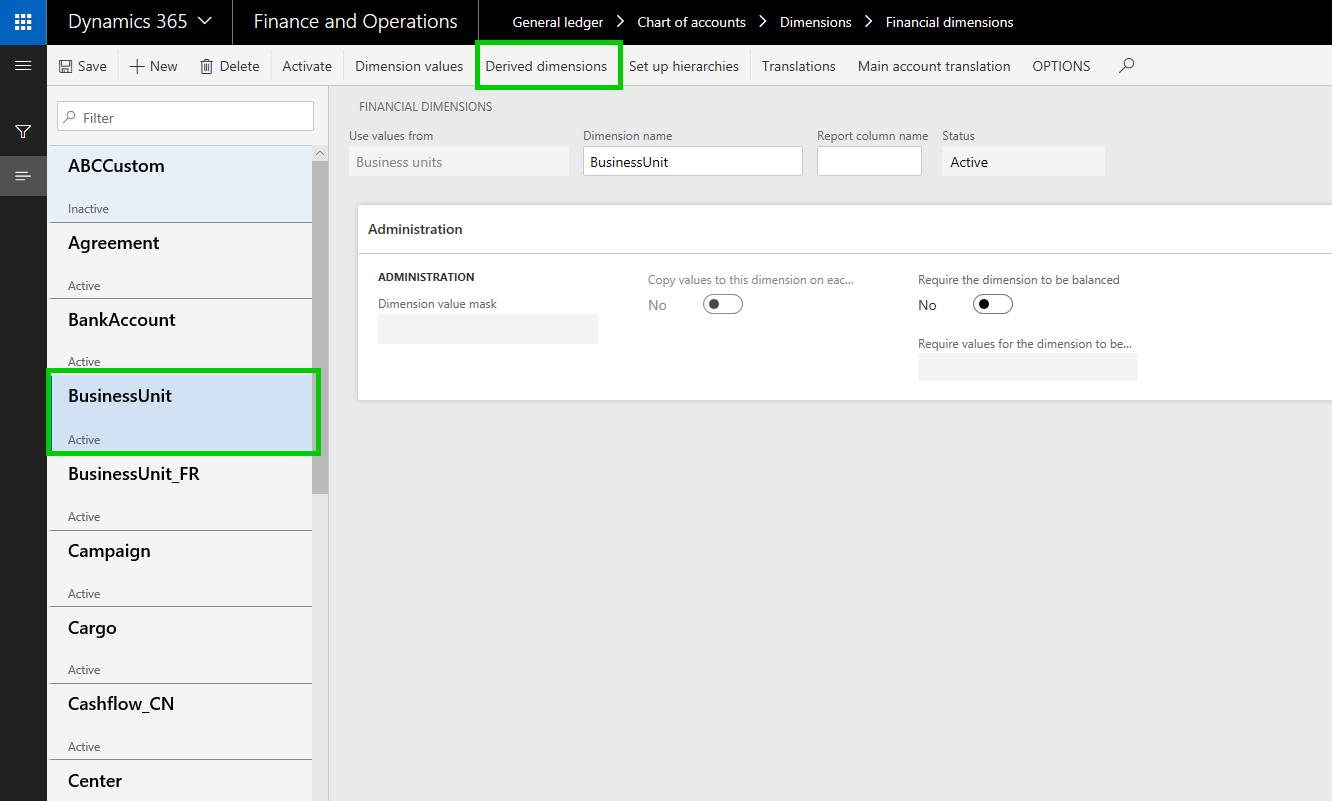
To set this up, go under Financial dimensions > Select the dimension record and click Derived dimensions button. Here you can setup the value combinations of the defaulting of dimensions.
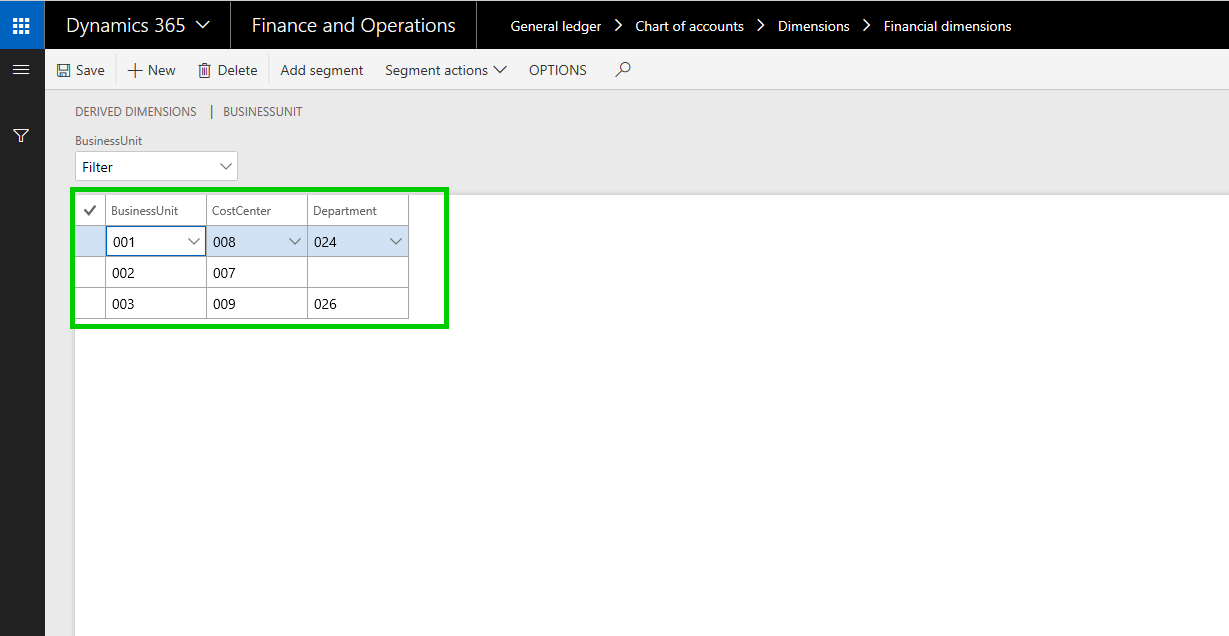
In this case, i have setup to default Cost center and Department values to be defaulted when i select a certain business unit.”. Let us see this in action.
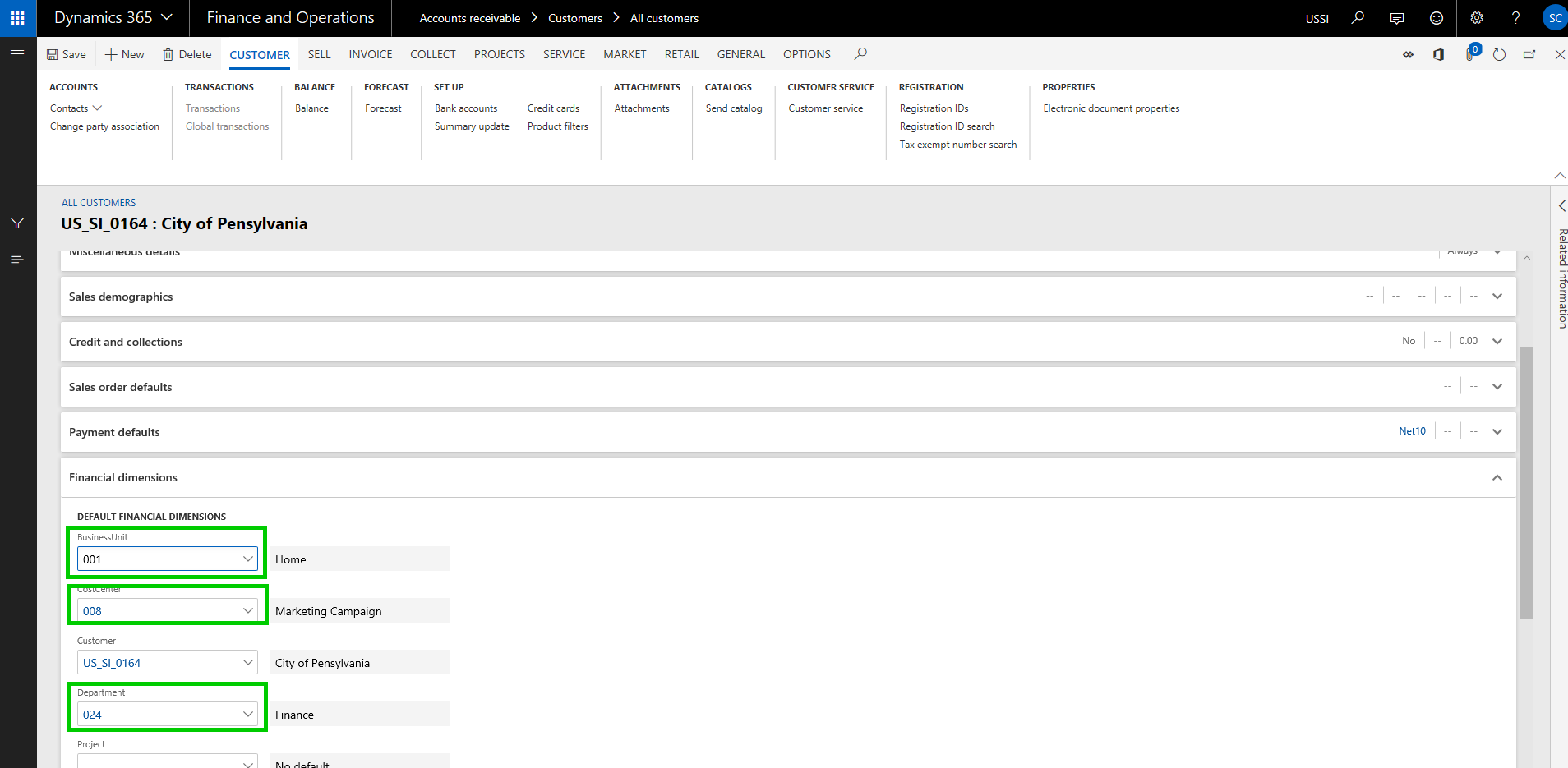
With the above setup, when I select Business Unit dimension on a master record setup such as Project/Customer or anything else, the Cost center and Department dimensions will be auto populated, and i do not see to select them specifically. This is a pretty handy feature and will certainly save a lot of time for users in some cases.
For example, when i select Business unit 001 on my customer record, the Cost center and Department values auto populates to what i have setup.
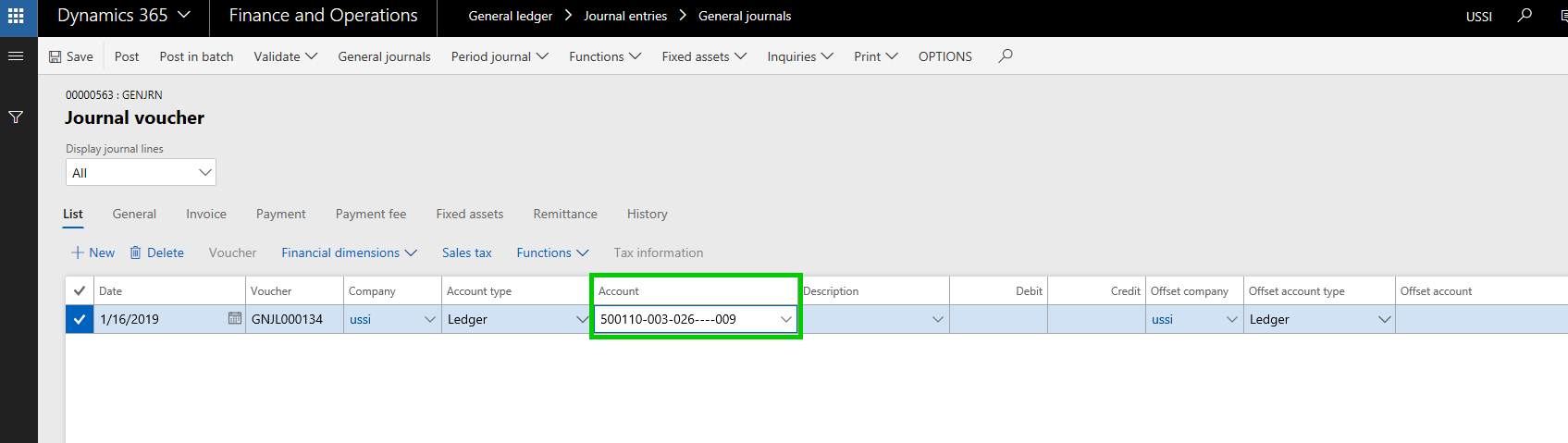
The same defaulting functionality works on journal entry as well. For example, when I do a general journal entry and select the Business Unit dimension, i can have other dimension values defaulted (as long as they pass other account structure related validations)
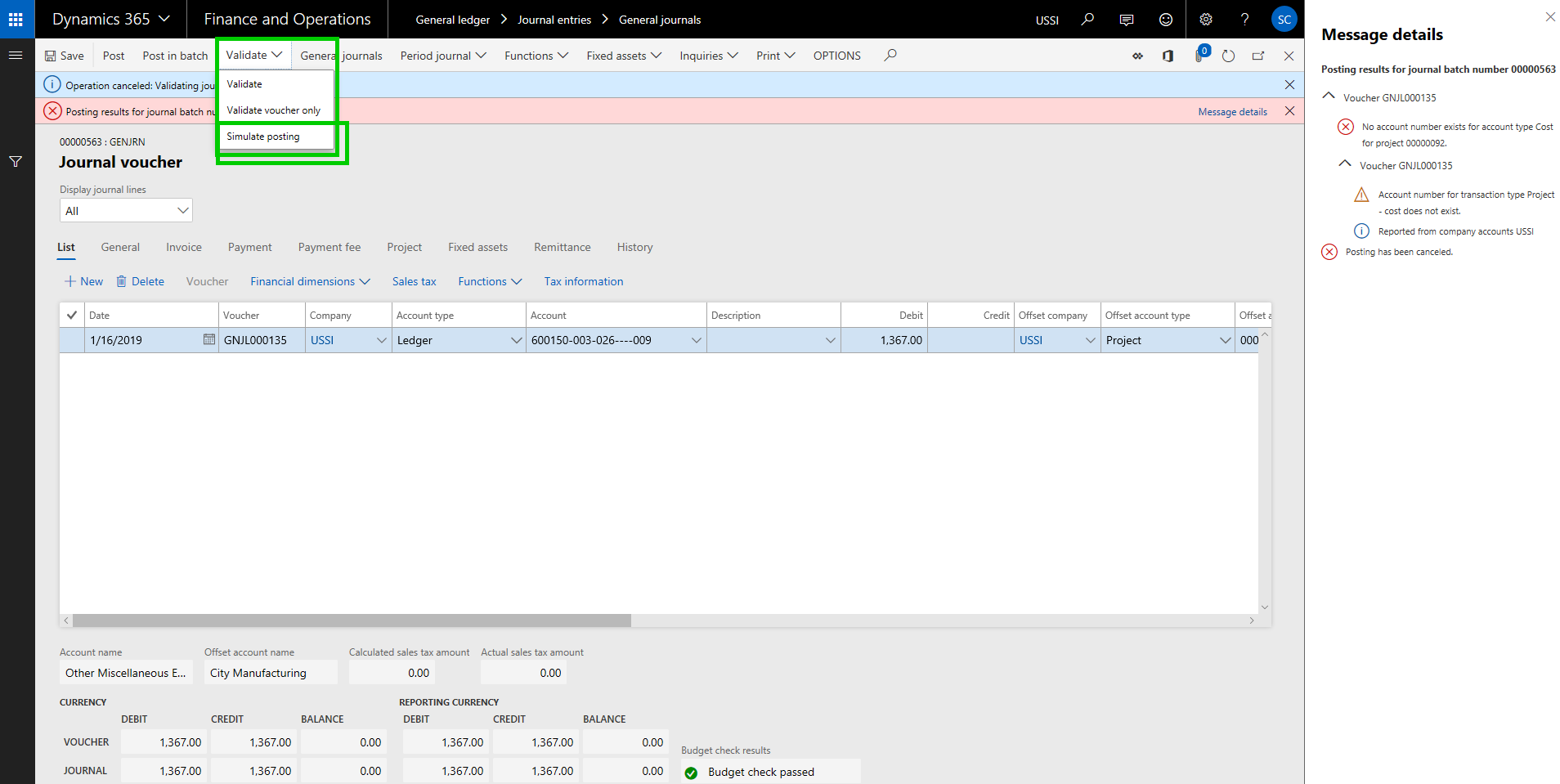
Financial Journal Validation: Additional functionality to simulate posting during journal validation is available, which allows you to basically run the whole posting process, without actually posting the journal. As a result, you can see the possible errors, messages or warnings and you can take corrective actions on the journal.
Global Shared Number Sequence for Customers and Vendors: The global shared number sequence functionality allows you to use a single number sequence across many legal entities for customers and vendors. With this, you can also copy customers and vendors easily between legal entities. Since you cannot share master data using virtual companies anymore in D365 F&O, this might be a functionality you want to use to share the customer or vendor master if needed in your implementation.
Note: This functionality is not a replacement of the Virtual company feature by any means. It is just a possible alternate that can be leveraged to have same customer ID and info for one customer across multiple entities, but they will live as separate data records and have their own transactions.
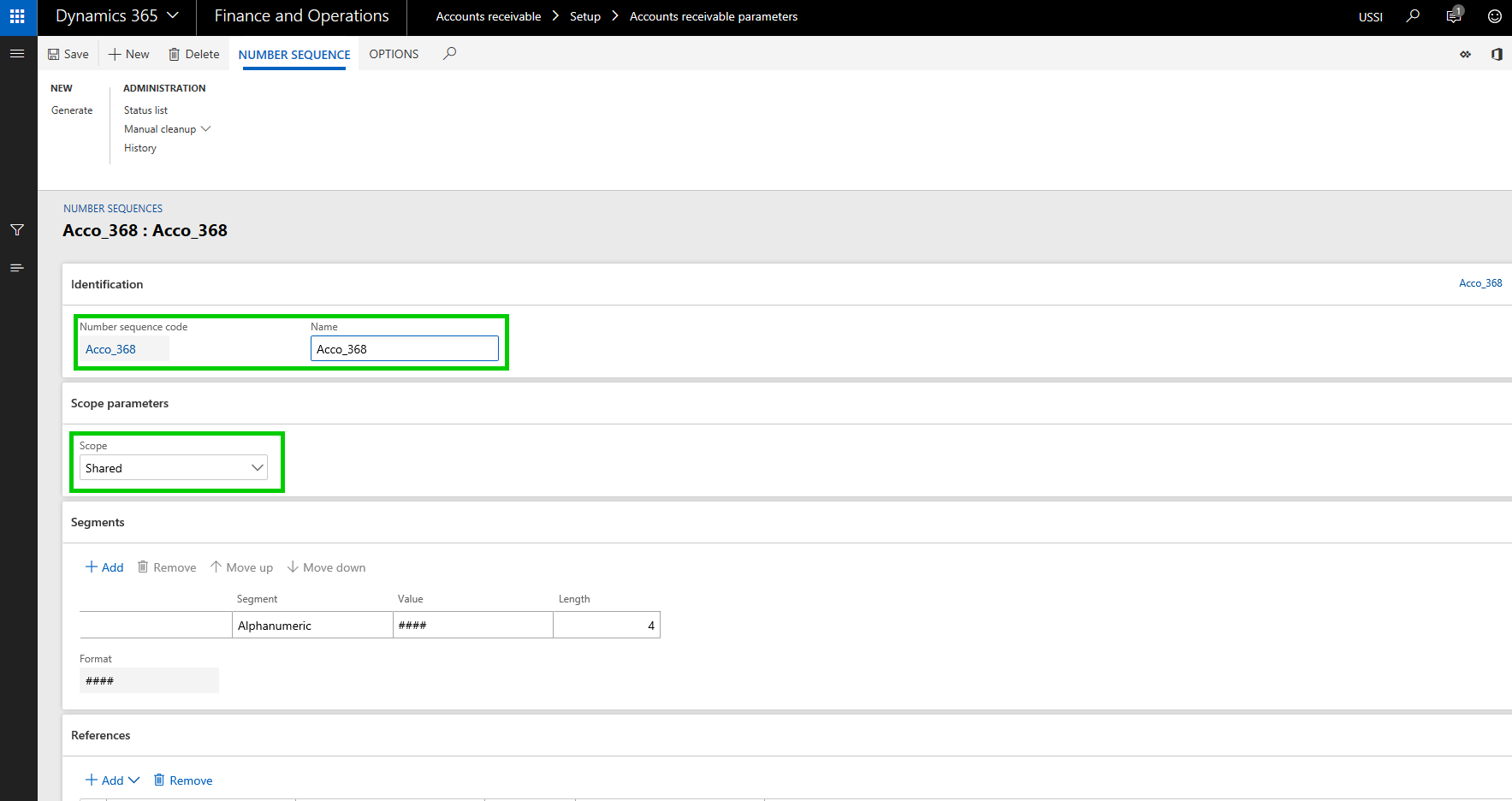
The first thing you have to do is configure a Shared number sequence and then you will need to select the same shared number sequence under the Number sequence parameter.
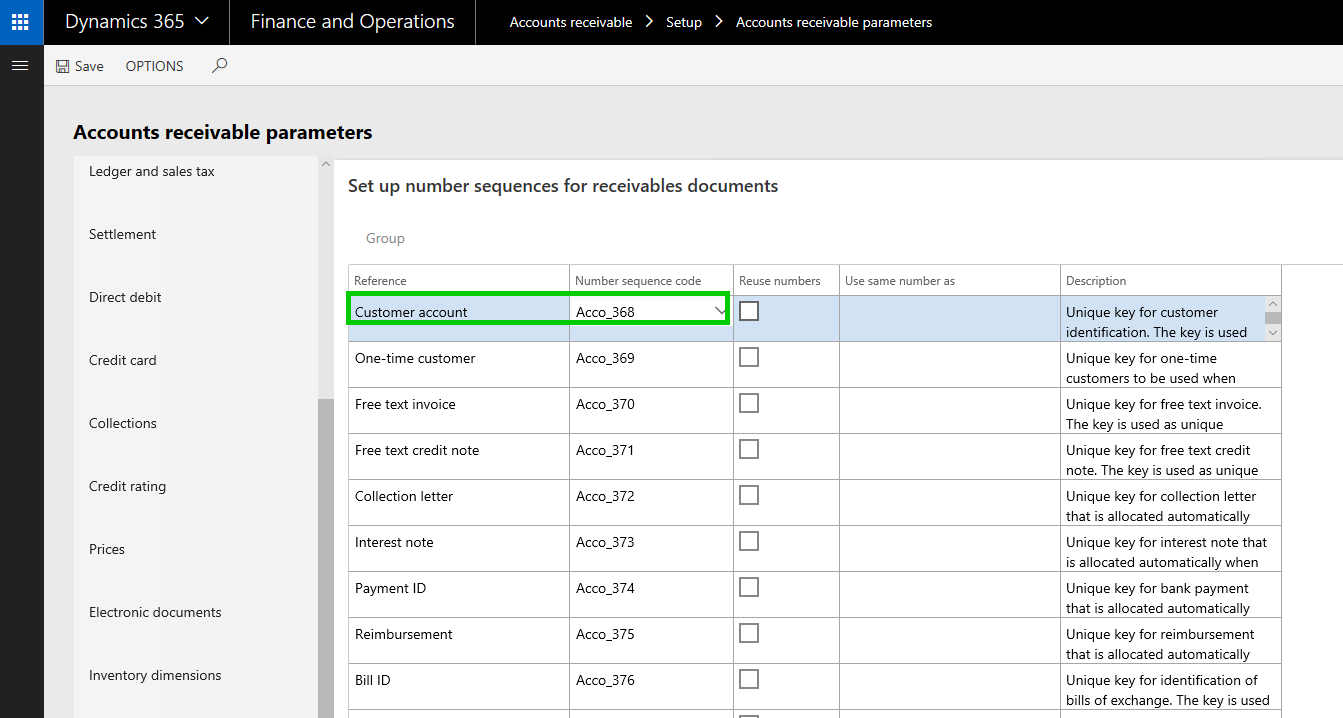
Then you need to make sure you select the same number sequence code for the customer account under the AR parameters page in all the entities where you want to use the shared customer account ID.
With that setup, let us now see how you can copy customer accounts from one entity to another and they will use the same customer account number and other related info for the customer.
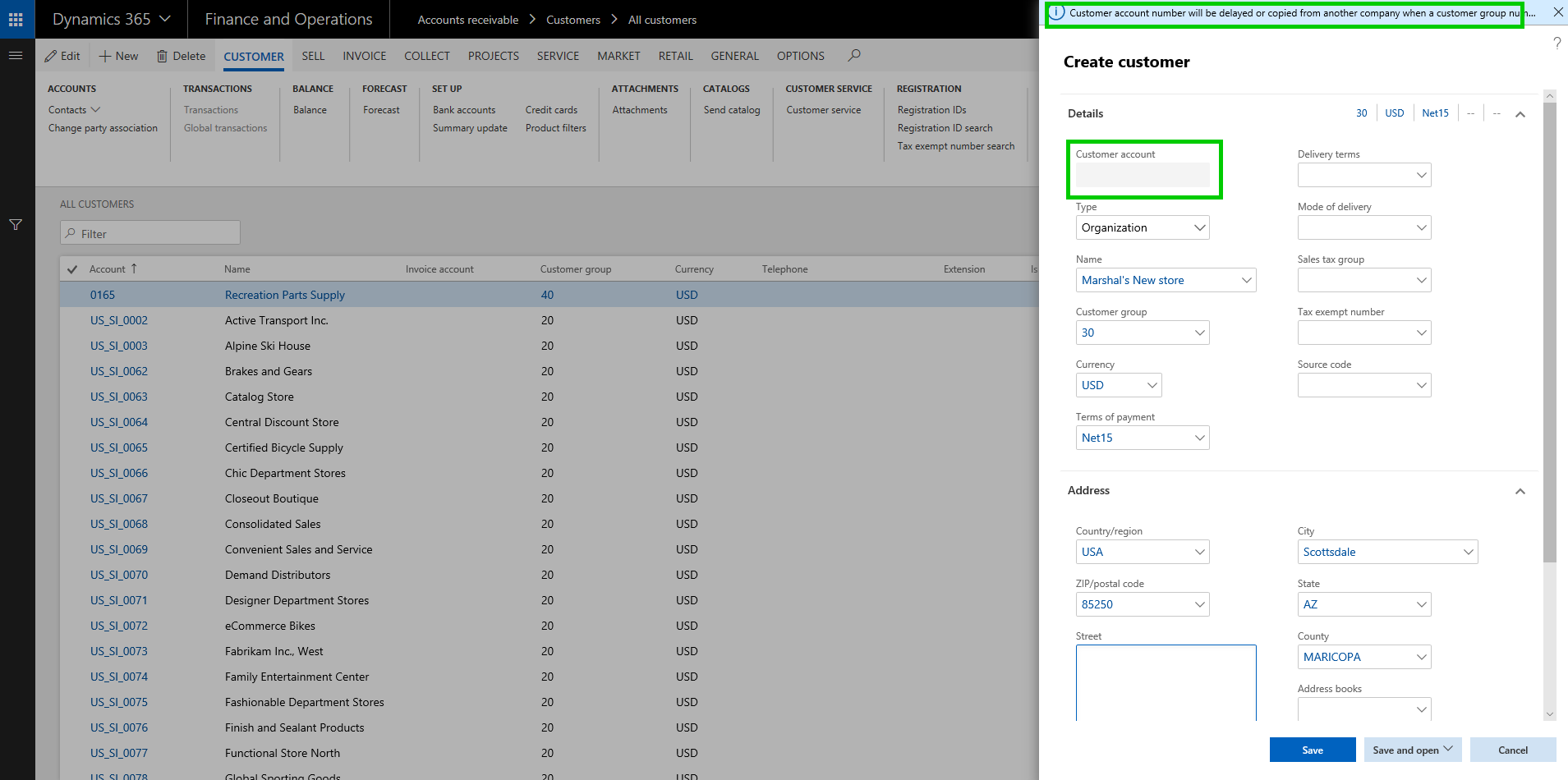
In USSI entity, I created a new customer account. Notice that when i create the new customer, system does not assign a Customer account number immediately. This is because, if you want to copy the customer from another entity, it will use the same customer account number. If not, it will assign a new shared number after you save the details on the customer. (We will see this copying feature when we create this same customer in another entity USMF).
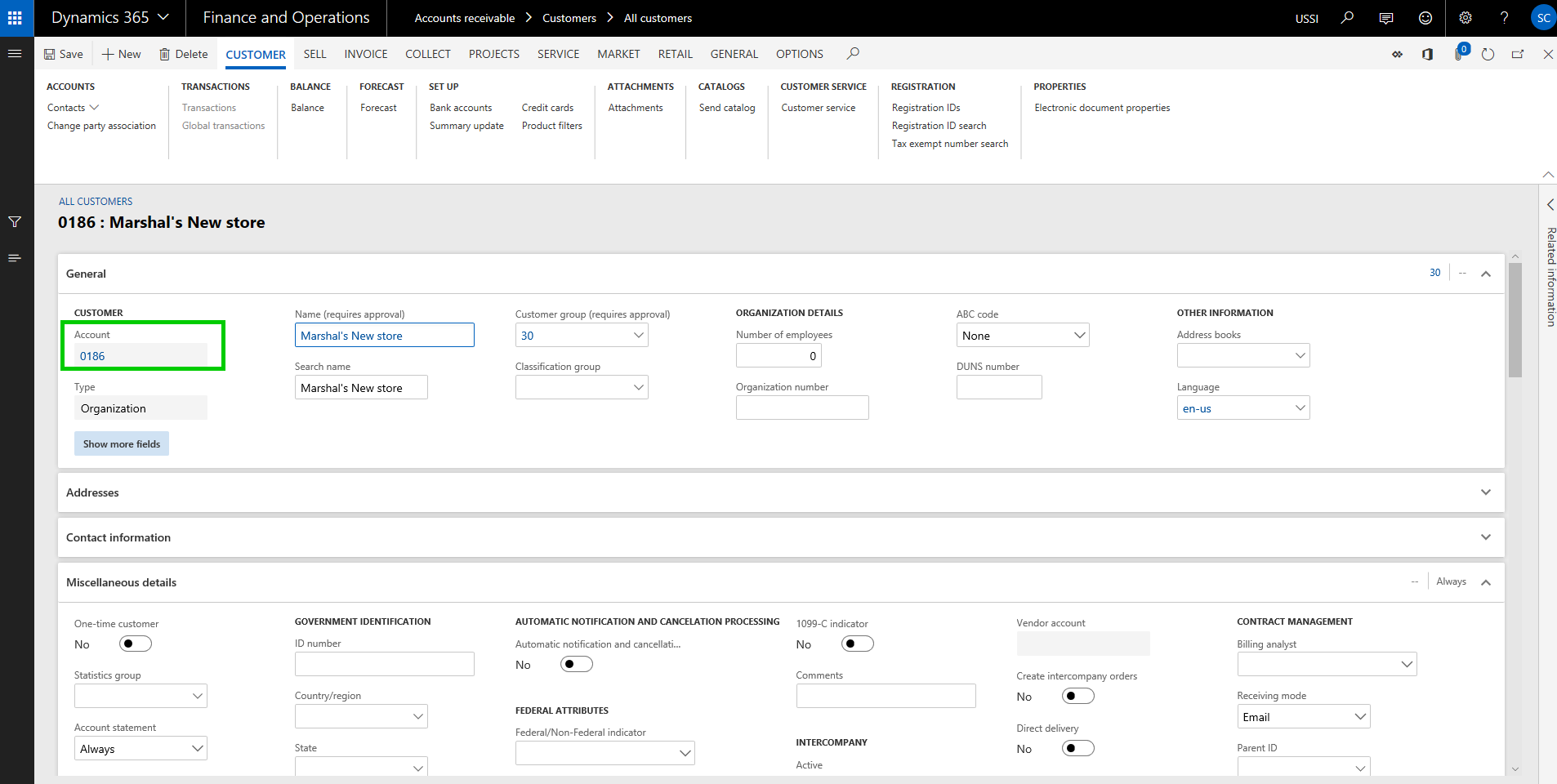
Now i have filled the required details for this new customer and i save the data. System assigned a customer account number using the shared number sequence we had setup.
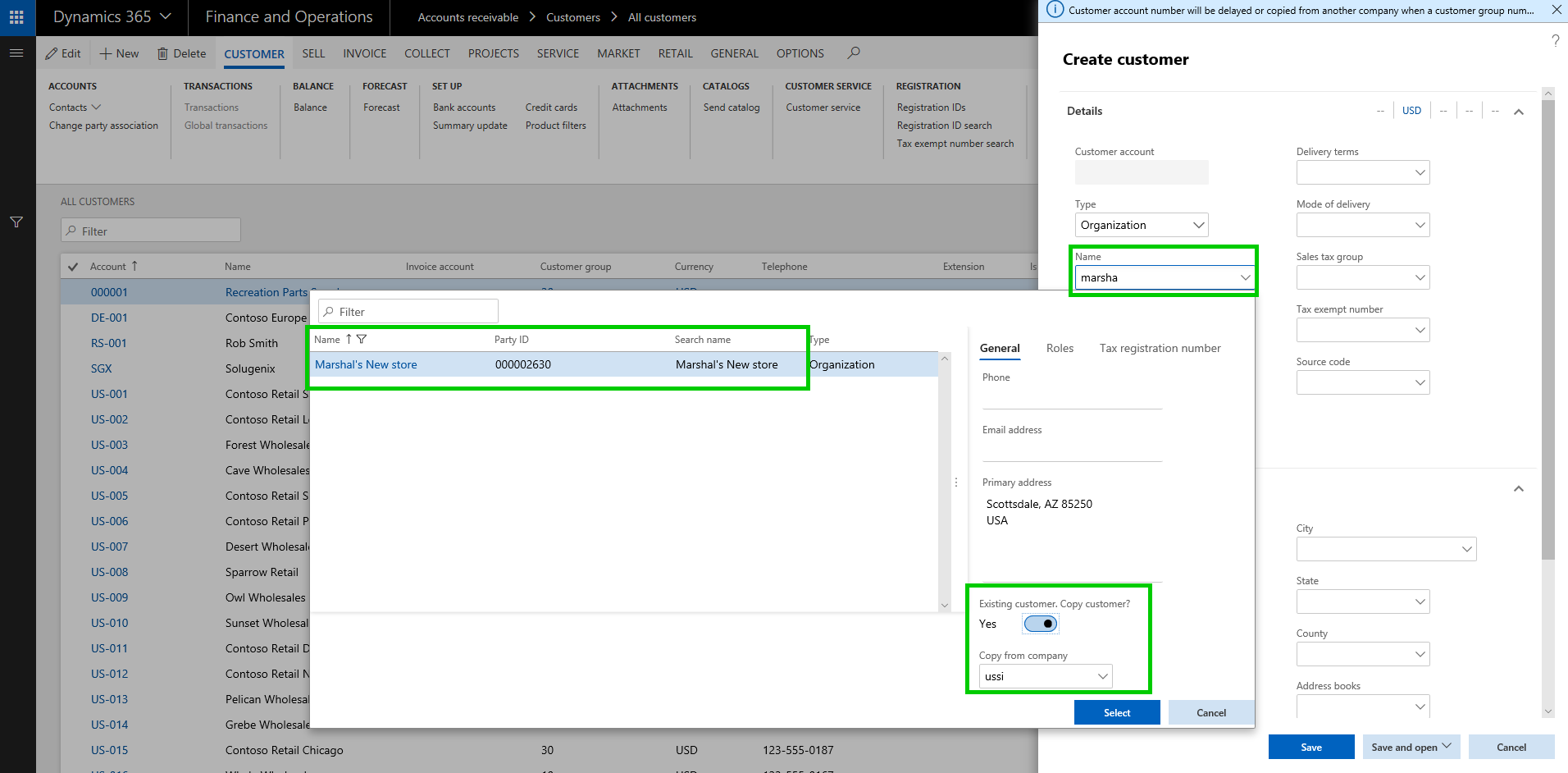
We will now copy the customer in the USMF entity. Let us see how that process looks like. I will navigate to the Customer master in the USMF entity and click New on the All Customers page, and then i will type in the customer name i want to copy. System will automatically find the match and if they are an existing customer in another entity, it will present an option to copy the customer account.
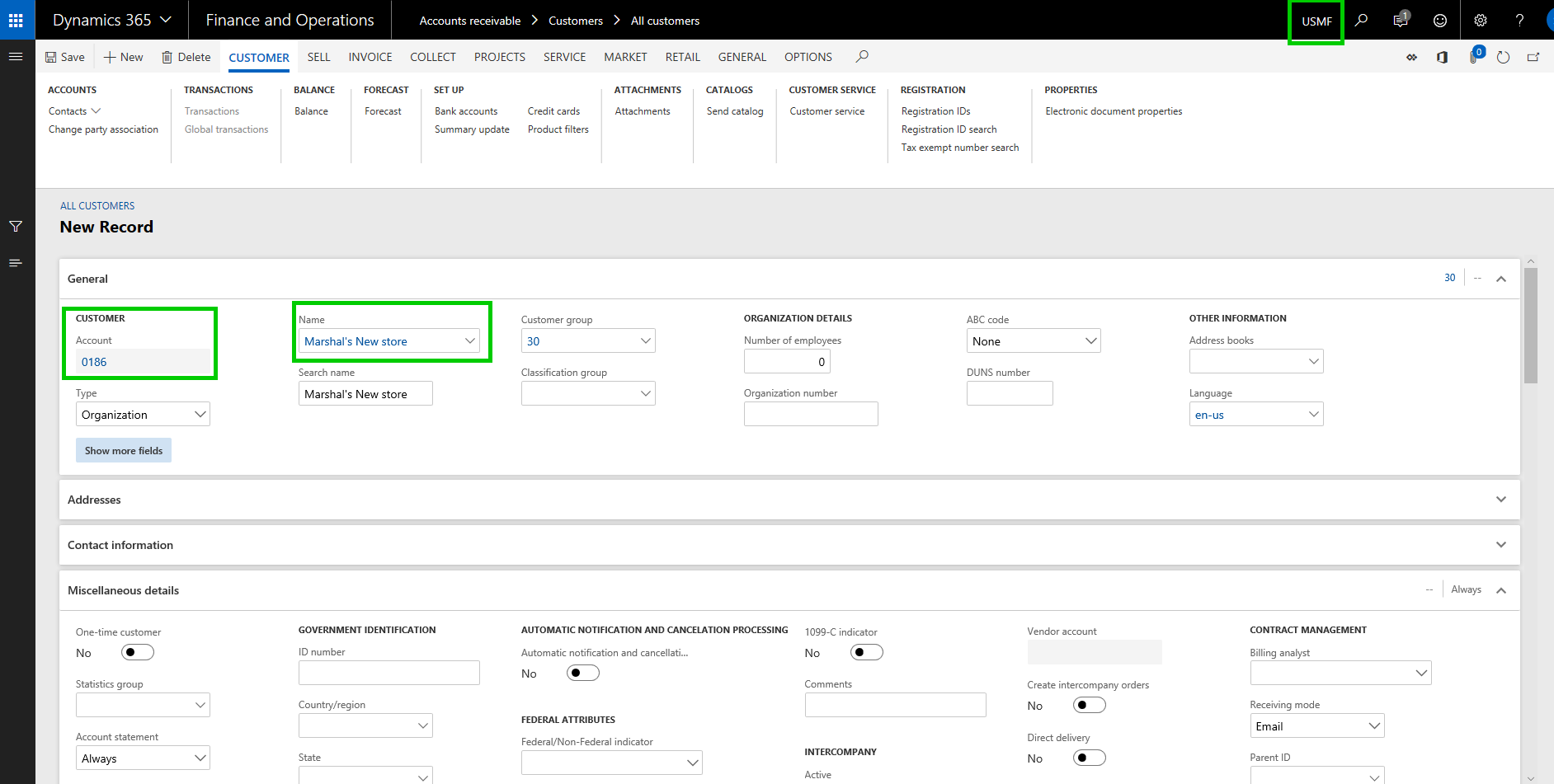
You will now see that the Customer information is copied into the USMF entity and it used the same Customer account number.
Note: You will need to make sure all the dependent data fields for the customer account are correctly setup in both entities.
Now that we have the shared customer account numbers setup and customer accounts copied, let us look at another new feature that complements this feature.
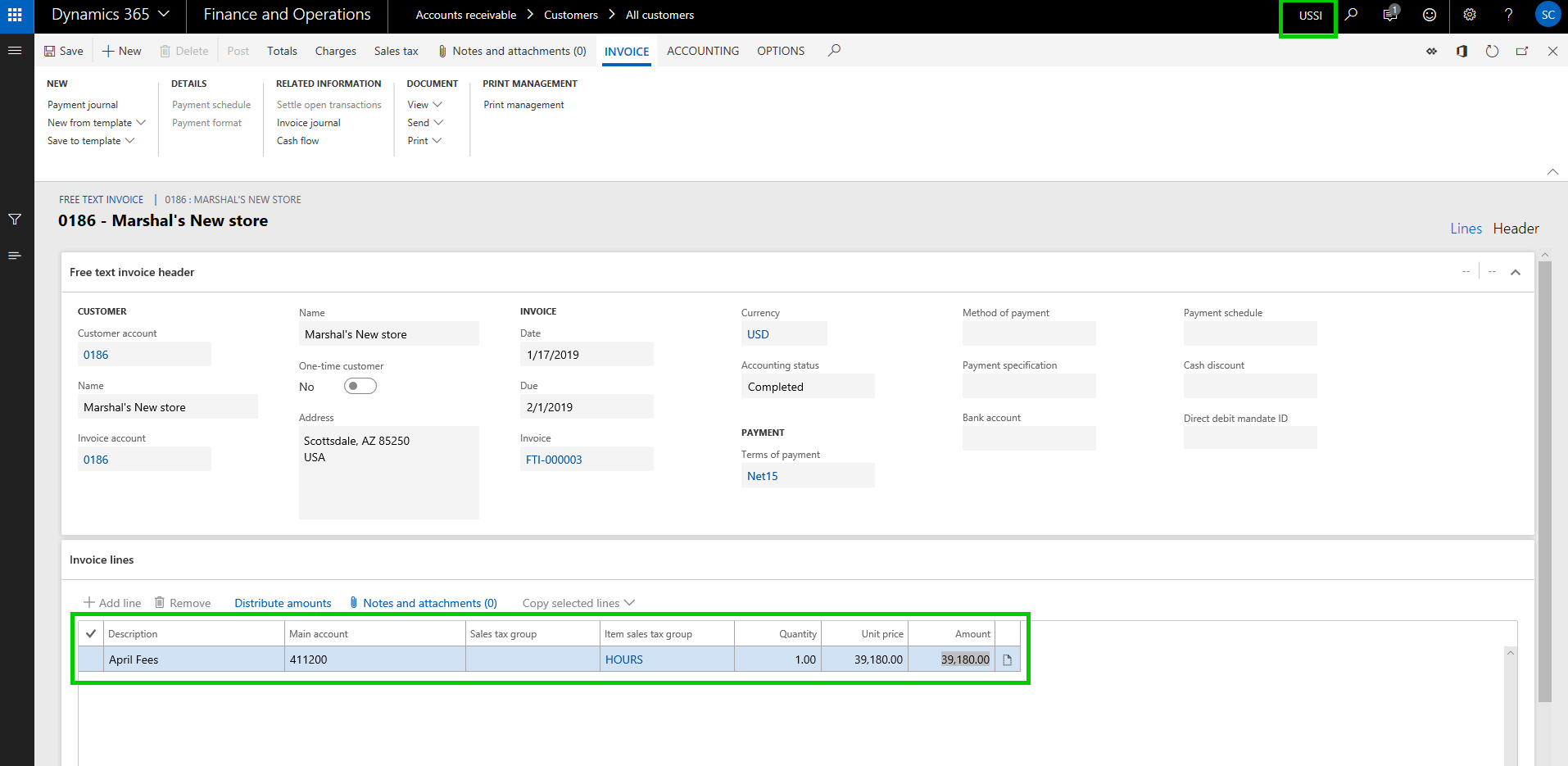
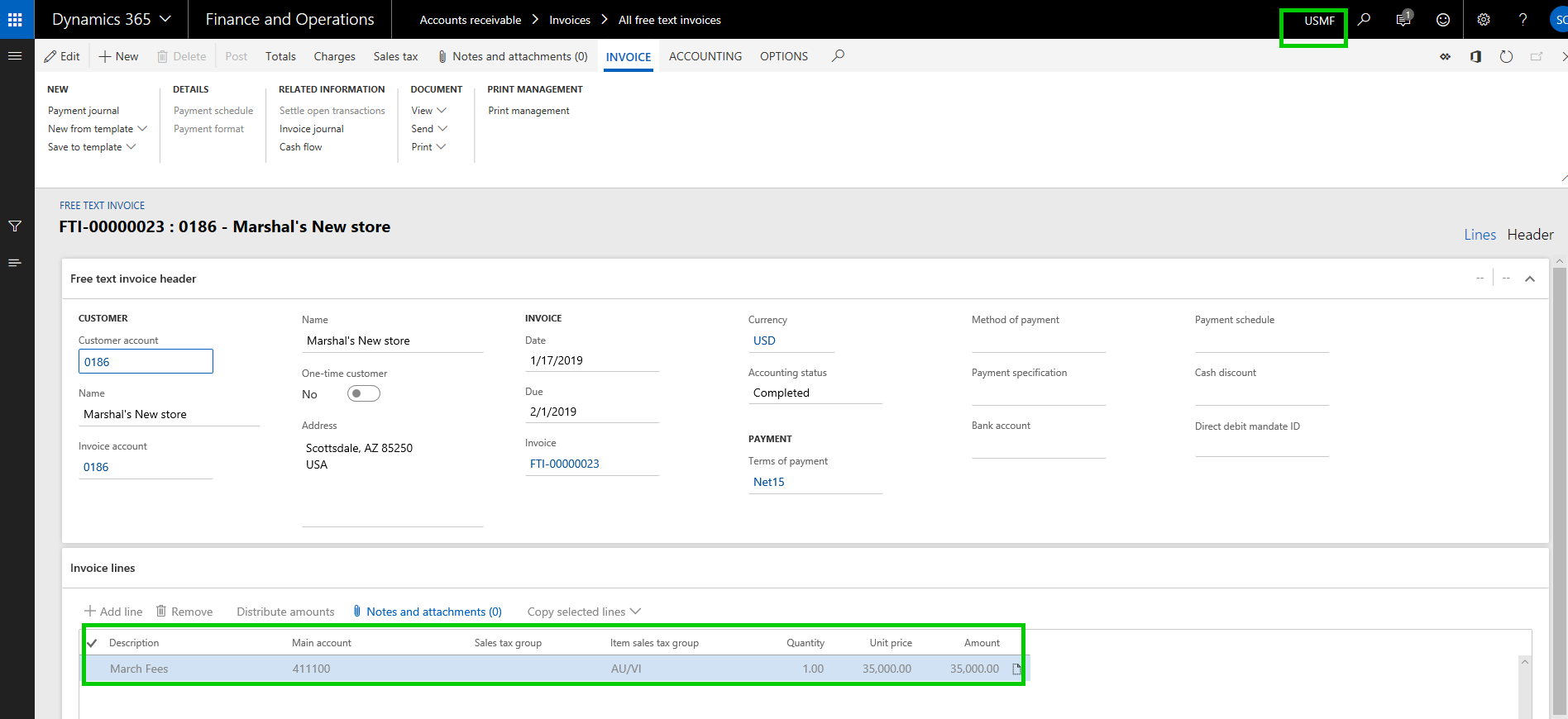
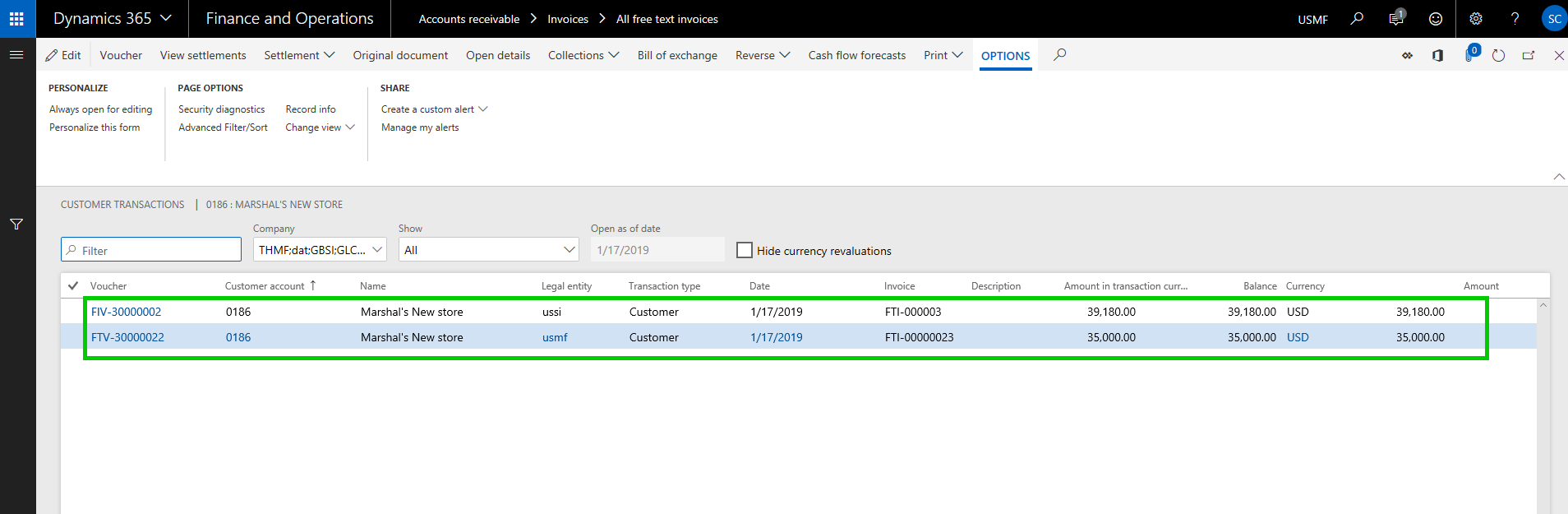
Global Customer and Vendor Transactions List page: If you are using shared number sequence for customers/vendors and have copied the accounts between multiple entities, you would obviously want to see a centralized view where you can see the transactions of the customer of vendor in all the entities they are copied in. I have already posted some transactions for this new customer “Marshal’s New store” in both USSI and USMF entities.
Invoice posted in USSI:
Invoice Posted in USMF:
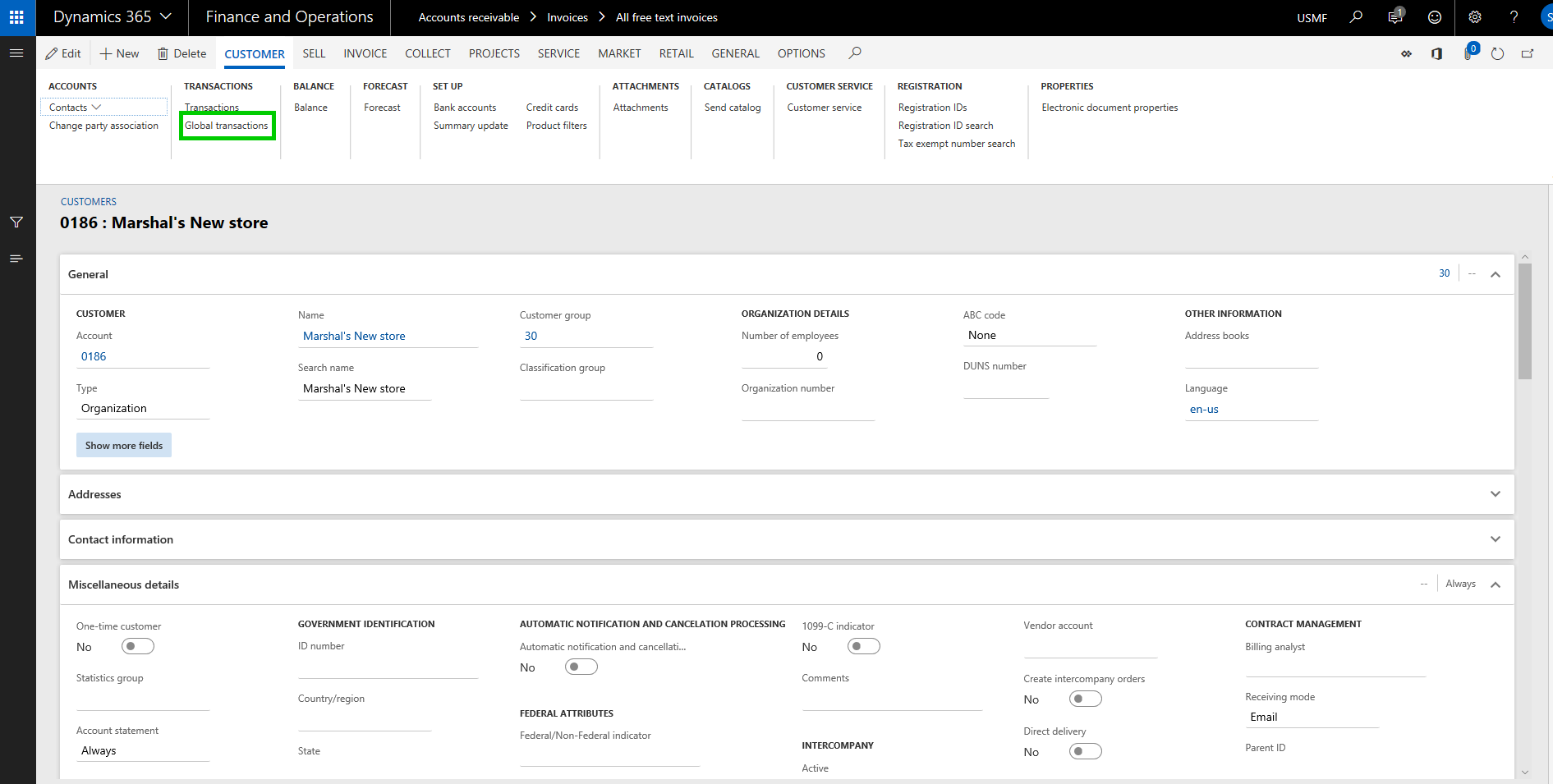
Let’s see how the look in the new global transactions list page. I am in the USMF entity now and i will navigate to the global transactions list page.
Notice that the new page shows me all the transactions for this customer account form multiple entities. You will notice here that when you select the transaction for the specific entity on this page, the system automatically switches the company account, so that you can perform required operations on the transaction correctly.
That’s it for today’s post. In the next post, we will discuss in detail about another new feature in the core financials module called ‘Dual currency” and learn how it works and what are some of the significant changes that were introduced as part of this functionality.
Till next time !!!






 Microsoft Dynamics 365 Blog