Category: Dynamics 365 Supply Chain

  • Bridging Stocked Inventory and Project Delivery in Dynamics 365 Project Operations Integrated ERP Deployment – A True Game Changer!

    Bridging Stocked Inventory and Project Delivery in Dynamics 365 Project Operations Integrated ERP Deployment – A True Game Changer!

    Microsoft has just closed a critical gap in Dynamics 365 Project Operations with the release of Manage Stocked Products for Integrated ERP Deployments. For leaders overseeing material-intensive projects in construction, engineering, field services, this is the missing link that finally aligns inventory control with project delivery in a unified ERP architecture.

    With this feature, organizations can now:

    • Gain real-time visibility into on-hand inventory via Dynamics 365 Finance & Supply Chain Management
    • Track material usage across the full project lifecycle—from estimation to invoicing
    • Automate cost and revenue recognition tied to stocked product consumption
    • Eliminate reliance on Project Management and Accounting module in F&O and start thinking about migrating to the modern architecture of Project Operations

    For project executives and operations leaders, this capability is more than a feature, it’s a strategic lever. It streamlines material tracking, strengthens cost control, and enables real-time inventory visibility, driving smarter decisions and faster execution across complex, resource and material intensive projects.

    I was finally able to get my hands on this preview feature, and I am excited to share some insights. I am not going to discuss the step by step of how to enable the new feature. You need to make sure you are on the latest versions of D365 Project Operations (4.1.142.0 or later) and F&O (10.0.44 or later) and work your way through the necessary dual-write setups.

    Let’s get to the crux of what this new feature offers.

    Viewing Inventory Products in Project Operations:

    Dynamics 365 F&SCM serves as the main source for managing inventory. Both stocked and non-stocked products are created and managed in D365 F&SCM. New products are immediately visible in Dynamics 365 Project Operations for project managers and stakeholders.

    When this new feature is enabled, you will see the new Products menu/site map where you can view all products that came in from D365 F&O SCM automatically. This leverages the “unified products management/integration” between F&O ERP and Microsoft Dataverse.

    Product Cost and Sales Prices:

    D365 F&SCM offers comprehensive pricing engine for products and is the source of truth for the cost and sales price data for products. The standard cost and sales prices specified for the product in D365 F&SCM automatically sync over to Project operations again using the “unified product integration architecture”, where they sync the prices into the cost and sales price lists within D365 Project Operations.

    For now, this feature uses the defaults prices for the products, however I am fully expecting this to mature into leveraging the “On demand D365 SCM pricing engine” at some point in the future.

    Viewing available on-hand for stocked inventory products:

    On the Products page within Project Operations, Project managers/stakeholders can view on-hand inventory products if required. This comes in handy where they get visibility into real time inventory without having to navigate to D365 F&O.

    Include stocked products in project estimates, quotes/contracts:

    Project Managers and stakeholders who are working on project quotations, estimations or project contracts can now include stocked inventory products.

    Buying stocked inventory for projects:

    Project managers or Procurement managers can now include stocked inventory materials on purchase orders they created for a project in the integrated ERP deployment.

    Important Note: Project Operations in the Integrated ERP deployment already supports non-stocked items/procurement category-based purchase orders, however with the introduction of the support for stocked inventory products, there is a difference in when the costs of the stocked materials are posted to the project and general ledger. As soon as the PO is confirmed, the necessary accounting distributions are created using the ledger posting profile for Items for projects. This accounting distribution is used to post the cost to the project and GL as soon as the vendor invoice associated with the PO for the stocked product is posted in F&O. This behavior is different than how it posts in case of a PO that has non-stocked products or procurement categories where the costs are posted to a temporary procurement integration account and synced later from Project Ops Dataverse using the actuals integration journal. Little technical details, but important for consultants!

    Posting vendor invoices for stocked products on projects:

    When vendor invoice for the purchase order for stocked products is recorded and posted, the project costs are posted in D365 F&O into the project sub-ledger. The vendor invoice information automatically syncs over to Dataverse to generate cost and unbilled sales actuals and unbilled sales actual details comes back into F&O using the actuals integration journal.

    Note: As products are received at the warehouse, the product receipt transactions are not recorded in the Project actuals in Dataverse and don’t post to project sub-ledger in F&O. As this feature matures and adds more capability, I am hoping we will see capability where we can consume the cost of stocked products immediately upon product receipt. It is not supported at this in this release at least.

    Viewing on-hand and Consuming stocked inventory into projects:

    For existing inventory in stock, project managers can not only view real time available on-hand information for stocked products but also consume them into projects using the materials usage log of Project Operations.

    Dynamics 365 Project Operations validates the available on-hand inventory in real time here. If a material usage request was submitted for a quantity that is more than the available quantity for the Site and Warehouse, then the system throws error message there by blocking the submission. Similar validation is done upon approvals of material usage logs.

    Note: You can also consume stocked materials using the journal entry option if required.

    Inventory Costing, Project Costing & Adjustments:

    When materials are consumed using the material usage log in project operations, it uses the default cost price available for the product/material that was last synced from F&O.

    However, for stocked products, the consumption of inventory always happens at the weighted average cost of the item regardless of the costing method for the material.

    If the costs of the material transactions that came in the integration actuals journals differs from the weighted average cost of the material, the difference is synchronized back to Dataverse. This value is stored in a distinct data field named “Adjustment value” and it updates the Extended amount accordingly. There is a new batch job as part of this new feature that needs to setup and run which will basically sync these adjustments if any after the “Inventory Closing and adjustments” have been run in D365 F&O.

    That’s it for this post!!

    Best,

    Sandeep

  • Workflow work item approvals in D365 F&O using Microsoft Power Automate/Flow

    Workflow work item approvals in D365 F&O using Microsoft Power Automate/Flow

    Possibilities of business processes automation and extension is limitless when you use Microsoft power platform. Use PowerApps to extend user interfaces and functionality of your CRM or ERP apps, use power automate to automate business process actions or use AI builder and RPA to reduce manual labor intensive work for your employees. Dynamics 365 and Power platform together provides the most comprehensive business applications and automation, analytics platform in the market today.

    One simple example use case is exposing workflow work items that originate in Dynamics 365 F&O for various business documents such as purchase orders, vendor invoices, budgets, timesheets and expense reports to Microsoft Power automate and then build the required automation flow to take advantage of the Microsoft flow Approvals solution. This gives your employees the flexibility of taking action on critical business documents quicker within Microsoft Teams, or within the Teams app when they are on the go.

    I have a very simple flow in place, which is subscribed to the expense report approval business event in Dynamics 365 F&O. Every time an expense report is submitted in F&O and it is ready for the reviewer to take action, the flow will extract the required information from the expense report approval work item using the JSON schema of the business event and then sends an approval action within Microsoft Teams to the approver of the expense report. After the approver takes action on the work item within Teams or on their phone, the work item is completed in real time back in Dynamics 365 F&O.

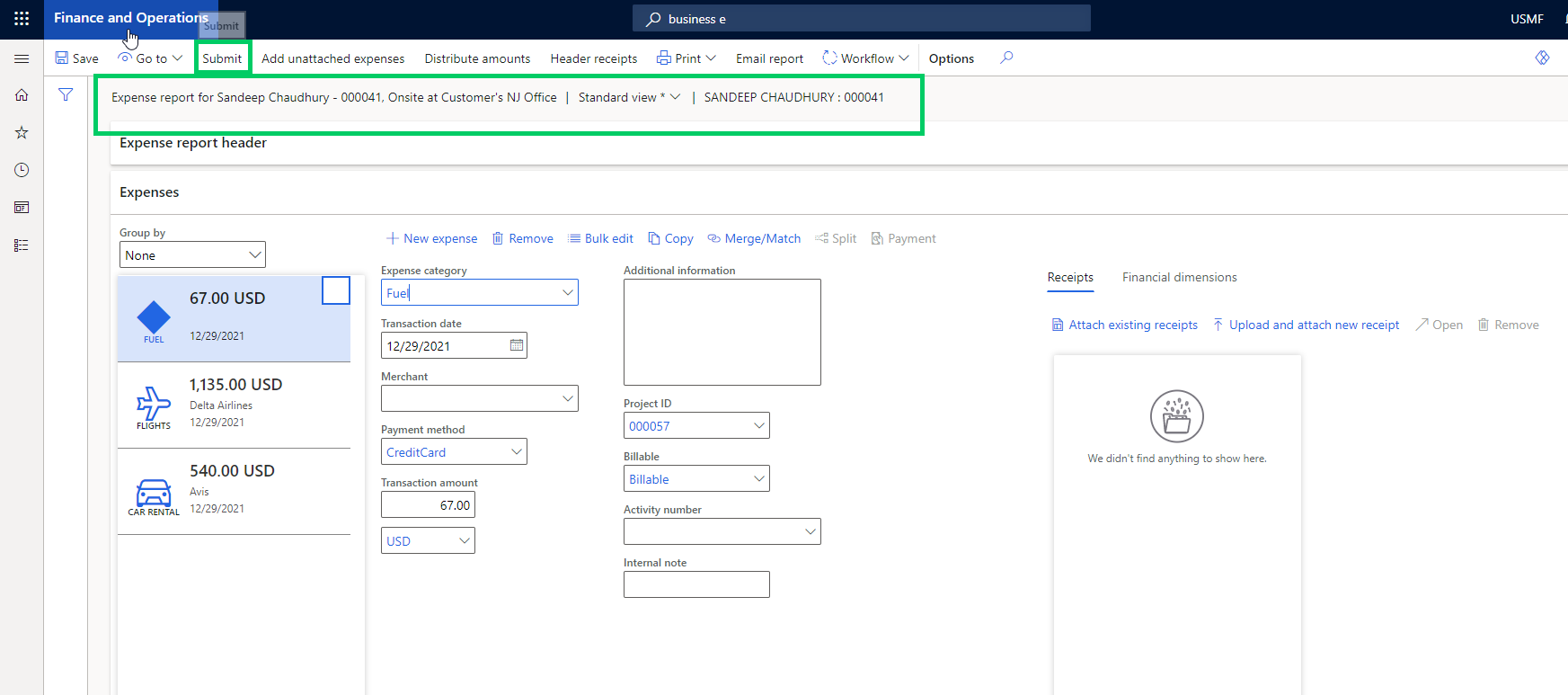
    With this flow actively running, let’s submit an expense report in D365 F&O. The expense report number in this case is 000041.

    As soon as the report is processed in the workflow engine of F&O and it gets assigned to the reviewer/approver, the business event is going to notify our Flow. The flow then runs and sends an approval notice to the approval using Flow approvals action.

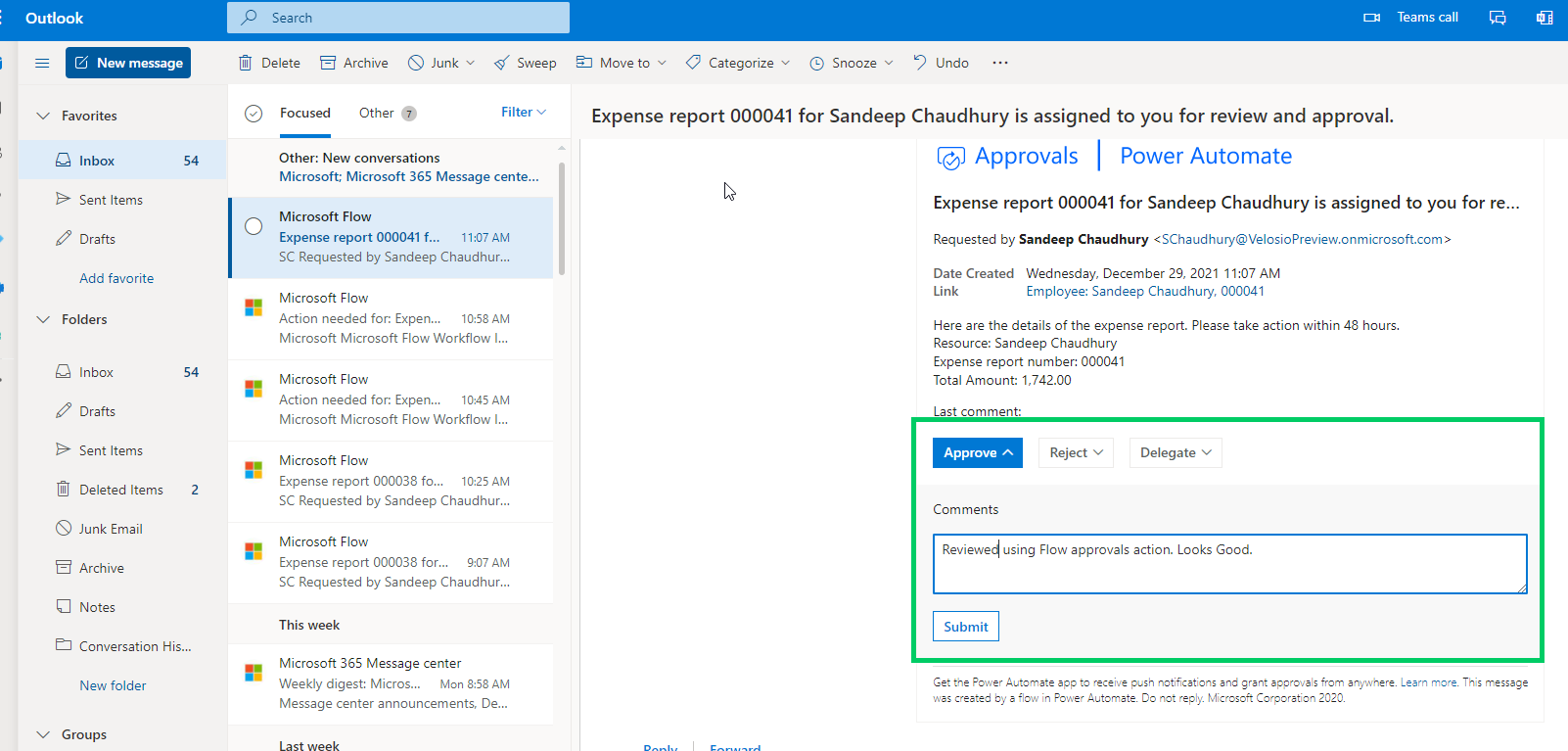
    The approver then gets notified via email as well as in Microsoft Teams regarding the expense report submitted for their review.

    Nevertheless, if the approver is using either Power automate or Teams mobile app, they get notified within those apps as well.

    The approver can then take the required action (Approve, Reject, Delegate etc.). Let’s assume they approve the expense report in this case.

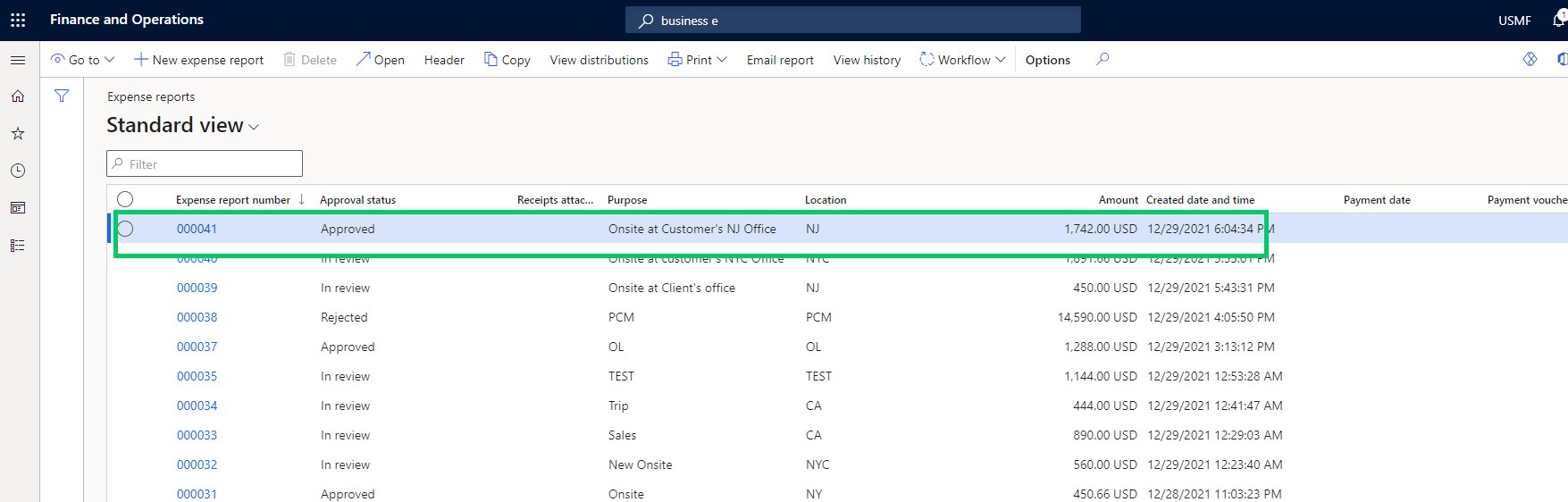
    Now if we go back to Dynamics 365 F&O and check the expense report status, it should be Approved. We can also view the history to validate that this was approved using Microsoft flow.

    That was just a very simple demonstration of what is possible . You can apply this to your situation and make more complex business process automation and extensions.

    Till next time!!!

  • Dual Write feature for D365 F&O is now generally available – Great news for  Dynamics 365 customers and prospects!!

    Dual Write feature for D365 F&O is now generally available – Great news for Dynamics 365 customers and prospects!!

    If you are in the Dynamics space, you probably know the investments Microsoft has been making in Common Data Service (Aka CDS) platform. All business applications under the Dynamics 365 umbrella are connected to a CDS environment by default and they make data available directly CDS in real time, except Dynamics 365 for Finance and Operations (Also known as F&O). There was never an option to connect an F&O environment directly to a CDS environment until the release of Platform update 32. (Version 10.0.8).

    The CDS platform earlier did provide options to configure connections sets and run data integration projects to connect a F&O environment to a CDS environment. This was actually available in early 2017. Refer to my earlier blog post where I explained how CDS, Data integration projects, connection sets etc. worked back then.

    Even though the CDS platform allowed to connect an F&O environment to CDS using connection sets, data projects etc. earlier, the configurations were rather confusing(somewhat complex), time consuming and always felt like a disjoint admin process. Dual Write is the evolution of the CDS integration features such as Connection sets, Data integration projects and this is now natively built into the F&O app. The underlying complexity still exists, but Microsoft has now moved all the heavy lifting to happen behind the scenes and provided a intuitive , clean user interface, that is built within F&O app.

    In simple terms, Dual Write is a mechanism to sync D365 F&O Data with CDS and vise-versa, which allows customers using other popular D365 apps such as D365 for Customer engagement(Sales/CRM) to connect and share data between with D365 F&O seamlessly, right out of the box. For example, Without Dual write, your customer accounts data in D365 CE/Sales are not readily available in D365 F&O for you to create and fulfil, orders or to do invoice. Dual write solves this problem and makes required data available across the D365 apps using the power of CDS, so that you can use the respective D365 apps to do what they do best and do not worry about the underlying data to be in sync. With Dual write the D365 F&O data is is very tightly coupled and is in near real time sync with CDS always, for the entities you enable for syncing. This also provides bi-directional data sync.

    Starting the Platform Update 33 (Version 10.0.9) of D365 F&O, the Dual write feature is now a built-in embedded experience within the data management workspace of F&O. This means your administrators or integration folks do not have to login to a CDS environment to configure a dozen things to sync data :)

    Microsoft ships several out of the box entity maps between F&O and CDS that you can use right of out of the gate. You can also tweak the out of the mapping to suite your needs. It does not stop there!! If you have custom data fields or custom entities built for your implementation, you can use those as well.

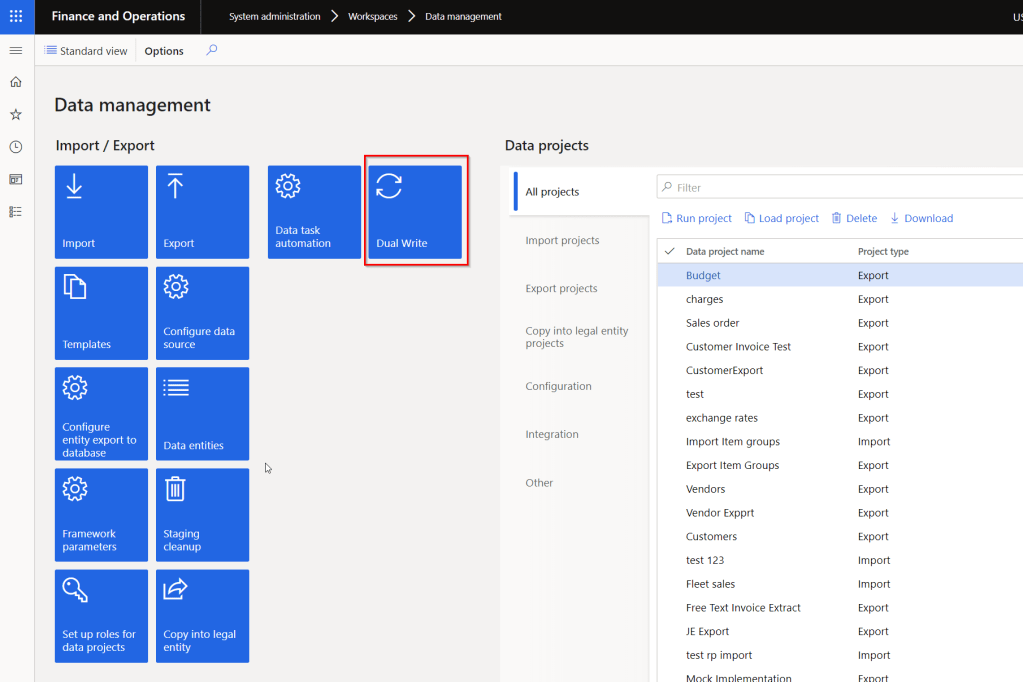
    You should see a new Tile named “Dual Write” under Data Management workspace if you have deployed 10.0.9 deployed.

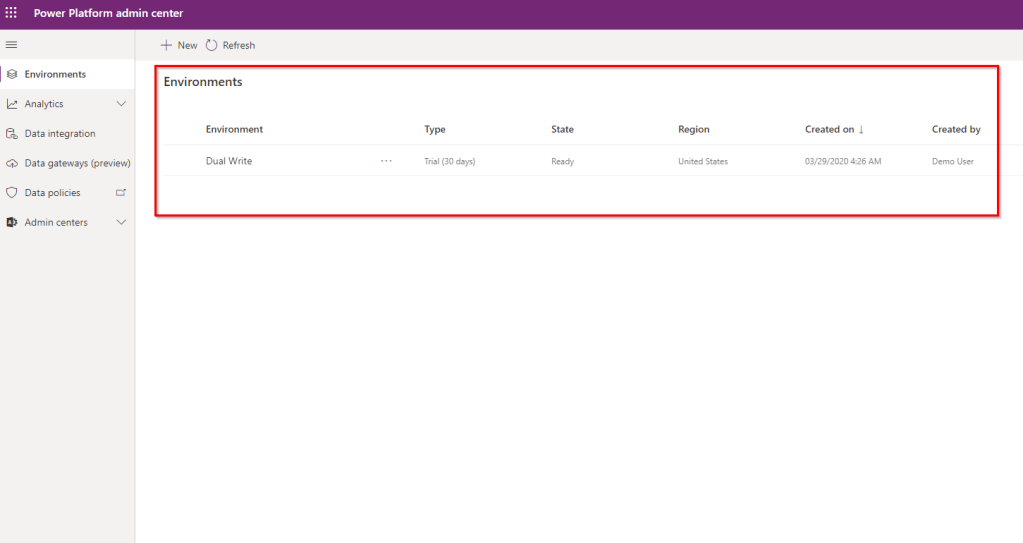
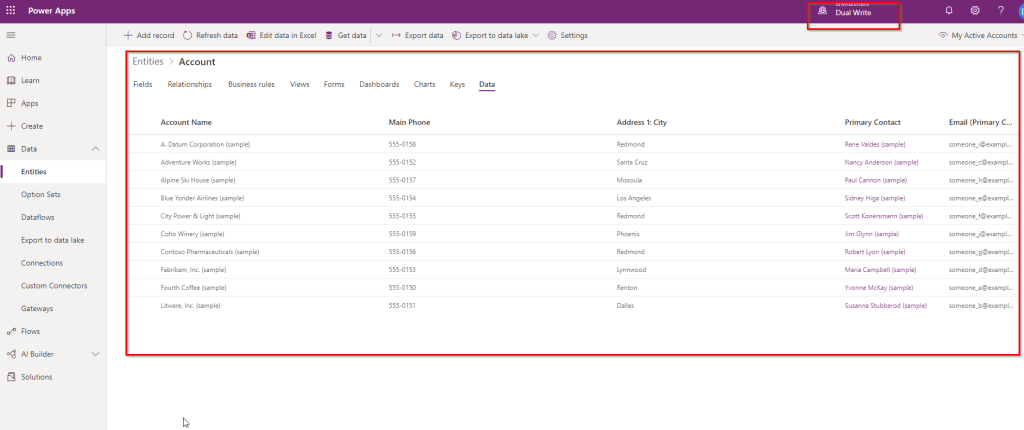
    Make sure you have the CDS environment deployed and ready under Power Platform admin center. For my testing purposes, I have also deployed sample data in my CDS environment, so that I can validate the data sync between F&O and CDS.

    Before you can link a F&O environment to CDS, you need to make sure the following configurations are in place.

    1. Make sure you have version 10.0.9 installed in the F&O environment.
    2. Install Dual Write Core solution from App Source in your CDS environment and enable the dual write entity map solution.
    3. Grant required accesses so that CDS and F&O can connect to each other.
    4. You can see the detailed documentation here.

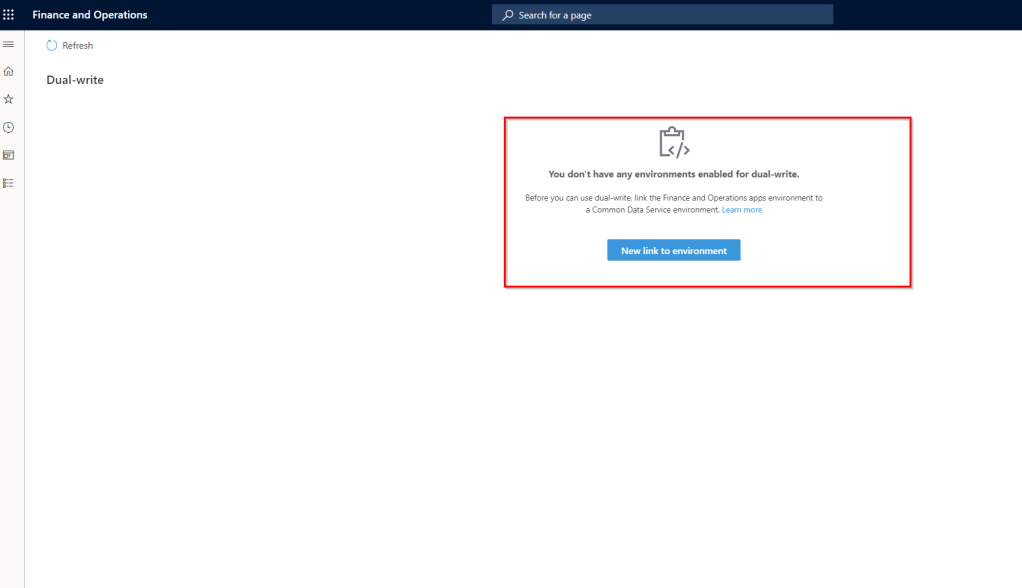
    Now you have to link the F&O environment to a CDS environment and enable entities for dual-write. From the Data management workspace of F&O, go to Dual-write and click “New link to environment“.

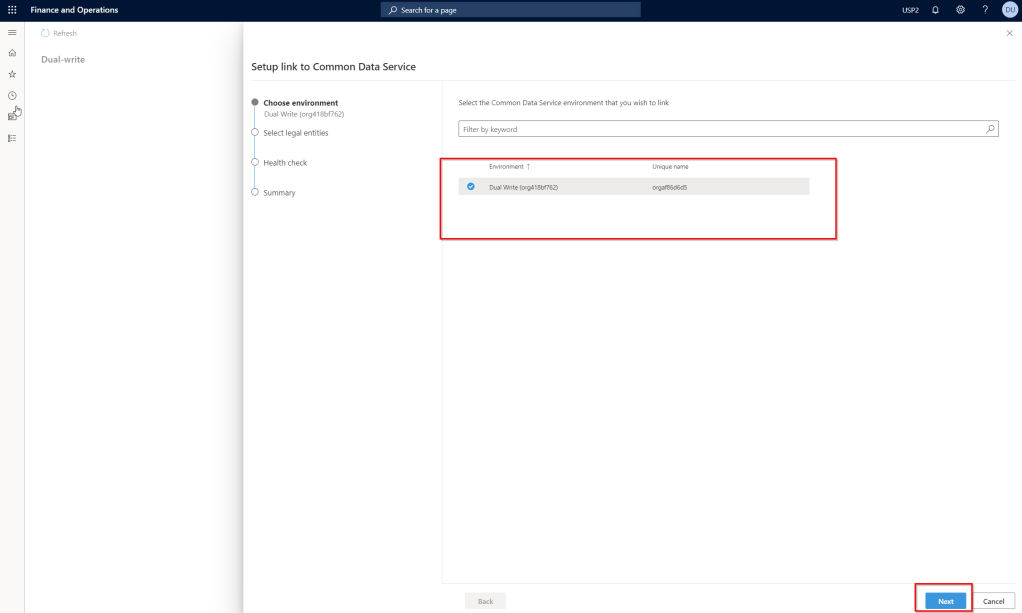
    You should see the list of CDS environments available in there. Select the one you want to use and click Next.

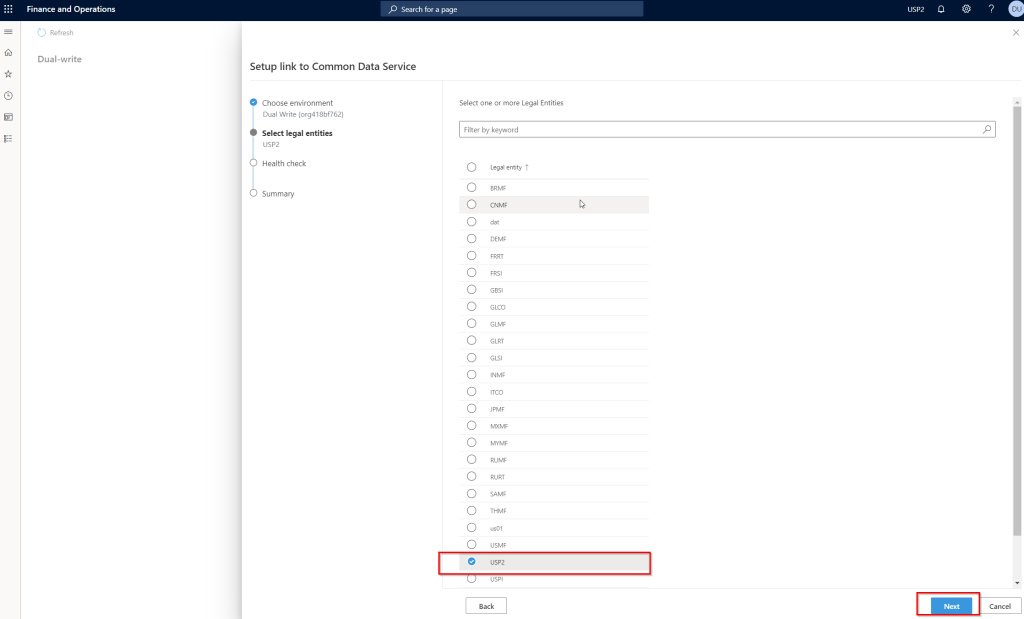
    Select the legal entities you want to connect to CDS and click Next.

    If all your required configurations and installs are correct, the health check of CDS connection should succeed and you should be able to proceed with viewing and enabling entity maps and turn them ON for sync with CDS.

    I just wanted to share my initial thoughts and excitement, now that Dual write is generally available. Customers who are already using D365 F&O and D365 Customer engagement apps should look at leveraging this to sync data between the applications at all stages of the Prospect to Cash scenario.

    I am in the process of fully testing and validating this and I can’t wait to share my test results and additional details on the feature here soon.

    More to come soon!! Stay tuned.

  • Take advantage of configuration data templates for seamless data import and export management in your Dynamics 365 For finance and operations implementation

    Take advantage of configuration data templates for seamless data import and export management in your Dynamics 365 For finance and operations implementation

    The Data Management Framework of Dynamics 365 For Finance and Operations – Enterprise Edition provides advanced data management capabilities, which makes the overall data export and import really seamless easy, for both standard Dynamics 365 data entities, as well as any custom entities that you might have developed for your business requirements. This framework provides an easy to use front end interface for data export and import management, so that regular pro-users of Dynamics 365 can interact with it, without requiring advanced knowledge of development and database.

    In this post today, let us discuss about one of the features of this Data Management framework called the “Data Templates“, which will help you accelerate the data configuration and export/import management in your Dynamics 365 Implementation.

    Data Config Templates

    So, what are these data configuration templates ? One of the things you would have always done in every D365FO (Dynamics AX earlier) implementation, is probably use an excel spreadsheet to keep track of setup and master data configuration checklist and their sequence of import. While this works, it also requires extensive manual tracking, supervision and may lead to lot of human errors and mistakes.

    Data configuration templates in D365FO are basically a predefined list of data entities for each module area, which are sequenced , so the data import will be processed in correct order automatically. This reduces human error in the data import sequence, save a huge amount of time in data import/export.

    The templates are sequenced using Units, levels and sequence numbers and predefined dependencies between data entities. For example, before you import/upload your customer master data, you need to make sure all the number sequences formats, customer groups, payment terms etc. are imported prior to that. The data configuration templates addresses this and takes care of sequencing.

    Let us now understand what is underneath these data templates and how these are managed in D365FO.

    • Microsoft started releasing these predefined data templates with the July 2017 update and these are right now made available directly within D365FO. From home page of D365FO, Navigate to System Administration > Data Management Workspace > Click Templates tile and click the Load default templates button. This will load all the default templates which are made available by Microsoft.

    Load Default Templates

    Note: In future, these will be made available in the shared asset library of LCS(Lifecycle Services), just like other assets such as the Power BI report models, Software deployable packages etc. 

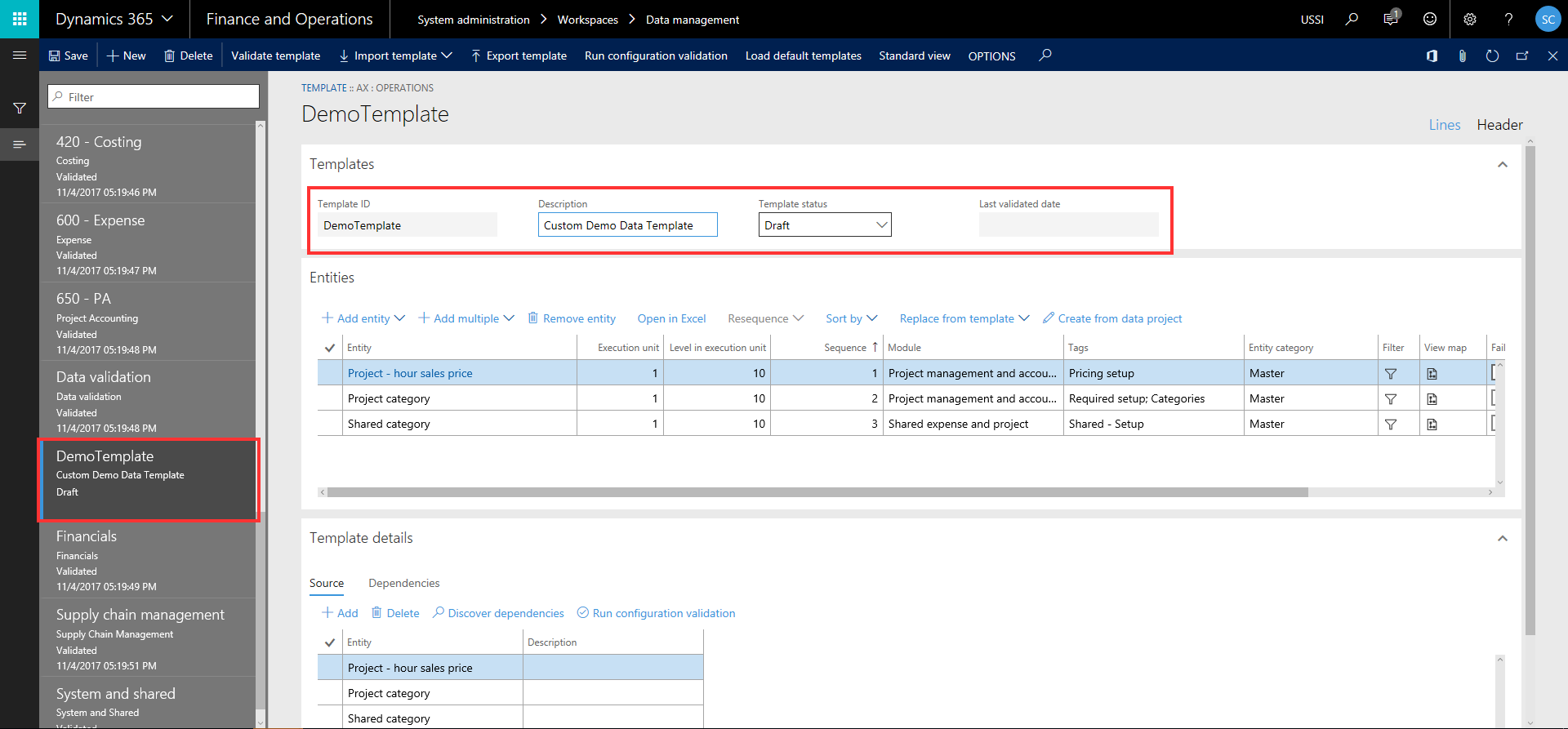
    • You can use these out of the box templates, modify them to meet your business requirement, or you can even create your own templates and define the entities under it. For example you might have customized D365FO to meet your business needs and you might have created various custom data entities for this. So you can create your own templates and include those entities.

    Custom Data Template

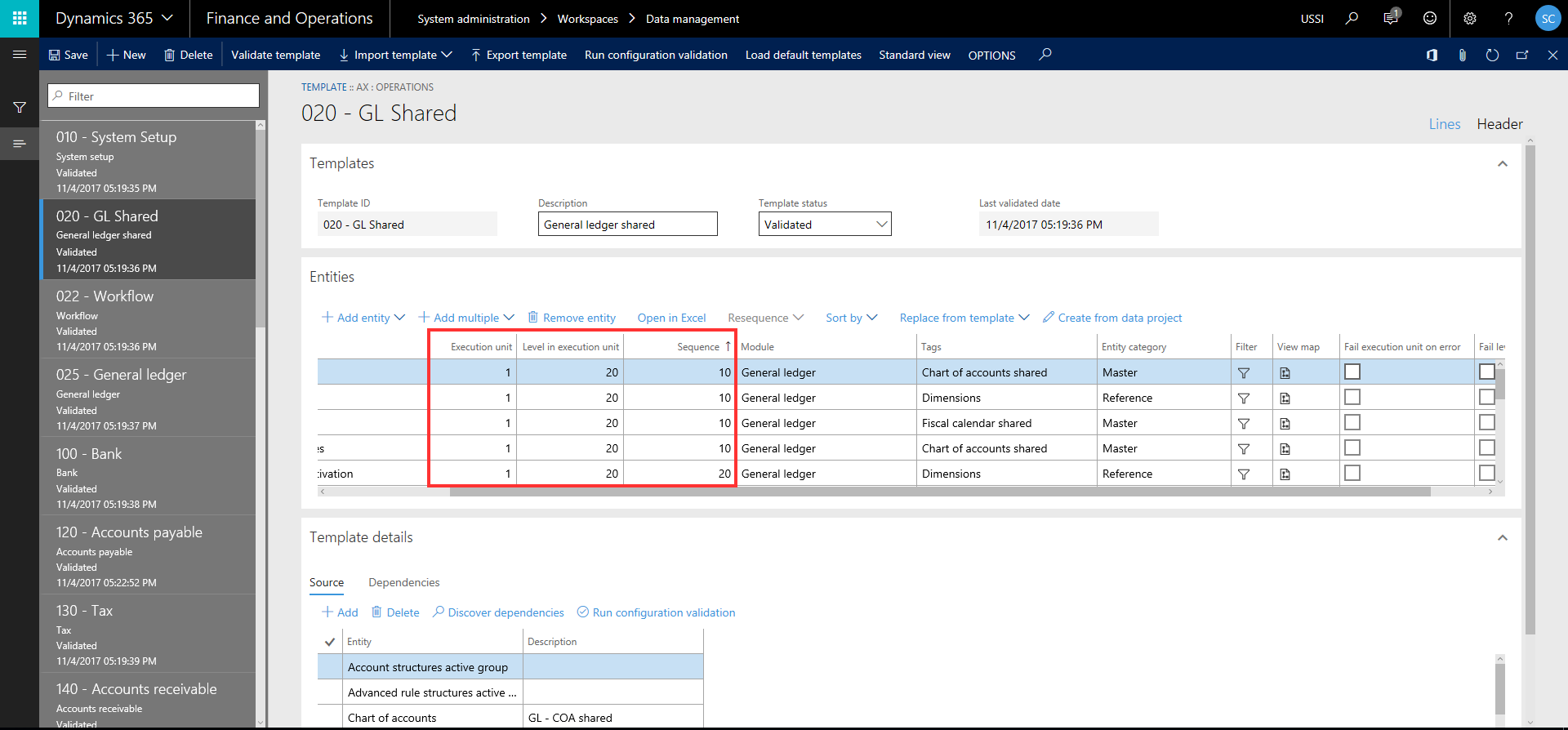
    • How are these entities sequences within a data template for processing? The “Execution unit”, “Level in execution unit” and “Sequence” fields under the Entities tab of the templates defines how the entities are sequences for processing.
      • Execution Unit: Entities that have different units are processed in parallel.
      • Level in execution unit: Entities that have the same level within an unit are processed in parallel.
      • Sequence number: With the same level, entities are processed according to their sequence numbers.

    Note: At some point in future, Microsoft will make it possible for the sequencing to happen automatically when you add entities to a template and will they will try to provide templates for every standard D365FO configuration and setup.

    Unit Level and Sequence Numbers

    • The Module, category and Tags represent the entity category or classification for better understanding. Module represents the actual module name of D365 to which the entity belongs, Entity category shows if the entity is related to setup data, reference data or master data and the tags shows additional information tags.

    Module Tag And Category

    • There are other miscellaneous features on this templates so that you can export and import templates, Open the list of entities within a data template in Excel to make changes to Units, levels, sequences, module, tag etc., or you can even create the templates from a data project.

    Other Misc Features

    Now, let us see how we can use these data templates (Predefined or custom created) in an actual Data project for export or import.

    • Navigate to System Administration > Data Management > Click Import tile.

    Demo Template Import Data Project

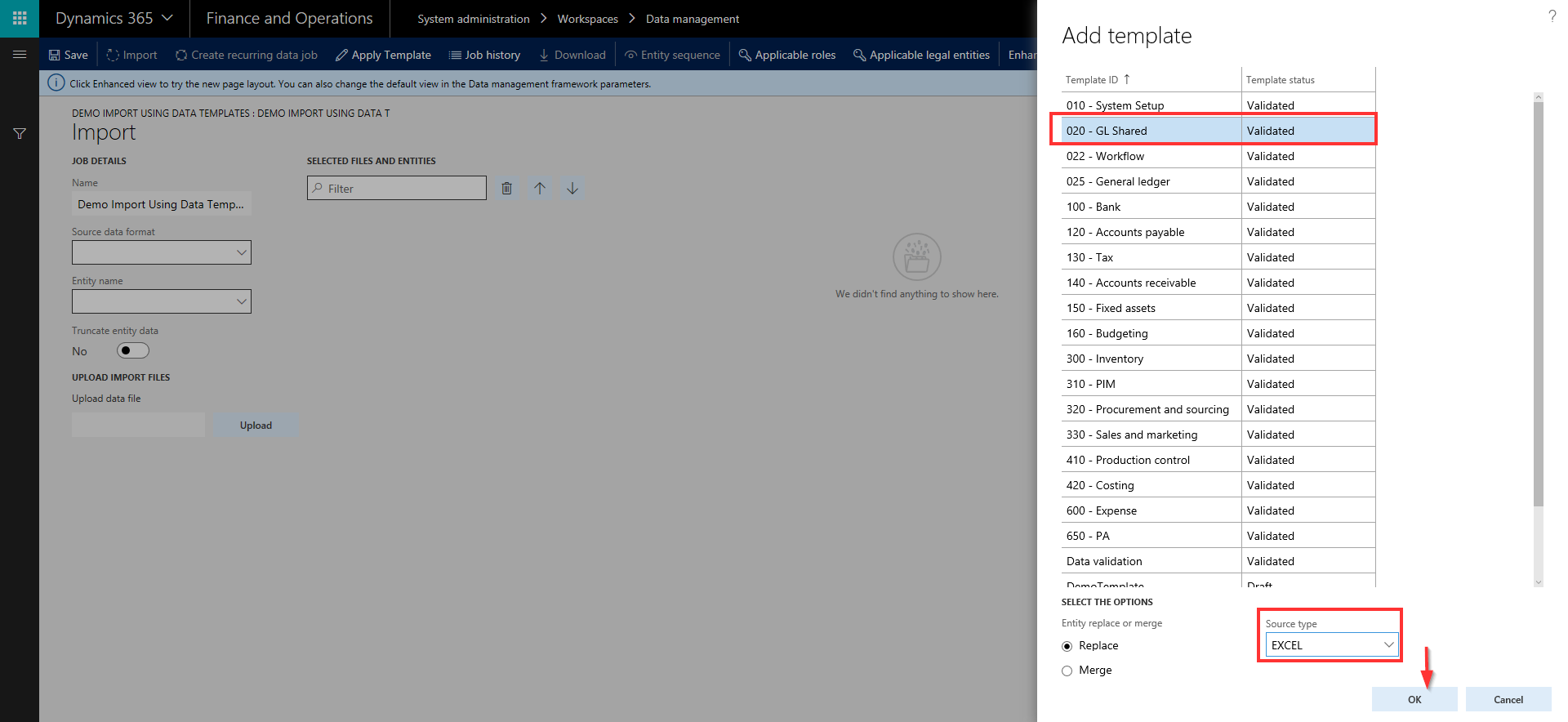
    • Enter a name for the project and click Save. Now click “Apply Template” button. You will see all your data templates that you can select and add them to the data project. You can add more than one data template. Let us say I want to use the GL-Shared data template to load all the data for the GL shared area. I can select that and select preferred source type (EXCEL, CSV etc.) and click OK button.

    Select Data Template on Data Project

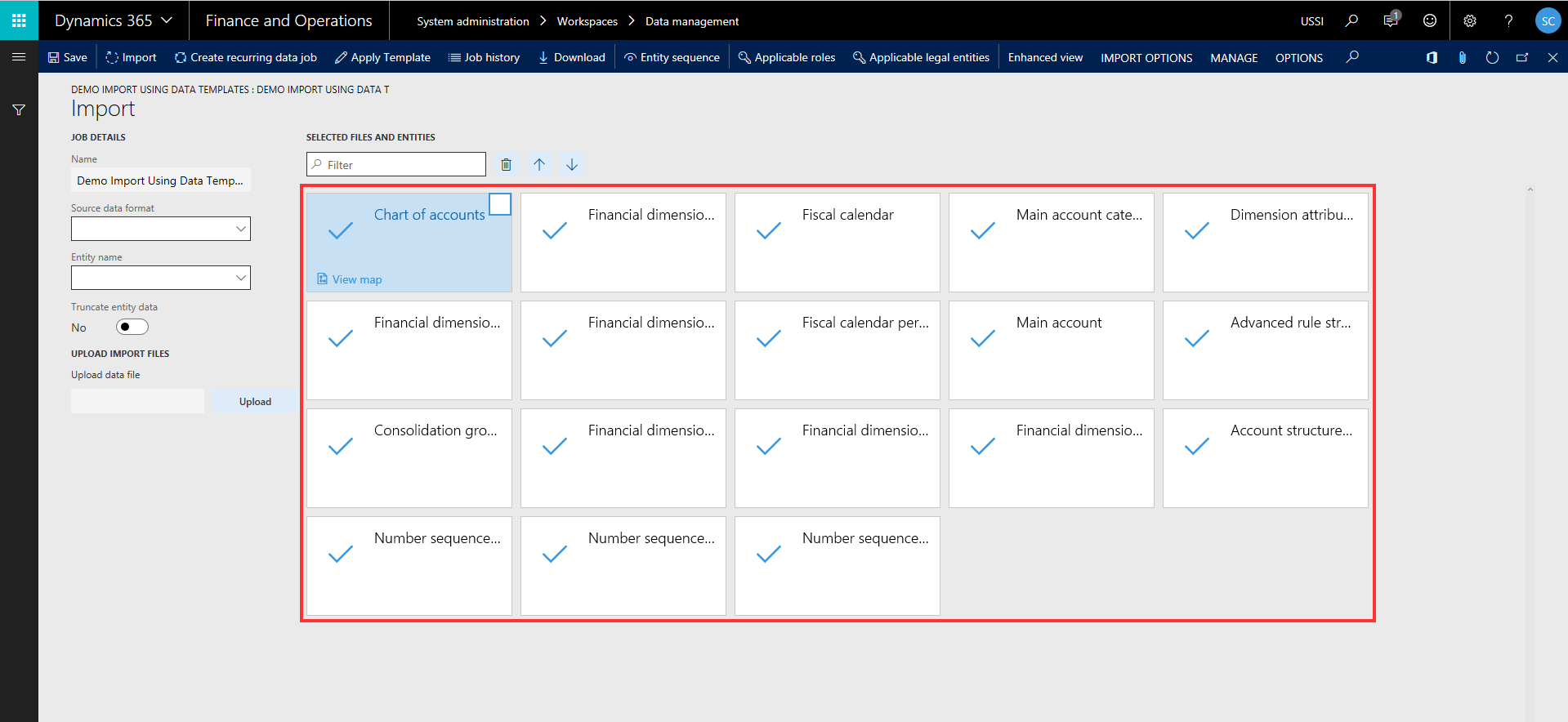
    • Notice here that all the data entities that were part of the General Ledger-Shared data template are automatically loaded and all the level and sequencing of these entities is also inherited from the template setup. Now, you can just upload the excel/source data files for all these entities and schedule the data project to run. It will run and automatically process the entities in the correct sequence as per the definition in the template.

    This is certainly a huge time saver and you don’t have to select individual entities and import them one by one remembering their sequence.

    Data Entities loaded in DP

    • Similarly, you can use the templates for exporting too, so that system will automatically provide all the source files for each module, depending on the data template you selected in the project.

    Export Using Template

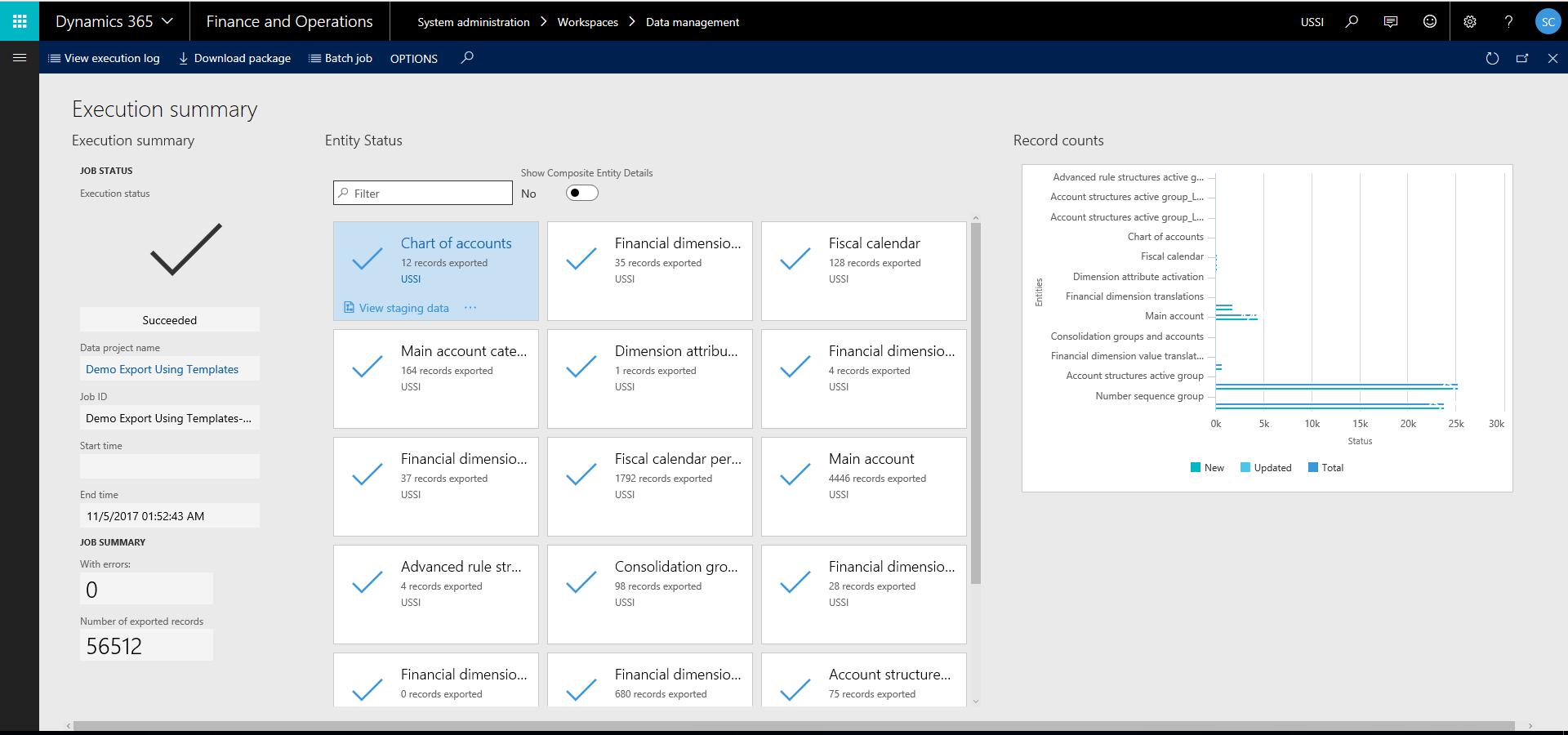
    • As an example, I have exported the same GL Shared template in a data project and it exported all my relevant data entities with more than 500 records within few seconds.

    Data Entities Exported

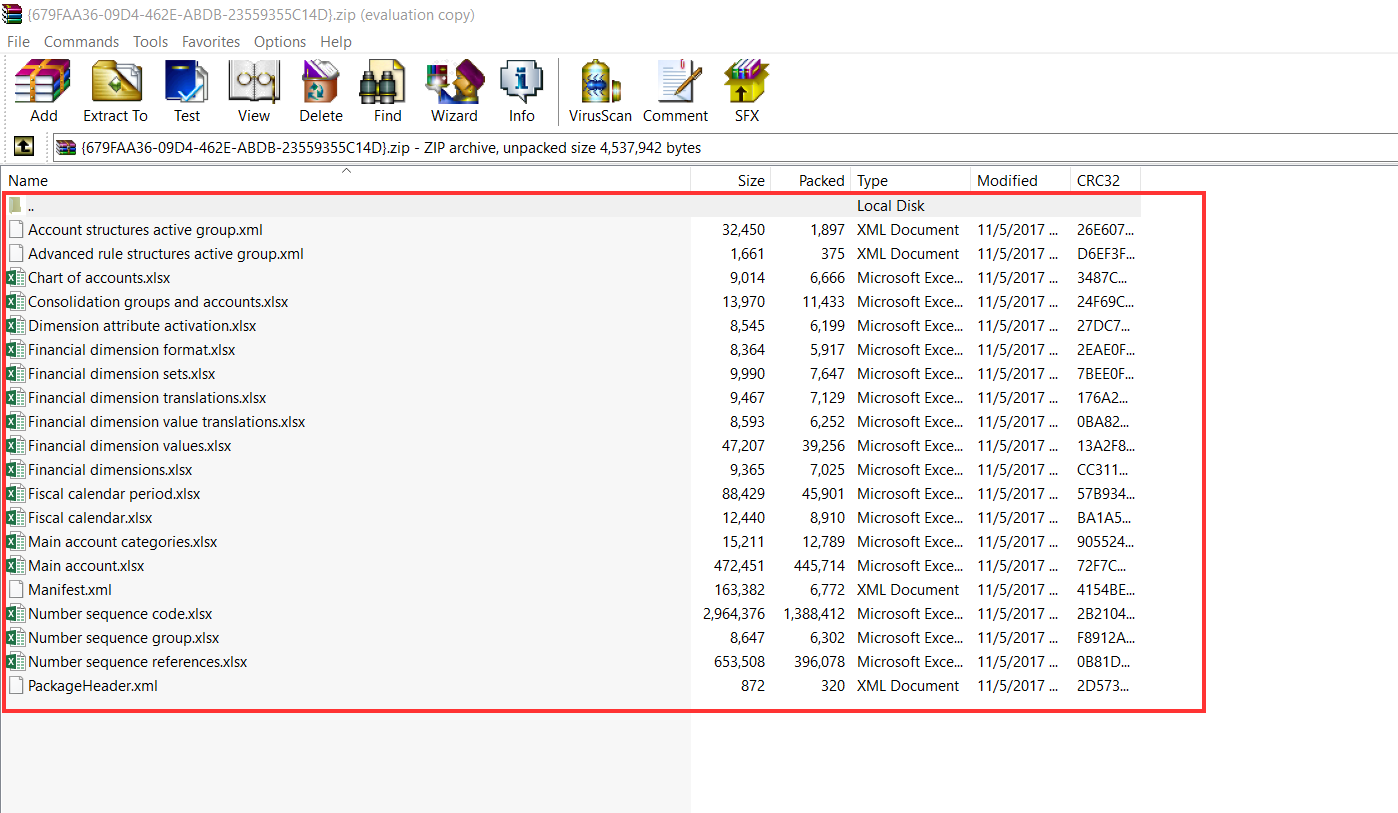
    • I can now download these packages and see the data on the files. See screenshot below.

    Data Package Export

    Exported Data.png

    I find this feature very useful and this will help save significant time in data export/import and will also enable users who are not experts of the system to seamlessly export and import data for all required modules by leveraging these templates. This is also a great step towards standardizing data configs as much as possible, so that customers don’t have to reinvent the wheel in every implementation.

    That’s it for this post. Stay tuned !!

    Sandeep Chaudhury