Category: Dynamics 365

  • Financial Period Closing in the New Dynamics AX(AX 7) – Get real time status, Be more productive, Close faster

    Financial Period Close is probably one of the most important task that the Corporate Accounting team of your organization spends most time accomplishing. Accounting Managers of your organization spend tons of time in creating and assigning various tasks needed to close financial periods and always end up tracking status manually in MS Project, MS Excel or by other means. Today your Financial Period Close and status tracking probably looks something like below.

    Fiscal Period Closing Status - Excel

    With this, you are not able to,

    • Know who is working on what task and when are going to complete it.
    • How much percentage the closing tasks are complete by operational area.
    • Who is having how much tasks remaining to be completed.
    • Know real time status of closing across all legal entities of the organization.

    In today’s post, we will discuss the details of one of the workspaces of the New Dynamics AX, which is the Financial Period Close workspace and see how it can help you be more productive, track status in real time and close periods faster.

    Workspaces in the New Dynamics AX are a new way of helping your users gain and do more in the ERP, all at one central location. The dedicated workspace for Financial Period Closing also intends to do the same and help your accounting team stay on top of their tasks for period close and get real time status updates at any time, so that they can act and escalate on delayed tasks.

    Let us first see some of the insights into the some of the underlying setups before we discuss the workspace.

    Configure Financial Period Closing:

    • Under General Ledger Module > Period Close , navigate to Financial Period Close configuration form.
    • Under the Closing roles tab, create period closing roles as per requirement of you organization. Note that these roles are specific to financial period closing and does not relate in anyways to AX Security roles. These are only required from the Financial Period Closing perspective.

    Closing Roles

    • Under the Resources tab, define/select the employees from your employee master, who needs to be involved in the Financial Period closing process. Also you can set “What they will see when they go to the Financial Period Close workspace”. Additionally you can assign one or more closing roles of each of these resources.

    Resources

    • Under the Task areas, define the different areas of the tasks for financial period closing. These task areas will be ideally your different areas such as AR, AP, Bank, Fixed Assets, GL, Inventory etc.

    Task Areas

    • Under the Calendars tab, configure and set the calendar for scheduling the tasks of Financial Period Closing. Note that these calendars are different than the organization and resource calendars.

    Calendars

    • Under Templates tab, create the List of tasks from scratch or from an exiting template. This is your master list of tasks that needs to be executed to complete the Financial Period Closing process. You can set up the Task description, which area it belongs to, when is it due (before the end date of the closing schedule).
    • Then assign each task to a Closing role (Which is linked to employees or resources) and select the Legal entities you want the tasks to be applicable for. Additionally, you can also setup dependencies between tasks and also set direct links to different forms of AX to complete the tasks.

    Task List

    • Finally, create your financial period close schedule, select the start and end dates, the calendar applicable for it.

    Closing Schedule

    Now that we have gone though the setups and configurations, let us see how the Financial Period Closing workspace looks for an employee who is with certain closing roles and see how they can interact with the workspace in completing their daily tasks for period closing.

    Arnie who plays the role of AR and AP clerk in the closing process, navigates to the Financial Period Closing workspace.

    • On this workspace, she gets to see filtered and actionable data for her task list in live tiles. She can she how many of her tasks are past due, how many tasks pending to be completed today, how many tasks of her blocked due to incomplete dependent tasks by others and all remaining tasks.

    Task List Arnie Live Tiles

    • She also see the Task list that are assigned to her. For each of the tasks, she sees the due date, dependency and most importantly she can navigate to the destination form directly if needed by simply clicking on the task and take required action. For example she can click the Post Free text invoices task to directly launch the Free text invoices form.
    • Once she completes the task, she marks the task as Complete by marking the Completed checkbox.

    Task List Details

    Let us now see how the workspace looks like for an Accounting Manager, who is managing the status of the Financial Period Close process for multiple entities.

    When Phyllis Harris, the Accounting Manager navigates to the workspace, she gets to see real time status updates in terms of % completion of the tasks by entity, task area, by person and more.

    Workspace for Manager

    • So clearly, the manager gets clean, real time updates on the status of the tasks for period close. They can see the status by entity or by area and person in terms of how much percentage is completed.

    Status by Area

    Status by Person

    • She can even drill down to each tasks under each area, person or entity to get more status updates or modify anything as needed.

    Task List Details

    That’s it for today’s post. Stay tuned !!!

    Best,

    Sandeep


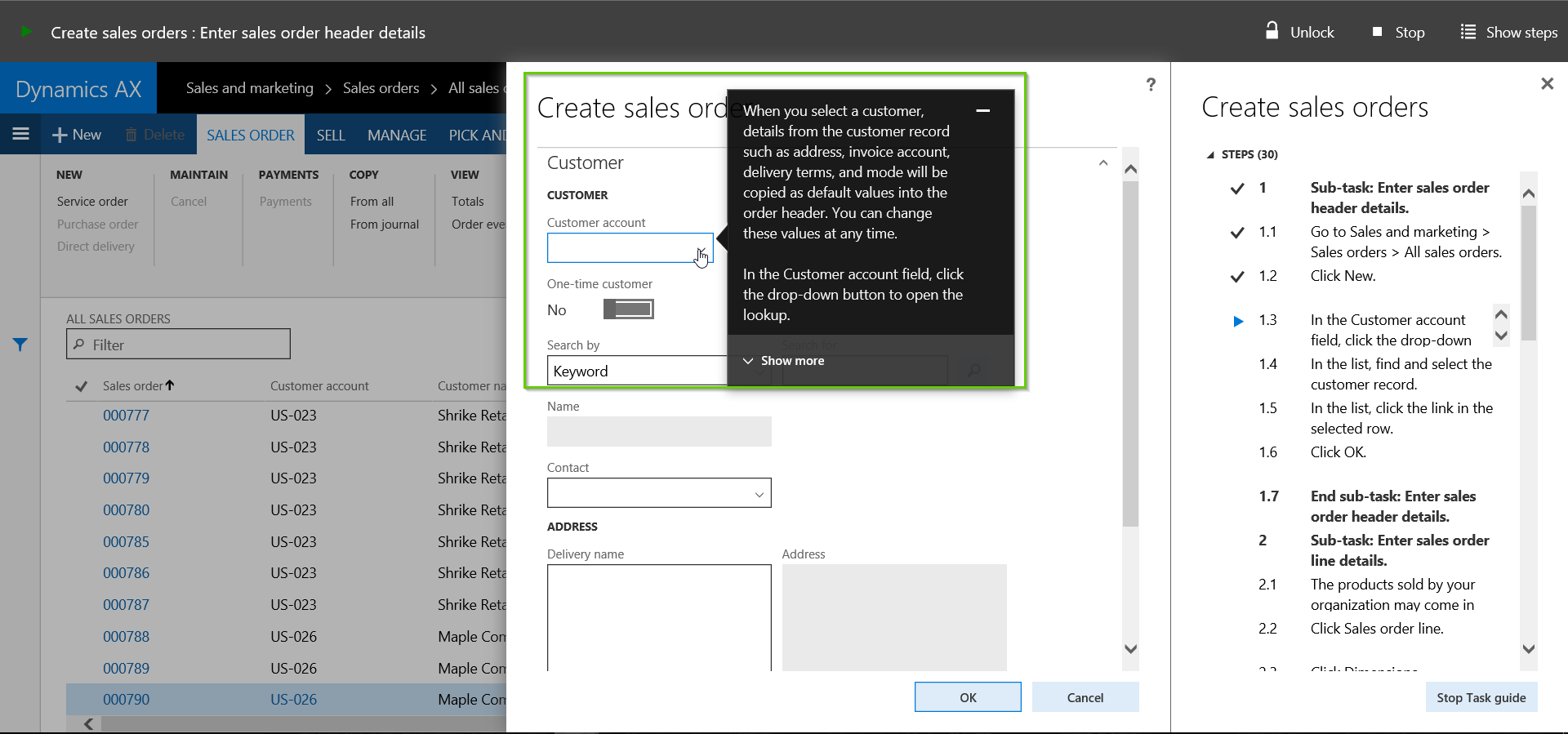
  • Revamped Help System(Task Guides and Wiki) in the New Dynamics AX (AX 7)

    Revamped Help System(Task Guides and Wiki) in the New Dynamics AX (AX 7)

    One of the most talked about features when the new Dynamics AX was released, is the new Task Guides and Wiki (New Help system for AX). We all know the architecture for the Help system is completely revamped and I am sure there must be several videos, blog posts already out in the community talking about these.

    In today’s post, I would like to provide my perspective of how these work together in the new Dynamics AX and how customers and partners can benefit from these.

    Before we deep dive, let us understand the basic terms and what they really mean.

    Help Wiki: In earlier version of AX, all the help content for Dynamics AX were primarily delivered via the Help Server and the TechNet. In the new Dynamics AX brings in a True Cloud based Help Wiki system. This not only brings a whole new approach for discovering and consuming help content for AX, but also it has now become more business process and task focused. The earlier Help system always told us “How to do a specific task under various functional modules”, but there was no real content telling how these tasks tie together. The new help system focuses primarily in delivering Help content for the tasks in a business process oriented manner , which makes it easy to understand for the consumers (Consultants, End Users etc.). We will learn additional details about Wiki further in this post below.

    Task guides: A task guide represents step by step guidelines to execute a specific task under a business process. Task guides are beyond just steps to execute a task actually. You can configure task guides to have as much as detailed information at each step of the task and you can keep track of your steps execution with visual indicators right in front of you, telling up to what step you have executed the task so far and how many steps are to be executed. You will also be prompted with visual navigator(Something like WalkMe), that will exactly point you where to navigate and what to click in order to complete each step of a task. So no more hassle to toggle between training documents/user manuals and AX to execute a task. We will discuss more on Task guides further in the post below.

    BPM Library in LCS: Business process library is a library of business processes broken down to sub-business processes of a solution. This basically contains the breakdown of all the business processes down to the specific task levels under each business process and each task has a pre-reordered task guide for it.

    Task Recorder: This is a tool built inside Dynamics AX (as was with earlier versions of AX, but improved/revamped now), which you can use to record the task guide for a task and then upload the same to LCS library. In this blog post, I will not talk on specifics of “how to create a BPM library”, How to use task recorder etc.

    Before we go and see these in action in Dynamics AX, let us understand the overall Help System Architecture in the New Dynamics AX a little bit.

    As I mentioned above, the help content in the New Dynamics AX is primarily delivered via two sources. 1. Help from Task guides. 2. Help from Wiki.

    • The Task guide contents are provisioned using the LCS (Life Cycle Services). These  are prepared using the task recorder tool and are published into LCS BPM Library of a specific LCS project, which can then ultimately be referenced and consumed within AX.
    • Source 1 of these task guides are the ones created by the product experts within the Dynamics AX team of Microsoft, to be used publicly by everyone. These would go into the Microsoft BMP library in LCS. Source 2 of the task guides would be the ones created and published by Partners and Customers. These would go into the Customer/Partner BPM library.
    • Once you have these BPM libraries within your LCS project, you can reference the same in AX help system configuration and contents from those specific libraries will be delivered when you search them on the Dynamics AX Help Pane.
    • The Wiki contents are directly provisioned from the AX wiki help site . The Wiki that is currently available is the Microsoft public wiki. This primarily  contains text/links to videos/embedded office mix presentations (Manually authored by Microsoft experts), wiki contribution topics from the Microsoft community(with approval/audit from Microsoft)  and finally Microsoft BPM topics from the public Microsoft BPM library in LCS.
    • Partner/Customer specific private Wiki not currently supported, but there is news that it is in the road map. This wiki content will be authored by partners and customers and those will be private for use.

    Let us deep dive now and see some of these in action.

    How to setup the Help system in your Dynamics AX environment: At this point, I assume that most of us are already familiar with what is LCS, LCS project and the BPM libraries(My library, Corporate library and Global library) under the LCS project. Once you have this setup, follow the steps below to setup your help system within AX.

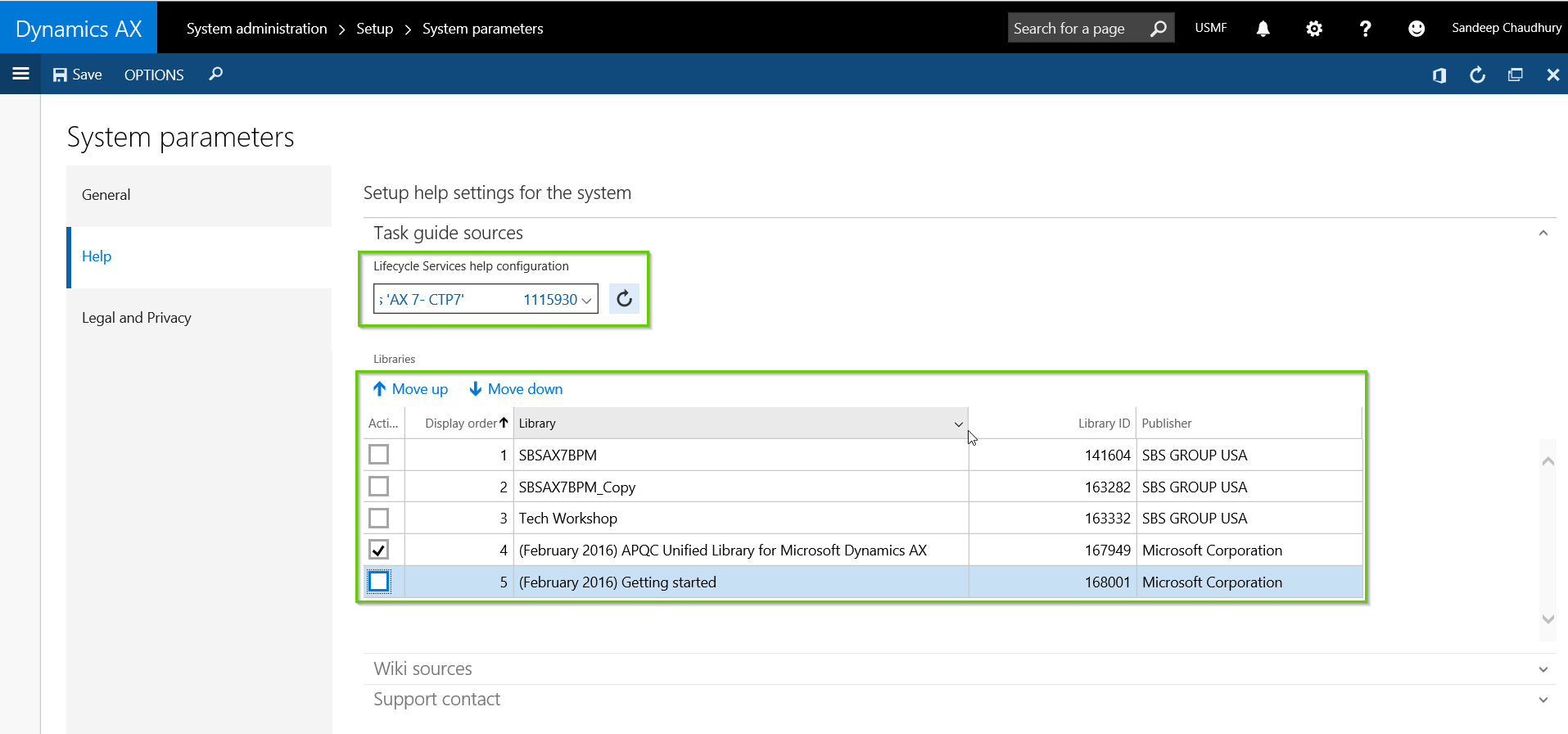
    • In AX, navigate to System Administration > System Parameters > Help tab.
    • Select the LCS Project in which you would have your Business Process Library containing the task guides.
    • As soon as you select this, system will show all the libraries that are available in this LCS project.

    Help Setup in AX Env

    • The next step is to select the specific libraries that you want to use for this AX environment. This means that business processes from this library will be shown when you search from help in AX. In this case I will select the Microsoft APQC library.

    Help Setup in AX Select

    • Save and close the form.

    Dynamics AX Help Pane and the Consumption Experience: Now that we have everything setup, let us see these in action. In this case, I will demonstrate how a user from the Customer Service team of an organization will consume the help topics for creating a Sales order in AX. (Both Wiki and Business process task guides).

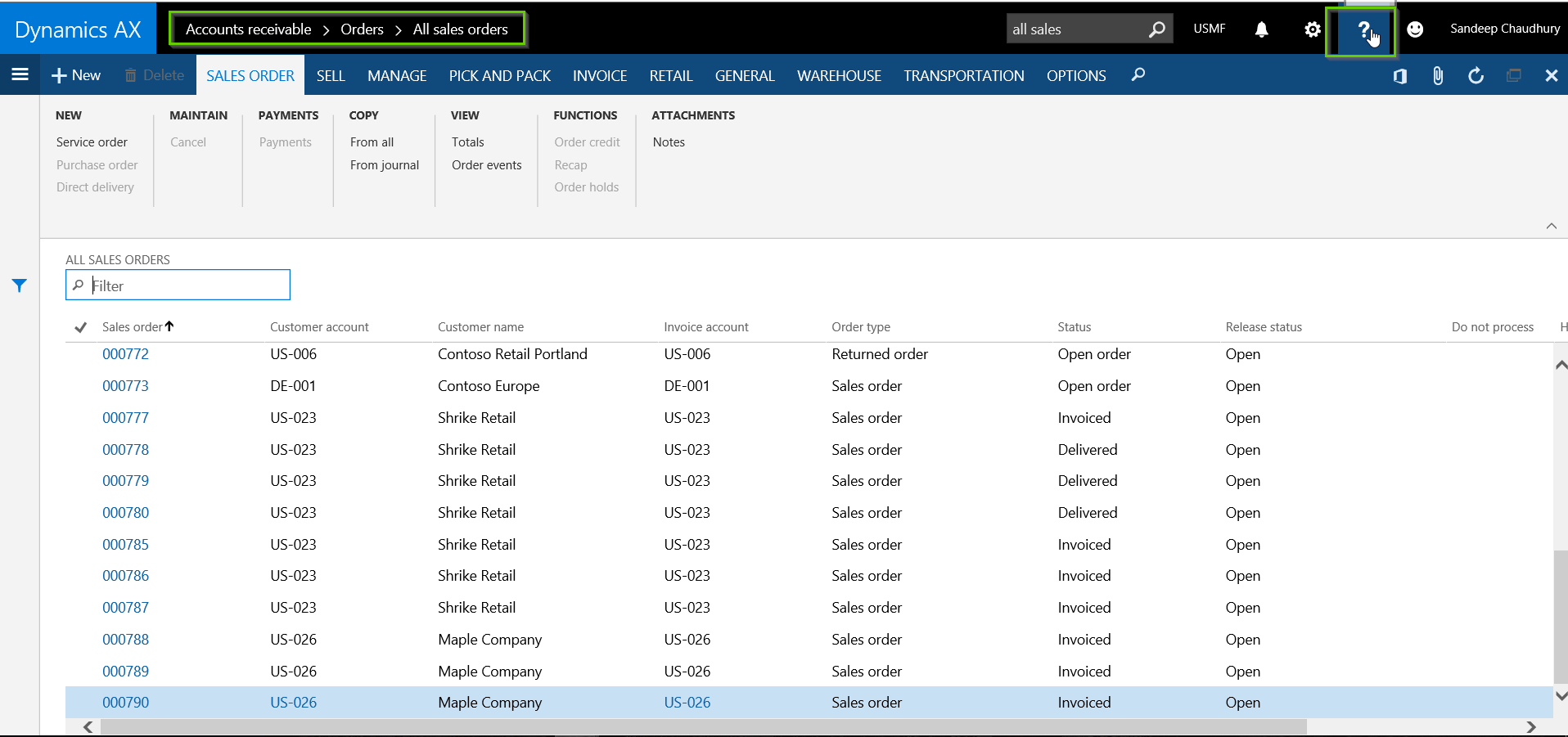
    • The user navigates to the Accounts Receivable > All Sales Orders.
    •  Now, as soon as the user is on this form, let us say they are new to the system and are not fully aware of the steps and best practices they need to follow in order to create the order. The immediate thing that comes to mind is “I NEED HELP“. So they click the Help icon on the top right of the page.

    Help Button

    • As soon as they click Help, system will automatically render the help information (Both Task Guides and Wiki) that are related to Sales orders and list them as per relevance.

    Help Topics Listing

    • The Content under the Task Guides bucket/tab lists all the task guides that are present in the business process library related to sales order. The content under the Wiki bucket lists all topics related to Sales orders from the Microsoft public Wiki.
    • User can find or even search for more specific topics with appropriate key words under the Help Search box.

    Wiki Bucket Help Search

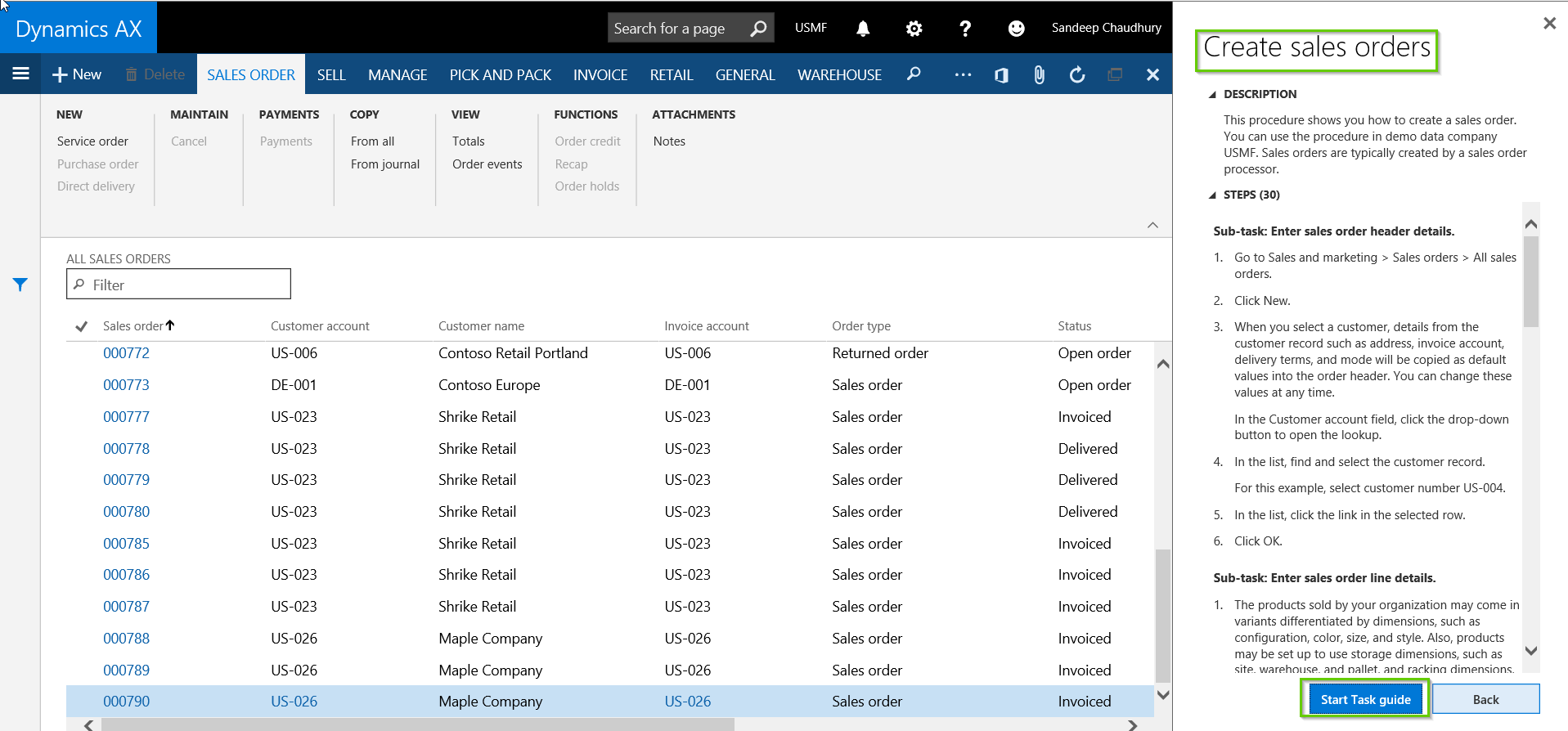
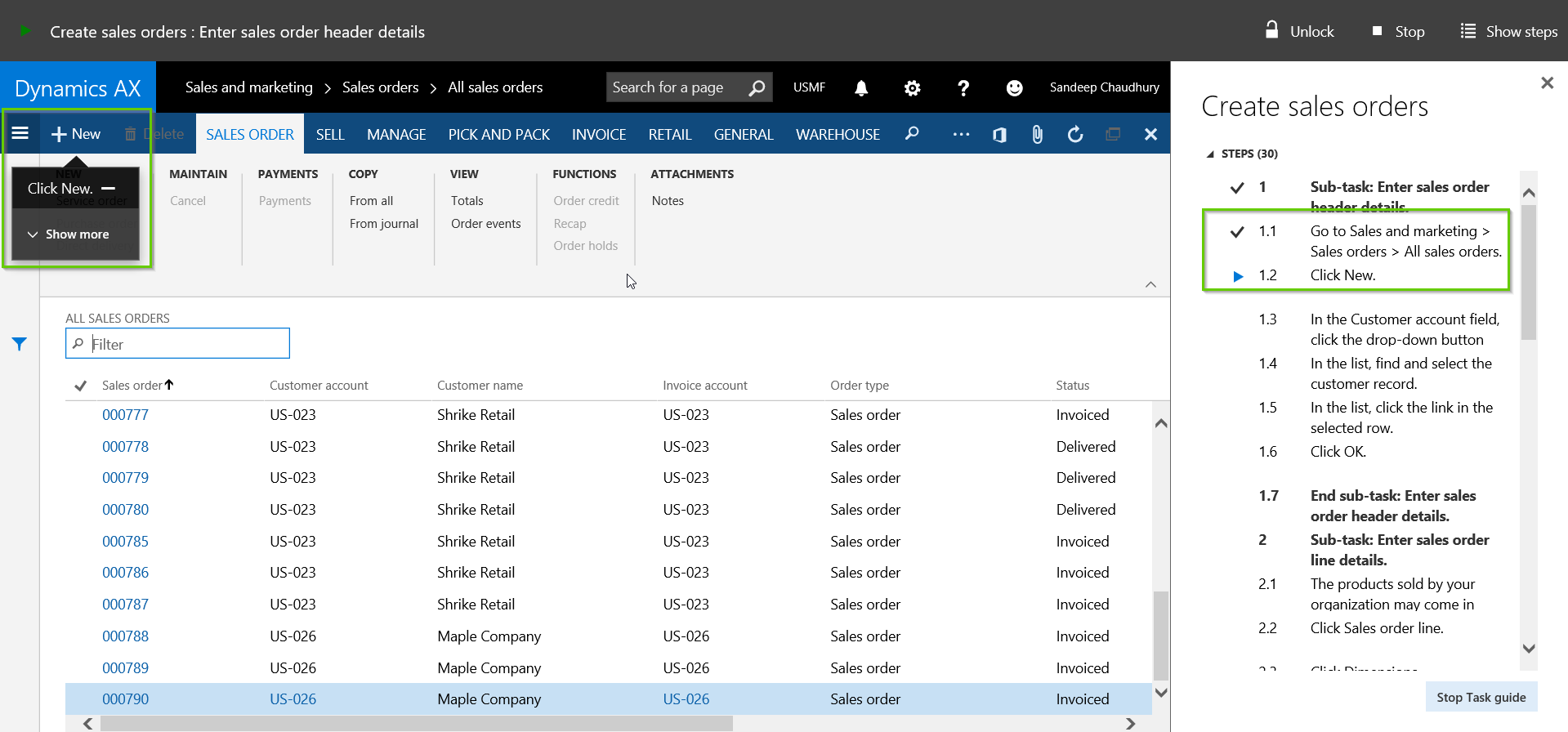
    • Once the topics are listed, it is up to the user on how to consume these. If they are a new user dealing with the Sales order process for the first time and they really need step by step guidelines to make sure they do not go wrong, they can Start the Task guide in play mode. This will help them navigate to each click with visual pointers which makes it super easy to follow the steps and execute them.
    • So user selects the required Task guide and clicks Start Task guide button.

    Start Task Guide button

    • With this, notice that system will start visual pointed navigational instructions with additional information for the user to execute the steps. System will also show visual indicators on which steps are completed, current step and which are pending, all of these without having to leave the form.

    Visual pointers

    Visual pointers 2

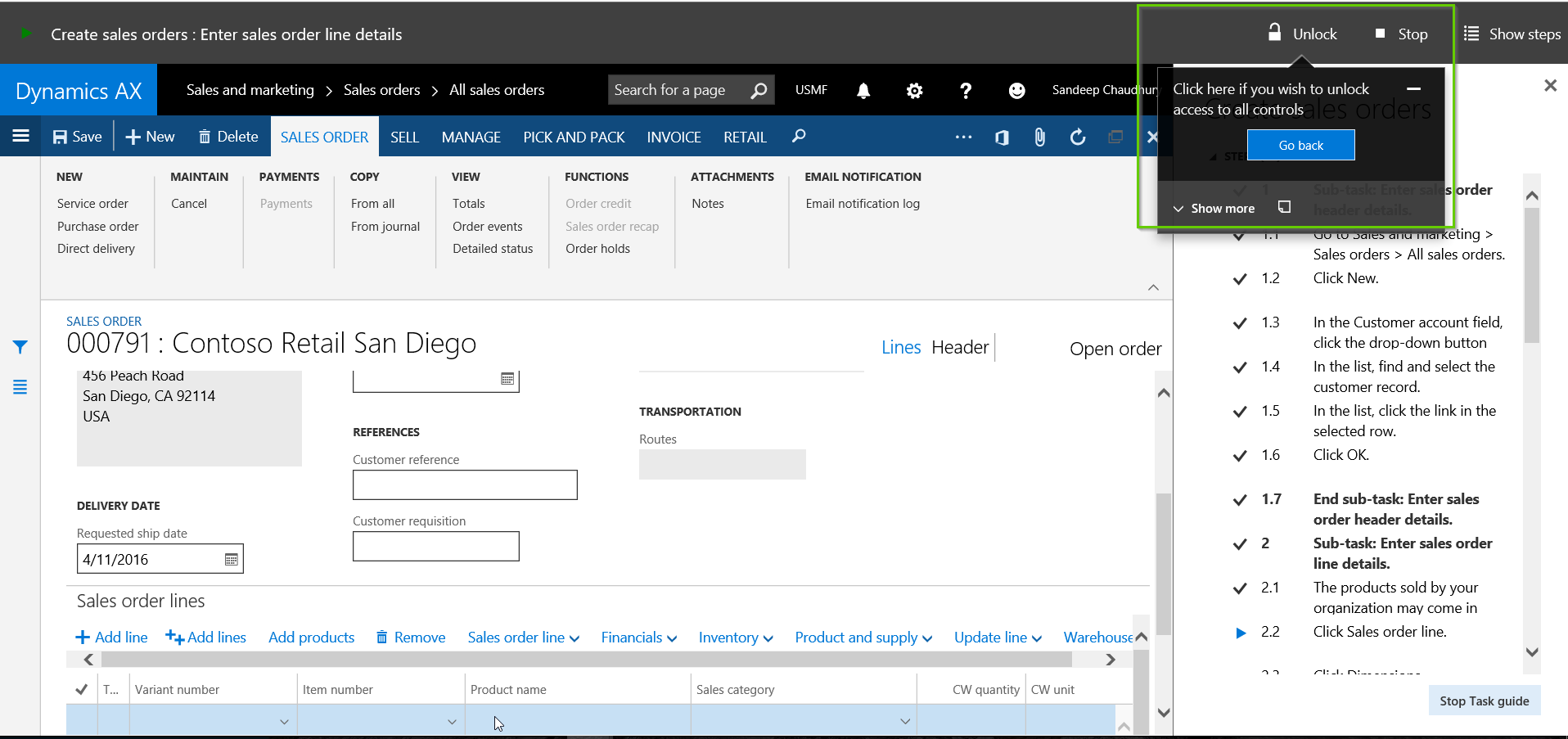
    • Once the user start a task guide, system will force them to follow the task guide recommended steps. But if they do any actions to deviate from the recommended steps, then  system will automatically prompt the user if they want to Unlock the task guide for them not to follow a particular step for any reason.

    Unlock Task Guide

    • User can skip a non-mandatory step if they wish to. The user can also stop the task guide at any point they want.
    • Now, as users uses the business processes on a daily basis and gets familiar with the tasks, they might not need pointed guidelines always. So they can simply consume the task guides in Read only Mode, just to refer to any specific step or additional information on a specific step that they are not sure about.

    Read Only mode

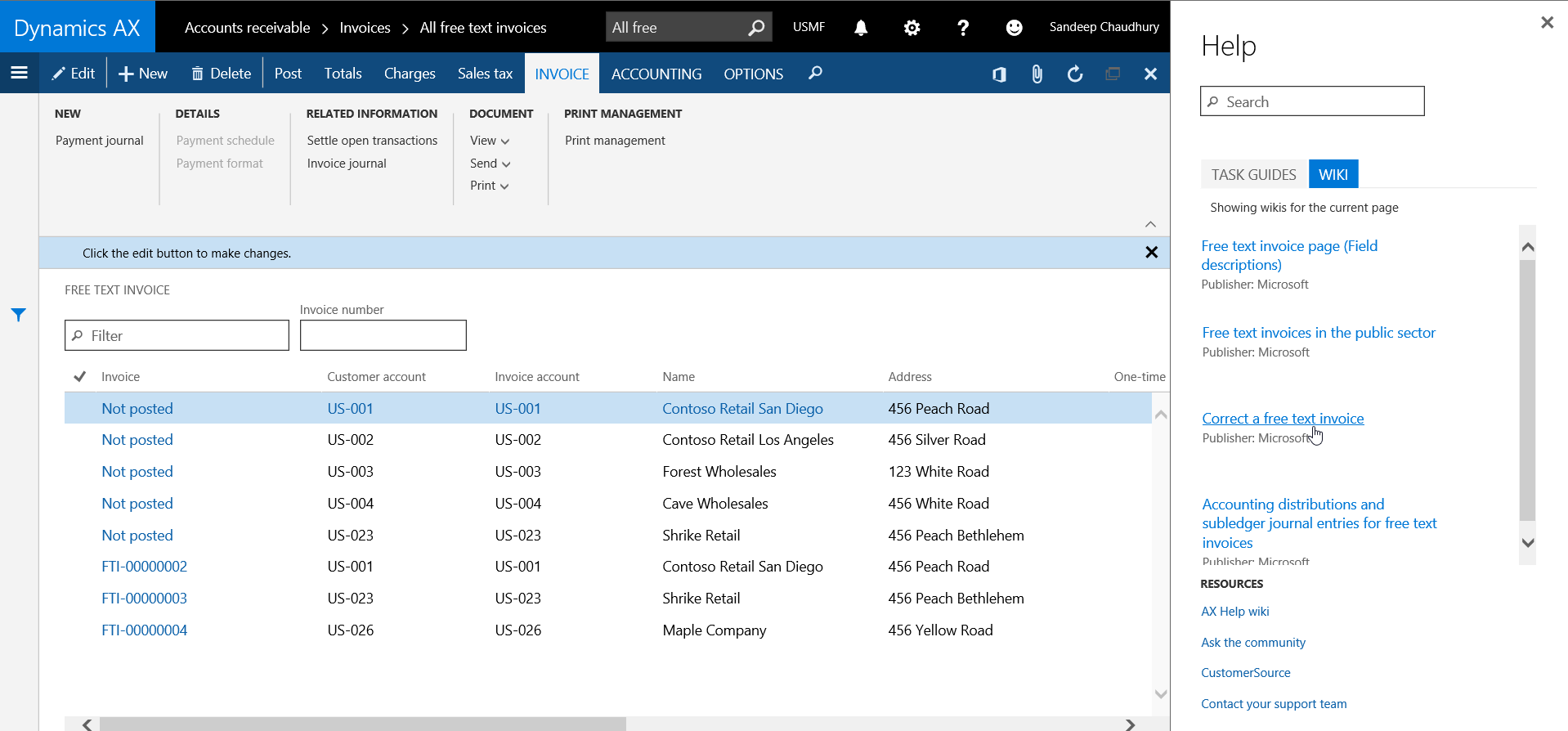
    • Finally, if the user wishes to explore more on the specific topic in the Public Wiki, they can chose the link under Wiki tab and it will take them to the Wiki link.

    Wiki Link

    So that was it from my side on this post. Hope this information will  be helpful. There are a host of new features in this area as well which are slated for future updates in coming months. Stay tuned!!

    Of course there are several minor details behind the scenes,such as How to create task guides, what are the best practices, how to publish them to LCS etc. Feel free to drop you questions.

    Regards,

    Sandeep

  • What is new in General Ledger Module – Top 5 enhancements in the New Dynamics AX (AX 7)

    What is new in General Ledger Module – Top 5 enhancements in the New Dynamics AX (AX 7)

    Hello Everyone,

    Hope everyone participated in the virtual launch of the New Dynamics AX on 9th March and got to learn more about the new fully cloud based ERP.

    In today’s post, I will explain the top 5 enhancements that I witnessed and tested under the General Ledger area in the New Dynamics AX.

    1. Financial Dimension Activation
    2. Global General Journals
    3. Global Fiscal calendar management
    4. Dedicated Process driven Workspace for Financial Period Close
    5. Account structure related enhancements

    Let’s get straight into it and see some additional details.

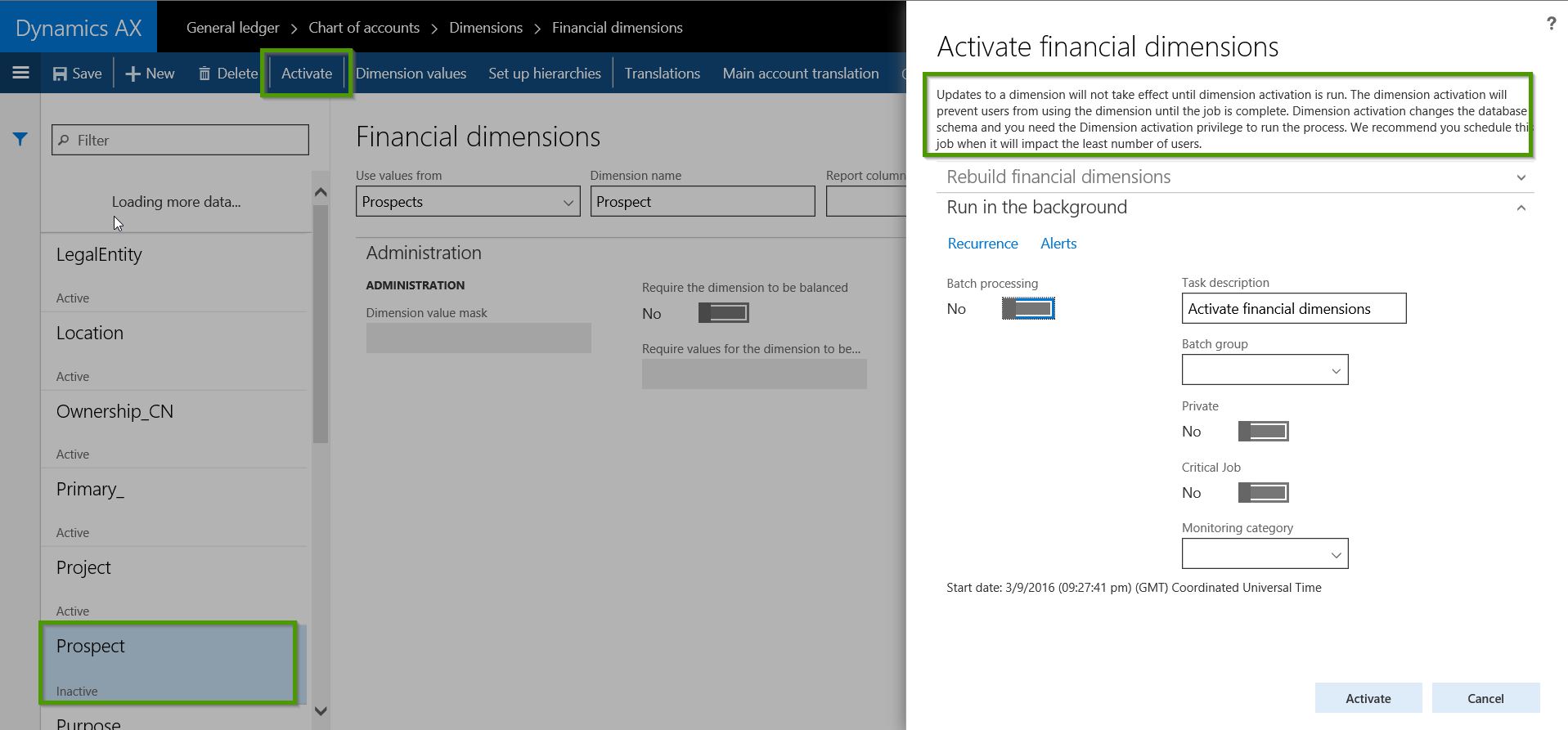
    1. Financial Dimension Activation: Starting with the new Dynamics AX, new financials dimensions will now need to be activated by a specific role, which has the privilege assigned for dimension activation or by System administrators. The intention here is to simplify the database schema for financial dimensions so that the reporting and data extraction becomes easier.

    • When a new Dimension is created under GL > Dimensions > Financial Dimensions is created, it will be in “Inactive” status by default.
    • Before users can start using this new dimension, it needs to be activated, which can be only done by either a System Administrator or by a role which has the privilege for dimension activation.
    • When the activation is run, system will add the new dimension across all applicable tables in the database and the database schema will change. See screenshot below for reference.

    Finnancial Dimension Activation

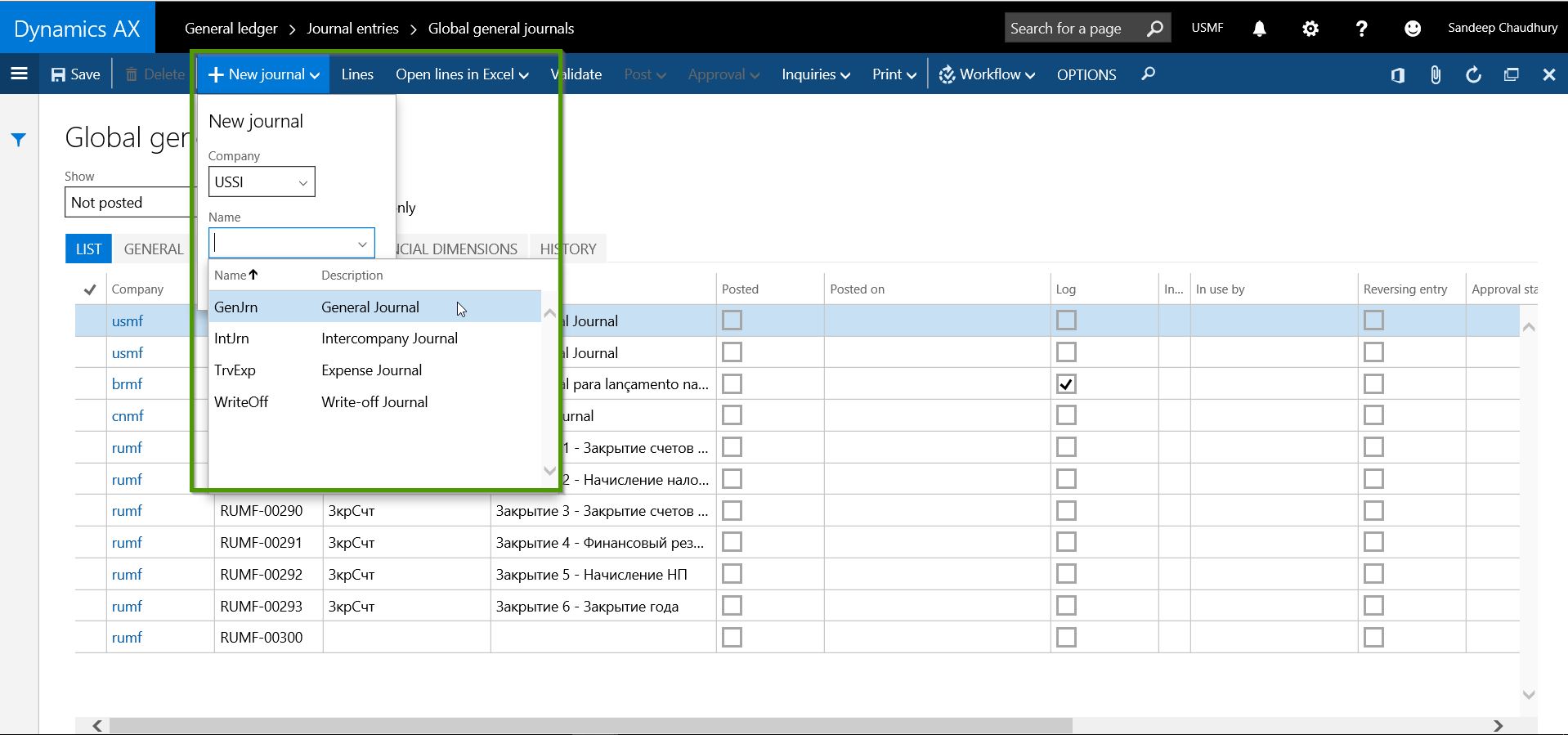
    2. Global General Journals: This new feature will allow accounting team members to create and manage general journals in multiple legal entities staying in one entity, without having to change the legal entity each time when they create or edit the journals.

    • The new global general journal is located under General Ledger > Journal Entries > Global general journals.
    • When you create a new New journal, you can select the Legal entity and the journal name of that entity for which you want to create the journal entry.

    Global General Journals

    • You can then continue to create the journal lines inside the current entity and you can directly Open the journal in the other entity if you wish to, or you can complete the entire journal entity, validate and post in the current entity and the unmoral entry will be created and posted in the destination entity.

    Global General Journals 1.jpg

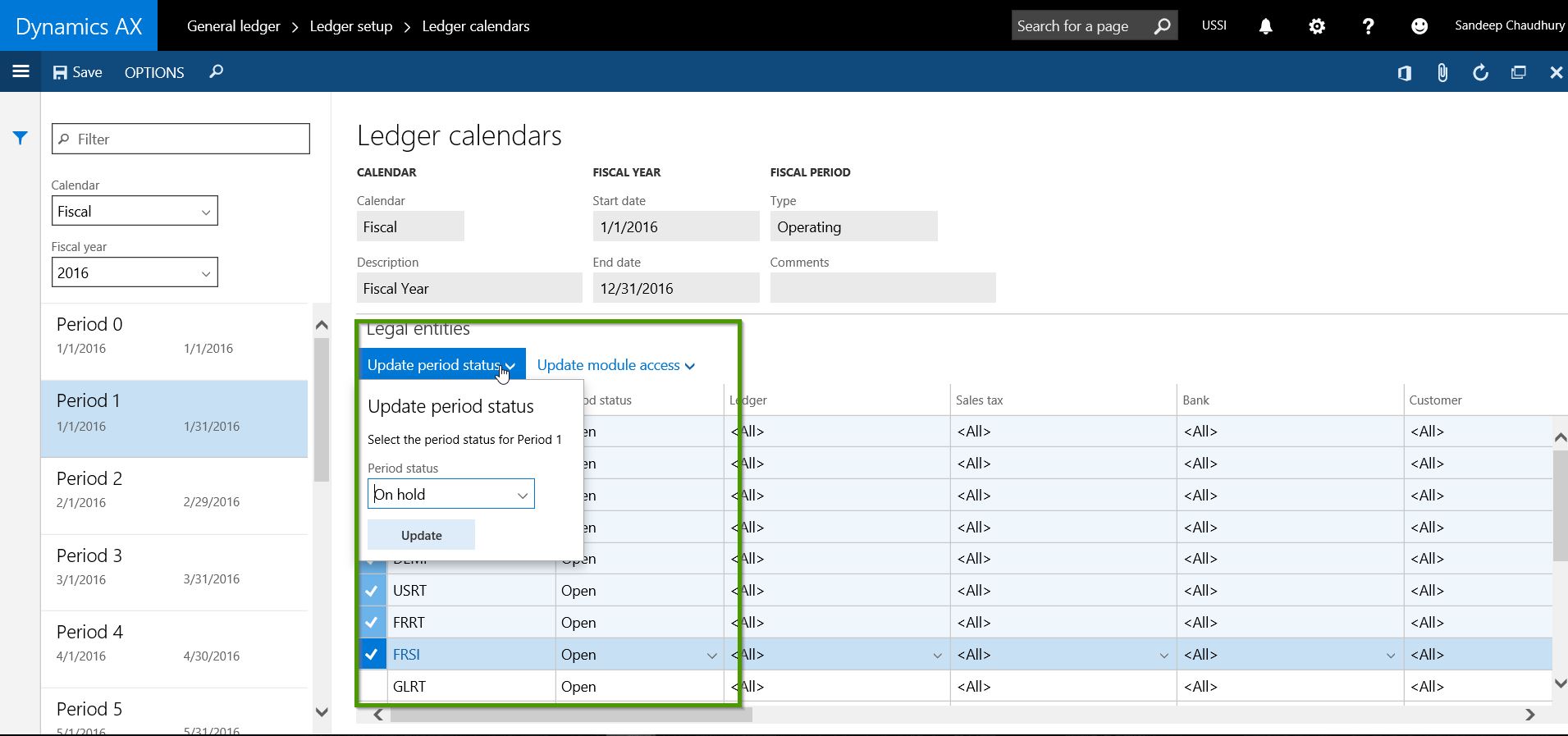
    3. Global Fiscal Calendar Management: This feature will enable finance controllers and other related users of the accounting team to manage the the fiscal period status and Module level accesses for multiple entities which share the same Fiscal Calendar.

    • Navigate to General Ledger > Ledger Setup > Ledger Calendars.
    • Select the Fiscal calendar and the Fiscal year to see all the Periods under them.
    • Notice that you will now see all the Legal entities listed in separate rows , which share the same fiscal calendar.
    • You can change the Period status and Module level access for the required modules for one or more or all legal entities at once.

    Ledger Calendar

    Ledger Calendar1

    4. Dedicated Workspace for Financial Period Close: The new Dynamics AX brings in a a new dedicated workspace for the financial period close tasks. You all must be very familiar with what workspaces in the new AX are. The purpose of this workspace is primarily to help the corporate accounting team and Controllers to manage their fiscal period closing more effectively and make the process more transparent, get real time insights with the status of closing and get more timely insight into your business.

    • Controllers can create Period Closing schedules and templates.
    • Under each template and schedule, they can create breakdown of the tasks for the period close.
    • Tasks can be assigned to to different team members with required due date and times.
    • Can be done for multiple legal entities.
    • This workspace helps the corporate accounting team to collaborate and update the status of tasks assigned to them and enables controllers to view the status of closing is real time and take required actions.
    • Explaining this topic will become a separate blog in itself. I will try to explain sometimes later in future with a new post on this. Screenshots below shows a quick snapshot of how this workspace looks like.

    Closing schedule

    Closing schedule 2.jpg

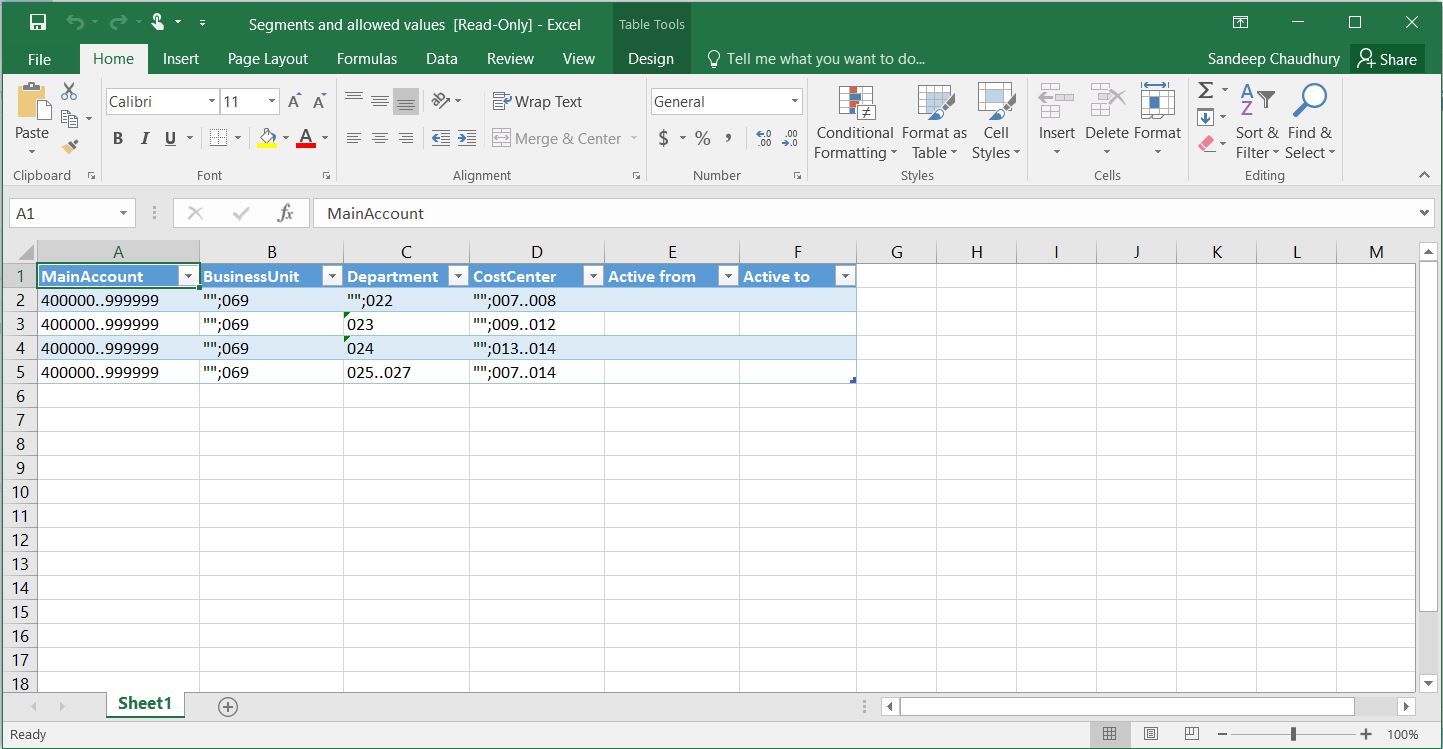
    5. Account Structures related enhancements: In the new Dynamics AX, the over all view and arrangement of data fields and tabs on the account structure form makes it more intuitive and easy to use. You can see which entities are using the selected account structure staying in the same form. Most importantly you can now export Account structures to Excel. This allows you to make edits easily in bulk and push it back to AX from Excel.Export to ex cel

    Export to ex cel 1

    There are a few other minor enhancements under the GL area too, which I will leave up to you all to explore :)

    That is it for this post !! Keep DAXing..

    Regards,

    Sandeep


  • Dynamics AX Tip: How to Personalize forms and workspaces in New Microsoft Dynamics AX (AX 7)

    Dynamics AX Tip: How to Personalize forms and workspaces in New Microsoft Dynamics AX (AX 7)

    Hello Readers,

    Until AX 2012 version, personalizing the forms and adding/removing data fields on them was a very important and widely used feature used by customers.

    This quick post will help you understand how “Personalizing” looks in the new Dynamics AX. Let us take a look one by one.

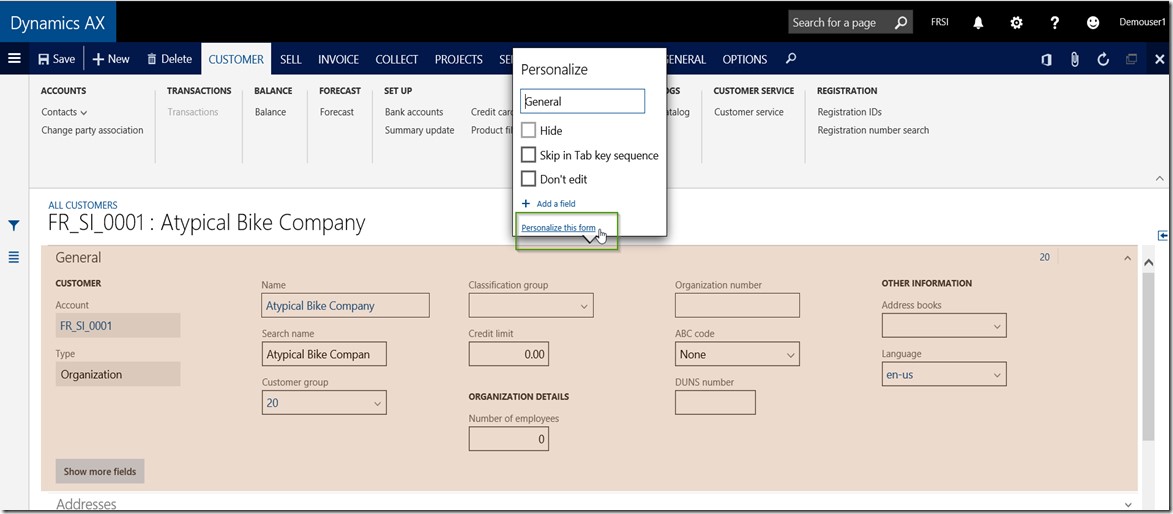
    When you are on a form or a navigation page in the new Dynamics AX,  you can bring up your favorite Personalize options using the “Right click > Personalize:Form section” option. For example, I navigate to the Accounts Receivable > All Customers > Customer Details form/page > General fast tab and right click on it.

    How to add a new data fields on a form/page:

    • Navigate to the form that you want to Personalize.
    • Right click > Personalize: Form section, i.e Personalize:Customer

    Personalize Form

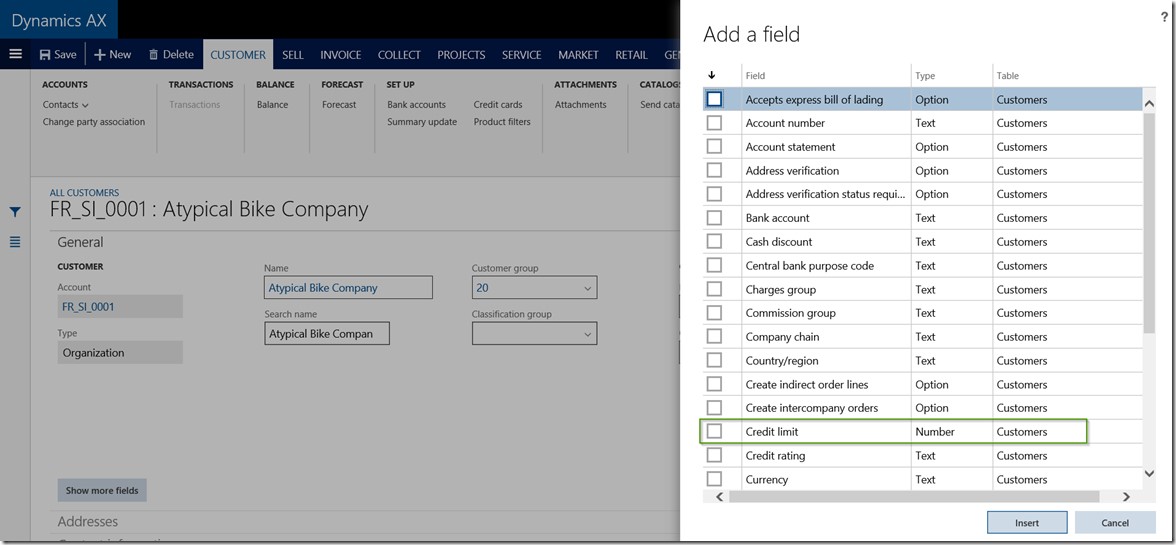
    • Click + Add a Field to load the field list form.

    Add a field

    • Select the data fields you want to add and click Insert button.

    Select Data Fields

    • Another way of adding a data field on a form is to select “Personalize this form” option after right click and Personalize.
    • Note that you can also launch the Personalization pane by navigating to Options > Personalize this form button.

    OptionsPersonalize

    Personalize this firm

    • Click the + button to load the data field list form. Select the data fields you want to add and click Insert button.

    Personaliation Pane

    How to change properties of a data field:

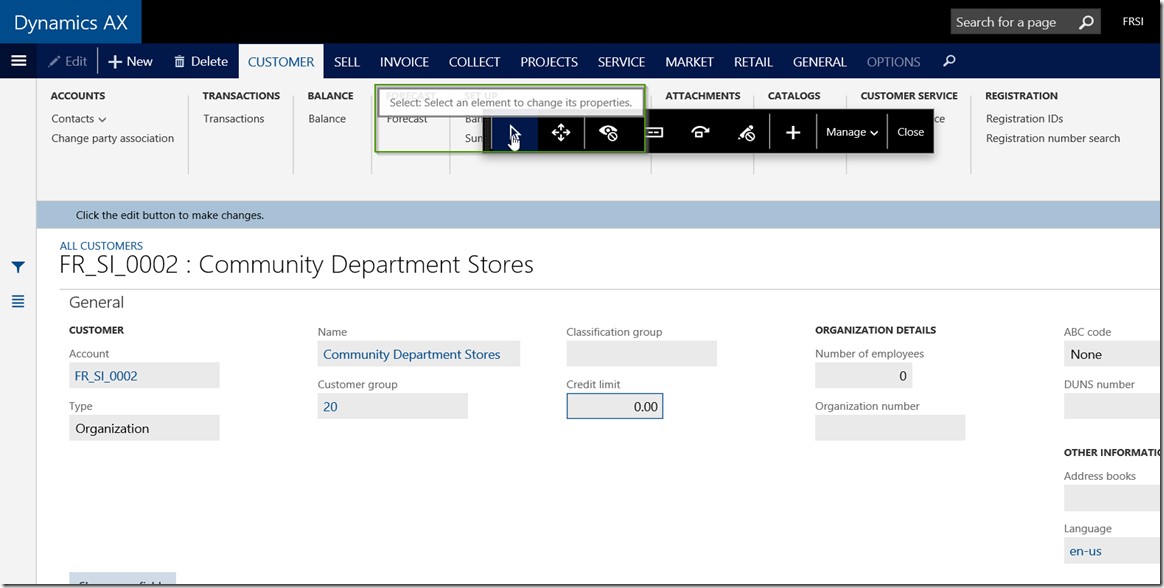
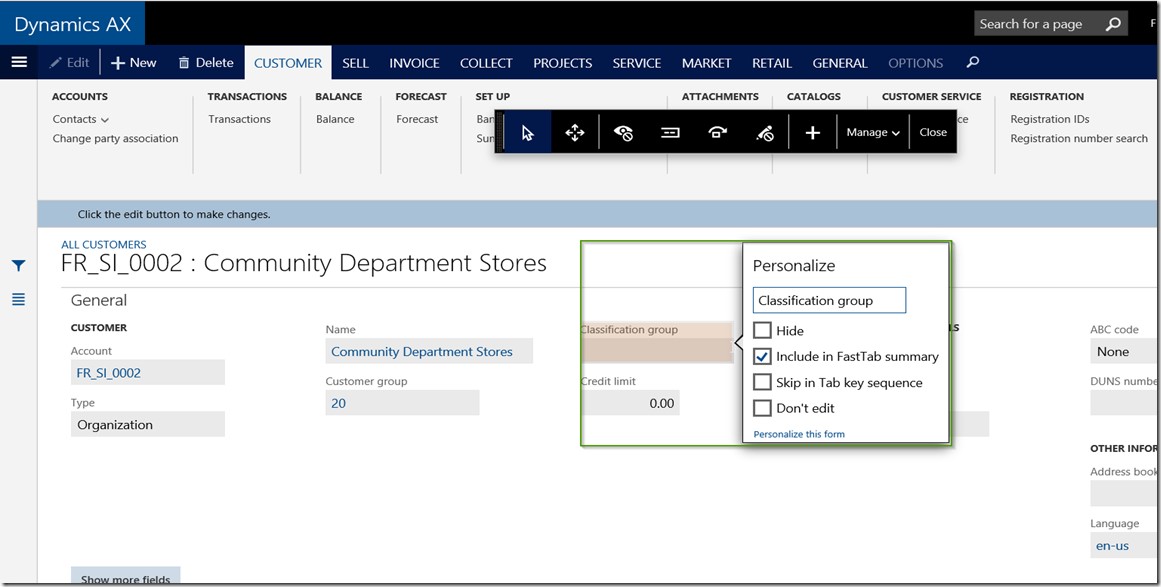
    • Once you are on the Personalize form screen, select the “Arrow’ button to enable the property changes for various data fields on the form.

    Data Field Property

    Data Field Property 1

    Hide: Mark this to Hide the selected data field on the form.

    Include in Fast Tab Summary: Mark this to show the value of this data field on the Fast tab header summary of the fast tab, under which the data field is present.

    Skip in Tab key sequence: Mark this to skip this data field on the tab key sequence.

    Don’t edit: Mark this to block editing of this data field.

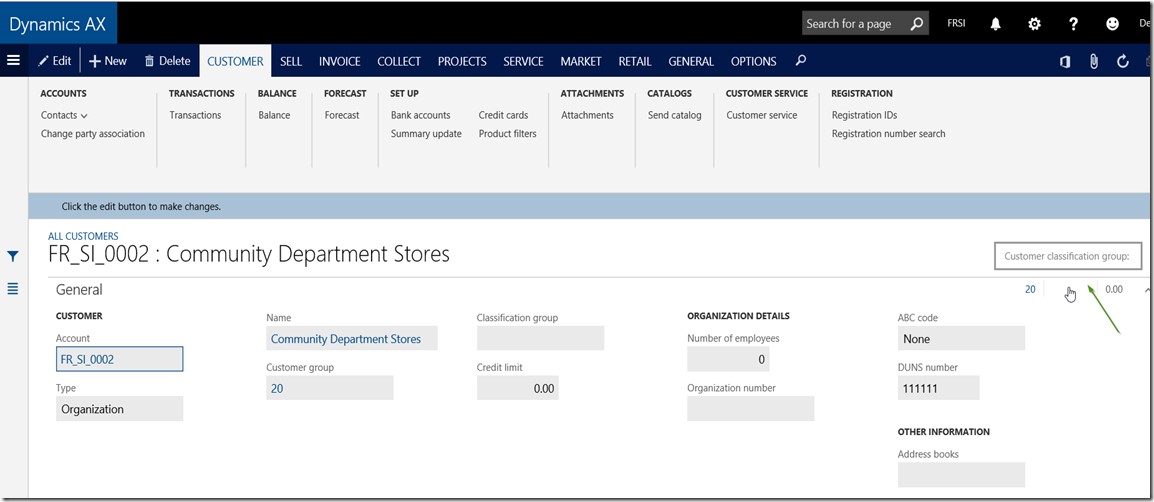
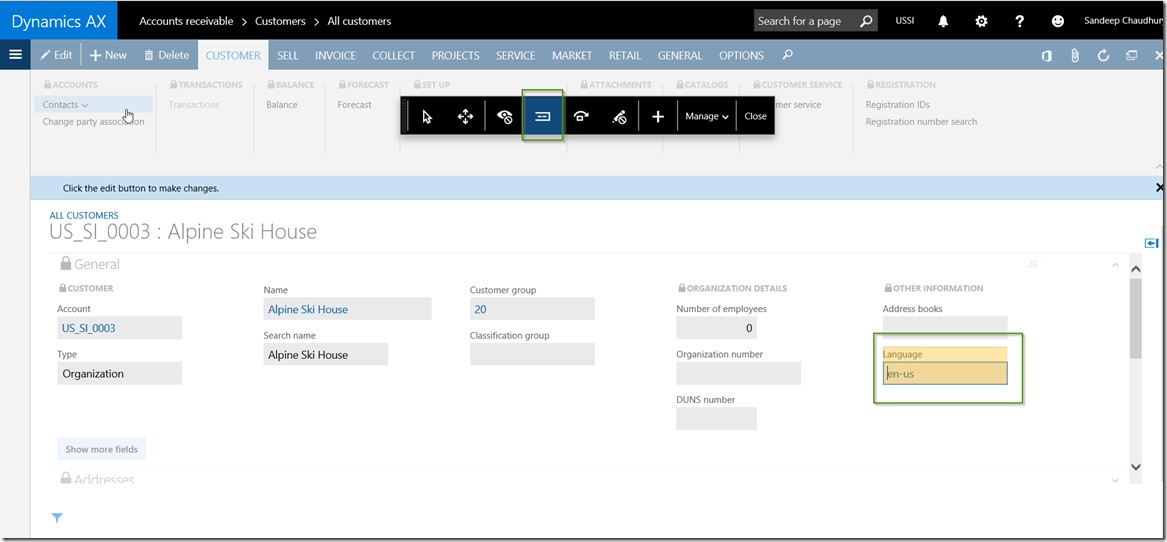
    For example, let us mark the Include in fast tab summary for the  Classification group field and see that it appears on the fast tab Summary.

    Data Field Property 2

    How to rearrange or move around data fields on a form:

    • Once you are on the Personalize form, select the MOVE option on the Personalization pane and just drag and drop fields to move them around on the form as shown in screenshot below.

    Rearrange Data Field

    How to show/Hide data fields on a form:

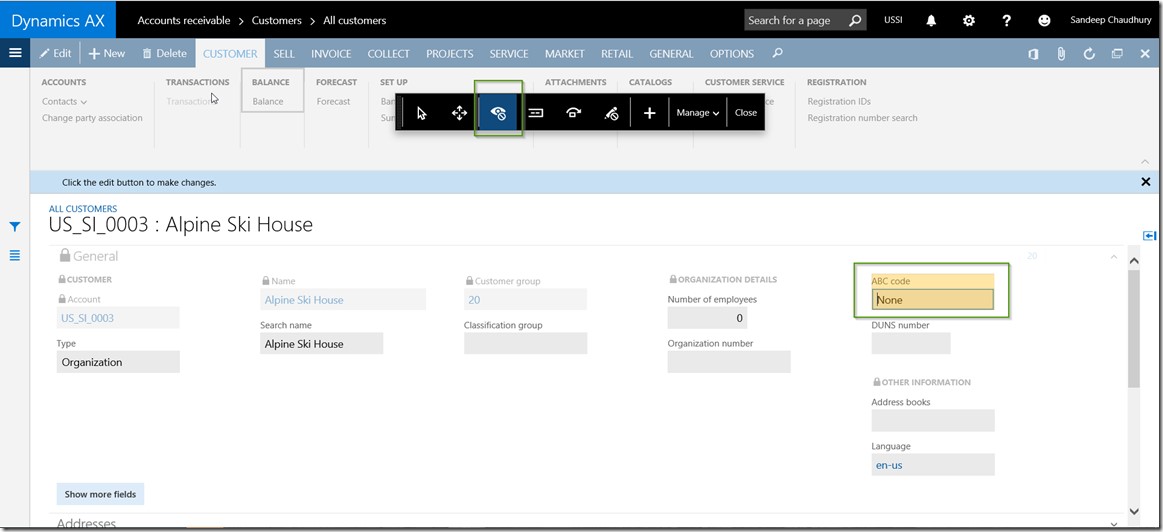
    • On the Personalization pane, Select the Hide/Show button.
    • Now mark the data fields that you want to Hide/show.
    • If you had already made a field hidden, when you try to Hide/Show next time on the form, you can see those fields as marked for Hidden.
    • For example if I want to hide the ABC Code field hidden on the customer details form, I can mark that and upon refreshing the form, the field will be hidden.

    Show Hide Data Field

    How to add fields to show on the collapsed fast tab summary:

    • On the Personalization pane, Select the Summary button.
    • Now mark the data fields that you want to add to the fast tab Summary when collapsed.
    • For example, I have added the Language data field on the General fast tab.

    Add Field to Summary

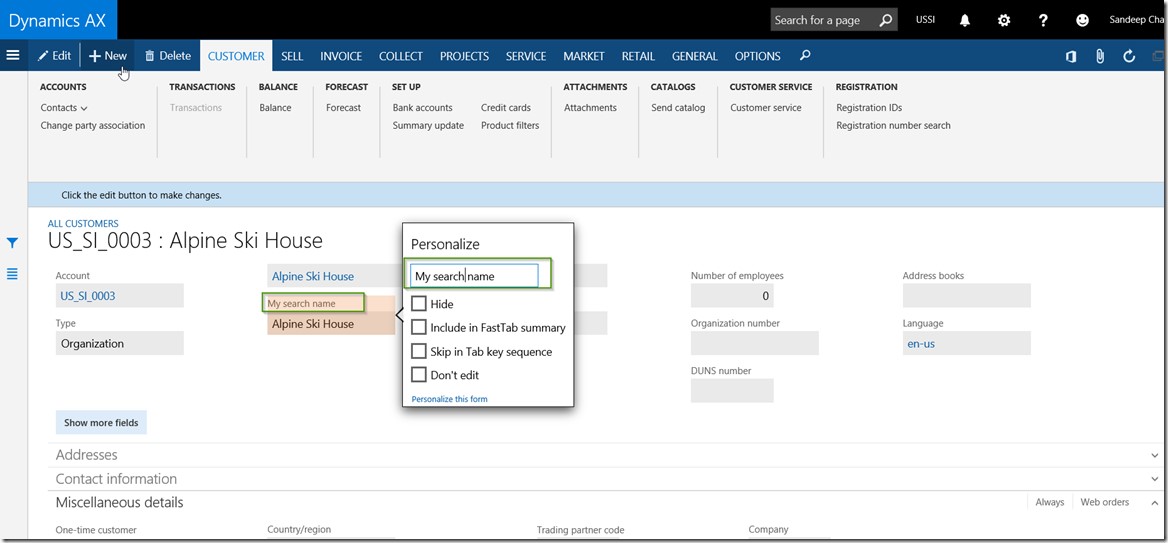
    How to change the display name of a data field:

    • On the AX form/page on a specific data field, right click and Personalize.
    • You can type in the name that you would like to see as the display label for the data field.

    • For example, I have renamed the Search name field to My Search Name on the Customer details form.

    Change Display Name

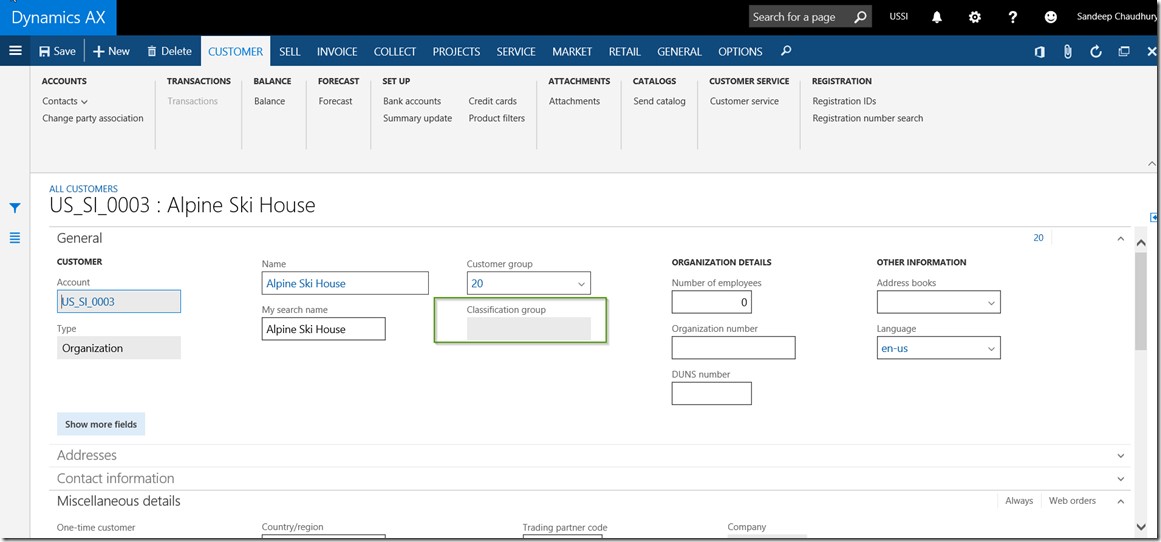
    How to block editing of a data field:

    • On the form Personalization pane, click the Edit button.
    • Mark all the data fields that you would like to be shown as Non-editable fields.
    • For example, on the Customer details form, I want the Classification group field to be shown as non-editable.

    Block Editing

    Block Editing1

    How to Reset/Clear out all my Personalization:

    • If you decide to clear out all your form/page personalization,  click on Manage > Clear button on the form Personalization Pane.
    • Reload the page.

    Reset Personalization

    Reset Personalization1

    How to add form data as a Tile onto a workspace:

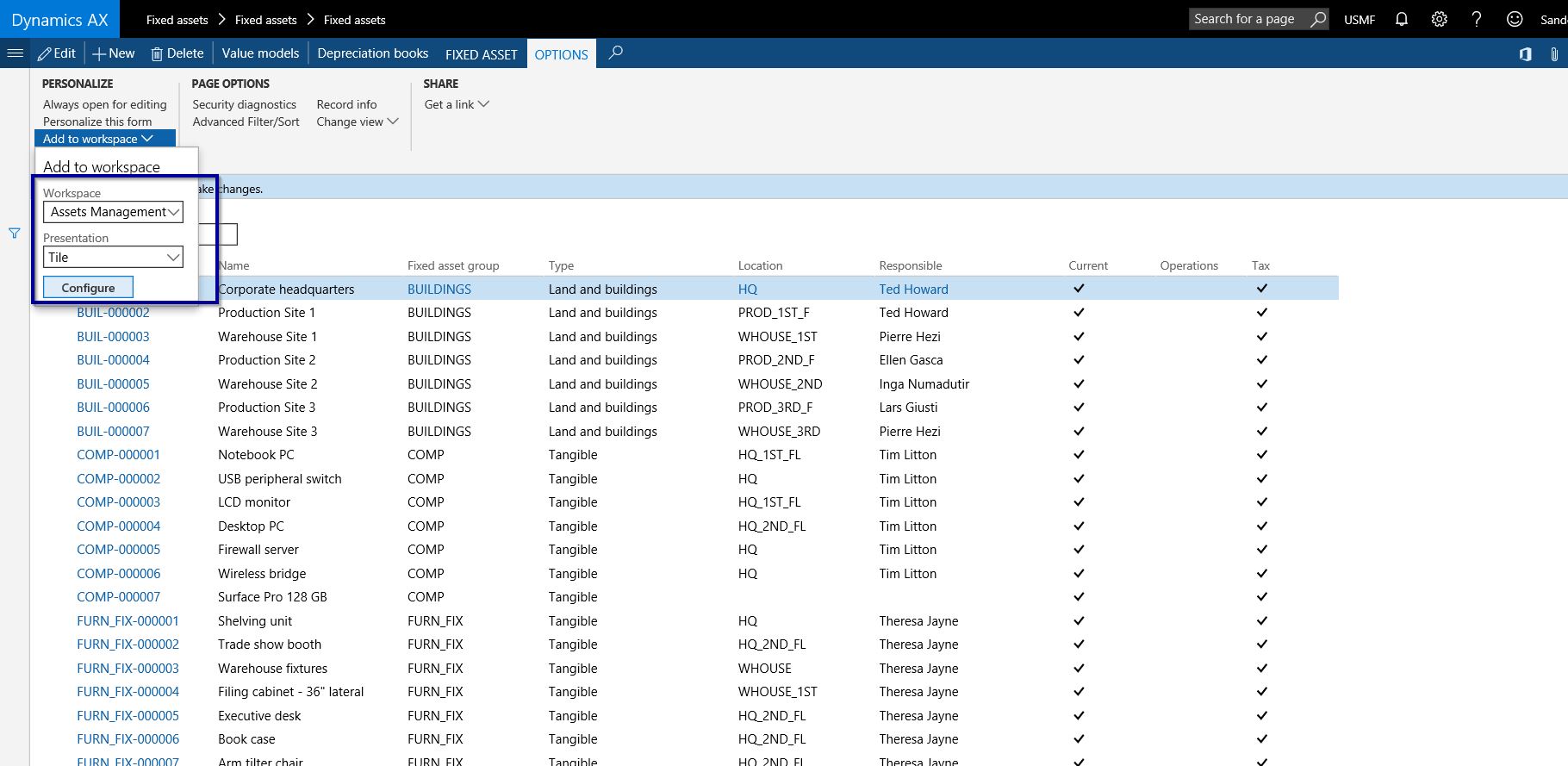
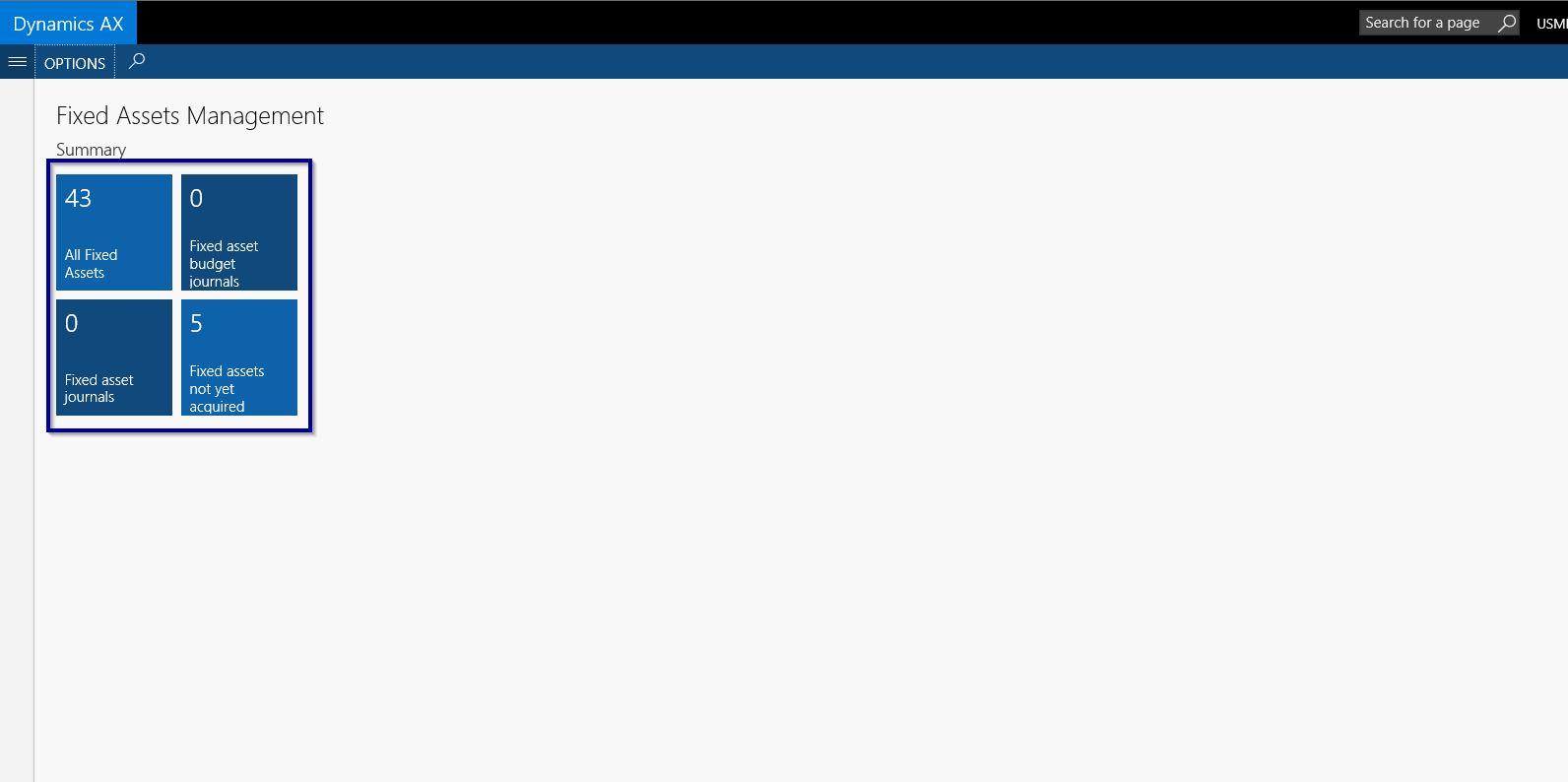
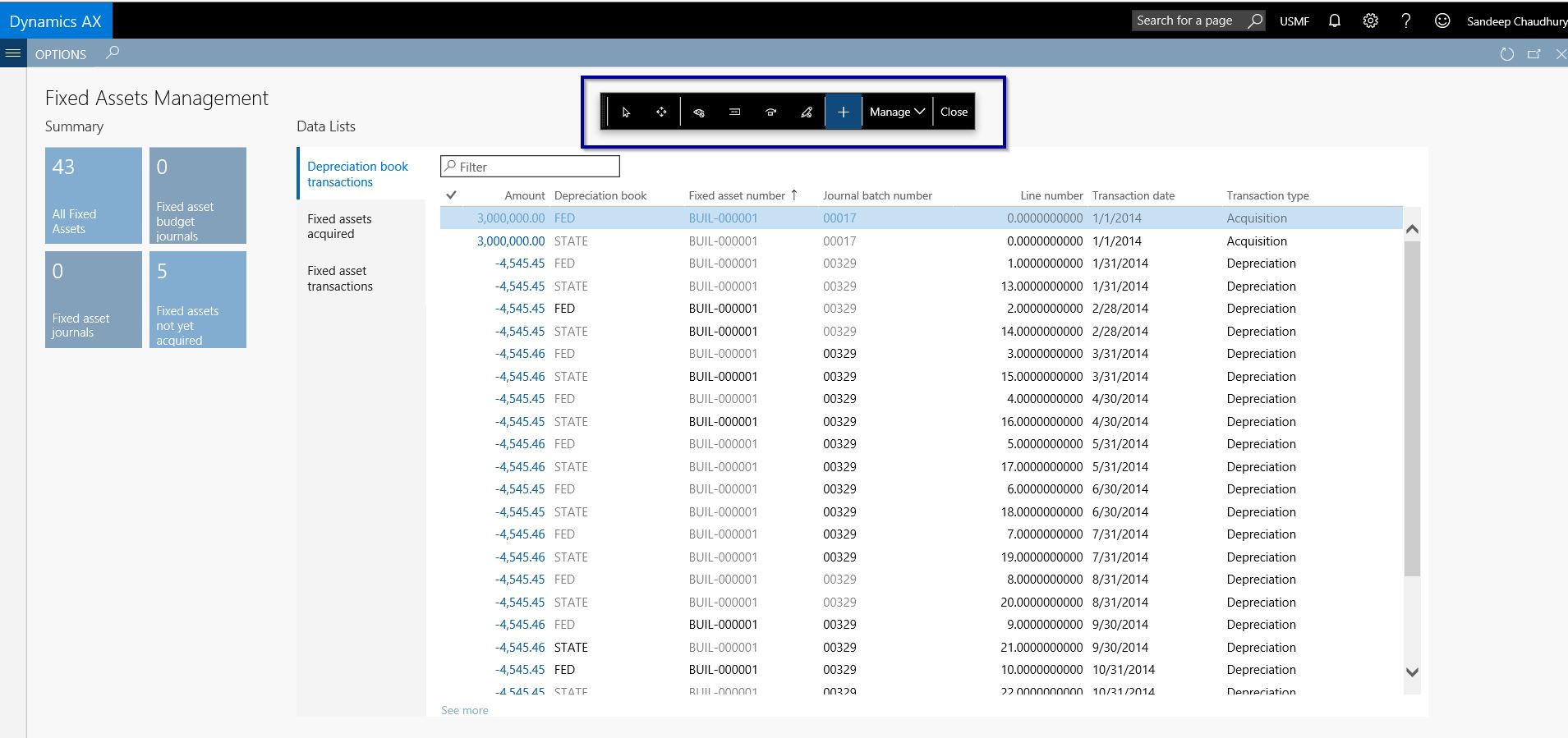
    • You can also add a filtered data view, i.e. data on a particular form as either a Live Tile or as a list on any workspace you like.
    • For example, I can add the Timesheets for my review as a Live tile to the Manager Self-service workspace.

    Add to workspace

    Tile on MSS

    Additionally, you can also Import and export form personalization using the Manage > Import/Export option on the form Personalization pane.

    Export Import Personalization

    So, that’s it for today’s quick tip on the new Dynamics AX !!

    Regards,

    Sandeep

  • What is New in Business Intelligence in the New Microsoft Dynamics AX (AX 7)

    Microsoft Dynamics AX ERP has evolved over several versions starting from AX 2.5, AX 3.0, AX 4.0, AX 2009, AX 2012 and all the way through the New Dynamics AX (Aka AX 7). In each of these versions, this ERP from Microsoft , has undergone several changes and enhancements in terms of architecture, technology, depth of functionality and support for industry verticals etc. The journey from the Client only AX 3.0 version to the fully web enabled version (The New Dynamics AX) has been phenomenal.

    As the technology behind the application kept on evolving, so did the Business Intelligence (Analytics) framework for each of these mentioned versions.

    In this post, we will discuss a little bit on the evolution of Analytics/Business intelligence framework in Microsoft Dynamics AX and we will also discuss about what are the various Analytics options we have in the most recent release, which is the New Dynamics AX.

    The picture below shows a quick snapshot of the evolution of analytics framework in Dynamics AX.

    image.png

    In the initial releases with version 4.0, the concept of “Perspectives” was introduced which basically presented the ERP data schema to the end uses in a format, that they can use to build analytics. In AX 4.0 the SMDL Model along with the SQL Report builder was primarily used for business analytics building.

    Then in AX 2009, Microsoft introduced the SQL Server Analysis services, which basically had the SSAS Projects/ CUBE Projects built for all the major areas of the ERP applications. These CUBES were then utilized to show data on the various pre-built dashboards on the role center pages. In AX 2009 you could also use Microsoft Excel to connect to the SSAS server and then build your own analytics.

    In AX 2012, the SSAS Cubes framework was taken a step forward and Microsoft basically used the same technology and concepts, but developed several additional dashboards for the various role centers that were shipped out of the box. One of the major enhancements to the analytics framework in AX 2012 was done by introduction of Power View. Using Power View, you could simply leverage the analysis cubes and build dashboards, graphs, charts, tables, bars and any sort of analytics you wanted.

    In the New Microsoft Dynamics AX (Aka AX 7) the analytics framework has evolved further and much better. In the new Dynamics AX, analytics can be primarily of 2 types.

    1. Real time built-in analytics on the workspaces
    2. Power BI analytics and integration with Dynamics AX.

    1. Real time built-in analytics in the Work spaces:

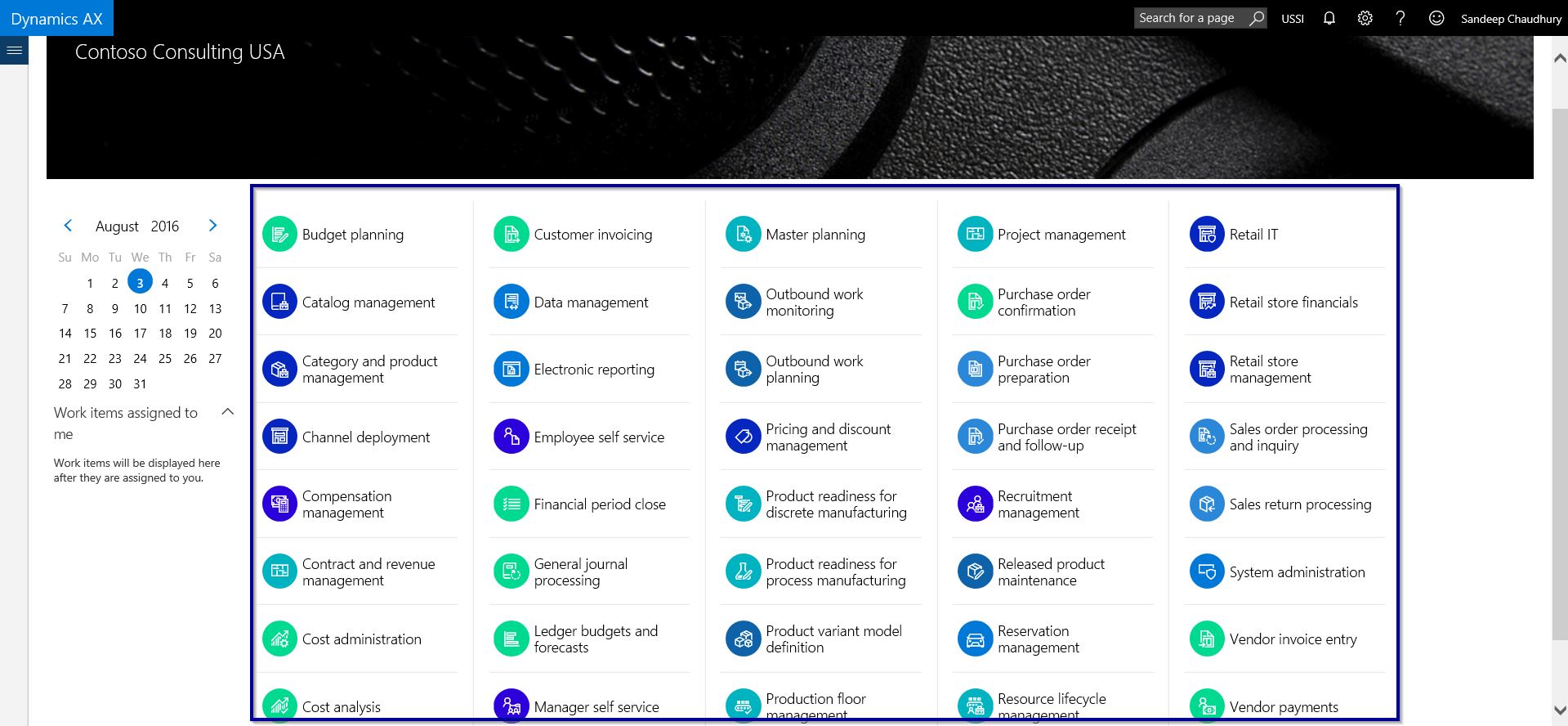
    Starting with AX 2009 till AX 2012 R3 release, most of the out-of-the-box analytics were contained in the Role center pages, which was basically the Home/landing page for the users when they launch AX client or Enterprise portal. In the new Dynamics AX, you will see something called as the “Workspaces”. You could compare workspaces with role centers, but the work spaces are designed keeping in mind a more process oriented approach.

    • The built-in analytics comes out of the box , as part of standard AX across various workspaces covering all major modules.
    • You can customize these further and create your own analytics in any of the workspaces.
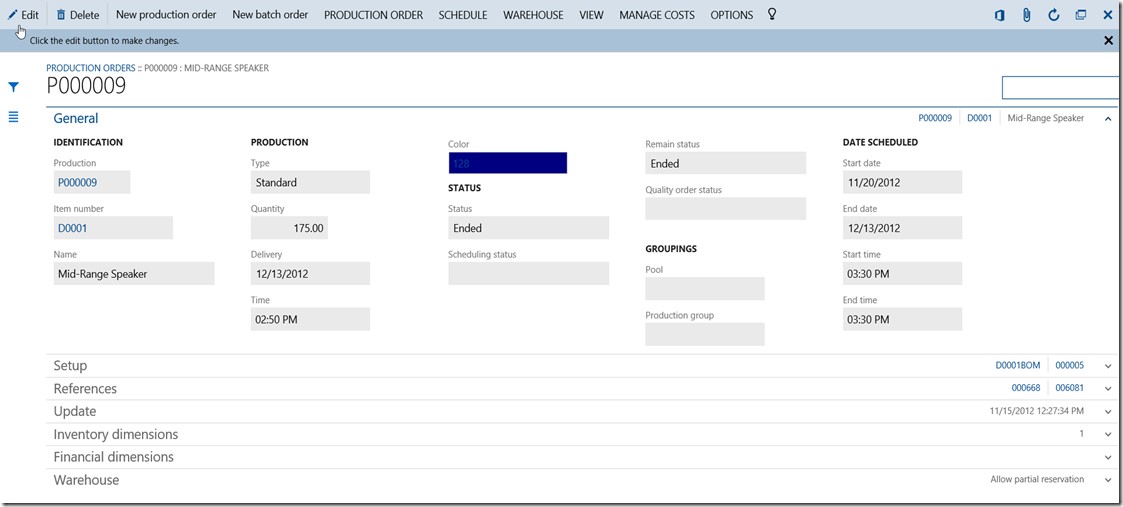
    • One of the examples of such analytics is present under the Cost Administration workspaces. You can find these across all major business areas in the new Dynamics AX.

    Cost Admin Dashboard

    • You can furhter click on the analytics to drill down on data right from the analytics and research the data further.

    Drill Down.jpg

    • You also have additional option of presenting the data on the analytics by different parameters. For example you can view Top 10 Production variances by Production order number or By Produced Item Name.

    Dashboard Options.jpg

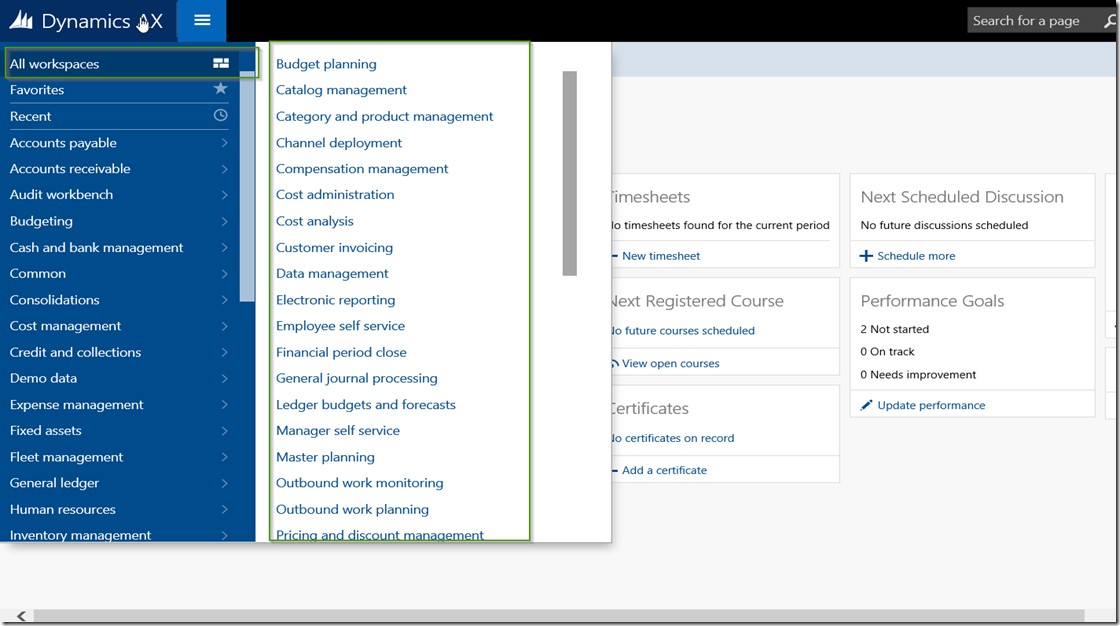
    • Below screenshot shows all other workspaces that are available out of the box in the new dynamics AX which has built in real time analytics built-in.

    Other Workspaces

    2. Power BI and integration with Dynamics AX:

    The second (and I think the most powerful and hopefully will be widely used too) analytics option in the new Dynamics AX is, the integration with Power BI, which is Microsoft’s business intelligence platform.  Below are some of the key highlights of the integration of Power BI and new Dynamics AX.

    • You can use Power BI Online to build complex data analytics from your Dynamics AX database. Using Power BI online, you can also connect to Azure SQL Server data base and build your content packs and  publish them with required permissions.

    PBI Online

    • You can use Power BI Desktop app and also mobile apps to connect SQL server database of your Dynamics AX application and then build any analytics. For example, the screenshot below shows a simple analytics of sales by customer groups. I have built this using the CustInvoiceJour table. You can use the advanced reporting options of PowerBI to build complex queries and joins.

    PBI Desktop 1

    PBI Desktop 2

    • After creating analytics in Power BI Desktop, you can publish them into the Content packs in Power BI online.

    PBI Desktop 3

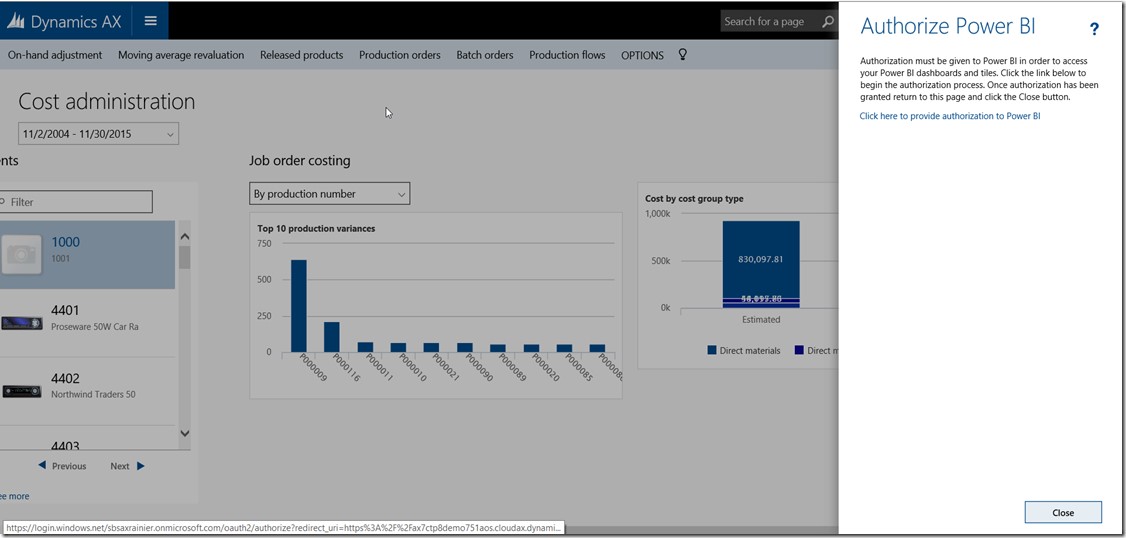
    • Once you have your content packs are ready, you can Add power Bi analytics as tiles onto the workspaces in the new Dynamics AX.

    Pin Tiles to AX

    Auth PBI to AX

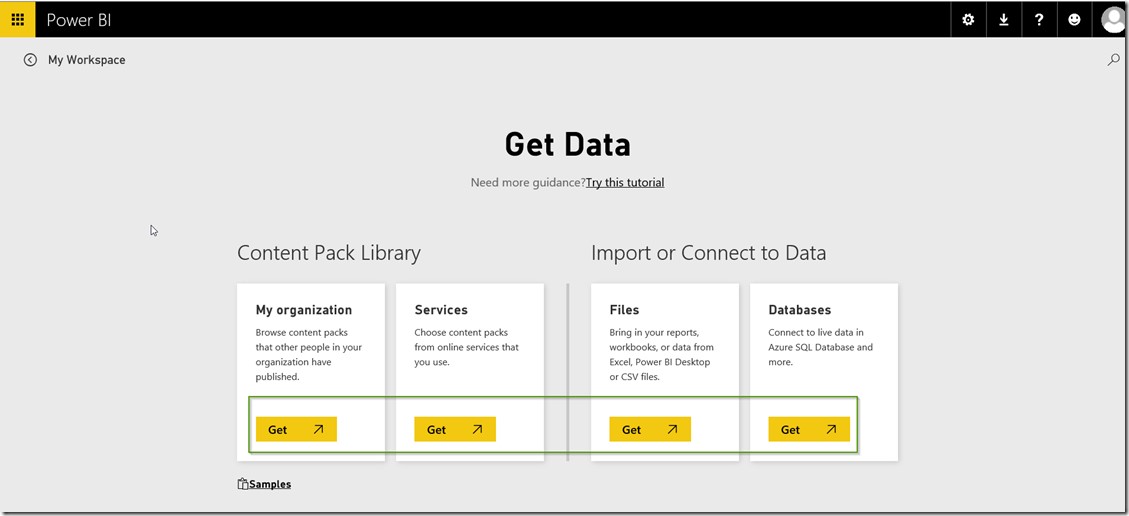
    • With the RTW release of the new Dynamics AX that was released during the Technical Conference (Feb 23rd to Feb 25th), Microsoft has released a few Pre-built Power BI Content packs for Dynamics AX (Primarily around Retail and Finance areas) that customers and partners can leverage for reporting. Partners can also build their own Content Packs as their intellectual properties, and make them available for consumption by customers. To access the Pre-built content packs provided by Microsoft for the RTW release of new dynamics AX, Sign in into your Power BI online account, Or launch Power BI desktop app.

    PreBuilt Content PacksLong enough  post !!!! Smile

    Note that this was not a Power BI specific blog post. I just wanted to highlight the key business intelligence options we have available in the New Dynamics AX and a very brief on how Power BI looks to be treated as a first class citizen inside the new Dynamics AX for BI and reporting. Stay tuned for future posts on How to build analytics for Dynamics AX using PowerBI and how to consume Content packs published by Microsoft or other partners.

    Till then….Have a great time !!

    Regards,

    Sandeep


  • What is new in Project Planning and Resource management in the New Dynamics AX (AX 7)

    What is new in Project Planning and Resource management in the New Dynamics AX (AX 7)

    Hope everyone is getting their grips tight on exploring the various possibilities in the new Microsoft Dynamics AX and also hope you all are having a great experience at the Technical Conference in Seattle. The journey of AX 7 from Preview, CTP 7, CTP 8 all the way through RTW has been phenomenal. The Dynamics AX team at Microsoft team has done a commendable job in getting the New Microsoft Dynamics AX out to the market !!

    In today’s post, I will explain some of the key enhancements and changes that I think are important and will be beneficial for customers.The enhancements are primarily around 3 key areas of the Project Management module as described below.

    Project Work Breakdown Structures:

    Starting with the CU7 release of AX 2012, the work breakdown structure functionality for the projects introduced several key enhancements that made it more usable for industries who’s projects are driven by stringent cost controls , such as Construction and Engineering. In the new Dynamics AX (i.e AX 7), there has been certain changes/enhancements introduced in the WBS area. Let us take a look what are those changes.

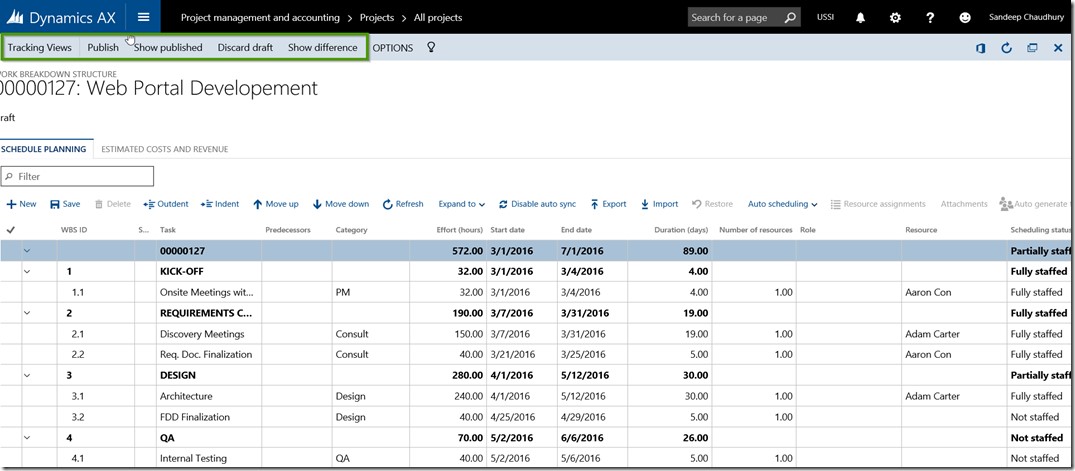
    • Ability to create and review WBS changes before publishing them.
    • After you have created the WBS, it will not come into effect until you Publish it.
    • If you make changes to a Draft version of the WBS, you can discard the Draft changes to get it back to the earlier version.

    Project WBS

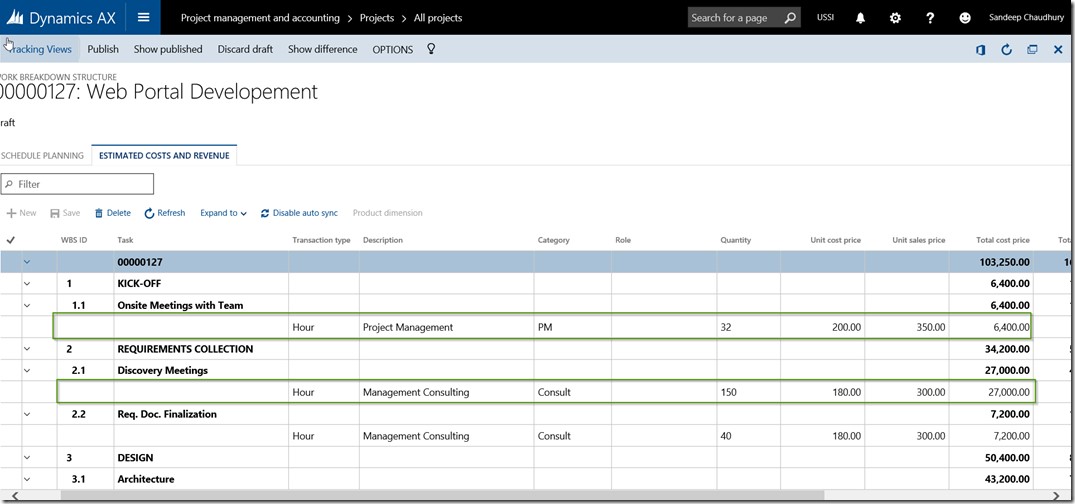
    • You can now create and view the Cost and Revenue estimates on one screen which makes it easier to view the estimates without having to toggle a lot between the WBS node and the Estimate lines (as it used to be in AX 2012).

    Project WBS 1

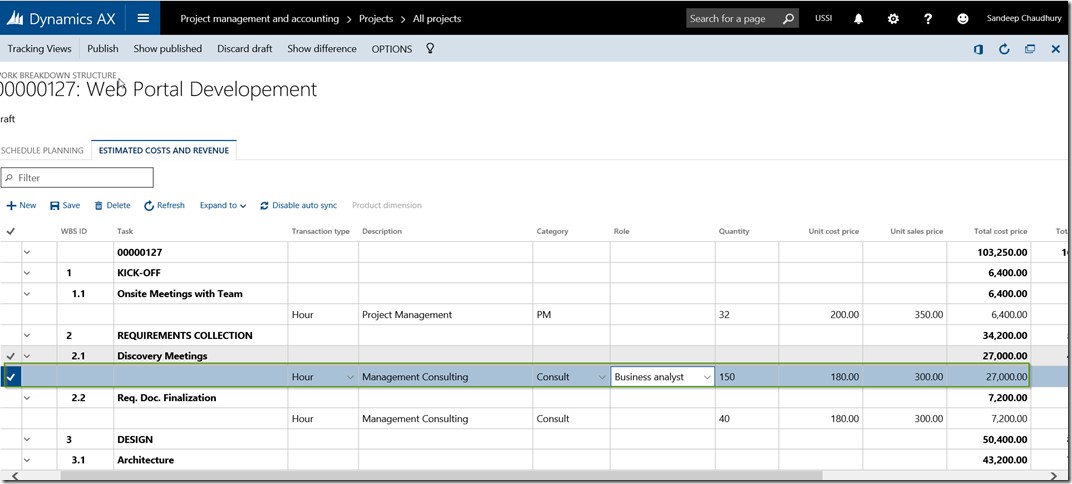
    • Cost and Revenue estimates can be established for Project Roles, instead of actual workers.

    Project WBS 2

    Project Roles and Pricing setups with roles:

    Project roles concept was introduced in CU7 release of AX 2012, which basically allowed the project managers to generate and configure project team based on the roles and not actual workers. In the New Dynamics AX, this functionality is extended further which will open up new possibilities on how this functionality can be used.

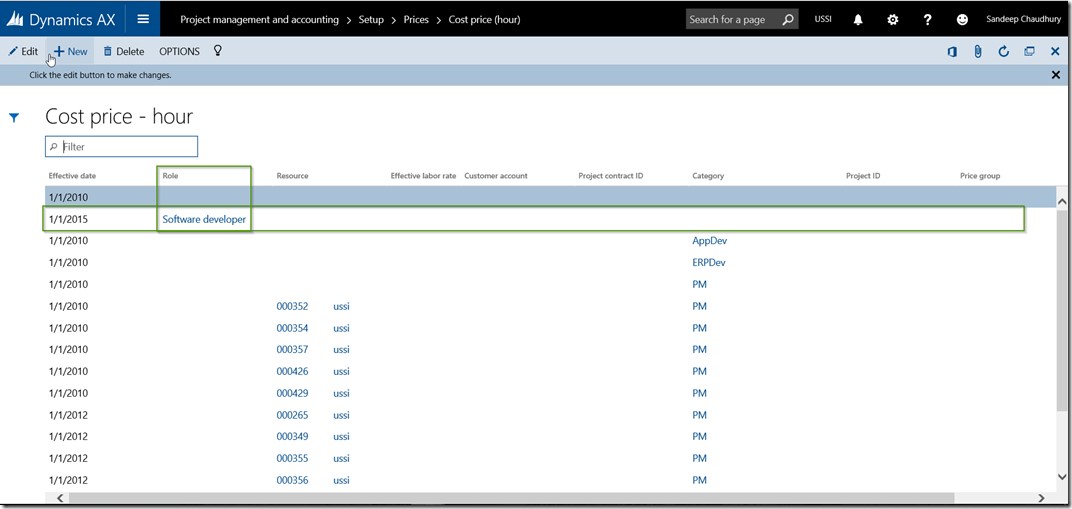
    • You can now setup Project Hourly Cost and Sales prices for project roles, along with the other criteria such as Customer, contract, project, employee, category etc.
    • The system will then use this price data automatically when you create and setup Cost/Revenue estimates for the WBS tasks using project roles, in scenarios where you setup the project team using project roles instead of actual workers.

    Project Roles Prices

    Project Resources Management:

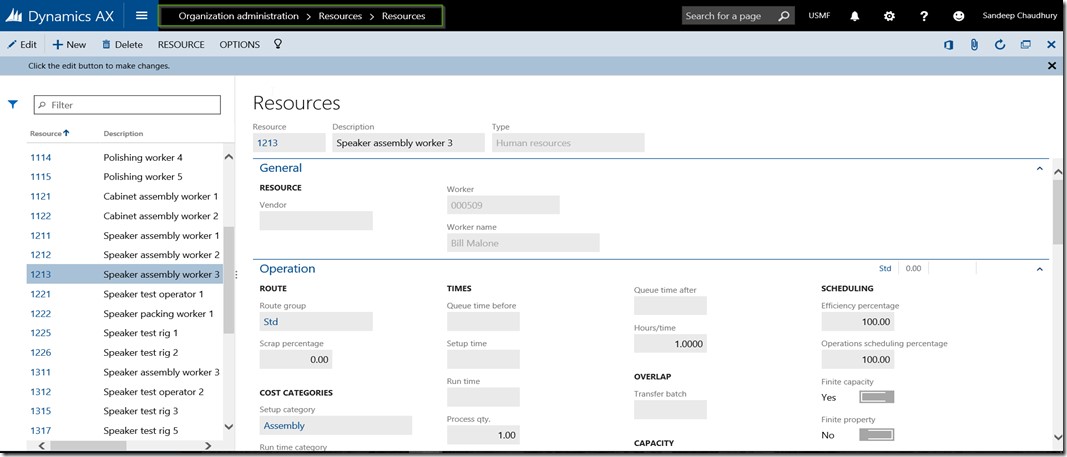
    • AX 2012 allowed to designate only workers (Employees & Contractors) as project resources. Other Operations resources of the organization which are created and managed under the Organization Administration Module were never allowed to be designated as project resources and could not be scheduled and used for projects. The New Dynamics AX will allow to designate the organization’s Operations resources as project resources and schedule them on the project and tasks under the project.
    • This new functionality also lays the foundation to be able to schedule non-human resources of the organization in the projects, such as location, Tool, Machines etc. which will be available in future releases.

    Project Resources

    Project Resources 1

    • We now have the ability to view and manage the Planned resources on a project and compare planned Vs. actual resources. The new Dynamics AX allows to auto-generate project team based on the resource requirements. Dummy resources are created and assigned to the project tasks and you can replace those with actual resources when you are ready.

    Auto Generate Team

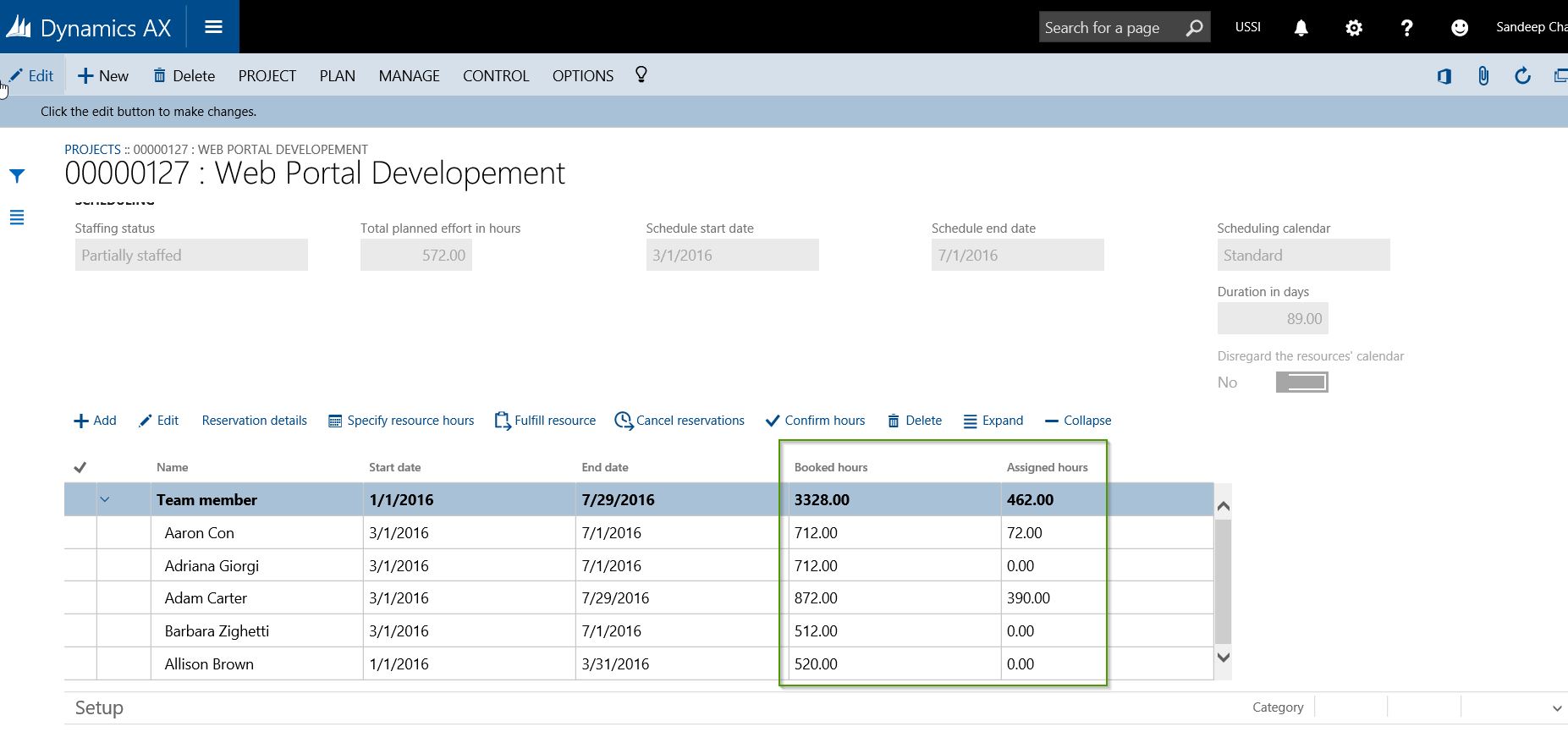
    • The new Dynamics AX has introduced the concept of Booked Vs Assigned Hours. You can think of Booked hours as a high level booking of a resource on a project, where as the assigned hours are the number of hours which the resource is booked on actual tasks of the project in the work breakdown structure of the project.

    Booked Vs Assigned

    • The new dedicated Resource Fulfillment page allows to view the the resource requirements for all the projects and view available resources and their assignments all in one central location.

    Resource Fullfillment

    Till Next Time…!!!

    Regards,

    Sandeep

  • Introducing the New Microsoft Dynamics AX (AX 7) – Public Preview

    Introducing the New Microsoft Dynamics AX (AX 7) – Public Preview

    Hello All,

    With the Public Preview of the “New Microsoft Dynamics AX” now out, I am sure all of us are excited to learn more about it and start exploring all possibilities with the new version.

    Read  more about the new Dynamics AX on the Blog Post on SBS Group’s Blog spot.

    Regards,

    Sandeep
  • Straight Line Revenue Recognition for Projects in Microsoft Dynamics AX 2012 R3

    The Project Management and Accounting module of Microsoft Dynamics AX ERP has been supporting revenue recognition mechanism for fixed price projects (Both Long term and Short term) using the functionality called “Estimates for Fixed Price Projects”. This functionality supports both ‘Completed Contract” as well as “Completed Percentage” based revenue recognition for Projects.

    One other common revenue recognition that is widely used primarily for short term duration contracts is the “Straight Line” Revenue recognition. This happens primarily for contracts with subscription services, short term Insurance contracts etc. For such short term subscription service contracts, the contract amounts are normally recognized on a proportionate basis., i.e over the period of the contract for the subscriptions.

    With the release of Cumulative Update 8 (CU8) for AX 2012 R3, this functionality is now supported under the Project Management and Accounting module.

    In today’s post, I will explain this functionality from how to set this up in AX and then how the revenue recognition will happen for the project.

    Scenario: Let us say you are a online software service provider and you have customers that have subscribed to one of your software services for 6 Months duration. i.e. from 03/01/2015 to 08/31/2015. The total amount for the subscription contract is USD 3000.00 and you have agreed upon to bill them upfront, on the start date of the contract, i.e on 03/01/2015. Even though you billed them on the beginning of the contract, due to the nature of the contract you will need to recognize revenue proportionately over the period of the contract.

    Setup Estimate/Revenue Recognition Template:

    The first step on this process will be to setup the Cost Template for the Straight Line Revenue recognition functionality.

    1. Navigate to Project Management And Accounting > Setup > Estimates > Cost templates.
    2. Create new record.
    3. Select Completion based on = Straight Line.
    4. Save the record. Refer to screenshot below.

    Cost Template

    Setup Contract, Project:

    Let us now create and setup the Project Contract and Fixed Price Project for our scenario.

    1. Navigate to Project Management and Accounting > Common > Projects > Project Contracts.
    2. Create the new project contract.
    3. Create the New fixed price project and link to a project group that is associated with the newly created Cost Template.
    4. At this point, note that the Actual Start Date and Actual End Date fields on the Project details form becomes Mandatory. This is because, system will depend on the Actual start date and Actual end dates, to determine the percentage completion automatically when you run the Periodic Revenue Recognition function(Estimates) for this project.
    5. Refer to screenshots below.

    Project Group Setup

    Project Details Setup

    In this scenario, I will setup Actual start date = 03/01/2015 and Actual End date = 08/31/2015.

    Project Details Setup Dates

    Bill the Customer Upfront:

    The next step is to the create and setup the On-account transaction for this project, which we can bill to the Customer Up-front on 03/01/2015.

    1. Select the project created above and click Manage > Bill > On-account transactions.
    2. Create a new record.
    3. Setup the on-account transaction for USD 3000.00

    On Account Invoice

    1. To bill the customer, click Manage > Bill > Project Invoice Proposal.
    2. Create and complete the invoice processing and post the invoice.
    3. At this point, note that the Invoiced revenue is actually posted to a Balance sheet account based on the configuration we did in the project group setup and no revenue is recognized for the project at this point.

    Invoice Posting Voucher

    Recording Expenses/Costs on the Project:

    Note that during the tenure of the project, you can also record all the expenses such as Labor (Time) and expenses such if any for accurate probability of the project. The source of the costs can be Timesheets, Expense reports or any cost journals for the project.

    For the demonstration, I have already posted some hours and expenses on this project and we will see in the next step how this information shows up on the Revenue Recognition summary screen with profitability details such as Gross Margin.

    Recognize revenue for the project periodically(Monthly in this case):

    Now, let us evaluate the process of periodic revenue recognition for this project every month and see how system automatically calculates the % complete and the accrued revenues.

    1. Since the contract started on 03/01/2015 and we will recognize the revenues on a Monthly basis, let us run the first revenue recognition on 03/31/2015, end of March 2015.
    2. To do this, navigate to the Project and click Manage > Process > Estimates.
    3. Create new Estimate and select Estimate date = 03/31/2015
    4. Note: For this demo scenario we are running the revenue recognition manually. Ideally you can setup the estimates to run for all your fixed price projects to run and post automatically in a Batch.
    5. See that Estimates(Revenue Recognition) form has got some improvements in CU8 release. It has several additional data fields to present clear details of the revenue recognition history for the project such as Invoiced Revenue(WIP), Contract value, Percent complete etc.
    6. After we have run the first Revenue Recognition process on 03/31/2015, notice that System automatically calculated the Percentage Completion based on a Straight Line basis. The total number of days in the tenure of the subscription is 184 Days(March to August) and we ran the first revenue recognition at the end of 31 days for the project. So system automatically calculated the Percentage complete as 16.85 %.
    7. Notice that system shows Contract Value = 3000.00, Invoiced Revenue = 3000.00, Percentage Completion = 16.85 %, Revenue recognized now (Accrued revenue for March) = 16.85% of Total contract value.
    8. Now, let us review and post the Estimate to recognize revenue. Once the estimate is posted, revenue is recognized and the amount is posted to GL (P&L Account setup in project posting profile).

    Create Estimate

    Post Estimate

    If you see the above Voucher, notice that system posted the accrued revenues as well as moved the Costs to P&L accounts from WIP. Since I had setup the Costs to be posted to Balance sheet accounts in my configuration. It depends on what you configure the cost to be posted to.

    You can follow the same process and post the estimates/revenues for each of the periods until the end date.

    Below screenshot shows a summary that I have created and posted the revenues for each period till the 100% completion on 08/31/2015.

    All Estimates

    Finally, once the subscription contract is over, you can follow the standard AX elimination of the estimates to reverse the WIP sales values.

    Estimate Elimination

    Hope this quick demonstration was helpful !! Till Next time….

    Best, Sandeep
    Connect with me on: Twitter | Linked-In | Facebook

  • Manage Projects With Integration of Microsoft Dynamics AX 2012 R2/R3 with Microsoft Project Sever 2013

    Manage Projects With Integration of Microsoft Dynamics AX 2012 R2/R3 with Microsoft Project Sever 2013

    Hello Readers, Bloggers

    Hope you all are on a tremendous learning curve for all the exiting changes and features upcoming in AX 7, and So do I. Last few months have been busy with several of these initiatives and usual tasks.

    Today, I will explain a familiar functionality that you might already know and might have used too in AX 2012 R3. It is the Integration of Microsoft Project Server Professional 2013 with Microsoft Dynamics AX 2012 R3.

    If you are a customer of AX using or wish use the Microsoft Project extensively for managing the planning aspect of your projects and use AX for both managing and project accounting, the functionality just got easier in AX 2012 R3.

    Until the AX 2012 R2 CU6 release, you always needed to specifically setup the integration between Microsoft Project Server and Dynamics AX under the System Administration module with all required parameters.

    Starting AX 2012 R2 CU 7 and beyond and in the R3 release, this functionality is now made much simpler with the introduction of a new “Add-in” for Dynamics AX in Microsoft Project Server. This Add-in works pretty much like the MS Office(Excel and Word) add-in for Dynamics AX .

    Note: Even though the specific integration setup functionality exists in versions CU 7 and more and also in R3, it will be ultimately deprecated.

    First thing first, Some Prerequisites:

    You need to make sure you have done the following.

    • Use Dynamics AX 2012 R2 CU7(Or above) Or Dynamics AX 2012 R3.
    • Install Microsoft Project Add-in when installing AX.
    • You must have Microsoft Project Professional 2013 or Microsoft Project standard 2010.
    • Share point foundation and server if you wish to take advantage of advanced integration functionalities.

    Some Simple Setups:

    • In AX, navigate to Project Management and Accounting > Setup > Project Management and Accounting Parameters.
    • Under General tab, select the options and parameters to save Microsoft Project files. Refer to screenshot below.

    image

    All Set, Get going:

    With this, you can start using the integration between Microsoft Project Server and Dynamics AX and sync data between the two systems. If you have the Project servr add-in properly installed and configured, you will see the Dynamics AX tab when you  open  a new project in Microsoft Project as shown in screenshot below.

    image

    Let us see some integration points between the systems and see how the 2 systems exchange project related data.

    Integrate an existing and new projects between Project Server and Dynamics AX:

    • In the standard AX Demo data, let us test this with an existing project 00000094 – Recreation Systems under the USSI legal entity.
    • The screenshot below shows how the project and the WBS setup for this looks in AX.

    image

    • You can now open the project of AX directly in Microsoft Project by clicking Open in Microsoft project button.

    image

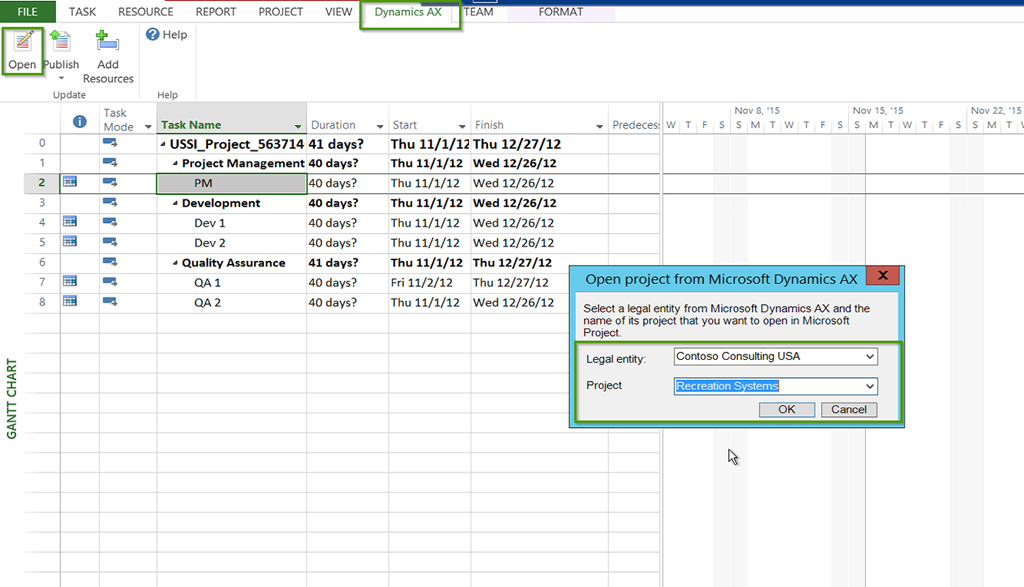
    • Alternately, you can Launch Microsoft Project application and click Dynamics AX > Open button to open a project from AX.
    • Select the Legal entity from the drop down in Microsoft Project.
    • This will automatically load the projects that are linked between the two systems.
    • You can select one from the drop down to load the project and associated details such as WBS, efforts etc onto Microsoft Project.
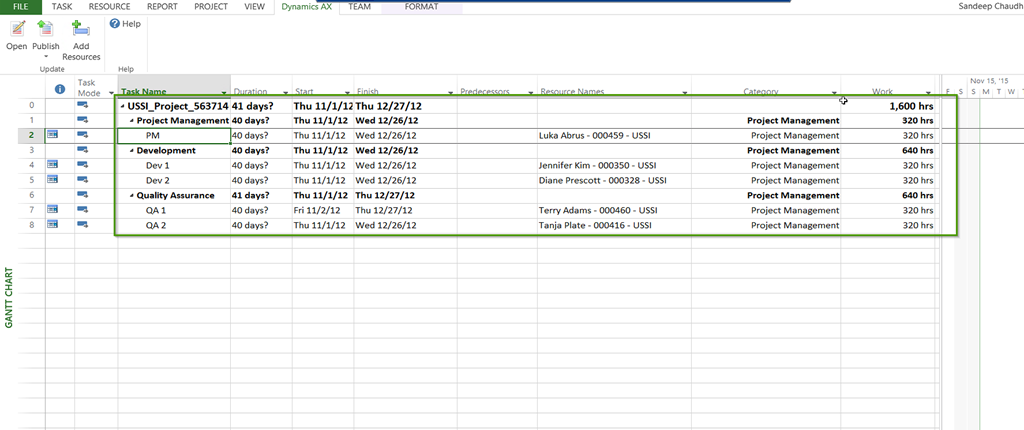
    • In this demo, I have selected the Recreation Systems project in Microsoft Project. Notice that system loads the project WBS automatically and the tasks are exactly same as shown in screenshot above.

    image

    • Notice that Microsoft Project Server also loads the resources the workers that are scheduled for the tasks on the project in Dynamics AX and also shows the default project categories that are associated with each task of the WBS in AX.

    image

    • Notice that in Dynamics AX, there is also an indicator on the Projects list page that shows a quick indicator to tell if the project of AX is liked with a project in the Project Server.

    image

    • Let us just create a new project directly in Microsoft Project Server and Publish the changes back to Dynamics AX from within Project Server by creating a new project. Prepare the Project and the task breakdown in Microsoft Project and click Dynamics AX > Publish > Publish New Project.

    image

    • Notice that the next screen will prompt you with the data fields to create a new project and this screen looks exactly similar to what we have in Dynamics AX.

    image

    • Enter the details for the new project and Click OK button. This will publish the new project data from MS project into Dynamics AX.
    • Go back to AX and notice that the project is now created.
    • Similarly, you can also update existing projects.

    image

    Assign workers from Dynamics AX to projects in Project Server:

    Another task that you can do with the integration of Project Server and Dynamics AX is view and assign workers from Dynamics AX in Microsoft Project. To do this, follow the steps below.

    • Open the Dynamics AX project in Microsoft Project.
    • Navigate to Dynamics AX Tab and click Add resources button.
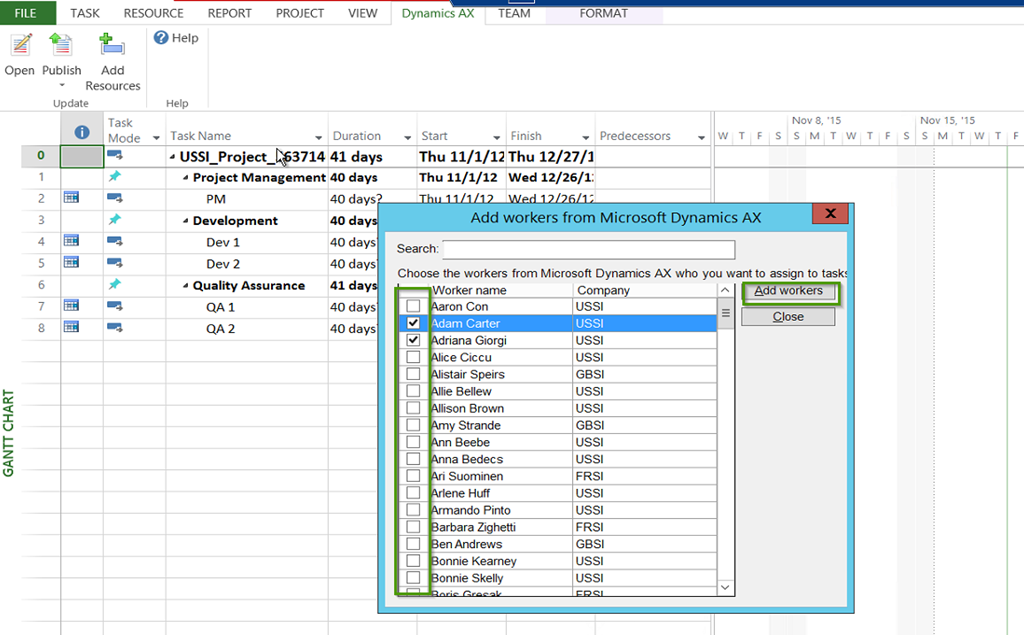
    • You will notice that system will load the workers that are designated as project resources in Dynamics AX.

    image

    • Select the workers you wish to add to the project as project resources in MS Project and click Add workers button. Note that, at this point this adds the workers as resources that can be assigned to tasks in MS Project, but it does not do any assignments yet.

    image

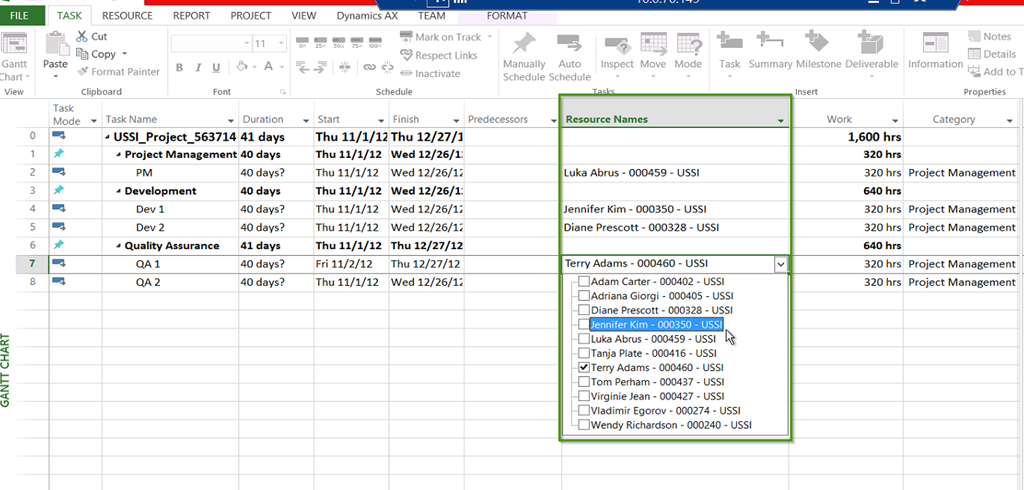
    • On the MS Project, select the Task that you want to assign a resource and Open the Resource Name drop down. You will see all the resources that were added and are available.

    image

    Some of the other integration tasks that you can do with this functionality are,

    • Save and use WBS templates in Project Server and Dynamics AX
    • Integrate WBS on a project in Project Server and Dynamics AX
    • Assign Categories from Dynamics AX to tasks in Project Server

    This was a high level overview of the integration functionality of Microsoft Project Server and Dynamics AX 2012 and various possibilities with it. I will leave you all to explore more and ask questions or share thoughts !!!

    Till next time….Have a great Holidays all of you….

    Sandeep Chaudhury 

    Twitter | Linked-In | Facebook

  • Automated Workflows in Human Resources Management in Microsoft Dynamics AX 2012 R3

    Automated Workflows in Human Resources Management in Microsoft Dynamics AX 2012 R3

    If you are a customer looking to implement or using Microsoft Dynamics AX 2012 R3 and use major aspects of Workforce management under the Human Resources Management, there are some Out-Of-The-Box workflows under HRM module that you can leverage to complete/automate several key processes such as Hire a worker, Transfer a Worker, Terminate a worker etc. You could use these new workflows build the complete on-boarding process for the new hires into the workflow.

    In this post, I will explain a little bit about these workflows and how you can use them in AX 2012 R3.

    Note: You will need to activate the Personnel Actions Configuration Key for HRM, to enable these new functionalities in the system.

    Workflow For Actions on Hiring a New Worker:

    For this demonstration, Let us say there are 3 steps in completing the on-boarding process for a worker before their hiring process can be completed in AX and a worker record can be created.

    Step1 : Complete background checks and fill Form A and attach filled in Form.

    Step2:  Complete online test for on-boarding for the new hire and attach test results.

    Step3:  Final Approval and worker creation in AX.

    • The screenshot below shows the workflow setup which has 3 distinct steps for performing several tasks related to new hire’s onboarding before the worker record can be created in AX.  The final step of the workflow is the approval of the worker record after all the prior tasks are completed by respective team members.

    Workfow

    • The workflow is setup and is activates now in the system. The next step is to configure the Personnel Action type. You can configure as many personnel action as you want/need and associate each action type with a personnel action and then link it to the workflow it should follow. In our example, I have created a simple action called Hire New Worker and linked it to the workflow we created above. Screenshot below shows the Personnel Action Type.
    Personnel Action Types

    • Let us begin the hiring process from All Worker Actions list page. Navigate to HRM > Common > Actions > All Worker Actions.
    • Click New Action button and select Hire New Worker as the Personnel Action Type and click Create Action.

    Create Worker Hire Action

    • On the next screen, you will notice all the required fields you will need to enter to submit the Hire New Worker action request to the workflow. Select various data fields such as Action Requested by, Worker’s name details, entity in which he is employed, Worker type, employment start date, Position assignment details etc. under the corresponding fast tabs.

    Worker Action Details

    • You can also enter additional comments for the reviewers in the workflow about the new hire under the Comments fast tab.

    Comments

    NOTE: You can customize this form to automate the setup of several other data attributes for the workers such as financial dimensions, addresses, contact information and any other key data fields on the worker record, so that those can be embedded into the workflow of onboarding and upon completion, the values will be setup already on the worker record.

    • When you are ready to submit, click Submit button. This will get the worker action into the Hiring Workflow and will be routed to required teams for processing. The standard AX workflow engine can also be used to send the email notification within required instructions for completing the steps of on-boarding.
    • When it is submitted, it will get assigned to the person responsible for Step 1 of on-boarding. They can then review the checklist for the Step 1 and take required actions and mark the Step 1 as complete. If they wish to request a change of data information from the submitter, then can chose that option as well in the workflow. Screenshot below shows the workflow is now assigned to the person responsible for  Step 1.

    Step1 Review

    • They can review the checklist for the step 1 under the workflow step instruction section. Once the person complete the Step1, they will click Actions > Complete.

    Step 2 Review

    • As soon as Step1 is marked as Completed, the workflow is now assigned to person responsible for Step 2. The Review process details fact box on the right shows the current step the process is in. Person responsible for Step 2 will then complete the online test and then will attach test results to the action record and mark the step as Complete.

    Step 2 Review1

    • At this point, the workflow gets assigned to the final reviewer of information, who is the HR Manager. He can review all the details on the worker hire action and Approve the New hire action. Upon successful approval, a Worker record will be created automatically in the Worker master under HRM > All Workers.

    Final Review

    • Once the Action is completed, you can see an overview of all the worker actions on All workers list page.

    Worker Actions listpage

    • Now navigate to the All Workers form under HRM and Verify that the Worker record for John Doe will be created with all the details that were entered on the hire action.

    Worker Details Created

    Workflow For Actions on Transferring a Worker & Terminating a Worker: Just like we created the workflow for the Worker Hire action, you can also leverage the transfer and termination workflows and configure all your required steps and continue to use the Transfer and Terminate worker actions.

    Hope this quick information was helpful !! Till next time…..

    – Sandeep