Tag: AX 2012

  • Customer payment retention functionality in Microsoft Dynamics AX 2012

    Customers always want to make sure that they get the best work/service done from their vendors successfully, in time with 100% quality ensured. In the professional services industries, most customers wants to retain/hold back certain amount/percentage of the payments, when they pay their vendors for a project work until the project completes.

    Vendors can then discuss and validate with the customer about the quality and completion of the project work and request all the retained amounts upon agreement.

    This functionality being fully automated in a simplified manner within the Project Management and Accounting module, empowers the list of several other capabilities of Microsoft Dynamics AX 2012 for services industries.

    Powerful, Simple, Agile

    Let us now understand, how this functionality works in dynamics AX 2012. The following are the setups required for the retention functionality to be working.

    Setups required:

    1. Define a new Main account in the “Chart of accounts” for the Customer payment retainage receivables. Ensure that the posting type for this account is “Customer Payment Retention Receivables”.
    2. Setup the Customer Payment Retention Receivables account in the “Accounts for automatic transactions” form under GL module.
    3. Ensure that a number sequence is setup for the Customer payment retention term in Projects parameters form.
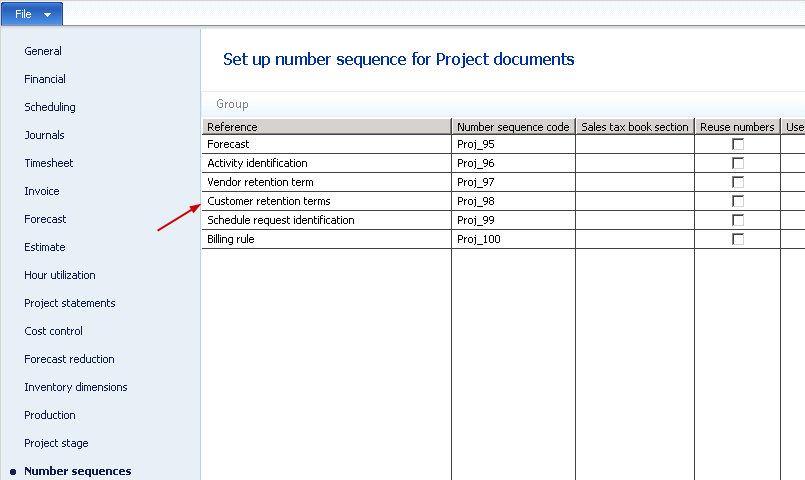
    Number Sequence

    4. Create and setup the new Fee project category for posting the customer payment retention amounts. Ensure that the Customer payment retention checkbox ins marked for this category.

    Let us define the customer payment retention terms under the project management and accounting module. The payment retention term specifies the schedule for the payment retention. The customer may want the payment to be retained in one of the following ways.

    – A certain percentage/amount on every invoice until the project completes.

    – A certain percentage/amount on the invoices until a certain percentage of the project work is completed.

    – Once you setup the retention terms, assign them to the Project Contracts, projects or the Billing rules(If you have implemented)

    Now, when you process the invoicing for a project/project contract with payment retention term attached to it, you will notice the retention details, i.e the % of retention and amount in the invoice proposal screen and validate before you submit for approval.

    The following shows the accounting entry when you post this invoice (Say $1000 with 10 % retention.

    Customer payment retention receivable $1000 (Debit)
    Project Invoiced revenue             $10000 (Credit)
    Customer Balance $9000 (Debit)

    When you request the retained amount after agreement with the customer, system will reverse the Customer payment retention receivable entry and debit the customer balance automatically.

    Customer payment retention receivable                   $1000 (Credit)
    Customer Balance $1000 ( Debit)

    Dynamics Ax 2012 also provides you options to perform several inquiries on the customer payment retention detail,s under the “Inquiries” and “Reports” sections as shown in few screen-shots below. These will help users in analyzing the customer payment retention data in projects being in a central location/screen.
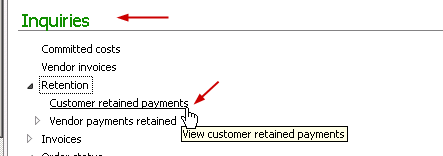
    Inquiries

    Inquiries

    Inquiries

    Feel free to contact me if you need more information in terms of setup and processing the customer payment retention.

    Thanks

    Keep DAXING Smile

  • Preparing Financial Statements with financial dimensions getting printed in different Columns in the report in Microsoft Dynamics AX 2012

    Sometimes companies may want to generate their financial statements with one or more of their financial dimensions getting printed in different columns of the financial statement report for comparison and review purpose. For example, a company may want to generate the income statement with the data for each of its “Business Units” getting printed in separate columns in the report.

    Take a look at the dummy screenshot of such a report below.

    Sample Income Statement

    Here are the quick guide lines how to achieve this in Microsoft Dynamics AX.

    1. First of all, configure the financial statement by navigating to General Ledger > Setup > Financial Statement > Financial statement.

    2. Define the financial statement column structure as shown in sample screen below.

    Financial Statement Column Structure

    3. Now assuming that your row definition for the financial statement is ready, let us go and generate the financial statement.

    4. Navigate to General Ledger > Reports > Transactions > Financial Statement. Key in the values for financial statement, Row definition(If not already defaulted from financial statement) and click the Columns tab.

    Generate Financial Statement

    5. You will notice the 3 columns(Current) which we configured in the financial statement.

    6. Select the first record and click Select button.

    Select Business units/Financial dimensions during report generation

    7. Click Add button and select the business unit financial dimension in the “Field” and provide the criteria value(For example BU-001)

    Select the financial dimensions

    8. Repeat steps 6 and 7 to complete this for business unit 2 and 3.

    9. Click Ok button and we are done. This will print the financial statement as depicted in the sample screenshot above in this post.

    Companies may also have different financial dimensions like Territory/Region, Product Line etc. They may also report based on these financial dimensions with having these printed in separate columns in the report.

    Complex Reporting !!! Made Powerfully simple. Smile

    Microsoft Dynamics AX 2012 - Powerfully Simple

  • The Work breakdown Structure(WBS) functionality for Projects in Microsoft Dynamics AX 2012:

    Dear Readers,

    In today’s post, let us explore the new work breakdown structure functionality for Projects in Microsoft dynamics AX 2012.

    Looking for a better ERP for your organization ? Click here

    Every professional services organization in today’s competitive world of business, wants to be more accurate in terms of managing each descending level of activities/tasks in the projects they carry out, to manage the costs and revenue efficiently and become more profitable. Breaking down the individual tasks and activities on projects and tracking costs, revenues, managing resources at each task level etc. helps in this.

    The work breakdown structure of dynamics AX 2012 is a hierarchical representation of the activities  and child activities in a project and helps the project managers to do the following.

    • Define the overall work scope of the projects.
    • Each descending level of the hierarchy represents increasingly detailed information about the project work.
    • It helps identifying and creating milestones in the project.
    • It also helps managers to soft/hard commit resources to the activities/tasks.
    • Project managers can create WBS templates and use them any time they want to plan a new project. They can also create the WBS directly on a project.

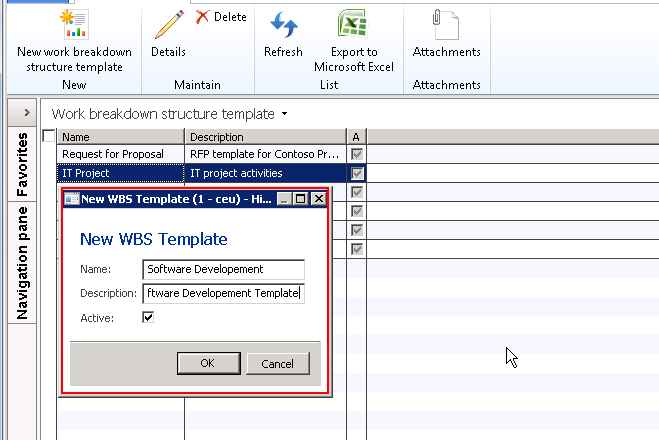
    Let us first learn how we can view and create the work breakdown structure template for our organization. The following steps will depict the steps to create new WBS template.

    1. Navigate to Project Management and Accounting > Common > Activities > Work breakdown structure template.
    2. Click New > New work breakdown structure template.

    image

    image

    3. On the Work breakdown structure details screen, click “New” button to create the hierarchy of activities/tasks in the project.

    4. Create Planning as the new activity and click New button again by keeping the focus on this activity. Provide activity name, it’s priority and a brief description about it in the designated fields.

    image

    5. On the right hand side, expand the various fast tabs to fill in information about this activity. Expand  the Schedule tab and key in the Duration in days, effort in hours, a default category etc. as shown as an example in the screen above.

    6. Expand the Activity requirements tab and setup the resource requirements for this activity in terms of Education, skills, certification, experience etc. This information can be used if you want to make use of the resource scheduling functionality of AX 2012.

    7. Setup the estimated costs and revenues for this activity by creating new records under this tab.

    image

    8. Similarly, complete the end to end hierarchy for this WBS template and setup the above explained parameters for each of the activities/tasks.

    9. Now that we have created and setup a template for a software development project, let us create a new project and try to use this template in the project to define the task hierarchy for this.

    10. For this, create the new project and click Plan tab > Work breakdown structure. Click Copy from button. System will show all the available templates in the system. Select the template and click Ok button.

    image

    11. System will then load the activity hierarchy structure for the project which you can modify as the current project needs. For example you may wish to assign different resources to the activities and the cost and revenue estimates may be different for this project.

    The project manager can also carry out the resource assignment task from the WBS screen and by clicking the Assign resources button.

    The project managers can also make use of the WBS right from the project quotations level which will help them in automating most of the project planning tasks such as WBS management, budgeting, resource assignments etc.

    Please feel free to ask any queries you have regarding the WBS management for projects in AX 2012 and I will be happy to answer.

    Thanks

    Keep DAXING Smile

  • Track Project Revenues from Free Text Invoices in Microsoft Dynamics AX 2012

    Readers,

    In one of my earlier post, I mentioned that AX 2012 now makes it possible to track revenues in Projects that are billed through the free text invoices.

    Let us take a look at this functionality today to understand, how it works in reality. This is a very simple functionality but was a much needed one as per me.

    First thing we must check when we want ensure to track revenues in projects which are billed through free text invoices is the required parameter setup.

    Parameter Setup:

    • Navigate to Accounts Receivables > Setup > AR Parameters.
    • Click Project link/tab.

    image

    • Check mark the “Display project-related fields on free text invoices” check box.
    • Check mark the “Allow ledger account number to be edited” check box if you want to be able to change the revenue ledger account, which gets defaulted when you choose the project and category in the free text invoice.
      Having done that required parameter setup, let us now go and post a free text invoice.

    Create and Post a Free Text Invoice:

    • Navigate to Accounts Receivables > Common > Free Text Invoices > All free text invoices and create a new FTI.

    image

    • Enter Customer account = 1102. Rest all customer related data will get loaded automatically.
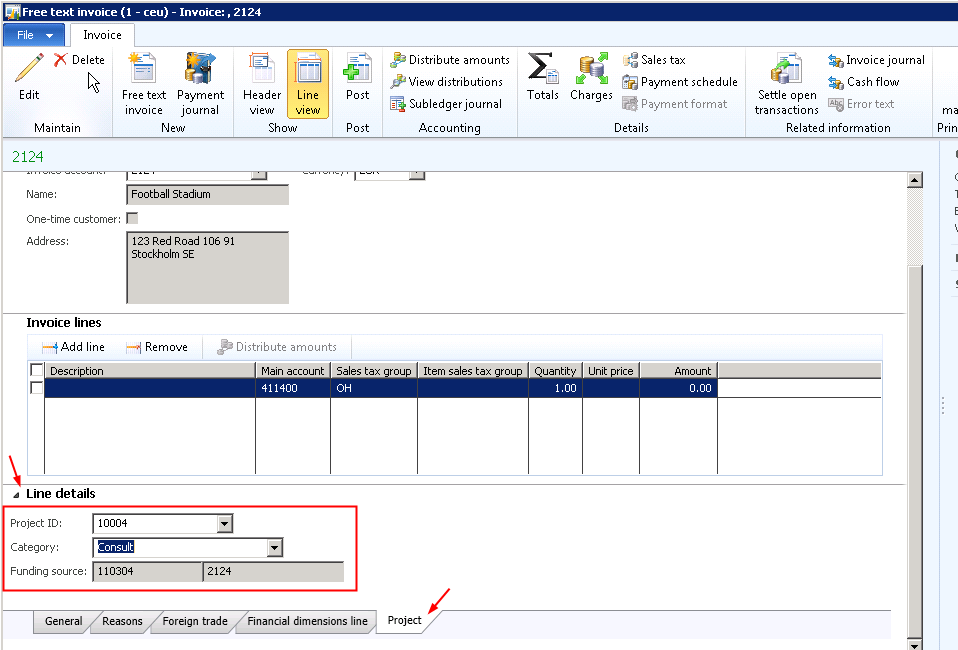
    • Click Line details fast tab and click the Project tab.
    • Enter the required project and category.

    image

    • Notice that, as soon as you enter the project and category, the main account field gets populated with the main account which is setup in the project posting profile.
    • If you want to change the account, you can do so, as we have marked the check box in AR parameters forms.
    • Now, fill in the invoice description, Quantity and the unit price and finally post the FTI.
    • You can then verify the project revenue and see that this gets recorded in the project.

    We are done !

    Thanks

    Keep DAXING Smile