Tag: Budgets and Forecasts

  • AX Tip: Independent Budgeting for Sub-Projects in the Project Hierarchy in Microsoft Dynamics AX 2012 R3

    AX Tip: Independent Budgeting for Sub-Projects in the Project Hierarchy in Microsoft Dynamics AX 2012 R3

    Here is small enhancement to the project budgeting feature in AX 2012 R3 release, which most of us are probably aware by now. I still wanted to publish it here for awareness in case you have not explored this yet.

    Till the AX 2012 CU7 release, it was not possible to have an original budget to be tracked for sub-projects which is created after the original budget for a parent project is committed. The only way to enable budgeting for the newly added sub-project, was to create a revision for the original budget of the parent project which was committed earlier which allowed to track the budget as a revised budget on the new sub-project.

    In the R3 release of Dynamics AX 2012, it is now possible to create and manage budgets for sub-projects independently.

    Let us try to understand how this functionality works in AX 2012 R3. For this demonstration, let us create a Parent project and create two sub-projects under it and call them as Phase I and Phase II.

    • Create the parent project and create two sub-projects under it and enable the  “Independent budgeting for sub-projects” check box on the parent project.
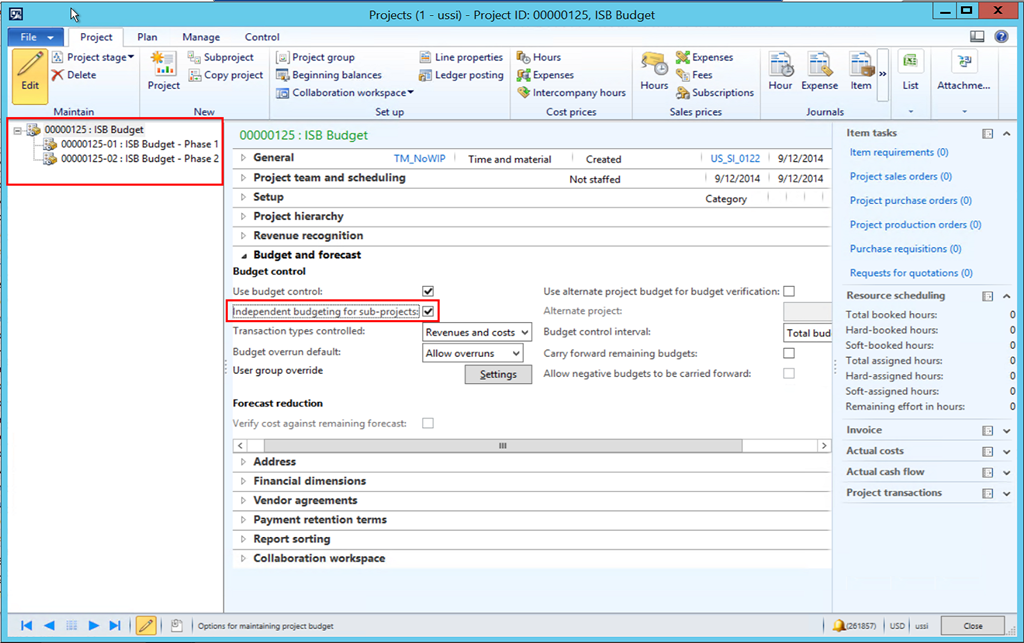
    image

    • Select the parent project, click Plan Tab > Budget > Project Budget action button.
    • Under the Costs fast tab, create a new budget line and open the dropdown for the project field. Notice that, system shows only the Parent project as a selectable option and you will not see the project hierarchy tree on the left hand side of the project budget screen.

    image

    • This allows to create and manage Original budgets for each project in the hierarchy. So, whenever new projects are added to the hierarchy in the future, original budgets can be created for those without the need of revising the original budget for the whole hierarchy.
    • This new functionality will also let you allocate the budgets across periods as you want for each sub-projects in the project hierarchy. Before this functionality, you will always need to allocate the budgets of a new sub-project using the same period which you would have done for the original budget.

    image

    • You can still view the project budget balances and system still rolls up the values in the hierarchy and shows the remaining budget balances and you can also view the breakdown by each category.
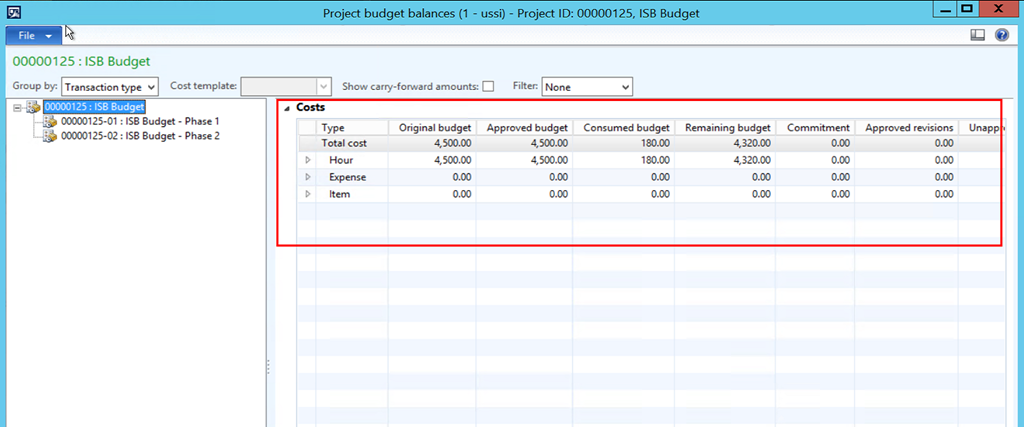
    image

    Till next time !!

    -Sandeep

  • Committed Costs in Project Management in Microsoft Dynamics AX 2012

    Committed Costs in Project Management in Microsoft Dynamics AX 2012

    Efficient cost management in Projects is always one of the key aspects to ensure that the project remains optimally profitable, especially in cases of fixed price contracts where revenue remains fixed. A clear visibility of all aspects of the cost data in the project helps the Project Budget Manager or Project Controller to ensure that the expenses in the project are well controlled and the project is adequately funded on time.

    The common practice followed widely by most of the Project organizations is to establish a project budget for the costs and then track the actual project costs(Realized costs) against it, to arrive at the remaining budget balances, % of work complete in the project etc., for the managers to take suitable actions on funding effectively.

    While the actual costs/realized costs gives the required visibility to the remaining budget balances of a project, there is one other cost component which should be considered. This is called the “Committed costs”.

    The “Committed costs” are the project expenses that are used over a period longer than the cost reporting period. An example of this is the materials and services(Subcontractors and Consultants) getting used in a project. Once a purchase order has been issued to a supplier or subcontractor, then the funds for that purchase order are “Committed” by the organization.

    In today’s post we will take a look the “Committed costs” functionality for Projects in AX 2012 and discuss how this could be helpful for service industries such as the Construction, advertising and media where the subcontracting services are usually used for a longer time period.

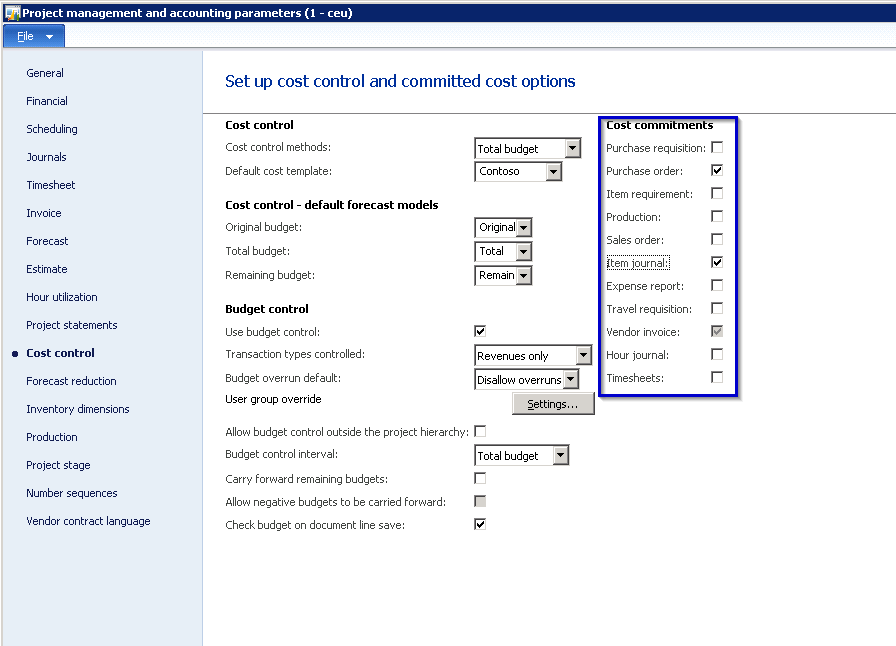
    The first thing to understand is the parameter setup under the project module. Notice that Dynamics AX 2012 makes it flexible and allows users to designate all the types of transactions which could form a cost component in a project, in stead of just limiting this to just Purchase orders and Vendor invoices. Users can select or deselect these transaction types to decide if they want those to be reflected as “committed costs” in the projects. Take a look at the screen below.

    image

    In this case, I will consider the purchase order, Item journals and vendor invoices as committed costs. I will also create a Fixed price project and then allocate budget to it and finally post some purchase orders, item journals and vendor invoices for this project to see how the “committed costs” work.

    Below screenshot shows the total budget which I have defined for this project for the items and the subcontracted labors.

    image

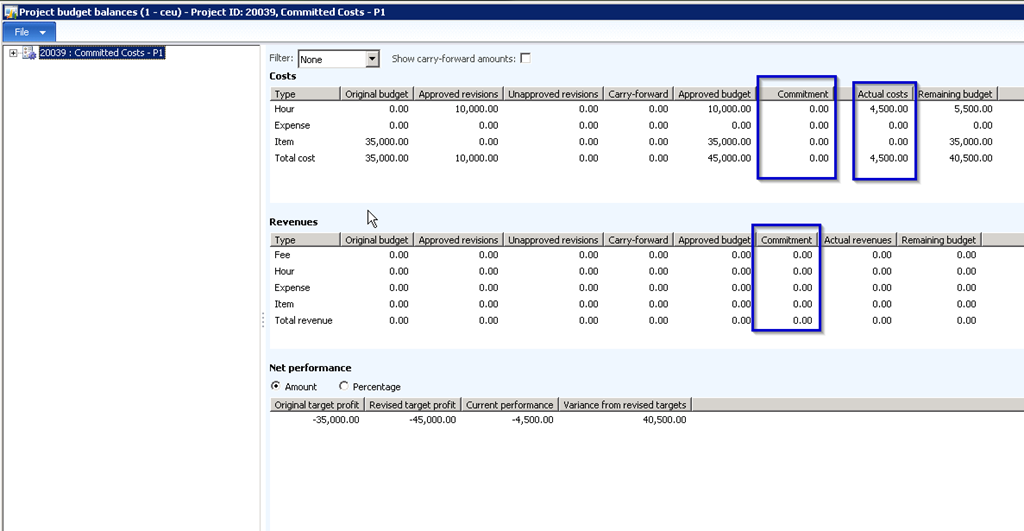
    We will now post some costs on this project by booking few hour journals to record some actual costs on the project. See the screenshot below which shows all the details in the Project budget balances screen. This shows that there are no commitment costs/committed costs.

    image

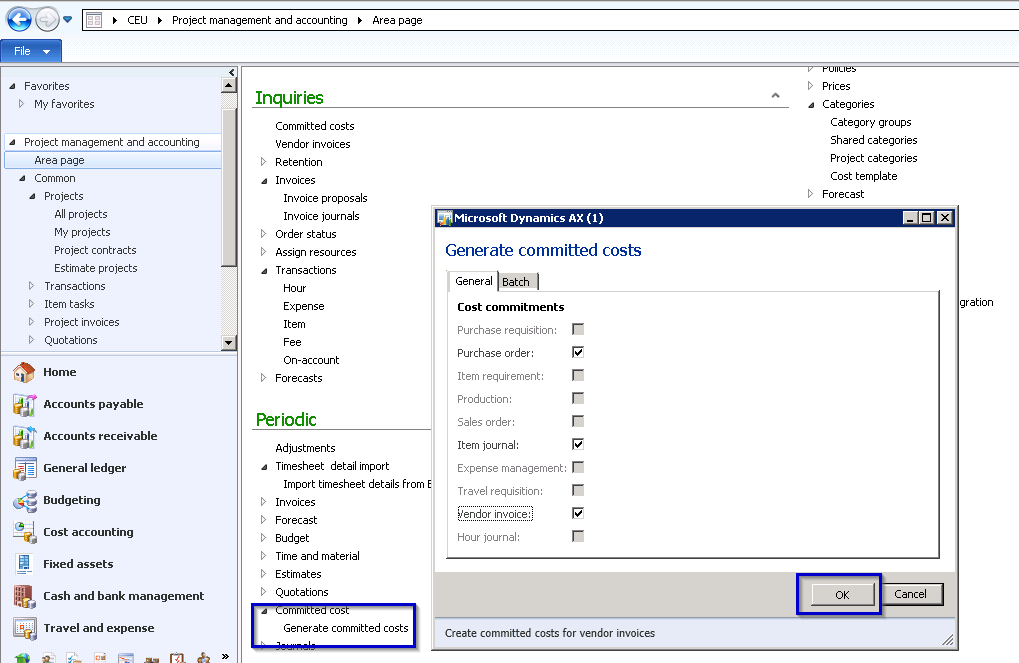
    Now let us create a purchase order(Do not post) and book a vendor invoice and see the impact on the committed costs. After creating the purchase order and vendor invoice for the project, navigate to Project Management and accounting > Periodic > Committed costs > Generate committed costs and click OK button. (Ideally this could be set to run in batch automatically).

    image

    Now let us enquire the project budget balances and see how system automatically shows these as committed cost so that project budget manager or project controller gets a better visibility of the costs for this project.

    image

    Also, you can navigate to Project > Control Tab > Costs > Committed costs button and system will show the details for all the committed costs on the project in this screen and users can click the Item tasks button to go to the source document which forms the basis of the committed cost and then take suitable actions.

    image

    Hope this post was helpful.

    Thanks

    Sandeep