
Having a fully functional vendor self service portal in an enterprise class cloud ERP solution is a huge advantage and allows your organization to streamline the collaboration with vendors, there by helping you reduce back office efforts and improves accuracy of business transactions with vendors and procurement. Dynamics 365 For Operations provides this right out of the box !
In today’s quick post, we will take a look at some of the key capabilities of the Vendor Collaboration/Self-service portal in Microsoft Dynamics 365 For Operations. Let us first look at some of the key setups involved.
Activate a vendor for Self -service/Collaboration:
- On the vendor master record > General fast Tab, select Active (PO is auto-confirmed) or Active (PO is not auto-confirmed).

- Setup the Primary contact for the vendor. I have setup Erin in this demonstration.

- Setup the user account for the vendor contact/vendor user. You will need to setup a Azure AD account for this for the vendor user and assign the Vendor(external) or Vendor admin(external) or both of these roles to this user. Then link the vendor primary contact to this user. Important Note: Note that you would not want to give the System user default role to this user, as this is purely an external user.

Additional Note: Since the vendor is an external user, you would definitely want them to personalize Dynamics 365 screens to add new data fields on their views. To block this, you can Block personalization for the vendor user in Dynamics 365 for Operations.
With the understanding of the some of these basic setups, let us now see , what are some of the key features of the self-service portal.
Shared View of Purchase Order Communications and Responses with Vendor:
- Let us say Contoso Entertainment Systems USA wants to order some Wiring Harness and Speaker Units from their vendor Fabrikam Suppliers. The purchasing clerk at Contoso USA creates the PO. The purchase order is shown below.

- He then sends the PO to the vendor portal for obtaining confirmation response from vendor.

- Notice at this stage, the PO status is “In External Review”.

- Now, Erin the contact Fabrikam Suppliers logs in to Vendor portal and can see that the PO that Contoso just sent is right there on the portal. He logs in and navigates to Purchase Order confirmation workspace.


- He sees that the PO sent by Contoso appears there and then he goes into the PO details.
- At this point, as a vendor Erin from Fabrikam can review the PO header and line details and do the following.
- Print a copy or original PO if he needs to send it to anyone else.
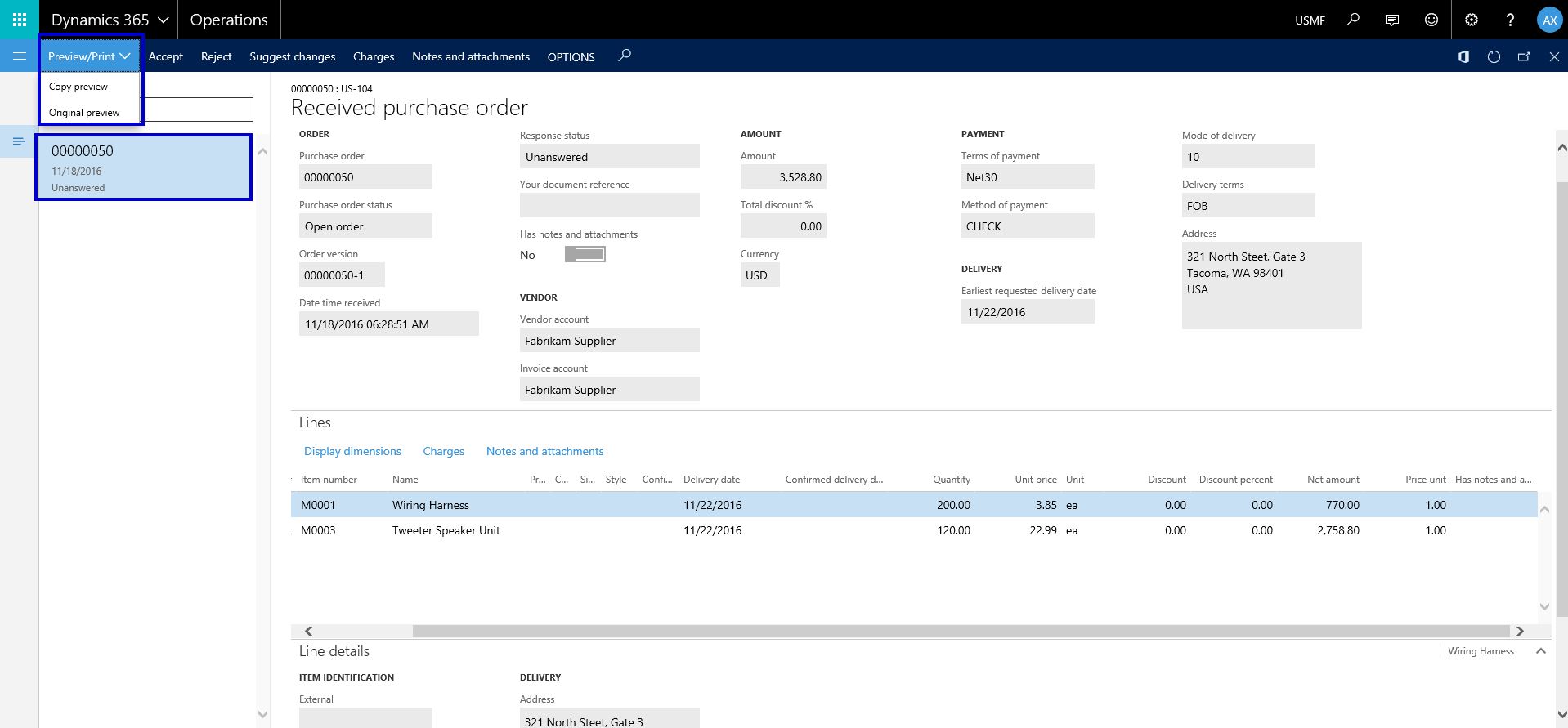
- Review the PO Header and Line information and Accept or Reject the PO Confirmation request. If he accepts the PO confirmation request, then the PO will be automatically confirmed.

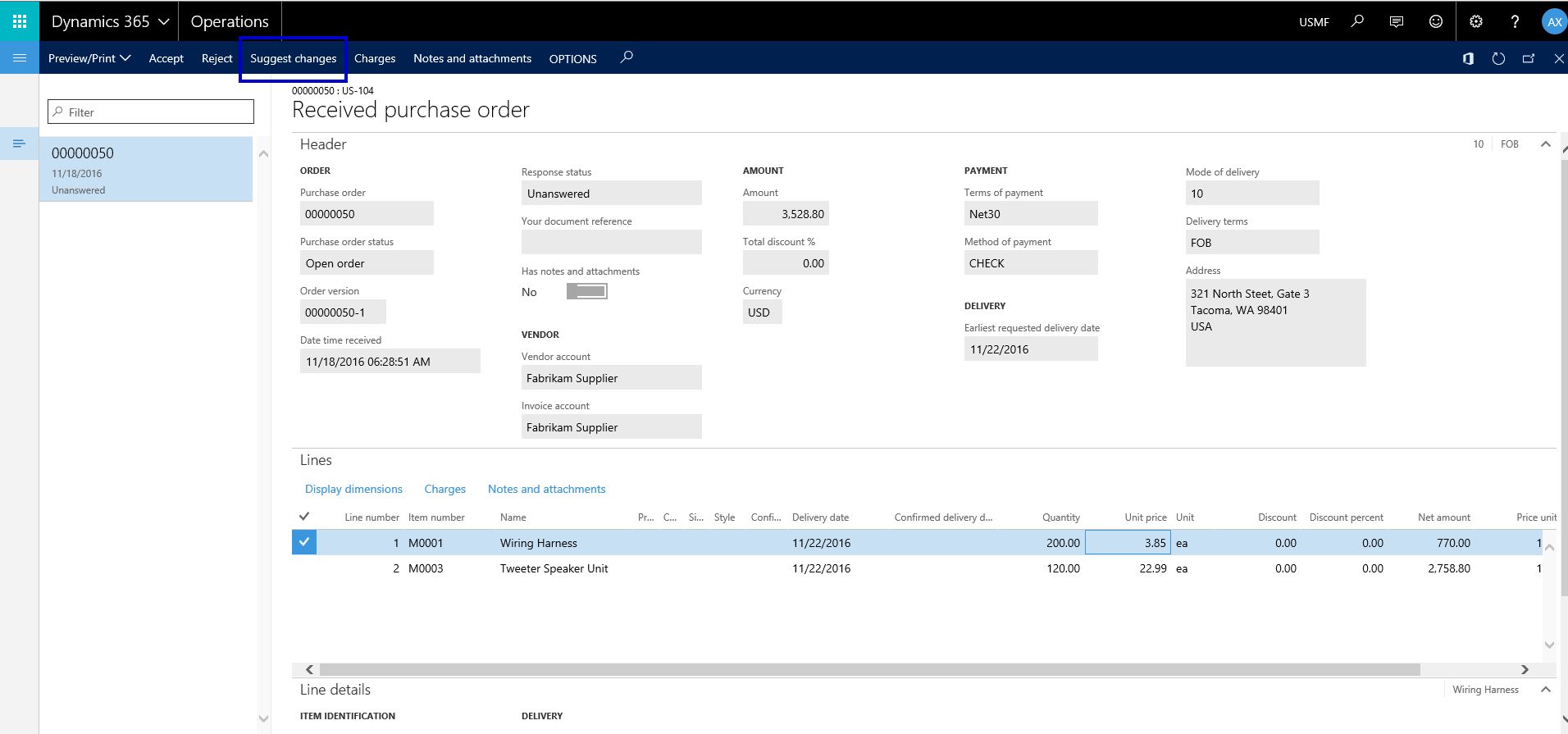
- Additionally, Erin can suggest changes on the PO, such as Mode of delivery, Delivery date and Quantity. Erin can also view or attach Notes and documents both at the PO header and line levels at this stage. Let us say he changes the Quantity of the Wiring Harness to 170, as Fabrikam does not see to have enough stock at the moment to fulfill the order.

- Eric can substitute a specific PO line if needed. He can also split the delivery of the PO into multiple deliveries for each PO line. Let us say, he splits the delivery of Wiring harness into 2 deliveries as shown below. He also adds appropriate note saying that they can deliver only 170 Qty. of the Harness ordered and they will need to delivery them in 2 schedules.
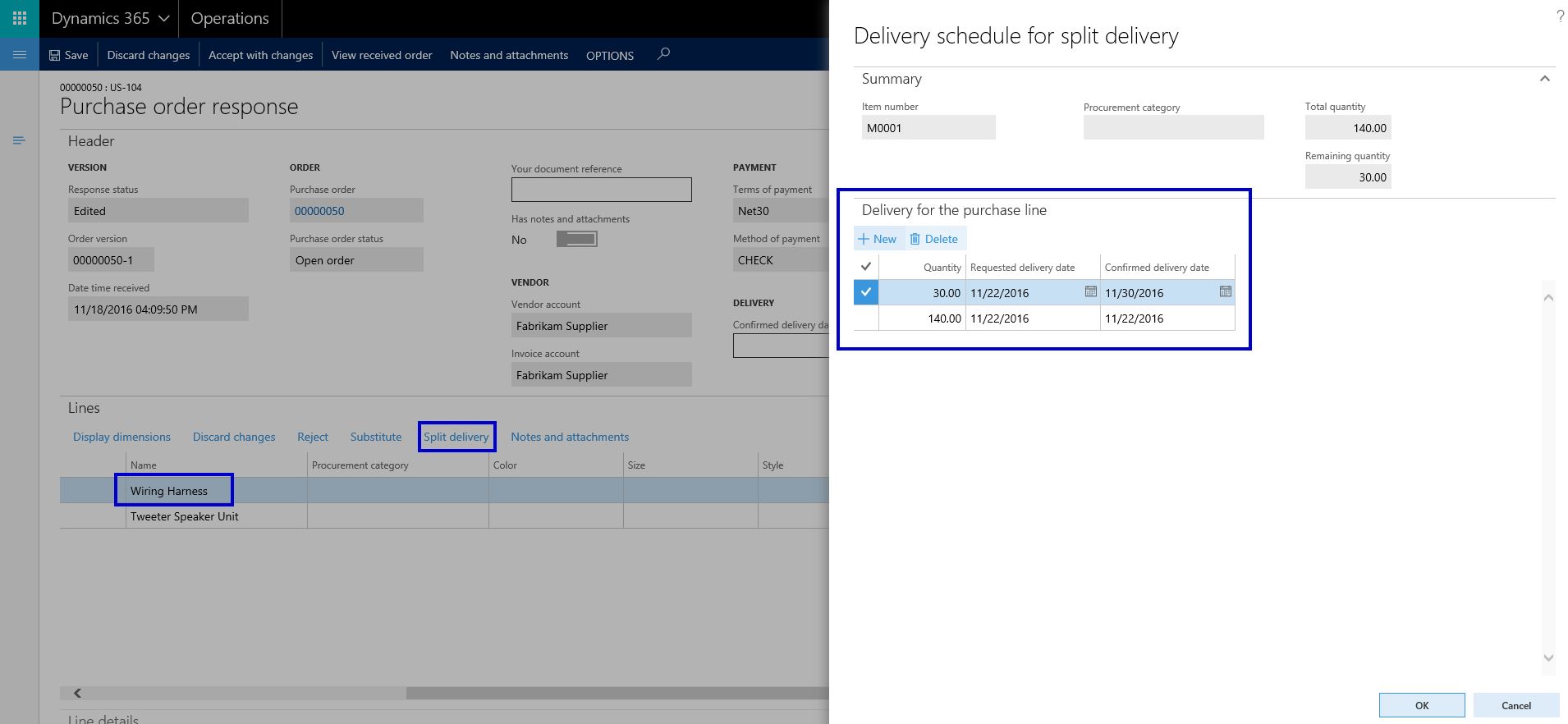


- Erin can now go ahead and Accept all the changes he suggested and proceed further Accepting the PO with changes. He clicks on Accept with changes on the PO. At this point, Contoso will review the suggested changes on the PO on their side and confirm the changes, after which Eric has to do the final acceptance without making any further changes.

- The purchasing clerk at Contoso can now view the suggested changed and accept the changes followed by final acceptance from the vendor.


Vendors can manage their Contacts and New Collaboration Users easily:
- The primary contact/user at the vendor can view and manage the contacts and users for the vendor portal.
- They can create new contacts and request to provision new vendor users for collaboration portal.
- Can update contact information of the vendor users any time, anywhere.


Vendors can view and inquire on invoices and payments using the portal workspace:
- Vendor can review the status of the their invoices and payments online.
- Create purchase order invoices and upload invoice documents on the portal.
- Inquire status of payment for the invoices.


Vendor can view and inquire information about consignment inventory:

Vendor portal and Vendor collaboration feature continues to be one of the major investment areas for Microsoft in Dynamics 365 For Operations, which means we will only continue to see more and more new features in the upcoming platform updates in next few months. Stay tuned !!


 Microsoft Dynamics 365 Blog