Tag: New Dynamics AX

  • Vendor Self-service portal and Vendor collaboration in Dynamics 365 For Operations

    Vendor Self-service portal and Vendor collaboration in Dynamics 365 For Operations

    Having a fully functional vendor self service portal in an enterprise class cloud ERP solution is a huge advantage and allows your organization to streamline the collaboration with vendors, there by helping you reduce back office efforts and improves accuracy of business transactions with vendors and procurement. Dynamics 365 For Operations provides this right out of the box !

    In today’s quick post, we will take a look at some of the key capabilities of the Vendor Collaboration/Self-service portal in Microsoft Dynamics 365 For Operations. Let us first look at some of the key setups involved.

    Activate a vendor for Self -service/Collaboration:

    • On the vendor master record > General fast Tab, select Active (PO is auto-confirmed) or Active (PO is not auto-confirmed).

    vendor-master

    • Setup the Primary contact for the vendor. I have setup Erin in this demonstration.

    Prim Contact.jpg

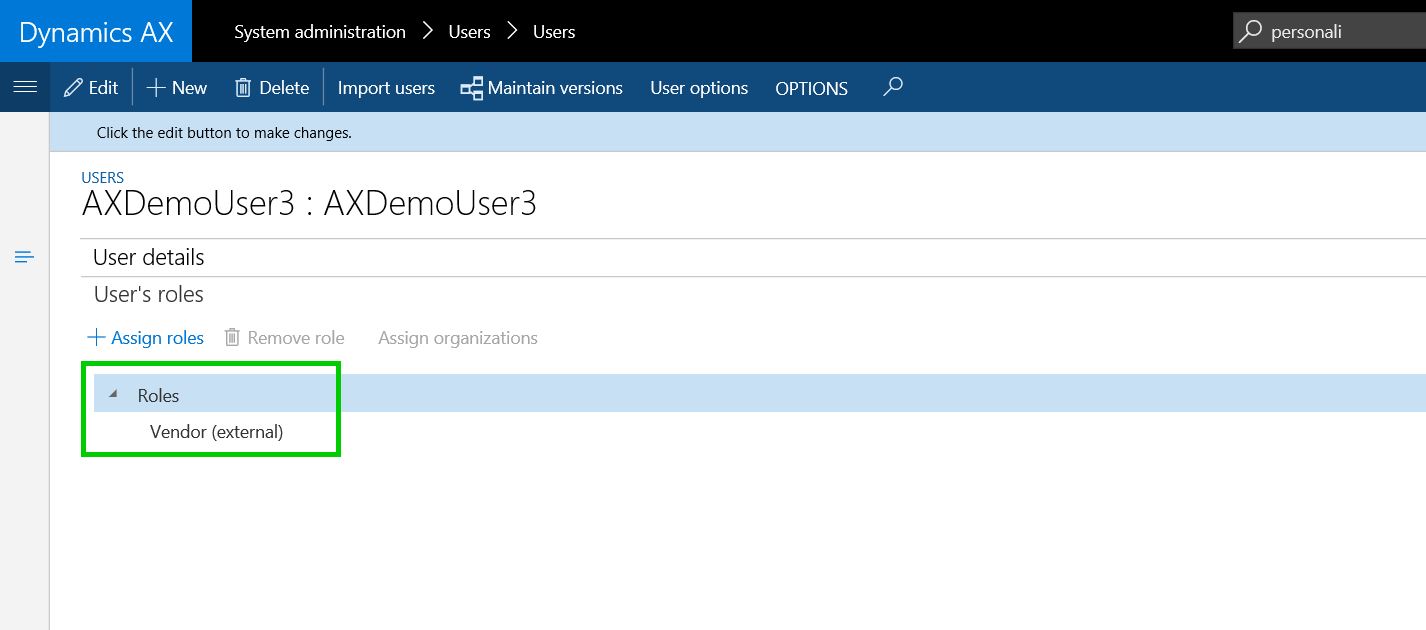
    • Setup the user account for the vendor contact/vendor user. You will need to setup a Azure AD account for this for the vendor user and assign the Vendor(external) or Vendor admin(external) or both of these roles to this user. Then link the vendor primary contact to this user. Important Note: Note that you would not want to give the System user default role to this user, as this is purely an external user.

    vendor-role

    Additional Note: Since the vendor is an external user, you would definitely want them to personalize Dynamics 365 screens to add new data fields on their views. To block this, you can Block personalization for the vendor user in Dynamics 365 for Operations.

    With the understanding of the some of these basic setups, let us now see , what are some of the key features of the self-service portal.

    Shared View of Purchase Order Communications and Responses with Vendor:

    • Let us say Contoso Entertainment Systems USA wants to order some Wiring Harness and Speaker Units from their vendor Fabrikam Suppliers. The purchasing clerk at Contoso USA creates the PO. The purchase order is shown below.

    po

    • He then sends the PO to the vendor portal for obtaining confirmation response from vendor.

    send-for-conf

    • Notice at this stage, the PO status is “In External Review”.

    po-status

    • Now, Erin the contact Fabrikam Suppliers logs in to Vendor portal and can see that the PO that Contoso just sent is right there on the portal. He  logs in and navigates to Purchase Order confirmation workspace.

    vendor-portal-po-conf

    po-for-review

    • He sees that the PO sent by Contoso appears there and then he goes into the PO details.
    • At this point, as a vendor Erin from Fabrikam can review the PO header and line details and do the following.
      • Print a copy or original PO if he needs to send it to anyone else.
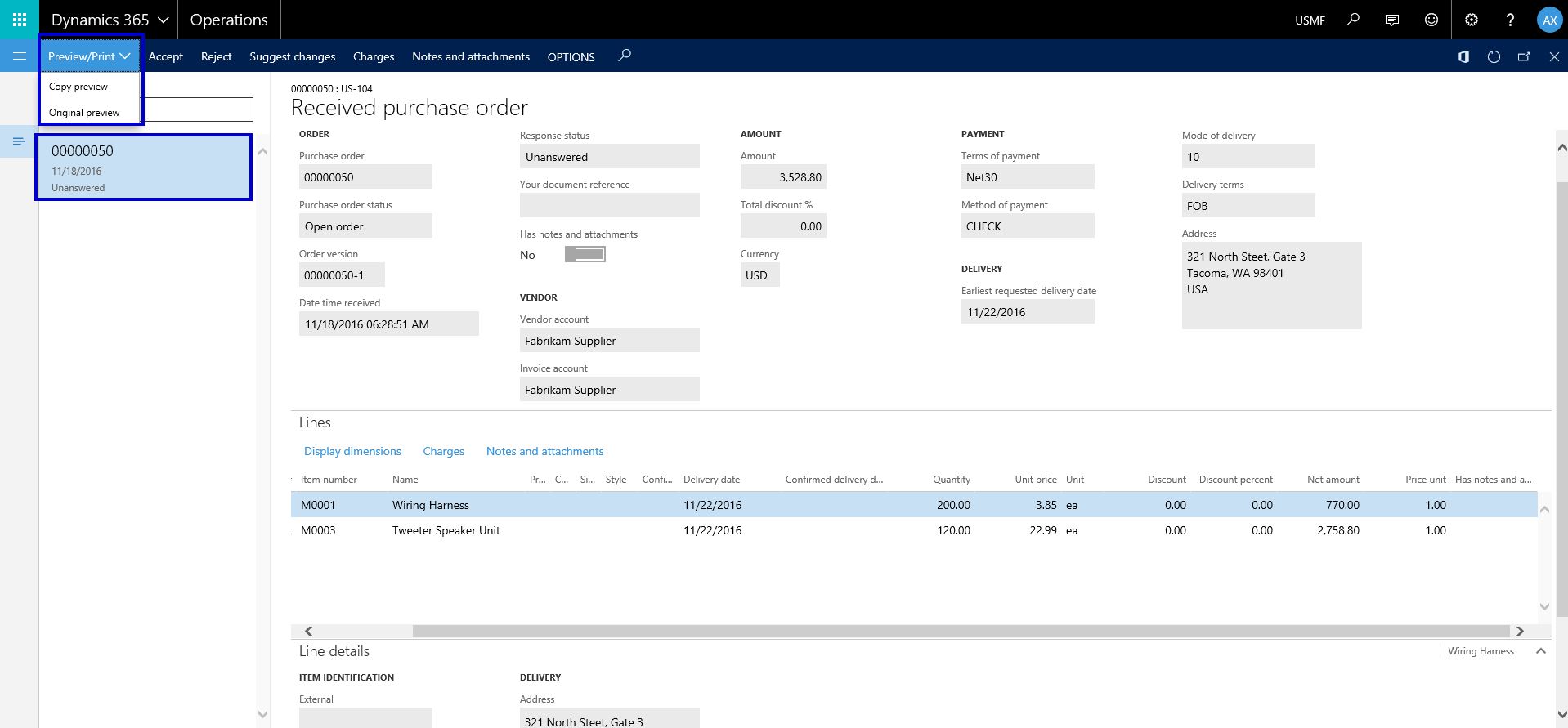
    • printpo
      • Review the PO Header and Line information and Accept or Reject the PO Confirmation request. If he accepts the PO confirmation request, then the PO will be automatically confirmed.
    • accept-reject
      • Additionally, Erin can suggest changes on the PO, such as Mode of delivery, Delivery date and Quantity. Erin can also view or attach Notes and documents both at the PO header and line levels at this stage. Let us say he changes the Quantity of the Wiring Harness to 170, as Fabrikam does not see to have enough stock at the moment to fulfill the order.
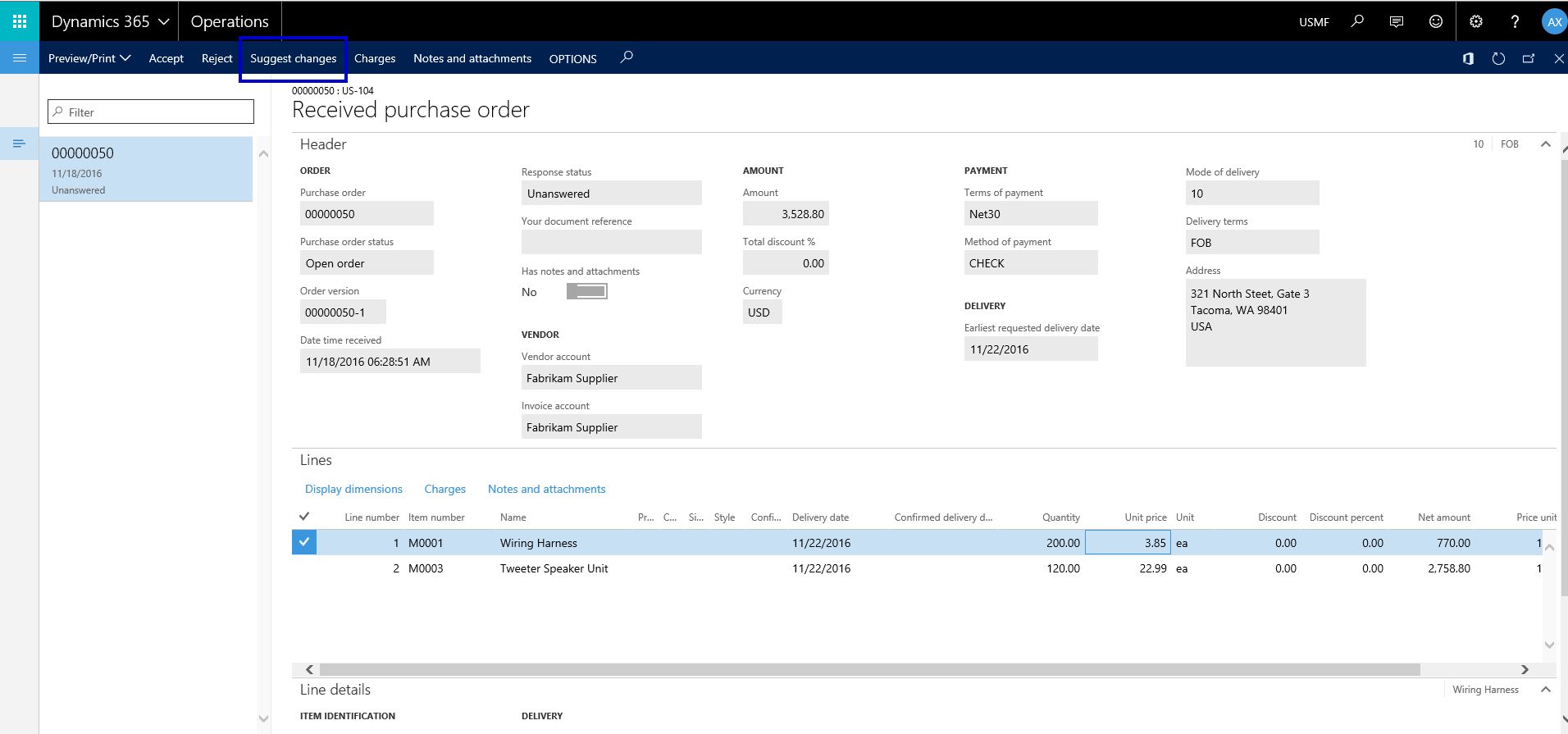
    • suggest-change-1
    • suggest-change-2
      • Eric can substitute a specific PO line if needed. He can also split the delivery of the PO into multiple deliveries for each PO line. Let us say, he splits the delivery of Wiring harness into 2 deliveries as shown below. He also adds appropriate note saying that they can deliver only 170 Qty. of the Harness ordered and they will need to delivery them in 2 schedules.
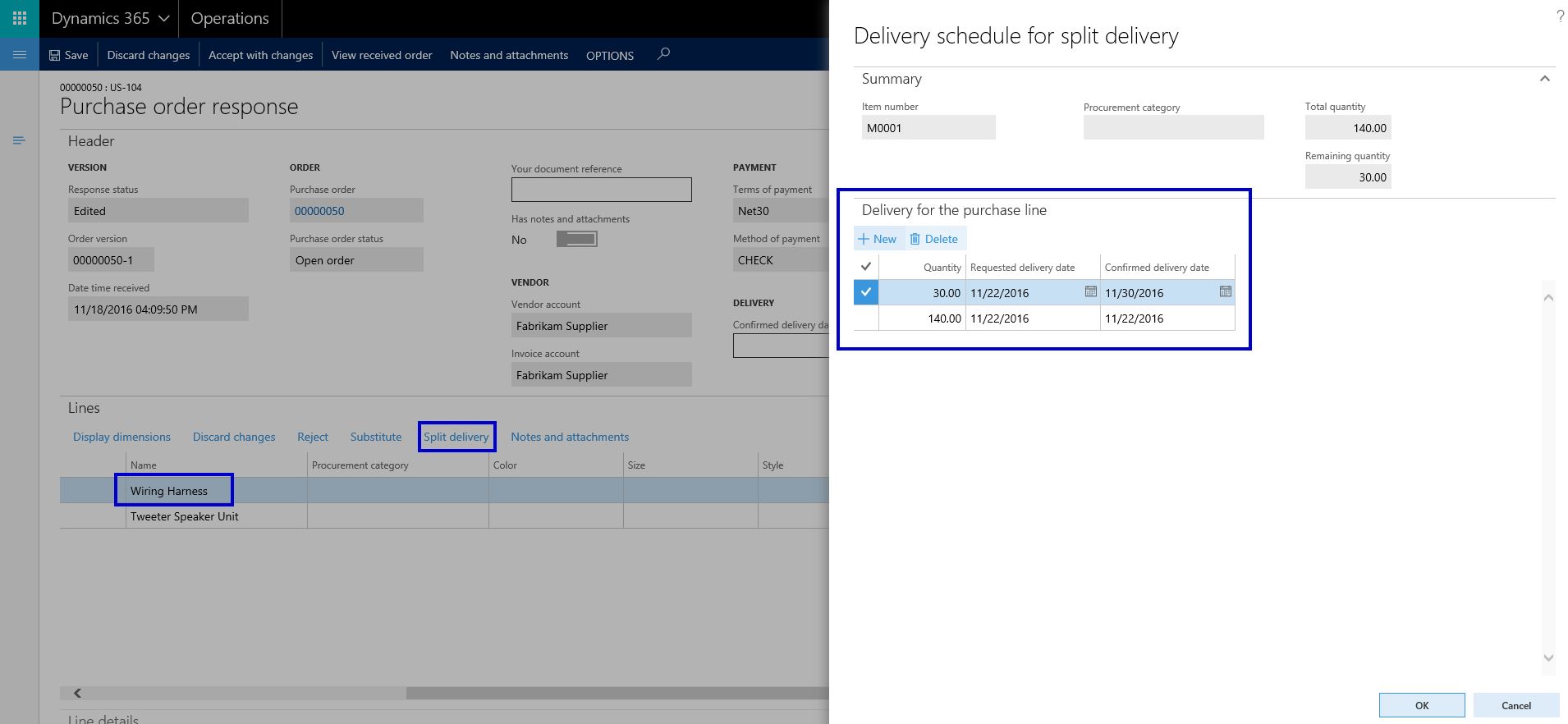
    • split-delivery
    • split-delivery2
    • notes
      • Erin can now go ahead and Accept all the changes he suggested and proceed further Accepting the PO with changes. He clicks on Accept with changes on the PO. At this point, Contoso will review the suggested changes on the PO on their side and confirm the changes, after which Eric has to do the final acceptance without making any further changes.
    • accept-with-changes-1
      • The purchasing clerk at Contoso can now view the suggested changed and accept the changes followed by final acceptance from the vendor.
    • vendor-accepts-changes


    Vendors can manage their Contacts and New Collaboration Users easily:

    • The primary contact/user at the vendor can view and manage the contacts and users for the vendor portal.
    • They can create new contacts and request to provision new vendor users for collaboration portal.
    • Can update contact information of the vendor users any time, anywhere.

    vendor-users

    provision-user

    vendor-user-requests

    Vendors can view and inquire on invoices and payments using the portal workspace:

    • Vendor can review the status of the their invoices and payments online.
    • Create purchase order invoices and upload invoice documents on the portal.
    • Inquire status of payment for the invoices.

    vendor-invoice-workspace

    vendor-creates-invoice

    vendor-invoice-attachments

    Vendor can view and inquire information about consignment inventory:

    consignment-inventory

    Vendor portal and Vendor collaboration feature  continues to be one of the major investment areas for Microsoft in Dynamics 365 For Operations, which means we will only continue to see more and more new features in the upcoming platform updates in next few months. Stay tuned !!

  • Mobile apps for Dynamics 365 For Operations is available for download in Android

    Mobile apps for Dynamics 365 For Operations is available for download in Android

    Exciting times are here for Dynamics customers, prospects and enthusiasts !!

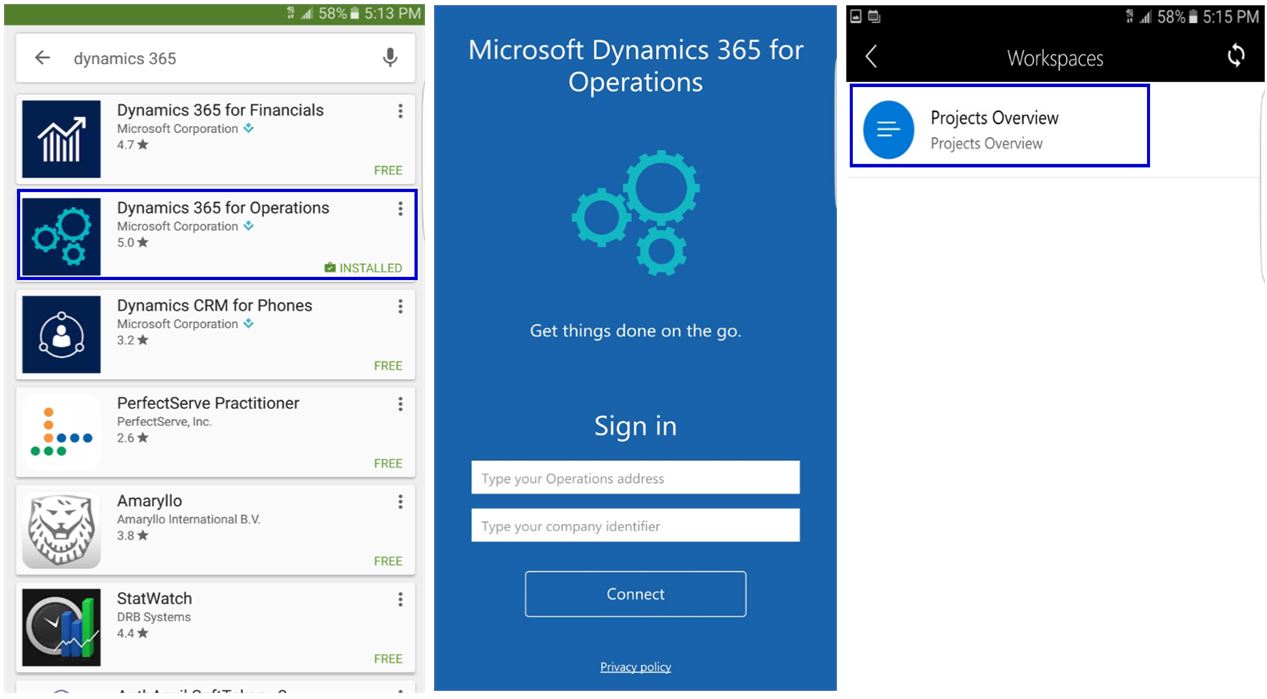
    The mobile app for Dynamics 365 For Operations is now available for download and use in the Android platform.

    You can download it from Google play store today. Just search with keyword Dynamics 365 and you should see the app listed.

    After you have installed, login to your Dynamics 365 environment and provide your login credentials. That’s it.

    Below are some quick screenshots that I took on my phone. I connected to one of my demo environments that has the Update 2 environment and I was able to see the one mobile app workspace I designed a few weeks ago, which I described in the post below.

    https://sandeepchaudhury.wordpress.com/2016/09/30/sneak-peek-into-mobile-applications-framework-for-dynamics-axdynamics-365-enterprise-edition/

    android-apps

    android-apps

    Obviously this was just a very crude attempt at creating a prototype mobile app to evaluate the new feature in Dynamics 365 and it worked great.

    I could not connect it to the Update 3 environment, which is really the Dynamics 365 For Operations environment, as it is still being configured.I will work on creating a more usable and professional app/workspace in Dynamics 365 For Operations, and I will share more details once I have something ready. If you connect to an Update 3 environment, you will notice that there will already be several out of the workspaces/apps that are developed and published my Microsoft out of the box.

    Regards,

    Sandeep


  • Dynamics AX Tip: How to control Personalization options for specific users in the New Dynamics AX

    Dynamics AX Tip: How to control Personalization options for specific users in the New Dynamics AX

    The Personalization options has been a very widely used feature, which is powerful and has always allowed users to personalize various screens based on what they would like the screens to look like. You can learn more on the Personalization options in the New Dynamics AX on my earlier post.

    While this is a great feature to allow every users to be able to personalize screens, it is sometimes required to disable this option or even give some users explicit personalization options for certain users, based on what type of users of the system they are.

    For example, let us say you are configuring a vendor(External) user in your Dynamics AX environment, to provide them access to the Vendor portal, but you obviously do not want to them to be able to personalize screens to add any data fields which you do not want them to see.

    The vendor user is setup as shown below, with Vendor (External) security role.

    vendor-user

    In the new Dynamics AX, you can control user specific personalization options under System Administration > Setup > Personalization. All you have to do is, select the specific user ID and UNMARK the Personalization allowed checkbox.

    personalization-setup

    With this, when the vendor user logs into the Vendor Portal, they will not see the Personalize this form option.

    personalization-setup-dis

    If the Personalization was allowed for this user, they would see this option as shown in screenshot below.

    personalization-yes

    Cheers !!
    Sandeep

  • Dynamics AX Tip: Interact with Dynamics AX Data using Microsoft Excel Online (Office 365)

    Dynamics AX Tip: Interact with Dynamics AX Data using Microsoft Excel Online (Office 365)

    In AX 2012 release, the Excel Add-in feature introduced additional productivity options and made it easy for end users to interact with Dynamics AX data from within Excel. This feature worked great in many scenarios, but it did not provide that seamless productivity experience for the user, as they had to launch the Excel On Premise app (Win32 app) and then had to connect to the AOS to select tables and data fields to be able to interact with the data. This required the end users to have certain knowledge of the tables/database to complete data exchange tasks with Dynamics.

    With the New Dynamics AX (AX 7), the Office Integration framework introduced significant changes in the underlying framework by launching the new ” Excel Data Connector App”. The Excel Data connector app interacts with your Excel workbooks with Dynamics AX OData Services (For publicly Exposed Data Entities) and this made it possible for Excel to become a seamless part of the user experience in Dynamics AX.

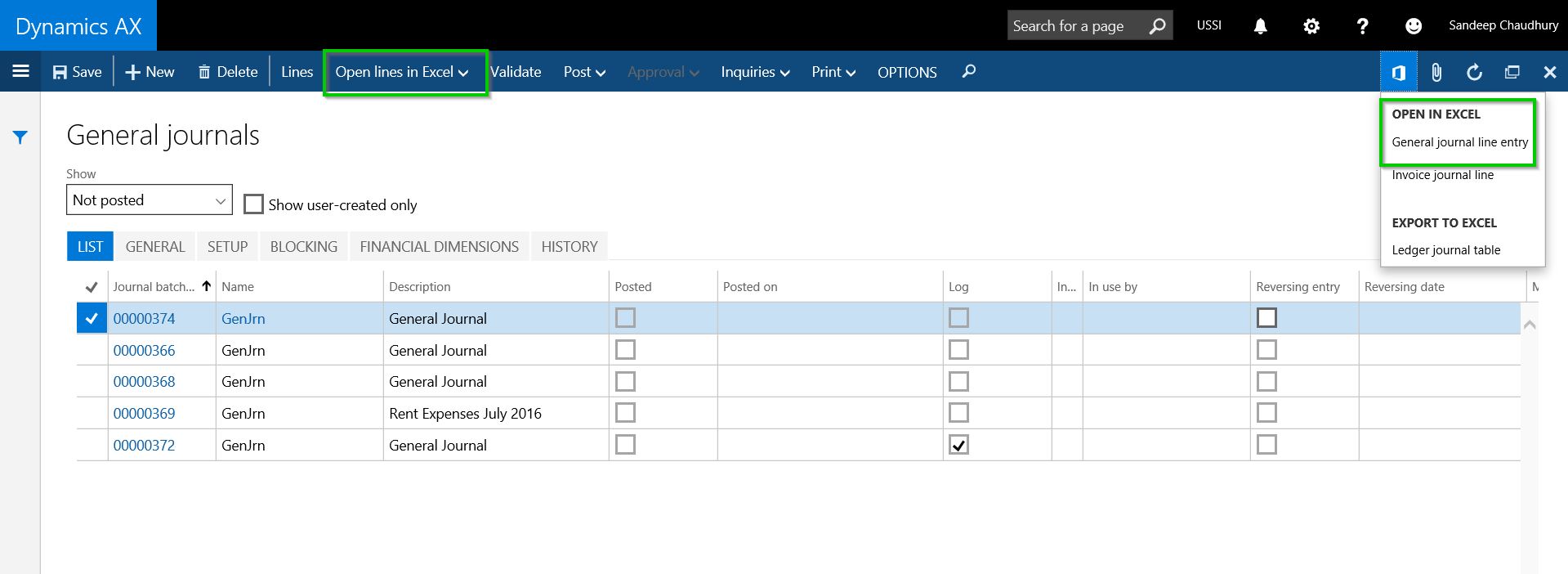
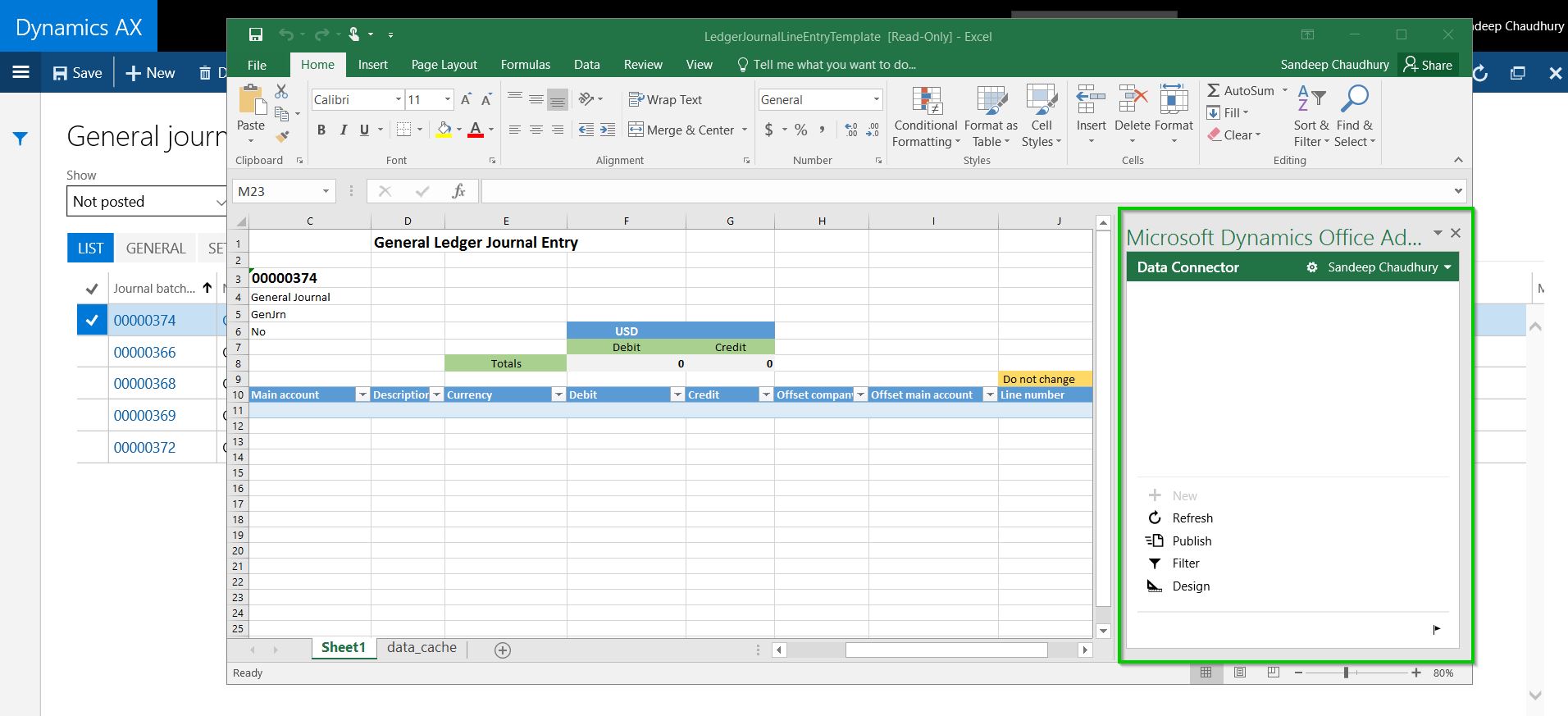
    Most of us probably know by now how the “Open in Excel” experience works in the new Dynamics AX, where you can launch your data (For example a journal entry) into an Excel On Premise app (Win32 app) with just one click. Once the excel app launches, you can sync data, make updates, add or delete data. The screenshot below shows this experience in the new Dynamics AX.

    Open in Excel

    Excel Launched

    In the New Dynamics AX, it is also possible to open the Dynamics AX data in the Excel ONLINE version (Office 365) in case you do not have the Excel On premise(win32) app installed. The only thing you have to do differently is as follows.

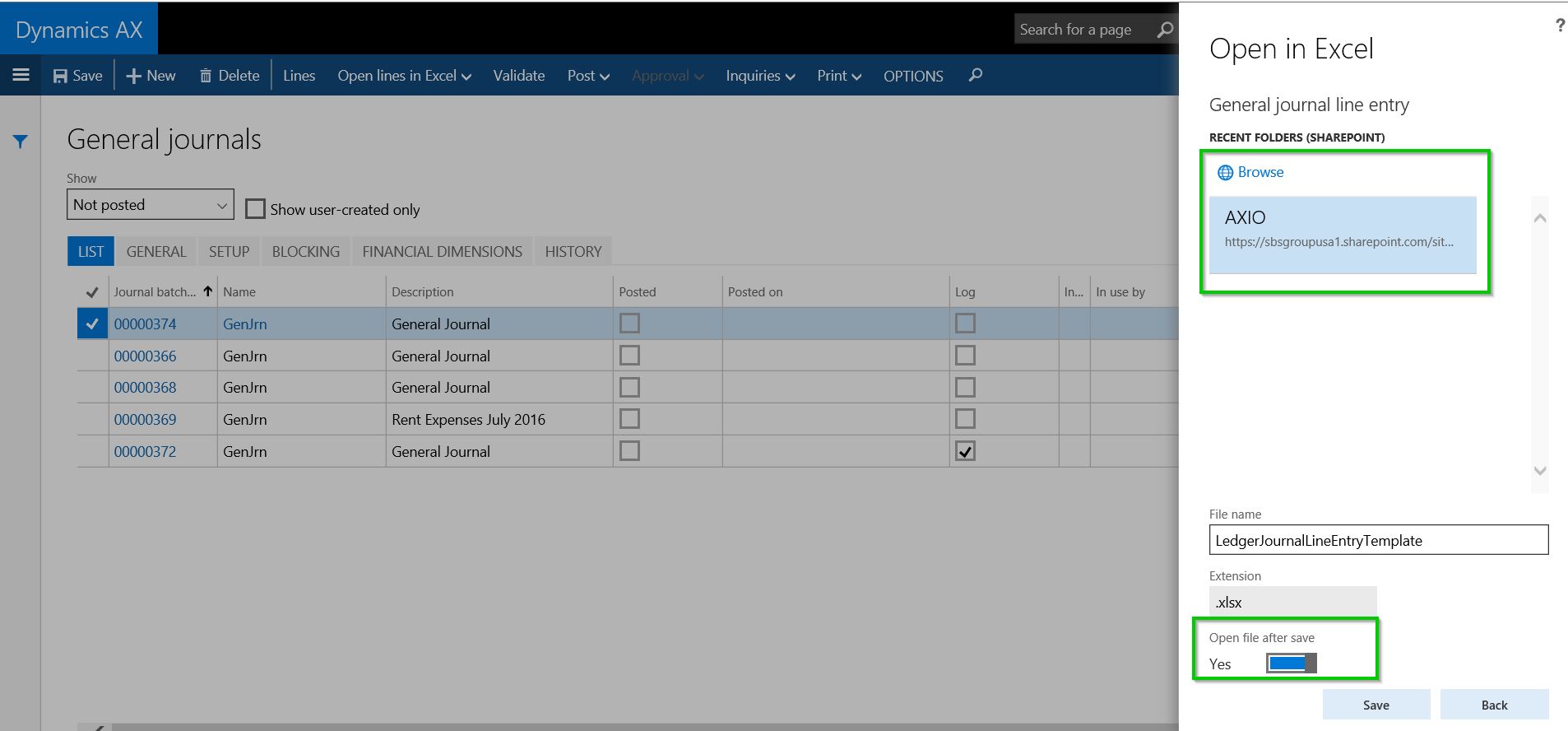
    After you click the Office Integration icon > Open in Excel, select Save To > SharePoint.

    Save to sharepoint

    Then select the SharePoint location (Document library) and Mark the Open file after save option and click Save button.

    Save to sharepoint Open

    Notice that the Journal entry will now open in Microsoft Excel Online and the Excel data connector app will run in an embedded experience within your browser(Built using Office web add-in framework).

    Opened in Excel Online

    From here on you still have the same user experience as you would see when dong it in an Excel On premise app. This will come handy in cases where you are away from your desk and using a device that does not have the native Excel on premise app installed. You still have full power of Excel and exchange data with Dynamics AX.

    That’s it for today’s quick tip.

    Regards,

    Sandeep

  • Dynamics AX Tip: Percentage complete calculation for revenue recognition, based on WBS Work Percentage Complete for fixed price projects

    Dynamics AX Tip: Percentage complete calculation for revenue recognition, based on WBS Work Percentage Complete for fixed price projects

    Traditionally, the 2 primary methods of revenue recognition for a fixed price project were the “Completed Percentage” and the “Completed Contract” methods. I have explained how these work in Dynamics AX for revenue recognition of fixed price projects in my earlier posts.

    With the AX 2012 R3 release (CU 10), the straight line method for revenue recognition was introduced, which I also elaborated in this earlier post.

    When you work with the Completed percentage method of revenue recognition, there are multiple ways to determine the percentage completion of a project. Some of these options are,

    1. Manage percentage completion on a manual basis
    2. Use project budgets or forecasts to the system automatically keep track of % complete.
    3. The new method to calculate % completion on a project is based on the WBS percent complete. In this quick post, we will how this works.

    The first step for this is to setup the Cost template and select the Completion based on as “Work percentage complete”. See screenshot below.

    Cost Template Setup

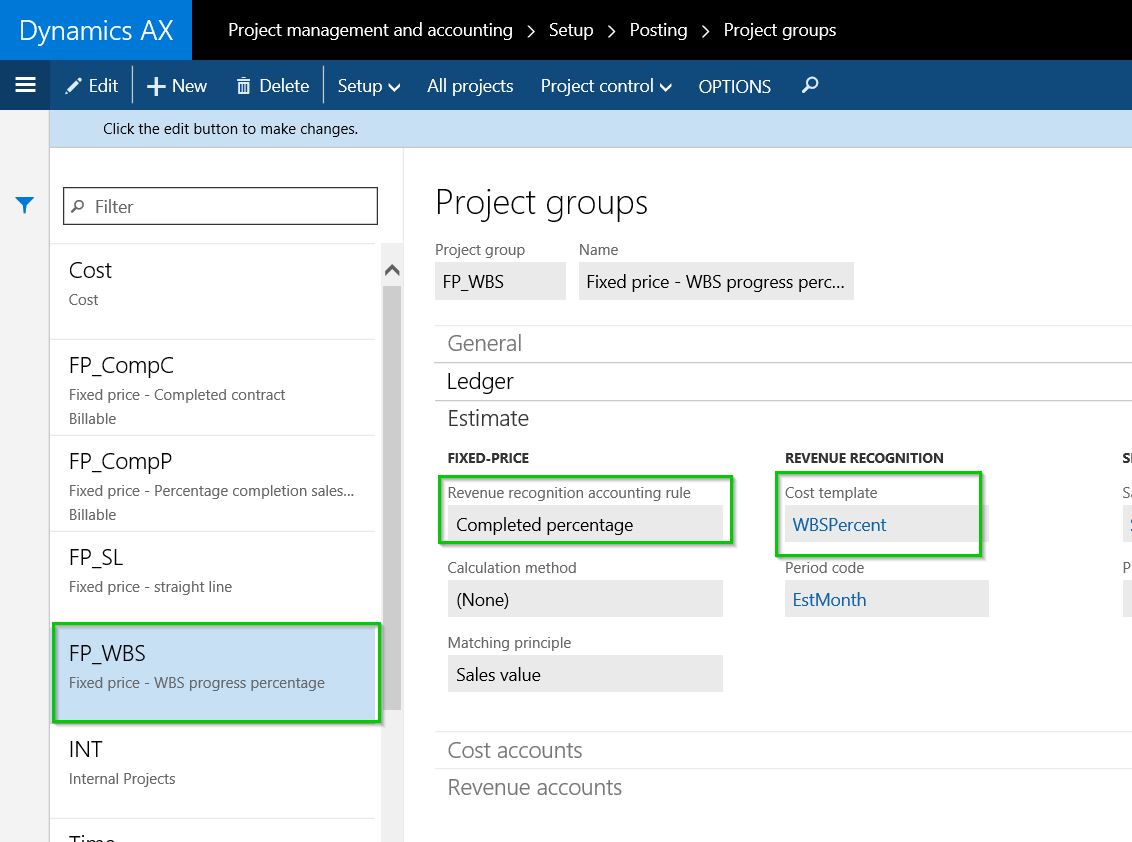
    Once you have that, associate it with the project group. See screenshot below.

    Project Group

    The next step is to setup the fixed price project and establish the project plan, which is basically the work breakdown structure. Once you have your WBS defined and the cost estimates established, Dynamics AX will automatically keep track of the “Percentage completion” for the project based on the WBS estimates vs the actual transactions. I have setup a very basic WBS for this walkthrough.

    WBS

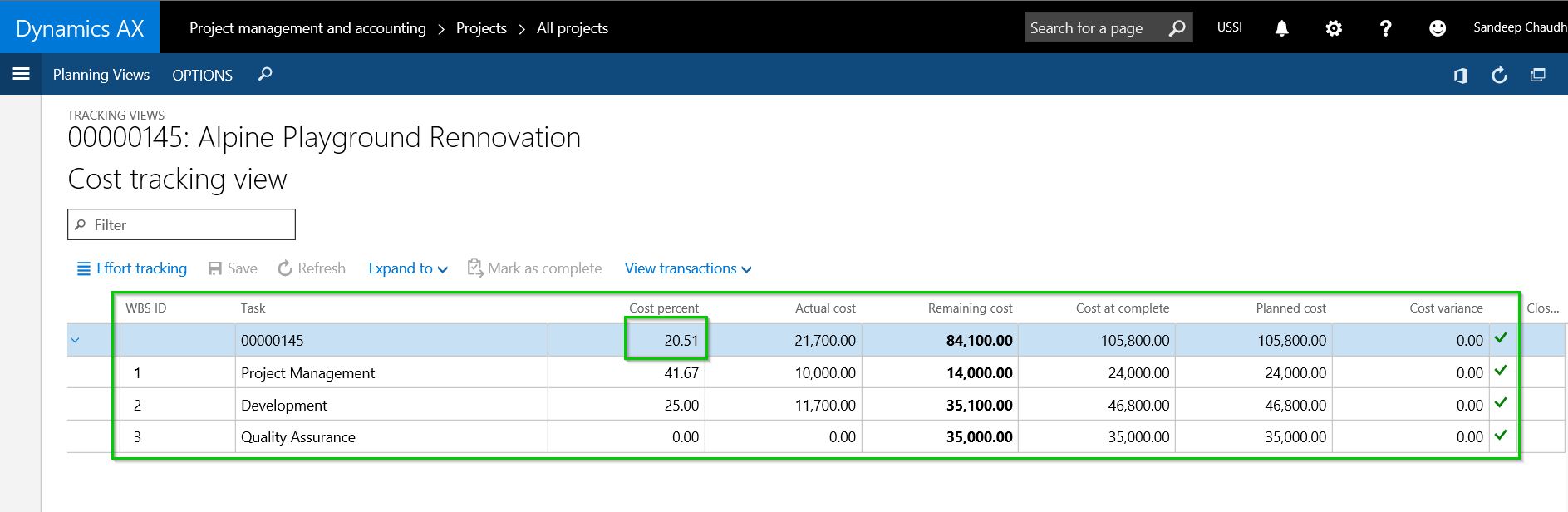
    After I have progressed in the project and transactions (Timesheets, Expense reports, Purchase orders, journals etc.), Dynamics AX automatically starts tracking the % complete for the project at each task level of the project. See screenshot below.

    Percent Complete

    Let us say, at this point you are ready to run the revenue recognition for this project for the Month of August 2016.

    Navigate to the Project revenue recognition screen and click Create. You will notice here that “Work progress percentage” is a new option under the “Cost to complete method” dropdown. But we will just leave it as default (From cost template).

    Notice that after we have run the revenue recognition, system automatically shows the Percentage completion based on the WBS work percent complete.

    Revenue Recognition Percentage

    The process after this is pretty straight forward and as you would run the revenue recognition typically for the fixed price project.

    NOTE: The intention of this blog post was not to explain the end to end process of revenue recognition for fixed price projects. I have explained these in detail in my earlier posts. This post was specifically a quick tip to highlight the new method of automatic work percent complete calculation.

  • Check out what is New in Update 2(August 2016 release) for the New Dynamics AX

    Check out what is New in Update 2(August 2016 release) for the New Dynamics AX

    The Update 2 (August 2016) release for the New Dynamics AX (AX 7) is now available for download in LCS.  Checkout what is new in this release at the URL below and learn how you can benefit from these enhancements.

    https://ax.help.dynamics.com/en/wiki/whats-new-or-changed-in-dynamics-ax-platform-version-7-2-august-2016/

  • How to create a new Workspace with no coding needed in New Dynamics AX(AX 7)

    How to create a new Workspace with no coding needed in New Dynamics AX(AX 7)

    If you have worked enough on the New Dynamics AX , you must be well aware of the new Workspaces feature by now. The workspaces are basically an aggregation of several business tasks, insights, reporting and dashboards that a business user deals with on a typical work day. These workspaces comes in really handy for end users by providing everything they need to execute their daily tasks, all at one central location, so that they can become more productive and save time to focus on important things.

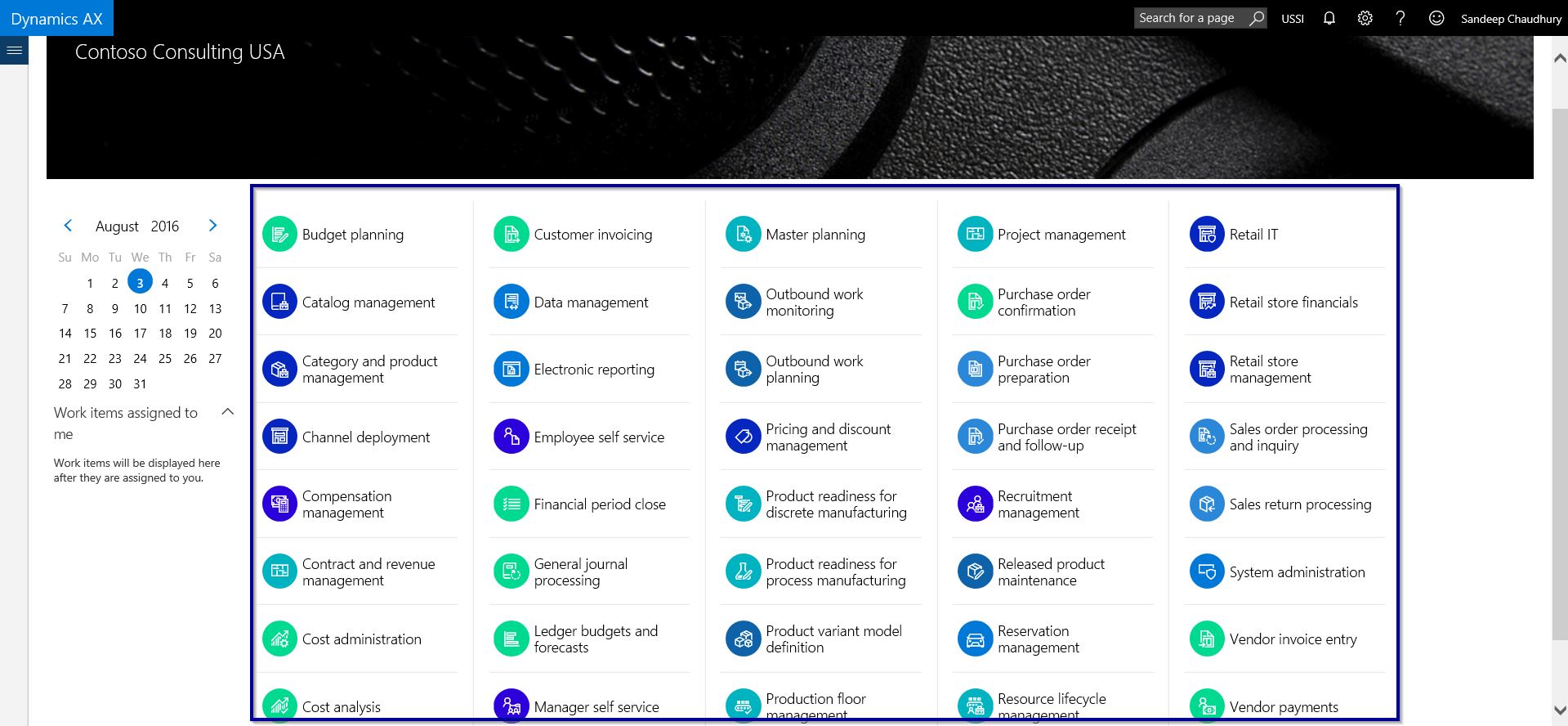
    Workspaces probably are one of the most liked and talked about features of the New Dynamics AX among users, customers and prospects. Some of the examples of the workspaces are ” Financial Period Close”, “Employee Self Service“, “Manager Self Service“, “Project Management“, “Cost Administration” and more.

    Standard Dynamics AX already provides several workspaces out-of-the-box for most of the operational areas and departments of your business(Shown in screenshot below), but there might be specific cases where you might want to create customized workspace of your own to meet your requirements. With the release of Update 1 for Dynamics AX in May 2016, you can now create and build your own workspaces without requiring a developer or any sort of coding. Let us see the steps involved in doing this.

     All Workspaces Dynamics AX

    Create a new Workspace in Dynamics AX:

    • On the main landing page of workspaces, right click anywhere on the blank area and click Personalize > Tile page container.

    TilePageContainer

    • You will notice a new pop-up menu wit several options.
    • Click Add a workspace button.

    Add A workspace

    • Come back to the main landing page and notice that a new workspace with a default name “My workspace 1″ will be added. Right click on this new workspace and click Personalize > My workspace 1.

    My workspace 1 Personalize

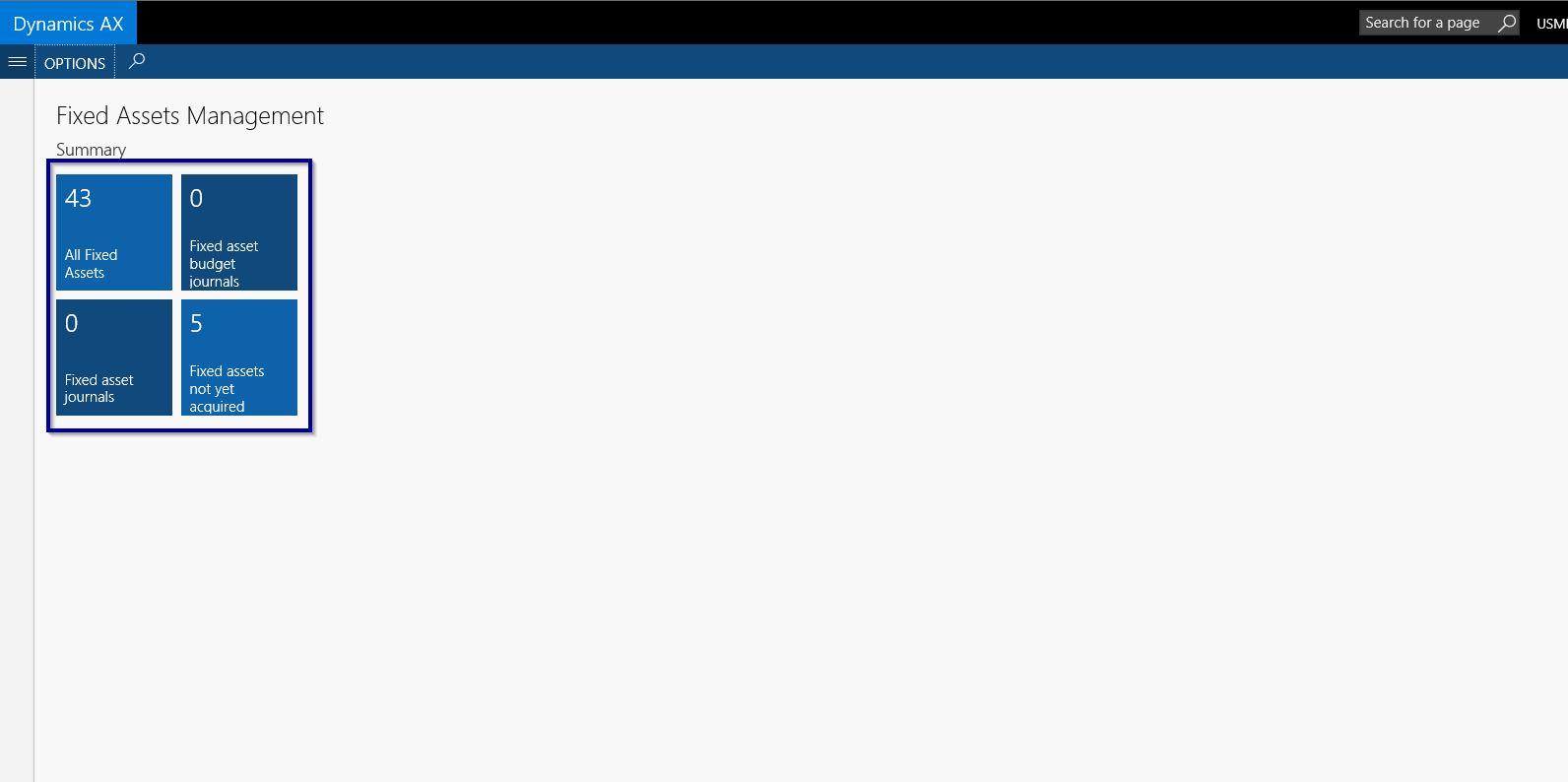
    • Let us now rename this workspace. Let’s say we are creating a new workspace for Fixed Assets Management, which is not available in standard AX yet.

    Rename a workspace

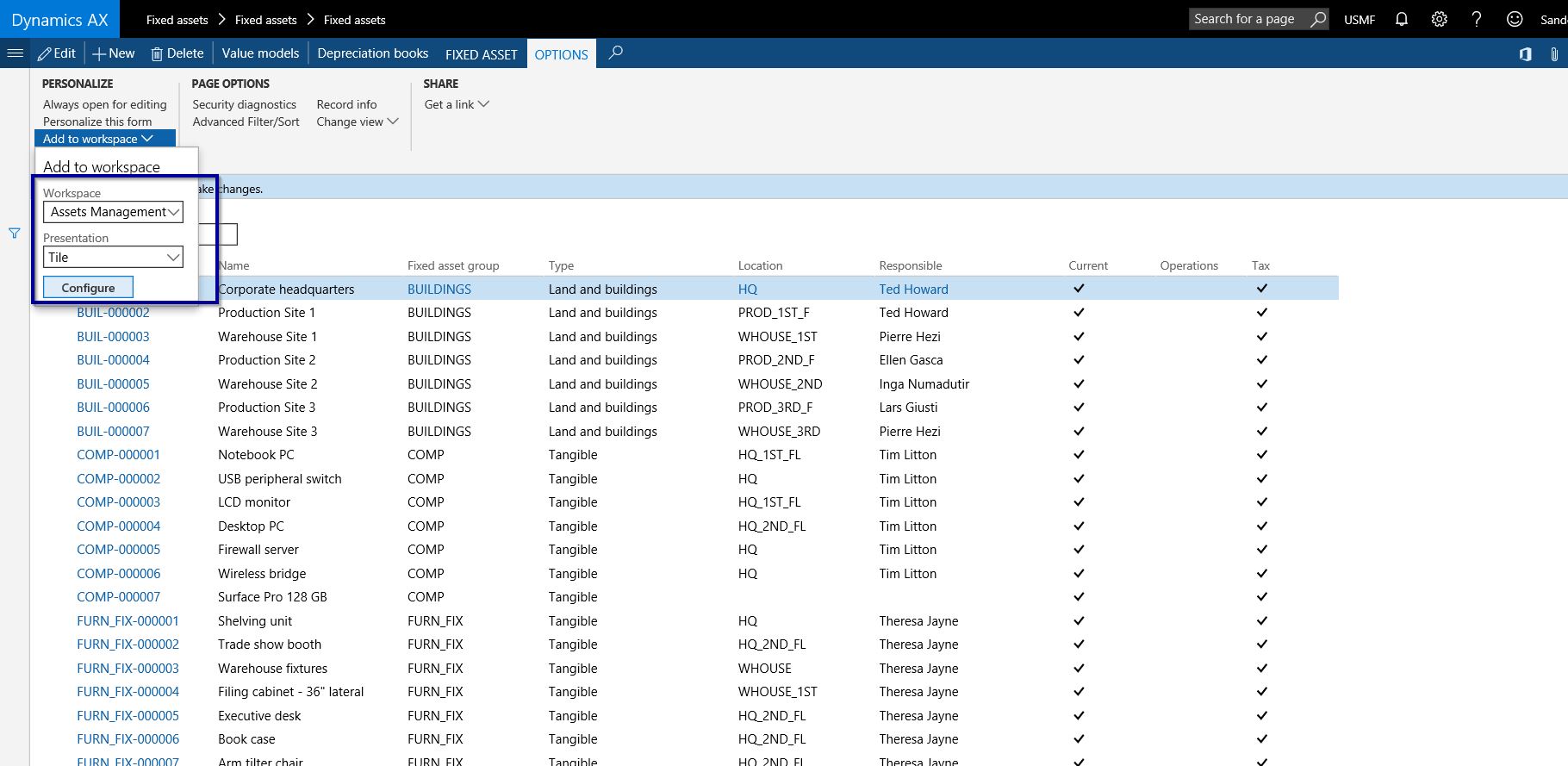
    • The next step is to add the different components of this workspace to make it look complete. Let us first add a few live tiles. Navigate to the Fixes Assets Module and go the list pages which you want to add to the workspace. In this case I will add a few of the list pages. On the list page, click OPTIONS > Add to workspace and select the newly created workspace, and click Configure.

    Add to workspace

    • Continue the same for the remaining live tiles you want to add. At the end of adding all the tiles, your new workspace will look something like below.

    Workspace Tiles

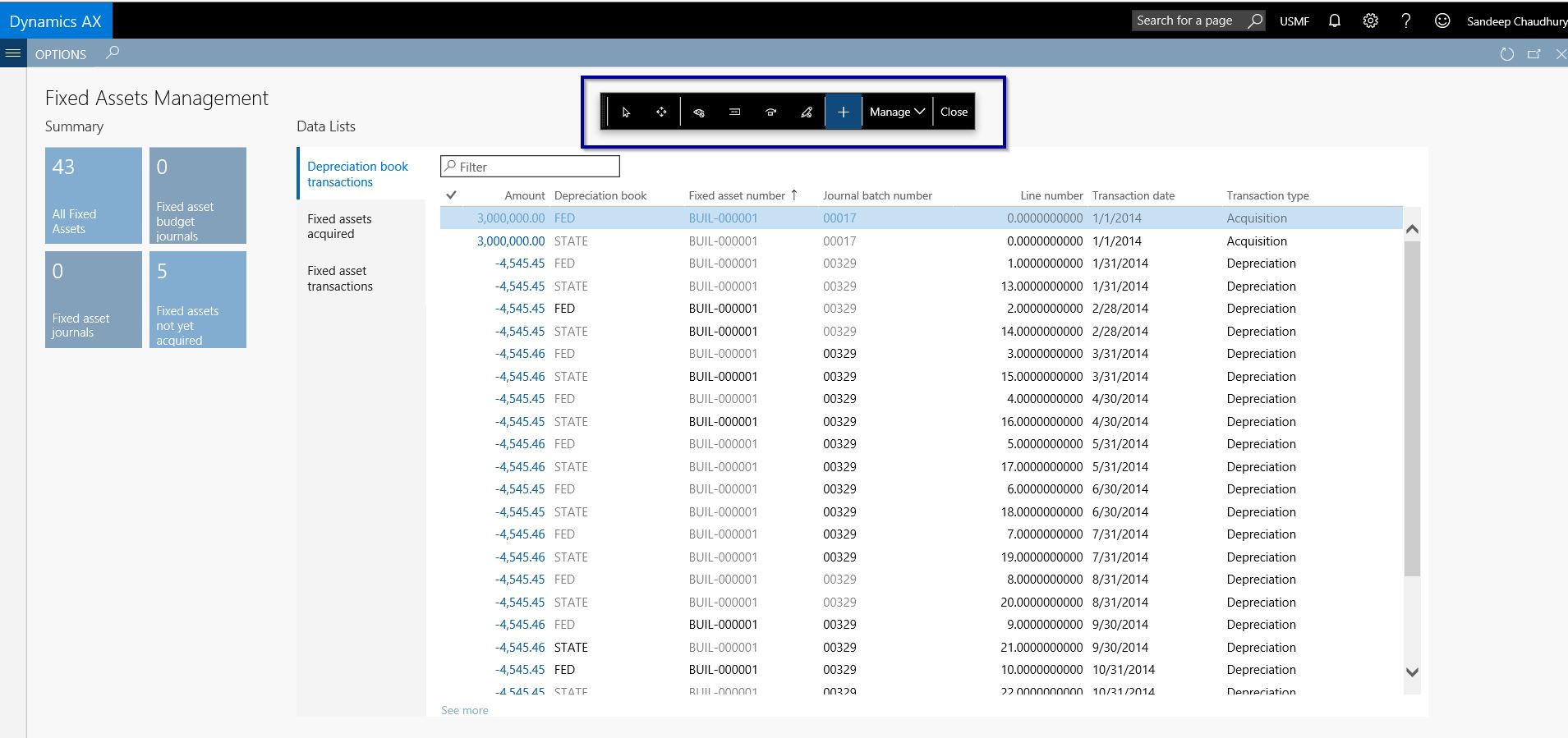
    • Let us now add a few List items on this workspace. Navigate to the “Fixed Assets Transactions” form and click OPTIONS > Add to workspace button. Select the Presentation as List this time.

    Add list items

    Field List

    • Repeat the same process to add all the lists you want on the workspace. At the end of it, your workspace will look something like below.

    Workspace List Tile

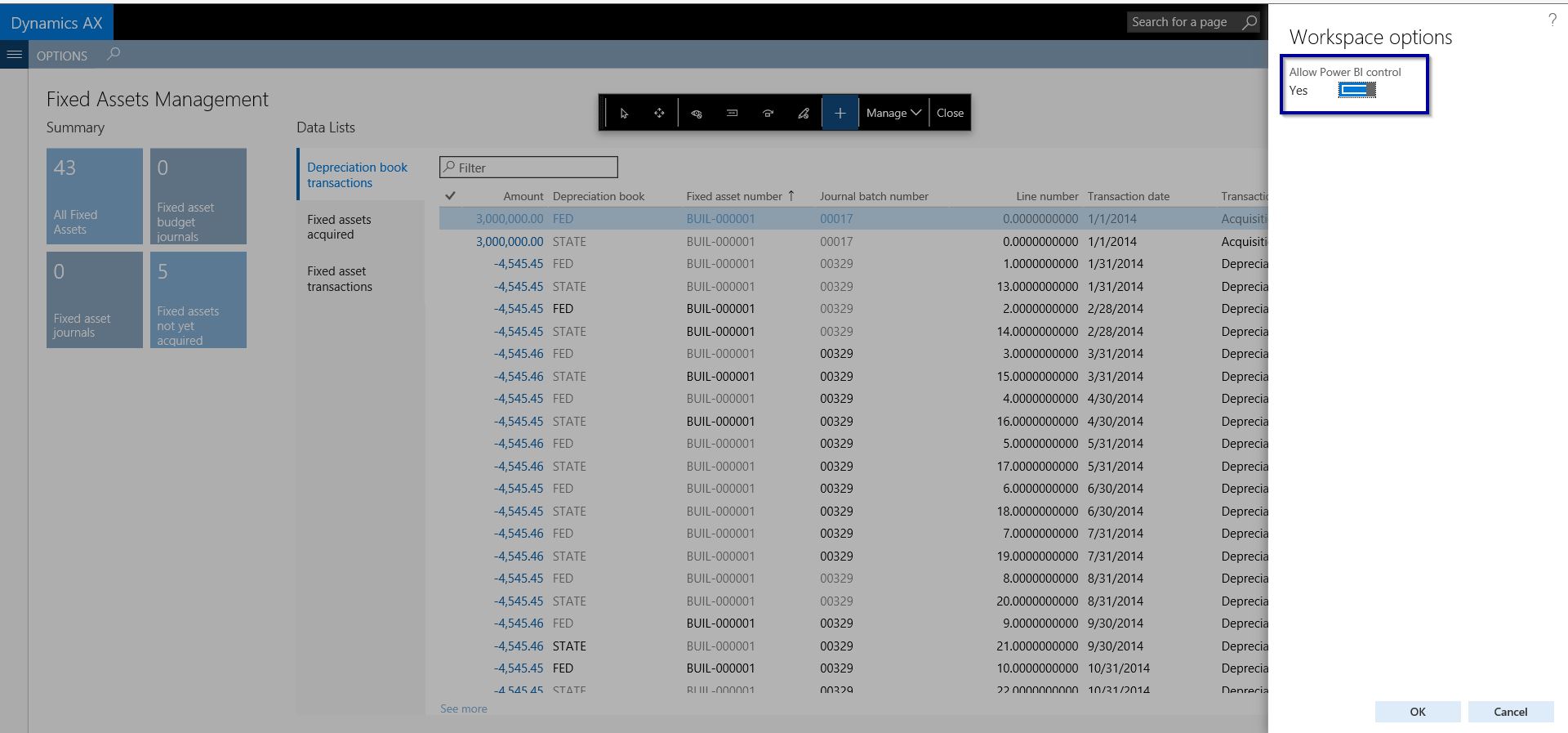
    • Next step would be to add the option of adding/removing Power BI tiles for dashboards and reports. Navigate into the new workspace and click Options > Personalize this form. On the Personalization pane, click the Add button and mark “Allow Power BI Control”.

    Add Power BI Tile

    Add Power BI Tile 1

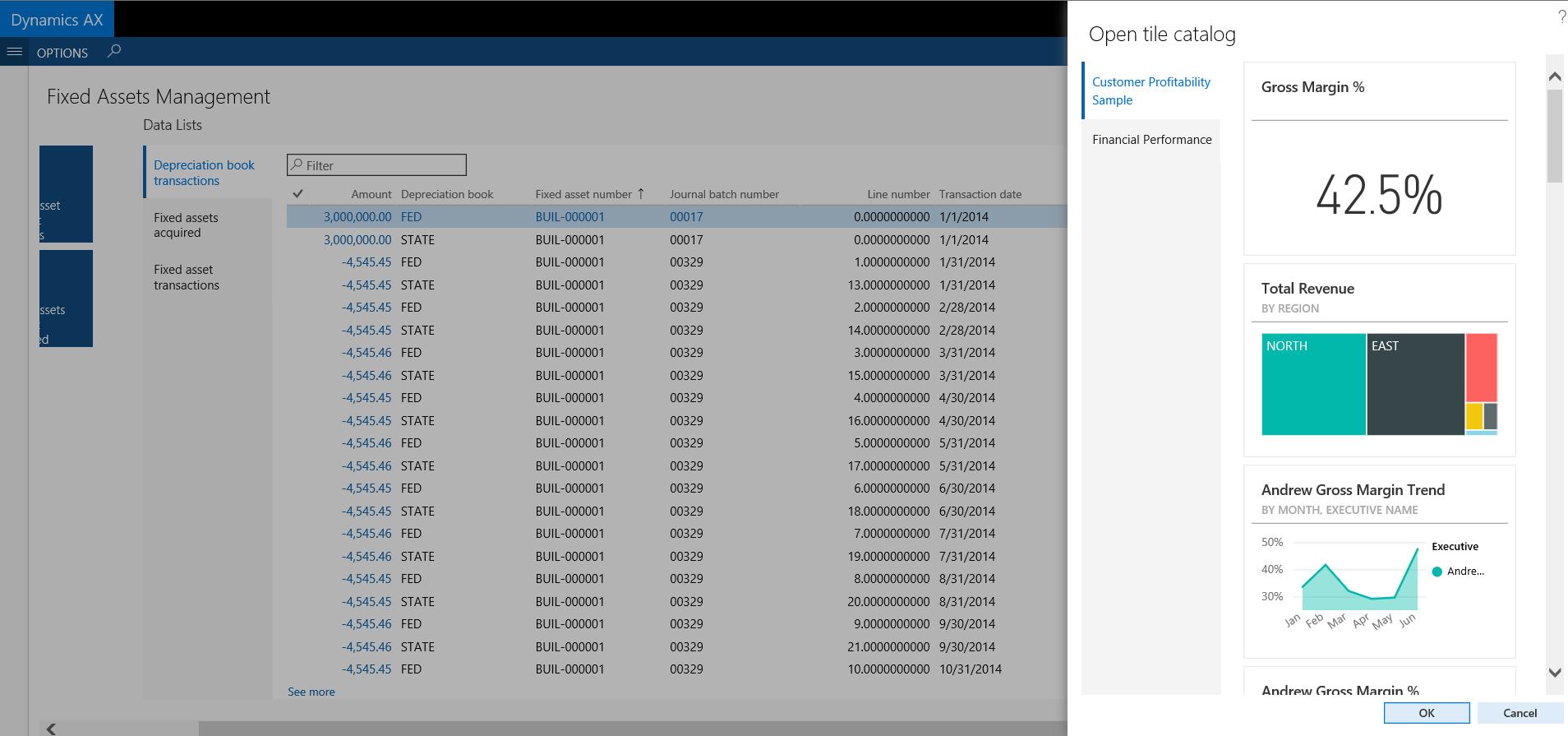
    • At the end of adding the Power BI tiles option, your workspace should look something like below.

    Add Power BI Tile 3

    Add PBI Tile

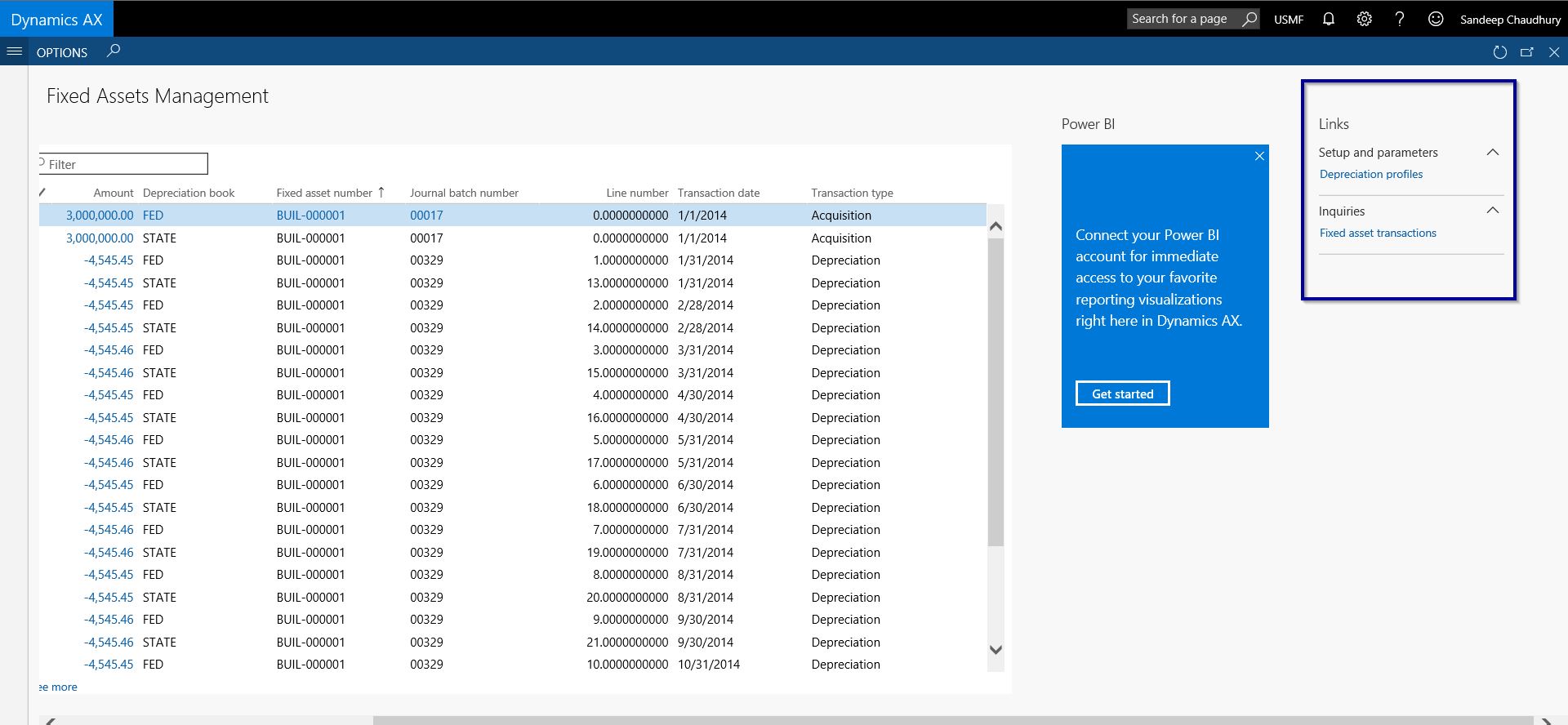
    • The last type of element that you typically add on a workspace is quick links to different menus and reports etc. You can do this by Personalizing the workspace and add the menu Presentation as Link this time.

    Add Links

    Links

    That was all I had for this blog post. The workspaces framework in the New Dynamics AX will evolve for sure with lot of new exciting new possibilities in the upcoming releases. Stay tuned for more..

    Regards,
    Sandeep


  • Financial Period Closing in the New Dynamics AX(AX 7) – Get real time status, Be more productive, Close faster

    Financial Period Close is probably one of the most important task that the Corporate Accounting team of your organization spends most time accomplishing. Accounting Managers of your organization spend tons of time in creating and assigning various tasks needed to close financial periods and always end up tracking status manually in MS Project, MS Excel or by other means. Today your Financial Period Close and status tracking probably looks something like below.

    Fiscal Period Closing Status - Excel

    With this, you are not able to,

    • Know who is working on what task and when are going to complete it.
    • How much percentage the closing tasks are complete by operational area.
    • Who is having how much tasks remaining to be completed.
    • Know real time status of closing across all legal entities of the organization.

    In today’s post, we will discuss the details of one of the workspaces of the New Dynamics AX, which is the Financial Period Close workspace and see how it can help you be more productive, track status in real time and close periods faster.

    Workspaces in the New Dynamics AX are a new way of helping your users gain and do more in the ERP, all at one central location. The dedicated workspace for Financial Period Closing also intends to do the same and help your accounting team stay on top of their tasks for period close and get real time status updates at any time, so that they can act and escalate on delayed tasks.

    Let us first see some of the insights into the some of the underlying setups before we discuss the workspace.

    Configure Financial Period Closing:

    • Under General Ledger Module > Period Close , navigate to Financial Period Close configuration form.
    • Under the Closing roles tab, create period closing roles as per requirement of you organization. Note that these roles are specific to financial period closing and does not relate in anyways to AX Security roles. These are only required from the Financial Period Closing perspective.

    Closing Roles

    • Under the Resources tab, define/select the employees from your employee master, who needs to be involved in the Financial Period closing process. Also you can set “What they will see when they go to the Financial Period Close workspace”. Additionally you can assign one or more closing roles of each of these resources.

    Resources

    • Under the Task areas, define the different areas of the tasks for financial period closing. These task areas will be ideally your different areas such as AR, AP, Bank, Fixed Assets, GL, Inventory etc.

    Task Areas

    • Under the Calendars tab, configure and set the calendar for scheduling the tasks of Financial Period Closing. Note that these calendars are different than the organization and resource calendars.

    Calendars

    • Under Templates tab, create the List of tasks from scratch or from an exiting template. This is your master list of tasks that needs to be executed to complete the Financial Period Closing process. You can set up the Task description, which area it belongs to, when is it due (before the end date of the closing schedule).
    • Then assign each task to a Closing role (Which is linked to employees or resources) and select the Legal entities you want the tasks to be applicable for. Additionally, you can also setup dependencies between tasks and also set direct links to different forms of AX to complete the tasks.

    Task List

    • Finally, create your financial period close schedule, select the start and end dates, the calendar applicable for it.

    Closing Schedule

    Now that we have gone though the setups and configurations, let us see how the Financial Period Closing workspace looks for an employee who is with certain closing roles and see how they can interact with the workspace in completing their daily tasks for period closing.

    Arnie who plays the role of AR and AP clerk in the closing process, navigates to the Financial Period Closing workspace.

    • On this workspace, she gets to see filtered and actionable data for her task list in live tiles. She can she how many of her tasks are past due, how many tasks pending to be completed today, how many tasks of her blocked due to incomplete dependent tasks by others and all remaining tasks.

    Task List Arnie Live Tiles

    • She also see the Task list that are assigned to her. For each of the tasks, she sees the due date, dependency and most importantly she can navigate to the destination form directly if needed by simply clicking on the task and take required action. For example she can click the Post Free text invoices task to directly launch the Free text invoices form.
    • Once she completes the task, she marks the task as Complete by marking the Completed checkbox.

    Task List Details

    Let us now see how the workspace looks like for an Accounting Manager, who is managing the status of the Financial Period Close process for multiple entities.

    When Phyllis Harris, the Accounting Manager navigates to the workspace, she gets to see real time status updates in terms of % completion of the tasks by entity, task area, by person and more.

    Workspace for Manager

    • So clearly, the manager gets clean, real time updates on the status of the tasks for period close. They can see the status by entity or by area and person in terms of how much percentage is completed.

    Status by Area

    Status by Person

    • She can even drill down to each tasks under each area, person or entity to get more status updates or modify anything as needed.

    Task List Details

    That’s it for today’s post. Stay tuned !!!

    Best,

    Sandeep


  • Revamped Help System(Task Guides and Wiki) in the New Dynamics AX (AX 7)

    Revamped Help System(Task Guides and Wiki) in the New Dynamics AX (AX 7)

    One of the most talked about features when the new Dynamics AX was released, is the new Task Guides and Wiki (New Help system for AX). We all know the architecture for the Help system is completely revamped and I am sure there must be several videos, blog posts already out in the community talking about these.

    In today’s post, I would like to provide my perspective of how these work together in the new Dynamics AX and how customers and partners can benefit from these.

    Before we deep dive, let us understand the basic terms and what they really mean.

    Help Wiki: In earlier version of AX, all the help content for Dynamics AX were primarily delivered via the Help Server and the TechNet. In the new Dynamics AX brings in a True Cloud based Help Wiki system. This not only brings a whole new approach for discovering and consuming help content for AX, but also it has now become more business process and task focused. The earlier Help system always told us “How to do a specific task under various functional modules”, but there was no real content telling how these tasks tie together. The new help system focuses primarily in delivering Help content for the tasks in a business process oriented manner , which makes it easy to understand for the consumers (Consultants, End Users etc.). We will learn additional details about Wiki further in this post below.

    Task guides: A task guide represents step by step guidelines to execute a specific task under a business process. Task guides are beyond just steps to execute a task actually. You can configure task guides to have as much as detailed information at each step of the task and you can keep track of your steps execution with visual indicators right in front of you, telling up to what step you have executed the task so far and how many steps are to be executed. You will also be prompted with visual navigator(Something like WalkMe), that will exactly point you where to navigate and what to click in order to complete each step of a task. So no more hassle to toggle between training documents/user manuals and AX to execute a task. We will discuss more on Task guides further in the post below.

    BPM Library in LCS: Business process library is a library of business processes broken down to sub-business processes of a solution. This basically contains the breakdown of all the business processes down to the specific task levels under each business process and each task has a pre-reordered task guide for it.

    Task Recorder: This is a tool built inside Dynamics AX (as was with earlier versions of AX, but improved/revamped now), which you can use to record the task guide for a task and then upload the same to LCS library. In this blog post, I will not talk on specifics of “how to create a BPM library”, How to use task recorder etc.

    Before we go and see these in action in Dynamics AX, let us understand the overall Help System Architecture in the New Dynamics AX a little bit.

    As I mentioned above, the help content in the New Dynamics AX is primarily delivered via two sources. 1. Help from Task guides. 2. Help from Wiki.

    • The Task guide contents are provisioned using the LCS (Life Cycle Services). These  are prepared using the task recorder tool and are published into LCS BPM Library of a specific LCS project, which can then ultimately be referenced and consumed within AX.
    • Source 1 of these task guides are the ones created by the product experts within the Dynamics AX team of Microsoft, to be used publicly by everyone. These would go into the Microsoft BMP library in LCS. Source 2 of the task guides would be the ones created and published by Partners and Customers. These would go into the Customer/Partner BPM library.
    • Once you have these BPM libraries within your LCS project, you can reference the same in AX help system configuration and contents from those specific libraries will be delivered when you search them on the Dynamics AX Help Pane.
    • The Wiki contents are directly provisioned from the AX wiki help site . The Wiki that is currently available is the Microsoft public wiki. This primarily  contains text/links to videos/embedded office mix presentations (Manually authored by Microsoft experts), wiki contribution topics from the Microsoft community(with approval/audit from Microsoft)  and finally Microsoft BPM topics from the public Microsoft BPM library in LCS.
    • Partner/Customer specific private Wiki not currently supported, but there is news that it is in the road map. This wiki content will be authored by partners and customers and those will be private for use.

    Let us deep dive now and see some of these in action.

    How to setup the Help system in your Dynamics AX environment: At this point, I assume that most of us are already familiar with what is LCS, LCS project and the BPM libraries(My library, Corporate library and Global library) under the LCS project. Once you have this setup, follow the steps below to setup your help system within AX.

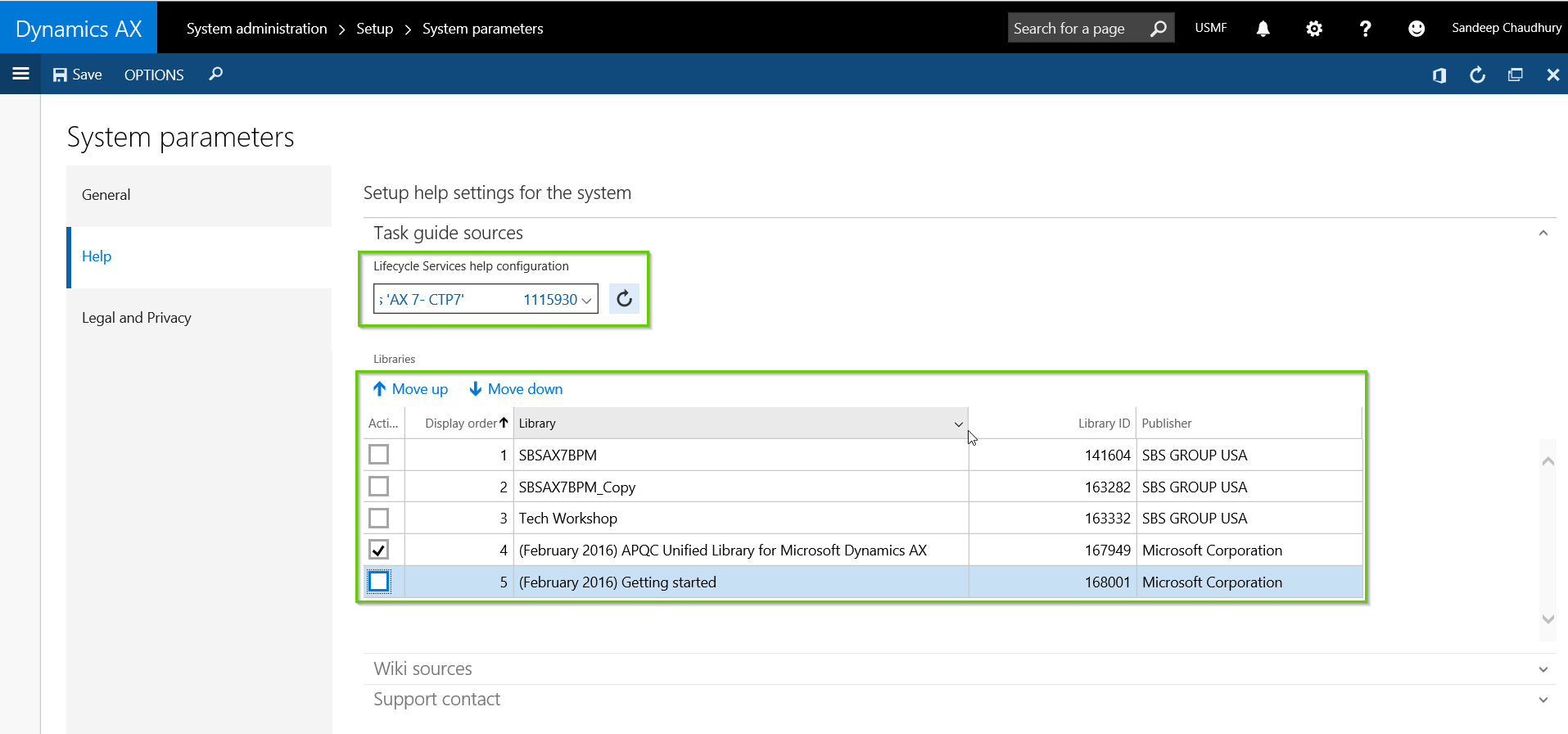
    • In AX, navigate to System Administration > System Parameters > Help tab.
    • Select the LCS Project in which you would have your Business Process Library containing the task guides.
    • As soon as you select this, system will show all the libraries that are available in this LCS project.

    Help Setup in AX Env

    • The next step is to select the specific libraries that you want to use for this AX environment. This means that business processes from this library will be shown when you search from help in AX. In this case I will select the Microsoft APQC library.

    Help Setup in AX Select

    • Save and close the form.

    Dynamics AX Help Pane and the Consumption Experience: Now that we have everything setup, let us see these in action. In this case, I will demonstrate how a user from the Customer Service team of an organization will consume the help topics for creating a Sales order in AX. (Both Wiki and Business process task guides).

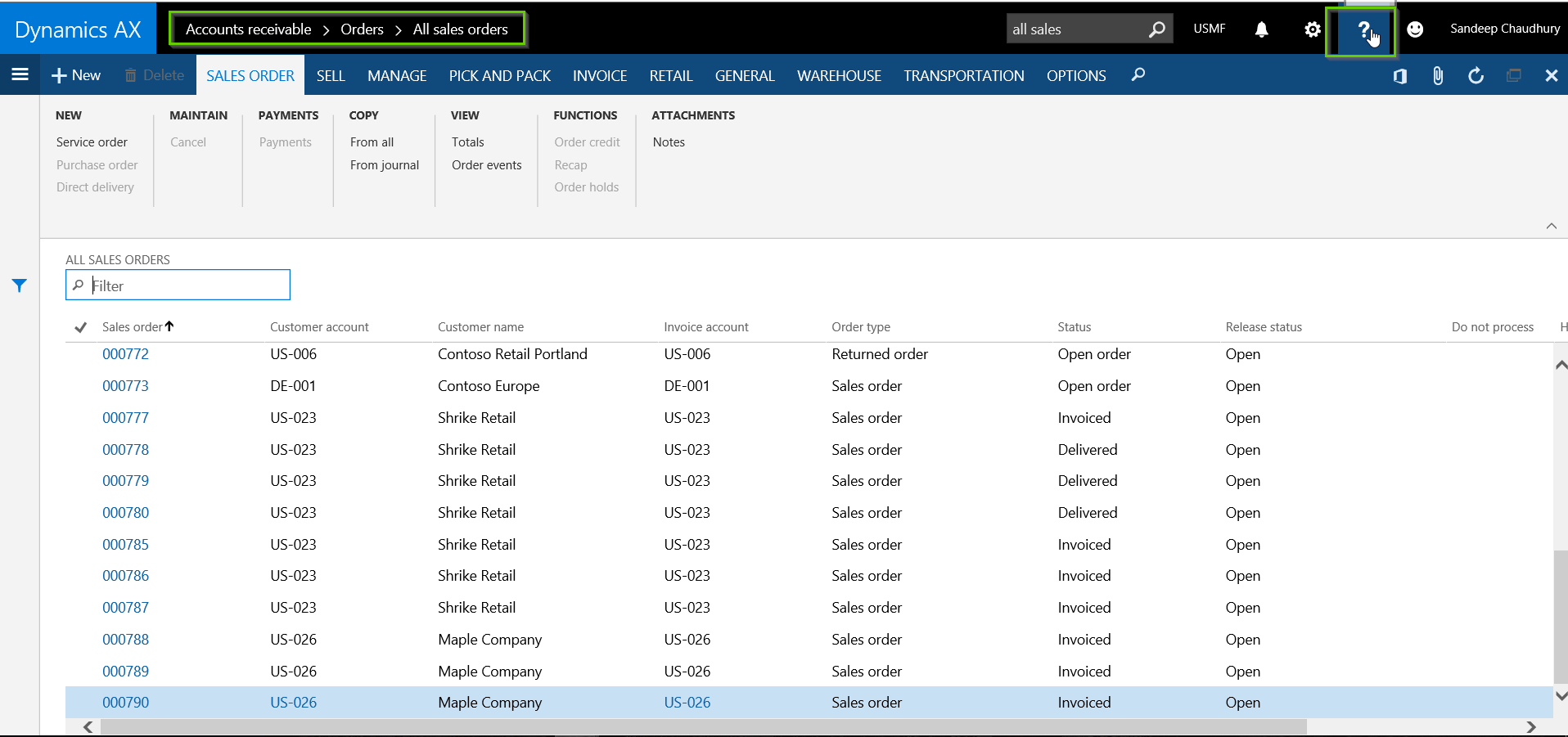
    • The user navigates to the Accounts Receivable > All Sales Orders.
    •  Now, as soon as the user is on this form, let us say they are new to the system and are not fully aware of the steps and best practices they need to follow in order to create the order. The immediate thing that comes to mind is “I NEED HELP“. So they click the Help icon on the top right of the page.

    Help Button

    • As soon as they click Help, system will automatically render the help information (Both Task Guides and Wiki) that are related to Sales orders and list them as per relevance.

    Help Topics Listing

    • The Content under the Task Guides bucket/tab lists all the task guides that are present in the business process library related to sales order. The content under the Wiki bucket lists all topics related to Sales orders from the Microsoft public Wiki.
    • User can find or even search for more specific topics with appropriate key words under the Help Search box.

    Wiki Bucket Help Search

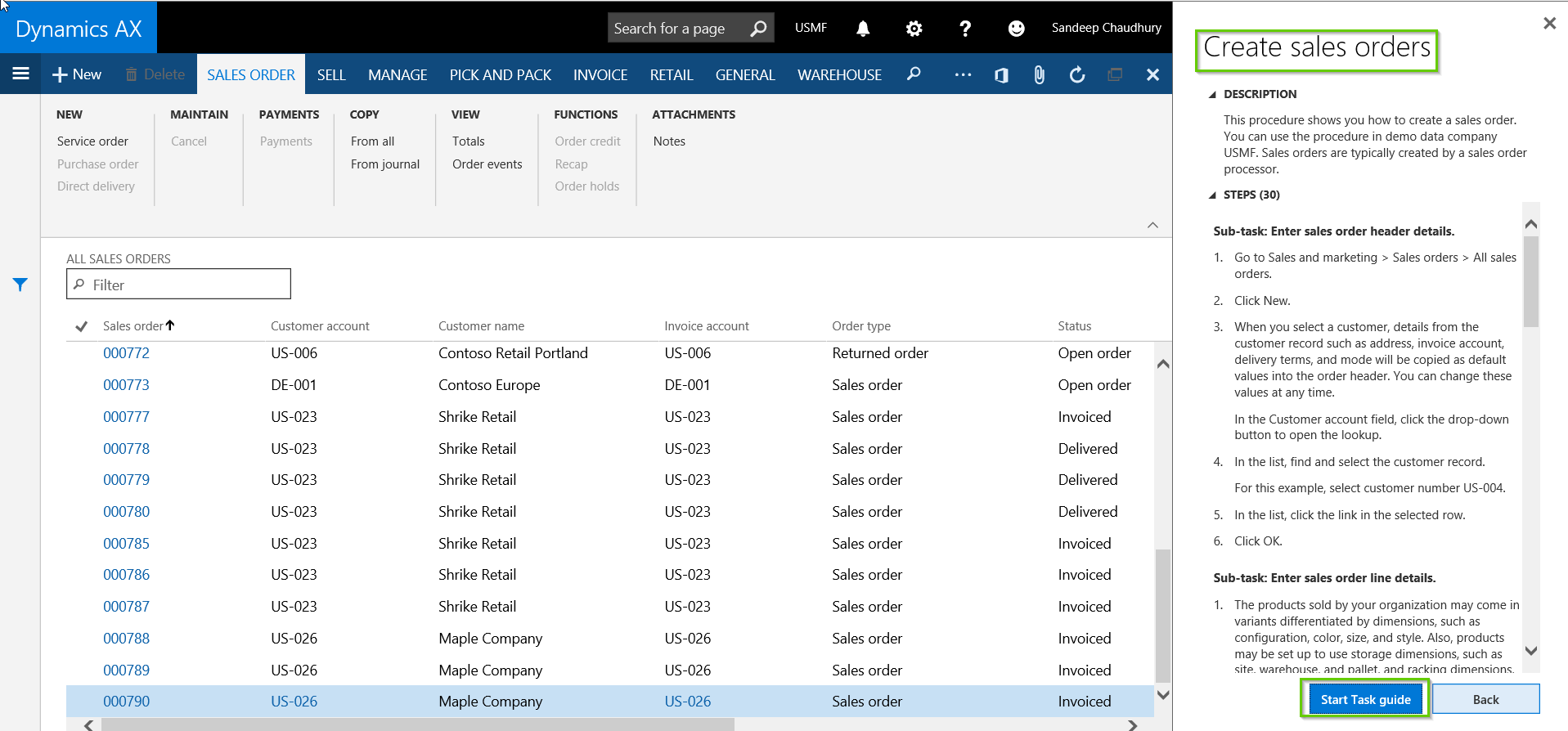
    • Once the topics are listed, it is up to the user on how to consume these. If they are a new user dealing with the Sales order process for the first time and they really need step by step guidelines to make sure they do not go wrong, they can Start the Task guide in play mode. This will help them navigate to each click with visual pointers which makes it super easy to follow the steps and execute them.
    • So user selects the required Task guide and clicks Start Task guide button.

    Start Task Guide button

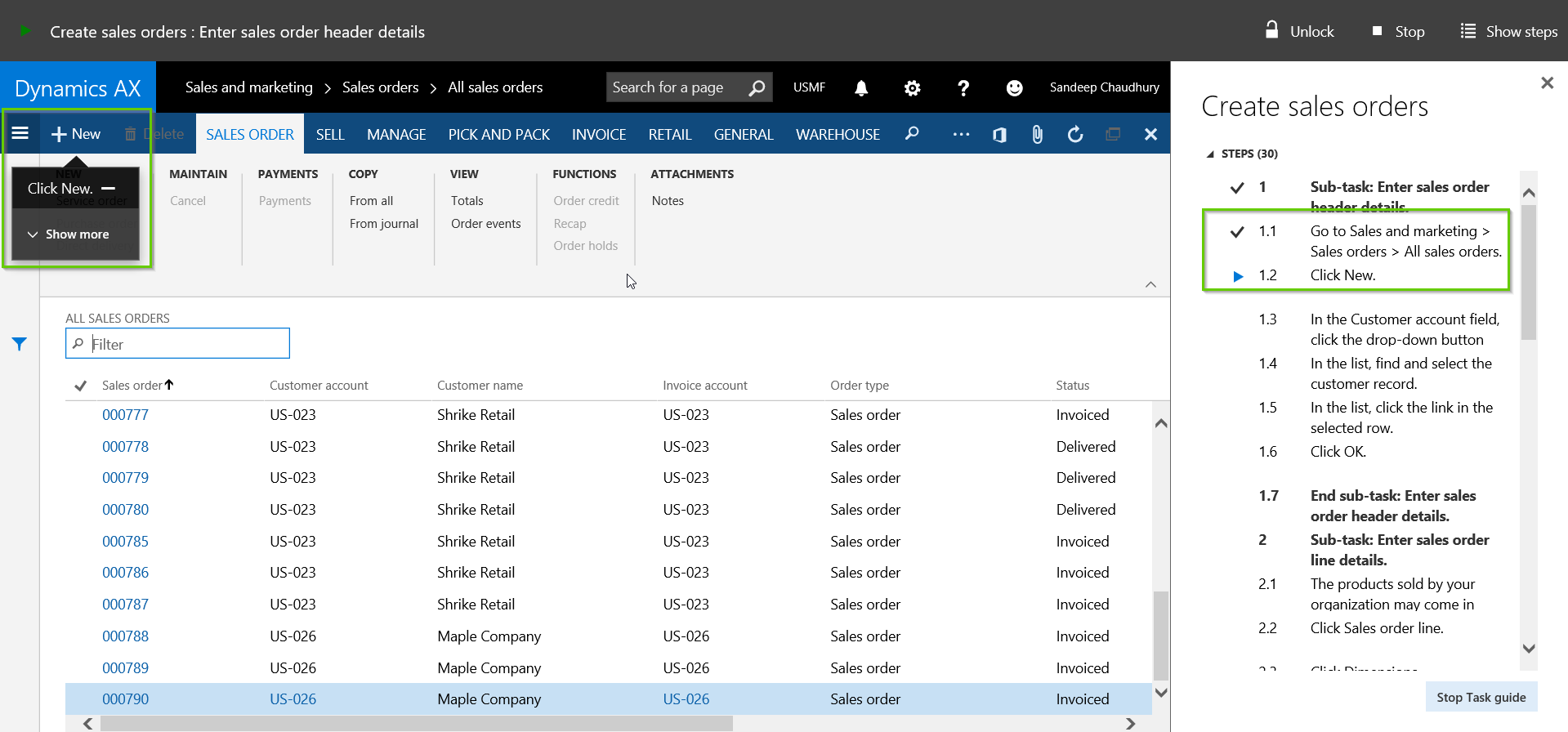
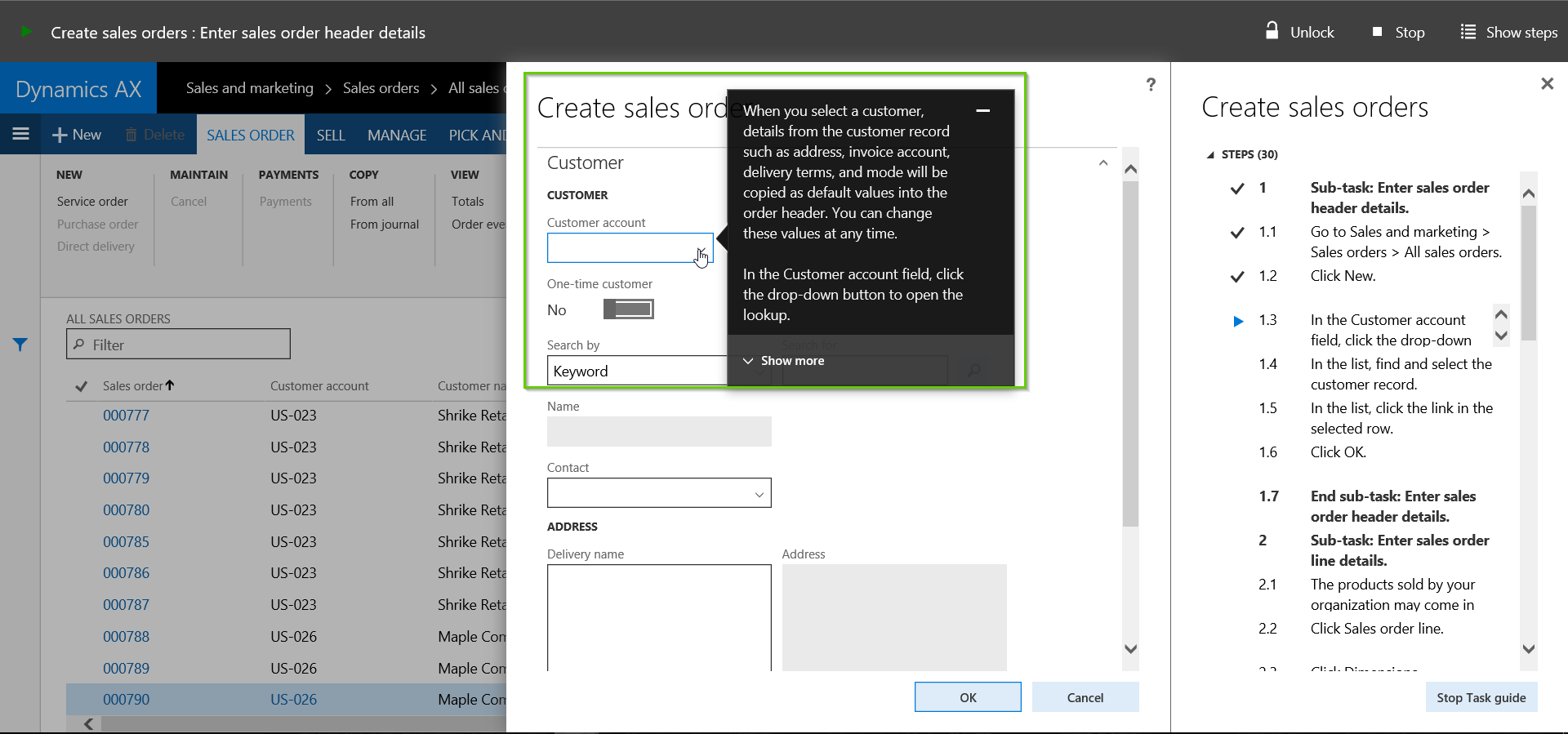
    • With this, notice that system will start visual pointed navigational instructions with additional information for the user to execute the steps. System will also show visual indicators on which steps are completed, current step and which are pending, all of these without having to leave the form.

    Visual pointers

    Visual pointers 2

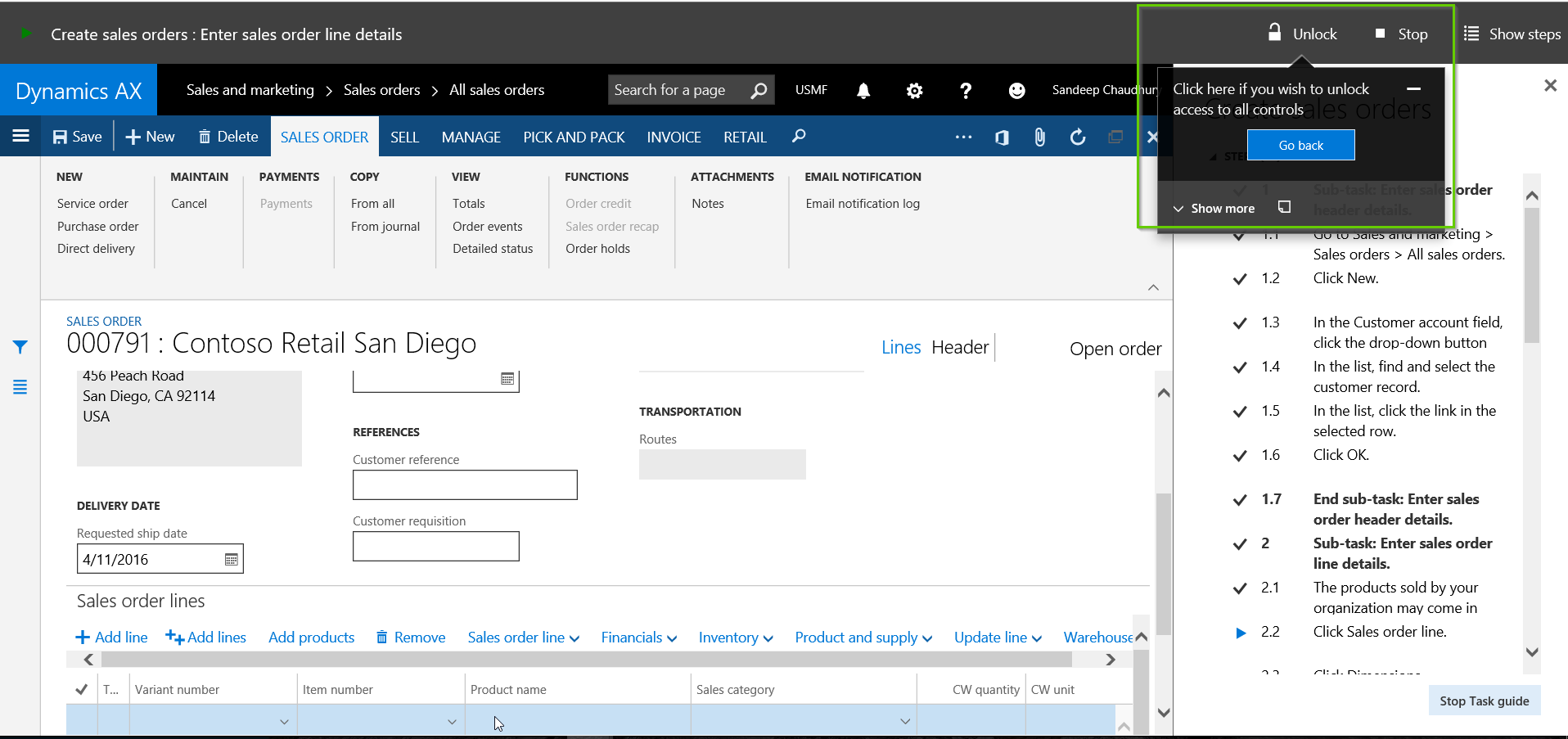
    • Once the user start a task guide, system will force them to follow the task guide recommended steps. But if they do any actions to deviate from the recommended steps, then  system will automatically prompt the user if they want to Unlock the task guide for them not to follow a particular step for any reason.

    Unlock Task Guide

    • User can skip a non-mandatory step if they wish to. The user can also stop the task guide at any point they want.
    • Now, as users uses the business processes on a daily basis and gets familiar with the tasks, they might not need pointed guidelines always. So they can simply consume the task guides in Read only Mode, just to refer to any specific step or additional information on a specific step that they are not sure about.

    Read Only mode

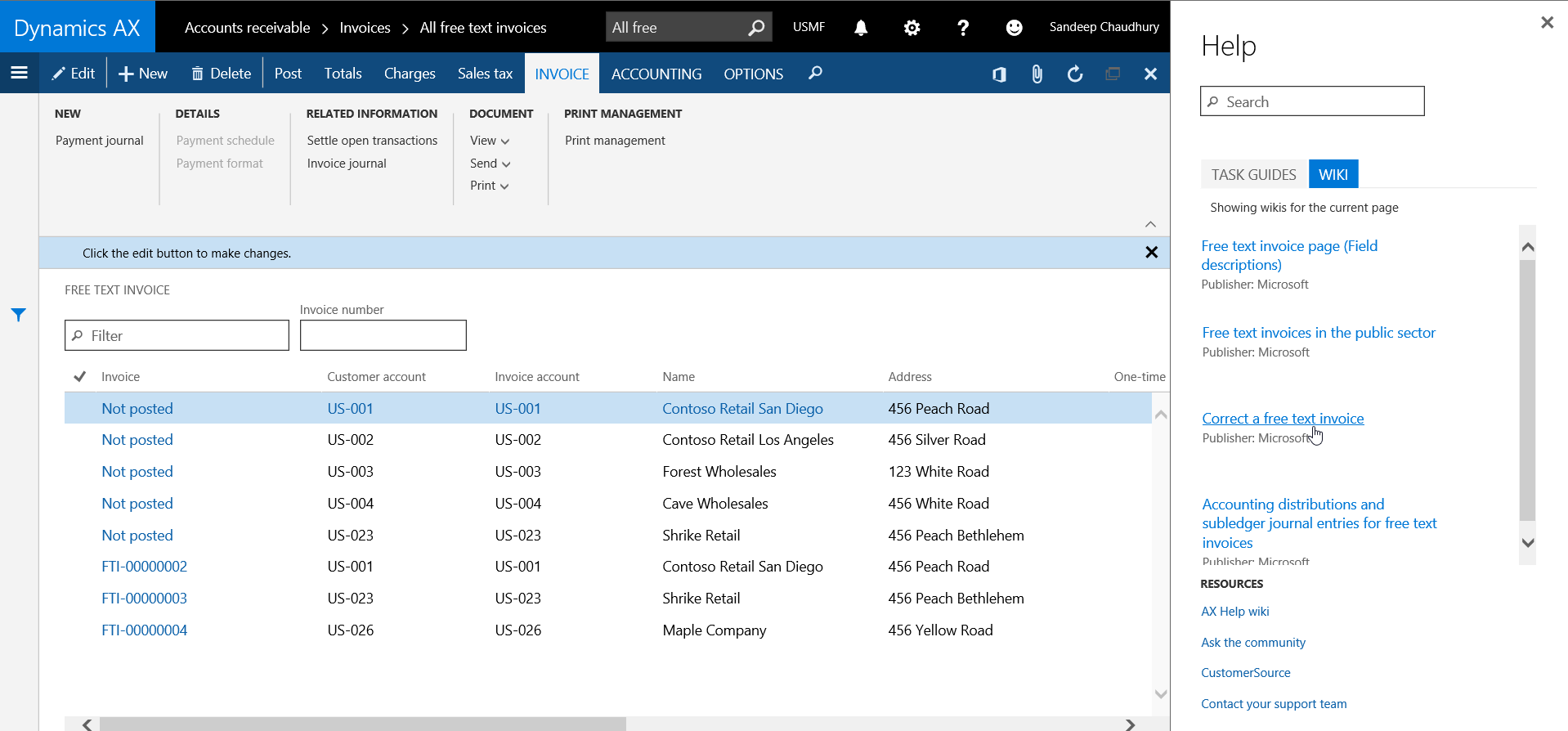
    • Finally, if the user wishes to explore more on the specific topic in the Public Wiki, they can chose the link under Wiki tab and it will take them to the Wiki link.

    Wiki Link

    So that was it from my side on this post. Hope this information will  be helpful. There are a host of new features in this area as well which are slated for future updates in coming months. Stay tuned!!

    Of course there are several minor details behind the scenes,such as How to create task guides, what are the best practices, how to publish them to LCS etc. Feel free to drop you questions.

    Regards,

    Sandeep

  • What is new in General Ledger Module – Top 5 enhancements in the New Dynamics AX (AX 7)

    What is new in General Ledger Module – Top 5 enhancements in the New Dynamics AX (AX 7)

    Hello Everyone,

    Hope everyone participated in the virtual launch of the New Dynamics AX on 9th March and got to learn more about the new fully cloud based ERP.

    In today’s post, I will explain the top 5 enhancements that I witnessed and tested under the General Ledger area in the New Dynamics AX.

    1. Financial Dimension Activation
    2. Global General Journals
    3. Global Fiscal calendar management
    4. Dedicated Process driven Workspace for Financial Period Close
    5. Account structure related enhancements

    Let’s get straight into it and see some additional details.

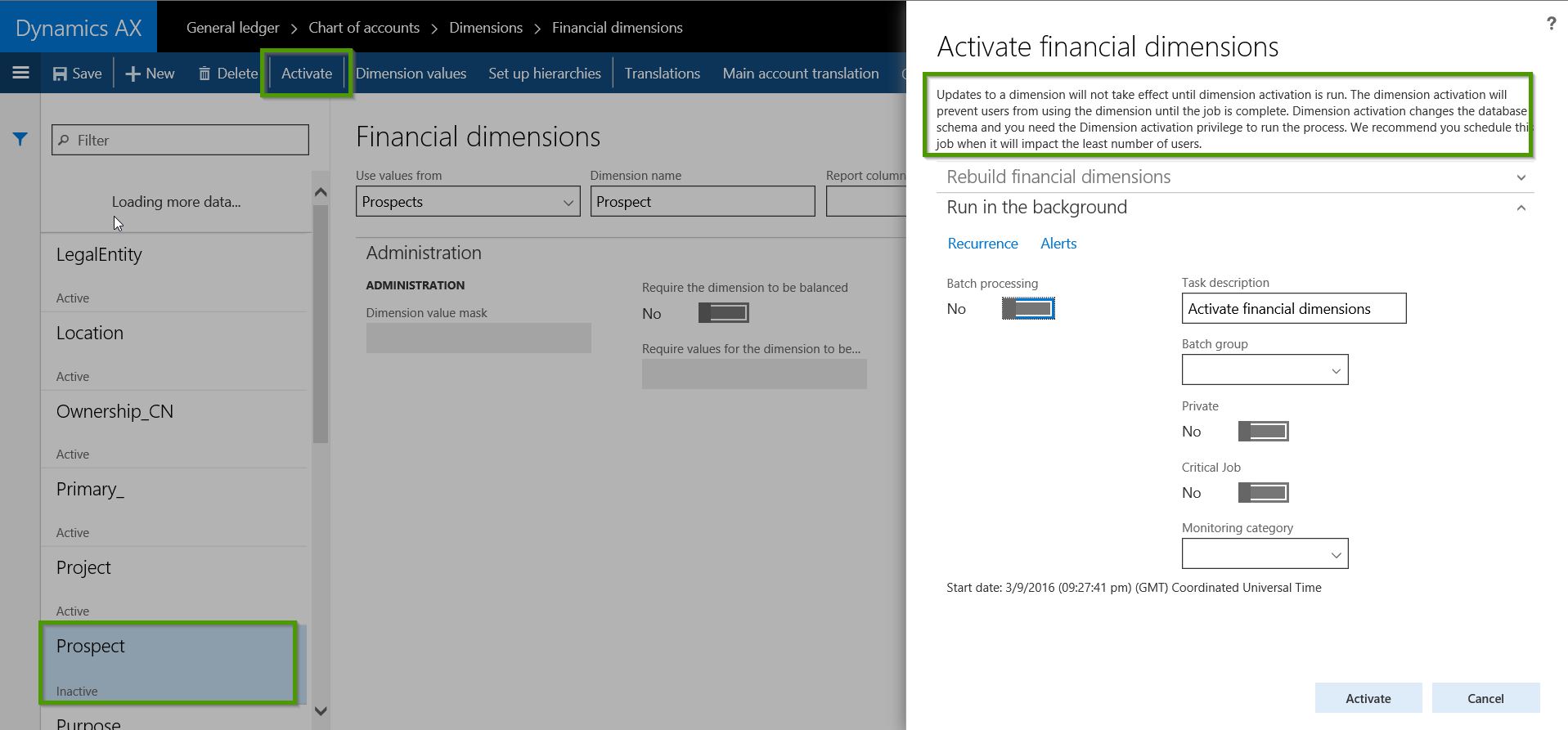
    1. Financial Dimension Activation: Starting with the new Dynamics AX, new financials dimensions will now need to be activated by a specific role, which has the privilege assigned for dimension activation or by System administrators. The intention here is to simplify the database schema for financial dimensions so that the reporting and data extraction becomes easier.

    • When a new Dimension is created under GL > Dimensions > Financial Dimensions is created, it will be in “Inactive” status by default.
    • Before users can start using this new dimension, it needs to be activated, which can be only done by either a System Administrator or by a role which has the privilege for dimension activation.
    • When the activation is run, system will add the new dimension across all applicable tables in the database and the database schema will change. See screenshot below for reference.

    Finnancial Dimension Activation

    2. Global General Journals: This new feature will allow accounting team members to create and manage general journals in multiple legal entities staying in one entity, without having to change the legal entity each time when they create or edit the journals.

    • The new global general journal is located under General Ledger > Journal Entries > Global general journals.
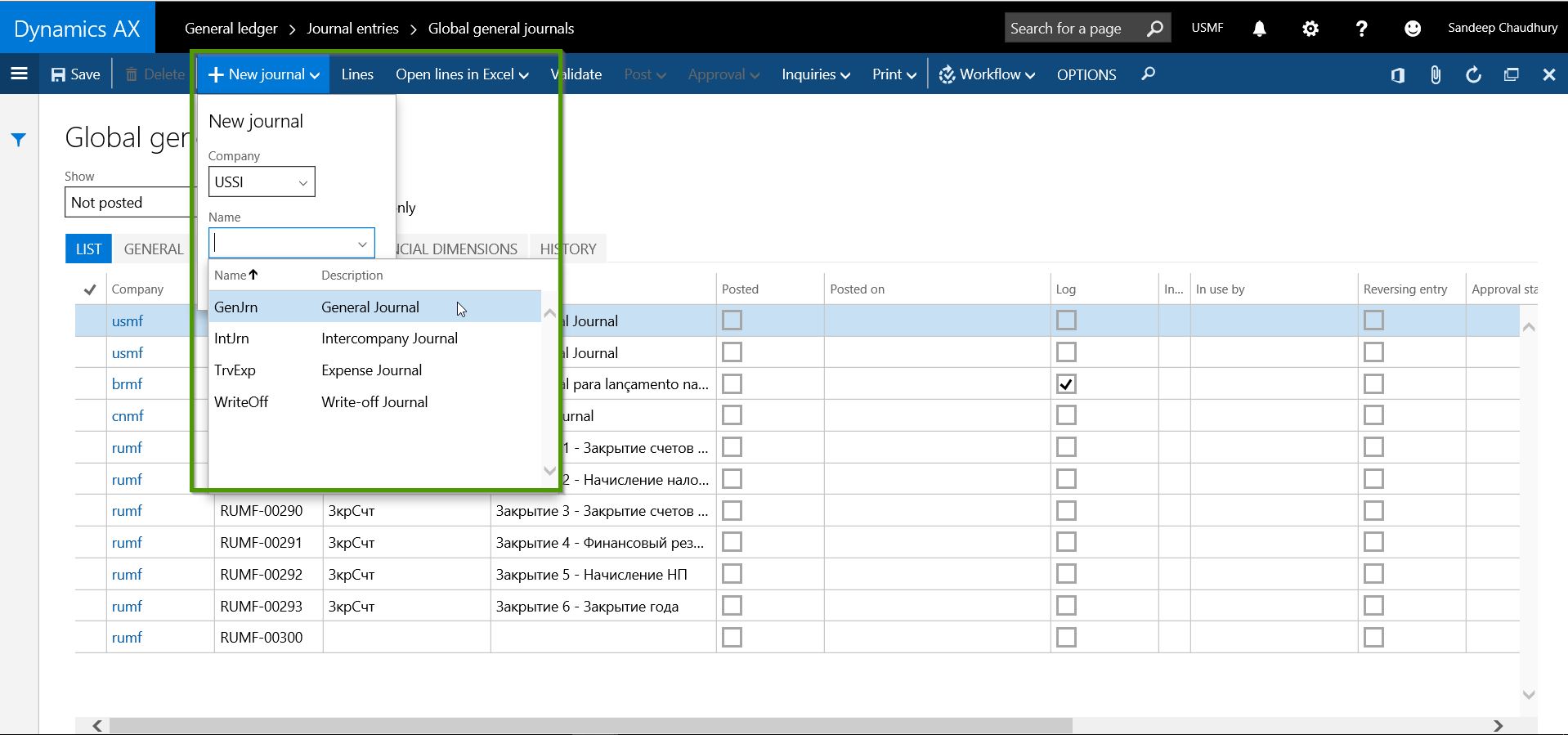
    • When you create a new New journal, you can select the Legal entity and the journal name of that entity for which you want to create the journal entry.

    Global General Journals

    • You can then continue to create the journal lines inside the current entity and you can directly Open the journal in the other entity if you wish to, or you can complete the entire journal entity, validate and post in the current entity and the unmoral entry will be created and posted in the destination entity.

    Global General Journals 1.jpg

    3. Global Fiscal Calendar Management: This feature will enable finance controllers and other related users of the accounting team to manage the the fiscal period status and Module level accesses for multiple entities which share the same Fiscal Calendar.

    • Navigate to General Ledger > Ledger Setup > Ledger Calendars.
    • Select the Fiscal calendar and the Fiscal year to see all the Periods under them.
    • Notice that you will now see all the Legal entities listed in separate rows , which share the same fiscal calendar.
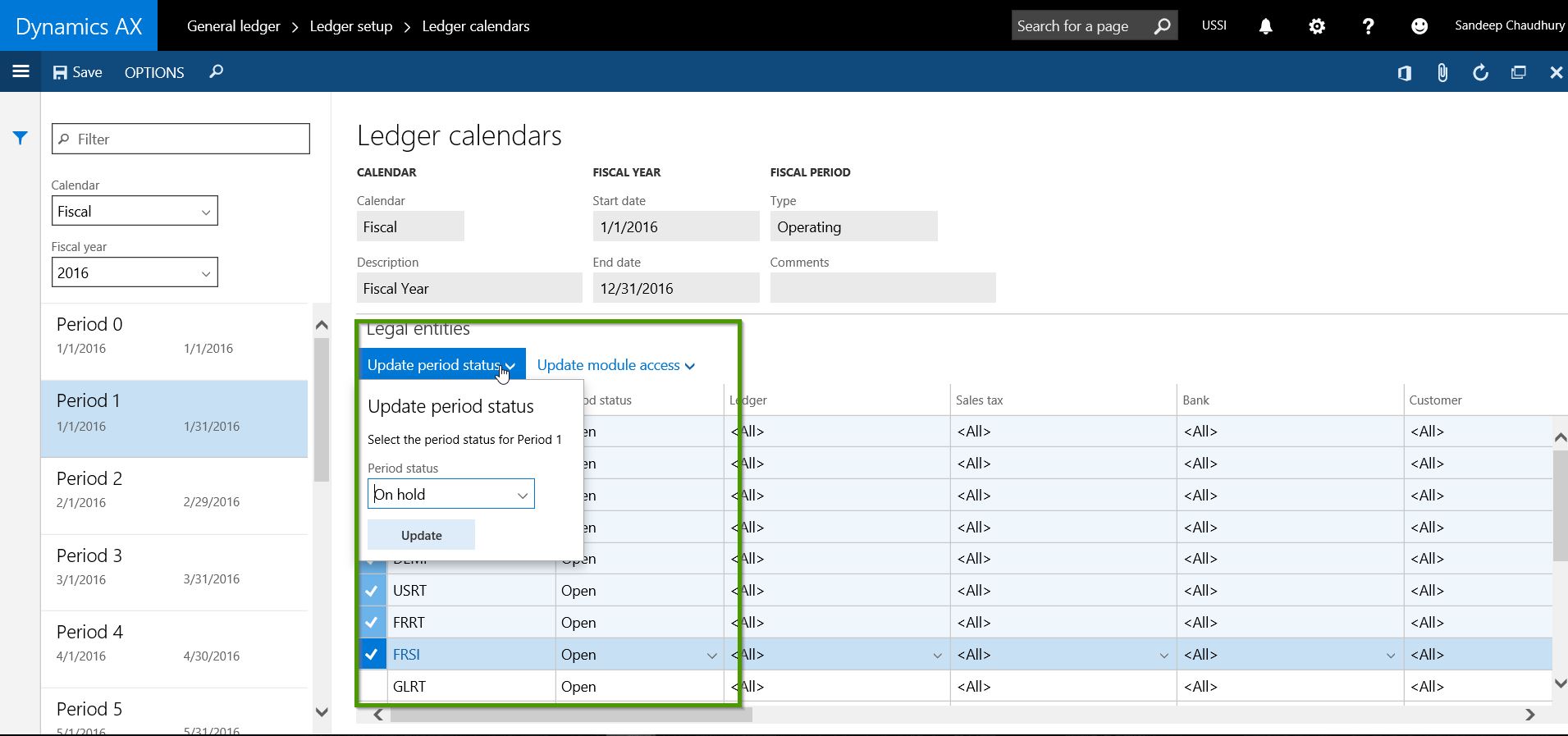
    • You can change the Period status and Module level access for the required modules for one or more or all legal entities at once.

    Ledger Calendar

    Ledger Calendar1

    4. Dedicated Workspace for Financial Period Close: The new Dynamics AX brings in a a new dedicated workspace for the financial period close tasks. You all must be very familiar with what workspaces in the new AX are. The purpose of this workspace is primarily to help the corporate accounting team and Controllers to manage their fiscal period closing more effectively and make the process more transparent, get real time insights with the status of closing and get more timely insight into your business.

    • Controllers can create Period Closing schedules and templates.
    • Under each template and schedule, they can create breakdown of the tasks for the period close.
    • Tasks can be assigned to to different team members with required due date and times.
    • Can be done for multiple legal entities.
    • This workspace helps the corporate accounting team to collaborate and update the status of tasks assigned to them and enables controllers to view the status of closing is real time and take required actions.
    • Explaining this topic will become a separate blog in itself. I will try to explain sometimes later in future with a new post on this. Screenshots below shows a quick snapshot of how this workspace looks like.

    Closing schedule

    Closing schedule 2.jpg

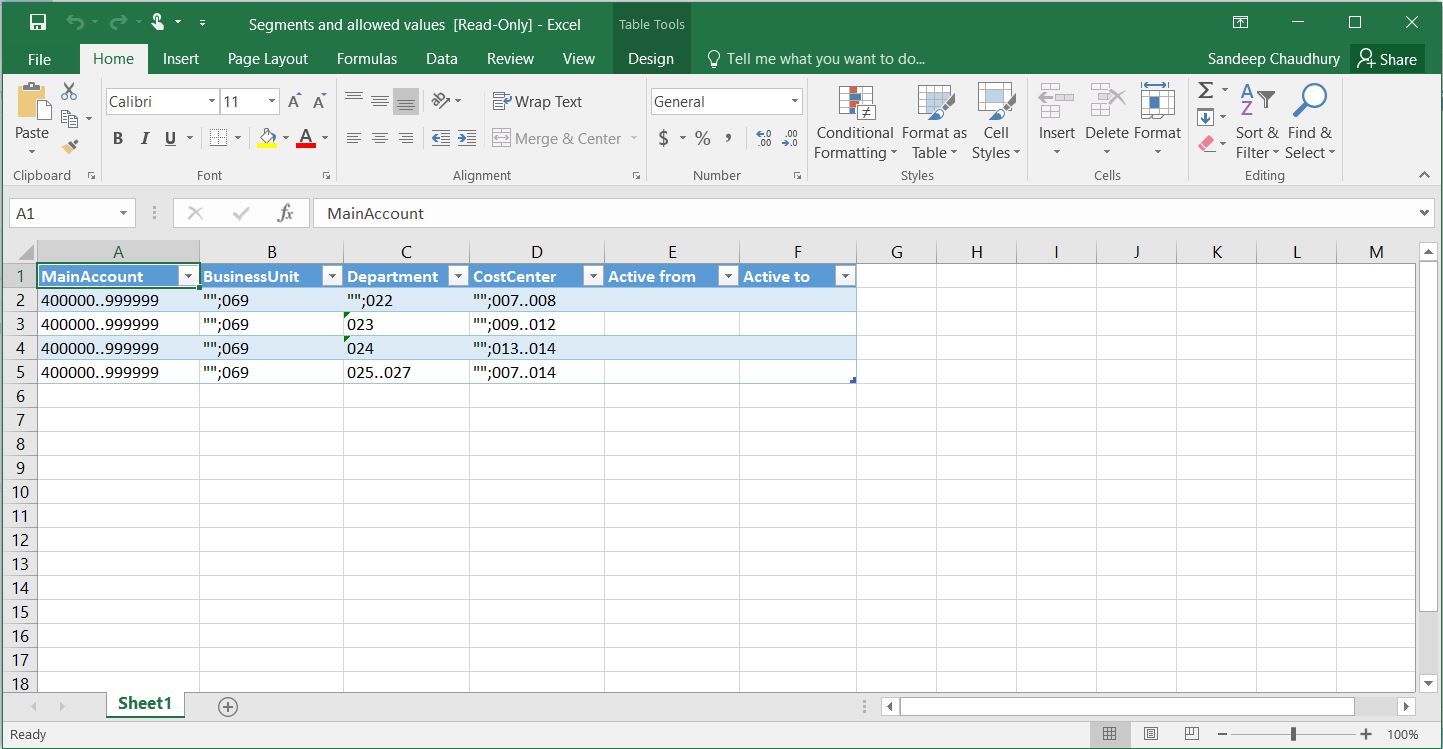
    5. Account Structures related enhancements: In the new Dynamics AX, the over all view and arrangement of data fields and tabs on the account structure form makes it more intuitive and easy to use. You can see which entities are using the selected account structure staying in the same form. Most importantly you can now export Account structures to Excel. This allows you to make edits easily in bulk and push it back to AX from Excel.Export to ex cel

    Export to ex cel 1

    There are a few other minor enhancements under the GL area too, which I will leave up to you all to explore :)

    That is it for this post !! Keep DAXing..

    Regards,

    Sandeep