Tag: New Dynamics AX

  • Dynamics AX Tip: How to Personalize forms and workspaces in New Microsoft Dynamics AX (AX 7)

    Dynamics AX Tip: How to Personalize forms and workspaces in New Microsoft Dynamics AX (AX 7)

    Hello Readers,

    Until AX 2012 version, personalizing the forms and adding/removing data fields on them was a very important and widely used feature used by customers.

    This quick post will help you understand how “Personalizing” looks in the new Dynamics AX. Let us take a look one by one.

    When you are on a form or a navigation page in the new Dynamics AX,  you can bring up your favorite Personalize options using the “Right click > Personalize:Form section” option. For example, I navigate to the Accounts Receivable > All Customers > Customer Details form/page > General fast tab and right click on it.

    How to add a new data fields on a form/page:

    • Navigate to the form that you want to Personalize.
    • Right click > Personalize: Form section, i.e Personalize:Customer

    Personalize Form

    • Click + Add a Field to load the field list form.

    Add a field

    • Select the data fields you want to add and click Insert button.
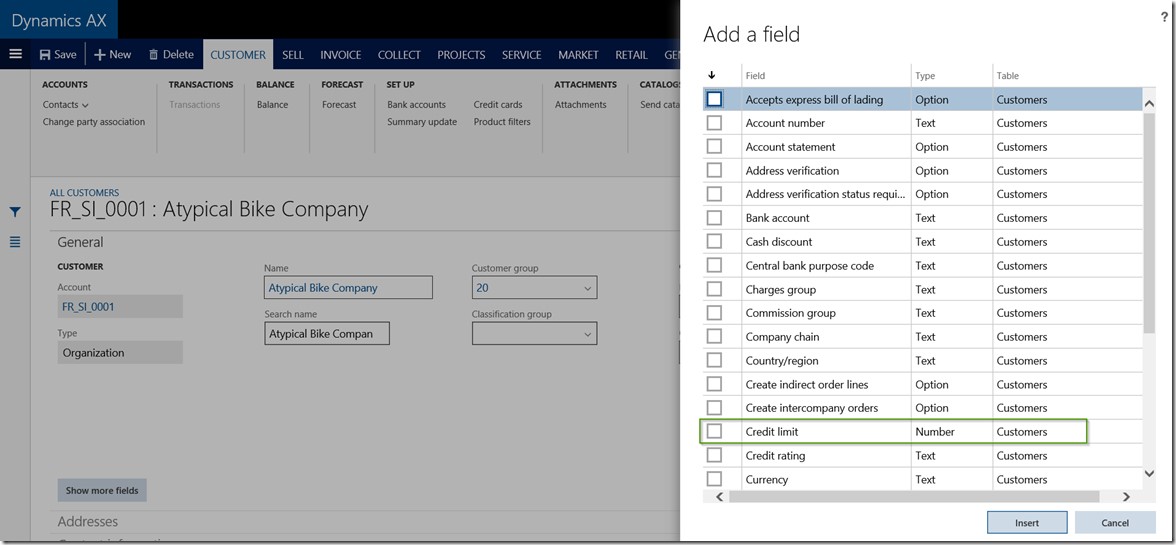
    Select Data Fields

    • Another way of adding a data field on a form is to select “Personalize this form” option after right click and Personalize.
    • Note that you can also launch the Personalization pane by navigating to Options > Personalize this form button.

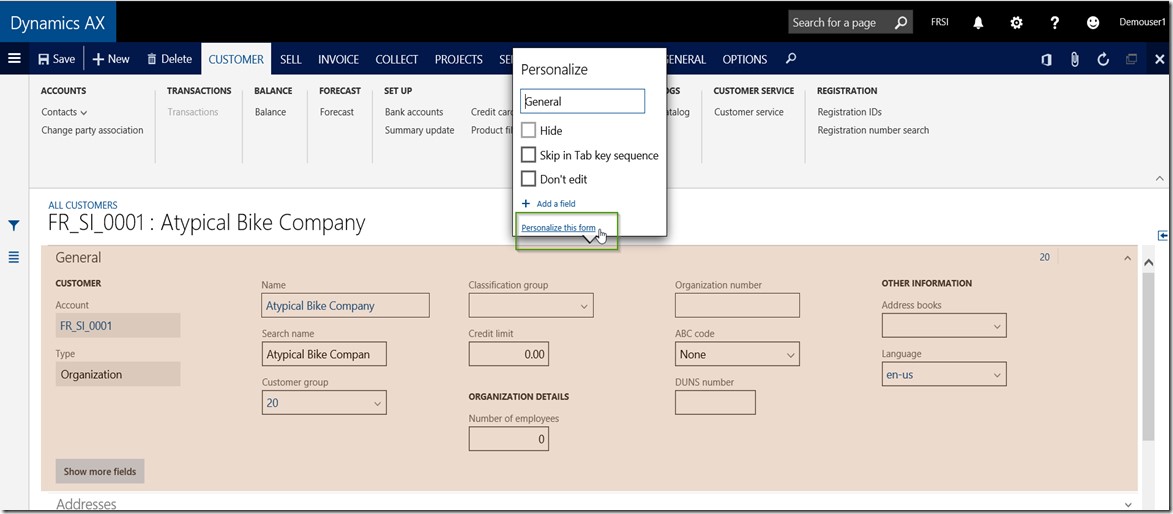
    OptionsPersonalize

    Personalize this firm

    • Click the + button to load the data field list form. Select the data fields you want to add and click Insert button.

    Personaliation Pane

    How to change properties of a data field:

    • Once you are on the Personalize form screen, select the “Arrow’ button to enable the property changes for various data fields on the form.
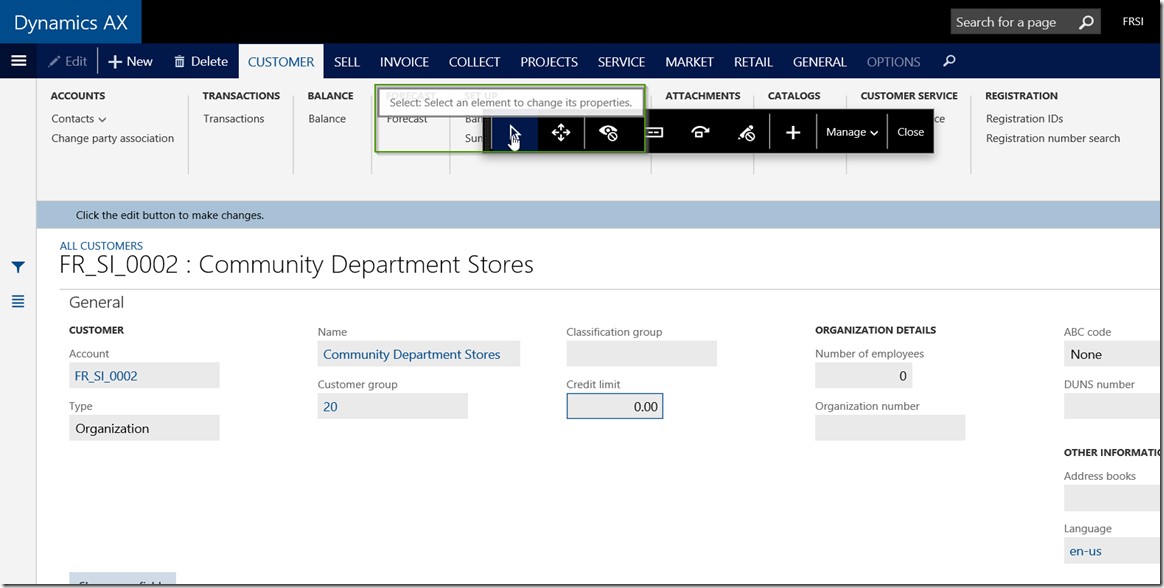
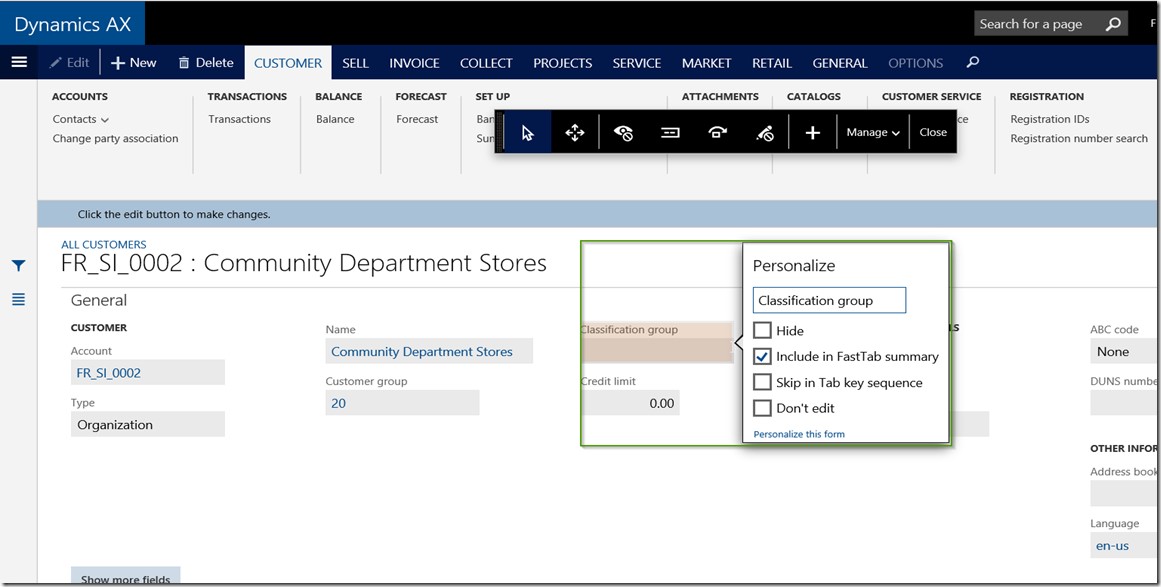
    Data Field Property

    Data Field Property 1

    Hide: Mark this to Hide the selected data field on the form.

    Include in Fast Tab Summary: Mark this to show the value of this data field on the Fast tab header summary of the fast tab, under which the data field is present.

    Skip in Tab key sequence: Mark this to skip this data field on the tab key sequence.

    Don’t edit: Mark this to block editing of this data field.

    For example, let us mark the Include in fast tab summary for the  Classification group field and see that it appears on the fast tab Summary.
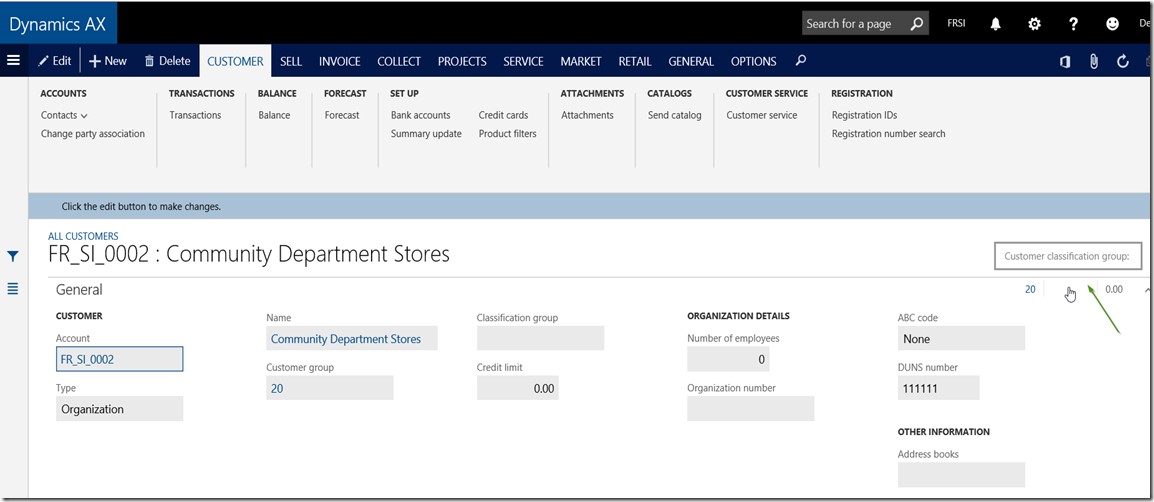
    Data Field Property 2

    How to rearrange or move around data fields on a form:

    • Once you are on the Personalize form, select the MOVE option on the Personalization pane and just drag and drop fields to move them around on the form as shown in screenshot below.

    Rearrange Data Field

    How to show/Hide data fields on a form:

    • On the Personalization pane, Select the Hide/Show button.
    • Now mark the data fields that you want to Hide/show.
    • If you had already made a field hidden, when you try to Hide/Show next time on the form, you can see those fields as marked for Hidden.
    • For example if I want to hide the ABC Code field hidden on the customer details form, I can mark that and upon refreshing the form, the field will be hidden.
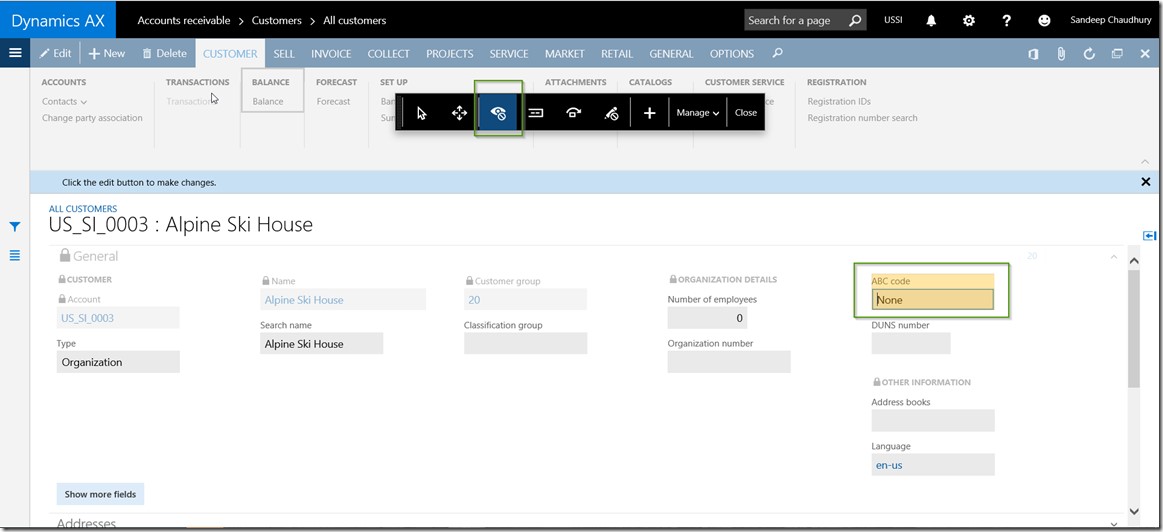
    Show Hide Data Field

    How to add fields to show on the collapsed fast tab summary:

    • On the Personalization pane, Select the Summary button.
    • Now mark the data fields that you want to add to the fast tab Summary when collapsed.
    • For example, I have added the Language data field on the General fast tab.
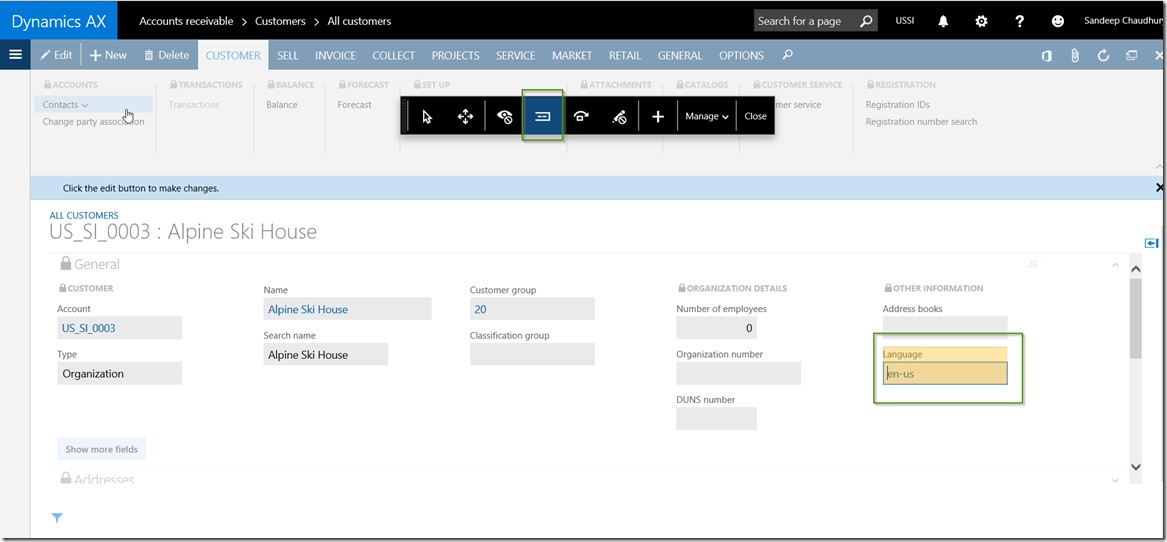
    Add Field to Summary

    How to change the display name of a data field:

    • On the AX form/page on a specific data field, right click and Personalize.
    • You can type in the name that you would like to see as the display label for the data field.

    • For example, I have renamed the Search name field to My Search Name on the Customer details form.
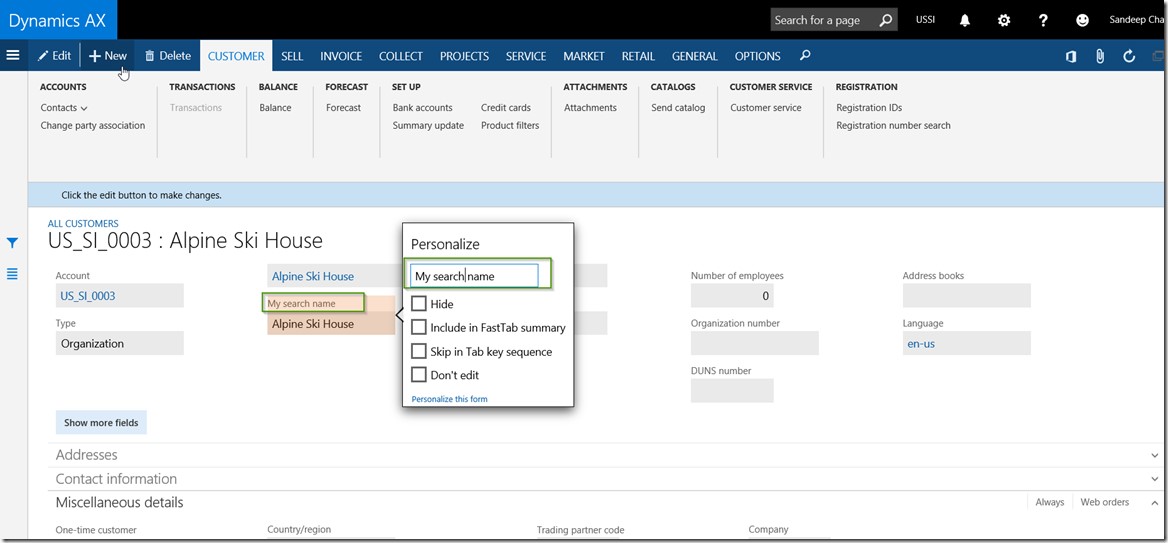
    Change Display Name

    How to block editing of a data field:

    • On the form Personalization pane, click the Edit button.
    • Mark all the data fields that you would like to be shown as Non-editable fields.
    • For example, on the Customer details form, I want the Classification group field to be shown as non-editable.

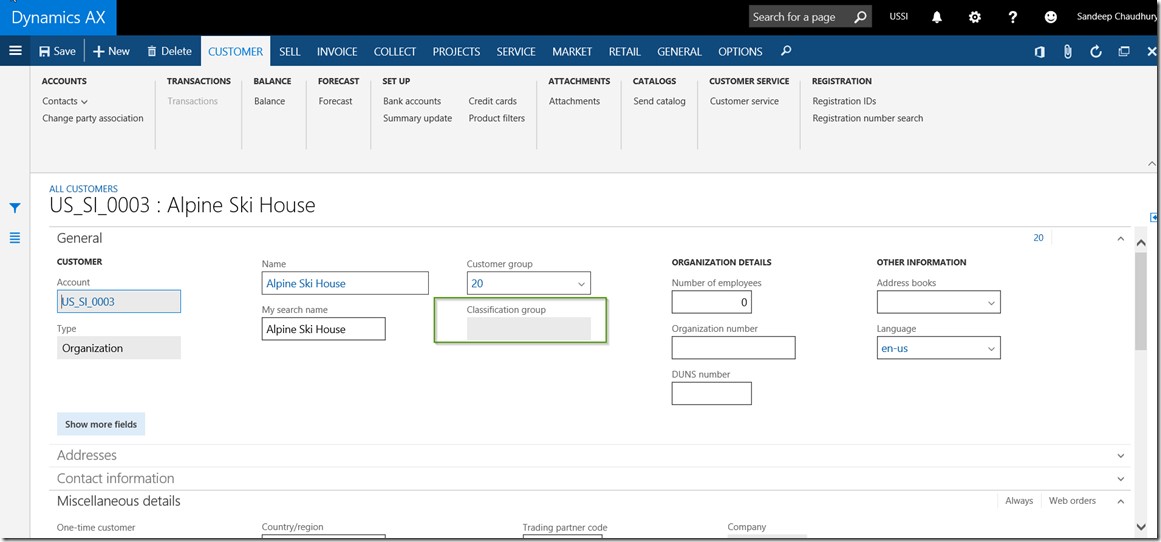
    Block Editing

    Block Editing1

    How to Reset/Clear out all my Personalization:

    • If you decide to clear out all your form/page personalization,  click on Manage > Clear button on the form Personalization Pane.
    • Reload the page.

    Reset Personalization

    Reset Personalization1

    How to add form data as a Tile onto a workspace:

    • You can also add a filtered data view, i.e. data on a particular form as either a Live Tile or as a list on any workspace you like.
    • For example, I can add the Timesheets for my review as a Live tile to the Manager Self-service workspace.

    Add to workspace

    Tile on MSS

    Additionally, you can also Import and export form personalization using the Manage > Import/Export option on the form Personalization pane.

    Export Import Personalization

    So, that’s it for today’s quick tip on the new Dynamics AX !!

    Regards,

    Sandeep

  • What is New in Business Intelligence in the New Microsoft Dynamics AX (AX 7)

    Microsoft Dynamics AX ERP has evolved over several versions starting from AX 2.5, AX 3.0, AX 4.0, AX 2009, AX 2012 and all the way through the New Dynamics AX (Aka AX 7). In each of these versions, this ERP from Microsoft , has undergone several changes and enhancements in terms of architecture, technology, depth of functionality and support for industry verticals etc. The journey from the Client only AX 3.0 version to the fully web enabled version (The New Dynamics AX) has been phenomenal.

    As the technology behind the application kept on evolving, so did the Business Intelligence (Analytics) framework for each of these mentioned versions.

    In this post, we will discuss a little bit on the evolution of Analytics/Business intelligence framework in Microsoft Dynamics AX and we will also discuss about what are the various Analytics options we have in the most recent release, which is the New Dynamics AX.

    The picture below shows a quick snapshot of the evolution of analytics framework in Dynamics AX.

    image.png

    In the initial releases with version 4.0, the concept of “Perspectives” was introduced which basically presented the ERP data schema to the end uses in a format, that they can use to build analytics. In AX 4.0 the SMDL Model along with the SQL Report builder was primarily used for business analytics building.

    Then in AX 2009, Microsoft introduced the SQL Server Analysis services, which basically had the SSAS Projects/ CUBE Projects built for all the major areas of the ERP applications. These CUBES were then utilized to show data on the various pre-built dashboards on the role center pages. In AX 2009 you could also use Microsoft Excel to connect to the SSAS server and then build your own analytics.

    In AX 2012, the SSAS Cubes framework was taken a step forward and Microsoft basically used the same technology and concepts, but developed several additional dashboards for the various role centers that were shipped out of the box. One of the major enhancements to the analytics framework in AX 2012 was done by introduction of Power View. Using Power View, you could simply leverage the analysis cubes and build dashboards, graphs, charts, tables, bars and any sort of analytics you wanted.

    In the New Microsoft Dynamics AX (Aka AX 7) the analytics framework has evolved further and much better. In the new Dynamics AX, analytics can be primarily of 2 types.

    1. Real time built-in analytics on the workspaces
    2. Power BI analytics and integration with Dynamics AX.

    1. Real time built-in analytics in the Work spaces:

    Starting with AX 2009 till AX 2012 R3 release, most of the out-of-the-box analytics were contained in the Role center pages, which was basically the Home/landing page for the users when they launch AX client or Enterprise portal. In the new Dynamics AX, you will see something called as the “Workspaces”. You could compare workspaces with role centers, but the work spaces are designed keeping in mind a more process oriented approach.

    • The built-in analytics comes out of the box , as part of standard AX across various workspaces covering all major modules.
    • You can customize these further and create your own analytics in any of the workspaces.
    • One of the examples of such analytics is present under the Cost Administration workspaces. You can find these across all major business areas in the new Dynamics AX.

    Cost Admin Dashboard

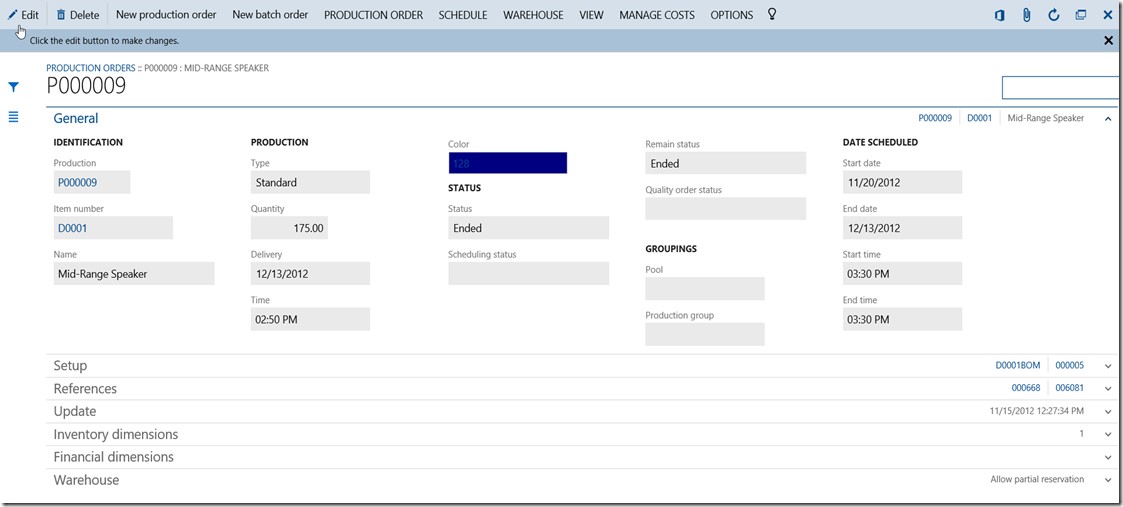
    • You can furhter click on the analytics to drill down on data right from the analytics and research the data further.

    Drill Down.jpg

    • You also have additional option of presenting the data on the analytics by different parameters. For example you can view Top 10 Production variances by Production order number or By Produced Item Name.

    Dashboard Options.jpg

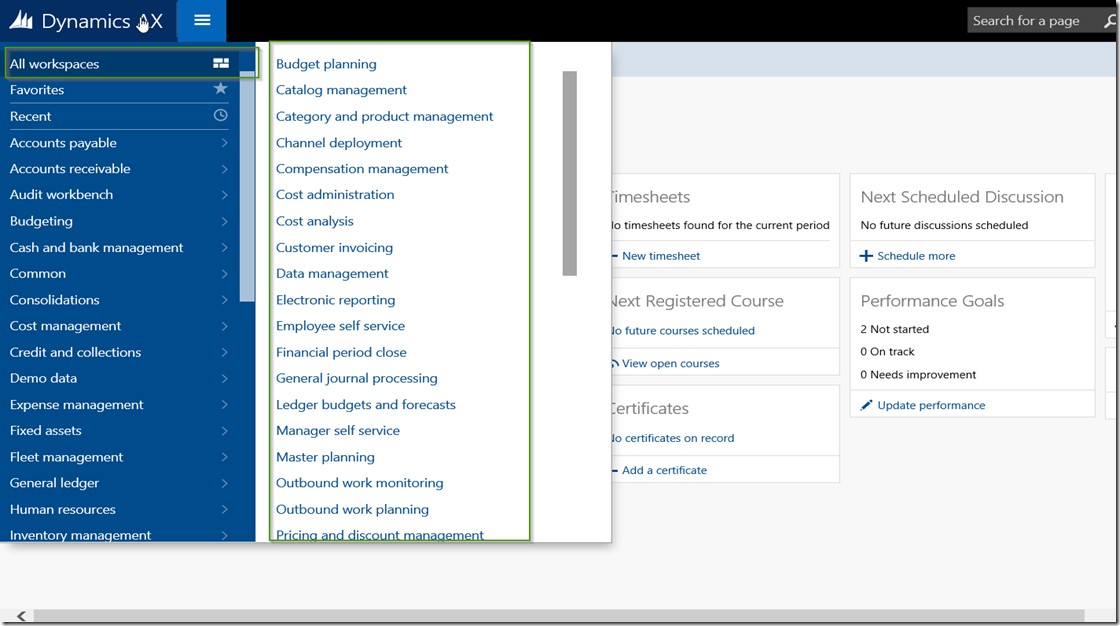
    • Below screenshot shows all other workspaces that are available out of the box in the new dynamics AX which has built in real time analytics built-in.

    Other Workspaces

    2. Power BI and integration with Dynamics AX:

    The second (and I think the most powerful and hopefully will be widely used too) analytics option in the new Dynamics AX is, the integration with Power BI, which is Microsoft’s business intelligence platform.  Below are some of the key highlights of the integration of Power BI and new Dynamics AX.

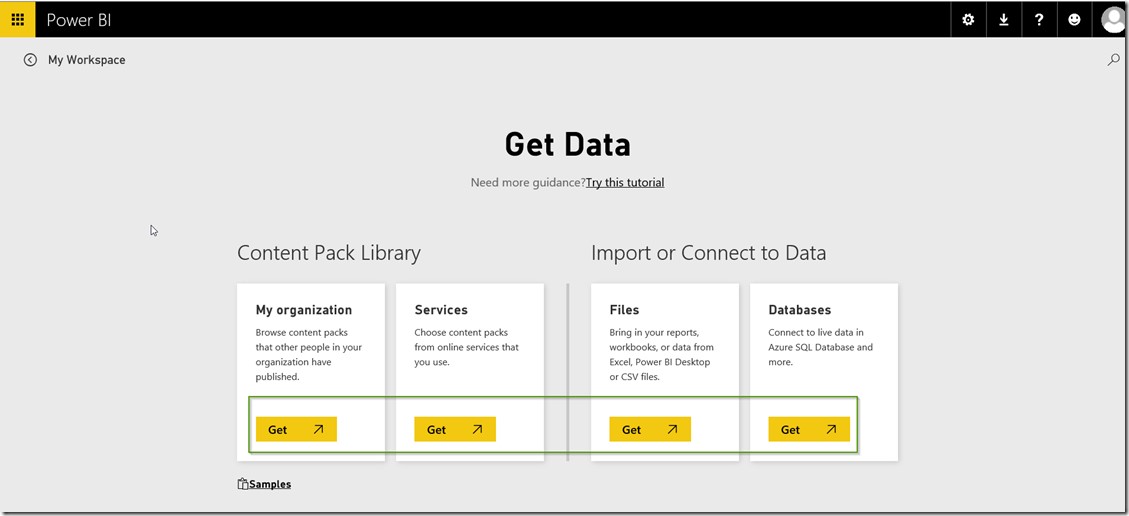
    • You can use Power BI Online to build complex data analytics from your Dynamics AX database. Using Power BI online, you can also connect to Azure SQL Server data base and build your content packs and  publish them with required permissions.

    PBI Online

    • You can use Power BI Desktop app and also mobile apps to connect SQL server database of your Dynamics AX application and then build any analytics. For example, the screenshot below shows a simple analytics of sales by customer groups. I have built this using the CustInvoiceJour table. You can use the advanced reporting options of PowerBI to build complex queries and joins.

    PBI Desktop 1

    PBI Desktop 2

    • After creating analytics in Power BI Desktop, you can publish them into the Content packs in Power BI online.

    PBI Desktop 3

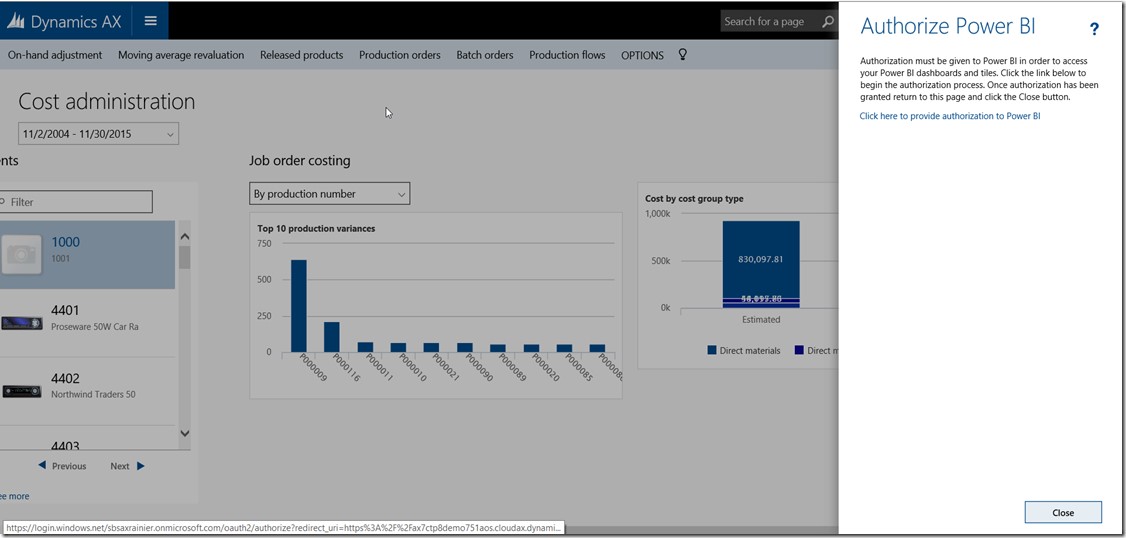
    • Once you have your content packs are ready, you can Add power Bi analytics as tiles onto the workspaces in the new Dynamics AX.

    Pin Tiles to AX

    Auth PBI to AX

    • With the RTW release of the new Dynamics AX that was released during the Technical Conference (Feb 23rd to Feb 25th), Microsoft has released a few Pre-built Power BI Content packs for Dynamics AX (Primarily around Retail and Finance areas) that customers and partners can leverage for reporting. Partners can also build their own Content Packs as their intellectual properties, and make them available for consumption by customers. To access the Pre-built content packs provided by Microsoft for the RTW release of new dynamics AX, Sign in into your Power BI online account, Or launch Power BI desktop app.

    PreBuilt Content PacksLong enough  post !!!! Smile

    Note that this was not a Power BI specific blog post. I just wanted to highlight the key business intelligence options we have available in the New Dynamics AX and a very brief on how Power BI looks to be treated as a first class citizen inside the new Dynamics AX for BI and reporting. Stay tuned for future posts on How to build analytics for Dynamics AX using PowerBI and how to consume Content packs published by Microsoft or other partners.

    Till then….Have a great time !!

    Regards,

    Sandeep


  • Introducing the New Microsoft Dynamics AX (AX 7) – Public Preview

    Introducing the New Microsoft Dynamics AX (AX 7) – Public Preview

    Hello All,

    With the Public Preview of the “New Microsoft Dynamics AX” now out, I am sure all of us are excited to learn more about it and start exploring all possibilities with the new version.

    Read  more about the new Dynamics AX on the Blog Post on SBS Group’s Blog spot.

    Regards,

    Sandeep