Tag: Revenue recognition

  • Multiple revenue recognition options/rules under one project in Dynamics 365 Project Operations Non-stocked/resource deployment

    Multiple revenue recognition options/rules under one project in Dynamics 365 Project Operations Non-stocked/resource deployment

    One of the common asks I hear from customers is the need to handle revenue recognition differently for different phases of a project. An example of this is “Contoso Electronics is working on a NextGen EV Electronics Design and Prototype build project for one of its customers. This is a fixed price contract/project that has 3 distinct phases.

    1. Design phase that runs for 3 months. This phase is billed in 2 milestones and revenue needs to be recognized upon Design completion.
    2. Prototype build phase that runs for 9 months. This phase is billed in multiple milestones and revenue needs to be recognized on a monthly basis based on % of completion.
    3. Post prototype support for enhancements work for 1 year. This is a fixed fee billed upfront and revenue needs to be recognized monthly on a straight-line basis.

    There is now a new feature Microsoft released in Dynamics 365 Project Operations Resource/Non-stocked deployment which allows you to accomplish this easily. Before this feature, we were needed to split these phases into 3 different projects, but that is no longer needed.

    The new feature is called “Enable contract line-based revenue recognition with Project Operations for non-stocked/ resource-based scenarios” and this was released in preview last week.

    When you enable this new feature, Project Operations will basically create a separate revenue estimate project for each contract line under the project contract. This allows you to setup one Project Contract that has multiple contract lines, where each contract line represents the work that will be done in each phase of the project. You can then associate separate cost and revenue profiles to each of the revenue estimate projects the system creates and handle the revenue recognition differently for each phase.

    So, for the example scenario I provided above, I have setup a Project Contract that looks like below. Each of the contract lines/project phase have their own invoice schedule and associated contract amounts.

    Screenshot below shows that system has automatically created 3 separate revenue estimate projects, one for each contract line. So basically, we now have a revenue estimate project setup automatically with their own contract amounts for each phase of the project, but the phases belong to one main project.

    Also notice that each of these revenue estimate projects is associated with a different Project cost and revenue profile ID, which allows you to process revenue recognition using different rules for each phase of the project. You will need to select the default parent project for each of these revenue estimate projects.

    The Design phase of the project has revenue estimate project that is associated with the corresponding contract line and is setup with a Completed Contract revenue recognition principle.

    The Prototype build phase of the project has revenue estimate project that is associated with the corresponding contract line and is setup with a Completed % based revenue recognition principle.

    The Enhancement Support phase of the project has revenue estimate project that is associated with the corresponding contract line and is setup with a Stright line revenue recognition principle.
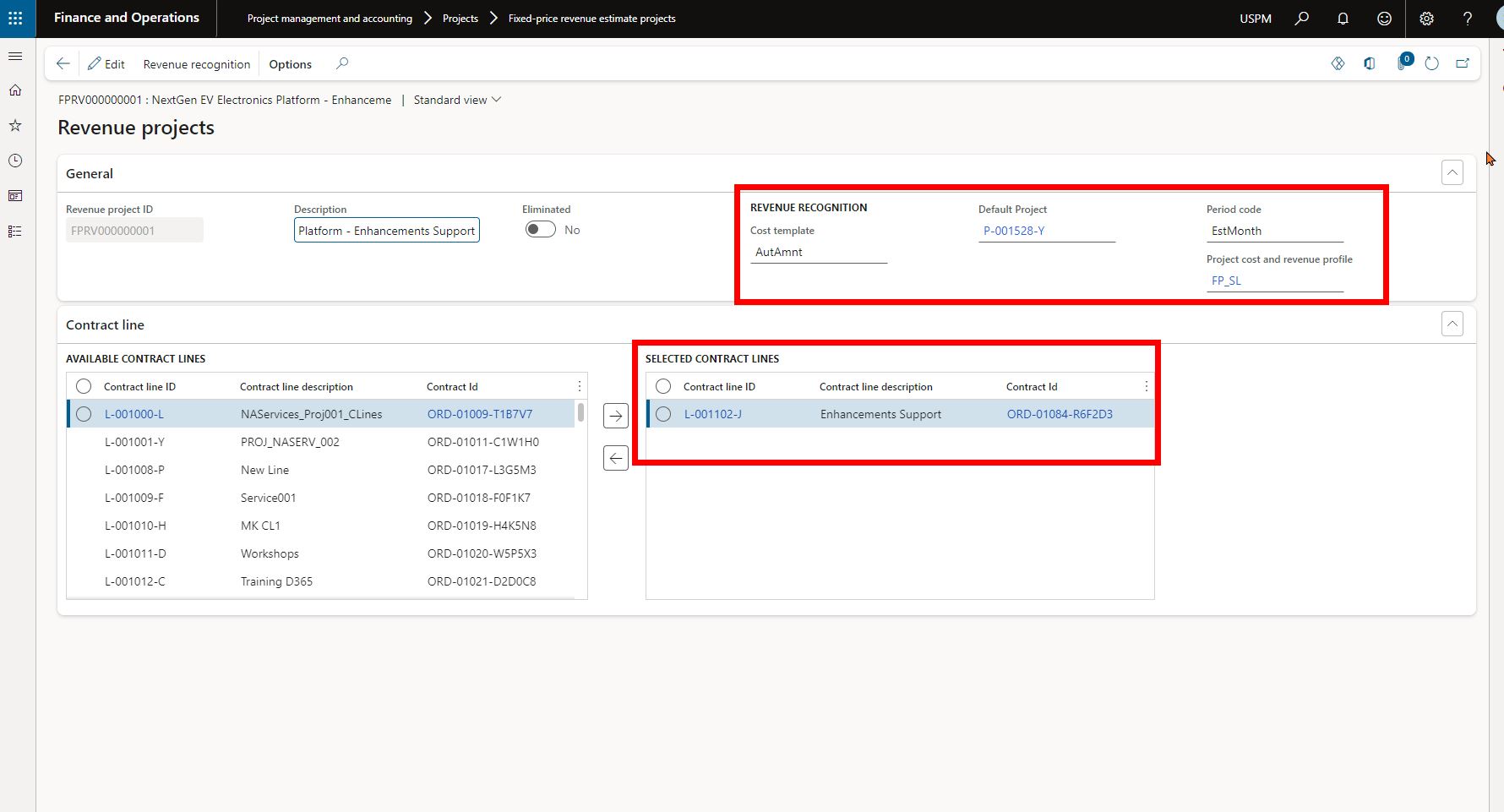
    For the contract line that needs to follow straight line revenue recognition principle, you will additionally need to setup the start and end dates of the revenue recognition under the contract line in the project contract default accounting setup. See screenshot below.

    That’s it. From here on, when you run the job for revenue recognition, system will automatically calculate revenue recognition amounts based on the associated contract amounts for the contract lines and the cost and revenue profile setup.

  • Does your organization have the right business technology to thrive in the subscription economy? See how Dynamics 365 Finance can help.

    Does your organization have the right business technology to thrive in the subscription economy? See how Dynamics 365 Finance can help.

    In the mobile first cloud first era, B2B and B2C businesses of all sizes are continuously introducing innovative subscription based products and service offerings and are finding new ways to generate recurring revenue to stay relevant in the business. The end goal is get customers subscribed to their services, keep innovating at scale to retain customers and create more predictable revenue streams for their business.

    The subscription model of generating revenue is great for organizations for predictable revenue and cash flow, but it also introduces new challenges for them to keep up with the complex billing and revenue recognition requirements. Organizations are challenged to create unique pricing models and easy & affordable bundling of their subscription offerings for faster customer adoption. This certainly requires them to have sophisticated business technology to manage the complex pricing(flat, tiered, flat tiered etc.), billing, revenue recognition and renewal needs. And of course, they have to stay complaint with the ever evolving regulation requirements around revenue allocations down to item level(specifically comply with ASC 606 and IFRS 15) and also manage revenue expense deferrals to align with US GAAP.

    Here is an example. Company A sells their cloud based software apps and hardware in variety of bundled subscriptions. The pricing model of these bundled offerings can be complex with tiered pricing requirements, based on what the customer subscribes to. For the customer, it is just a convenient subscription for which they pay a fixed fee either upfront annually, or pay them quarterly or monthly and they continue to take advantage of all the innovation Company A does in it’s software and hardware and stay up to date. However, Company A as an organization internally has to have the right business technology/application in order to manage the complex tiered pricing for the bundled contracts and be able to to bill accurately. They also have to allocate revenues to multiple revenue streams and manage the financial obligations and performances.

    The Good news: Dynamics 365 Finance now has the Subscription billing and revenue management capabilities built in the base offerings as part of the Dynamics 365 Finance SKU/license. You no longer need to look for ISVs solutions or external 3rd party apps to manage your subscription business. This new module and the features under it are designed specifically to tackle the billing and revenue management complexities of any subscription business and helps you shorten the quote to cash cycle. It also comes prebuilt with analytics and insights that can help your business leaders to make informed decisions.

    Subscription Management Workspace

    Important Note: Microsoft introduced a standalone Revenue Recognition module back in 2020. The new Subscription management module is much more comprehensive, more capable and it does override the capabilities of the earlier Revenue recognition module. So you will first need to turn OFF the Revenue recognition module in the application before you can enable the new subscription management capabilities.

    The 3 main features of the new Subscription management module are as follows.

    Recurring Contract Billing: This is the heart of the module. This is where you define the structure of the contract and establish key billing parameters such as the customer account, terms, the line items, dates, terms, pricing, item billing type, billing frequency, schedule, requirements for deferrals, renewals , terminations and more. This part of the module lets you create billing schedules for contracts with customers and automate complex pricing and billing processes. It also let’s you produce consolidated invoices for customers with multiple items under their contracts.

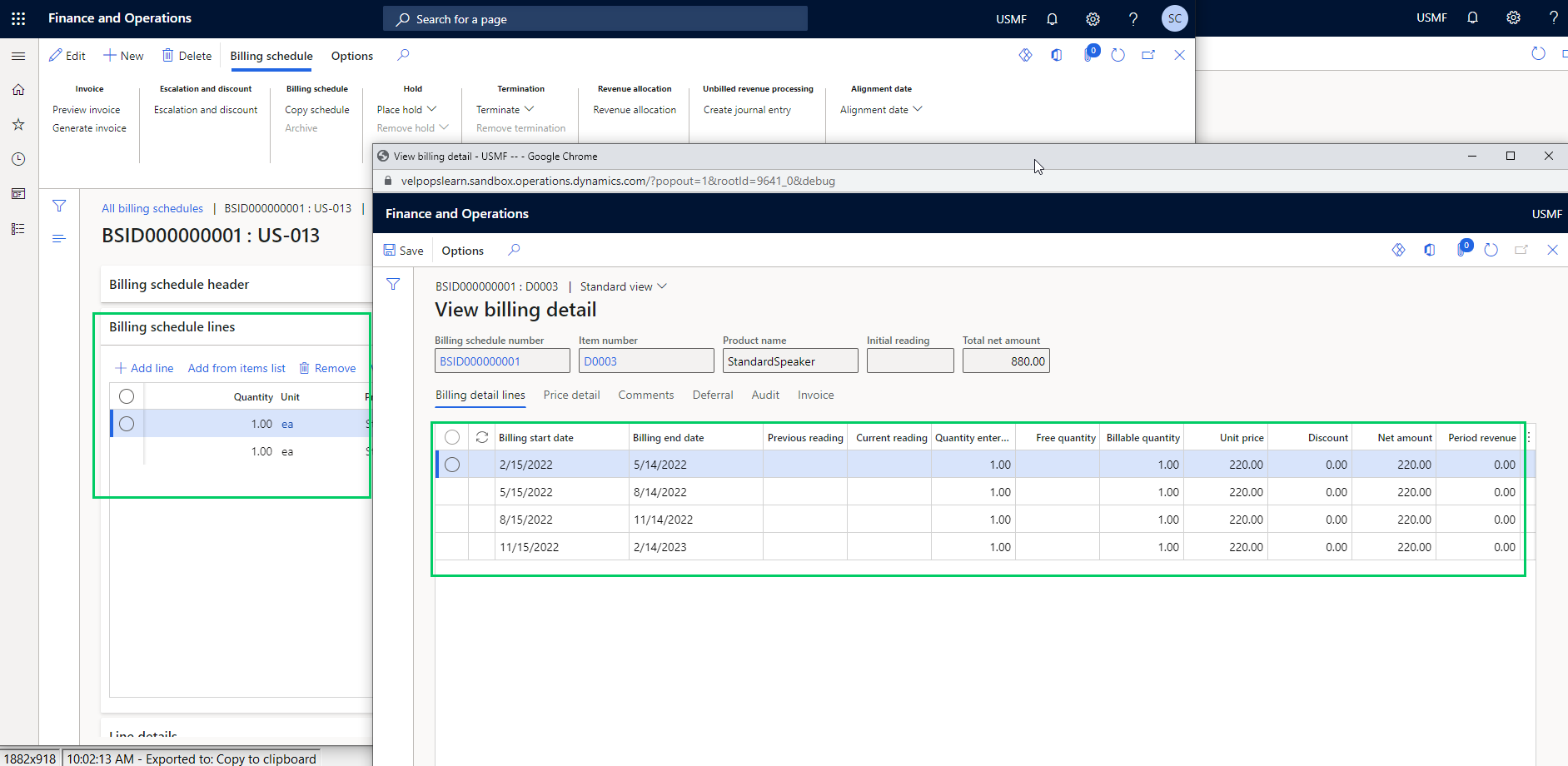
    After you have setup the billing schedules, you can view the automatically created billing schedule and associated details at any time. You can setup advanced pricing options, manage escalations and discounts and deferral requirements, putting contract lines on hold and terminations.

    You can preview invoices by individual lines, or consolidated by item or period prior to creating them and you can also chose what type of transaction to use to create the invoice(Such as Sales order Vs a free text invoice) and you can also chose whether you want to create the invoice lines for additional review or directly post them.

    Revenue Allocation: This part of the module has the functionalities that allows your finance team automate pricing and revenue allocations across multiple items. This also helps organizations that have specifically have to comply with ASC 606 and IFRS 15 standards. This functionality also lets you setup multi element revenue arrangement on contracts and manage those on the billing schedules. We will discuss this topic is greater details in future posts.

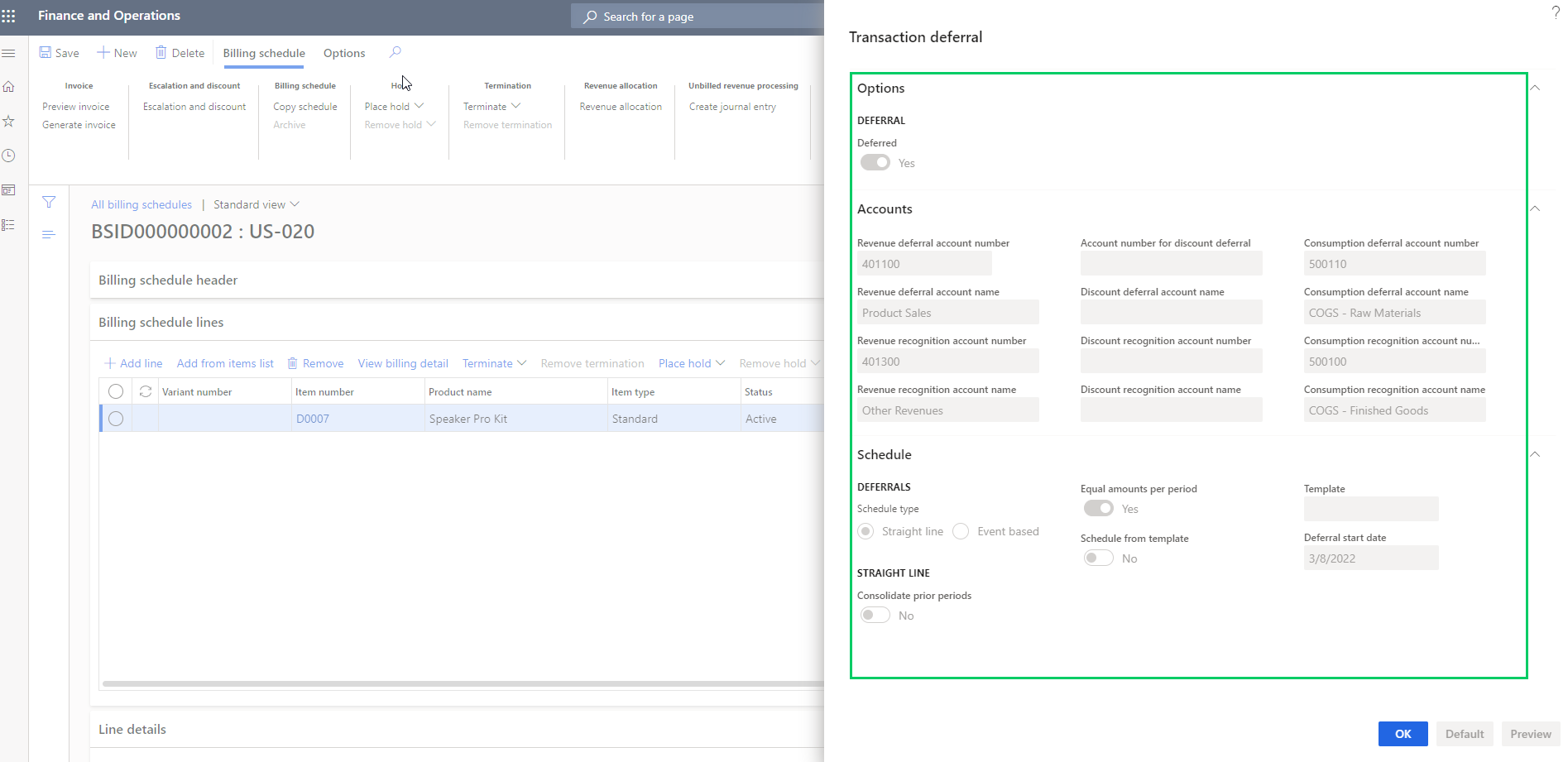
    Revenue and Expense deferrals: This functionality allows organizations to manage revenue and expense deferrals to stay compliant with US GAAP standards. In the ever evolving regulations in the subscription economy, this functionality will help your finance teams to use less manual spreadsheets and allows them to manage those directly in the system. You can setup the system to automate the deferrals on variety of source transactions such as Sales orders, purchase orders, general journals, FTI and manual invoice journals. You can chose deferral schedule types such as “Straight line or Event based” on your contract/billing schedule lines and also setup advanced deferral parameters on how you want to manage deferrals of discounts associated with revenues and expenses.

    When you generate the invoices for the billing schedules, the system will automatically create your deferral schedules . You can view the details of the invoice associated with the deferral schedule.

    You can manage deferrals from there on easily.

    That’s it for this post. I just wanted to highlight some of the key capabilities of the new Subscription Billing module in Dynamics 365 Finance and how it can help manage your complex subscription billing and revenue requirements. We will get into details of each of these functionalities, the setups and processes involved in upcoming posts.

    Till then, keep reading.

  • Vendor Prepayments and Revenue Recognition For Fixed Price projects in Dynamics 365 For Operations

    Vendor Prepayments and Revenue Recognition For Fixed Price projects in Dynamics 365 For Operations

    Hello, Good to be back here on the blog !!! Jumping straight into topic here today about a new addition of a feature for vendor prepayments in relation with fixed price project revenue recognition !!

    Issuing large amounts of prepayments to vendors is often a common business requirement for large scale, long term fixed price projects, which involves a lot of sub-contracted work. Vendors often request prepayments for the subcontracting services they are contracted to deliver for these projects. These prepayments can sometimes be just a flat amount based on mutual decisions, or it can sometimes be a percentage of the total cost of the subcontracting service. There can be several months of gap between when the prepayments are issued and when the vendors actually delivers the services.

    For such projects, customers usually recognize revenue on a percentage completion basis and need the ability to include these vendor prepayments in the project percentage completion calculation of the project for revenue recognition/revenue estimates calculations.

    In this post, we will evaluate one of the new features of Dynamics 365 For Operations (Referred as D365 – Operations from here on), which allows to consider these vendor prepayments automatically when running the monthly revenue recognition/estimates for fixed price projects for calculating the % completion of the project.

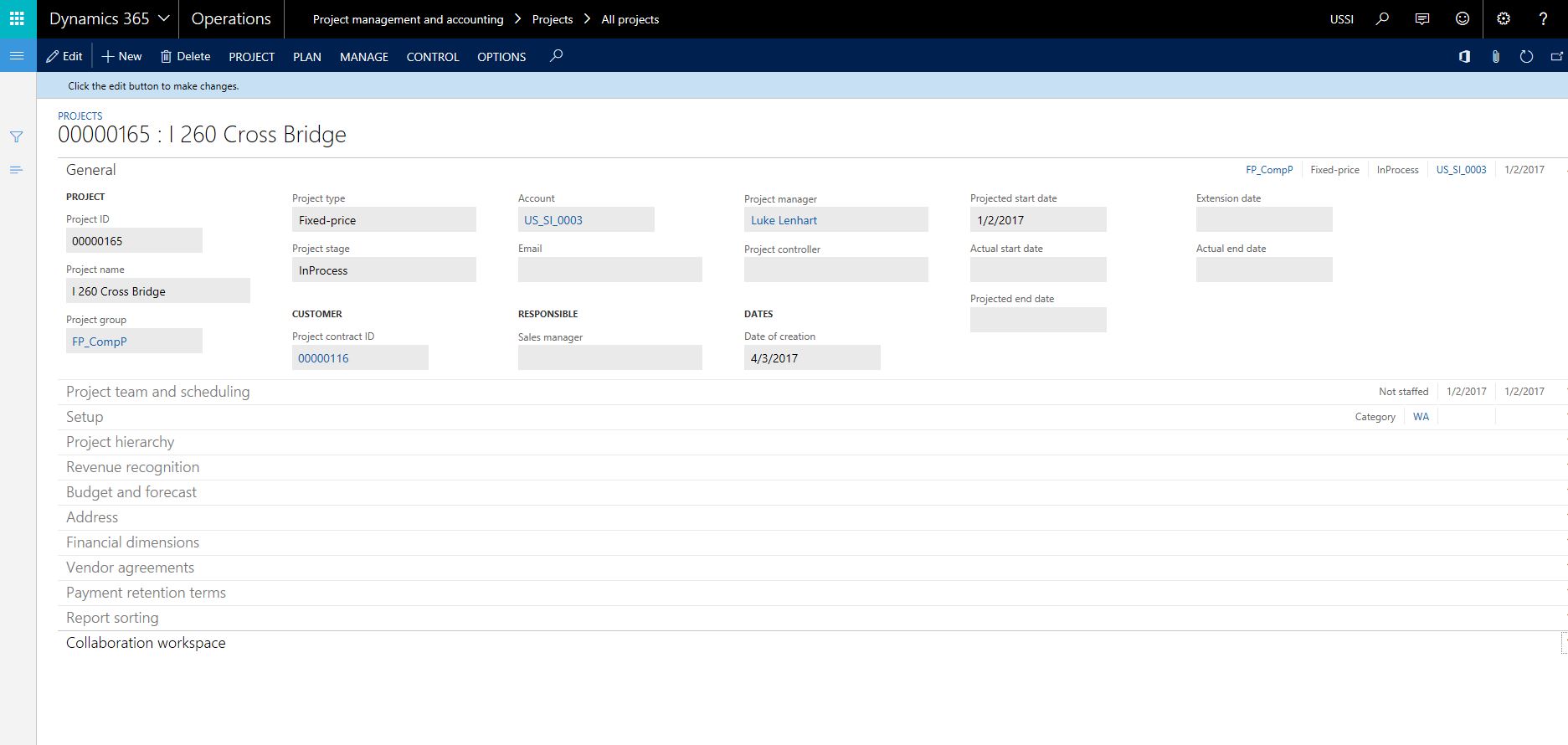
    For this demonstration, I have setup a fixed price project and the associated contract already. This project is setup to recognize revenue on a % completion basis.

    Contract Setup

    Project Setup

    The Project Manager has created and submitted the purchase requisition for approval, so that the services can be procured from Rebar Supply Co. Ltd. See screenshot below.

    PR Submitted

    The purchase requisition gets approved by the designated manager and the Purchase order is automatically crated. See screenshot below.

    PR Approved

    The Project procurement team/Project manager then sets up the prepayment details on the project purchase order that was automatically created upon approval of the requisition.

    PrepaySetupOnPO

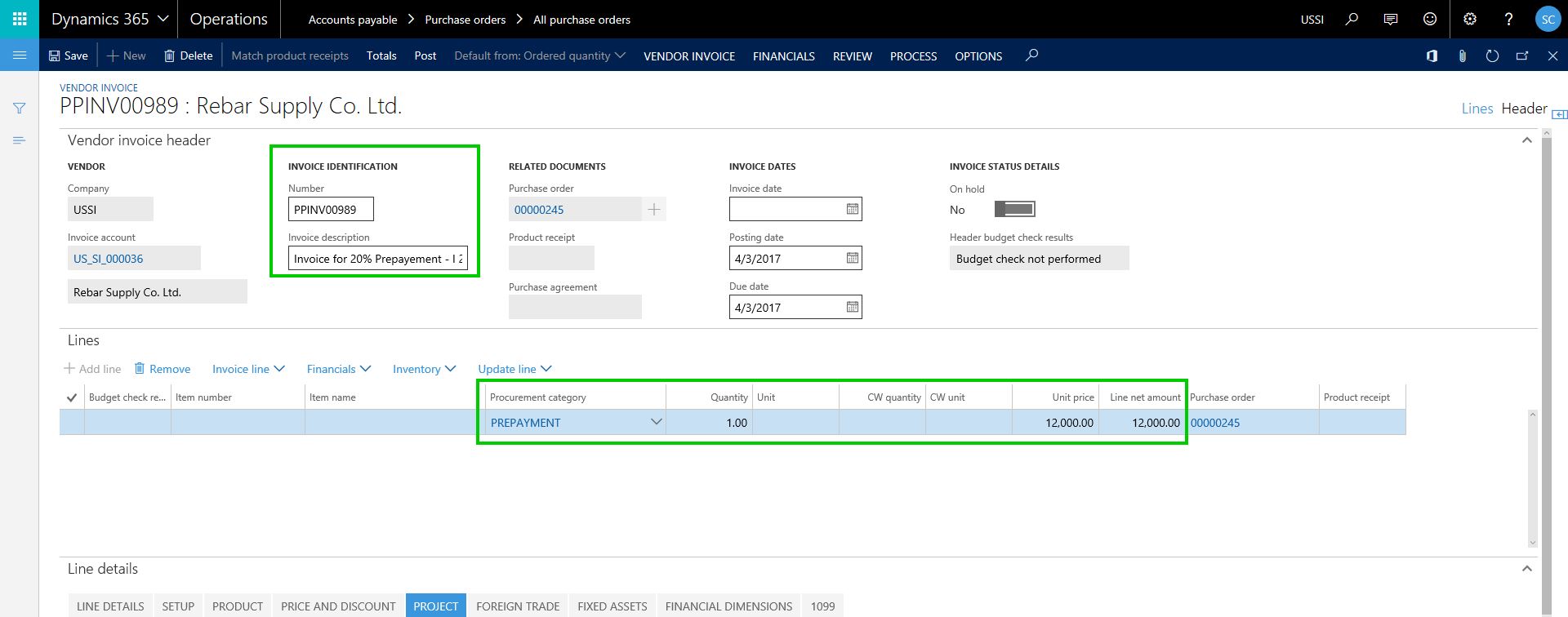
    Finance and Accounting team now processes the prepayment invoice to initiate the prepayment to the vendor.

    Prepay Invoice

    Prepayment

    Now that the finance team has processed the vendor prepayment for the subcontracting work, let us now go ahead and see what happens when they run the monthly revenue recognition process for this project.

    Notice that system was able to consider the vendor prepayment cost for the project and was able to determine the percentage completion based on the total project budget/forecast defined. See screenshot below

    PComp

    When this revenue recognition entry is posted, the revenue amount (based on Percentage complete and the total contract value) will be posted to general ledger. We all know how it works from here :)

    That’s it for today !!

    Sandeep Chaudhury **

  • Dynamics AX Tip: Percentage complete calculation for revenue recognition, based on WBS Work Percentage Complete for fixed price projects

    Dynamics AX Tip: Percentage complete calculation for revenue recognition, based on WBS Work Percentage Complete for fixed price projects

    Traditionally, the 2 primary methods of revenue recognition for a fixed price project were the “Completed Percentage” and the “Completed Contract” methods. I have explained how these work in Dynamics AX for revenue recognition of fixed price projects in my earlier posts.

    With the AX 2012 R3 release (CU 10), the straight line method for revenue recognition was introduced, which I also elaborated in this earlier post.

    When you work with the Completed percentage method of revenue recognition, there are multiple ways to determine the percentage completion of a project. Some of these options are,

    1. Manage percentage completion on a manual basis
    2. Use project budgets or forecasts to the system automatically keep track of % complete.
    3. The new method to calculate % completion on a project is based on the WBS percent complete. In this quick post, we will how this works.

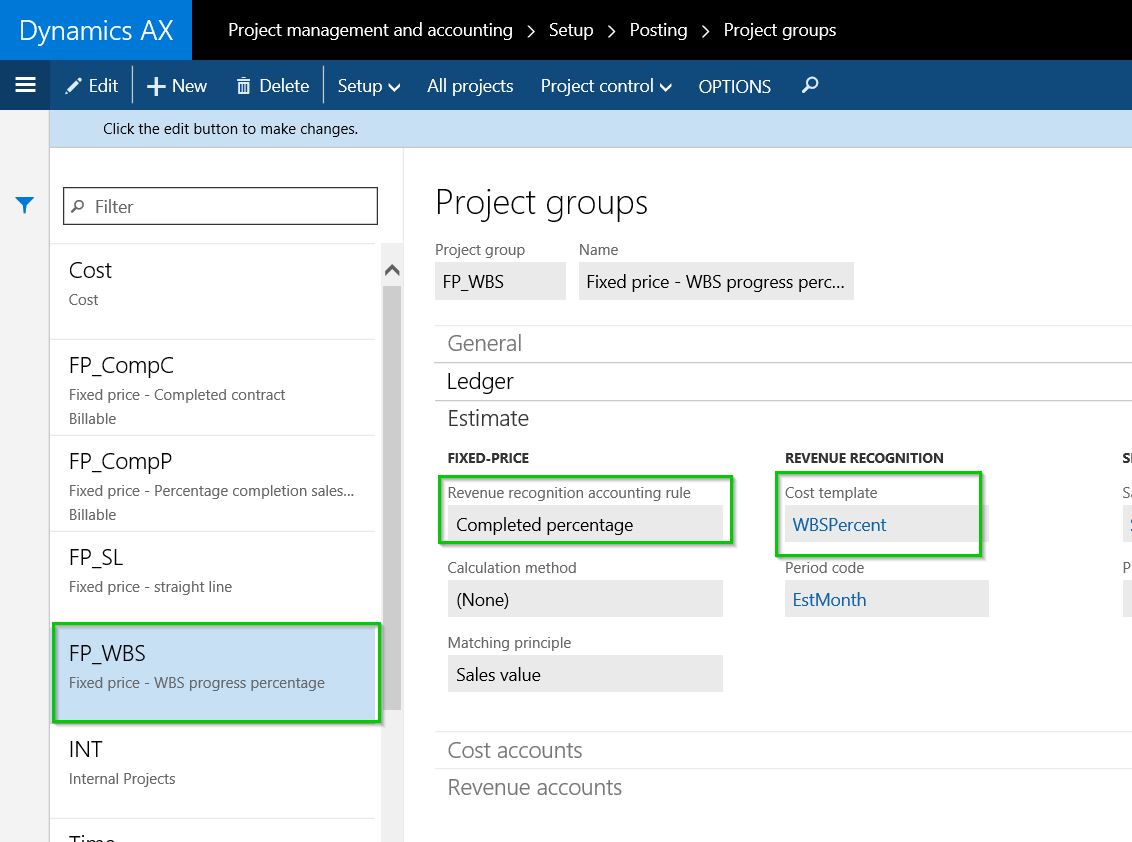
    The first step for this is to setup the Cost template and select the Completion based on as “Work percentage complete”. See screenshot below.

    Cost Template Setup

    Once you have that, associate it with the project group. See screenshot below.

    Project Group

    The next step is to setup the fixed price project and establish the project plan, which is basically the work breakdown structure. Once you have your WBS defined and the cost estimates established, Dynamics AX will automatically keep track of the “Percentage completion” for the project based on the WBS estimates vs the actual transactions. I have setup a very basic WBS for this walkthrough.

    WBS

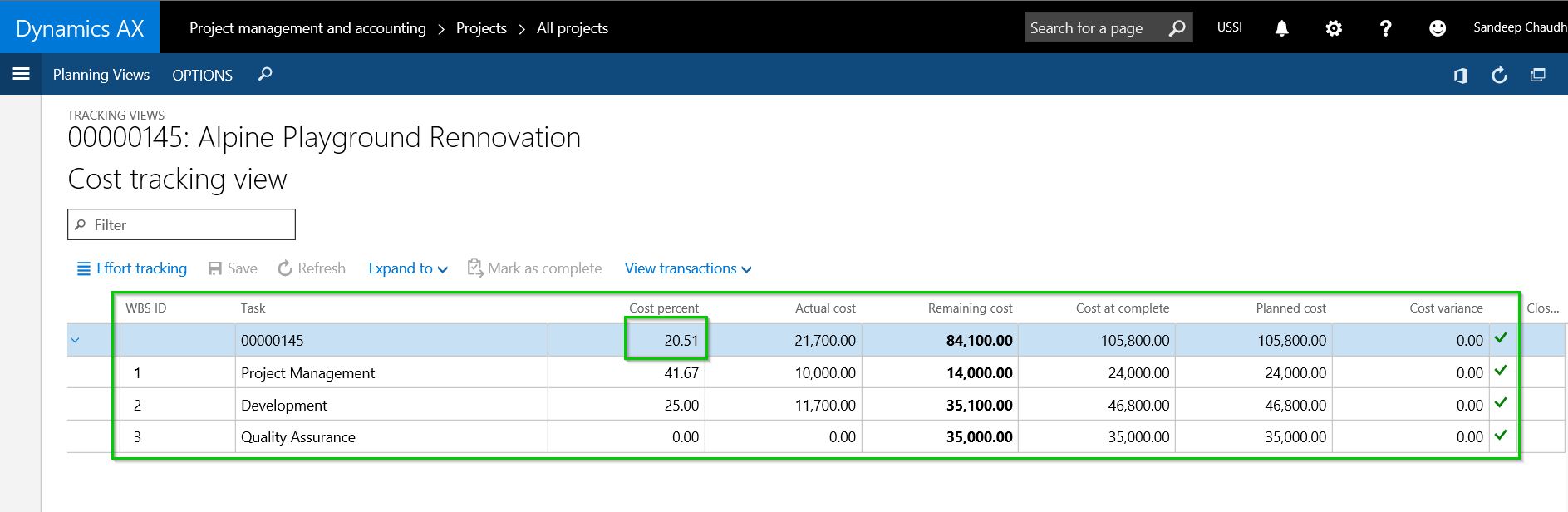
    After I have progressed in the project and transactions (Timesheets, Expense reports, Purchase orders, journals etc.), Dynamics AX automatically starts tracking the % complete for the project at each task level of the project. See screenshot below.

    Percent Complete

    Let us say, at this point you are ready to run the revenue recognition for this project for the Month of August 2016.

    Navigate to the Project revenue recognition screen and click Create. You will notice here that “Work progress percentage” is a new option under the “Cost to complete method” dropdown. But we will just leave it as default (From cost template).

    Notice that after we have run the revenue recognition, system automatically shows the Percentage completion based on the WBS work percent complete.

    Revenue Recognition Percentage

    The process after this is pretty straight forward and as you would run the revenue recognition typically for the fixed price project.

    NOTE: The intention of this blog post was not to explain the end to end process of revenue recognition for fixed price projects. I have explained these in detail in my earlier posts. This post was specifically a quick tip to highlight the new method of automatic work percent complete calculation.

  • Ledger Postings Management of Fixed Price projects in Microsoft Dynamics Ax 2012 – Scenario I

    Friends,

    Hope all is well your way. I Did not get chance to spend time on my blog this month.

    We keep hearing a lot of questions on the ledger posting scenarios, revenue recognition etc in case of fixed price projects in Microsoft dynamics AX. Well,I thought, I will explain the various ledger posting scenarios in the life cycle a fixed price project in few of my subsequent posts.

    The ledger postings in case of a fixed price project is controlled through the setup done in the Project groups. Based on the these setups, the ledger posting in a FP project can happen in 8 different ways.

    We will analyze each one of the setup options one by one and verify the ledger postings. I will name these 8 ways of ledger posting as Scenario 1 to 8. We will analyze the scenario 1 in today’s post.

    The 3 parameters in the project groups form which controls these ledger posting are as follows.

    • On-account invoicing.
    • Revenue recognition accounting rule.
    • Matching principle.

    Scenario 1 :

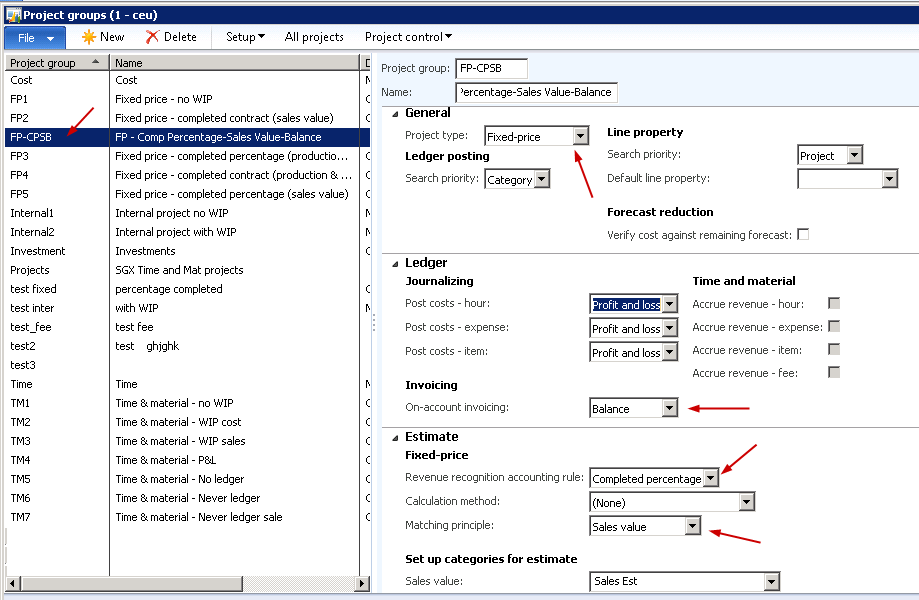
    On-account invoicing Balance
    Revenue recognition rule Completed percentage
    Matching principle Sales value

    Refer to screenshot below for the new project group which I have created.

    Project Group Setup

    I have created a new cost template and a fixed price project and attached this to the a new project group with above setup.

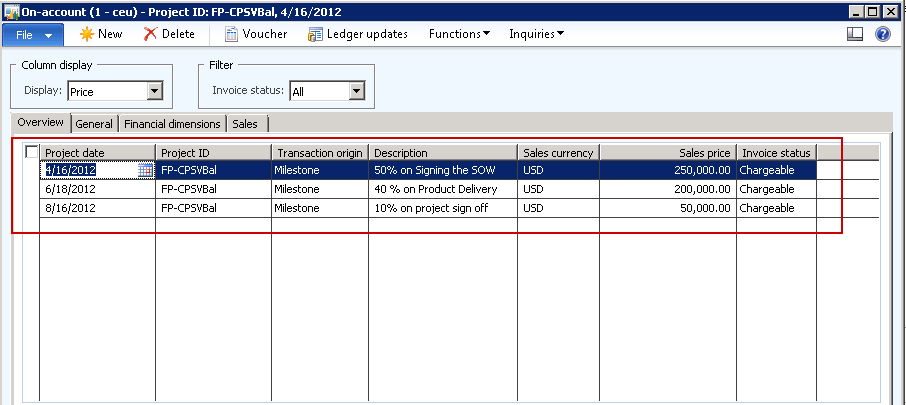
    Take an example where a company owns a fixed bid contract of $500000 and agreed upon with the customer for a milestone based invoicing plan as depicted below screenshot.

    On-account invoice schedule

    Costs are incurred in the project during its progress as indicated in the table below. We will post Estimates for the project at the end of every month and eliminate it in the month of SEP.

    Month Cost in project
    APR $20,000
    MAY $25,000
    JUN $40,000
    JUL $30,000
    AUG $55,000
    Total Cost $170,000

    Take a look at the tables below which shows the P&L and WIP statistics in the Project at each month before and after the estimates are posted.

    I am not able to provide the AX screenshots here as I have some issues in my AX environment.

    Project Profit & Loss Statement before posting estimates:

    Account Dr/Cr APR MAY JUN JUL AUG SEP TOTAL
    Accrued revenue – sales value Credit 0 0 0 0 0 0 0
    Revenue 0 0 0 0 0 0 0
    Cost Debit $20,000 $25,000 $40,000 $30,000 $55,000 0 $170,000
    Gross Margin -20,000 -25,000 -40,000 -30,000 -55,000 0 -170000

    Project WIP Statement before posting estimates:

    Account Dr/Cr APR MAY JUN JUL AUG SEP TOTAL
    WIP– sales value Debit 0 0 0 0 0 0 0
    Gross WIP 0 0 0 0 0 0 0
    WIP invoiced on account Credit $250,000 0 $200,000 $50,000 0 $500,000
    Net WIP -250000 -200000 -50000 0 -500000

    Note : The project on account invoices appear in the WIP-invoiced On account ledger.

    Project Profit & Loss Statement after posting estimates:

    Account Dr/Cr APR MAY JUN JUL AUG SEP TOTAL
    Accrued revenue – sales value Credit $58,800 $73,500 $117647 $88,236 $161765 0 ~500000
    Revenue $58,800 $73,500 $117647 $88,236 $161765 0 ~500000
    Cost Debit $20,000 $25,000 $40,000 $30,000 $55,000 0 $170,000
    Gross Margin $38,800 $48,500 $77,647 $58,236 $106765 $1,70,052

    The values for the accrued revenue are calculated based on the % complete/ Degree of completion in the project as the setup is done to be “Completed Percentage” rule.

    You may notice rounding issues in the values above as I have taken random examples.

    Project WIP Statement after posting estimates:

    Account Dr/Cr APR MAY JUN JUL AUG SEP TOTAL
    WIP – sales value Debit $58,800 $73,500 $117647 $88,236 $161765 -500000 0
    Gross WIP $58,800 $73,500 $117647 $88,236 $161765 0 ~500000
    WIP invoiced on account Credit $250,000 0 $200,000 $50,000 -500000
    Net WIP -191200 -73,500 -82,353 -88,236 -111765 0 0

    I hope my explanation of this scenario of posting in the fixed price project was clear. Please post your queries if any pertaining to this.

    Till next time !!!!

    Thanks

    Keep DAXING Smile