Author: Sandeep Chaudhury

  • Automate enforcement of audit policy rules to smoothen the flow of your business with the all new policy framework of Microsoft Dynamics AX 2012

    Microsoft Dynamics AX 2012 is powerfully simple yet again. The NEXT big thing in the ERP market !!!
    image

    Microsoft dynamics AX has been offering new promising, powerful and exciting features and functionalities over the various releases which helps businesses in many different ways.

    One such exciting functionality is the all new policy framework, which comes with Microsoft dynamics AX 2012. This framework helps business stakeholders to create and setup policy rules in several areas of business such as,

    1. Employee expenditure controls.
    2. Vendor invoices policies.
    3. Procurements policies.
    4. Document approval policies.
    5. Organization audit policies etc…

    The policy framework can be used to enforce rules for the Microsoft Dynamics AX 2012 users to help improve the business process. Below are the three key components of the robust policy framework in AX 2012.

    1. Policy Types.
    2. Rule types.
    3. Policy rules.

    A Policy type constitutes a collection of rule types which can be applicable to a particular feature area or a module of dynamics AX. For example, the Travel & Expense Management module, Procurement and Sourcing module etc.. A policy administrator role ( For e.g., the Procurement and Sourcing Manager) can be assigned with permissions to setup various policies for the procurements in the organization.

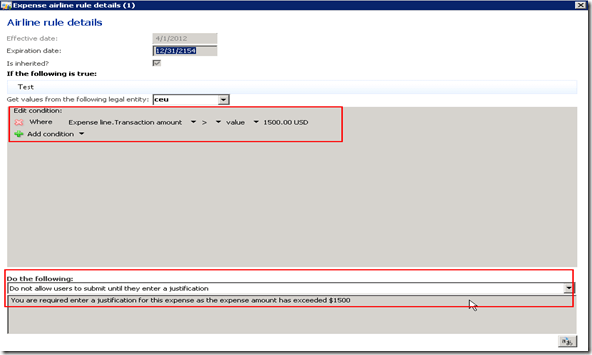
    A Rule type categorizes the rules which can be that can be setup in a given module or feature area of dynamics AX 2012. For example, the Airlines and Hotel can be the rule types under the expenses management area. Different limits can be setup on these expense categories for employees in different positions of the organization. One good example of such a limit can be that the employees can incur a maximum of $1500 on airlines for their travel and they have to provide necessary justifications if their airlines expenses exceeds this limit.

    The last component of this framework is the actual Policy rules which holds that essential data which defines how the policies will be enacted or evaluated. The example of limit on airlines expenses given above is a real-time example of a policy rule.

    Leaving these core definitions and meanings of the policy framework, let us now take a look at a real policy rule in effect, inside Microsoft Dynamics AX 2012.

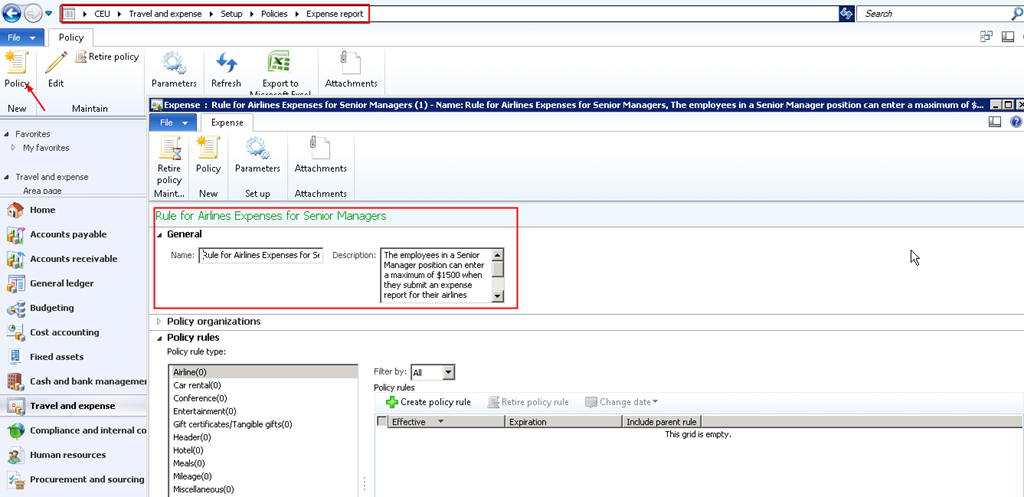
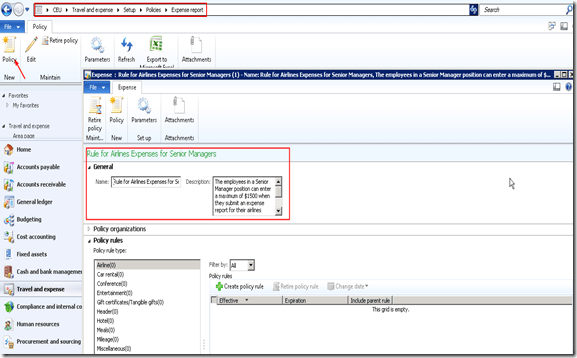
    To demonstrate this, I will take an example of defining “A policy rule in the expenses management area where the employees can enter a maximum of $1500 when they submit an expense report for their airlines expenses and see how system will enforce them to enter a justification if they exceed this limit.

    Follow the steps below.

    1. Create and activate new policy under Travel and Expenses Management.
    image

    2. Assign the legal entities to which this newly created policies will be applicable. Please note that you need to define an organization hierarchy and then select companies or legal entities to be associated with this new policy. The beauty of this functionality is that, AX 2012 allows policies to be affected for the sister legal entities automatically when you define a proper organization hierarchy.

    image

    3. After you are done assigning the organizations, create the actual policy rule for the airlines expenses. Select Airlines on the left list and click Create policy rule button. Also note that, Microsoft Dynamics AX 2012 makes it possible for you to keep a complete audit trial of all your organization policies of the past and current and future. A policy once created can only be retired but not deleted.

    Also, make a note of the various policy rule types which comes out of box with AX 2012.

    image

    4. Setup the data required for this policy rule which is as shown below.
    image

    The Policy now is created for this above scenario and make a note that the policy needs to be active for this to be in effect.

    Let us now see how this policy comes into work when Ahmed Barnett, a Senior Manager in the Dynamics AX division of the organization enters his airlines expenses.

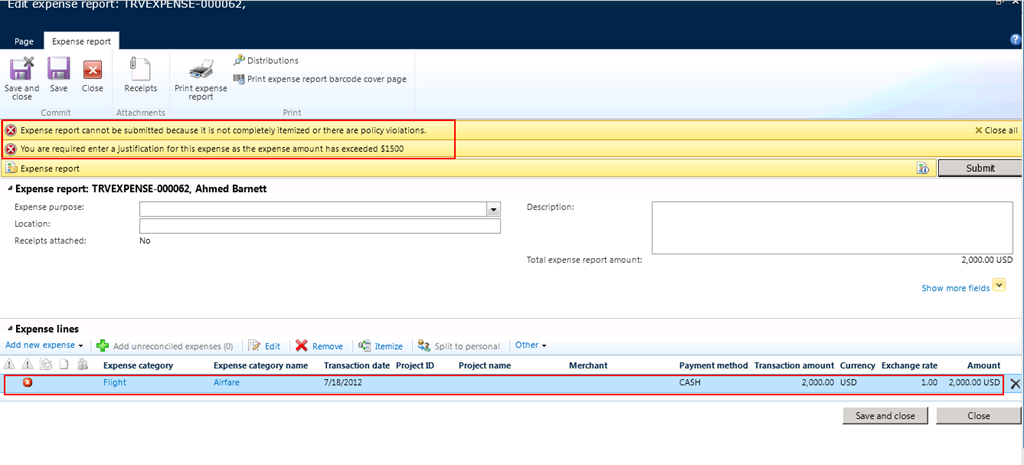
    1. Ahmed logs into the Employee self-service portal and creates his expense report for the airlines expenses which he incurred when he was on site at a customers place and tries to submit it.

    image

    The policy framework’s warning icon gets activated and gives a message to the employee which we have setup back in the expense policy for airlines. (See above screen ).

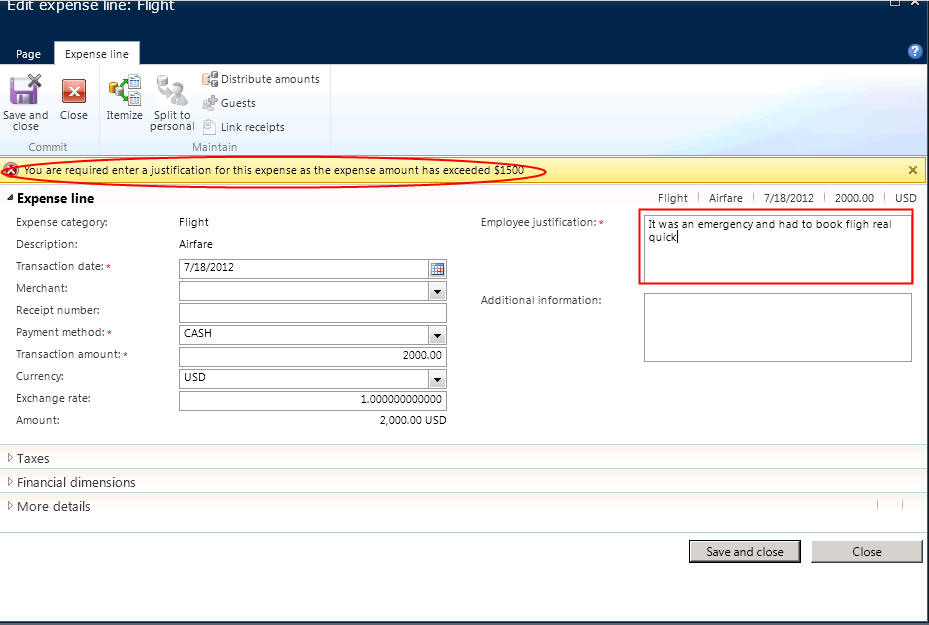
    Ahmed will now have to the go to the expense line again and enter a justification for this expense exceeding maximum allowed amount, for him to be able to submit the expense report.

    image

    The Microsoft Dynamics AX 2012’s policy framework is flexible enough to define any number of very simple to complex audit policies across your organization under the Expense Management, Vendor invoices, purchase orders etc. areas, there by allowing your admin staff and reviewers focus on their day-to-day work more, rather than spending time in evaluating business processes violations manually.

    Please do not hesitate to contact me for any queries or comments about the policies in Dynamics AX 2012.

    Till next time !!!!

    Sandeep

  • Process Automatic Recurring Free Text Invoices with Microsoft Dynamics AX 2012

    Very easy to set up, process and use ! This new, small but exciting functionality of Microsoft Dynamics AX 2012 enables a customer to be invoiced with automatically generated recurring Free Text invoices.

    Thanks to Microsoft Dynamics AX 2012.

    Miccrosoft Dynamics AX 2012

    Assume an example where your organization has rented Office space to one of the customers for 2 years of time period and sends a free text invoice every month to the customer for the office area rent. Now that , this invoicing is going to happen every month, at least until next 2 years, it makes sense to just automate this process and let system take care of invoicing when it is time.

    This new functionality of AX 2012 allows to automate this whole process.

    Let us take a quick look at the screens and forms to understand , how do we setup these and how they get processed periodically.

    1. Create a free text invoice template which looks similar to the standard free text invoice line except for the “Date” and “Customer account “fields. (This is because the invoices can be on different dates being periodic and may be used for several customers also).

    Create this under Accounts Receivable > Setup > Free Text Invoices Templates.

    image

    2. Assign the FTI template to customer account in Customer master.

    image

    3. Setup few parameters required for the recurring of the FTI, such as recurring pattern, interval, billing start date, end date, max. cumulative amount etc. as shown below.

    image

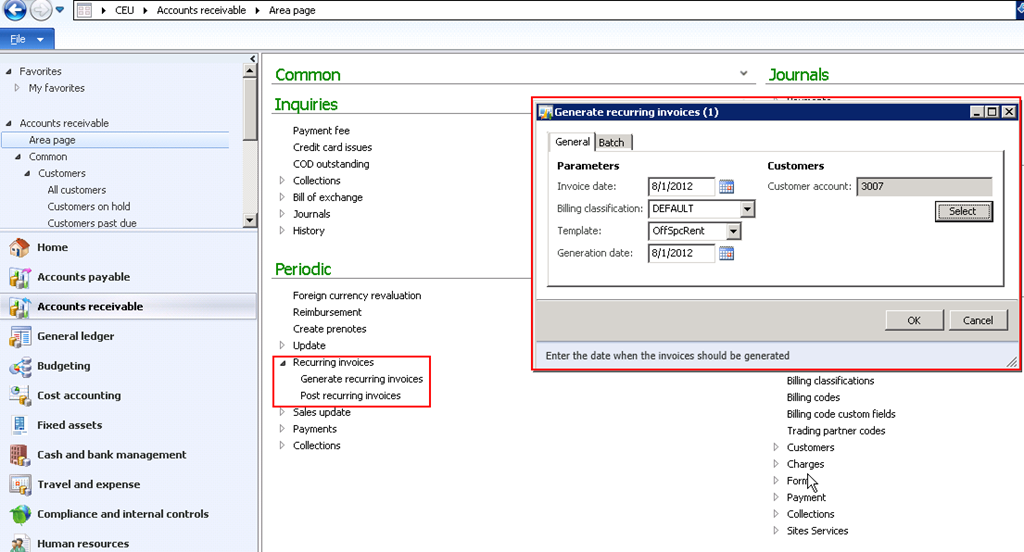
    4. The next step is to process the periodic invoicing under AR > Period > Recurring Invoices.

    image

    Beauty about this is the availability of batch functionality for this periodic job. This will make the users worry free and will keep generating the invoices in batches as per the schedule specified. The info log below ensures that the recurring invoice generation was successful.

    image

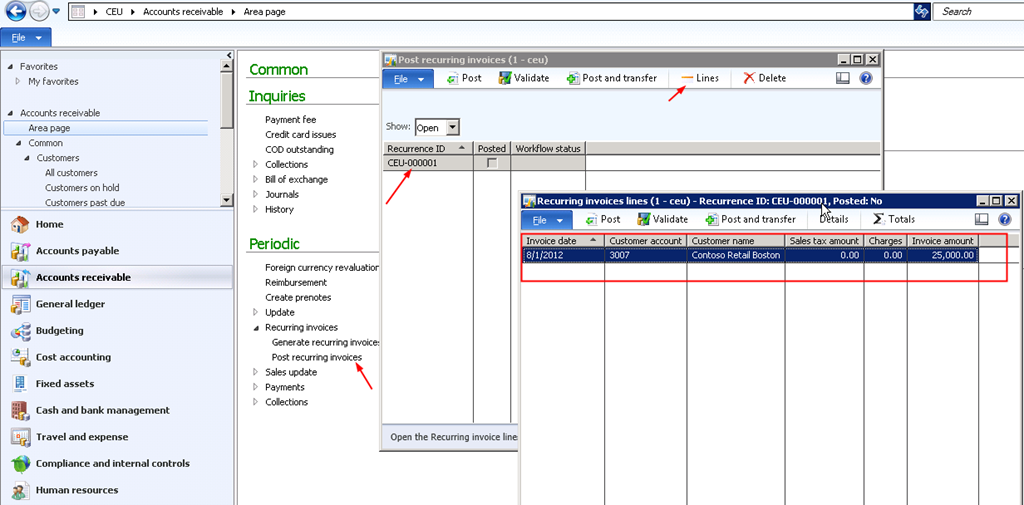
    5. The next step is to post the recurring invoices under AR > Periodic > Recurring Invoices > Post recurring invoices.

    image

    Note that, this screen will show all the generated invoices and you can see the actual invoice lines by clicking the Lines button. Now validate and post the invoice by clicking Validate and Post buttons.

    The info log below shows the successful validation and posting of the invoices.

    image

    Key benefits of the recurring free text invoices functionality:

    Before winding up, I would like to mention few of the unique benefits of this functionality in AX 2012.

    1. The automatic invoice generation can be run as a batch, which means this is fully automated and invoices are created automatically as per the batch schedule which the user has specified.

    2. System has all the validation in place and does not create duplicate invoices of you run the invoice generation process twice manually by chance. Rather, if you have forgotten to run the invoice generation for one month, then system will automatically validate that during subsequent month’s invoice generation and create the previous months invoice also. Pretty NEAT !

    3. User has the option to change the invoice amounts in the invoice templates at any point of time if the business requires it.

    Very simple yet meaningful functionality. Till next time !!!

    Keep DAXING.

    Sandeep

  • Employee Cash advance management in Microsoft Dynamics AX 2012

    Hi Friends,

    Tracking the money that employees spend when incurring expenses for your business is a real key of Expenses management in an organization.

    In today’s post we will discuss about the employee cash advance management feature of AX 2012.

    We will start with the process of employee submitting a request for cash advance, the approver reviewing and approving it, paying the employee and then we will also see a little bit of process how the employee can return his cash advances.

    Employee Submits Cash advance request in Employee self-service portal :

    1. Navigate to the Manage Expenses > Cash advance request area in the Enterprise portal.

    image

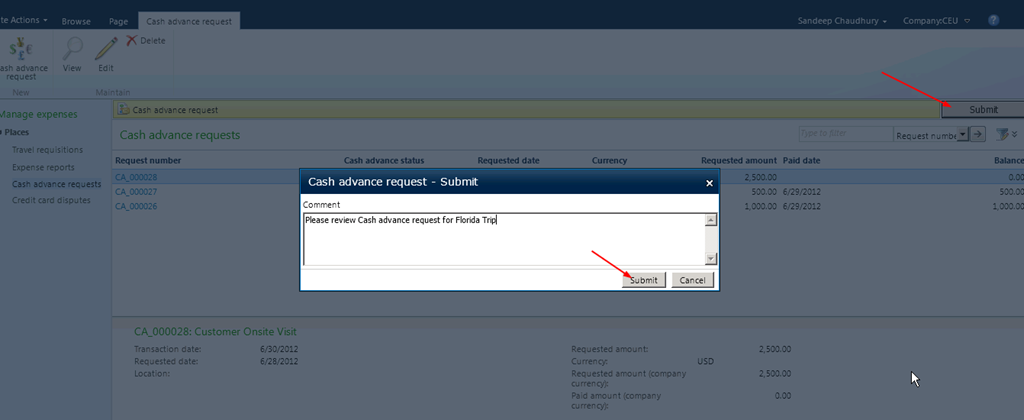
    2. Click New Cash advance request and key in required details for this request. Save and close after filling in the details. Then, submit the request for approval.

    image

    image

    Two easy to use steps for employees to submit cash advance request !!

    Approver reviews the Cash advance request:

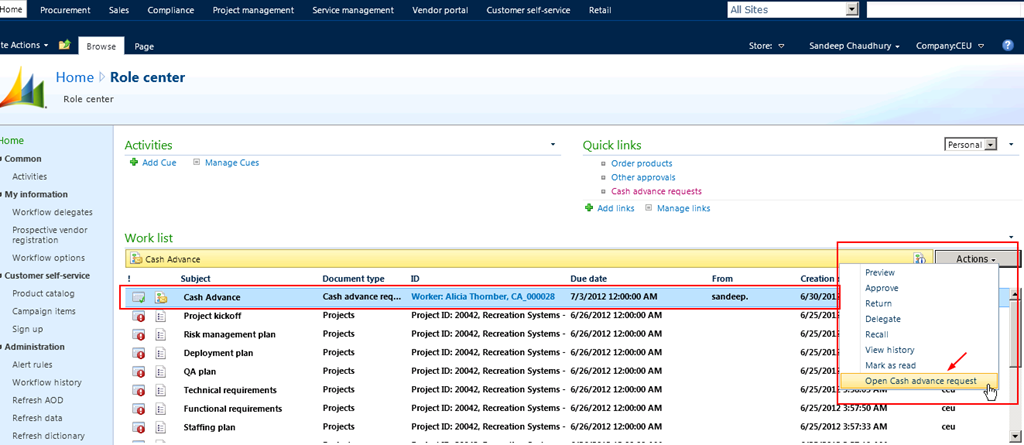
    1.  Approver logs into enterprise portal and finds the cash advance request assigned to him/her for review.

    image

    2. Approver opens the cash advance request and then reviews and approves it.

    image

    Just two clicks !! QUICK and Easy for the reviewer/approver.

    Finance team pays to the employee after the request got approved :

    1. The finance teams logs in to AX and navigates to view the approved cash advance requests.

    image

    2. One click PAY !! The finance team member/user just clicks the Pay and transfer button and AX 2012 does the rest. Employee gets PAID !! System automatically creates and posts the required financial voucher entry for this transaction based on the setups which are done.

    image

    See below the automatic financial journal created and posted in the system.

    image

    image

    The cash advance payment cycle for the employee is completed in few simple steps.

    Let us now take a quick look at how the employee can return the cash back or how an employee can expense his cash advances in AX 2012.

    1. Employee logs into the Enterprise portal and navigates to expense management area and create a new expense report and clicks Other > Return cash advance.

    image

    2. System automatically shows all your reconciled cash advances. Select the one you want to expense and select the expense category and submit the expense report.

    image

    DONE !!

    System creates the necessary financial journals after the expense report is approved and posted.

    Simply POWERFUL Smile

    Till next time !!! Keep reading

  • Aston Martin selects Micrososft Dynamics AX 2012

    Aston Martin selects Micrososft Dynamics AX 2012

    Aston Martin, the renowned automaker, switches gears with Microsoft Dynamics AX 2012.

    Another success story with Microsoft Dynamics AX.

    The flexible and seamless integration of all ledgers including General, purchase, fixed assets and sales, made Aston Martin’s operations and information flow more easily and efficiently than before.

    Read the success story in the link below.

    http://www.microsoft.com/en-us/news/press/2012/jun12/06-19AstonMartinPR.aspx

    Way to go !

    Thanks

    Sandeep

  • Accelerated billing/invoicing for Projects in Microsoft Dynamics AX 2012–(Progress based billing)

    Automated, accurate and faster billing in Projects is one aspect, which every professional service organization look as one of the winning factors, when they choose an ERP application for their organization.

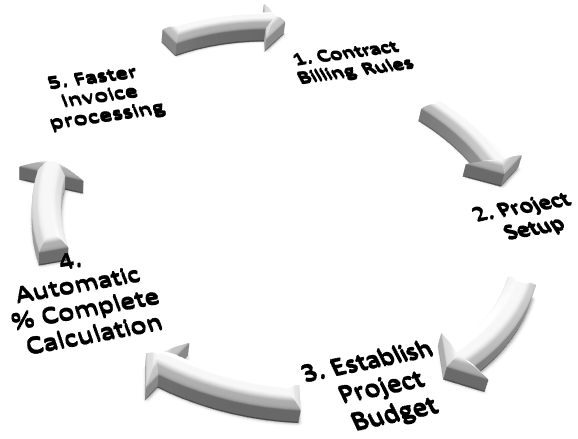
    Microsoft Dynamics AX 2012 ERP is equipped with a powerful project billing engine, which helps in faster invoice processing by providing the various capabilities.

    1. Transactions to be billed in a given time period are recommended automatically.
    2. Automated workflow for invoice and submission and approval.
    3. Automated and accurate progress based billing based on % of work complete in the project.
    4. Support for complex billing scenarios such as T&M based, Milestone based, unit based billing etc.
    5. Option to specify complex billing scenarios such as T&M based, Milestone based, Per unit billing etc.

    image

    In today’s post I will highlight one of the billing/invoicing features of AX 2012 which is the billing based on the progress of work in the project. This feature of AX 2012 allows professional services firms to automate the billing process without having the need of their project accounting staff spending days and weeks to determine the accurate completion stage of the project.

    In Microsoft dynamics AX 2012, the project managers can set up the project in the system and define a budget for the project and then, the system can calculate the progress based periodic billable amounts automatically.

    This can just be accomplished by executing the below simple steps.

    1. Setup the Project and required basic details for it.

    image

    2. Setup the appropriate billing rule in the Project Contract.

    image

    3. Estimate the Project and establish a project level budget.

    image

    With the above minimal setup done, when project transactions are posted, AX 2012 system can calculate the current completion stage/percentage of the project automatically without having you the need of the project accounting staff doing to manually which will take a considerably longer time.

    Based on the % complete for the project, system will automatically calculate the amount to be billed at the current state of the project.

    This was just one method in the billing engine of AX 2012 and there are several others, which supports more complex billing scenarios.

    Simple, Powerful !! This is it for today. Please contact me if you need further detailed and expert advise on billing capabilities of Microsoft dynamics AX 2012.

    Keep DAXING Smile

    Sandeep

  • Intercompany Timesheets Management in Microsoft Dynamics AX 2012

    Hi All,

    I had been very busy with several things on my plate at work. Work keeps all of us busy.

    It feels bad for not being able to spend time on my blog and finally decided to take out some time and write here.

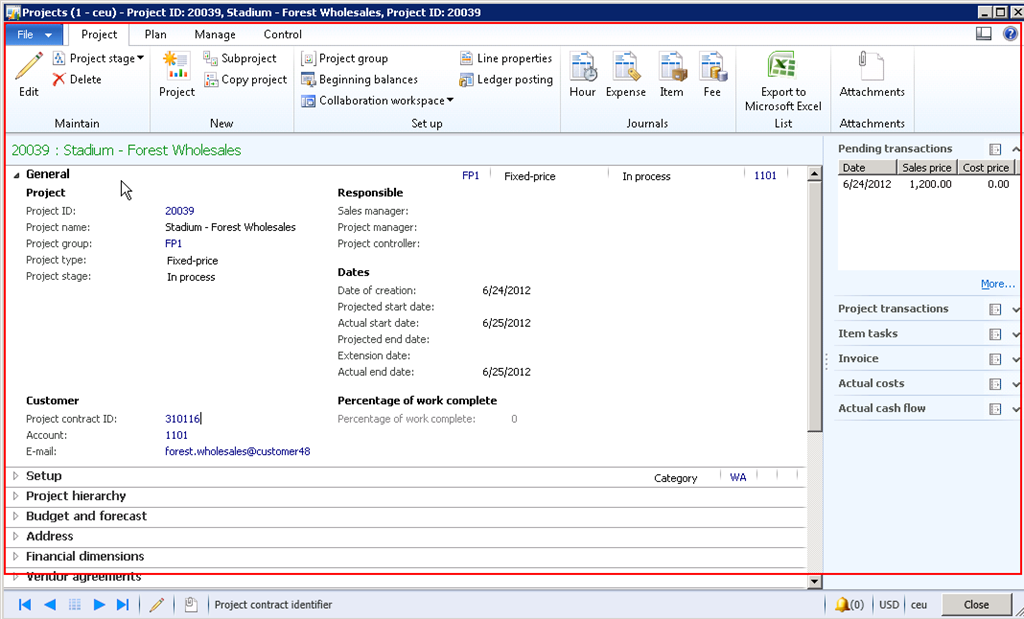
    In today’s post, we will explore and discuss about one of the important functionality in the Project Management area which is “Intercompany timesheets functionality”.

    Intercompany Timesheets

    In every mid sized to a large-sized professional service industry, it is a common practice that employees/workers of the organization keep working on the projects of different legal entities where as they will be employed in only one legal entity.

    The loaning and borrowing activity of employees between the legal entities is essential to make efficient utilization and putting right people if the right job possible. When working on the projects of legal entities other than their employing legal entity, Microsoft Dynamics AX 2012 make it simple for the employees to register their times/hours directly on the projects of the contracting company/resource borrowing company, without having the need for the employee to enter times at multiple places and multiple times.

    NOTE : Intercompany Timesheets Management functionality will be available only if the AX 2012 feature pack is installed.

    In the subsequent steps and paragraphs of this post, we will explore the various setups and the overall intercompany timesheets operation in AX2012.

    Let us refer the two legal entities which exchange the employees as the Loaning entity/Resourcing and the Borrowing/Contracting entity.

    The following setups needs to be completed in AX 2012 in the Loaning legal entity.

    1. Enable the intercompany timesheets management in the project parameters screen.

    Project Parameters

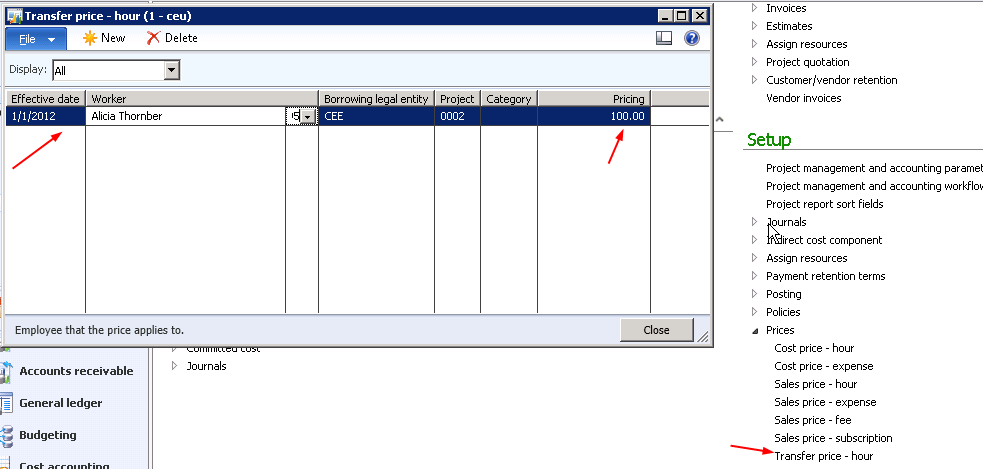
    2. Setup pricing details for the employees who are to be loaned. This includes setting up the cost price and the transfer price. The cost price however is ideally setup for all employees weather they will be loaned or not. The transfer price represents the price which the loaning legal entity charges to the borrowing legal entity.

    Transfer price setup:

    Price setup

    Cost price setup:

    Price setup

    3. Setup the ledger accounts for the inter company cost and revenue.

    Intercompany Ledger Accounts setup

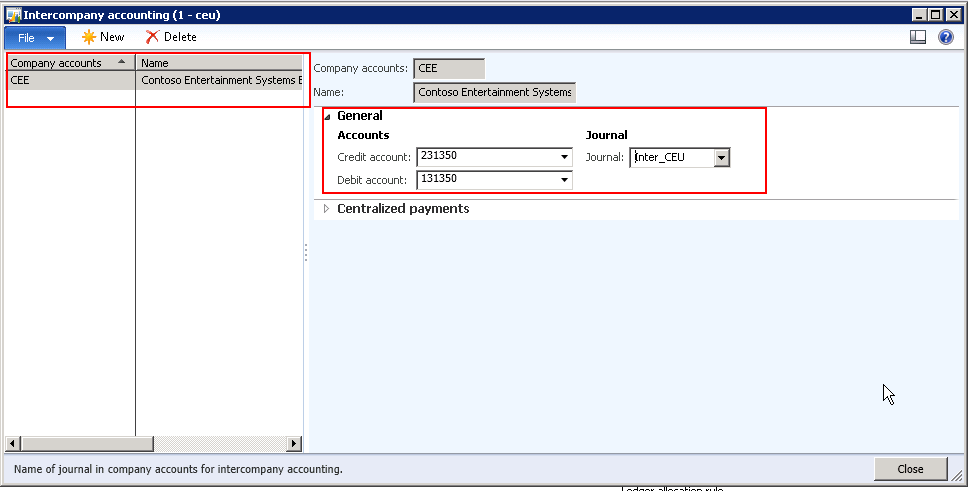
    4. Make sure that the debit and credit accounts for the intercompany transactions are setup.

    Intercompany accounts mapping

    This completes the setup required in the loaning/resourcing company.

    Now, let us complete the setup needed to be done in AX 2012 in the borrowing legal entity.

    1. Setup sales prices for the borrowed resources which the the actual selling price in the project.

    Sales price setup

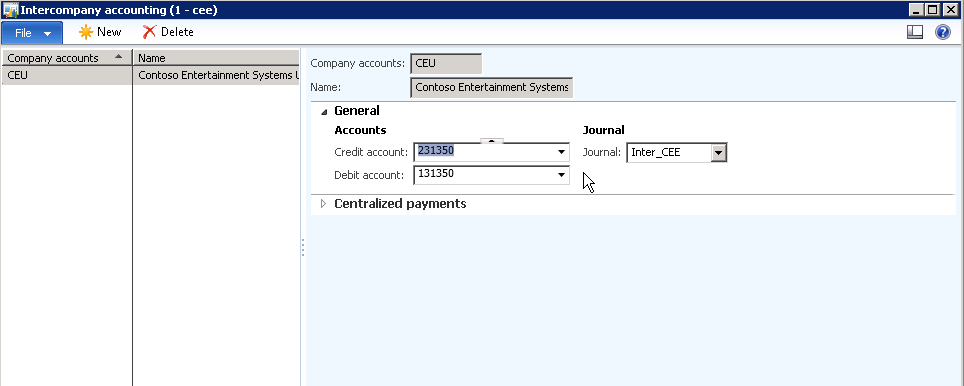
    2. Setup the debit and the credit accounts for the legal entity the worker will be borrowed from.

    image

    3. Further additional setups can be done, like assigning projects and categories to the borrowed worker if the validation functionality is implemented.

    Now that we are done with the minimum setups required for the intercompany timesheet functionality to be operational, let us take a look at the steps/process by which the borrowed employee can submit this timesheets in the borrowing/contracting company.

    • Employee logs into AX 2012 enterprise portal and navigates to the new timesheets screen.
    • Notice the new Legal entity field in the timesheet line which gets enabled when we enable the intercompany timesheets in AX2012.

    New Timesheet

    • Also notice that the loaning and the borrowing/contracting companies are displayed in the look up of the legal entity field. The worker will select CEE as the legal entity and enter their times in.

    New Timesheet - Legal entities

    So the employee will be able to submit his/her times in the project of the other legal entity without having to be an employee of that legal entity.

    The back end accounting is then done automatically based on the setups done.

    For any queries regarding the inter company timesheets functionality, please do not hesitate to contact me.

    Till next time !!!

    image

  • Troubleshoot–Hot fix available for a critical issue during financial consolidation process in Microsoft Dynamics AX 2012

    We ran into a critical issue when running the financial consolidation using financial dimension combination in AX 2012.

    ISSUE: System was summing up the transaction amounts by date and was updating data into wrong financial dimensions in the consolidation entity.

    SOLUTION: A hot fix was available for this and this worked fine after we applied the hot fix. (Please ignore if you already have come across this).

    NOTE : This hot fix is not part of the CU2 update yet but may be included in the CU3 which is slated to release somewhere during JUNE/JULY this year.

    Link to hot fix:

    http://support.microsoft.com/hotfix/KBHotfix.aspx?kbnum=2623873&kbln=en-us&sd=mbs

    Thanks

    Sandeep

  • The Power of Customer Self-service portal in Microsoft Dynamics AX 2012

    Hi Readers,

    I could not spend time on my blog since last few weeks due to my extended vacation. I know i owe answers/responses to a few of you. I will start doing it from today again. Sorry about this.

    In today’s post we will take a look at all the important capabilities of the customer self-service portal.

    The customer self-service portal, which is an out of box feature of Microsoft Dynamics AX 2012 adds to the list of several other simple yet powerful list of features.

    This enables your customers to work with you in more efficient way without having the need to several manual interventions. Rather than having customers calling you and asking questions about their orders, placing new orders, asking about invoices, inquiring about products, you can just give then a log in for the customer self-service website and can do all of the above stuffs on their own.

    For customers to get started with using the portal for them, all you need to do is follow few simple steps to setup the customer contact and other required details and then they are ready to go. The various capabilities of CSS(Customer self-service portal) are explained in the points below.

    Customer Self Service Portal

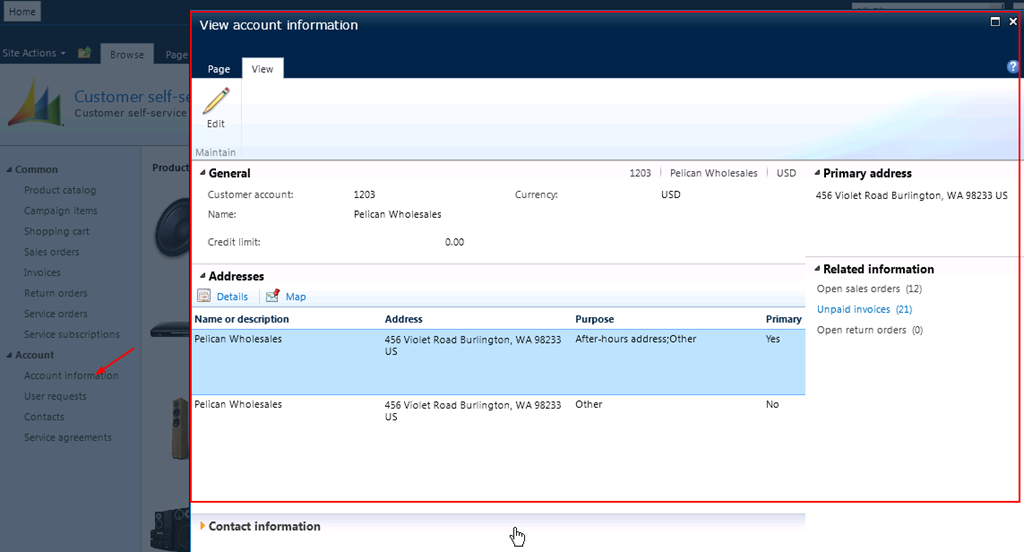
    View account information

    1. Configure Product Catalog and make it available on the web for customers to browse through your products:

    • Configure Product groups:

    Configure Product Groups

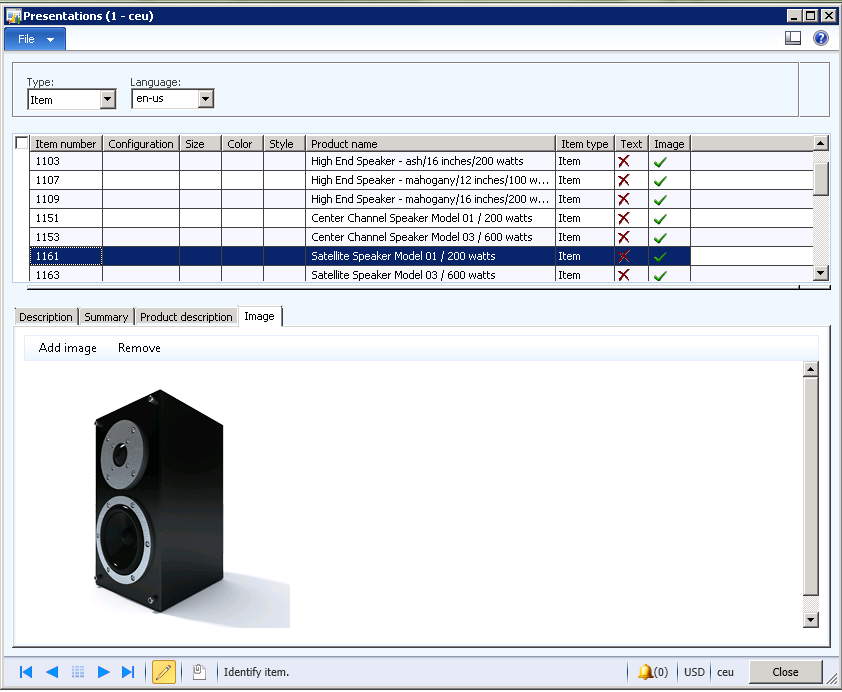
    • Prepare presentations:

    Catalog Presentation

    • Sync and publish images to the Web/SharePoint portal:

    Publish Images to Web

    2. You can prepare campaign items and few easy steps and make it available on the web for customers to browse through them and add to their carts.

    Campaign Items on the Web

    This makes it easy for the organizations and their customers to interact easily, without having to make several calls and exchange emails to find required information about your products.

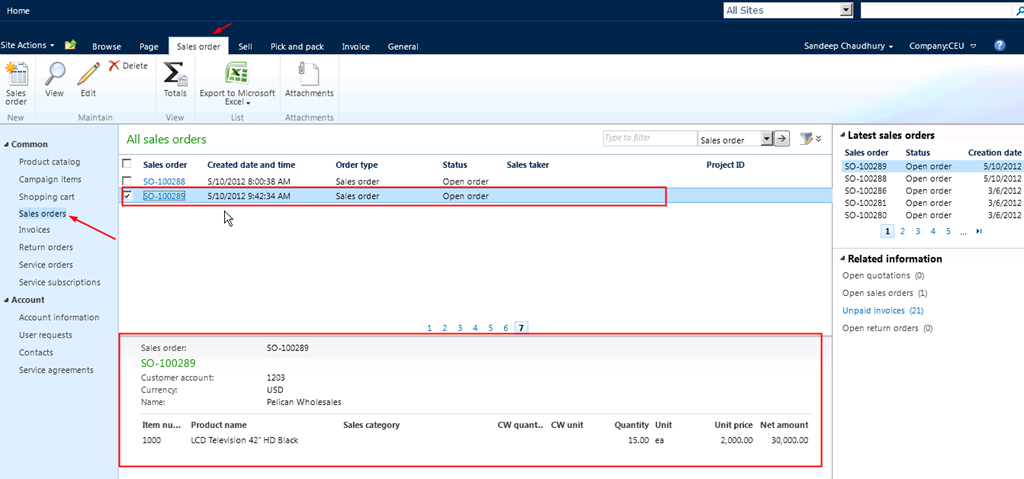
    3. Customer can place Orders on the web in few simple steps:

    • Add items to shopping cart

    Add items to shopping cart

    Add items to shopping cart

    • Checkout items and initiate order

    Checkout items and initiate order

    • Confirm order

    Confirm Order

    And You have successfully placed your order.

    Order Placed Successfully

    4. Have customers inquire about all their orders at one place on the web without reaching out to you frequently for the status and other related information about their orders.

    Customers inquiring about their orders on the web

    Other inquiries about customer orders

    5. Have customers inquire about all their invoices and related information on the web.

    Inquiry about customer invoices

    View invoices

    View Invoice

    6. Customers can create , Manage and inquire about their item/order returns.

    Returns Mangement on the Web

    7. If your organization provided services on it’s products for customer and manage repairs for them, then you can have your customers/technicians create service orders on the web.

    View and perform actions on your service orders on the portal

    So, with these offerings on the web for making your customers work easily with you on several things on daily basis, AX 2012 can help you and customers interact everything efficiently at one place, getting most updated information about their orders and stuff etc.

    This post is aimed for customers who are looking for a customer self-service portal built inside and coupled strongly with their ERP application.

    Microsoft Dynamics AX 2012 – POWERFULLY SIMPLE !!! YET AGAIN !

    Microsoft Dynamics AX-Powerfully Simple

    Till next time… Keep DAXING Smile
     

  • Human Resource Management in Microsoft Dynamics AX 2012–Employee Life Cycle Management

    Human Resource Management in Microsoft Dynamics AX 2012–Employee Life Cycle Management

    One of the key assets of every organization is their workforce and the skills and competencies obtained by their employees. Managing employees starting right from Recruitment to Retirement is always a crucial and cumbersome process. The human resource department(Roles such as Recruiter, HR Manager etc.) face several challenges in the employee life cycle management, when they do not get to see the right information in the right time at the right place.

    Common pain areas ?

    • Gathering job applications.
    • Loosing track of qualified candidates.
    • Missing correspondence action.
    • Complex employee transitioning.
    • Managing employees skills at one place to schedule them in the right job.

    Microsoft Dynamics AX 2012 helps you with all of these pain areas and helps in making the job of human resource department easier in every aspect of employee life cycle management.

    image

    Below is a walk through of the various screens in AX 2012 in each phase of the employee life cycle management in an organization. This post will help customers looking for Human resource management capabilities of AX 2012.

    Recruitment:

    View application that have just arrived and approve if the applicant meets the job requirements.

    image

    • See application details
    • See job advertise details and media that has been put in place for the recruitment

    image

    image

    image

    Automatic transition of applicant’s Skill details to the employee profile when the applicant transitions to worker/employee of the organization.

    image

    In case recruiter finds that none of the external applicants are good enough to meet the specific job requirements, then they can setup and run skills mapping profile to find out all the people who are already in the organization. System can search among all the applicants, existing workers and the company contacts.

    Good thing is, AX 2012 does not just does the search in the current logged in company but searches in the whole organization.

    image

    Run a result report to see all the individuals available inside the organization who can fit into the job.

    image

    Hire workers:

    Screen the final applicant, interview, email, and create and send Offer.

    image

    image

    image

    image

    Hire worker right from the Application screen after offer is sent and candidate accepts the offer..

    image

    Manage your workforce:

    On board resource, administer the new hires into the company, setup compensation eligibility, benefits, pay rates etc.

    image

    image

    Employee transitions management:

    Manage the transitions of roles and positions of employees within the organization easily staying at one common worker master form.

    image

    image

    Retirement:

    Terminate workers and be able to keep track of all their employment history and list of past workers.

    image

    image

    image

    These were a little about the overall capabilities of AX 2012 for efficient human resource management. Yet another powerfully simple functionality of AX 2012.

    Microsoft Dynamics AX-Powerfully Simple

    This is it for today’s post.

    For any queries related to this post, please do not hesitate to contact me.

    Thanks

    Keep DAXING Smile