Author: Sandeep Chaudhury

  • Straight Line Revenue Recognition for Projects in Microsoft Dynamics AX 2012 R3

    The Project Management and Accounting module of Microsoft Dynamics AX ERP has been supporting revenue recognition mechanism for fixed price projects (Both Long term and Short term) using the functionality called “Estimates for Fixed Price Projects”. This functionality supports both ‘Completed Contract” as well as “Completed Percentage” based revenue recognition for Projects.

    One other common revenue recognition that is widely used primarily for short term duration contracts is the “Straight Line” Revenue recognition. This happens primarily for contracts with subscription services, short term Insurance contracts etc. For such short term subscription service contracts, the contract amounts are normally recognized on a proportionate basis., i.e over the period of the contract for the subscriptions.

    With the release of Cumulative Update 8 (CU8) for AX 2012 R3, this functionality is now supported under the Project Management and Accounting module.

    In today’s post, I will explain this functionality from how to set this up in AX and then how the revenue recognition will happen for the project.

    Scenario: Let us say you are a online software service provider and you have customers that have subscribed to one of your software services for 6 Months duration. i.e. from 03/01/2015 to 08/31/2015. The total amount for the subscription contract is USD 3000.00 and you have agreed upon to bill them upfront, on the start date of the contract, i.e on 03/01/2015. Even though you billed them on the beginning of the contract, due to the nature of the contract you will need to recognize revenue proportionately over the period of the contract.

    Setup Estimate/Revenue Recognition Template:

    The first step on this process will be to setup the Cost Template for the Straight Line Revenue recognition functionality.

    1. Navigate to Project Management And Accounting > Setup > Estimates > Cost templates.
    2. Create new record.
    3. Select Completion based on = Straight Line.
    4. Save the record. Refer to screenshot below.

    Cost Template

    Setup Contract, Project:

    Let us now create and setup the Project Contract and Fixed Price Project for our scenario.

    1. Navigate to Project Management and Accounting > Common > Projects > Project Contracts.
    2. Create the new project contract.
    3. Create the New fixed price project and link to a project group that is associated with the newly created Cost Template.
    4. At this point, note that the Actual Start Date and Actual End Date fields on the Project details form becomes Mandatory. This is because, system will depend on the Actual start date and Actual end dates, to determine the percentage completion automatically when you run the Periodic Revenue Recognition function(Estimates) for this project.
    5. Refer to screenshots below.

    Project Group Setup

    Project Details Setup

    In this scenario, I will setup Actual start date = 03/01/2015 and Actual End date = 08/31/2015.

    Project Details Setup Dates

    Bill the Customer Upfront:

    The next step is to the create and setup the On-account transaction for this project, which we can bill to the Customer Up-front on 03/01/2015.

    1. Select the project created above and click Manage > Bill > On-account transactions.
    2. Create a new record.
    3. Setup the on-account transaction for USD 3000.00

    On Account Invoice

    1. To bill the customer, click Manage > Bill > Project Invoice Proposal.
    2. Create and complete the invoice processing and post the invoice.
    3. At this point, note that the Invoiced revenue is actually posted to a Balance sheet account based on the configuration we did in the project group setup and no revenue is recognized for the project at this point.

    Invoice Posting Voucher

    Recording Expenses/Costs on the Project:

    Note that during the tenure of the project, you can also record all the expenses such as Labor (Time) and expenses such if any for accurate probability of the project. The source of the costs can be Timesheets, Expense reports or any cost journals for the project.

    For the demonstration, I have already posted some hours and expenses on this project and we will see in the next step how this information shows up on the Revenue Recognition summary screen with profitability details such as Gross Margin.

    Recognize revenue for the project periodically(Monthly in this case):

    Now, let us evaluate the process of periodic revenue recognition for this project every month and see how system automatically calculates the % complete and the accrued revenues.

    1. Since the contract started on 03/01/2015 and we will recognize the revenues on a Monthly basis, let us run the first revenue recognition on 03/31/2015, end of March 2015.
    2. To do this, navigate to the Project and click Manage > Process > Estimates.
    3. Create new Estimate and select Estimate date = 03/31/2015
    4. Note: For this demo scenario we are running the revenue recognition manually. Ideally you can setup the estimates to run for all your fixed price projects to run and post automatically in a Batch.
    5. See that Estimates(Revenue Recognition) form has got some improvements in CU8 release. It has several additional data fields to present clear details of the revenue recognition history for the project such as Invoiced Revenue(WIP), Contract value, Percent complete etc.
    6. After we have run the first Revenue Recognition process on 03/31/2015, notice that System automatically calculated the Percentage Completion based on a Straight Line basis. The total number of days in the tenure of the subscription is 184 Days(March to August) and we ran the first revenue recognition at the end of 31 days for the project. So system automatically calculated the Percentage complete as 16.85 %.
    7. Notice that system shows Contract Value = 3000.00, Invoiced Revenue = 3000.00, Percentage Completion = 16.85 %, Revenue recognized now (Accrued revenue for March) = 16.85% of Total contract value.
    8. Now, let us review and post the Estimate to recognize revenue. Once the estimate is posted, revenue is recognized and the amount is posted to GL (P&L Account setup in project posting profile).

    Create Estimate

    Post Estimate

    If you see the above Voucher, notice that system posted the accrued revenues as well as moved the Costs to P&L accounts from WIP. Since I had setup the Costs to be posted to Balance sheet accounts in my configuration. It depends on what you configure the cost to be posted to.

    You can follow the same process and post the estimates/revenues for each of the periods until the end date.

    Below screenshot shows a summary that I have created and posted the revenues for each period till the 100% completion on 08/31/2015.

    All Estimates

    Finally, once the subscription contract is over, you can follow the standard AX elimination of the estimates to reverse the WIP sales values.

    Estimate Elimination

    Hope this quick demonstration was helpful !! Till Next time….

    Best, Sandeep

    Connect with me on: Twitter | Linked-In | Facebook

  • Manage Projects With Integration of Microsoft Dynamics AX 2012 R2/R3 with Microsoft Project Sever 2013

    Manage Projects With Integration of Microsoft Dynamics AX 2012 R2/R3 with Microsoft Project Sever 2013

    Hello Readers, Bloggers

    Hope you all are on a tremendous learning curve for all the exiting changes and features upcoming in AX 7, and So do I. Last few months have been busy with several of these initiatives and usual tasks.

    Today, I will explain a familiar functionality that you might already know and might have used too in AX 2012 R3. It is the Integration of Microsoft Project Server Professional 2013 with Microsoft Dynamics AX 2012 R3.

    If you are a customer of AX using or wish use the Microsoft Project extensively for managing the planning aspect of your projects and use AX for both managing and project accounting, the functionality just got easier in AX 2012 R3.

    Until the AX 2012 R2 CU6 release, you always needed to specifically setup the integration between Microsoft Project Server and Dynamics AX under the System Administration module with all required parameters.

    Starting AX 2012 R2 CU 7 and beyond and in the R3 release, this functionality is now made much simpler with the introduction of a new “Add-in” for Dynamics AX in Microsoft Project Server. This Add-in works pretty much like the MS Office(Excel and Word) add-in for Dynamics AX .

    Note: Even though the specific integration setup functionality exists in versions CU 7 and more and also in R3, it will be ultimately deprecated.

    First thing first, Some Prerequisites:

    You need to make sure you have done the following.

    • Use Dynamics AX 2012 R2 CU7(Or above) Or Dynamics AX 2012 R3.
    • Install Microsoft Project Add-in when installing AX.
    • You must have Microsoft Project Professional 2013 or Microsoft Project standard 2010.
    • Share point foundation and server if you wish to take advantage of advanced integration functionalities.

    Some Simple Setups:

    • In AX, navigate to Project Management and Accounting > Setup > Project Management and Accounting Parameters.
    • Under General tab, select the options and parameters to save Microsoft Project files. Refer to screenshot below.

    image

    All Set, Get going:

    With this, you can start using the integration between Microsoft Project Server and Dynamics AX and sync data between the two systems. If you have the Project servr add-in properly installed and configured, you will see the Dynamics AX tab when you  open  a new project in Microsoft Project as shown in screenshot below.

    image

    Let us see some integration points between the systems and see how the 2 systems exchange project related data.

    Integrate an existing and new projects between Project Server and Dynamics AX:

    • In the standard AX Demo data, let us test this with an existing project 00000094 – Recreation Systems under the USSI legal entity.
    • The screenshot below shows how the project and the WBS setup for this looks in AX.

    image

    • You can now open the project of AX directly in Microsoft Project by clicking Open in Microsoft project button.

    image

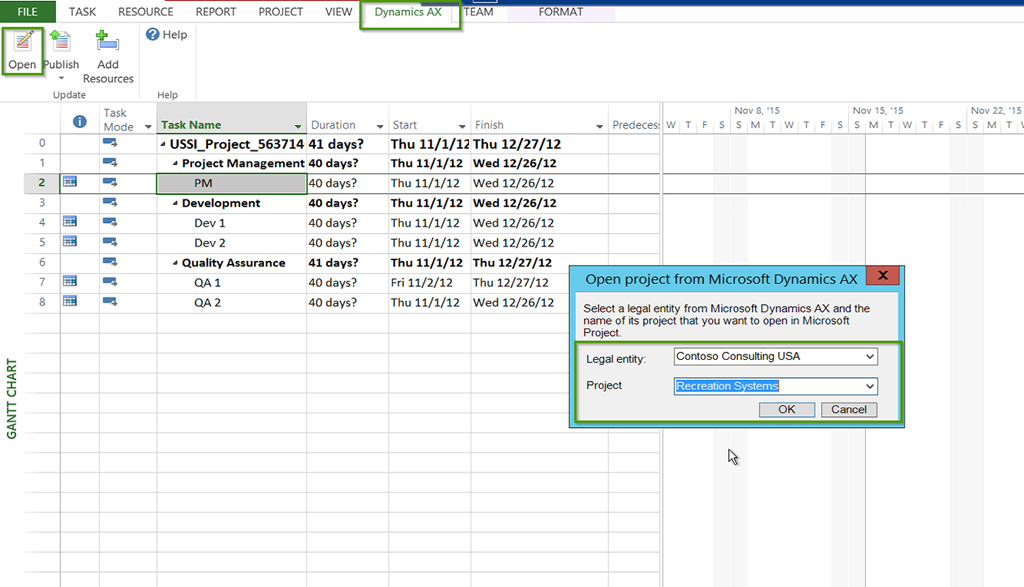
    • Alternately, you can Launch Microsoft Project application and click Dynamics AX > Open button to open a project from AX.
    • Select the Legal entity from the drop down in Microsoft Project.
    • This will automatically load the projects that are linked between the two systems.
    • You can select one from the drop down to load the project and associated details such as WBS, efforts etc onto Microsoft Project.
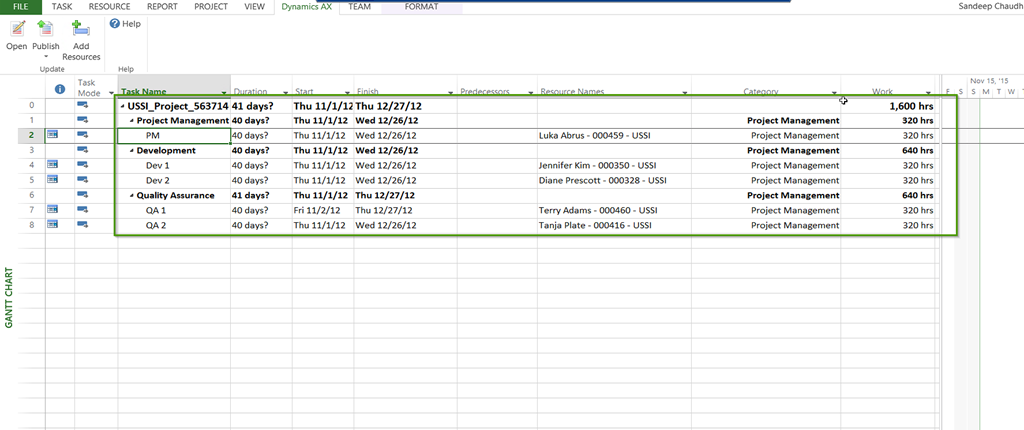
    • In this demo, I have selected the Recreation Systems project in Microsoft Project. Notice that system loads the project WBS automatically and the tasks are exactly same as shown in screenshot above.

    image

    • Notice that Microsoft Project Server also loads the resources the workers that are scheduled for the tasks on the project in Dynamics AX and also shows the default project categories that are associated with each task of the WBS in AX.

    image

    • Notice that in Dynamics AX, there is also an indicator on the Projects list page that shows a quick indicator to tell if the project of AX is liked with a project in the Project Server.

    image

    • Let us just create a new project directly in Microsoft Project Server and Publish the changes back to Dynamics AX from within Project Server by creating a new project. Prepare the Project and the task breakdown in Microsoft Project and click Dynamics AX > Publish > Publish New Project.

    image

    • Notice that the next screen will prompt you with the data fields to create a new project and this screen looks exactly similar to what we have in Dynamics AX.

    image

    • Enter the details for the new project and Click OK button. This will publish the new project data from MS project into Dynamics AX.
    • Go back to AX and notice that the project is now created.
    • Similarly, you can also update existing projects.

    image

    Assign workers from Dynamics AX to projects in Project Server:

    Another task that you can do with the integration of Project Server and Dynamics AX is view and assign workers from Dynamics AX in Microsoft Project. To do this, follow the steps below.

    • Open the Dynamics AX project in Microsoft Project.
    • Navigate to Dynamics AX Tab and click Add resources button.
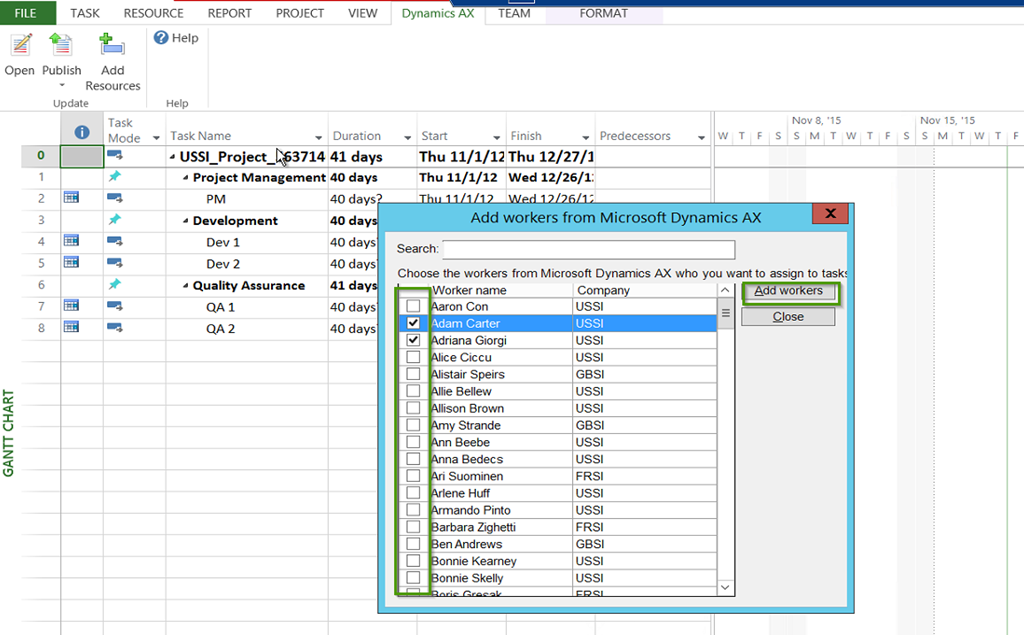
    • You will notice that system will load the workers that are designated as project resources in Dynamics AX.

    image

    • Select the workers you wish to add to the project as project resources in MS Project and click Add workers button. Note that, at this point this adds the workers as resources that can be assigned to tasks in MS Project, but it does not do any assignments yet.

    image

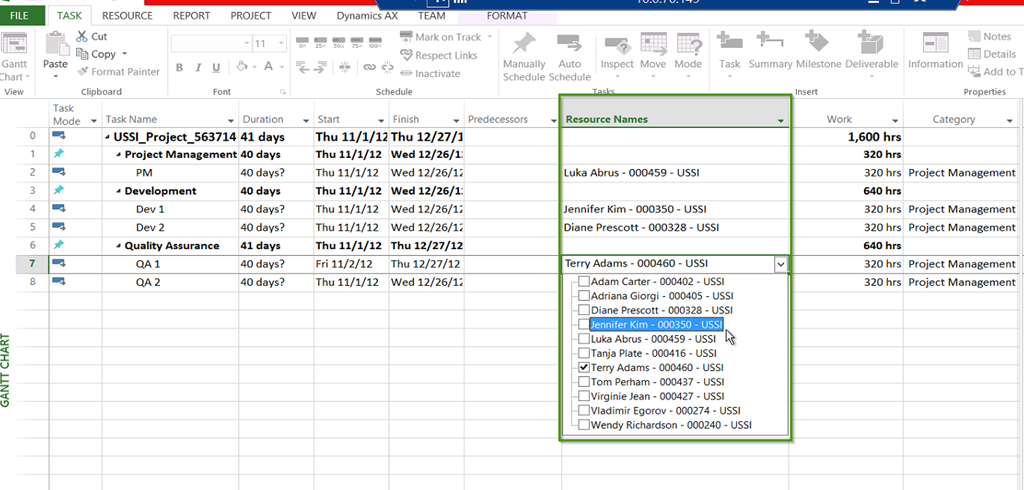
    • On the MS Project, select the Task that you want to assign a resource and Open the Resource Name drop down. You will see all the resources that were added and are available.

    image

    Some of the other integration tasks that you can do with this functionality are,

    • Save and use WBS templates in Project Server and Dynamics AX
    • Integrate WBS on a project in Project Server and Dynamics AX
    • Assign Categories from Dynamics AX to tasks in Project Server

    This was a high level overview of the integration functionality of Microsoft Project Server and Dynamics AX 2012 and various possibilities with it. I will leave you all to explore more and ask questions or share thoughts !!!

    Till next time….Have a great Holidays all of you….

    Sandeep Chaudhury 

    Twitter | Linked-In | Facebook

  • Automated Workflows in Human Resources Management in Microsoft Dynamics AX 2012 R3

    Automated Workflows in Human Resources Management in Microsoft Dynamics AX 2012 R3

    If you are a customer looking to implement or using Microsoft Dynamics AX 2012 R3 and use major aspects of Workforce management under the Human Resources Management, there are some Out-Of-The-Box workflows under HRM module that you can leverage to complete/automate several key processes such as Hire a worker, Transfer a Worker, Terminate a worker etc. You could use these new workflows build the complete on-boarding process for the new hires into the workflow.

    In this post, I will explain a little bit about these workflows and how you can use them in AX 2012 R3.

    Note: You will need to activate the Personnel Actions Configuration Key for HRM, to enable these new functionalities in the system.

    Workflow For Actions on Hiring a New Worker:

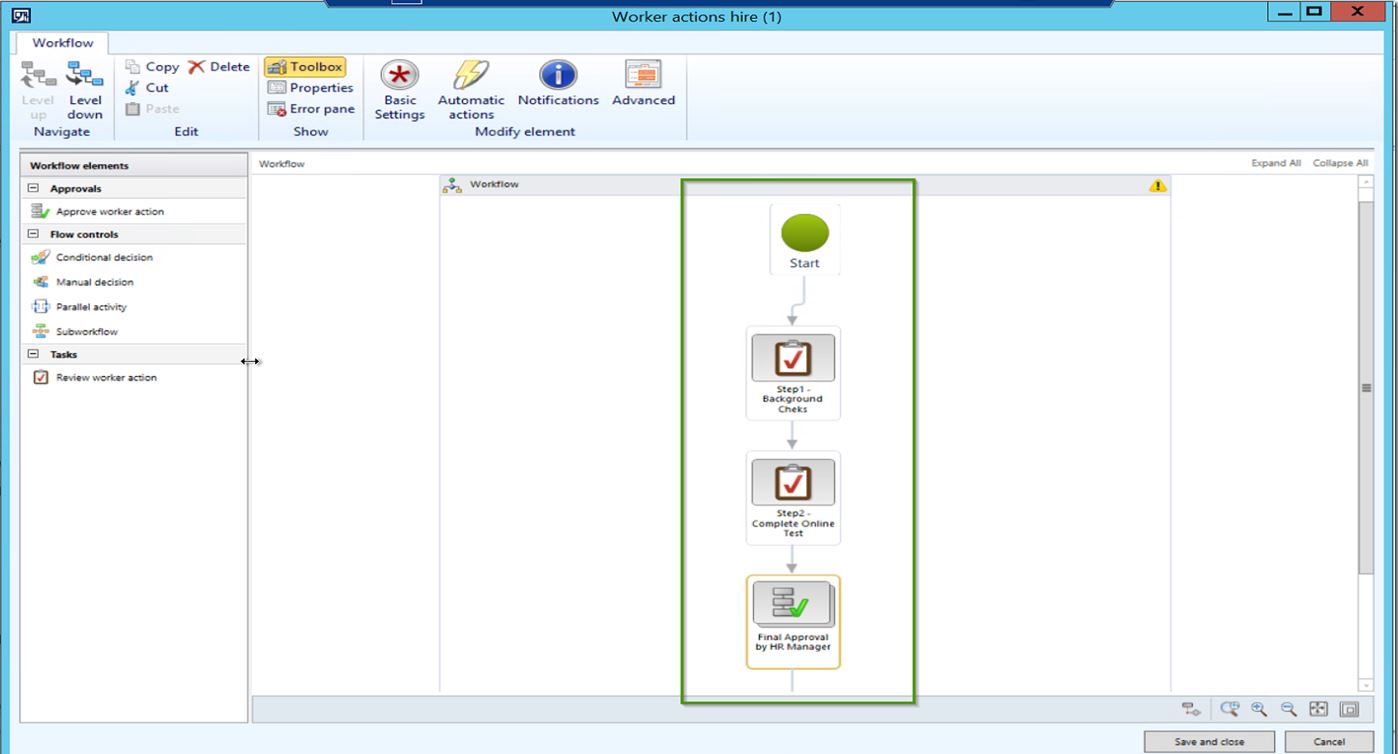
    For this demonstration, Let us say there are 3 steps in completing the on-boarding process for a worker before their hiring process can be completed in AX and a worker record can be created.

    Step1 : Complete background checks and fill Form A and attach filled in Form.

    Step2:  Complete online test for on-boarding for the new hire and attach test results.

    Step3:  Final Approval and worker creation in AX.

    • The screenshot below shows the workflow setup which has 3 distinct steps for performing several tasks related to new hire’s onboarding before the worker record can be created in AX.  The final step of the workflow is the approval of the worker record after all the prior tasks are completed by respective team members.

    Workfow

    • The workflow is setup and is activates now in the system. The next step is to configure the Personnel Action type. You can configure as many personnel action as you want/need and associate each action type with a personnel action and then link it to the workflow it should follow. In our example, I have created a simple action called Hire New Worker and linked it to the workflow we created above. Screenshot below shows the Personnel Action Type.

    Personnel Action Types

    • Let us begin the hiring process from All Worker Actions list page. Navigate to HRM > Common > Actions > All Worker Actions.
    • Click New Action button and select Hire New Worker as the Personnel Action Type and click Create Action.

    Create Worker Hire Action

    • On the next screen, you will notice all the required fields you will need to enter to submit the Hire New Worker action request to the workflow. Select various data fields such as Action Requested by, Worker’s name details, entity in which he is employed, Worker type, employment start date, Position assignment details etc. under the corresponding fast tabs.

    Worker Action Details

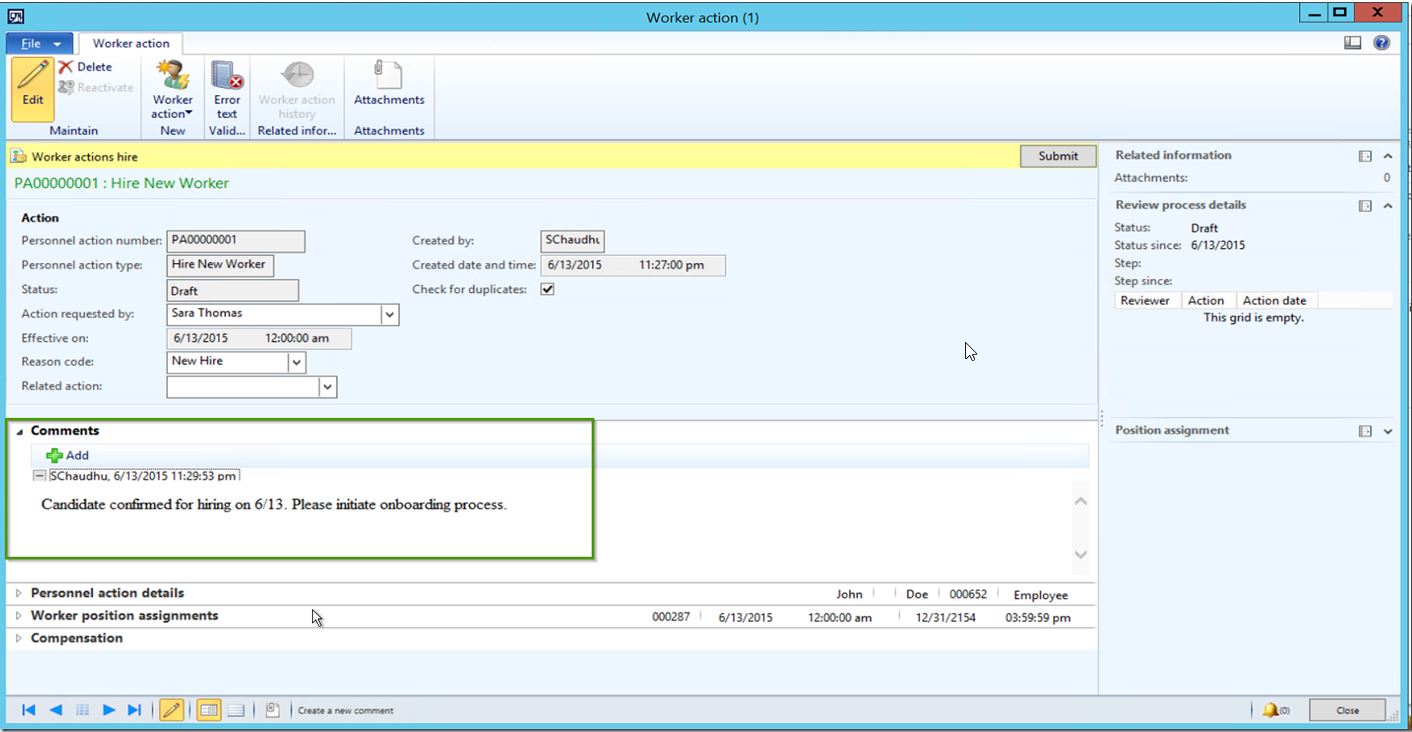
    • You can also enter additional comments for the reviewers in the workflow about the new hire under the Comments fast tab.

    Comments

    NOTE: You can customize this form to automate the setup of several other data attributes for the workers such as financial dimensions, addresses, contact information and any other key data fields on the worker record, so that those can be embedded into the workflow of onboarding and upon completion, the values will be setup already on the worker record.

    • When you are ready to submit, click Submit button. This will get the worker action into the Hiring Workflow and will be routed to required teams for processing. The standard AX workflow engine can also be used to send the email notification within required instructions for completing the steps of on-boarding.
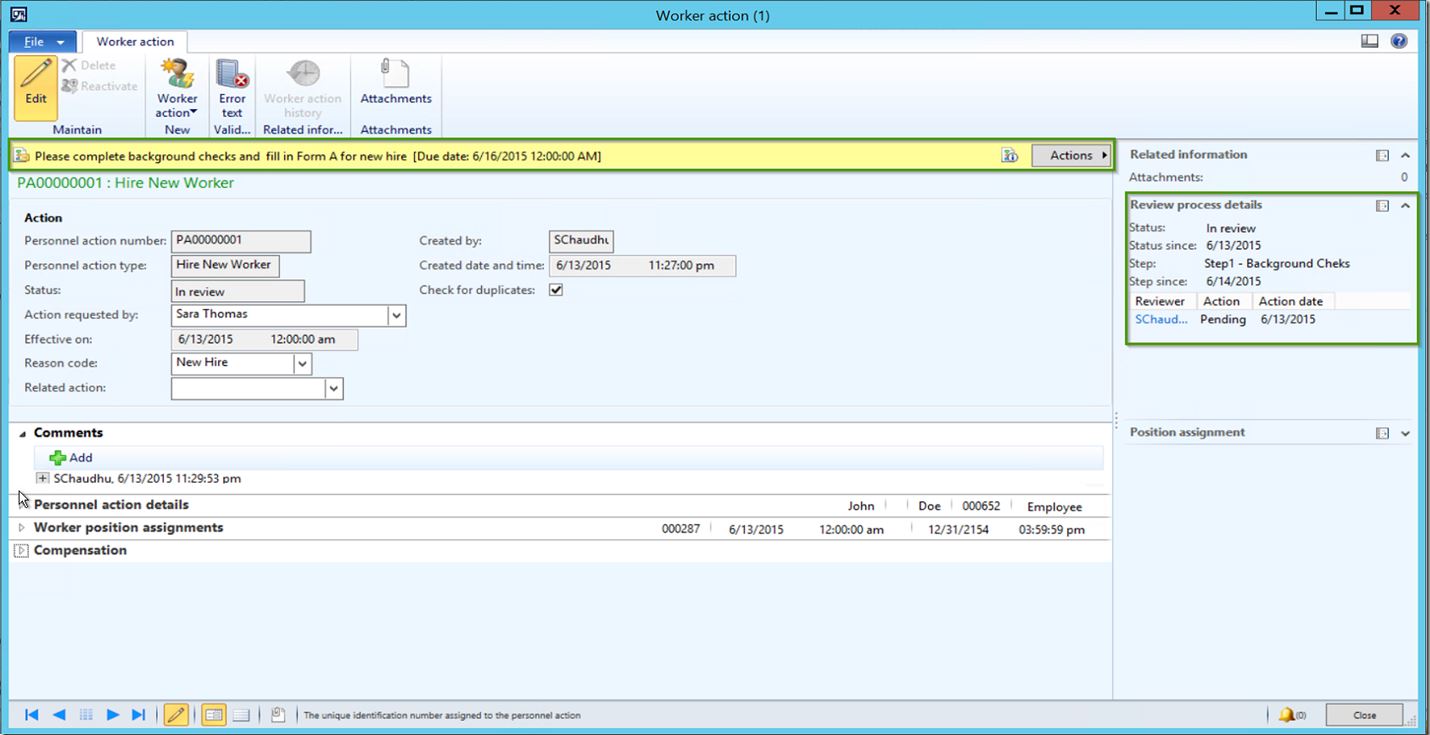
    • When it is submitted, it will get assigned to the person responsible for Step 1 of on-boarding. They can then review the checklist for the Step 1 and take required actions and mark the Step 1 as complete. If they wish to request a change of data information from the submitter, then can chose that option as well in the workflow. Screenshot below shows the workflow is now assigned to the person responsible for  Step 1.

    Step1 Review

    • They can review the checklist for the step 1 under the workflow step instruction section. Once the person complete the Step1, they will click Actions > Complete.

    Step 2 Review

    • As soon as Step1 is marked as Completed, the workflow is now assigned to person responsible for Step 2. The Review process details fact box on the right shows the current step the process is in. Person responsible for Step 2 will then complete the online test and then will attach test results to the action record and mark the step as Complete.

    Step 2 Review1

    • At this point, the workflow gets assigned to the final reviewer of information, who is the HR Manager. He can review all the details on the worker hire action and Approve the New hire action. Upon successful approval, a Worker record will be created automatically in the Worker master under HRM > All Workers.

    Final Review

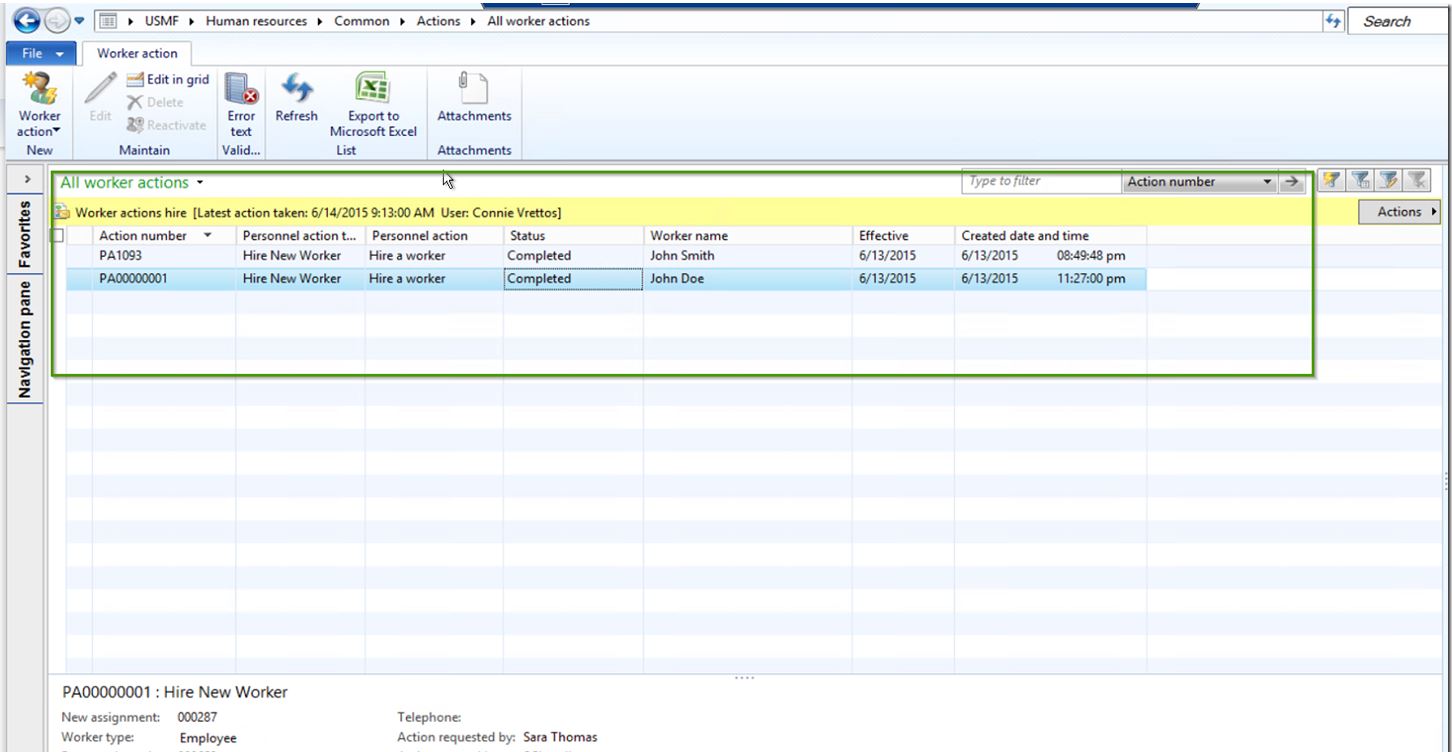
    • Once the Action is completed, you can see an overview of all the worker actions on All workers list page.

    Worker Actions listpage

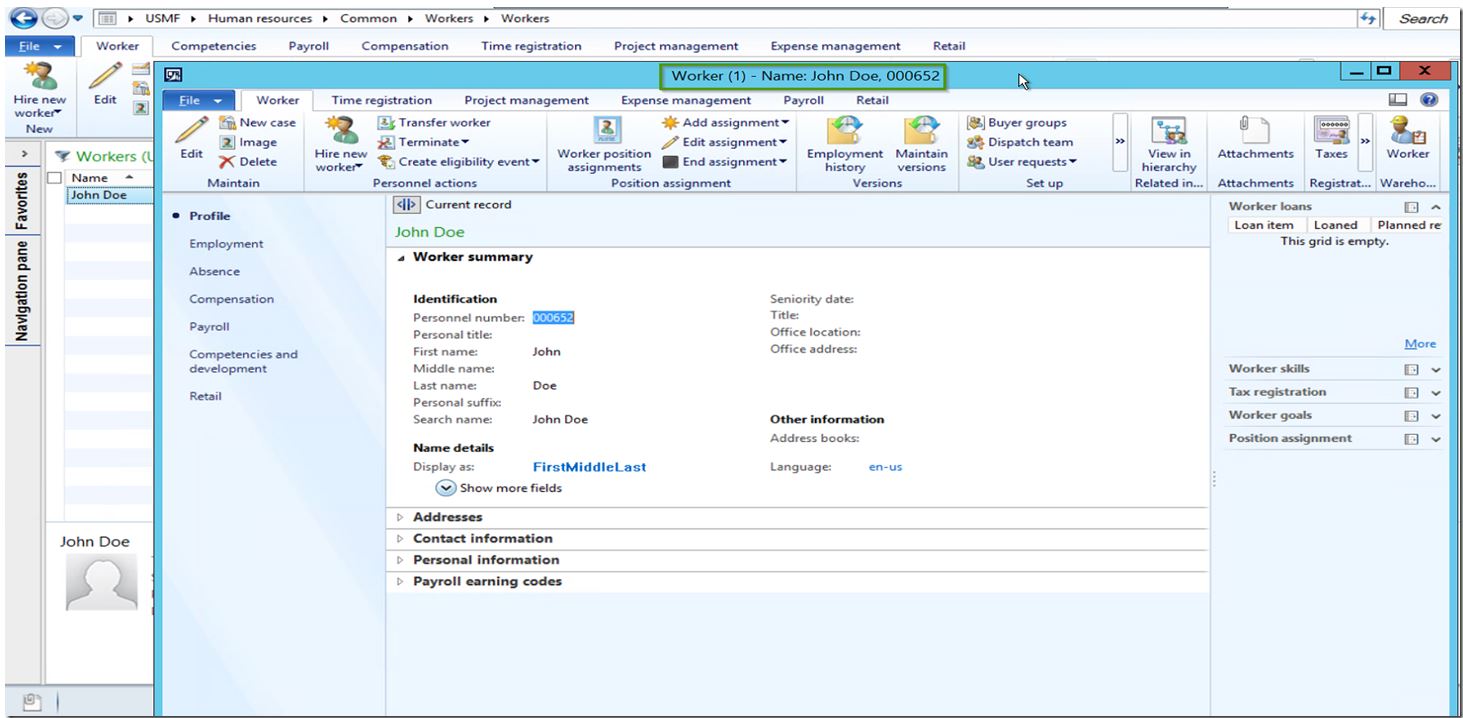
    • Now navigate to the All Workers form under HRM and Verify that the Worker record for John Doe will be created with all the details that were entered on the hire action.

    Worker Details Created

    Workflow For Actions on Transferring a Worker & Terminating a Worker: Just like we created the workflow for the Worker Hire action, you can also leverage the transfer and termination workflows and configure all your required steps and continue to use the Transfer and Terminate worker actions.

    Hope this quick information was helpful !! Till next time…..

    – Sandeep

  • Case Management Tip: Case Category Security Setup in Microsoft Dynamics AX 2012

    Case Management Tip: Case Category Security Setup in Microsoft Dynamics AX 2012

    Hello Readers,

    It has been really long writing here due to a pretty packed last year and initial months of this year, and now the wonderful vacation with family and friends. Smile Hope you all are continuing to grow your learning curve of AX.

    Here is a quick tip about one of the security related features of the Case Management functionality in Microsoft Dynamics AX 2012 R2/R3.

    If you are a customer of AX and using the Case Management functionality of AX 2012 and have the AX security roles (Standard or Customized) implemented, then you might find this post useful.

    The building blocks of Cases in AX 2012 is the Case Category Types, which identifies which area of AX (Module/Entity) the case belongs to. You will notice that unless a user has the System Administrator role of AX, they will NOT be able to see the case categories in the drop downs when creating new cases in AX.

    You will need to specifically define which role of AX needs to have access to which Case category types. Users will be able to see the categories after you have done this setup. Follow the steps below to assign permissions to roles for different case category types.

    • Navigate to Organization Administration > Setup > Case Category Type Security.

    image

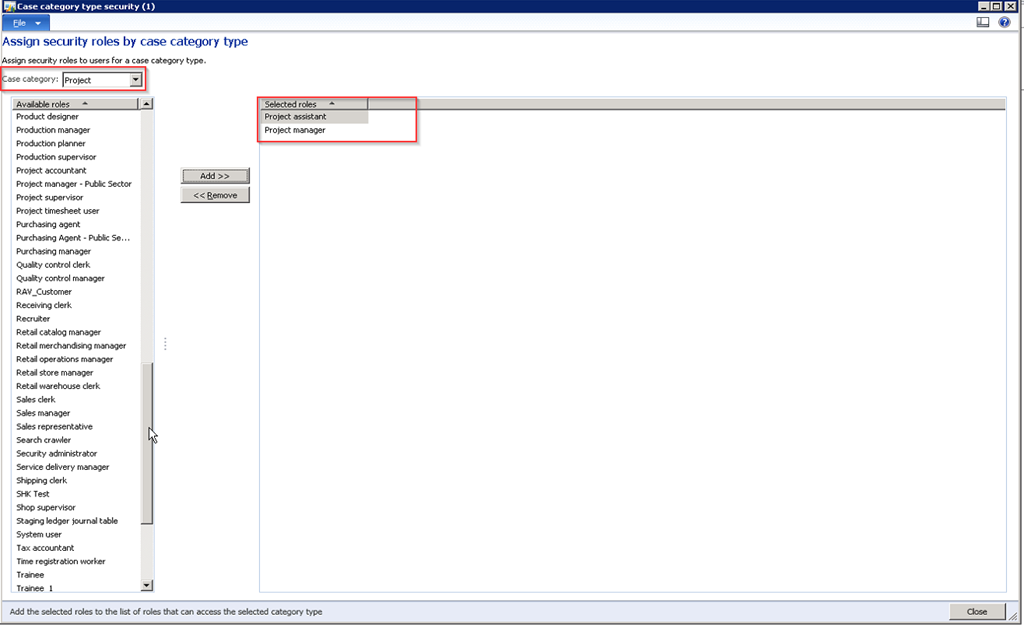
    • Select the Case Category type from the drop down and select the Role (s) you want to have access to this case type. Then click Add >> button.

    image

    • As an example, you can setup that only Project Manager and Project Assistant roles can create cases belonging to category type Project.

    image

    • With this setup, only users who has System Administrator/Project Manager/Project Assistant roles, will have access to the cases of type Project.

    Hope you find this tip helpful. Till next time…..

  • Dynamics AX Tip: Securing Private Addresses and Contact Information for Parties by using security roles in Microsoft Dynamics AX 2012

    Dynamics AX Tip: Securing Private Addresses and Contact Information for Parties by using security roles in Microsoft Dynamics AX 2012

    Hello Everyone,

    Well, this is the last post of year 2014. What a magnificent year this has been. Lots of excitement, fun and joy.

    Hope you all are having a wonderful time with your families this holidays and gearing up for the new year.

    It’s been long getting to here to write. Here I am today with a quick AX tip about a security setup in Microsoft Dynamics AX 2012.  I will not go deep into topics and discussions in this post.

    Securing the Private contact information and Private address information for parties such as Customers, Vendors, Employees, Contractors, Contacts etc. in the ERP system is a big deal and is a very crucial requirement for most organizations. Organizations often needs store these private address details and contact information about the parities and wants only a certain roles in the organization to view and manage those information in the ERP system.

    You can do this in Microsoft Dynamics AX by configuring the Global Address Book Parameters and by assigning which roles can view the the private information.

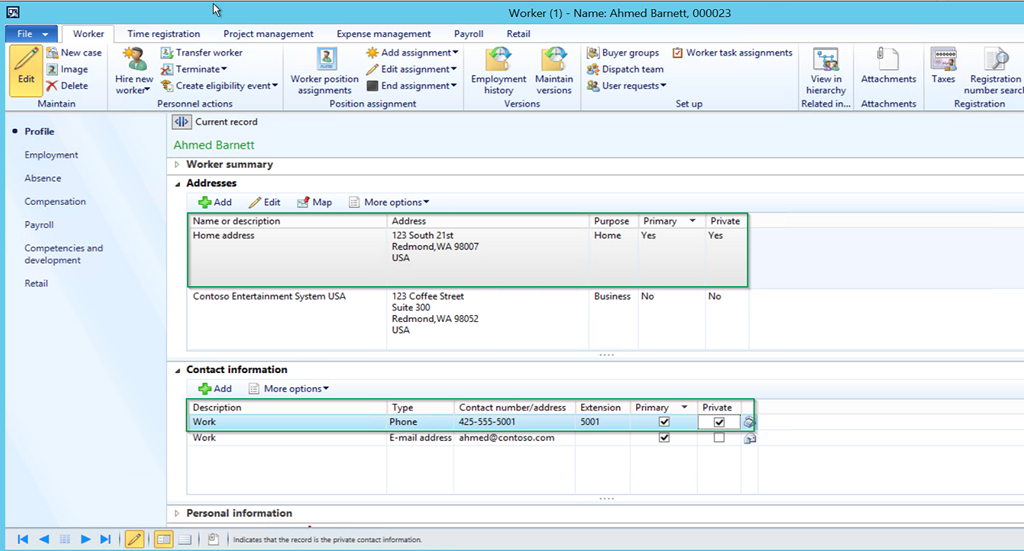
    When you create an address for a global address book party such as a Customer/Vendor/Worker etc., you can mark the address as Private. Similarly you can do the same for their contact information. See screenshot below.

    image

    Now under Organization Administration > Setup > Global Address Book > GAB Parameters form, you can specify/select which security roles within the organization can view this private location and contact information.

    Only users assigned with these roles will be able to access Private address and contact information.

    image

    Watch out for some exciting posts in 2015 ..Hopefully time will permit writing here soon…Keep Daxing…Again wishing all you a very happy new year!!!

    Regards,

    Sandeep

  • Understanding Basics of Payroll Management and Processing in Microsoft Dynamics AX 2012 R3 – Part I

    Understanding Basics of Payroll Management and Processing in Microsoft Dynamics AX 2012 R3 – Part I

    With the release of AX 2012 R2 CU6 and R3, The Payroll Management and Processing functionality has been introduced in AX supporting the payroll for United States.

    In one of my earlier posts I mentioned to come up with a post to explain how the Time & Attendance Module integrates with the Payroll module. We will initiate that discussion starting with this post and I will break the overall payroll management and process into multiple posts and try to have the full functionality covered in a few posts.

    In today’s post, let us start with understanding the basic building blocks of payroll processing and go through the high level process from setups through generating a pay statement. In the few subsequent posts we will discuss the individual components of the configurations and processes in greater details.

    The following are the key components of a typical Paycheck of a regular salaried employee.

    • Pay cycle /Pay period – How frequently the employee is paid
    • Earning Codes – Components of the pay such as Regular salary, double time, overtime etc.
    • Benefits and Tax Deductions – Such as 401k plan, Medical Insurance, Vision insurance etc.
    • Employer’s contribution for the benefits – How much employer contributes on the benefit deductions
    • Benefit Accruals – Paid Time Off, Sick Time Off etc..

    For this demonstration, I have configured a worker “Sandeep Chaudhury” in the CONTOSO demo company USMF.

    The Job and Position to which the worker will be assigned:

    The Position to which the employee is assigned holds key component of the payroll, which is the Earning code, worker’s work schedule, pay cycle, the entity which pays etc. The screenshot below shows a position which the “Dynamics AX Solutions Architect”. This position is ultimately linked to a Job which holds the data such as the grade and ranges for classifying the compensation range for this position.

    image

    image

    The worker, worker’s benefits and deductions, benefit accruals and the fixed and variable compensation components:

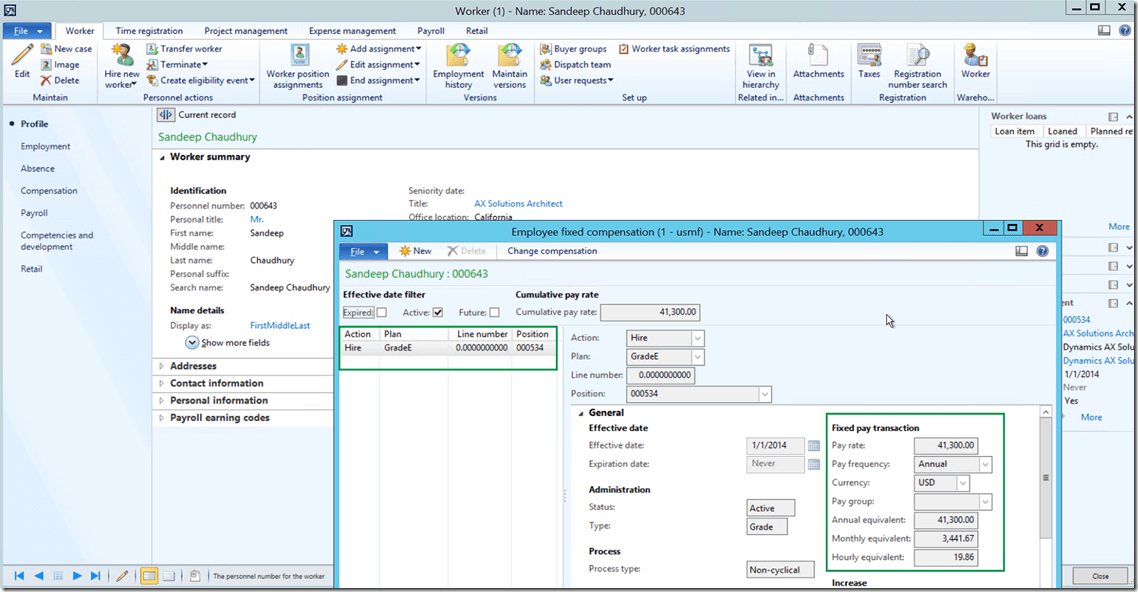
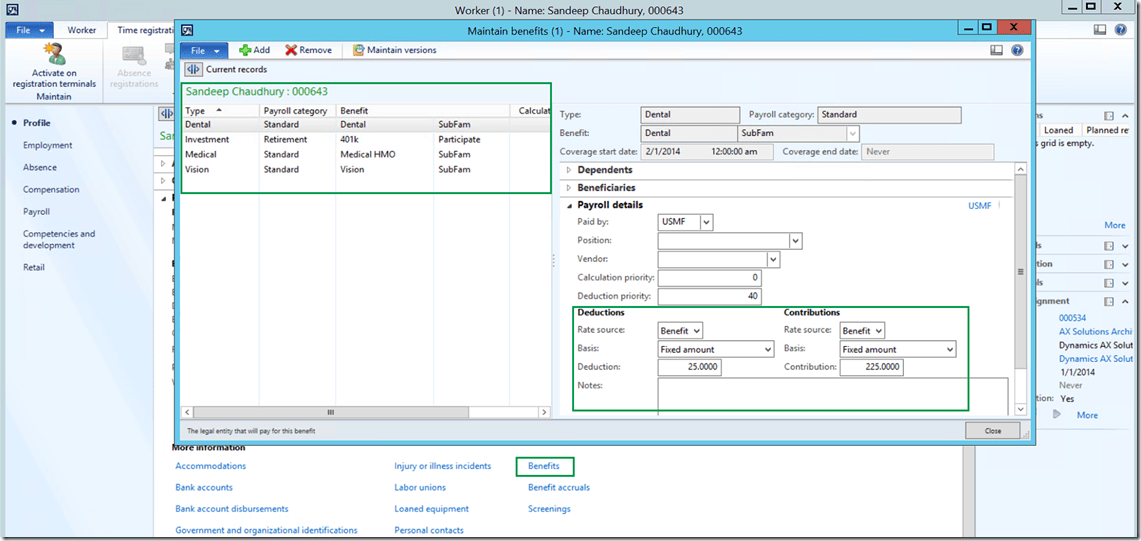
    Payroll information such as worker’s fixed and variable compensations, benefit deductions, worker’s tax region(where the worker resides) and hence the corresponding tax codes for deductions, benefit accruals etc..

    Worker’s Fixed Compensation Setup:
    image

    Worker’s Payroll TAX region and code setup:

    image

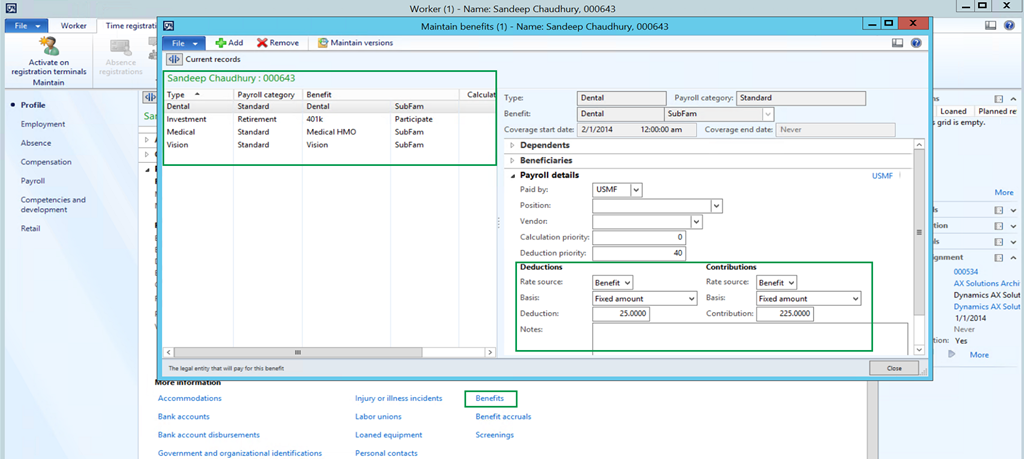
    Worker’s benefits and benefit deduction setup:
    image

    Worker’s Benefit Accruals Setup:

    image

    Generate earning statement and validate:

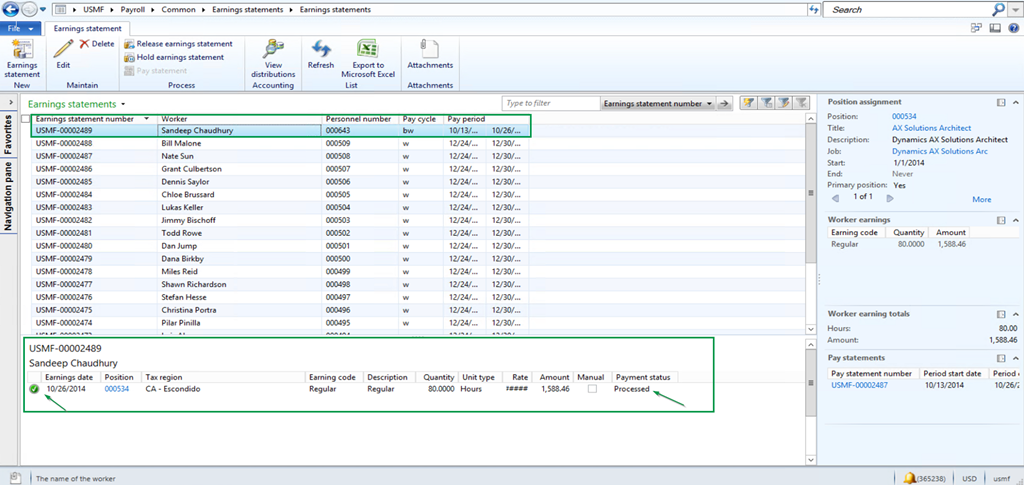
    Once you have setup all the configurations and ready to pay the worker, the payroll is run in two processes. The first step is to generate the earnings for the worker. The earning statement lines can be automatically generated by the system based on the schedule and earning code associated with the worker or it can also be added manually on the earning statement while generating the earnings. Once the earnings are generated and reviewed, it is released for generating the pay statements and calculating benefits, deductions and net payments. The earning statement for the worker can be generated from both Payroll module and Human Resources Module.

    image

    Once you have reviewed the earning statement, you can Release the earning statement for payment or you can also hold earning statements for further review and actions. You can also see the Accounting distributions and verify the details of the ledger posting prior to releasing the statement for payment.

    image

    Notice that the Payment status changes to Processed after releasing the earning statement.

    image

    The next step is to generate the Pay statement and and Pay the worker.

    Release Earning statement for generating Pay statements and Process the Payment:

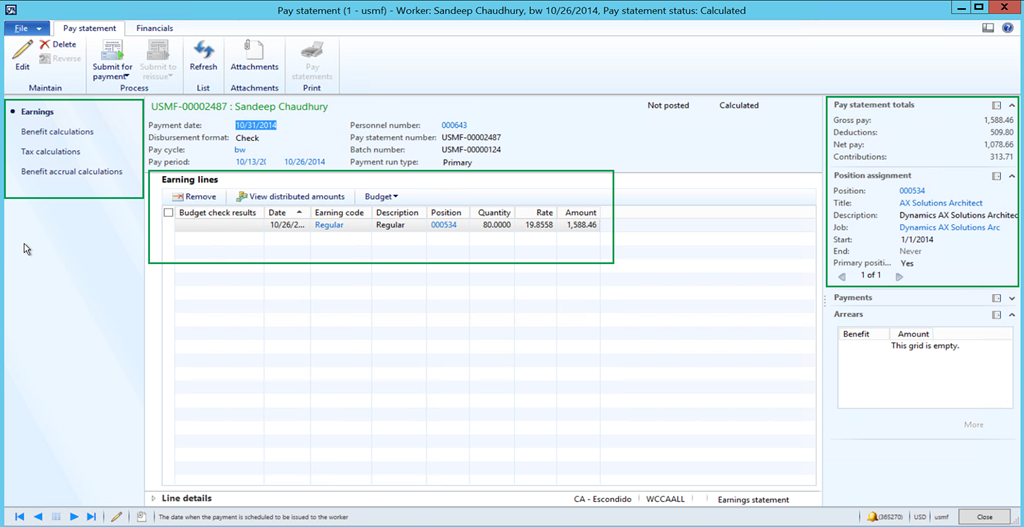
    Navigate to Payroll Module > Common > Pay Statements > Calculated Pay Statements and notice that the calculated pay statement appears automatically from the earning statement that we released in the previous step.

    The benefits and deductions and contributions are automatically calculated as soon as system creates the Pay Statement.

    Pay Statement Overview:

    image

    Pay Statement Details page:

    image

    Review Benefit calculations:

    image

    Tax Calculation Details:

    image

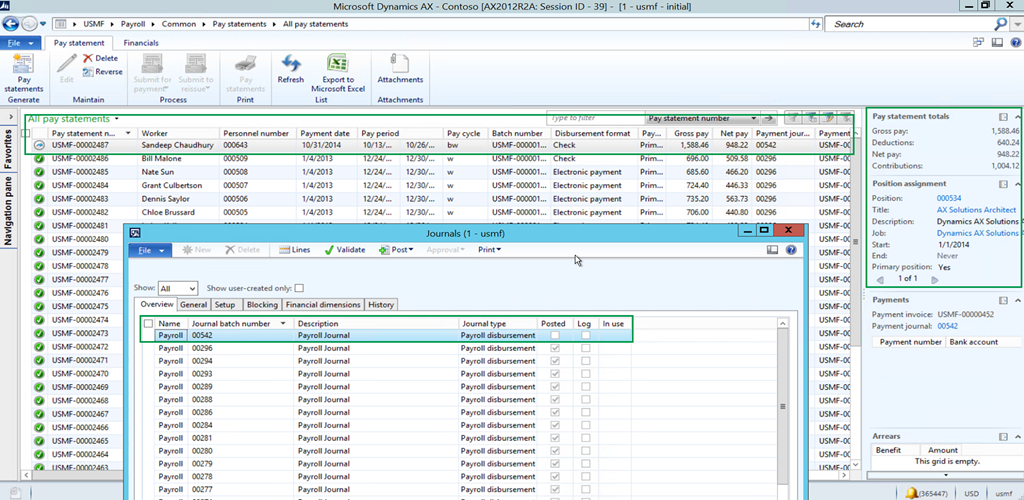
    After you have reviewed the Pay statement, you can Submit it for Payment. At this point , system checks the GL budgets and then automatically creates the financial journal(Payroll Disbursement Journal/Payment Journal). I will discuss the technical details of the financial journal (Payment Journal) creation such as ledger accounts, journal names, financial dimensions, accounting of the benefits and tax deductions, payment invoice etc., in the next posts on this topic. This post will get pretty long if explained here.

    image

    Payment journal auto-created by system:

    image

    image

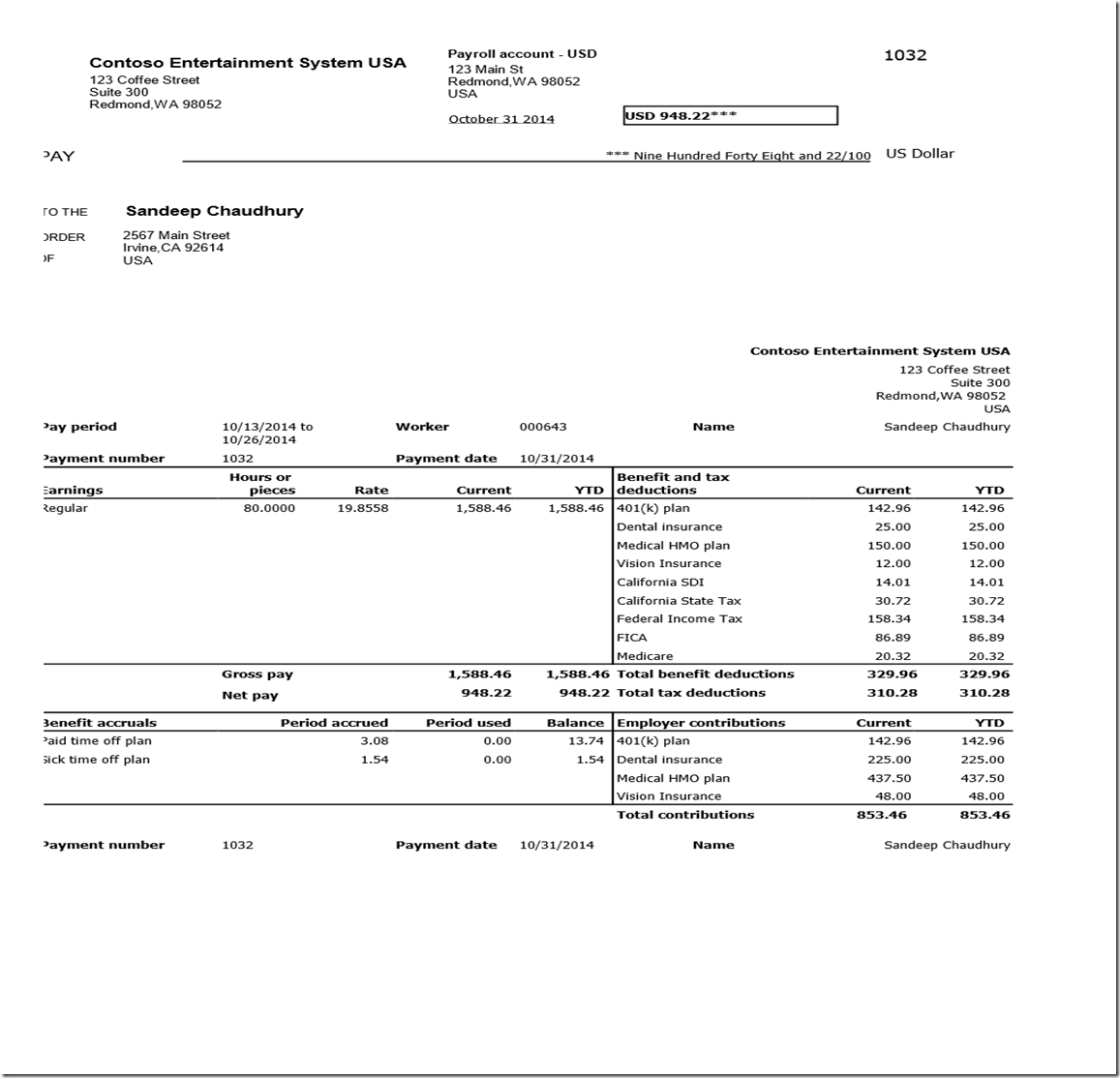
    The next step is to generate the Payment by clicking Functions > Generate Payment and, print and send the check and then post the payment journal.

    Check Printed from Payment Journal:
    image

    After the Payment is processed and posted, you can navigate to Payroll > Common > Issued Pay Statements and see the details of it.

    image

    Post Payroll to General Ledger and create vendor invoices for Benefits and Taxes:

    The last step in the payroll process is to post the payroll to GL and then generate the required vendor invoices for the payables which were created from the pay statement to pay the benefits vendors and tax authorities.

    We will discuss the mechanism and the technical details of this in the subsequent posts on this topic, in greater details.

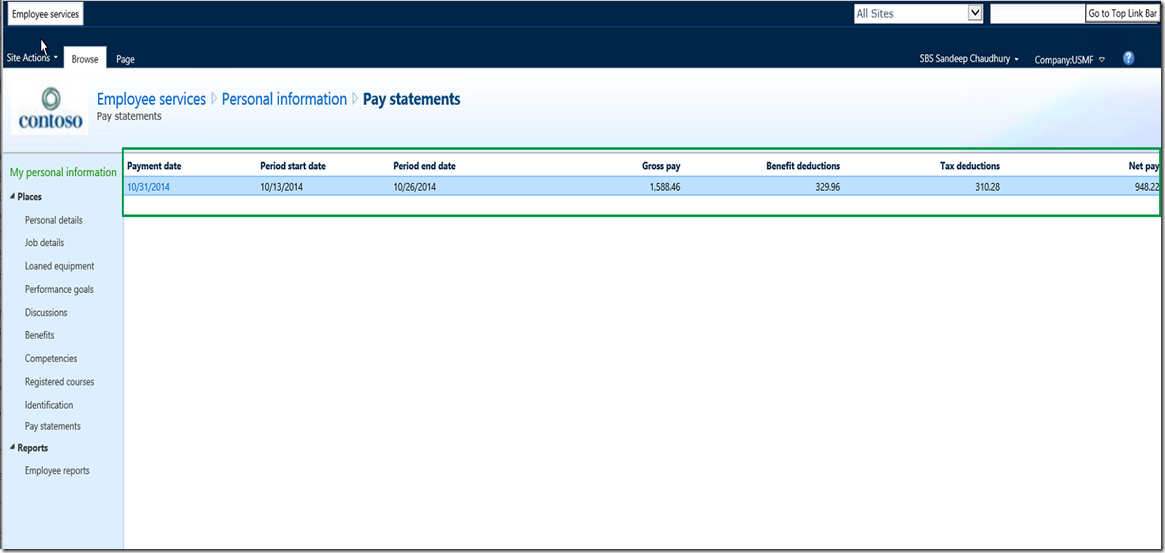
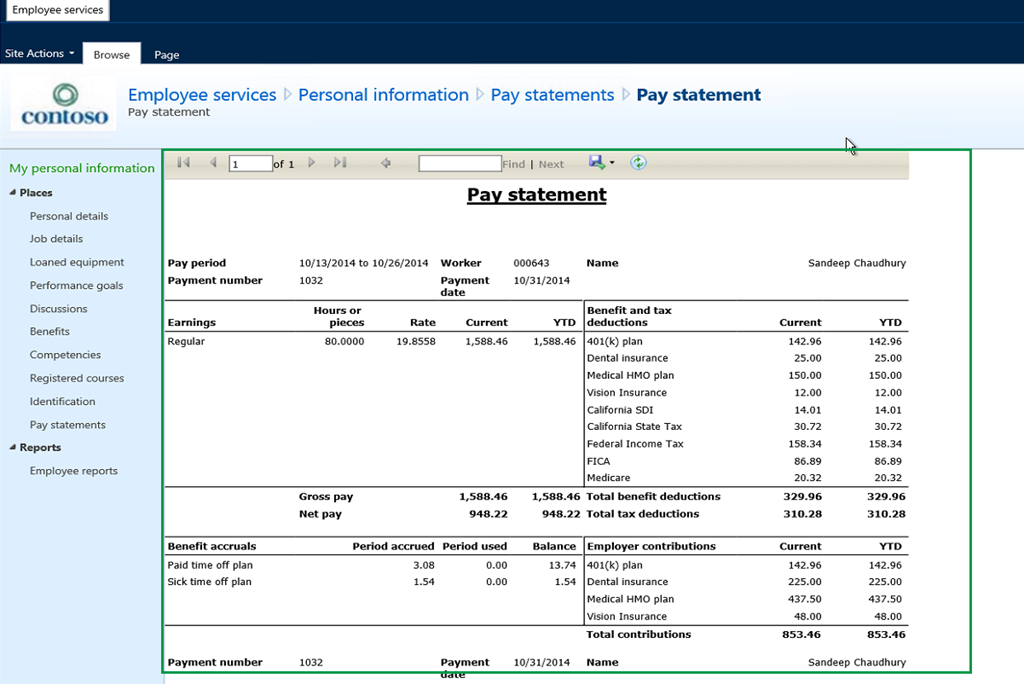
    Employees can View and download their pay statements on the Employee Self-Services portal:

    Navigate to Enterprise Portal > Employee Self Services to see all your Pay Statements. You can then print the Pay statement and export it to PDF.

    image

    Pay Statements Overview:

    image

    Print Pay Statement:

    image

    Well, long enough post. That’s it for today.

    In the next couple of posts on this topic(Part II and Part III, Hopefully I will find some time soon Smile), we will discuss the individual setups and components in greater details and also explore additional functionalities in this area. Stay tuned !!
  • AX Tip: Independent Budgeting for Sub-Projects in the Project Hierarchy in Microsoft Dynamics AX 2012 R3

    AX Tip: Independent Budgeting for Sub-Projects in the Project Hierarchy in Microsoft Dynamics AX 2012 R3

    Here is small enhancement to the project budgeting feature in AX 2012 R3 release, which most of us are probably aware by now. I still wanted to publish it here for awareness in case you have not explored this yet.

    Till the AX 2012 CU7 release, it was not possible to have an original budget to be tracked for sub-projects which is created after the original budget for a parent project is committed. The only way to enable budgeting for the newly added sub-project, was to create a revision for the original budget of the parent project which was committed earlier which allowed to track the budget as a revised budget on the new sub-project.

    In the R3 release of Dynamics AX 2012, it is now possible to create and manage budgets for sub-projects independently.

    Let us try to understand how this functionality works in AX 2012 R3. For this demonstration, let us create a Parent project and create two sub-projects under it and call them as Phase I and Phase II.

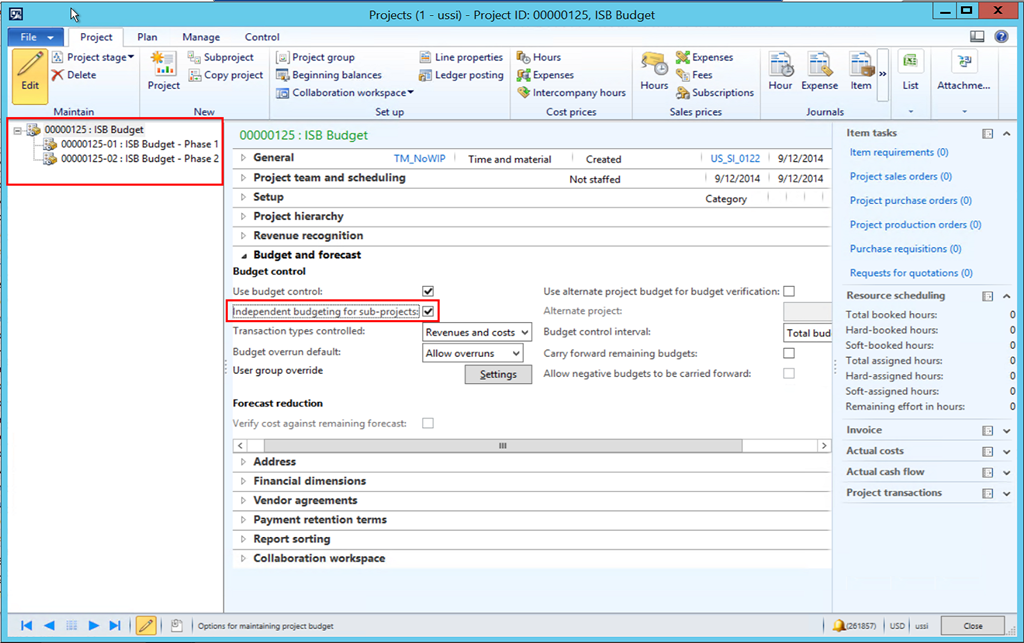
    • Create the parent project and create two sub-projects under it and enable the  “Independent budgeting for sub-projects” check box on the parent project.

    image

    • Select the parent project, click Plan Tab > Budget > Project Budget action button.
    • Under the Costs fast tab, create a new budget line and open the dropdown for the project field. Notice that, system shows only the Parent project as a selectable option and you will not see the project hierarchy tree on the left hand side of the project budget screen.

    image

    • This allows to create and manage Original budgets for each project in the hierarchy. So, whenever new projects are added to the hierarchy in the future, original budgets can be created for those without the need of revising the original budget for the whole hierarchy.
    • This new functionality will also let you allocate the budgets across periods as you want for each sub-projects in the project hierarchy. Before this functionality, you will always need to allocate the budgets of a new sub-project using the same period which you would have done for the original budget.

    image

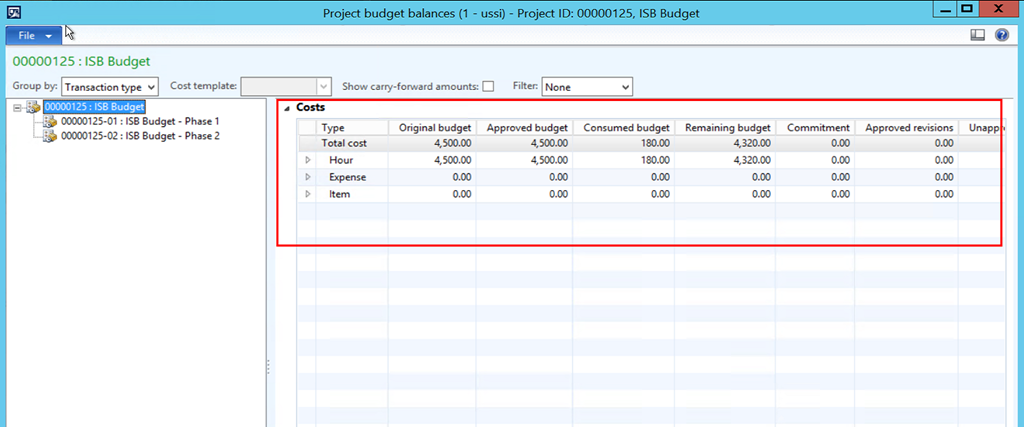
    • You can still view the project budget balances and system still rolls up the values in the hierarchy and shows the remaining budget balances and you can also view the breakdown by each category.

    image

    Till next time !!
    -Sandeep

  • Business Intelligence and Reporting using Power View in Microsoft Dynamics AX 2012 R2/R3

    Most of us must be already aware of the new Power View reporting capabilities which is now fully integrated with Microsoft Dynamic AX 2012 R2, starting with the CU6 release.

    Getting real time access to your key business data anywhere, anytime, in any device is the real key to success and can help manage your business more efficiently by allowing the staff and executives to take more informed business decisions on time.

    Furthermore, the capability of being able to create, modify and view key business reports online anywhere in any device, can prove to be a real differentiator, in how your staff react to business situations, by getting most recent data from their Dynamics AX ERP system with few clicks.

    With Microsoft Dynamics AX 2012 R2(CU6 Onwards) and R3, Microsoft SQL Server Analysis Services Cube and the Power View tool, your organizations BI reporting capabilities just got much easier.

    In today’s discussion, we will take a look at the three key scenarios of the Power view reporting.

    View a Pre-built Report in Power View online:

    Once a Power View report has been designed, it can displayed on the employee role centers. Additionally, employees can add quick links to the Power View reports on their role center pages.

    For this demonstration, I will use one of the Region Wise Sales Performance Report, which was already built and is displayed on my role center as well as I have added a quick link to the report on my role center page. Follow the steps below.

    1. Launch Enterprise Portal and navigate to the My Links area of the home page.
    2. Click Sales Performance report.

    image

    3. Notice that system launches the Region Wise Sales Performance report online in Power View. The report shows the different regions of sales in Bing Maps and the details of the sales are displayed on the right hand side, by customer group, sales category etc.

    image

    4. The screenshots below shows another layout of the Sales Performance report in different layouts which the Power View tool allows to configure.

    image

    image

    Create or Modify a Report in Power View online:

    1. If you are provided with the required access and security permissions, you can create your own reports using the existing cubes or by adding additional data source as you need. Additionally, you can click the Analyze date button most of the list pages in AX rich client, which will launch the Power Viewer report designer and you can design your own reports by selecting the fields, design layouts, and several other options.
    2. In this case, I will select the Project Accounting cube and design a simple report of comparison of Project actuals vs budgeted by project category.
    3. Select the Project Accounting Cube and Launch Power View tool. You can create the design layout of your report by simply selecting and arranging the data fields you want. Refer to screenshot below, in which I have prepared the simple actual Vs. budgeted amounts by project category for each of the Projects.

    image

    4. From AX client, you can navigate to any list page such as HRM > Workers and click Analyze Data button on the action pane, to launch the Power View Report designer tool. In the screenshot below I have designed a very basic report of the worker skill/education details by launching the Power View from Workers list page.

    image

    Short and simple for today’s post. Till next time !!

    -Sandeep

  • Track Revisions on a Project Quotation during the negotiation with Prospects/Customer in AX 2012 R3

    Track Revisions on a Project Quotation during the negotiation with Prospects/Customer in AX 2012 R3

    Hello Everyone,

    Here is a quick tip for the day about one of the “Small, yet very Useful” functionality which is introduced in Microsoft Dynamics AX 2012 R3 release.

    Until the CU6 release of AX 2012, there was no efficient option track various revisions of project quotation once it was approved internally for the first time, and sent to Customers or Prospects. It was not possible to submit the “Quotation revisions” to a workflow for internal approvals.

    Now, in the R3 release, AX allows to revise and track details of the revisions effectively on project quotations, by allowing to submit the revisions to the internal approval workflow.

    1. Navigate to PMA > Common > Project Quotations, create, submit and approve a new project quotation

    image

    image

    2. Now, Generate and send the Project quotation.

    image

    3. After sending the quotation to the prospect/customer, you can revise based on the feedback received from the customers and maintain revisions of the quote throughout the negotiation cycle.

    4. Click Quote > Revise button on the action pane to revise the quote. With this, you add, modify or review lines from the quote and change any other details as needed. See the screenshot below where I have added 2 additional lines to the original quote.

    image

    image

    5. After revising the quote details, you can submit the revised quotation for internal approval. After internal approval is complete, you can send the Revised Quote.

    6. After sending revised quote, click the Quotation journal button to see how system maintains the audit trial of the revisions.

    imageimage

    Quick and easy..:) Keep DAXING till next time.

    Regards, Sandeep

  • Managing After-Sales Services of your organization as a Profitable business in Microsoft Dynamics AX 2012

    Manufacturing and Services Industries (Especially the Architecture, Engineering and Construction, and Large scale AV Integrators) often perform after-sales services, to retain maximum Customer satisfaction on the products and services they manufacture and sale. These after-sales services are basically classified as “Business to Business services”, rather than business to consumer servicers. It is very important that the Service Managers of these organization keep track of the exact costs and revenues on the hours, expenses and items consumed in a service function, to make sure the Service operations of the organization can run as profitable business.

    Are you a Customer already implementing Microsoft Dynamics AX  ERP or actively looking for an all  inclusive ERP application to manage  the various aspects of after-sales services ? Look no further and explore how the Service Management Module of Microsoft Dynamics AX ERP can add value proposition to your business.

    In today’s post, I will initiate an introduction to the overall architecture of the Service Management Module and then will discuss all the important functionalities  and the “How-To” to manage those in few of the subsequent posts.

    image

    Let us now understand the various building blocks and important functionalities of the Service Management Module in AX 2012 R3.

    A. SERVICE AGREEMENTS: Service agreements acts as the central element in the architecture of the service management module and holds the contractual details with the customer.

      • Defines what objects will be serviced(Service Objects), the tasks(Service Tasks) that will be performed and how these will be charged to the customers.
      • Defines when the services will be performed(Service Interval), Service Level Agreement(SLA), who will perform the service, how the costs and revenues will be managed.
      • Defines how service orders will be created (Automatically, Planned Service Orders/Manually).
      • The Service Management module in AX is integrated with the Project Management and Accounting module for posting the service orders back to Projects, to track the costs, revenues and also invoice the customer for the services performed.
      • This integration also takes advantage of the validations, ledger posting, pricing and other functionalities of the PMA module.

    image

    B. SERVICE ORDERS: A Service Order in AX represents one instance of a scheduled/unscheduled service activity performed by service technician, at a customer site on the day of the visit.

    • Service orders can be automatically created based on the Tenure, Service interval, Time window and the “Line Combining options” specified on the Service agreement and service agreement lines. For example if the tenure of a service agreement is from 01/01/2014 to 12/31/2014 and Service Interval is “Monthly”, then, 12 planned Service orders, one for each month, can be automatically created directly from the Agreement.
    • AX also provides the option to create the planned service orders more efficiently by combining the orders “By Technician”, “By Service task and By service objects (What is being serviced) so that they can better planned and scheduled.
    • You can also utilize the “Time Window” functionality on the service agreement to optimize the scheduling of service orders.
    • Service orders can be created without a service agreement as well, and these can be used to perform One time , unscheduled service visits which might be requested by the customer on demand basis.
    • Service Orders typically consists of service order lines, which represents the details such as the “Hours of work performed by a service technician, related expenses, item consumptions, replacements, or repairs and any service fees, for the tasks performed on the various service objects.
    • Service orders can be created by the Services team of the organization or it can also be initiated by the Customer using the Customer Self service portal.
    • Once the Service orders are created and setup, they are processed through various service stages and the progress, performance, costs and revenues are tracked till the completion of the service.

    image

    C. SERVICE LEVEL AGREEMENTS (SLA): Service Level Agreement allows the service organizations to record time to identify WHEN the service must be performed at the latest, from the time when the Service order was initiated by a Customer and it also allows the organizations to track the timing of the services given to the customers through out the Service Delivery process.

      • You can create as many SLAs you want based on your business needs. If you have grouped your service agreements by
      • When a SLA is attached to a Service Order and the service order is initiated, the TIME RECORDING starts automatically which can be Stopped, Restarted or even Cancelled at any time depending on the situation through out the duration of the service activity.
      • SLA can be associated with a Calendar in AX, which allows to control the automatic time recording to start. If the Service order was initiated on a non working day, then the Time recording will not start until the next working day.
      • You can link the SLA with Service Agreement groups, which allows to assign the SLA to the Service Orders automatically when you create a new Service Order belonging to that Service Agreement.

    image

    D: SERVICE DISPATCH BOARD FOR DISPATCHERS: The Service dispatch board functionality enables the Service companies and their Service Customers to stay on top of their priories with regards to the on-going services. It Helps the Service dispatcher to schedule the work for the Service engineers and the service tasks/activities they will perform at the customer’s site.

    • Service Dispatcher gets to see an overview of the Service Operations using the Dispatch Board can make efficient and informed decisions about the actions needed at the right time to ensure high customer satisfaction.
    • Graphical display support for the Service Dispatch board.
    • Service dispatchers can view and manage on going service tasks by seeing COLOR coded overview details about the service orders.
    • The dispatcher can see daily activity logs on each Service orders which are entered by the service engineers/technicians.
    • Can create service dispatch teams and manage the service resources more effectively.

    image

    The screenshot above does not show any data, as I have not created the data in the system. We will discuss more about the details of the Service dispatcher and other daily processes of the Service orders in the few subsequent posts and will learn how to use this module in greater detail and see the Dispatch board in action.

    E. REPAIR & RETURNS: Service Companies often get the items or equipment back at their location for repair. Dynamics AX supports a decent level of repair management capabilities within the Service Management Module which can be used by companies for better repair management and optimize their efficiency of handling equipment returns and repairs.

    • Manage repair from the time it is initiated from the Customer till the resolution using repair stages, which you can configure the way your business needs it.
    • Track the resource consumptions on various repair tasks such as hours spent by the technician, Item replaced etc. and tie those back to the Service order which can be then accounted and billed to the Customer.
    • Create and Manage Symptom areas, diagnosis areas, repair conditions, resolutions for better reuse to optimize the repair process.
    • Do necessary reporting such as which items (objects) are repaired most frequently and how efficiently your technicians are able to finish the repairs etc.

    image

    F: Service BOMs: Dynamics AX provide the functionality of creating and managing Service BOMs, which enables the service companies to track and store the changes performed to an object during the service. This can be specifically helpful for service organization who engineers their products/services by combining a set of different items on it.

    • It allows you to continuously track the service objects which are serviced a customer’s site  and then it allows to generate the complete audit trial of the object changes over a period of time and also the replacement history of the object.
    • All the changes to the Service BOM during the course of Service, are stored as a separate version as a history for future tracking.
    • Helps service companies to identify required parts on the service visits, so that they can arrange the availability of the parts at inventory and reserve to be consumed in the Service order.
    • It can help you determine any potential changes you might have to do to your Service BOM (Service Product) to manage reduce the number of services required in the future.

    image

    G. SERVICE SUBSCRIPTIONS: If you are a Service company and provide services to clients at a fixed rate for a period, then you can make use the Service Subscriptions functionality of AX 2012 to manage all the accounting and financials management needs of the service subscription process. We will discuss in detail about each of the above processes in the next few subsequent posts.

    image

    H. SELF-SERVICES PORTAL: Dynamics AX supports various Service Management processes on the enterprise portal. The Service customers and the Service team can collaborate effectively using the enterprise portal and the Customer self-service portal.

    • Customers can initiate the Service Orders using the Self- Services portal on enterprise portal which then can be reviewed  and processed further.
    • Customers can access readily available LIVE information about their past and current and future service orders, agreements anytime using the Self-service portal.
    • Technicians can access details such as her necessary information  such as service objects, tasks, repair etc. about the service calls/orders and even update the service orders at anytime.

    image

    Well, stopping here todaySmile. In the next few posts, we will explore the above mentioned processes and functions individually, in greater details.

    Till next time..!!

    -Sandeep