Category: Copilots & AI in Dynamics 365

  • Time & Expense Entry: The Task no one loves but is critical for all project/service-based organizations – Now Handled by AI Agents in Dynamics 365

    Time & Expense Entry: The Task no one loves but is critical for all project/service-based organizations – Now Handled by AI Agents in Dynamics 365

    Let’s dive into the new innovative Time Entry and Expense Entry AI Agents, which are now available in a production-ready preview within Dynamics 365 Project Operations and Dynamics 365 Finance & Operations! These are not just another feature; it’s a significant step forward in Agentic business applications that can truly transform how we handle project management.

    If you missed my last post about the AI Agentic T&E Approvals capability, you can read it here. That post mainly focused on simplifying and automating approval tasks for project managers.

    Why First Party Agents for Time & Expense Entry:

    Microsoft has released new AI agents in Dynamics 365 to make time and expense entry easier, a task often disliked in project work. These agents automate the process from capture to submission, cutting down on manual effort and mistakes. The integration with Dynamics 365 and Teams supports secure, efficient workflows. This is part of Microsoft’s effort to integrate AI into daily tasks, allowing employees to concentrate on more valuable work.

    The Benefits are aparent:

    • Reduced administrative overhead: Agents create Time and Expense Entries based on project bookings and receipts, saving time for employees. They review and submit these entries, allowing Finance teams and project leads to spend less time on follow-ups.
    • Accelerated billing cycles and cash flow: Real time and accurate capture of time and expenses ensure reduction is missed and incorrect T&E and faster invoice processing.
    • Improved Employee Experience: Employees interact with AI Agents within the flow of their work, i,e., Microsoft Teams. This reduces friction and improves adoption.

    Who this is for:

    If your organization uses Dynamics 365 Project Operations and/or Dynamics 365 Finance and Operations, you can use these new agents. If you only use Dynamics 365 F&O for expense reporting, you can deploy the Expense Entry agent.

    Let’s see the Agents in Action:

    The Time Entry Agent understands your project assignments and bookings and does automated time entry for you. It can check previous weeks’ timesheets and create current week entries based on that. It also generates smart comments for entries by looking at the project task details like the description and project name. Additionally, it can analyze your Outlook meeting invites to make comments based on meeting event titles.

    You can review time entries created by the agent directly in Microsoft Teams, make changes as necessary and submit for approval. The agent also tracks unsubmitted entries and notifies you for proactive submission.

    The Expense Entry agent on the other hand is even more powerful. All I need to do as an employee is capture my receipts on my phone and send the captured images or PDF files to the mailbox used by the Expense agent. The rest is done by the agent for you. Here is what does for you.

    • Process the receipts from your email or the ones you uploaded via the expense app.
    • Extracts receipt info and create expense lines automatically.
    • Not only that, it goes ahead and creates the expense report for you based on trip or by project (based on config) and sends a live summary of the expense reports in Teams for you to review and submit.
    • Additionally, it can intelligently identify active projects and assign those based on project location matching if you do project-based expense reporting. If you do your reporting by trip, it can create reports based on the location of travel and associate receipts. The agent can read your calendar events to look into details which may have key details such as location, project ID/name and use it identify project IDs that the expenses needs to be associated to.

    As an employee, you go from just sending receipts to the agent to just reviewing your fully prepared expense report within Microsoft Teams for corrections or submissions. Putting things into perspective, I can see saving an average of 20-30 mins per expense report. More than the amount of time it saves for you, it is the tedious manual work you don’t have to do.

    How can you deploy these for your employees today:

    To deploy the production ready(preview) agents today for your workforce, you will need to ensure the underlying features are enabled and the agentic automation infrastructure is setup correctly. This is more of an administrative one-time setup to get the agents up and running.

    For the Time Entry Agent:

    • Ensure you are on version 4.140.0.239 or late for Project Operations.
    • Enable the Feature for Time and Expense Agent in Project Operations.
    • Activate the power automate flows (used by the agent to complete actions on behalf of the employees, such as create time entries, expense reports etc.)
    • Finally, publish the agents in Microsoft Copilot Studio and optionally share in Teams channel/apps for your employees to get the full experience.
    • Follow Microsoft official guidelines here.

    For the Expense Entry Agent:

    • Ensure you are on D365 F&O version 10.0.44 or later
    • Enable the features for “Immersive home and Agent management in F&O.
    • Setup the Agent behavior under the Expense management parameters.
    • Setup a shared mailbox (This is where your employees can send their receipts to or just upload via the expense mobile app).
    • Activate the power automate flows (used by the agent to complete actions on behalf of the employees, such as create time entries, expense reports etc.)
    • Finally, publish the agents in Microsoft Copilot Studio and optionally share in Teams channel/apps for your employees to get the full experience.
    • Follow Microsoft official guidelines here.

    Under the hood

    The agent orchestration is managed by Copilot Studio along with a set of key Power Automate flows for both the agents. For the expense agent, these flows perform actions such as extracting expense details from receipts, identifying project IDs, reviewing calendar events when necessary, generating expense reports, and sending them to employees via Teams cards. The process begins with a Power Automate flow that runs periodically to process emails containing receipts and added to the unattached receipts entity. The agent subsequently parses these receipts to extract information, creates unattached expense lines, links the receipts, identifies project IDs, and assembles the final expense report.

    Config Parameters that control the behavior of the Expense agent for report creation:

    Take the agents for a spin today and encourage your employees to take advantage of these.

    Regards

    Sandeep

  • Unlock faster time tracking, approvals, reduced revenue leakage, and accelerated billing with the new Time and Expense Agent in D365 Project Operations

    Unlock faster time tracking, approvals, reduced revenue leakage, and accelerated billing with the new Time and Expense Agent in D365 Project Operations

    For project and service driven organizations, accurately capturing and processing time and expenses is a balancing act between operational efficiency and revenue integrity. Manual entry delays, inconsistent submissions, and incomplete data can cause serious ripple effects—ranging from incorrect approvals, billing errors to delayed client invoicing and, ultimately, revenue leakage.

    Enter the new Time & Expense agent in Microsoft Dynamics 365 Project Operations, a game-changer designed to automate and streamline this critical process. Built on Microsoft Copilot Studio and the Power Platform, this intelligent agent not only empowers your employees to submit time and expense entries more quickly and accurately by staying in their flow of work within Microsoft Teams but also automates T&E reviews for project managers giving real-time visibility into project costs. The result? Faster time and expense approvals processing cycles, improved project accounting, and minimized revenue loss.

    The Agent is now in Production Ready Preview! If you’ve updated your solution to version 4.140.0.239 or later, you should already see it in action. While I’m still diving into the details of the Time and Expense Entry experience, I wanted to share a few quick thoughts on the Approvals Experience today. More insights to come soon—stay tuned!

    The new T&E Agent in Project Operations will transform the way your organization thinks about processing T&E entries and approvals. By simply uploading your organization’s T&E policy document, the agent intelligently interprets approval rules—automatically distinguishing which entries are “Ready to Approve” and which ones “Need Review.”

    Furthermore, it can process approvals for compliant entries on its own, significantly reducing the manual effort involved in reviewing each submission. This means project managers and approvers can focus their attention where it’s truly needed, while the agent takes care of the rest.

    The T&E policy document can look something like the below screenshot.

    You can just upload the policy document into D365 Project Operations under the Agent setup parameter area and agent does the rest of the work for you.

    Now that the policy document is in place, let’s see how the approval experience helps accelerate the T&E approvals.

    Let’s now go ahead and create, submit time entry. Bye the way, screenshot below shows the newly released Calendar view of the time entry which is Awesome. I strongly recommend you explore this further!

    Under the hood is an Approvals agent trigger which is a Cloud Flow that runs on a recurrence and gets the input parameters of each time entry lines that were submitted, parses JSON and passes on the dataset to the Copilot agent in Copilot studio.

    The agent configured in Copilot Studio has the detailed instructions, access to the policy document that we uploaded in Project Operations and agent tools (AIPlugin actions) to process the approval actions.

    Let’s now get back to D365 Project Operations and see how the agent flagged and/approved the submitted time entries. You can see the agent was able to flag the time entries as “Needs review” since they violated several of the policies. However, it was able to automatically approve the time I submitted on the “Holiday” project since my policy had an exception for that.

    It looks like our organization’s T&E policies are quite detailed—they even account for factors like resource assignment periods, task start and end dates and require all time entries to align with those parameters. The good news? The new agent gives you full flexibility to configure approval rules based on what best suits your business. Whether your policies are light-touch or highly granular, the agent adapts to reflect your organization’s expectations.

    Notice the agent was able not only able to flag but also was able to tell what policy the time entry line violated. From here, the approvers can take further actions on the time entry such as Approve/Reject or reassign to agent.

    So, what are the key take aways and how does the Approvals Agent benefit your organization?

    1. With the T&E agent, what was once a reactive, error-prone process is now a proactive, intelligent system that supports compliance, accelerates cash flow, and empowers teams to focus on delivering value—not chasing down hours and receipts.
    2. Reduces administrative effort and approval errors for Project Managers while speeding up T&E processing and project throughput. Project Managers gets to focus only on the flagged transactions and not thousands of lines that already meets the policies of the organization.
    3. Accelerates billing and enhances financial accuracy through automated, compliant time approvals. As long as time entries meet policies, they are automatically approved.
    4. As your organization adopts new changes according to changing business conditions, they just need to keep their policy document up to date and upload them in Project Operations and the agent will keep up.

    Next up, we will see how the Time and Expense Entry experience of the agent works and how it can benefit you.

    Stay tuned!

  • Improve your organization’s Cashflow and supercharge employee productivity with Copilot for Finance and Dynamics 365 Finance

    Improve your organization’s Cashflow and supercharge employee productivity with Copilot for Finance and Dynamics 365 Finance

    In the ever-evolving landscape of finance, AI has emerged as a game-changer. Organizations worldwide are harnessing the power of AI to streamline processes, enhance decision-making, and elevate customer experiences. At the forefront of this transformation lies Microsoft Dynamics 365 Finance & Operations, where cutting-edge technology converges with financial and operational insights. In this blog let’s discuss how AI empowers finance teams, drives efficiency, and paves the way for unprecedented efficiency gains and helps achieve customer satisfaction.

    Last week, Microsoft announced Copilot for Finance, a brand-new Copilot offering that is intended to change the way Finance teams of any organization work, by providing them the ultimate productivity gain right in the flow of their work every day. With this offering, Finance team members will have AI assisted data interaction, creation and automation experience in the productivity apps they use every day, i.e. Microsoft Outlook, Excel, Teams and more, without having to go into their ERP systems (Dynamics 365 Finance in this case).

    There are 2 primary experiences of Copilot for Finance in this release. One is in Outlook and the other one is in Excel. In this blog, I wanted to share my experience with the Finance copilot in Outlook.

    Example Scenario: “360 Global Tax Professional Corporation” is one of the Premium customers of “Contoso Consulting USA” and they collaborate frequently with the Accounts receivable and Finance team at Contoso Consulting to query on outstanding invoices which includes things such as requesting copies of invoices, requesting disputing of invoices or even exchanges and notes and activities on existing invoices. Sandeep Prakash, AP Manager at “360 Global Tax Professional Corporation” has questions on some outstanding invoices and also wants to request copies of 2 previous invoices. He also wants to update on 2 other invoices to his counterpart at Contoso Consulting.

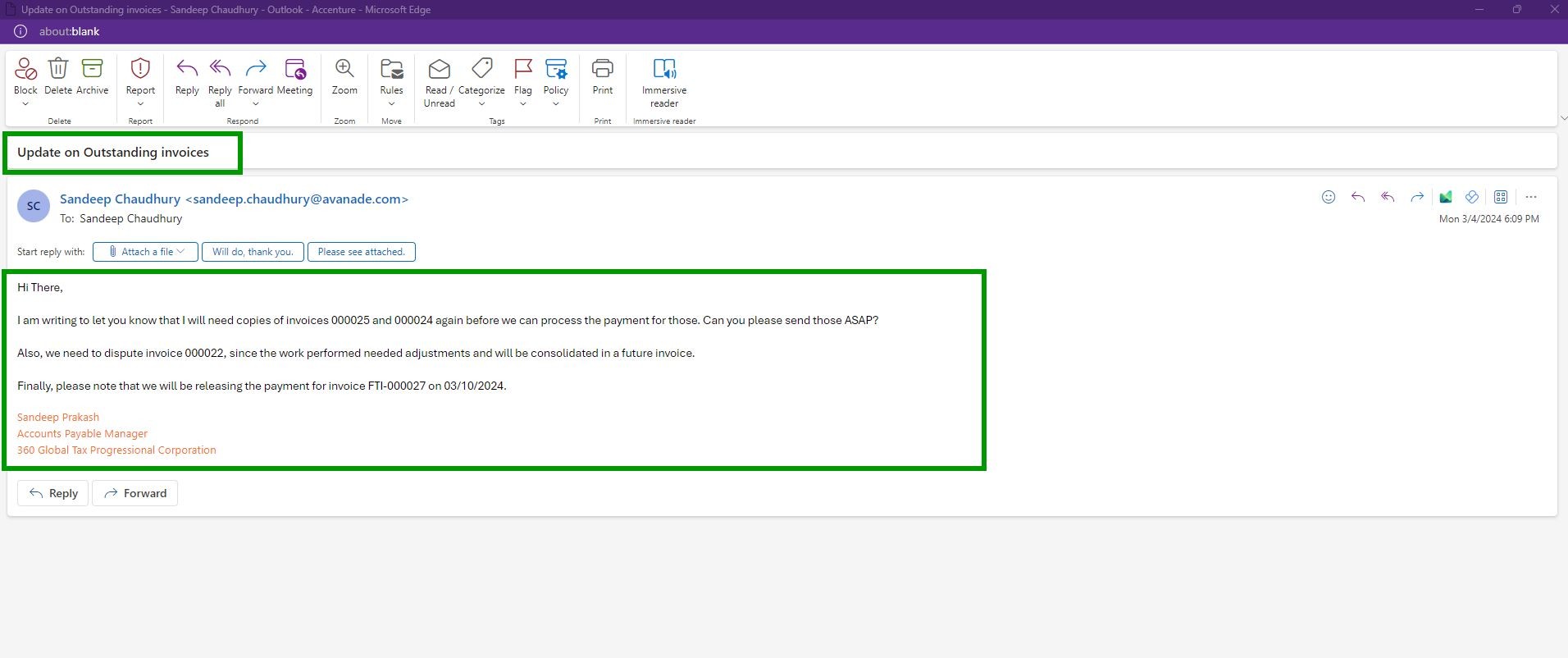
    The Accounts Receivable team at Contoso Consulting receives an email from Sandeep Prakash at “360 Global Tax Professional Corporation“, which looks like below.

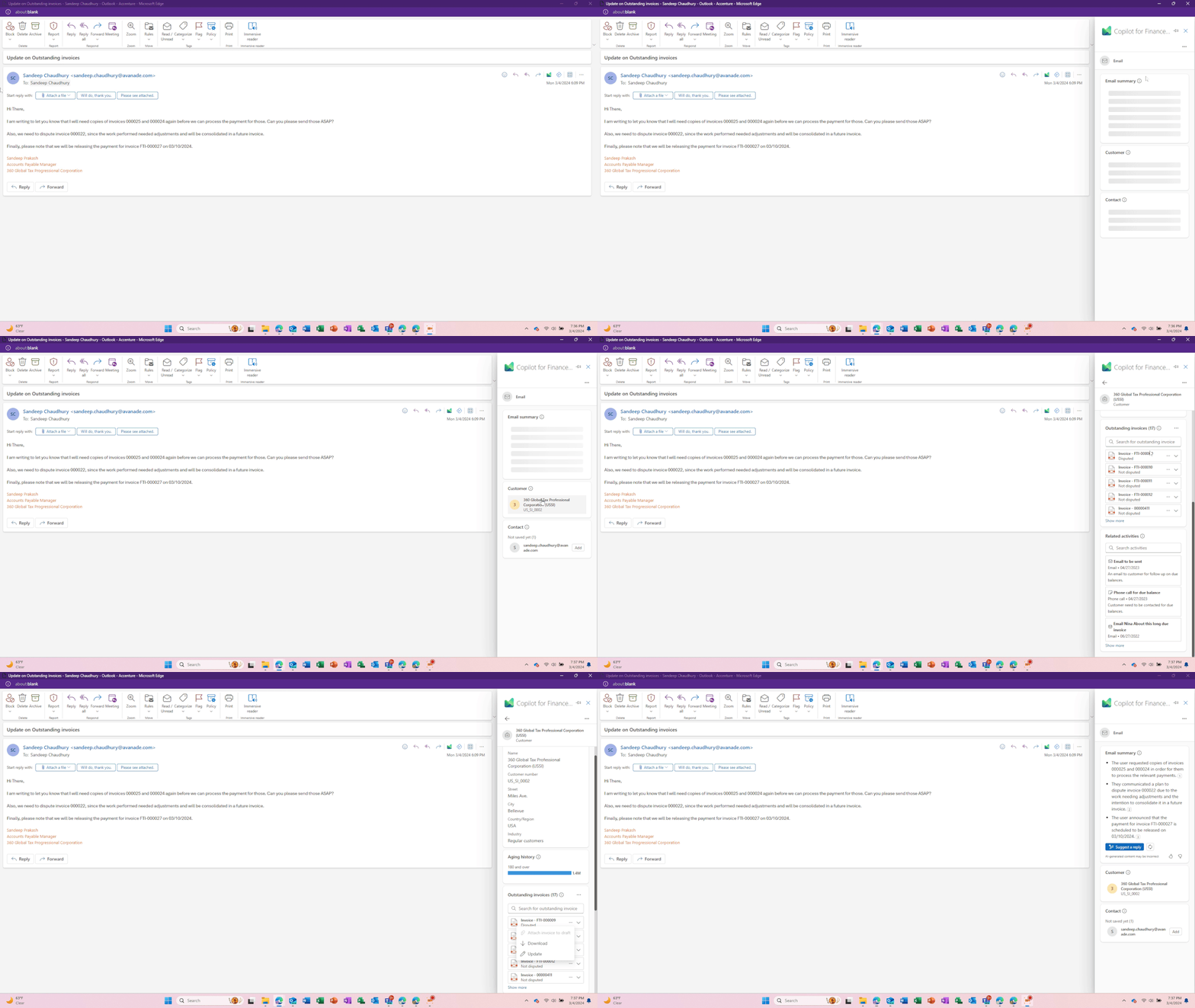
    The AR team at Contoso now has Copilot for Finance working for them. Right within the email they received, they can launch Copilot with one click and Copilot automatically does the following for them.

    1. Knows the who the customer is based on the email received.
    2. Copilot summarizes the email received and highlights the key asks and action items needed, so that AR team does not have to spend time reading the emails.
    3. Copilot also automatically pulls data in real time from Contoso’s ERP/Finance system, which is Dynamics365 Finance and shows outstanding invoices, invoice attachments/copies and also pulls the collection related notes and activities related for the customer.
    4. Copilot also detects that the Contact is not yet saved in the Dynamics 365 Finance and prompts to Add them to ERP directly from Outlook.

    Image below shows the above.

    Without Copilot, the AR would have spent anywhere between 20 to 30 minutes doing all the 4 steps that Copilot did for them with just click of a button within Outlook and allowed them to stay in the flow of their work. That is some significant productivity gain for the team.

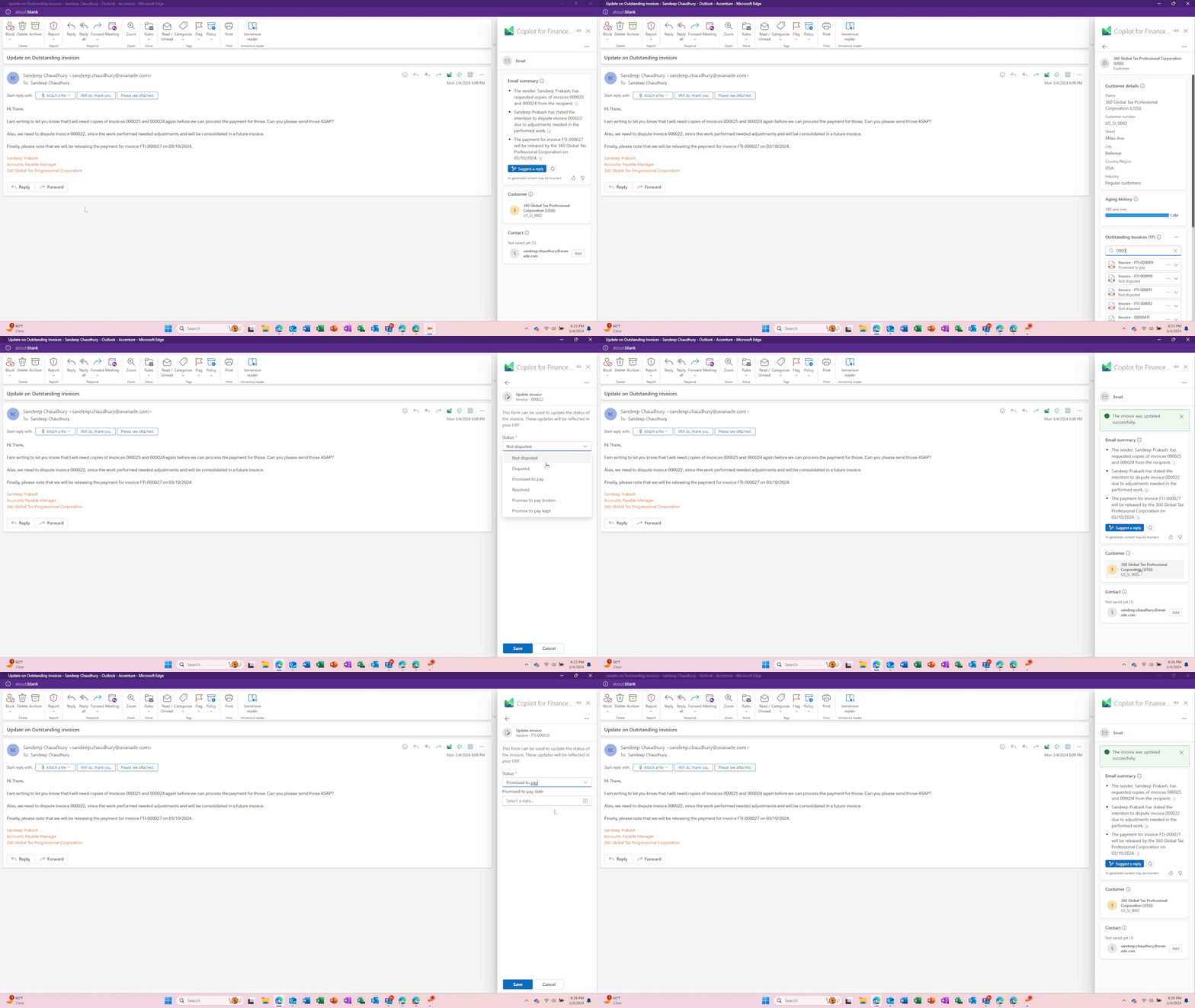
    Next, let’s see how Copilot takes this automation further. In this scenario, the AR team at Contoso need to do the following.

    • Dispute the invoice# 000022.
    • Update the status of invoice FTI-000027 indicating that the customer will pay it on 3/10/2024.
    • Draft an email back to the customer to provide them an update.
    • Finally, they will also need to send copies of invoices 000025 and 000024 that the customer has requested.

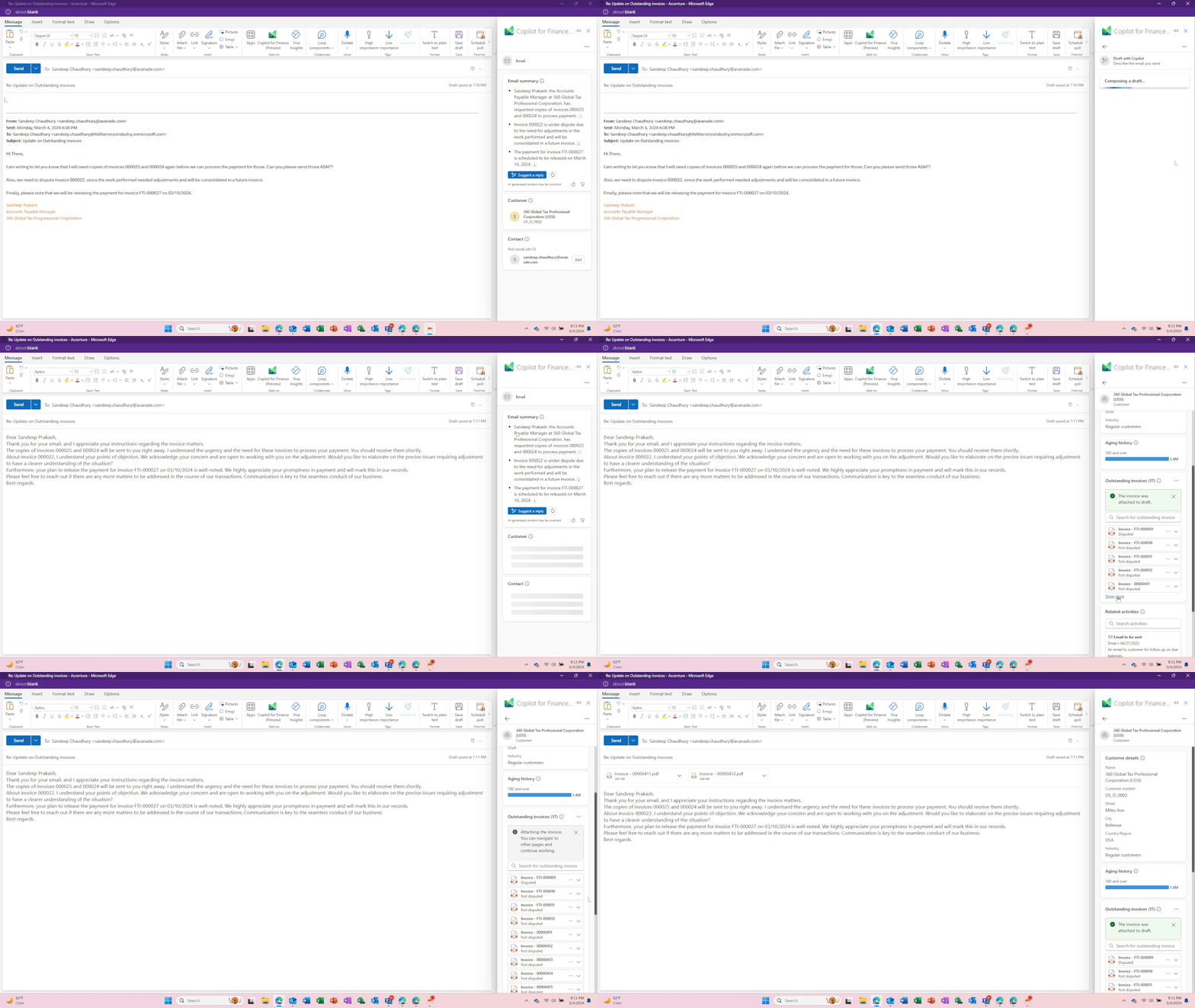
    With the help of Generative AI capabilities, Copilot detects the context of the conversation and suggests a fully composed draft email that the AR team can just review and send. The AR team just clicks Suggest a reply and asks to draft a response to the customer. They also attach the 2 invoices the customer requested within the Copilot experience without having to go into the ERP and when done, they send the email out.

    Images below shows the steps above.

    Without Copilot, the AR team would have spent at least another 20 to 30 minutes to do all the actions listed above in breaking their flow of work by moving out of Outlook, login to D365 Finance ERP, perform all the actions manually and come back and draft the email manually.

    What we just witnessed is Copilot (AI) not just saving time for your AR/Finance team members, but also making them dramatically efficient in their day at work, so that they can contribute to other import tasks for the organization. Copilot not only helps improve the experience of the users of Dynamics 365 Finance, but also helps improve end customer satisfaction, since your finance team is now able to respond time to queries from customers faster with better accuracy with the help of Copilot.

    I can’t wait to explore more on this and also try the Copilot for Finance in Microsoft Excel!!

    Best,

    Sandeep Chaudhury