Category: Dynamics 365

  • Manage complex deals/contract structures with ease in Dynamics 365 Project Operations – Deep dive into project contracts

    Manage complex deals/contract structures with ease in Dynamics 365 Project Operations – Deep dive into project contracts

    In today’s post, we are diving deep into managing complex project contracts/deals in Dynamics 365 Project Operations. We will break down the building blocks of project contracts and understand what each attribute of the contract represents and how it functions.

    Negotiating contracts with customers and prospects can get complicated sometimes and often requires flexibility on how you structure the contract to best match the customer’s needs. With Dynamics 365 Project Operations, you have that flexibility right out of the box.

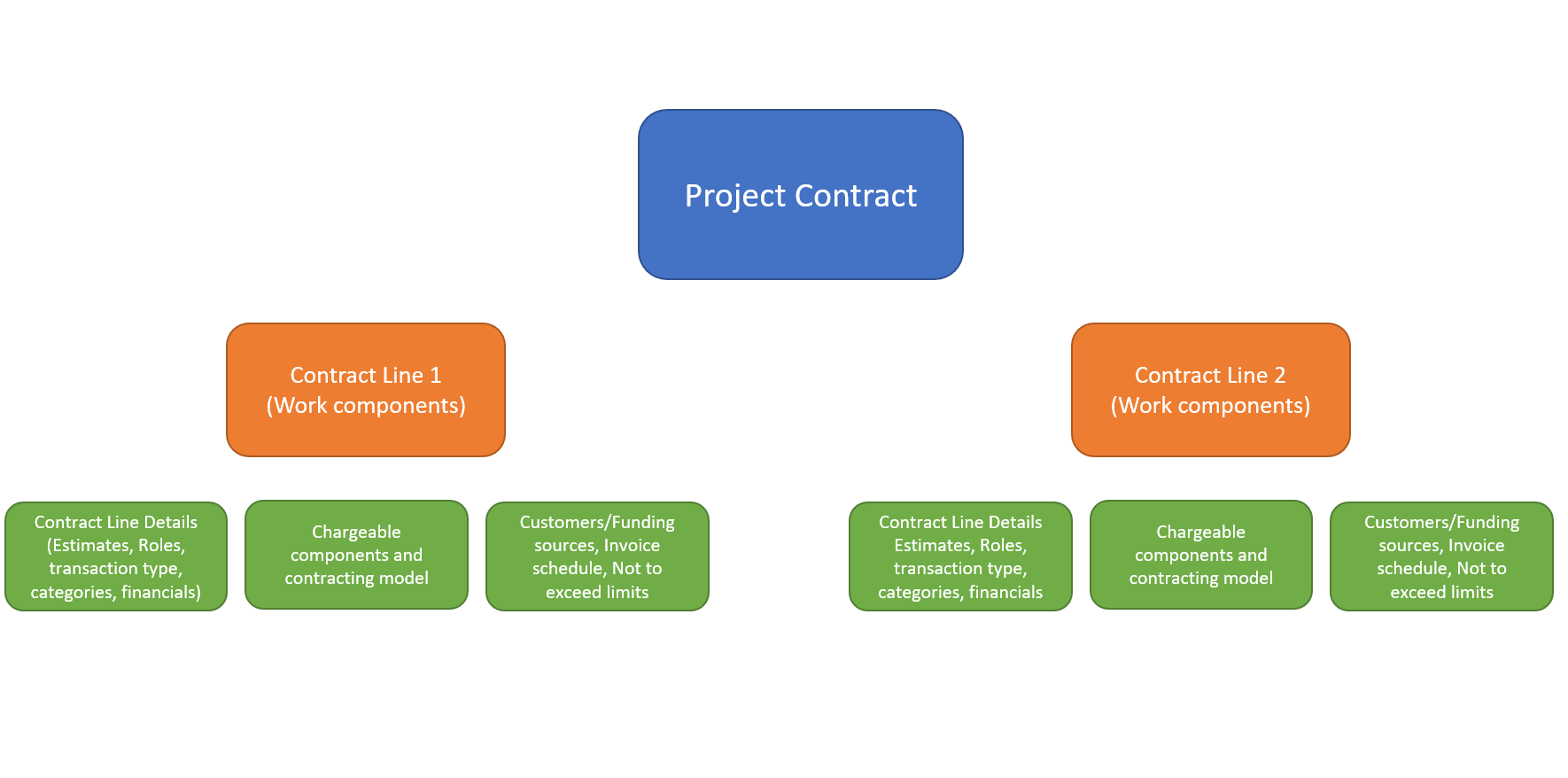
    The Project contract captures the work commitments that are negotiated and agreed upon with the customer. It also contains the associated billing details such as billing frequency, schedule, customers and so on for all the work that will be delivered as part of the contract. The below infographic shows the basic structure of a contract in Project Operations.

    Project Contracts data is stored in the Order table in Dataverse. You can create Project Contracts manually or the system can create a project contract automatically upon winning an Opportunity. If you are tracking opportunities in the system, then you can transfer over several details into the contract automatically. There are few key data fields that are required when you create a new contract.

    Owning Company: This is the legal entity that owns the contract legally and is responsible for reporting the costs and revenues of the contract. This is the legal entity where the Project contract and project record lives on the D365 Finance side.

    Contracting unit: This is the business unit/division of the legal entity that is responsible for the delivery of the project associated with the contract. The Contracting unit drives the resource costing. When you setup the Cost rate cards, you can setup resource costs for each Resourcing company and Resourcing units.

    Cost & Sales currency: This is the currency in which costs are reported in the front end. Transactions can be recorded in multiple currencies, but are shown in the cost currency of the contracting unit. Sales currency is the currency used for billing. This is also the currency in which project estimates and actuals are shown.

    Price list: This the base price list the contract is associated with. You can override the price list to define the contract specific sales prices/bill rates.

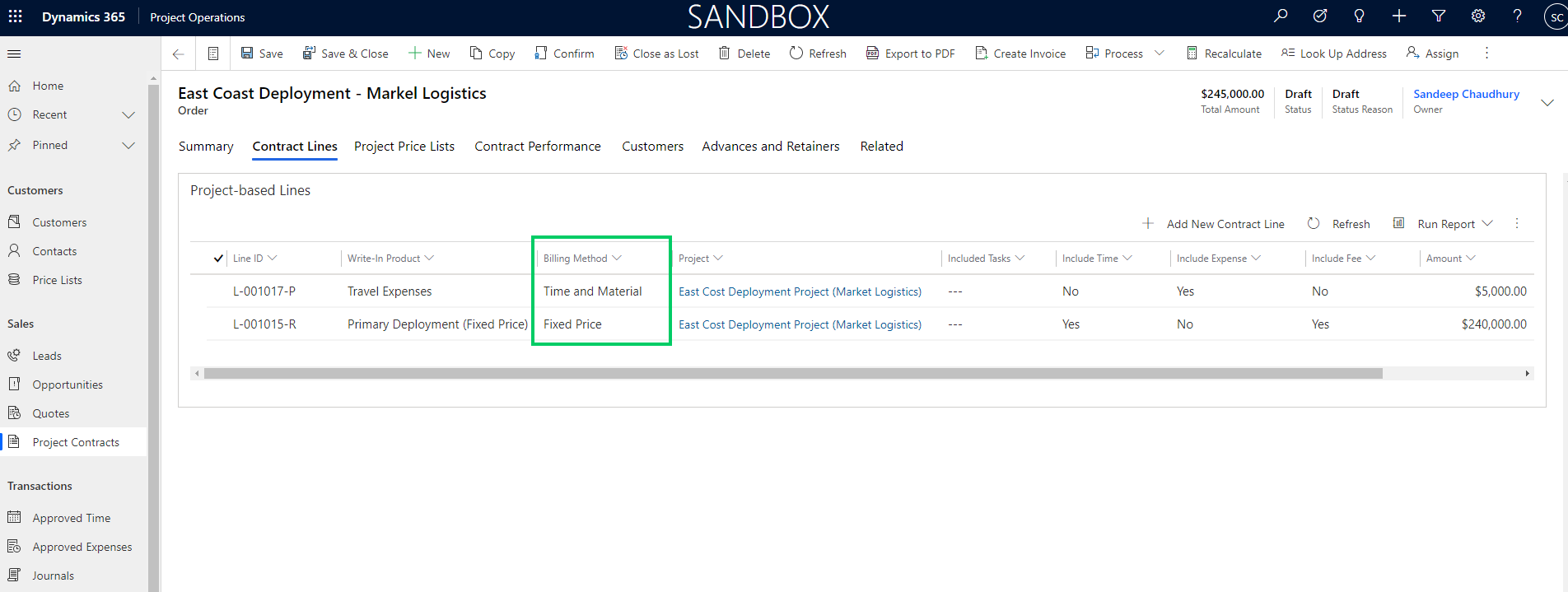
    Contract Lines is where the details of the contracting models and financial information resides. Contract lines are the key part the forms the overall contract. Right now in the Resource/non-stocked deployment scenarios, you can only add Project work based contract lines. Product based lines is not supported yet in this deployment model. In the example contract shown below, I have a fixed price work component and the travel & other expenses are setup to be billed on T&M basis.

    Contract Line Details contains the key details such as,

    Billing method: There 2 billing methods to chose from. You can charge a Fixed price for the work component in the contract. This work component can be a project or a task within the project. It depends on how you have structured your projects and contract. You can also setup a contract line to be billed on a Time & Material basis. An example of this would be travel and misc. expenses on project, which you pass the cost to the client. You can add a mark up if needed as well.

    Project : Each contract line is linked to a Project. The Project record is the heart of the overall Project Operations solution experience. The Project associated with the contract line is used for the management the work component associated with the contract line. We will dive deep into Project setup, project management in a future post soon.

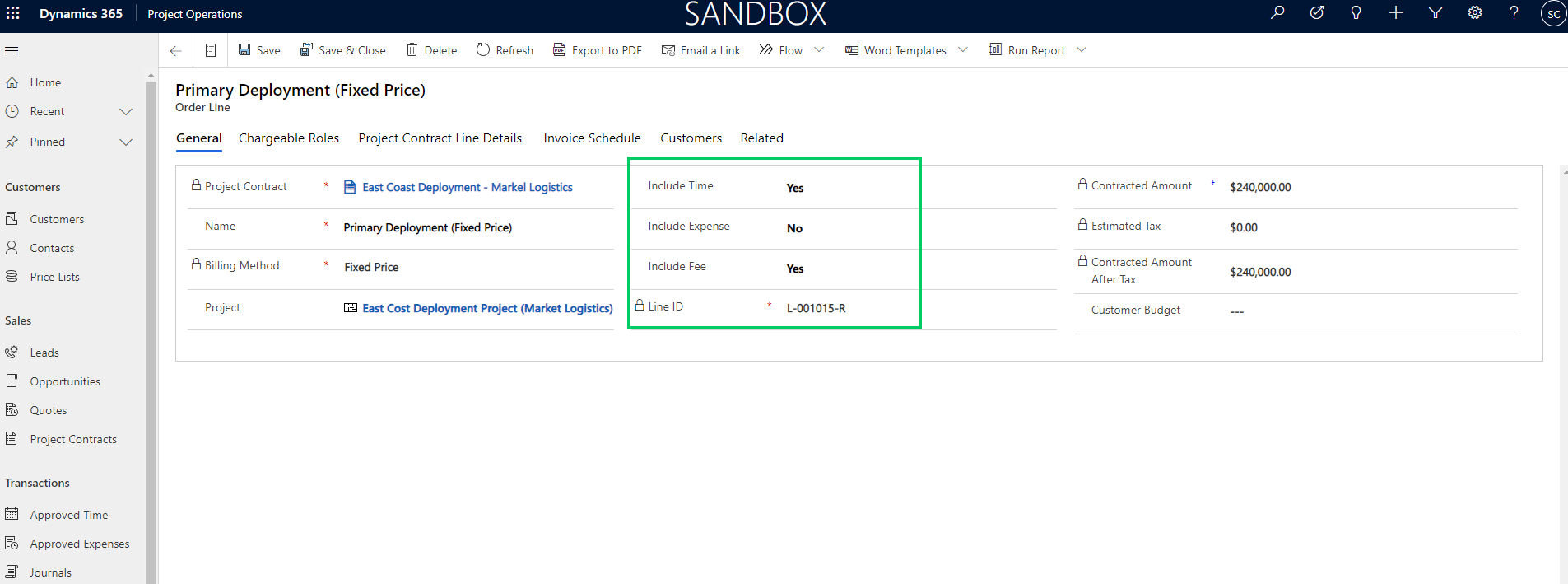
    Transaction types included: On each contract line, you define what type of transactions (Hours/Expenses/Fees) the line includes. You may have one line representing all 3 types, or 3 different lines representing each type or Hours and Fees represented by one line and expenses represented by another line.

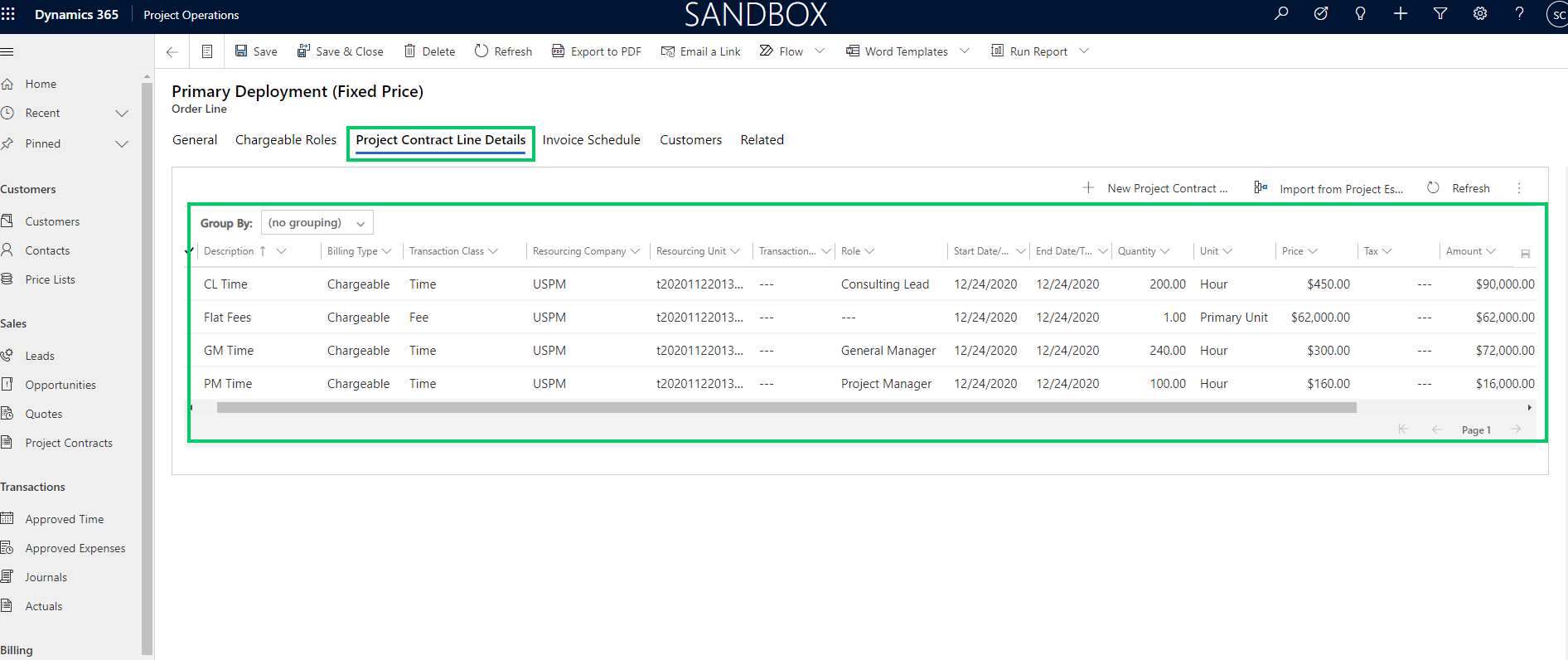
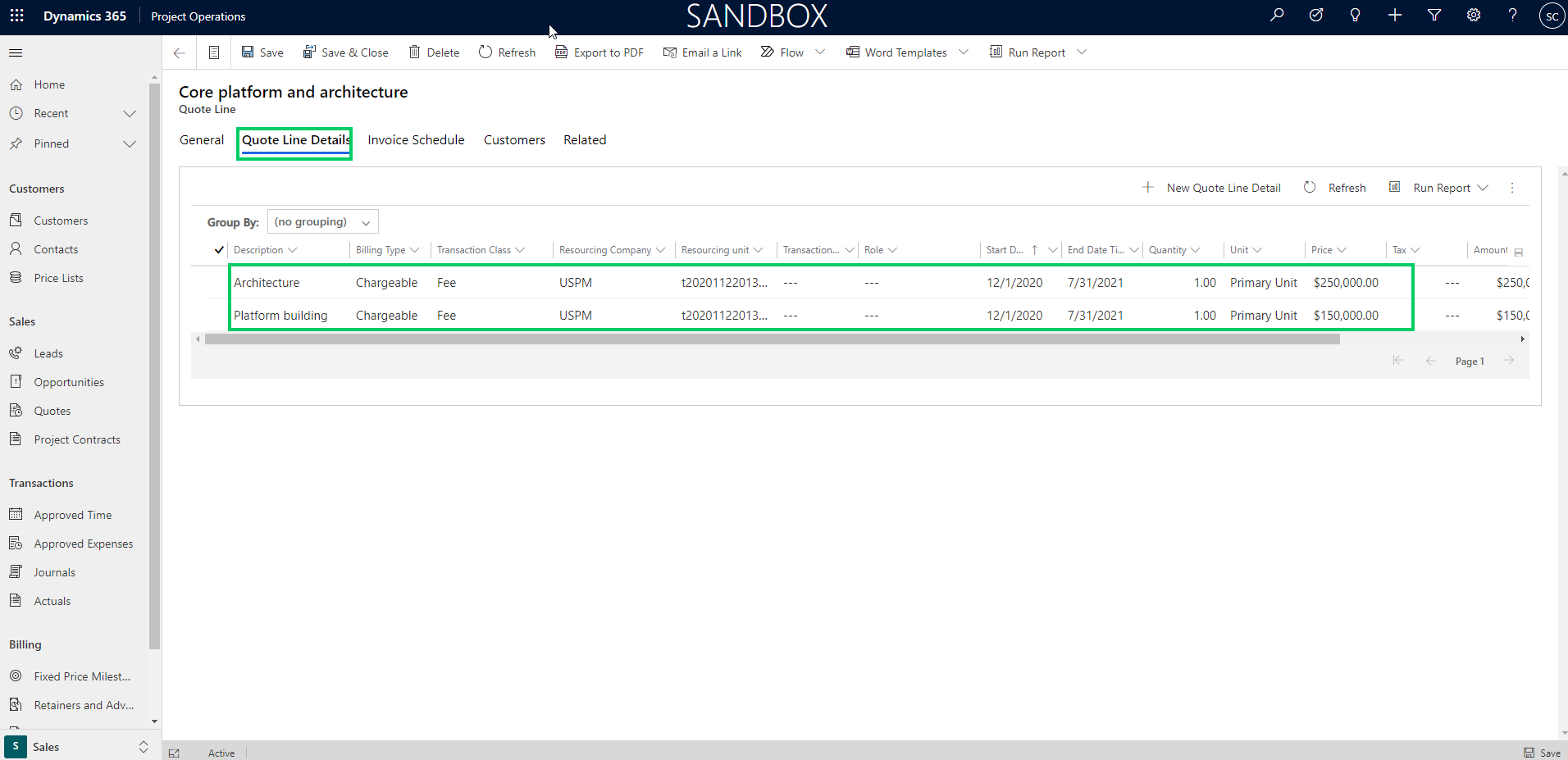
    Contract line item details: Each contract line has associated line details that sums up the the total value of the contract line. The lien details contains information about transaction class, resourcing unit, Role, category, dates, quantity etc. You can create these lines manually or you can import them from the Initial project estimates to make the job easier.

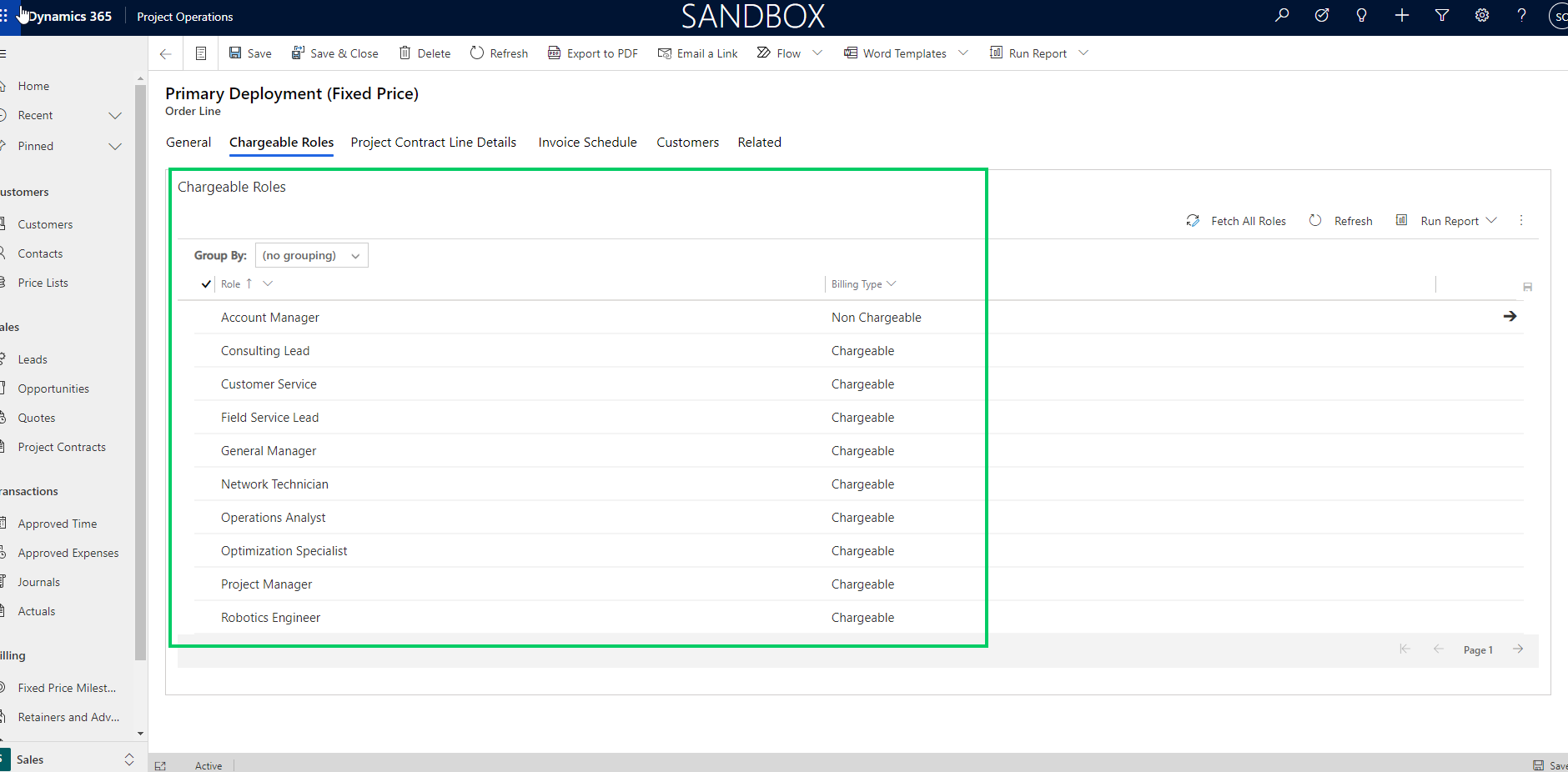
    Chargeable roles and categories: You can define which roles on the contract line/work component will be Chargeable or Non-chargeable.

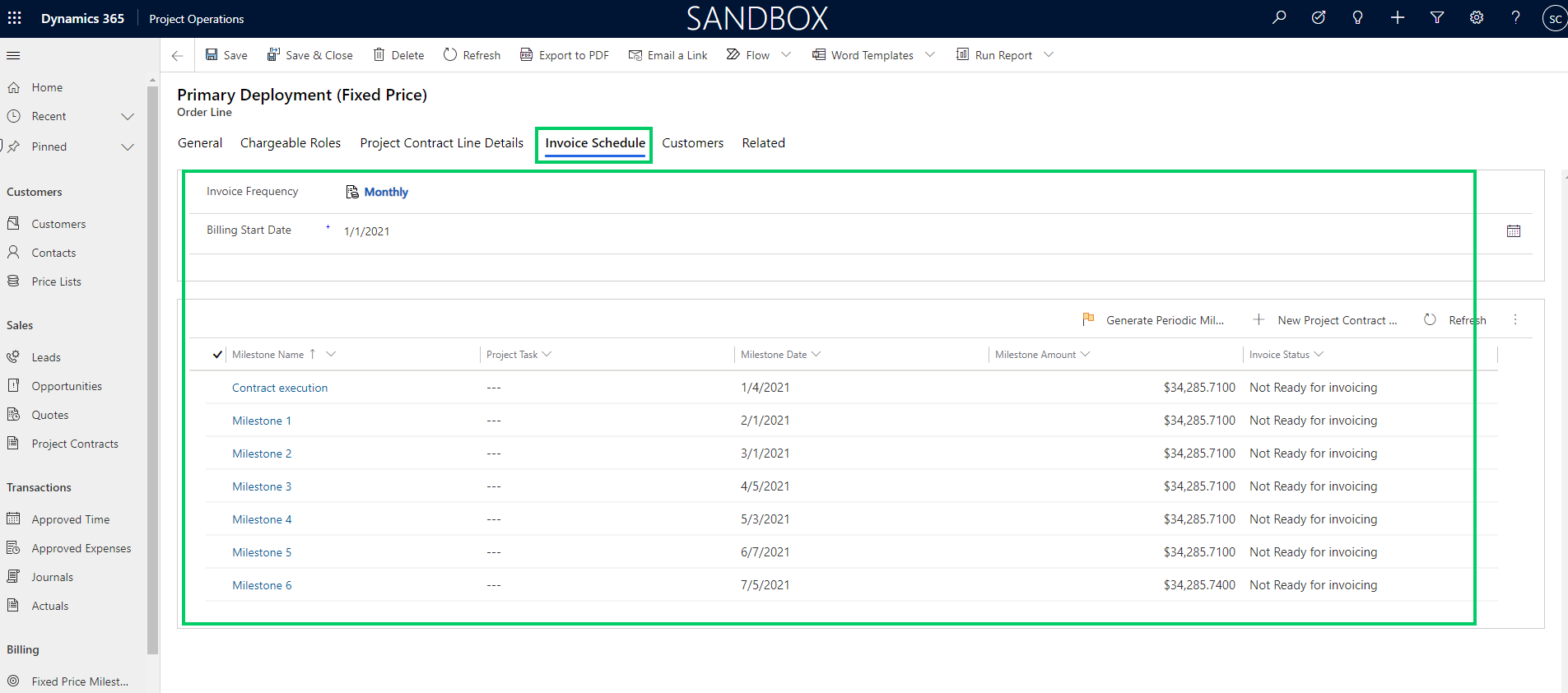
    Invoice Schedule: The invoice schedule defines how frequently you will bill the customer and the milestone dates, and amounts. You can create milestone schedule manually or you can have the system create it for you based on invoice frequency and billing start date. You can associate each invoice milestone to a project task if needed.

    Customers/funding sources paying for the contract line: You can split an overall contract between more than one customer or you can also split each contract line between multiple customers. This reminds me the funding source, funding limit and funding rules feature we have in the classic PMA module in D365 F&O.

    You can split each contract line to be billed to more than one customers and you can set % of split for each customer and you can also setup Not-to exceed limit for each line.

    That’s it for this post. This was a deep dive on Project contracts and what flexibilities you have to set these up in Project Operations.

  • Unify your Project centric business with Dynamics 365 Project Operations – Best of all Microsoft applications in one package for project based organizations

    Unify your Project centric business with Dynamics 365 Project Operations – Best of all Microsoft applications in one package for project based organizations

    In an earlier post, I wrote about overview of the new Dynamics 365 Project Operations solution from Microsoft and the 3 different deployment modes available for customers today. I was finally able to free up some time to deploy the new general available build of Project Operations. I deployed the fully integrated mode for resource/non-stocked scenarios.

    In this blog post, I wanted to dive into other “Fully integrated D365 Project operations with financials for resource/non-stocked scenarios” and showcase the key capabilities. This deployment scenario is suitable for project based organizations who does not have stocked inventory material and production requirements. The support for non-stocked materials is coming soon on the deployment mode.

    In this post, we will focus on reviewing the end to end lifecycle of a project from lead to invoicing. The objective is not to go granular on each of the functionalities, but rather to review all functionalities you can use from at each stage. We will review specific features in future posts and deep dive into those.

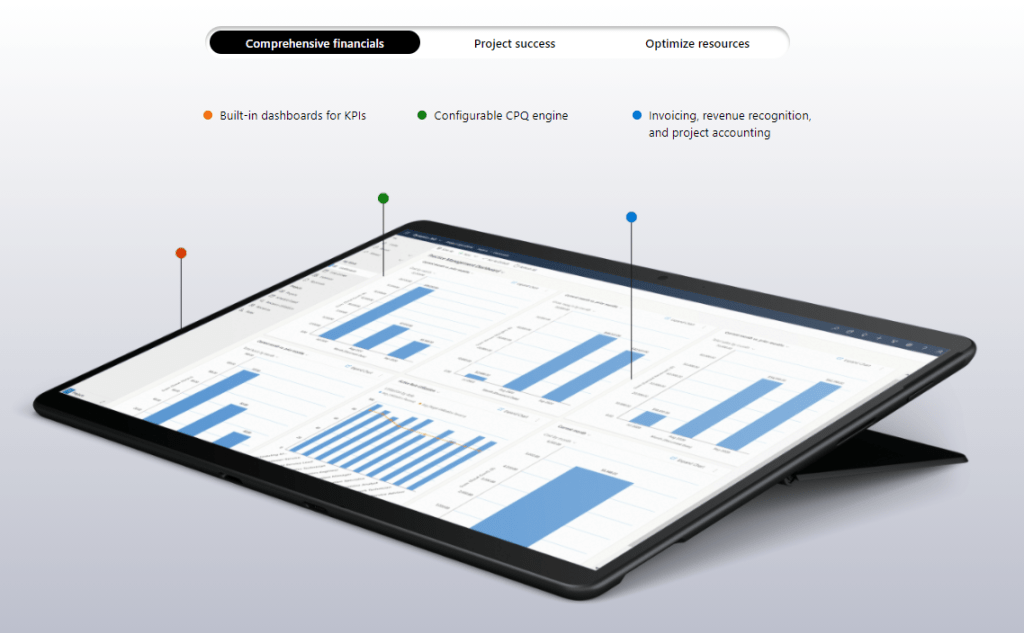
    The infographic below shows the overall capabilities of Dynamics 365 Project Operations.

    Deal management experience (Lead > Opportunity > Quote > Contract):

    D365 Project Operations provides comprehensive Lead, Opportunity and Quote management features suitable for project based firms. It leverages the best of the industry leading D365 Sales solution in the Customer Engagement platform and lights up the experience right within the Project Operations app.

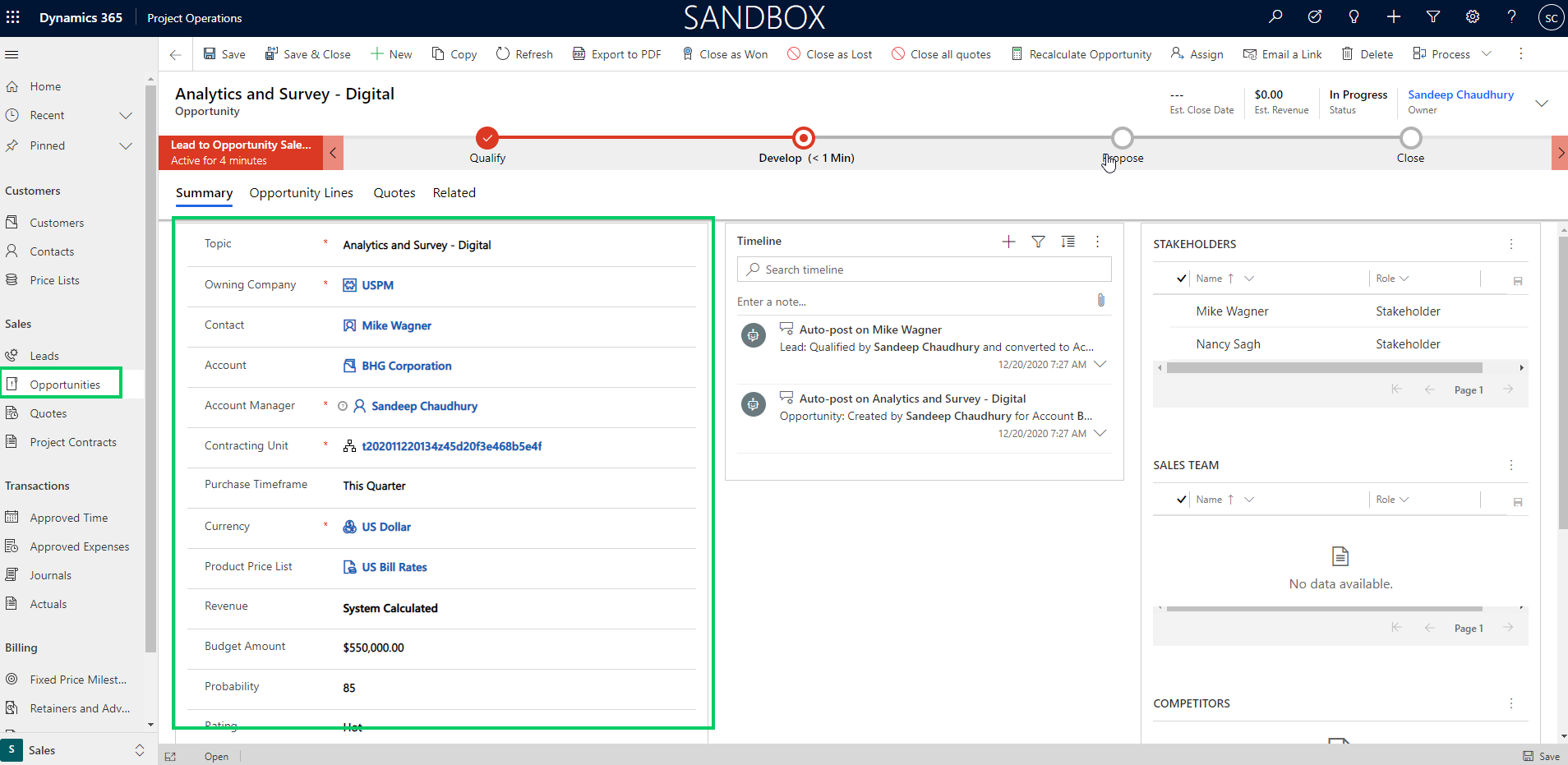
    You can track all required Lead information and once you quality the Work based lead, an Opportunity record is automatically created, where you can add the building block of the work.

    In the Resource/Non-stocked based scenarios deployment of Project Operations, you can only add Project based lines right now, but the support for service based items/products is coming soon. (Note: If you have the Lite deployment of Project Operations with no Finance integration, you can still add product based lines, just like you did in the old D365 PSA app).

    You can assign a price list/rate card for the opportunity and you can now build the line items on the Opportunity and specify the details such as Billing method, amount, customer’s budget and so on.

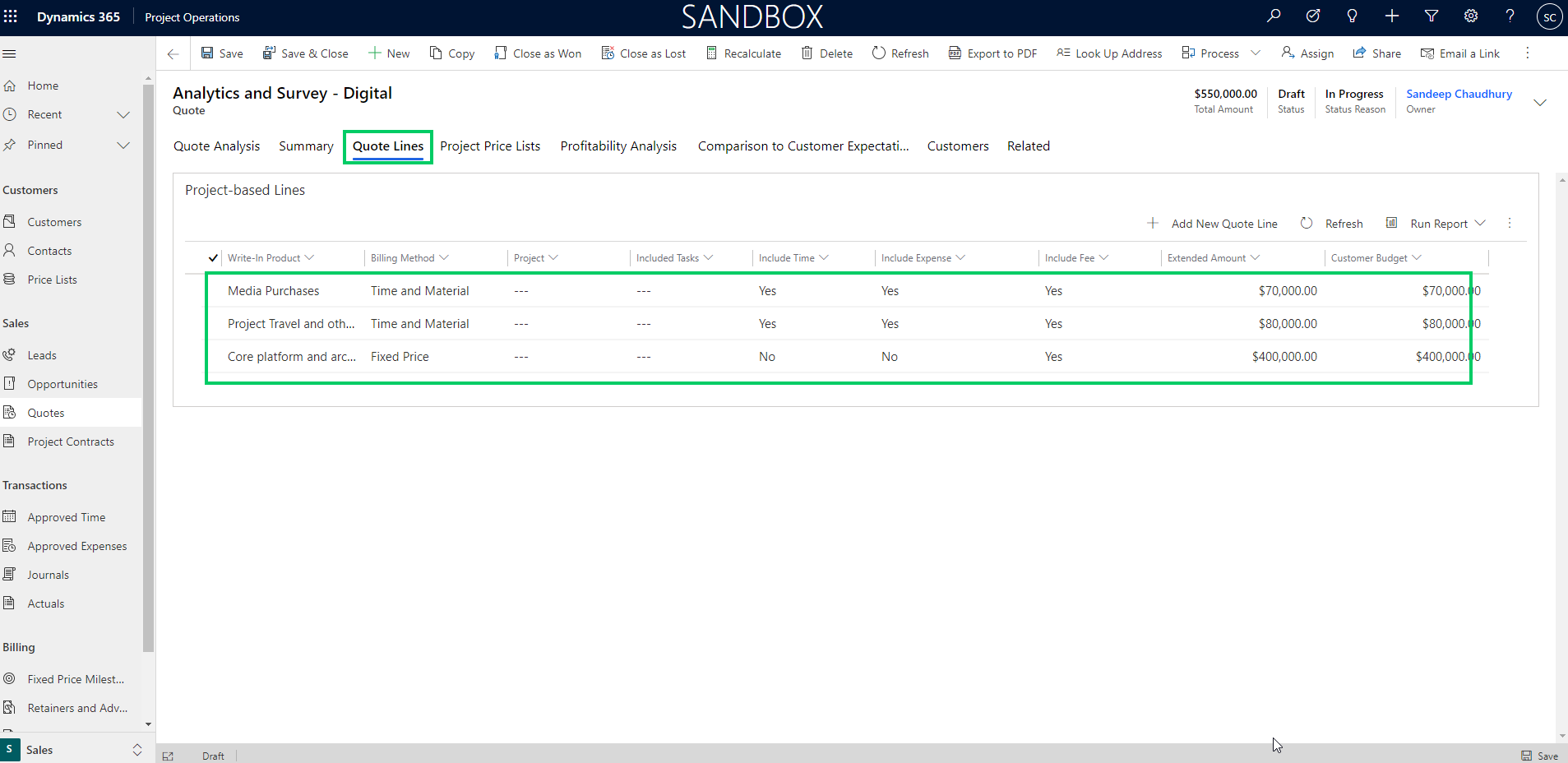
    Once the Opportunity details are fine tuned with the customer, you can build a proposal/quote directly from the Opportunity and all the line item details are carried over automatically. The Quote lines represent the discrete components of the work that you will present on the quote to the customers.

    The Quote line details is where you identify and estimate the details of each quote line/work component such as, schedule, financials, contracting model and so on. This information on the quote line details helps you do profitability analysis on the quote.

    If the Project is funded by more than one entities of the customer, you can add the customers/funding sources on the quote line and designate the amount/percent split of the amount for billing and you can also specify the “Not-to-exceed” limit for each customer. This reminds of the Funding sources, funding limits and funding rules functionality that we all know in the classic Project accounting module of D365 Finance :)

    If the quote line is a Time & Material line, you can specify additional details such as “Chargeable Roles”, “Chargeable Categories”.

    You can also create the project to create the ground up estimates from the project tasks/plan and import those into the quote lines. After you have built the quote details, you can review profitability analysis info.

    You can also how your quote compares to the customer’s expectations.

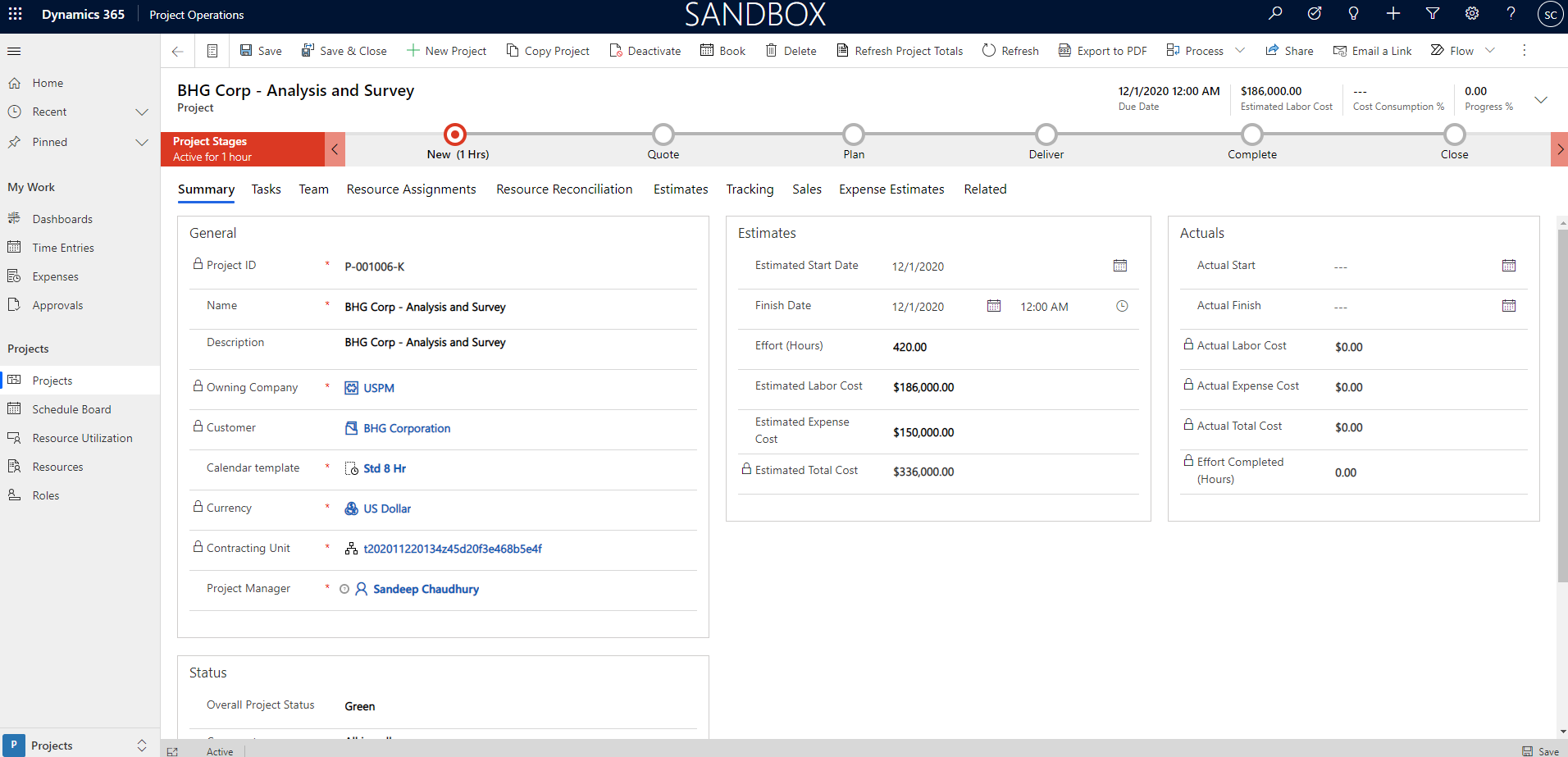
    When you have won the quote, you can associate the Project ID to the quote/opportunity line and close the Quote as Won. As soon as a Quote is closed as Won, a Project contract is automatically created in Draft status and new project is associated with this contract.

    Project and Resource management experience:

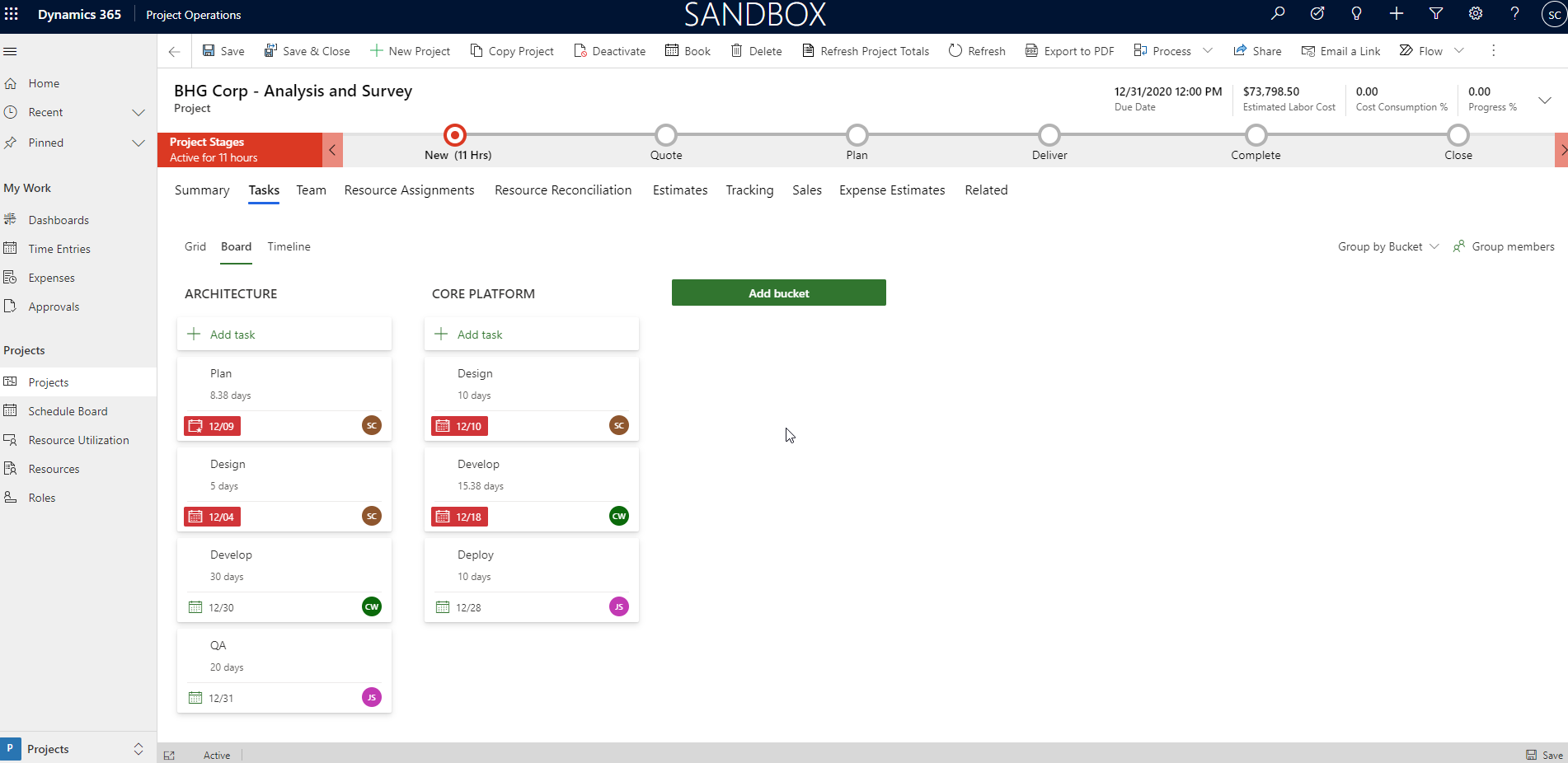
    Project managers can create detailed project WBS/plan using the capabilities of Project for the web(P4W) capabilities built right into project operations. I am not going to focus on discussing details of the individual functionalities around project management and resource management aspects in this post. We will save that for another post.

    Time & Expense management experience:

    Your resources can use the intuitive time entry UI to keep track of their daily time and submit periodically/weekly. You can also keep track of employee expenses with the robust expense management module of Project operations, with features such as expense policies, workflows and credit card integration. The expense management experience comes from the proven D365 Finance app and offers advanced expense management capabilities. They can also use the T&E mobile apps.

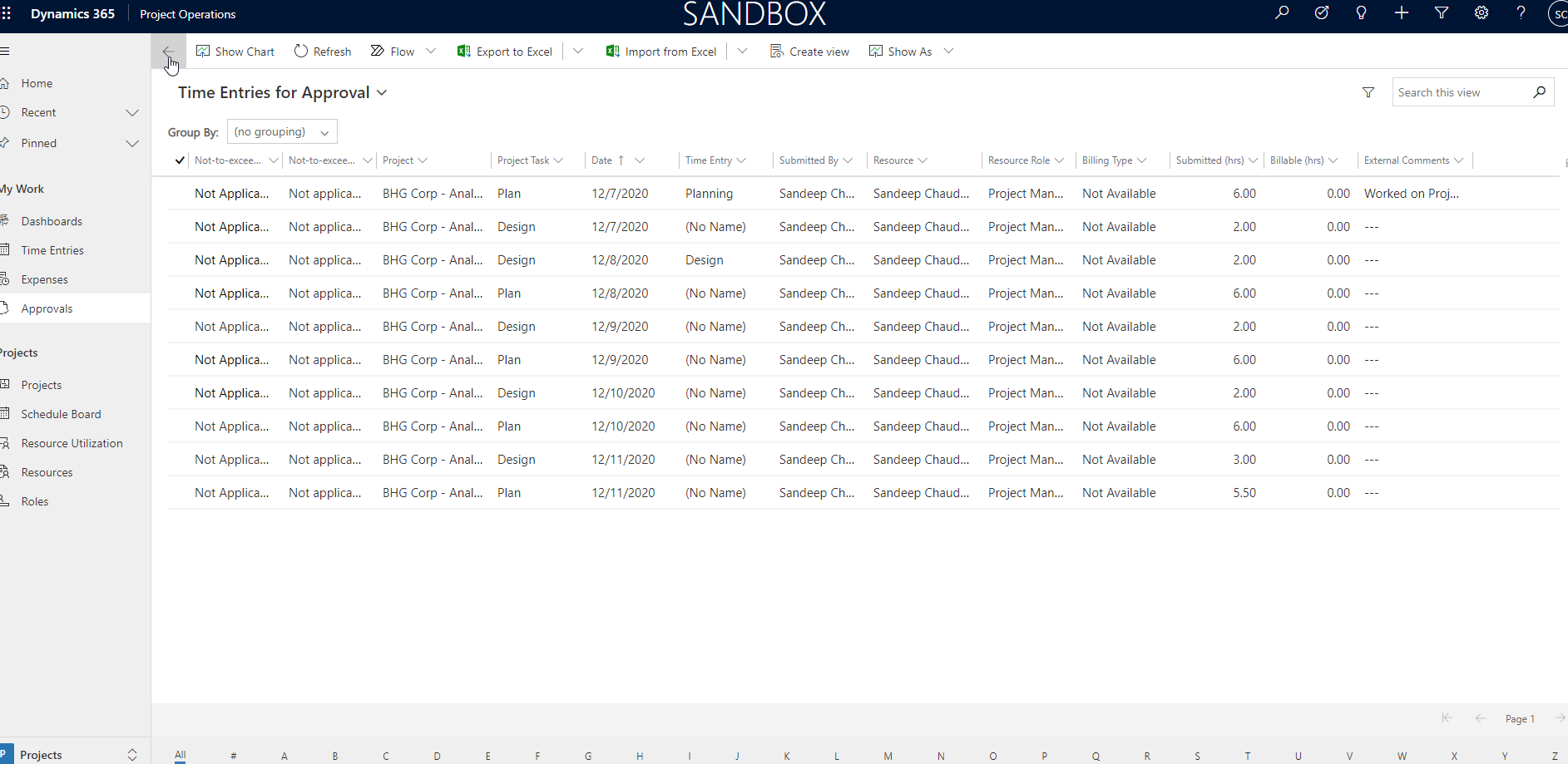
    Managers can review timesheets and expenses in the Approvals work bench and process them in timely manner.

    Project transaction corrections and Invoicing

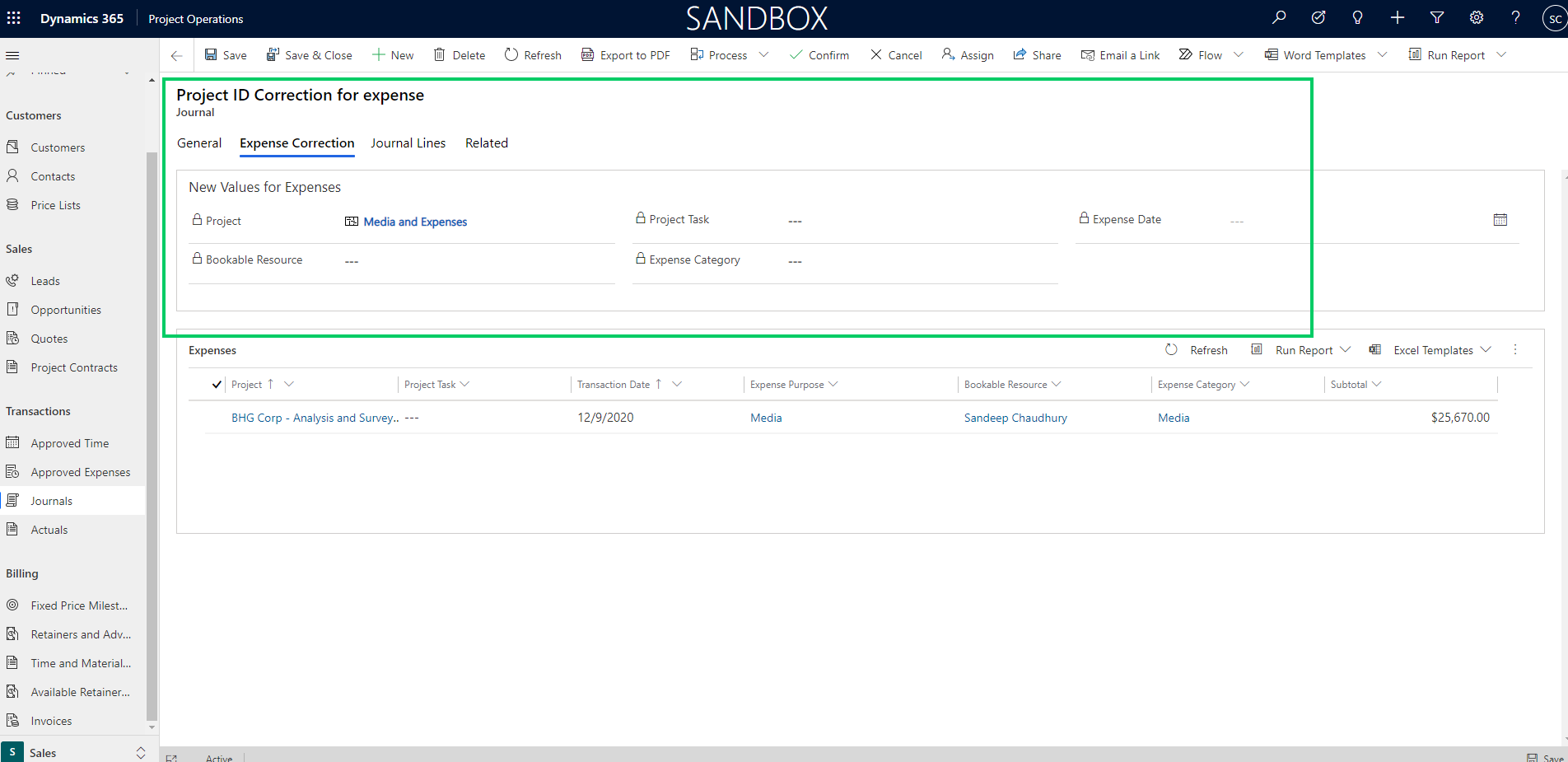
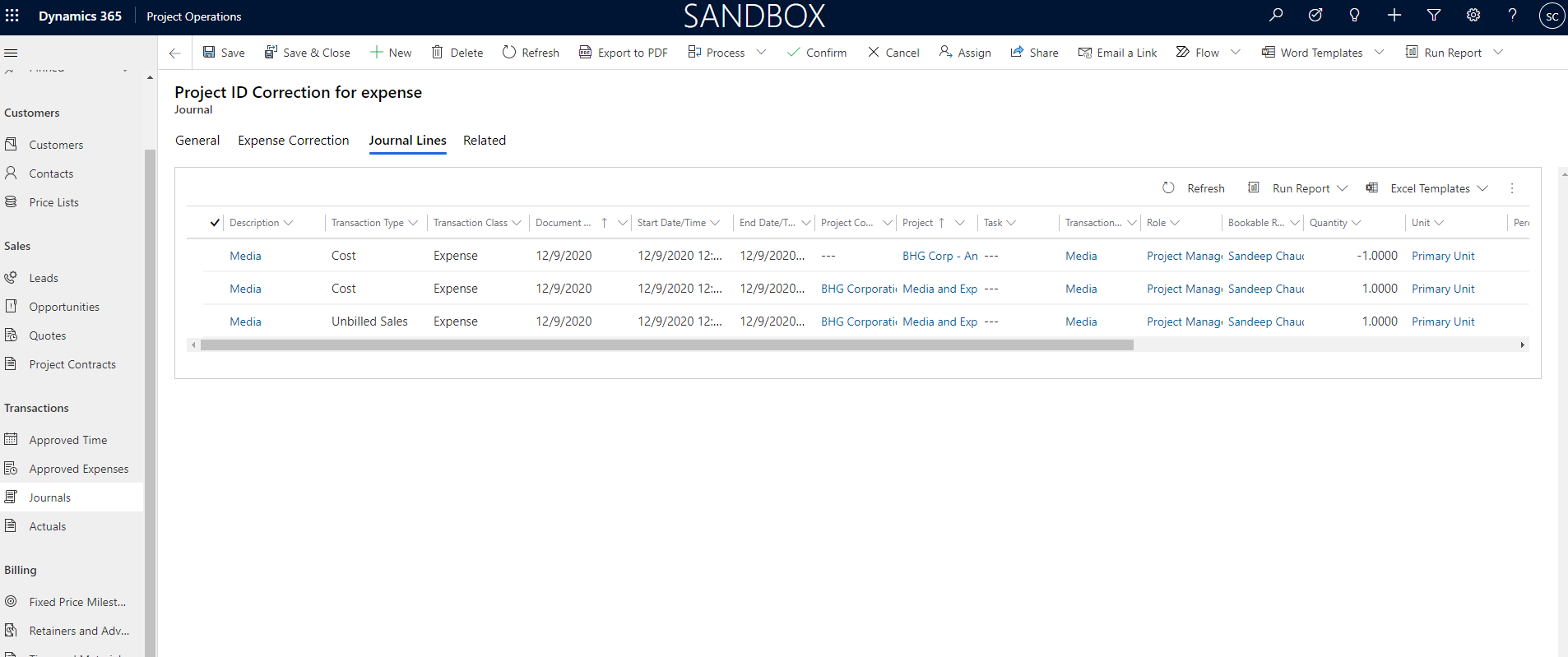
    Project finance/billing team can stay on top of their tasks with intuitive interfaces for transactions corrections/adjustments to make sure any adjustments to transactions are processed prior to billing.

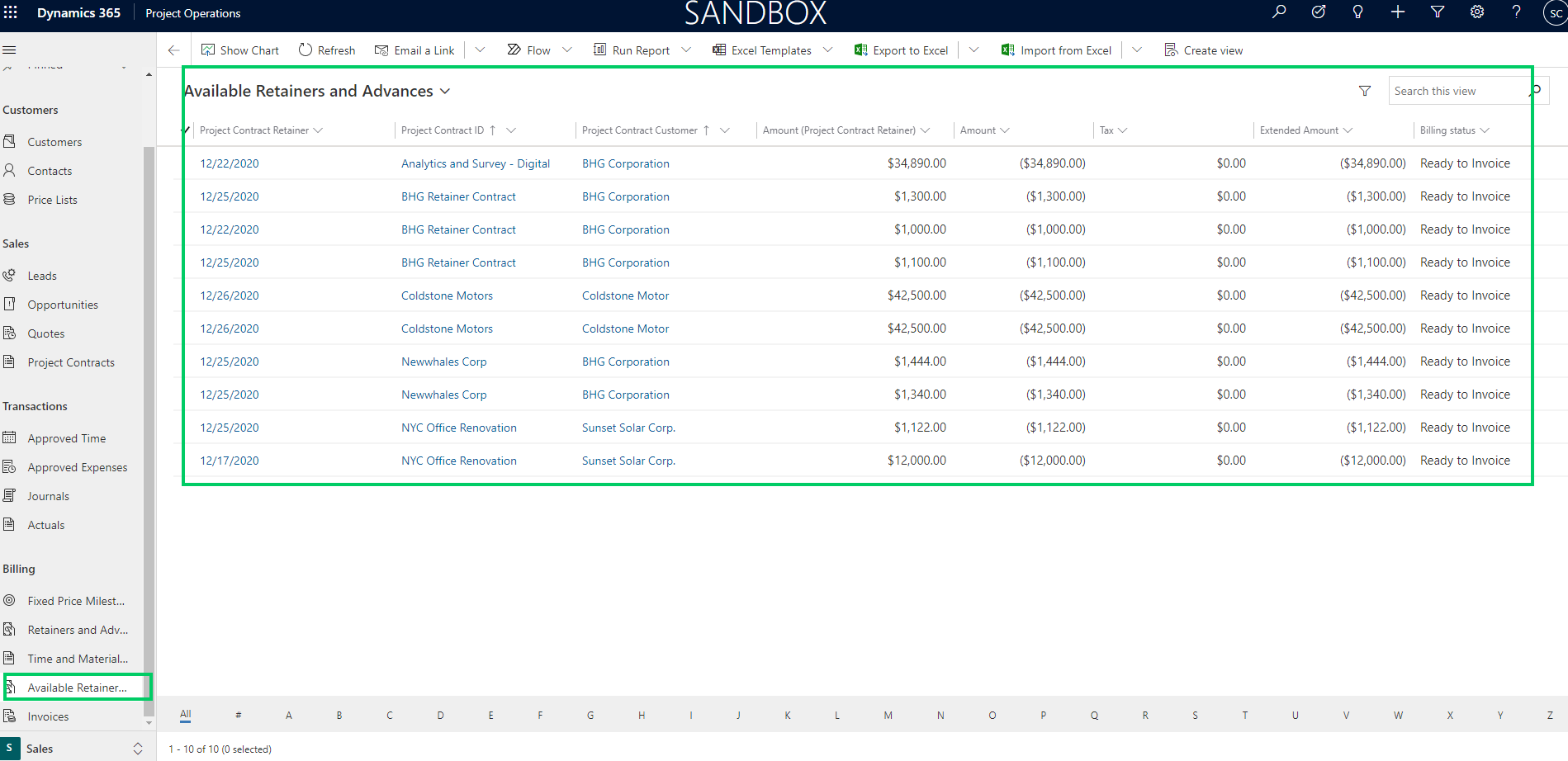
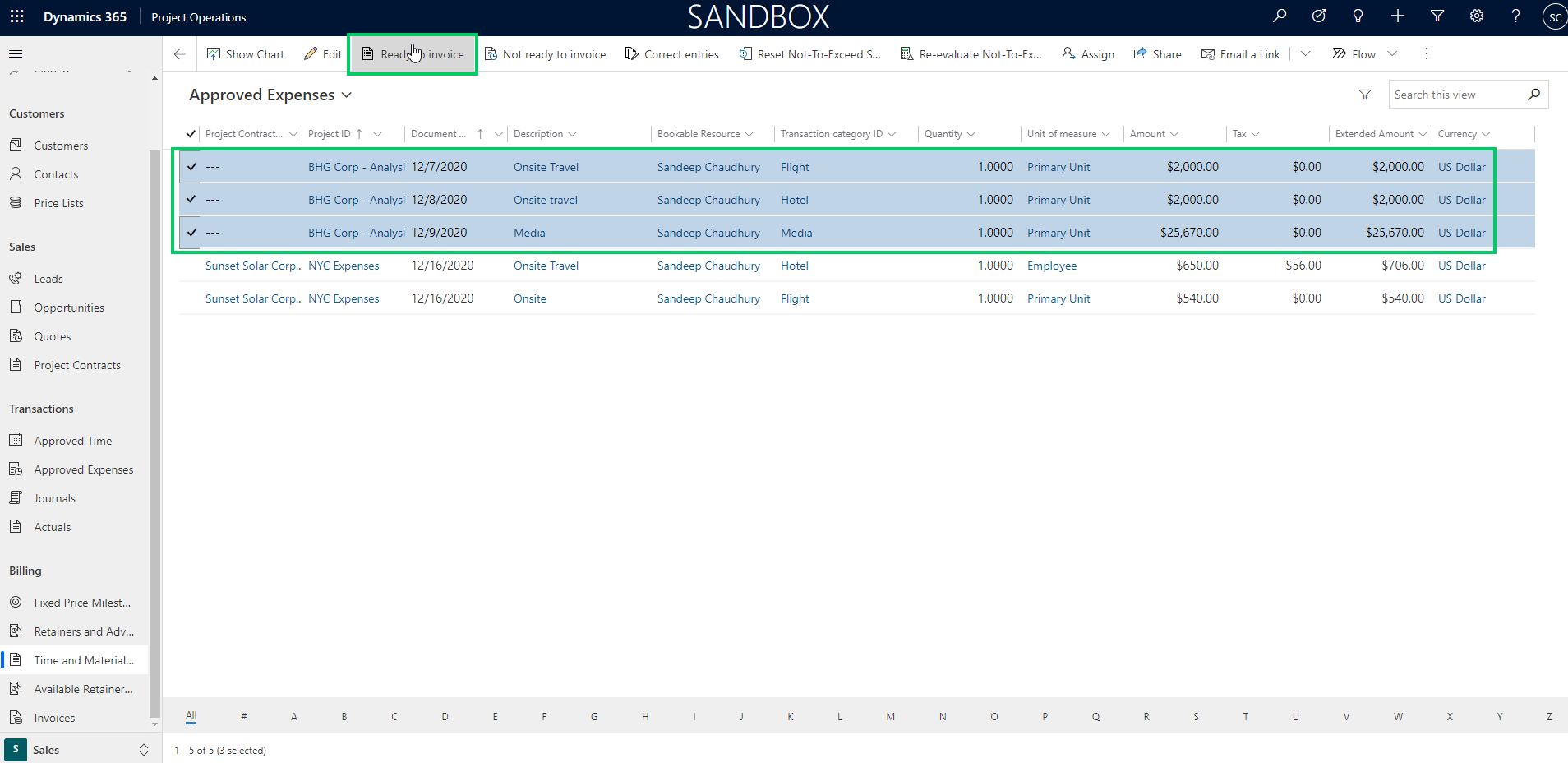
    The dedicated work benches for Time & Material, Fixed price milestone and advance & retainers billing backlogs are handy providing all the billing backlog information at one place . You can review details such as invoice status, Not to exceed limits and statuses of each transaction to make sure the customer invoices are accurate.

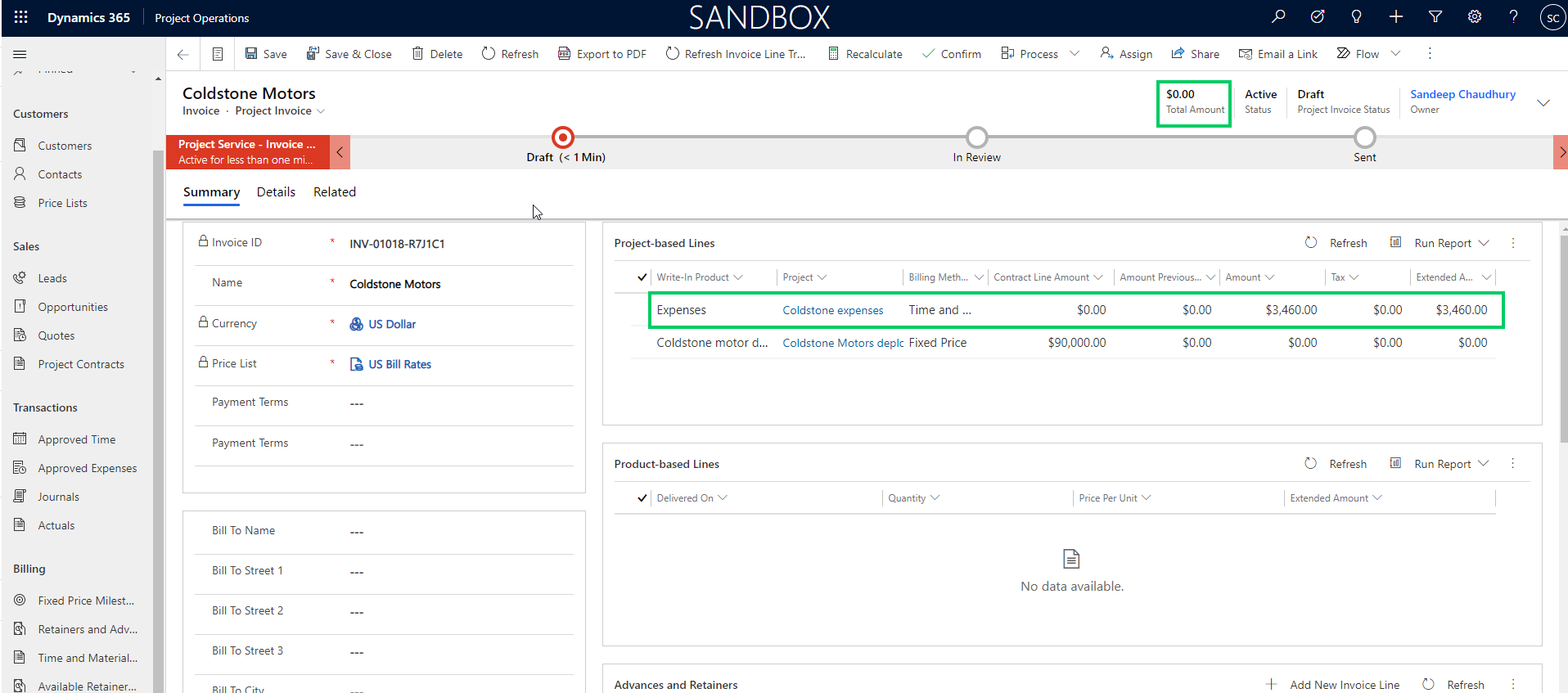
    Creating invoices for project contracts is simple. It can be created manually for each contract or an automated batch job can be setup to run on automatic recurrence.

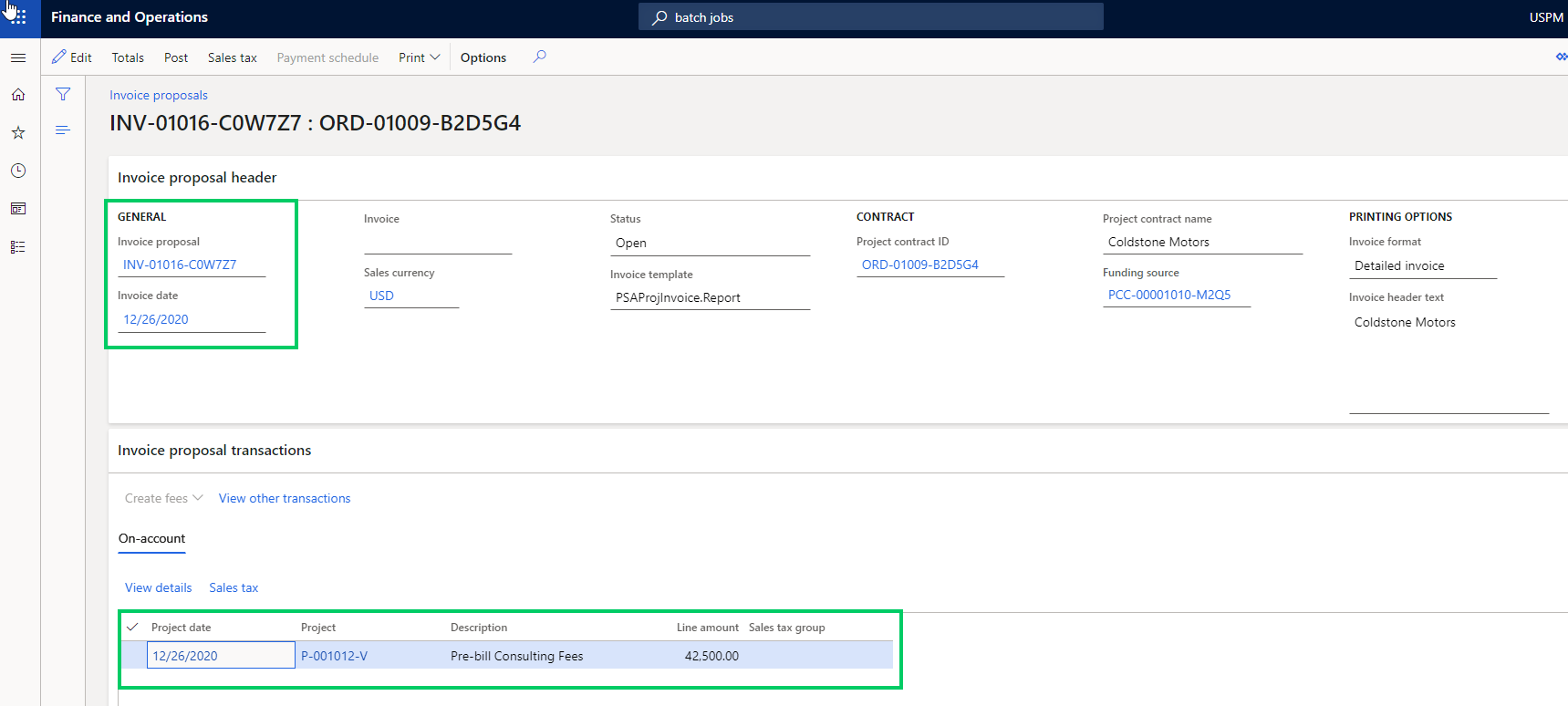
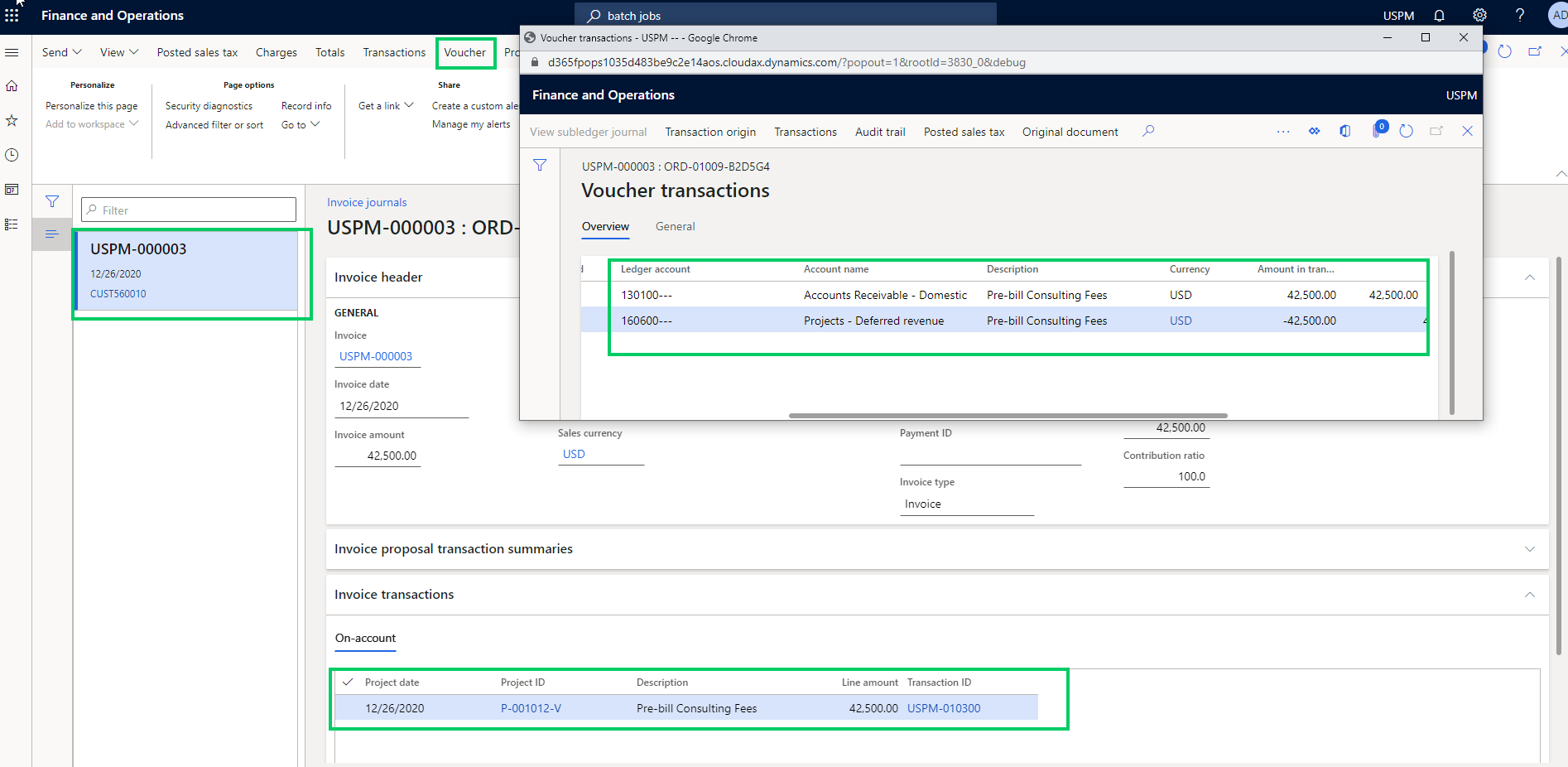
    As soon as you confirm the Draft/Proforma invoice, a project invoice proposal is created, which is then ready to be posted. With the industry leading sales tax engine of D365 Finance solution, you don’t have to worry about complexities of sales tax calculations.

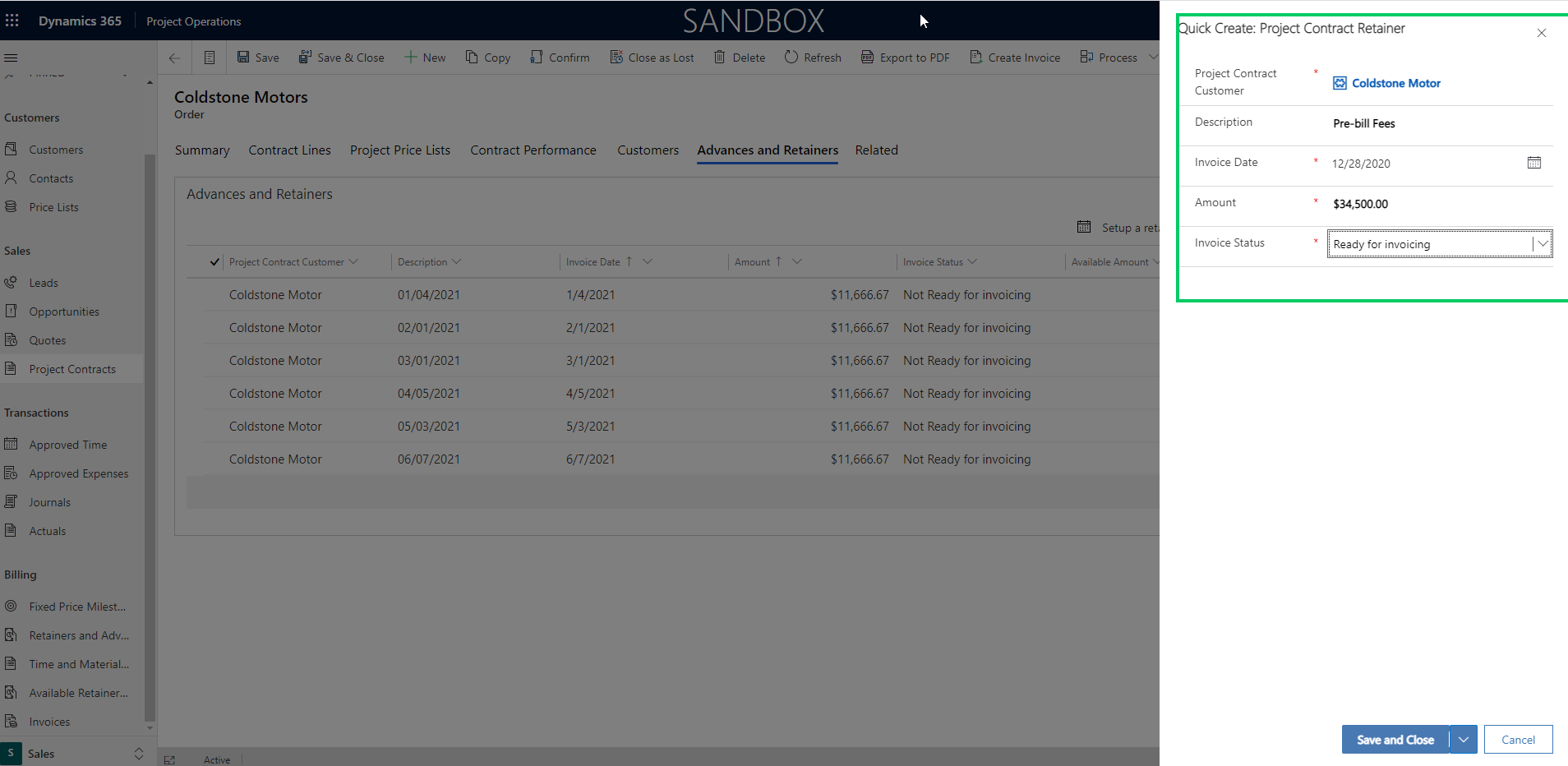
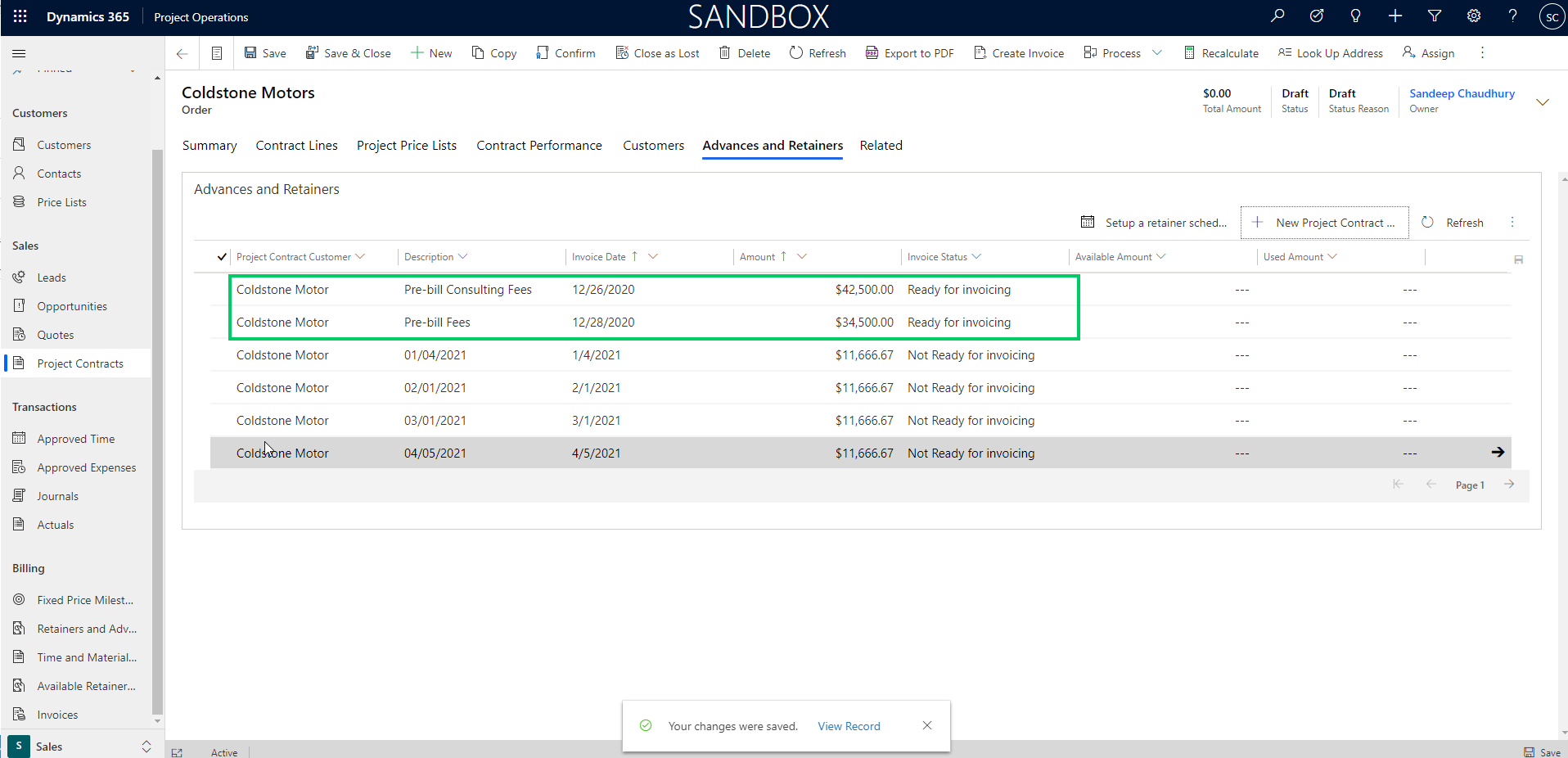
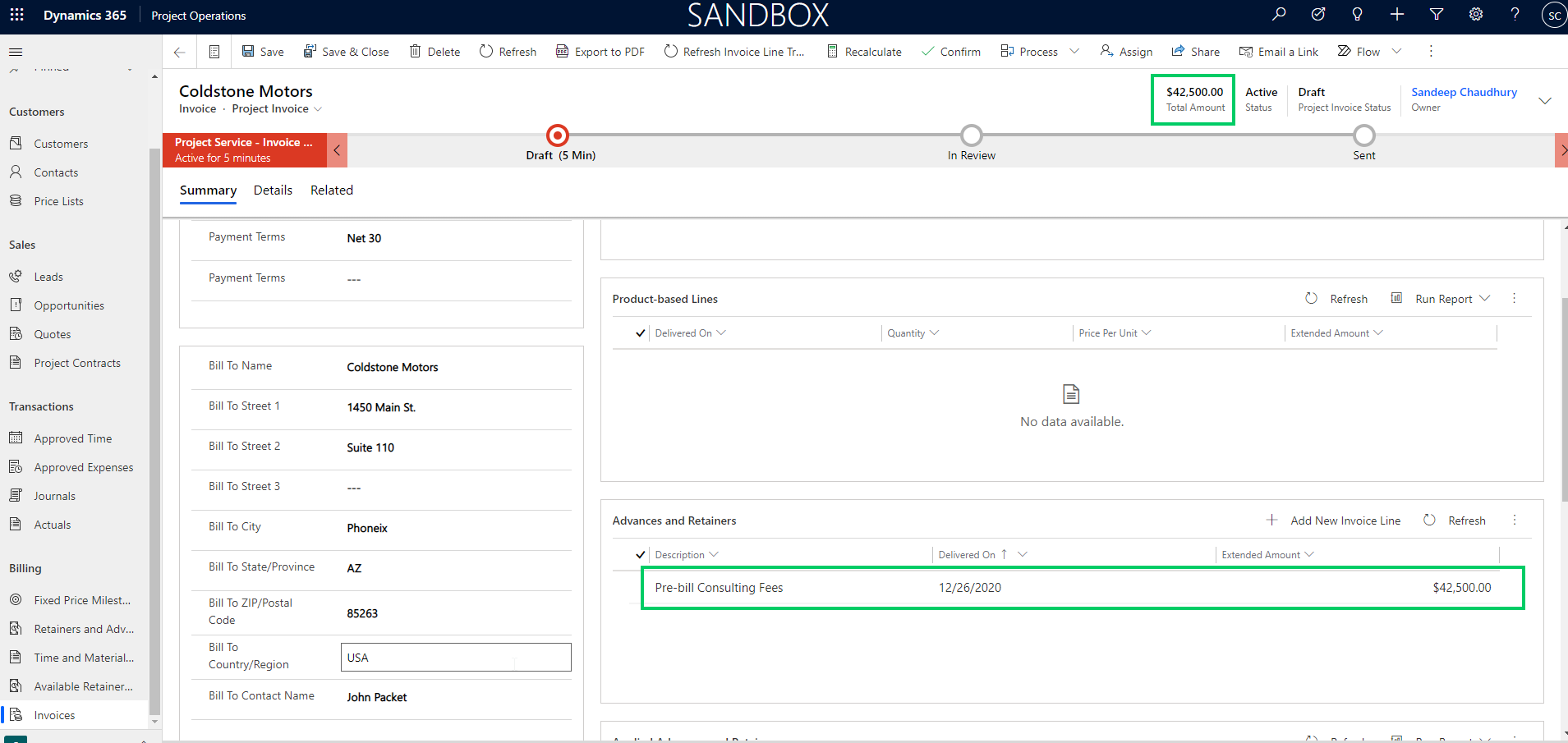
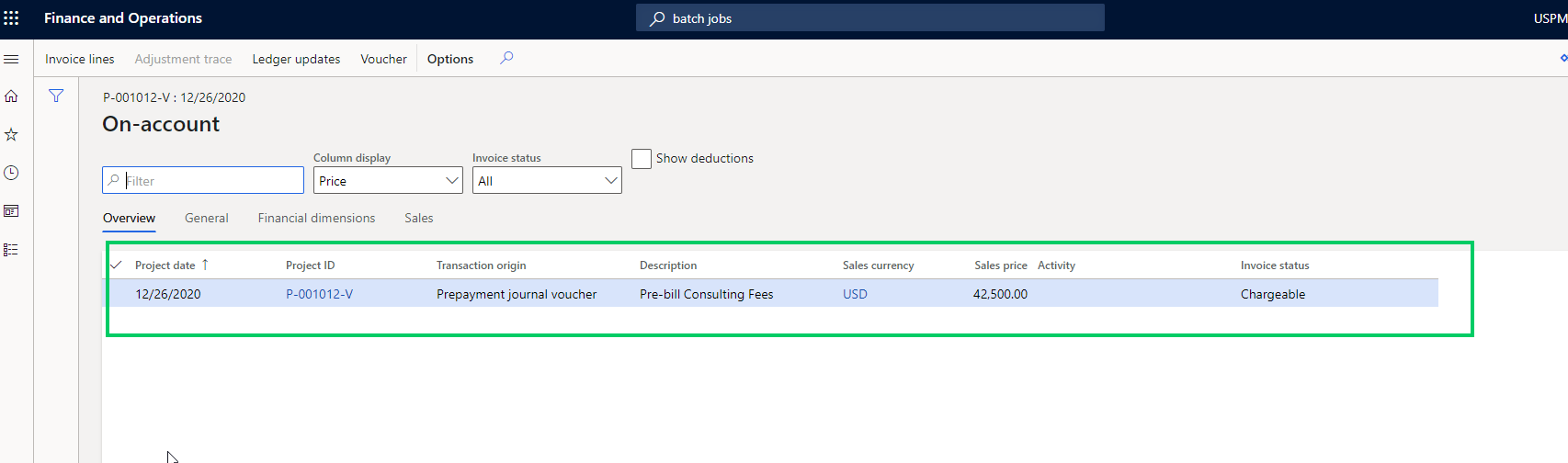
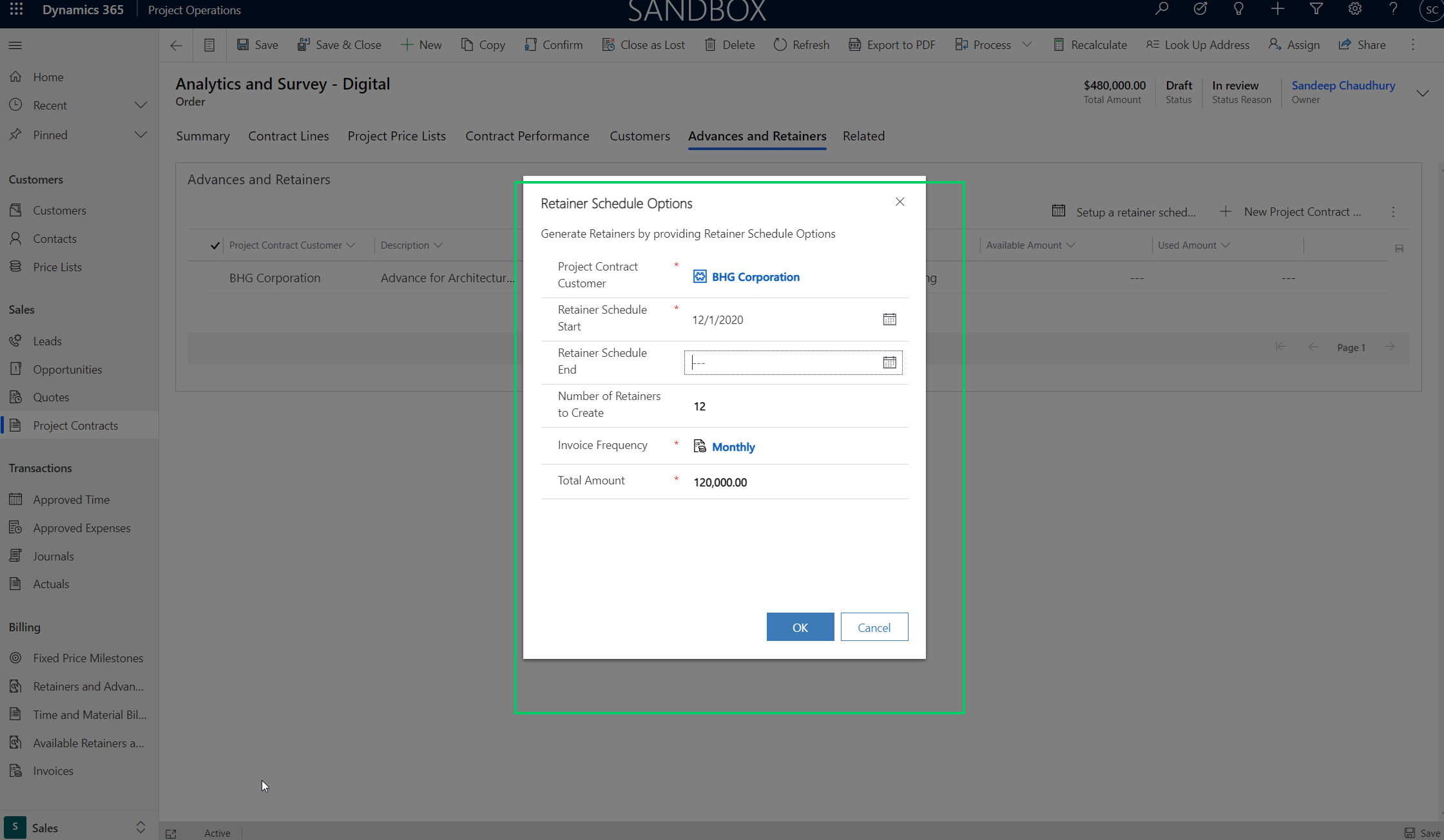
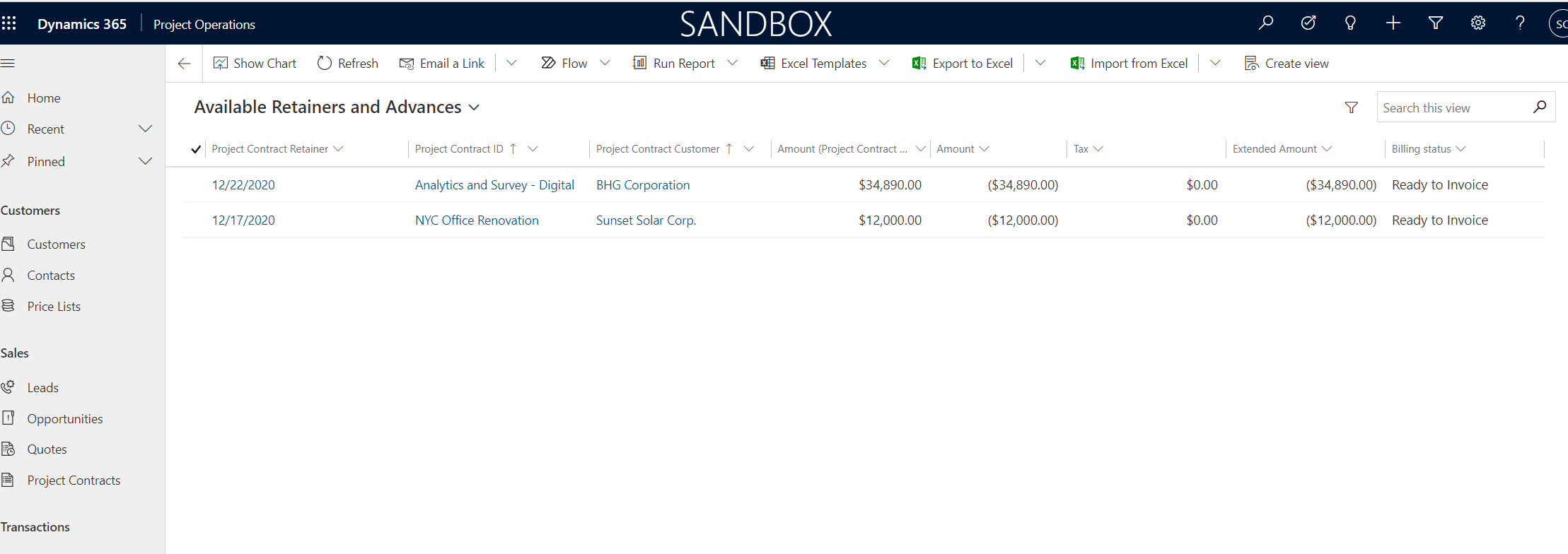
    Project Operations also provides functionality for advances and retainers billing to customers. This is a new feature that was released in version 4.5.0.134. This feature reminds me the good old customer advance functionality we have in the legacy project management and accounting module in D365 Finance.

    Additional you can also setup an automatic retainer schedule to bill customers automatically based on a pre-defined schedule and invoice frequency. You can reconcile actuals against billed retainers and advances.

    Revenue recognition, sales tax and financials management:

    With the ” Fully integrated Resource/non-stocked scenario/deployment mode, you have full coverage of Revenue recognition, sales tax management and comprehensive industry leading project accounting and financials management. This part of the solution is built on the powerful Project management and accounting solution we all are familiar with in D365 F&O. The module is tailored and modified to work with the overall project operations solution. I am working on a separate blog post to explain the details of how the PMA module of D365 Finance is tailored to work with the Project operations solution. I will explain the key changes and how it works in that post.

    That was a happy path blog post on Dynamics 365 Project Operations. This was my second post on the official D365 Project Operations solution on my blog and the idea was to showcase what the solution can do for project based organizations. I am pretty excited about how the different industry leading applications from Microsoft for the project based organizations (Dynamics 365 PSA, Dynamics 365 Finance, Project for the Web) came together powered by Microsoft Dataverse(CDS), providing a seamless application for project based organizations of all sizes

    That’s it for this post! We will discuss specific topics on Project operations in future posts very soon.

  • Azure Data Lake(Gen2) integration with Dynamics 365 for Finance and Operations

    Azure Data Lake(Gen2) integration with Dynamics 365 for Finance and Operations

    Business Intelligence and Reporting has evolved in Dynamics 365 Finance and Operations since it’s launch. Entity store is the default relational database for dynamics 365 for finance and operations containing several aggregate measures and customers rely on it for near real time dashboarding on data from the Production database of D365 F&O. Entity store DB is included in the D365 F&O subscription and Microsoft ships quite a few embedded Power BI content packs that does direct query into the entity store to produce stunning dashboards and reports across various modules.

    It is also possible to make the entity store available in Azure Data Lake (Gen2). This gives flexibility for customers to have the aggregate measures of entity store directly in their Azure data lake and allows them to do reporting and dashboarding by mashing up data from external sources also.

    Another popular option used by many customers is BYOD. Customers can export out of the standard data entities and custom data entities and export them in a predefined schedule to their own Azure SQL DB and then use Power BI or other tools to create reports and dashboards and mash-up the data with external systems data as well if needed. While BYOD offers a good solution for reporting and dashboarding by mashing up data from systems other than just D365, F&O, it comes with it’s own limitations and often requires you to manage and maintain the recurring data exports. The Azure SQL storage is also comes at a cost, depending on what volume of data you want to export and store.

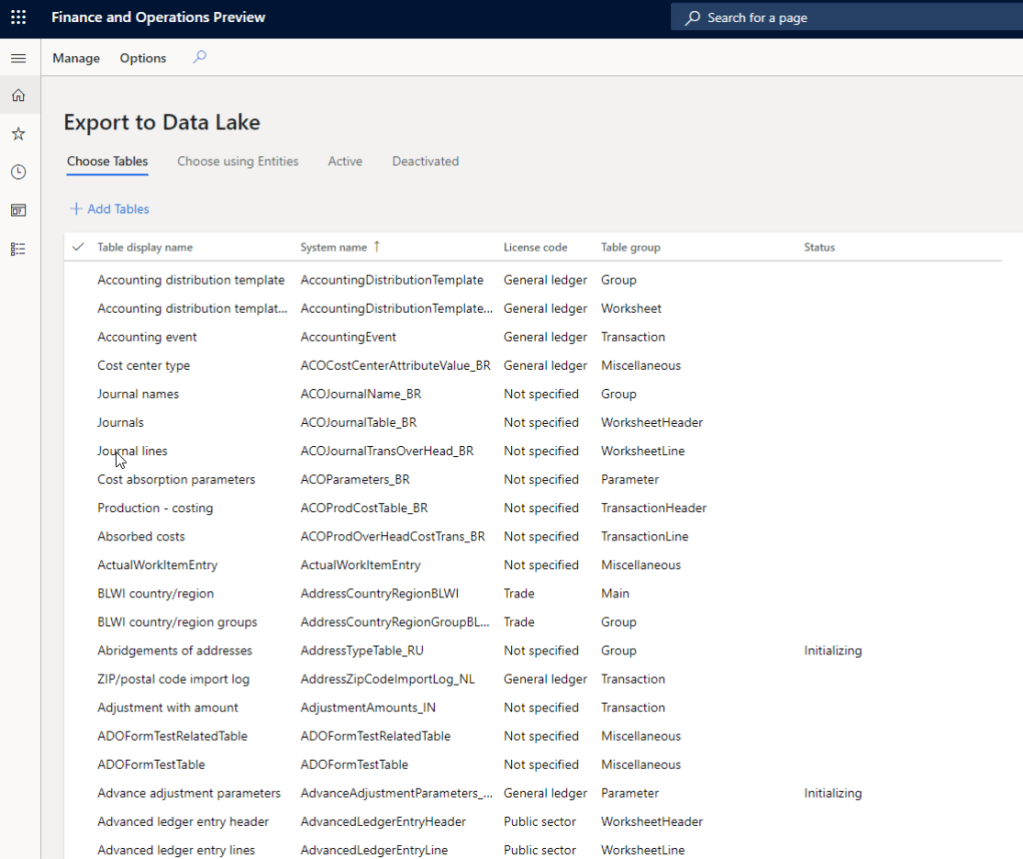
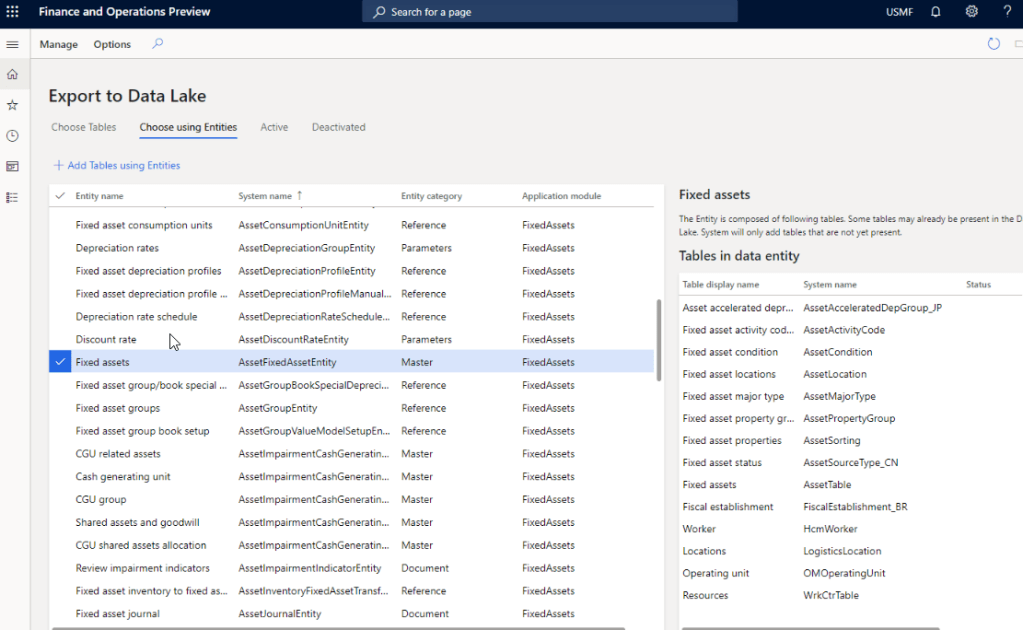
    With the version 10.0.12 launch, Microsoft is now making it possible to replicate you D365 F&O production data into Azure Data Lake (Gen2) storage. This new feature and framework allows you chose the data tables and entities you want to export and will keep the F&O data up to date in Azure Data Lake in almost real time.

    After you setup your Azure data lake storage account, application ID and authorization for D365 F&O to access the storage account you will first need to install the add-in within Lifecycle services(LCS). Then you can enable the new feature within the feature management area of D365 F&O and perform the remainder of the setup.

    Why you should plan the transition to Azure Data Lake: In my view, customers who are invested in BYOD or the analytical workspaces of D365 F&O entity store today should look at taking advantage of Azure Data Lake and should plan the transition for the following reasons.

    1. BYOD requires continuous monitoring and troubleshooting. ADL maintains the data automatically and is always up to date with no intervention needed.
    2. You don’t need to create data entities to expose data in any table that you want. You can literally expose all data tables and fields with ADL integration.
    3. Azure SQL data storage is comparatively expensive than ADL.
    4. ADL cloud storage is more efficient, better for analytics and provides additional capabilities such as AI, and additional programming to transform large volume of data.
    5. Data lakes in Azure are designed for big data and analytics and are capable of handeling big amount of data with less cost. It takes advantage of Azure blob storage behind the scenes.
    6. Data lakes not only allows you to do analytics on the data using Power BI, but also it allows you do additional things like apply machine learning, AI on the data to learn and take meaning and action out of your big data.

    That’s it for today’s post.

  • Useful new features under Project accounting module of Dynamics 365 Finance that you must checkout

    Useful new features under Project accounting module of Dynamics 365 Finance that you must checkout

    Hope everyone out there is keeping safe and healthy. We are living in unprecedented times and navigating this phase of the our lives certainly has been teaching us new thing every day!

    I finally took some time out from the schedule to review some of the new features under Project Accounting module in the most recent releases of Dynamics 365 Finance. These features range from version 10.0.9 through 10.0.12. Let’s get to the point and review the features.

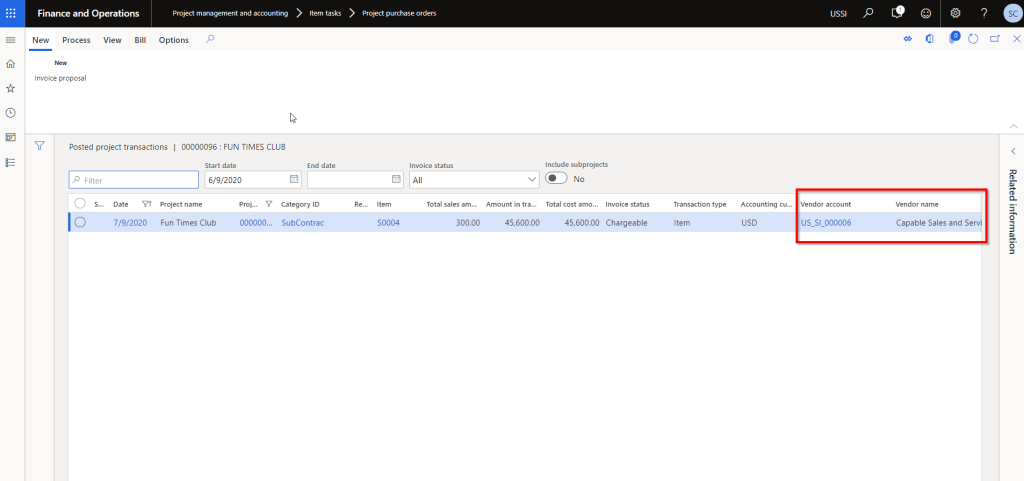
    Show Vendor ID and vendor name on the Posted projects list page:

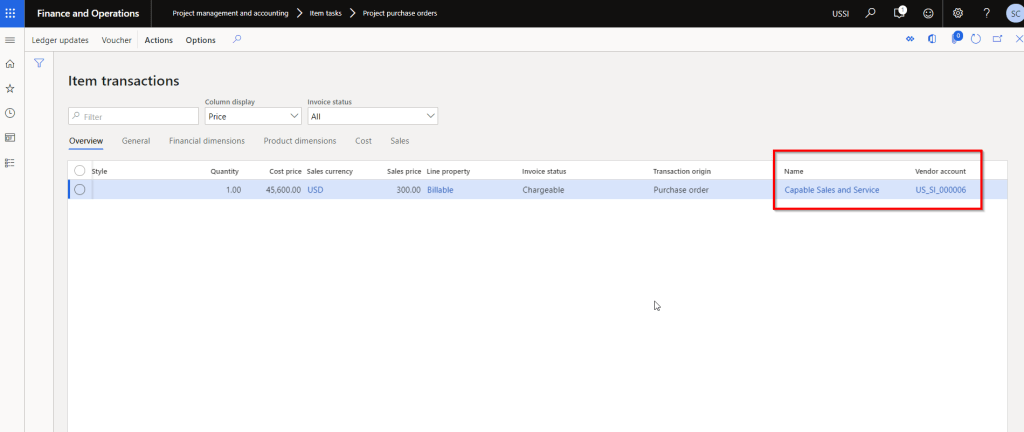
    So this one is probably one of the most common asks I have heard from customers in all projects. Seeing the vendor name and account number certainly makes the life of the project accountants and billing analysts easier. We have been addressing this using a customization till now. These 2 additional data fields will make it easy for users to slice and dice project expenses by vendor and produce invoice supporting documents for customers when billing those expenses.

    When you enable this feature and post a vendor invoice to the project, you will see the Vendor ID and name on the posted transactions list page.

    You can also Personalize to the the Vendor ID and name fields to the Expense transactions inquiry page.

    Adjust accounting on a posted project transaction:

    This one is very interesting. Before this functionality, the only option to adjust accounting was to process a transaction adjustment. But that also required you to change data on the subledger transaction.

    With this new feature, accountign team will find it easier to adjust accoutning posting for posted transactions.

    It will basically reserve the original posting and recreate new ones.

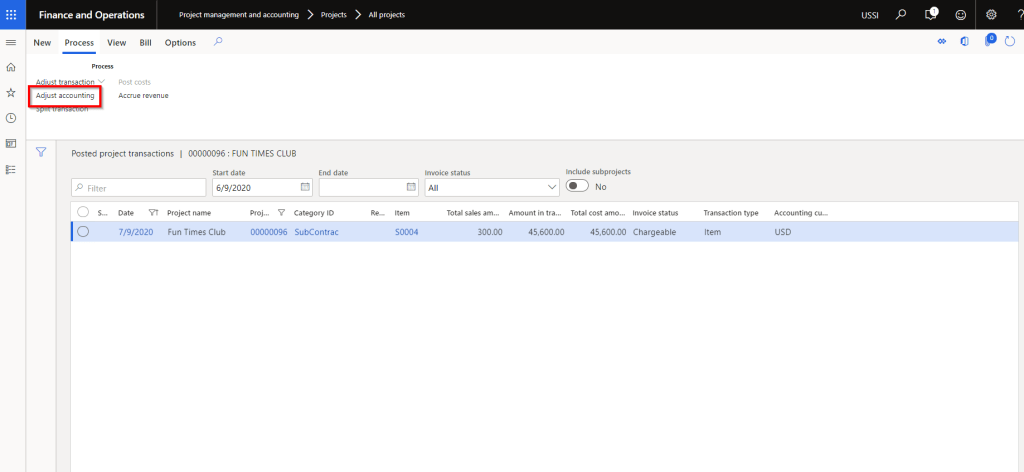
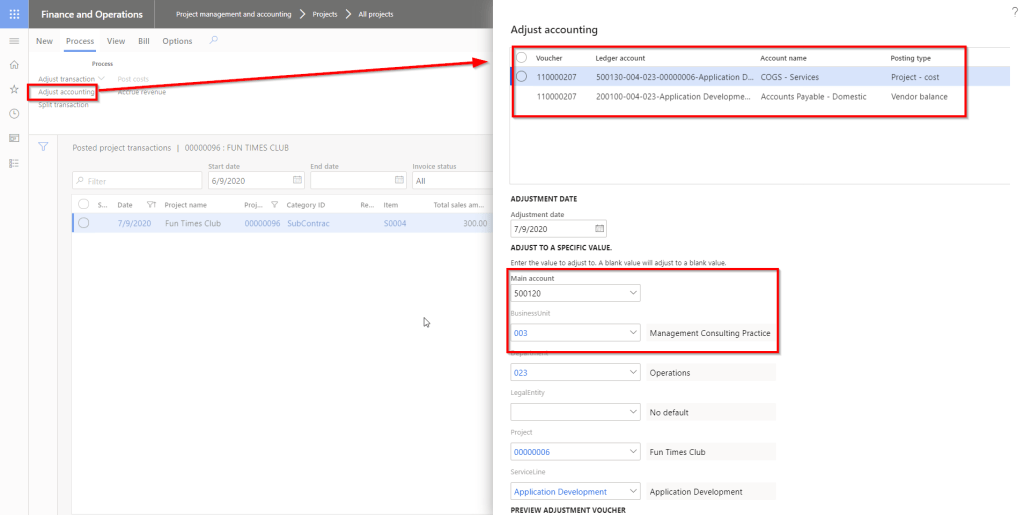
    For example, I have an expense transaction posted on one of my T&M projects. Let us say it posted to the wrong main account 500130 and wrong Business Unit dimension “004. I want it to post to 500120 and business unit 003.

    Select the Posted project transaction and click Adjust accounting under Process tab.

    System will open up a dialog that will allow you to see the current accounting entry and will also let you select the new account and dimensions.

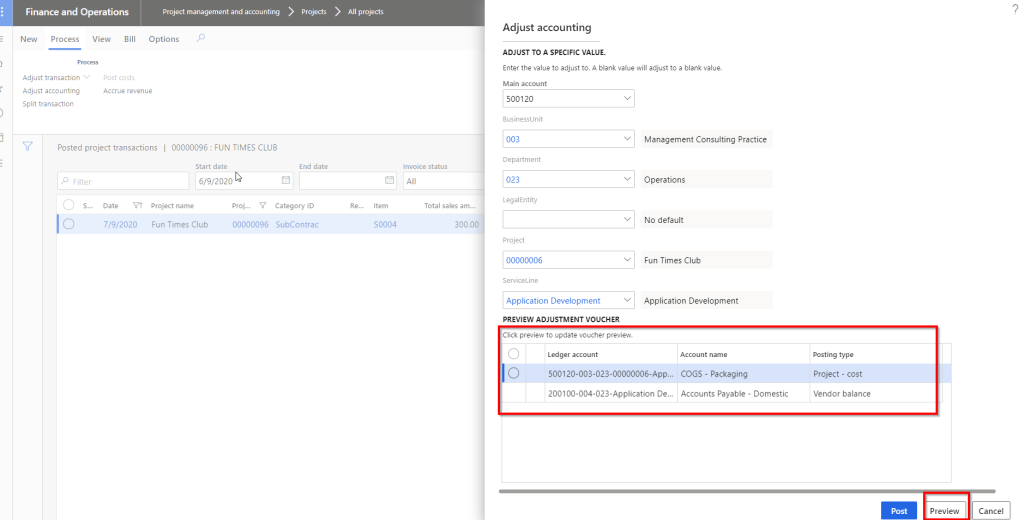
    You can also preview the new voucher to make sure everything is correct.

    When you post this adjustment, it will reverse the original voucher and create the new one. Pretty cool and damn good flexibility!!

    Note: I believe there might be a known issue here with the voucher, but when it is fixed, this feature is going to be extremely useful.

    Enable default accounting setup for project:

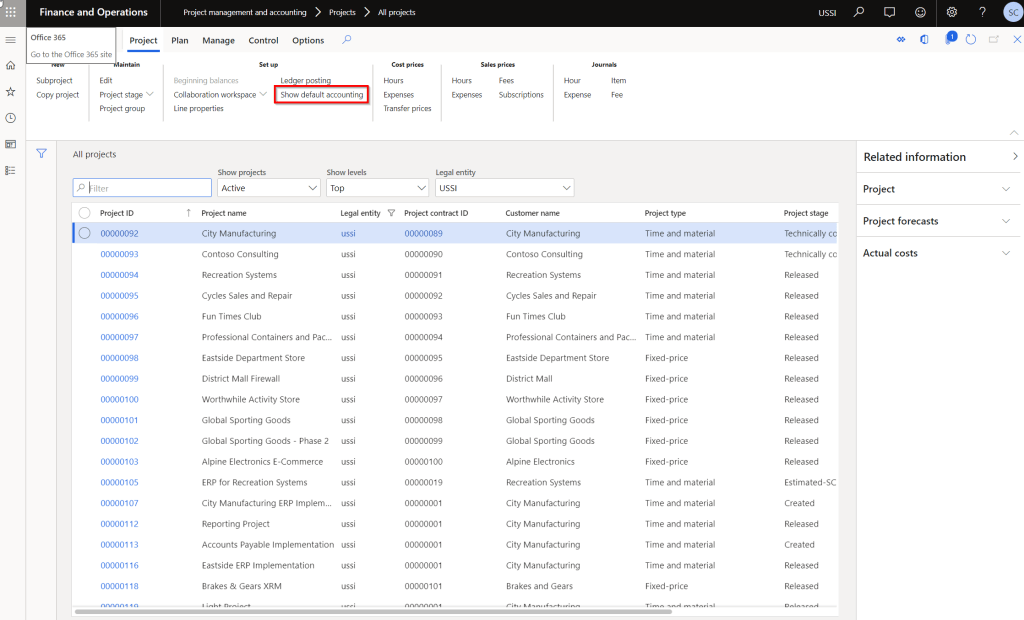
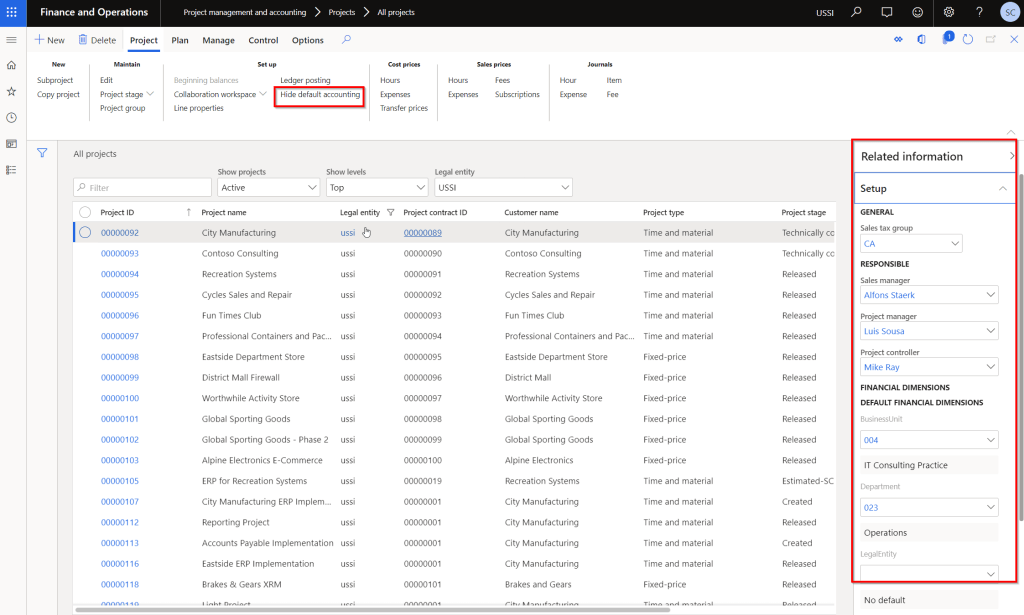
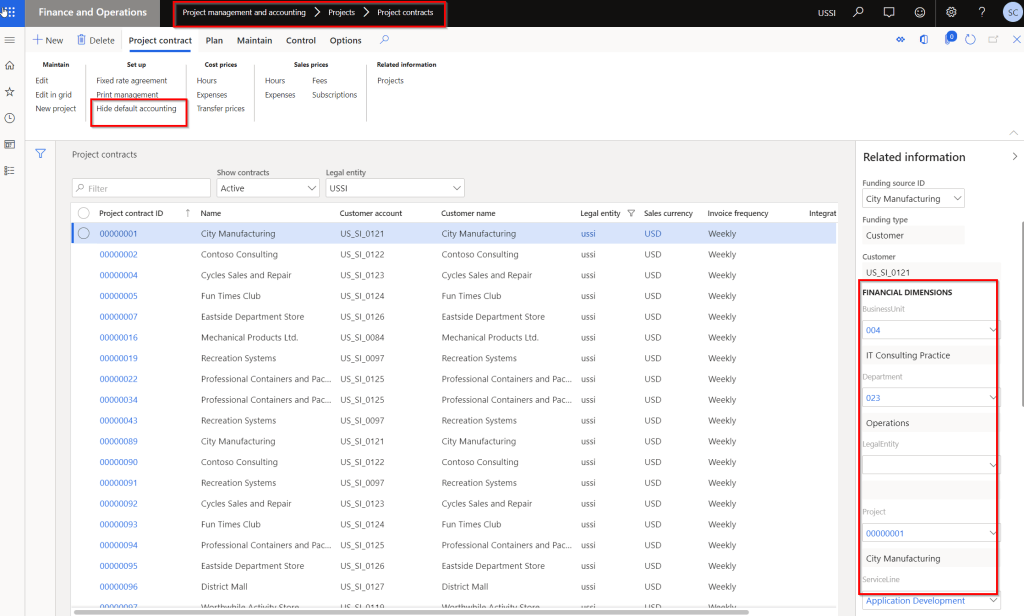
    This is again one of the most common asks from customers. We have actually customized the Projects and contract screen on many instances to view the financial dimensions and other associated data such as Project manager, Sales manager, Sales tax group and so on. With this new feature, you will see a new button named “Show default accounting” on the Projects and Project contracts list page.

    You can not only see the data, but you can edit then directly on the list pages under the fact boxes. Really neat!

    Enable project invoice proposal creation specific to selected project:

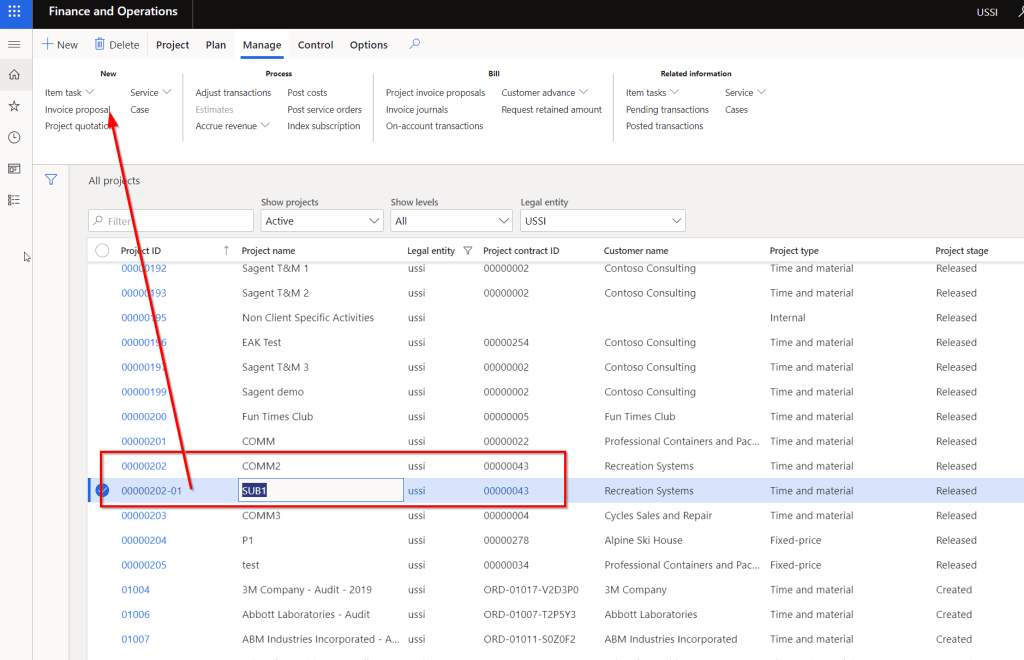
    This one is small yet useful feature. Prior to this feature, when you have a Project setup heirarchy where there is a parent project and a bunch of sub projects underneath, then when you create the invoice for a sub project, system will always default to the parent project and try to create the invoice at the parent level.

    With this new feature enabled, you can create the invoices at each sub project levels directly.

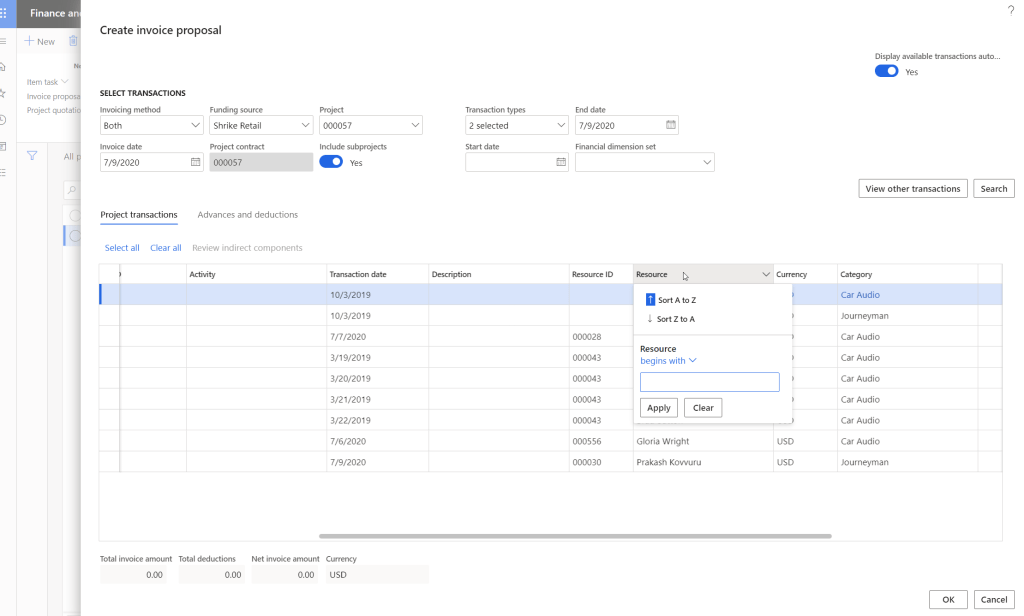
    Enable sorting by resource during project invoice proposal creation:

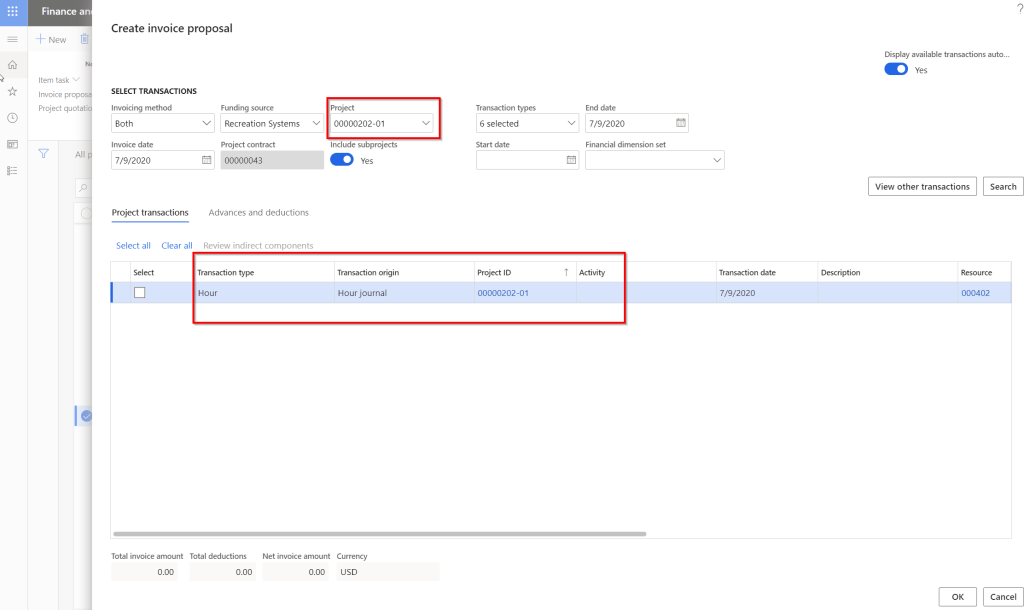
    When Billing analysts or finance managers create invoices for projects (Especially for Time and Material Projects), it is often desired to be able to sort the invoice line items by Resource, so that they can easily create the invoice. This is small usability enhancement, but has significant positive impact on the end users.

    Below screenshot shows the Resource column on the Create invoice proposal screen without this new feature.

    Below screenshot shows the Resource column on the Create invoice proposal screen with the new feature.

    Project contract committed amount detail:

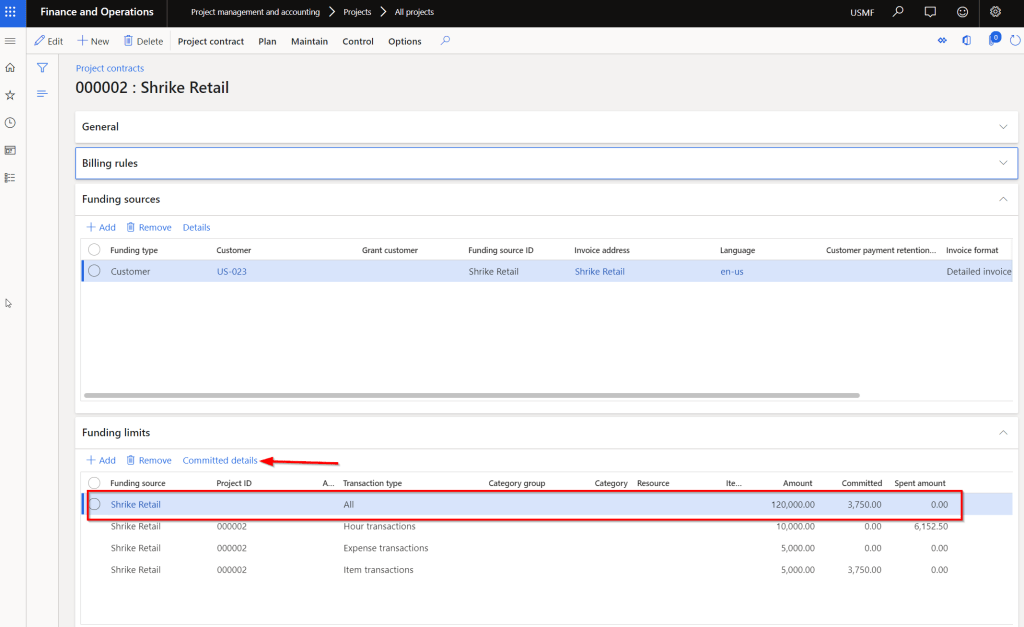
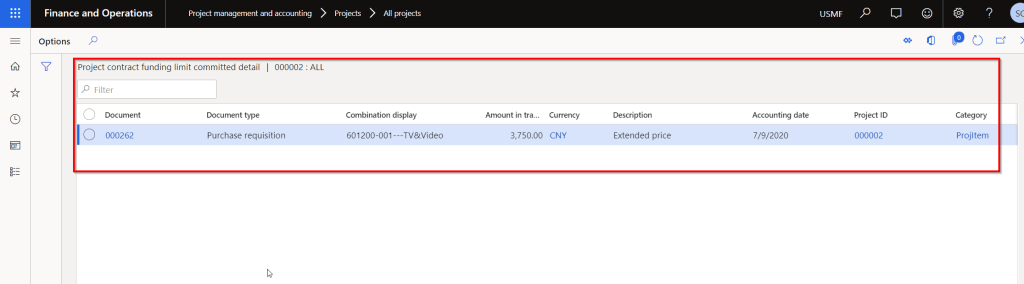
    This has been released for a few months now, but I see a lot of value in this little feature. Under the Funding limit area of a project contract, there is no details available for any amount that is shown under the Committed or Spent amount columns. Being able to see the details under these will surely save significant amount of time for end users. I wish Microsoft will add the same functionality to see “Spent details” under the funding limits soon. (Candidate for an Idea in Ideas portal!!!)

    There are a few more new country/region specific features available. You might want to check those out if applicable to you.

    Till then….

  • Additional “Settlement” type transactions on Customer and Vendor transactions page in D365 Finance – Why do you see these and how to fix it?

    Additional “Settlement” type transactions on Customer and Vendor transactions page in D365 Finance – Why do you see these and how to fix it?

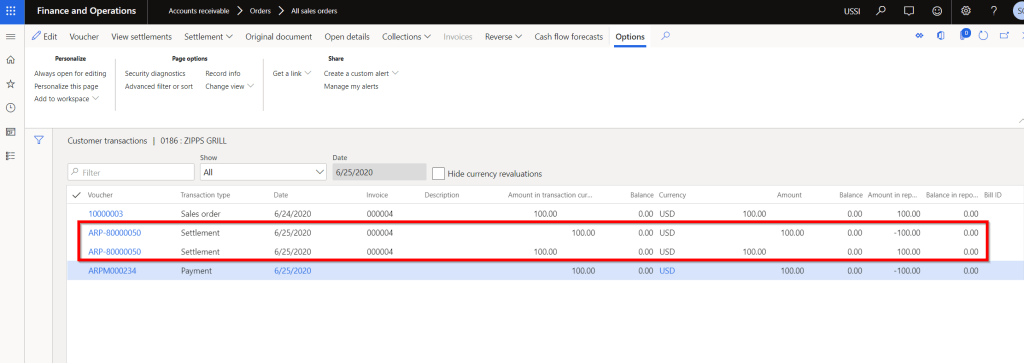
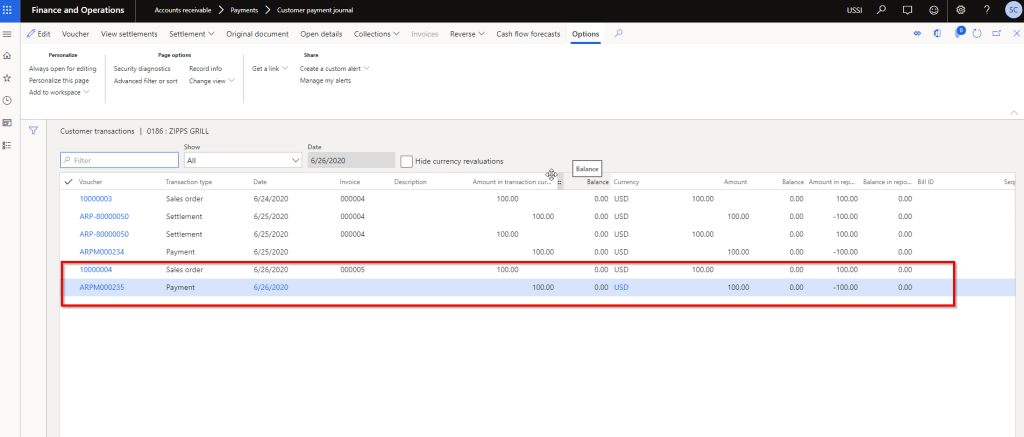
    Here is a quick tip for you all if you ever see additional transaction entries on the Customer or Vendor transaction page with Transaction type = Settlement offsetting each other, when you settle and post a customer payment for an invoice. These additional entries looks something like below.

    Let us understand why the system creates these additional transactions.

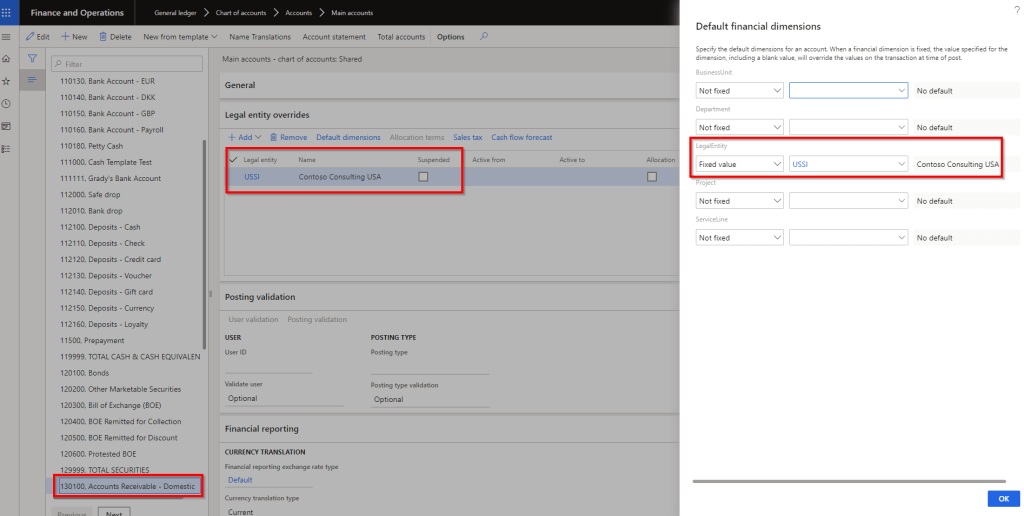
    I have seen in some cases, customers tend to set “Fixed value” for one or more of their financial dimensions, for the Trade AR or AP ledger accounts. They do this to zero-fill a dimension that is not required or in some cases they set it to a fixed value intentionally, for example if Legal entity is a financial dimension, they tend to set this to have a fixed value. Screenshot below shows an example.

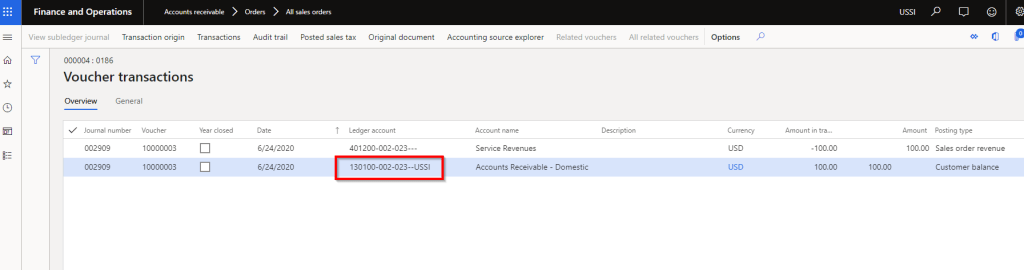
    With this configuration, when you post the customer invoice transaction, the Legal entity financial dimension uses the Fixed value “USSI” on the AR line of the invoice voucher. See screenshot below.

    When you go to settle and post the customer payment for this invoice, here is what the system will do. Since you are doing the cash application(Payment recording) and invoice settlement at the same time, the payment’s accounting entry is not created until the Settlement process is complete behind the scenes. Since the settlement happens first, it basically reconstructs the accounting entry of the payment. It finds the AR main account from the customer posting profile and dimensions are derived from the customer transaction (Payment journal). Since Legal entity is setup as Fixed value dimension and there is no source of this dimension when recording the payment, the system basically determines to create adjusting entries (Debit and credit the same account), since the invoice was posted with fixed legal entity dimension, but the reconstructed payment entry did not have any dimension due to fixed dimension setup(This part is a little technical :)) The settlement process creates this additional entry with the fixed dimension and does not roll back the accounting. This is a standard D365 F behavior.

    So, how do you setup the system so that it does not create those 2 additional settlement type entries? There 3 options.

    1. You can setup the dimension which is setup for Fixed value on the Customer record. In many cases this may not be well suited.
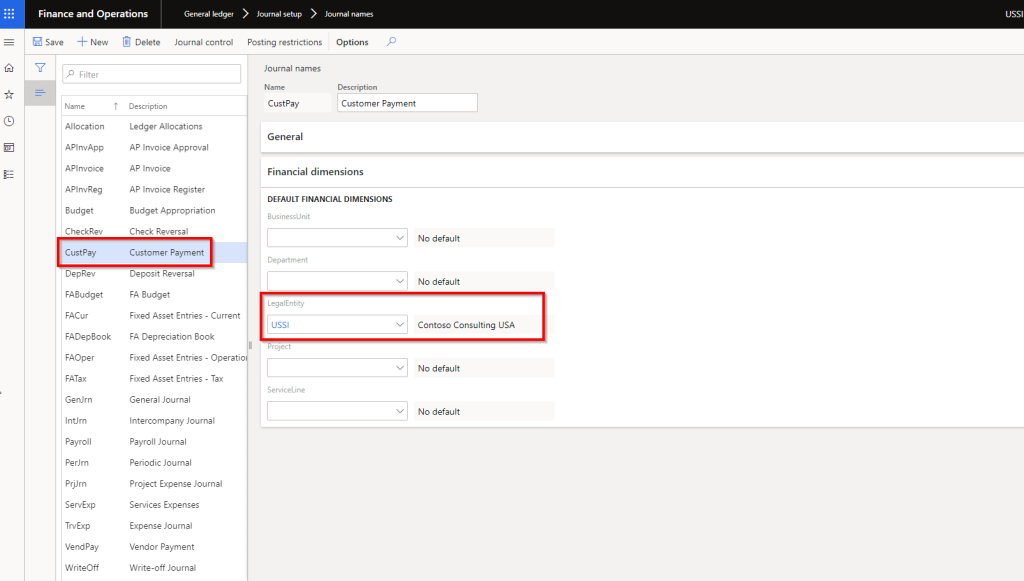
    2. You can setup the financial dimension on the payment journal configuration itself. This is the option I prefer.

    As a 3rd option, you can chose to enter the financial dimension manually on the payment journal line. Not very ideal option!

    With the option 2 setup above, if I post a customer payment with settlement of an invoice now, system will NOT create those additional entries on the customer transaction. See screenshot below.

    That’s it about this quick tip. Till next time!!!!

  • Dual Write feature for D365 F&O is now generally available – Great news for  Dynamics 365 customers and prospects!!

    Dual Write feature for D365 F&O is now generally available – Great news for Dynamics 365 customers and prospects!!

    If you are in the Dynamics space, you probably know the investments Microsoft has been making in Common Data Service (Aka CDS) platform. All business applications under the Dynamics 365 umbrella are connected to a CDS environment by default and they make data available directly CDS in real time, except Dynamics 365 for Finance and Operations (Also known as F&O). There was never an option to connect an F&O environment directly to a CDS environment until the release of Platform update 32. (Version 10.0.8).

    The CDS platform earlier did provide options to configure connections sets and run data integration projects to connect a F&O environment to a CDS environment. This was actually available in early 2017. Refer to my earlier blog post where I explained how CDS, Data integration projects, connection sets etc. worked back then.

    Even though the CDS platform allowed to connect an F&O environment to CDS using connection sets, data projects etc. earlier, the configurations were rather confusing(somewhat complex), time consuming and always felt like a disjoint admin process. Dual Write is the evolution of the CDS integration features such as Connection sets, Data integration projects and this is now natively built into the F&O app. The underlying complexity still exists, but Microsoft has now moved all the heavy lifting to happen behind the scenes and provided a intuitive , clean user interface, that is built within F&O app.

    In simple terms, Dual Write is a mechanism to sync D365 F&O Data with CDS and vise-versa, which allows customers using other popular D365 apps such as D365 for Customer engagement(Sales/CRM) to connect and share data between with D365 F&O seamlessly, right out of the box. For example, Without Dual write, your customer accounts data in D365 CE/Sales are not readily available in D365 F&O for you to create and fulfil, orders or to do invoice. Dual write solves this problem and makes required data available across the D365 apps using the power of CDS, so that you can use the respective D365 apps to do what they do best and do not worry about the underlying data to be in sync. With Dual write the D365 F&O data is is very tightly coupled and is in near real time sync with CDS always, for the entities you enable for syncing. This also provides bi-directional data sync.

    Starting the Platform Update 33 (Version 10.0.9) of D365 F&O, the Dual write feature is now a built-in embedded experience within the data management workspace of F&O. This means your administrators or integration folks do not have to login to a CDS environment to configure a dozen things to sync data :)

    Microsoft ships several out of the box entity maps between F&O and CDS that you can use right of out of the gate. You can also tweak the out of the mapping to suite your needs. It does not stop there!! If you have custom data fields or custom entities built for your implementation, you can use those as well.

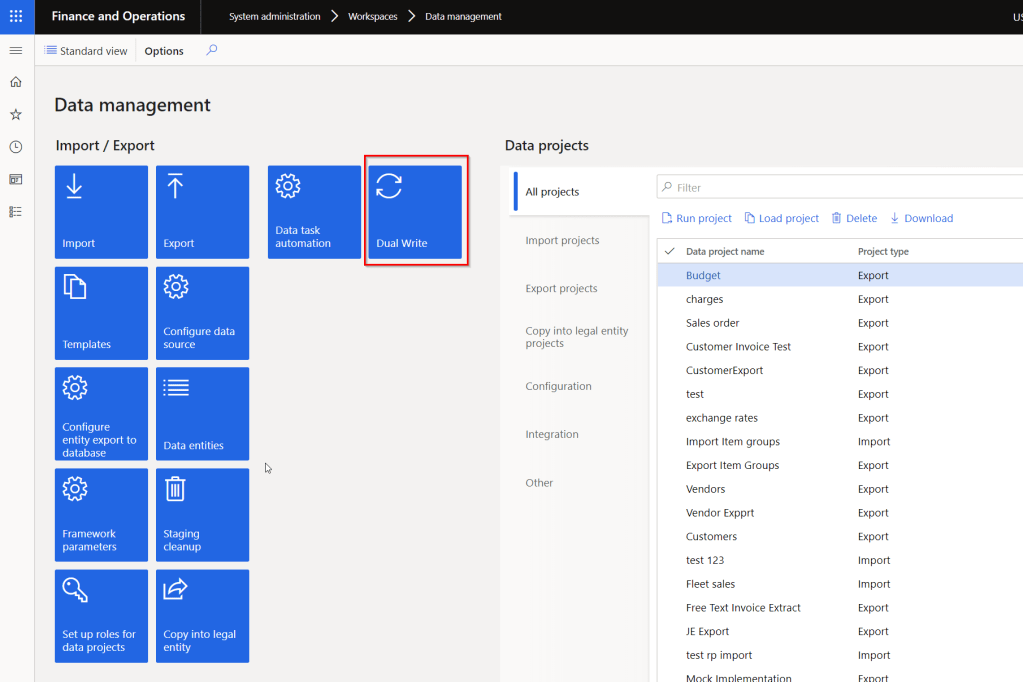
    You should see a new Tile named “Dual Write” under Data Management workspace if you have deployed 10.0.9 deployed.

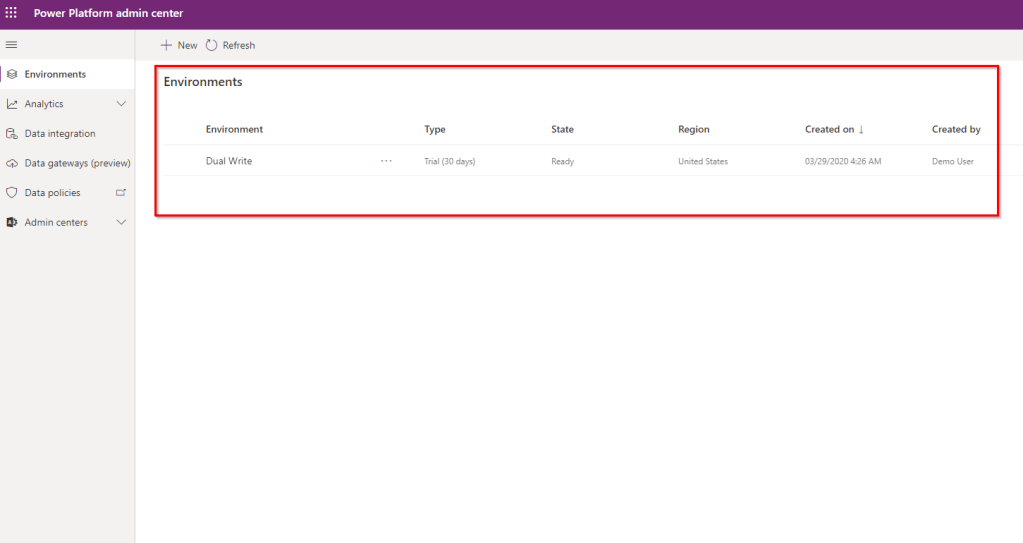
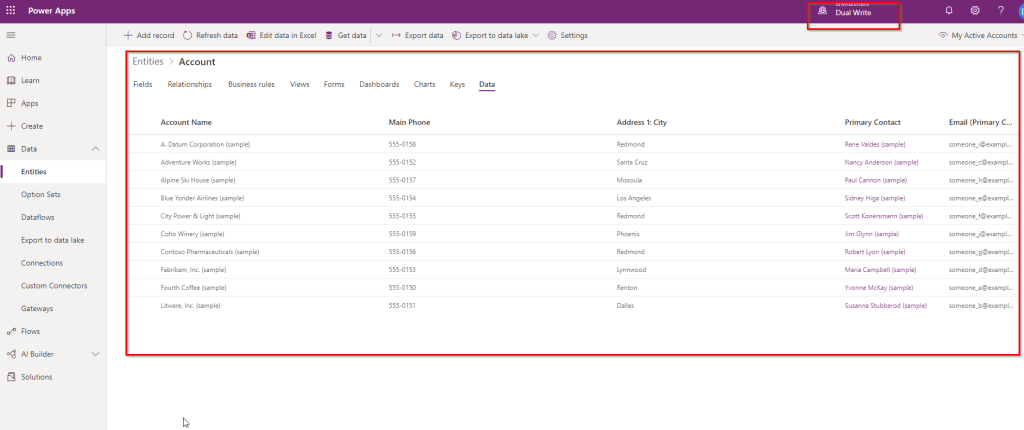
    Make sure you have the CDS environment deployed and ready under Power Platform admin center. For my testing purposes, I have also deployed sample data in my CDS environment, so that I can validate the data sync between F&O and CDS.

    Before you can link a F&O environment to CDS, you need to make sure the following configurations are in place.

    1. Make sure you have version 10.0.9 installed in the F&O environment.
    2. Install Dual Write Core solution from App Source in your CDS environment and enable the dual write entity map solution.
    3. Grant required accesses so that CDS and F&O can connect to each other.
    4. You can see the detailed documentation here.

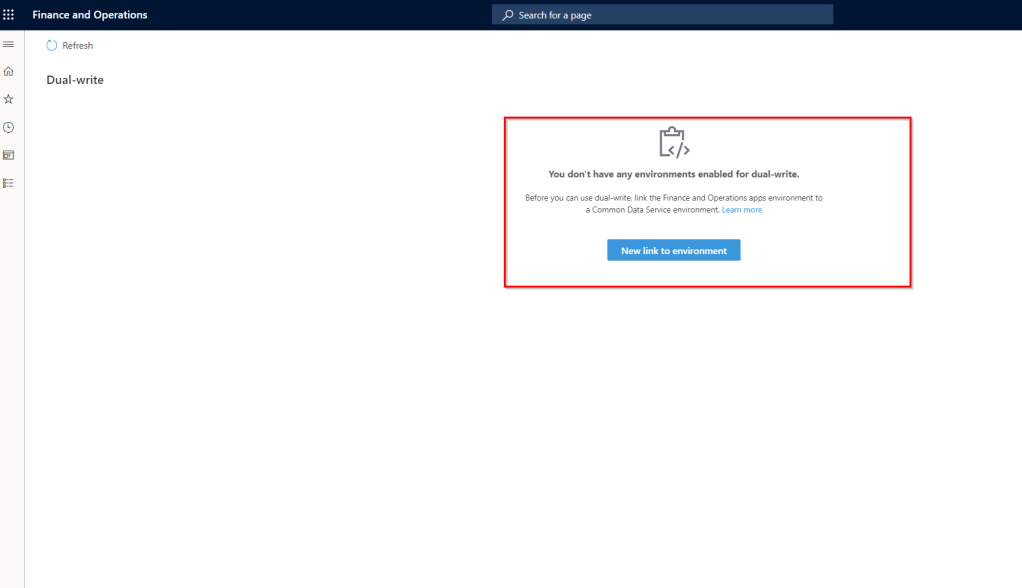
    Now you have to link the F&O environment to a CDS environment and enable entities for dual-write. From the Data management workspace of F&O, go to Dual-write and click “New link to environment“.

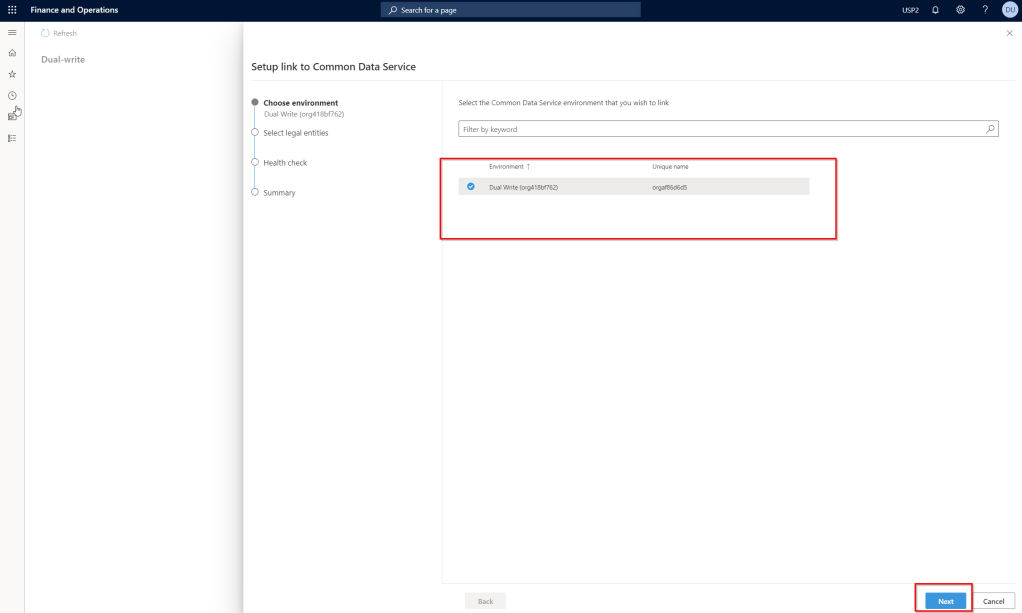
    You should see the list of CDS environments available in there. Select the one you want to use and click Next.

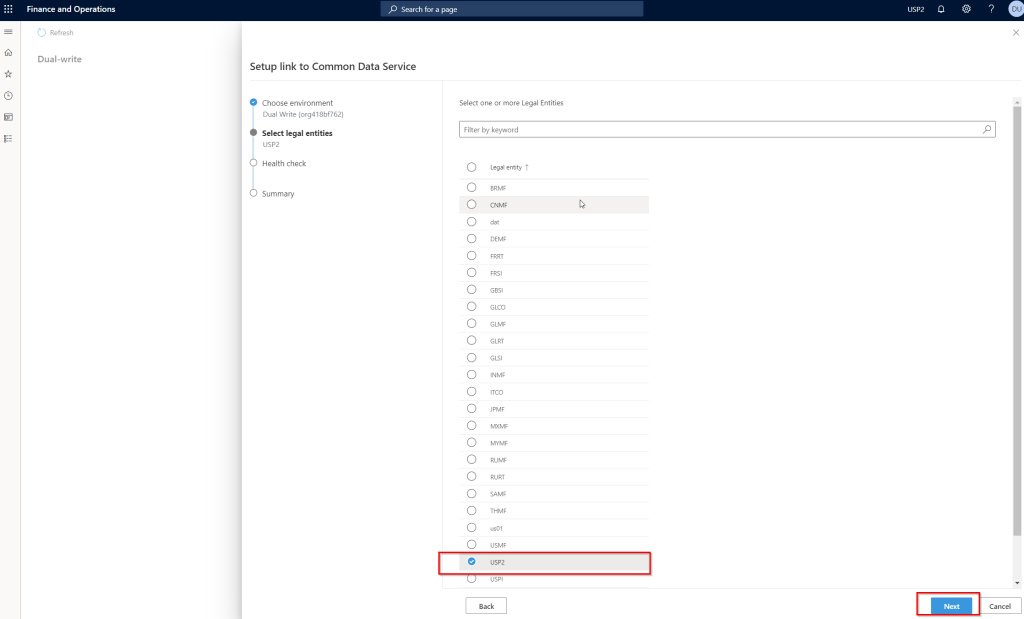
    Select the legal entities you want to connect to CDS and click Next.

    If all your required configurations and installs are correct, the health check of CDS connection should succeed and you should be able to proceed with viewing and enabling entity maps and turn them ON for sync with CDS.

    I just wanted to share my initial thoughts and excitement, now that Dual write is generally available. Customers who are already using D365 F&O and D365 Customer engagement apps should look at leveraging this to sync data between the applications at all stages of the Prospect to Cash scenario.

    I am in the process of fully testing and validating this and I can’t wait to share my test results and additional details on the feature here soon.

    More to come soon!! Stay tuned.

  • Get your users from just using Dynamics 365 to Loving Dynamics 365 for Finance and Supply Chain Management

    Get your users from just using Dynamics 365 to Loving Dynamics 365 for Finance and Supply Chain Management

    As end users of any product, software application or any other app, we all love to spend less time in the system and get more done with less effort. Also we all love if the system gives us the flexibility to personalize the way we want it. Using an ERP systems should not be is no different. Dynamics 365 for Finance and Supply Chain Management has been on a journey to release new features every month. The goal is very simple. Drive the user base from just using Dynamics 365 to Loving Dynamics 365.

    With the newest version 10.0.9 that is coming out in a couple of weeks, there are some new cool productivity features that every user of Dynamics 365 should take advantage of. Here are some of my favorite ones.

    Saved Views:

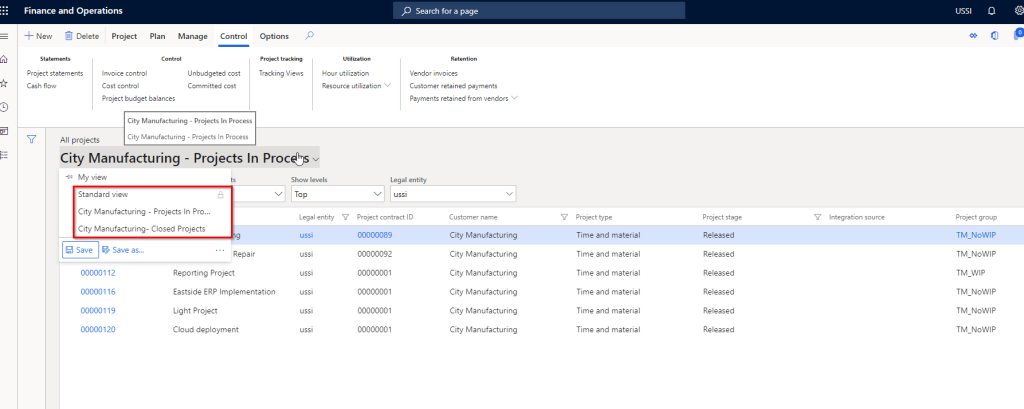
    We all love the Personalization feature of D365 F&O, which allowed us to add/remove fields, rearrange data fields and more. One of the primary limitation of the personalization feature was “Only one set of personalization was allowed on a view/form and you could never have more than one personalized views of the same page/form. Saved Views feature addresses that in the 10.0.9 release.

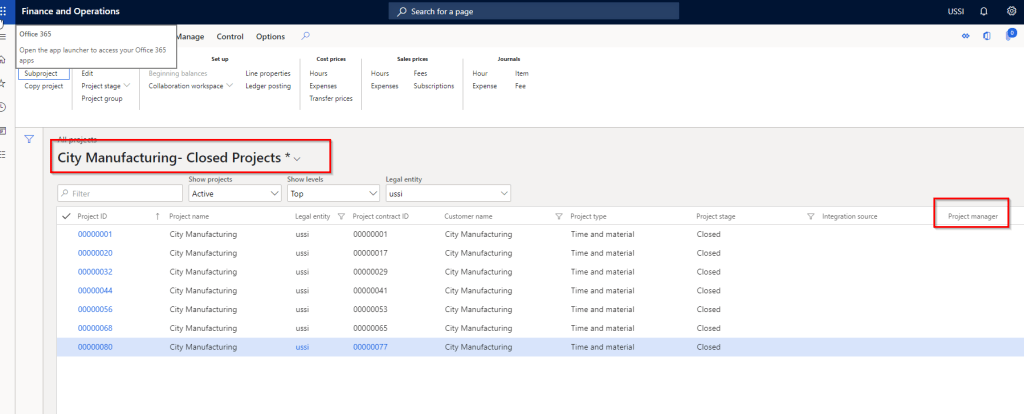
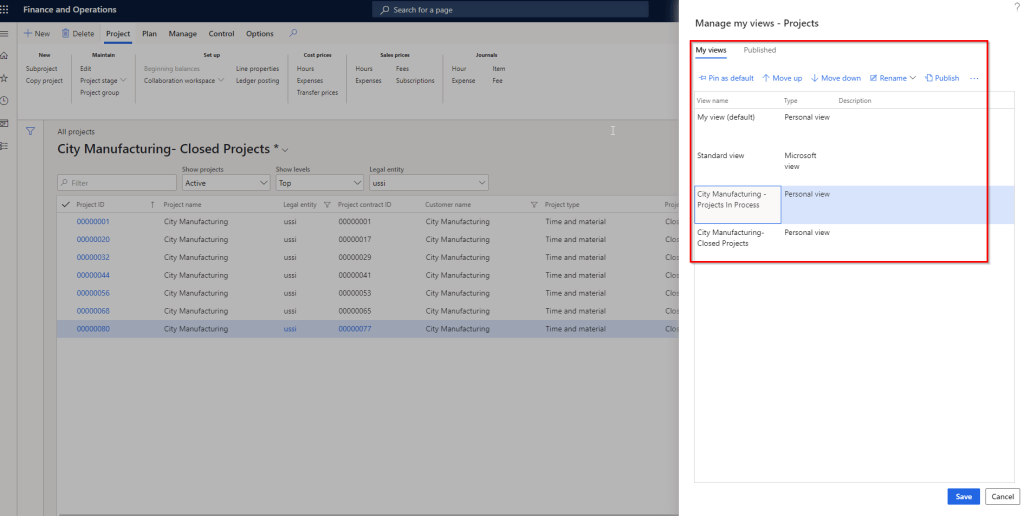
    With Saved views, you can create your own personalized view with data fields added/removed or even with data filtered and save the view. You can switch to the custom view or the standard views any time based on what you want to see. An example of this is “Let’s say on the All Projects page, I want to see all closed projects of a customer (City manufacturing). I also want to see the “Project manage” column when I am in this view. I want another view to see all projects that are in Process for them and I want to see the Project group column in this view instead of the project manager. With the earlier personalization feature, you always had to filter the data and it was not possible to chose different columns to see depending on the view you are seeing. With Saved views, this is a breeze and will help user productivity significantly.

    Additionally you can pin a saved view as your default view and you can also publish your saved views and let others take advantage of it. You can rename your views at any time.

    Groupings and show totals of data in grids:

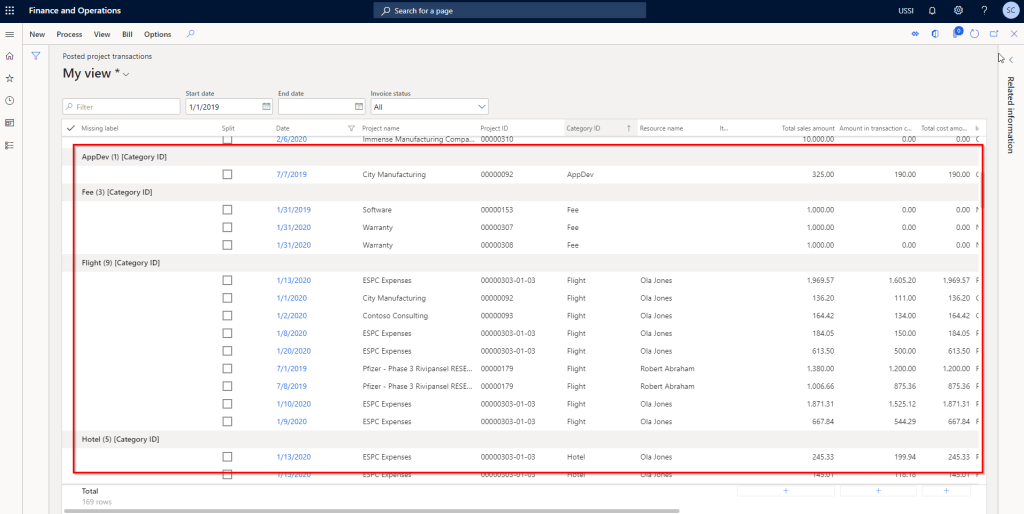
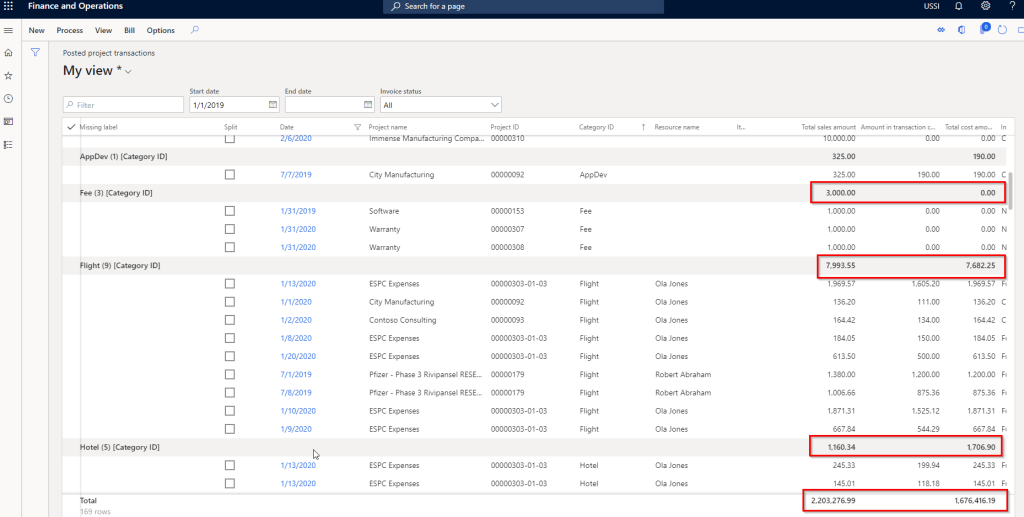
    Imagine how nice it will be if you can group, sort and see data sliced and diced without having to export them to Microsoft Excel!! With the new grouping feature, you can now group data by literally any data column and even see totals of amounts for the grouped data. You don’t have to export the data to excel. This feature is not replacing Export to excel by any means :) You can obviously do much more with slicing and dicing when you export data to excel, but if you were looking for basic grouping and view totals, then you an now do it right within the client.

    For example I am a project controller and I am reviewing all the posted transactions on the Posted project transaction page and i want to see the amounts grouped by Category or grouped by date. I can just right click on a column and select group by. I can also chose to see then totals of the amounts at the bottom.

    Run/View 3rd party Websites under a fast tab within D365 F&O:

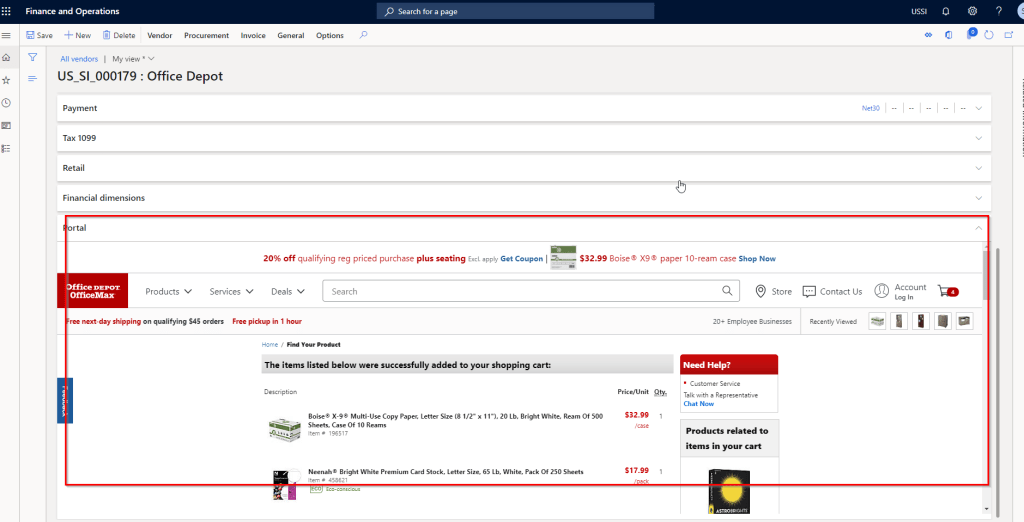
    In the earlier versions, there was the capability to add PowerApp to run in a n embedded view within D365 F&O. You can now add any website to run embedded within a fast tab of any page in D365 F&O. This is a very helpful additional. Think of a scenario where you have a home grown website/web app and you want to run it within F&O, so that you don’t have to leave the F&O page to run the app.

    A sample use case of this will be adding vendor’s websites to the vendor records within F&O. When you are on a vendor record in D365 F&O, you can go to the site within the fast tab of the vendor record.

    You also have any inhouse websites/webapps running within the fast tab.

    Quick Personalization and faster data load on grids:

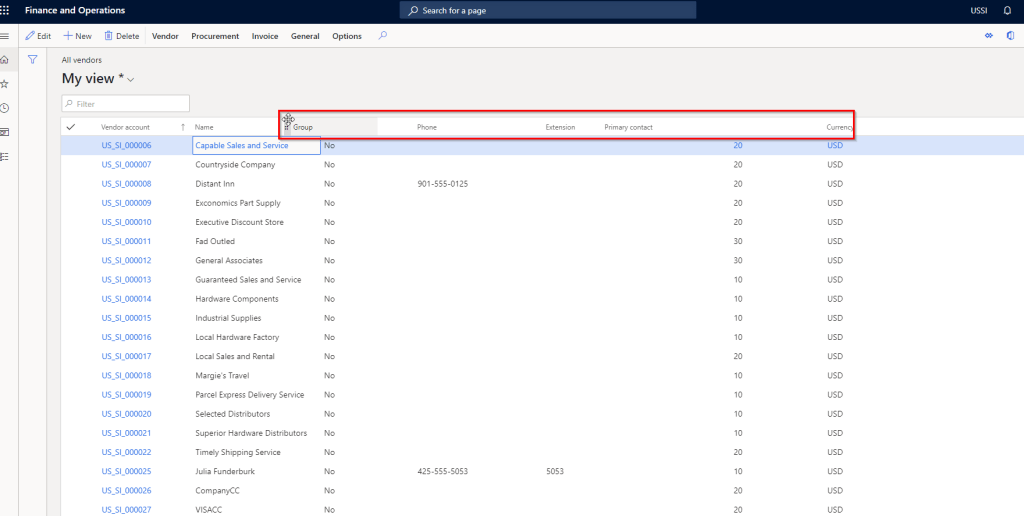
    Rearranging data fields within a page does not require to go to Personalization mode now. You can just drag and drop fields on any page and arrange them in the order you want. This can be a part of your saved views as well.

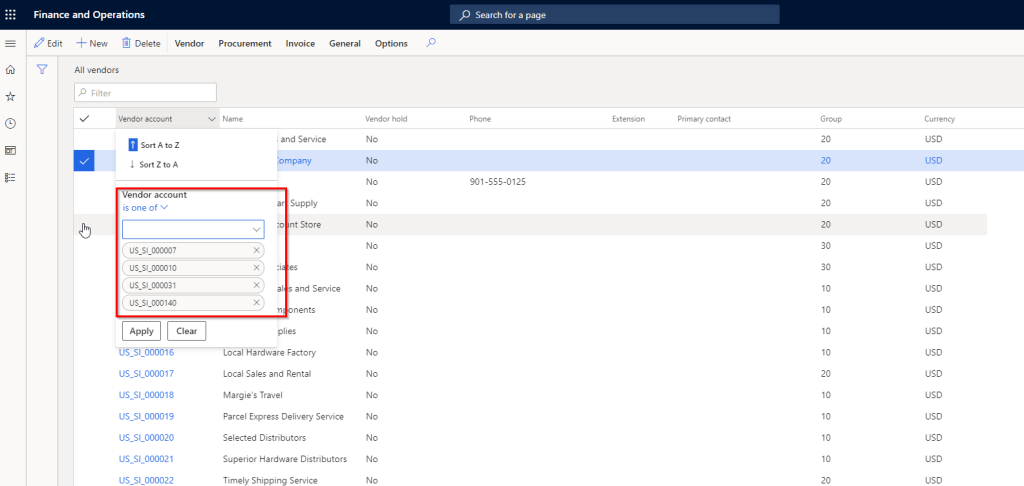
    The data filtering on the new grid control now got even better. Earlier if you were to filter certain records on a page using the “Is one of” option, it was very difficult and time consuming to type every single value, one at a time. With the new improved control, the “Is one of” control works like a charm. You actually get to see the values in the drop down and you can select them with just a click. That’s it!!

    The new improved grid also provides key enhancements such as,

    • Improved data rendering speed and faster scrolling experiencing.
    • You can do positional scrolling. So if you are looking at a page that has thousands of records, then you can scroll to specific position on the scrollbar to go to the specific records.
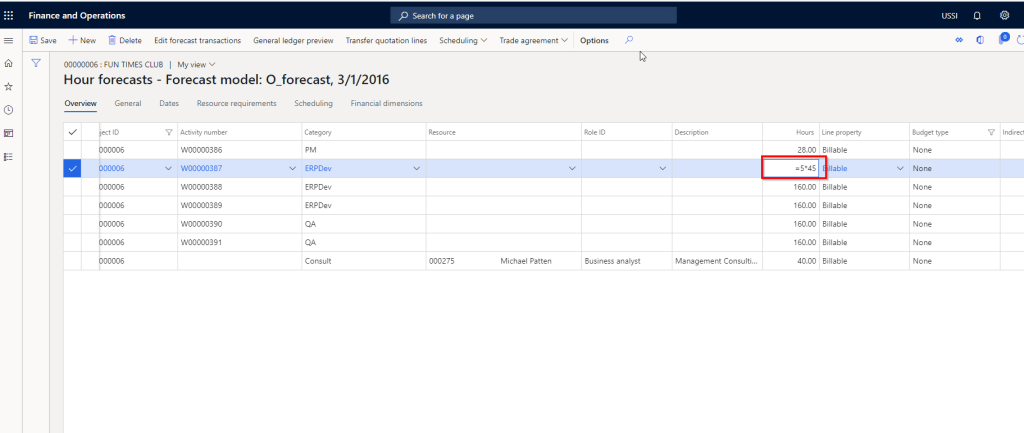
    • Enter mathematical expressions on numerical columns for the system to recognize values. For example I am on the Project Hours forecast screen and on the Hours field, I can type = 5*45, instead of 225.
    • Faster data entry, as server side data validation allows user to enter data first and then the system validates data.

    Thats it for this post.!!

  • Some new improved features in Project accounting module in Dynamics 365 for Finance and Operations

    Some new improved features in Project accounting module in Dynamics 365 for Finance and Operations

    Here are few tips on some of the small improvements in functionalities under the Project accounting module in D365 F&O.

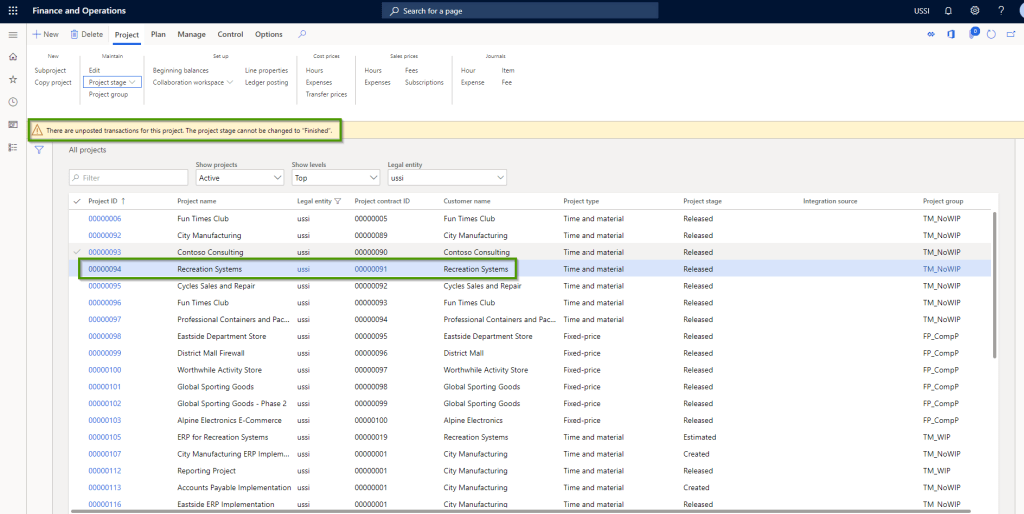
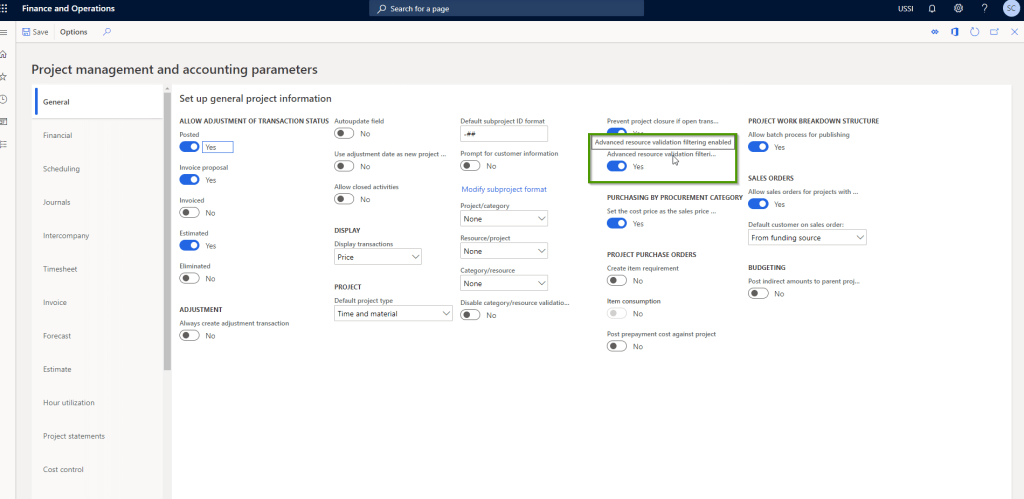
    Prevent project closure if open transactions exists: This is one of the most common requirements to make sure the Project is not closed out if there are pending transactions such as time, expense or invoices that are created but not yet posted to the project.

    With this parameter marked, if a user tries to change the stage of a project to Closed/Finished, system will automatically detect if there any pending transactions and if there are, then it will not the user set the stage to Closed/Finished.

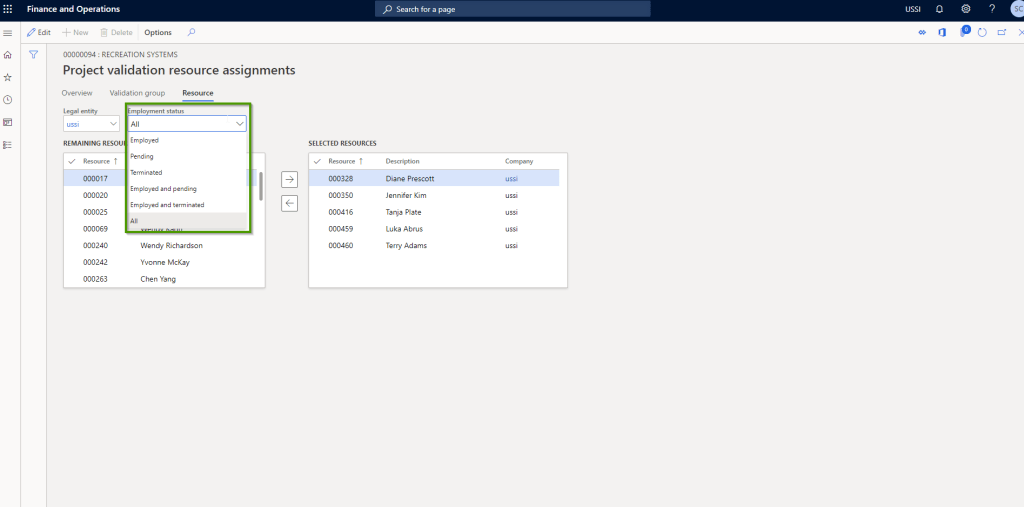
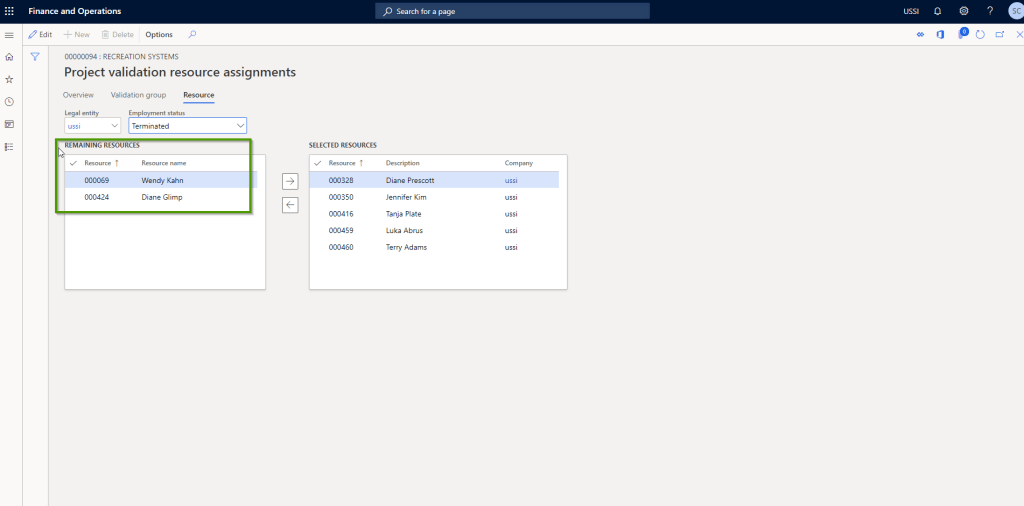
    Advanced resource validation filtering enabled: This is a small enhancement that now allows you to filter employees based on their employment status. When enabled, you will see a new option to select the Employment status. This will make it easy to manage resource validations on projects when employees are terminated or when new employees come in with start date in the near future.

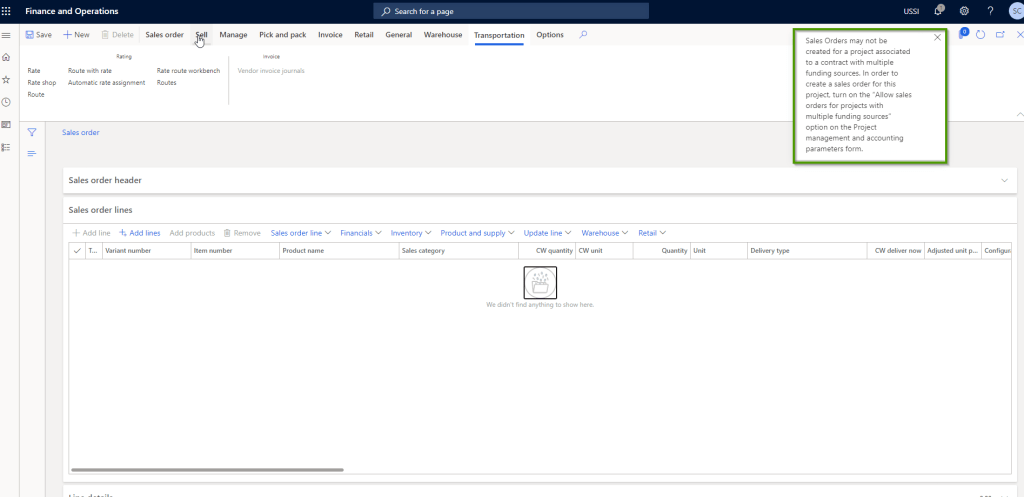
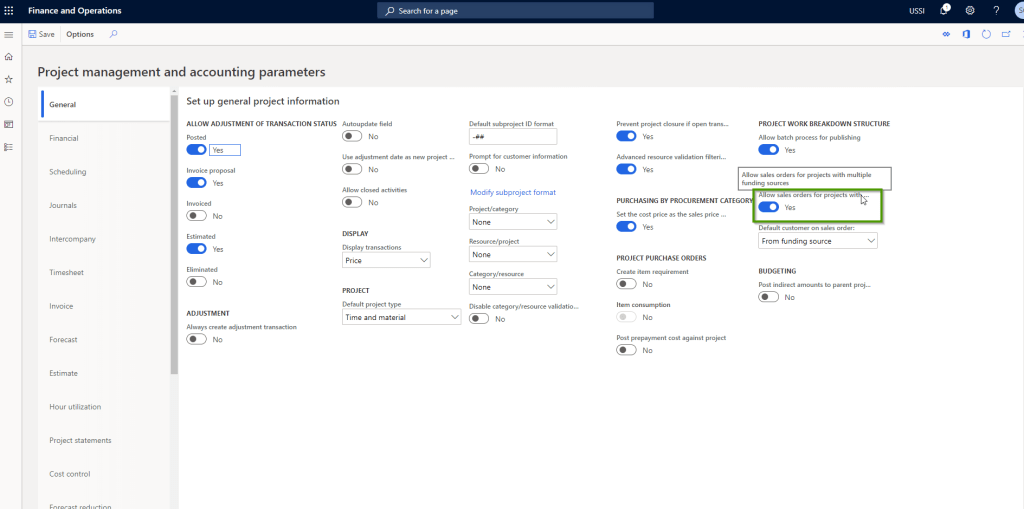
    Allow sales orders for projects with multiple funding sources: When you have more than one funding source setup under a project contract, the system never allowed to create a sales order for the projects under that project contract. This has been one of the most important limitations of the system for a long time.

    It is a very common requirement to have contracts funded by more than one funding sources/parties and if these contracts requires you to create sales orders, then it was not possible earlier. System would prompt with an error message as shown below.

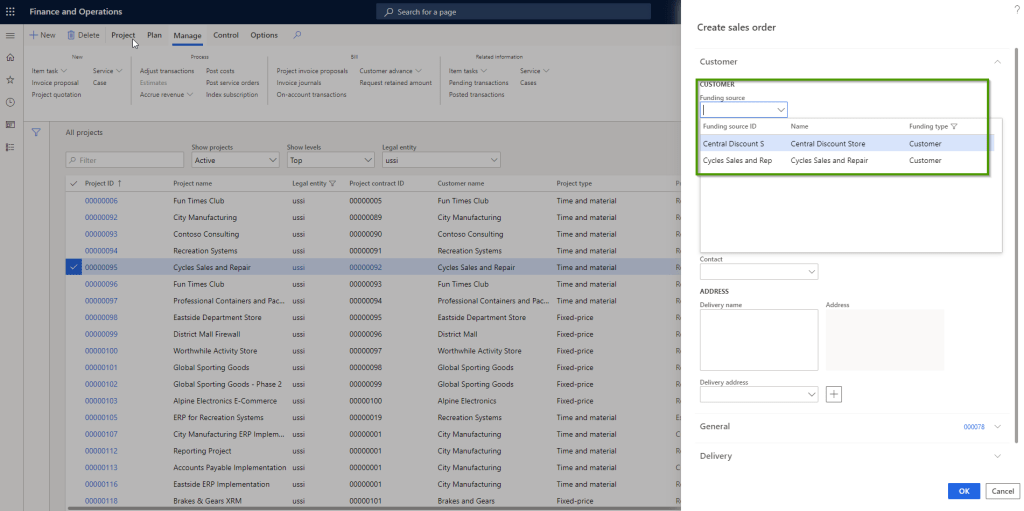
    With this new parameter marked, system will now allow you to create sales orders for projects which are setup with multiple funding sources. When you Mark this parameter, you will be able to chose whether you want the customer to be defaulted from the funding source or from the project.

    The funding source which you select when creating the Sales order will be used when you invoice the sales order on the T&M project.

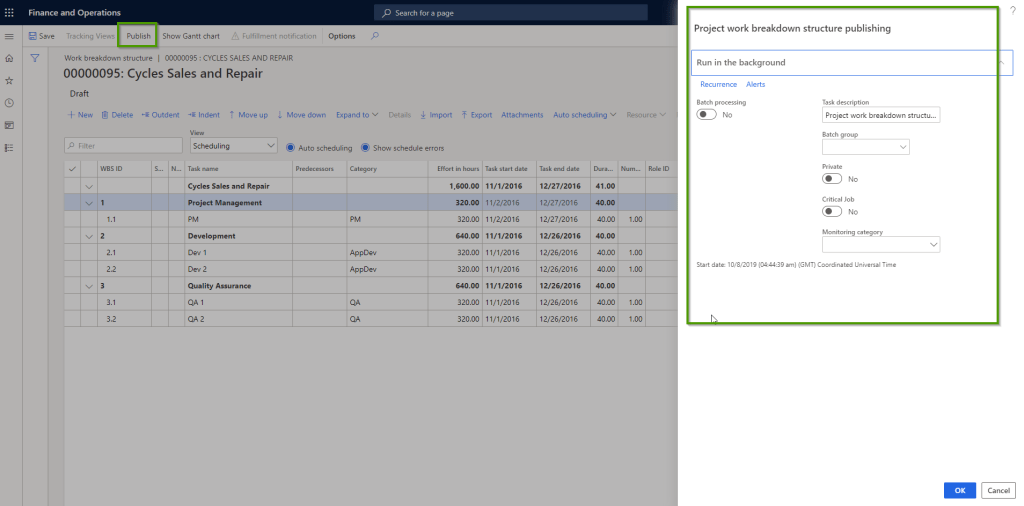
    Allow batch process for publishing of Project WBS: When you have a Proejct work breakdown structure that is large and complex, having the option to publish the project WBS in batch (In the background) can come in very handy. This is a welcome change and improvement.

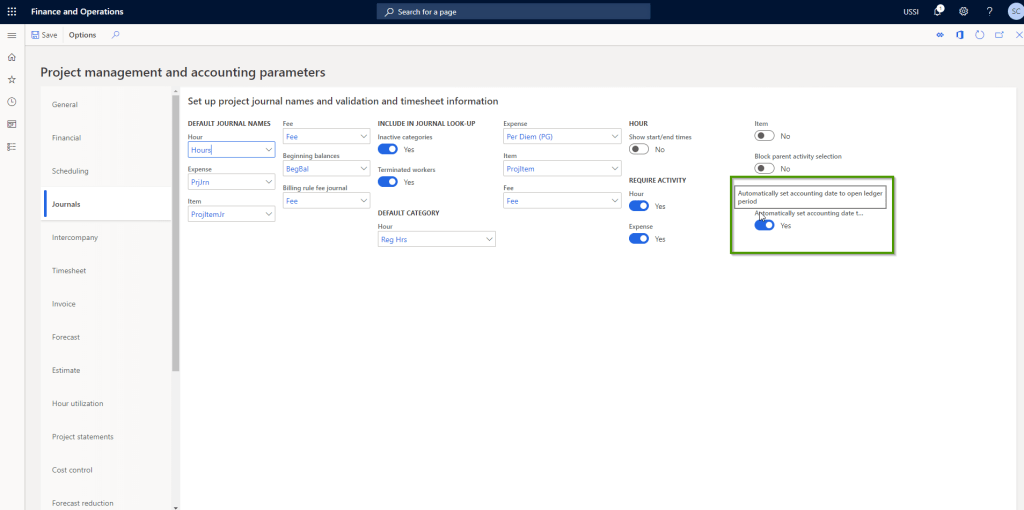
    Automatically set accounting date to open ledger period for project journals: When a general ledger financial period is closed for transactions entry/posting, it is usually a requirement to allow the posting of the transactions automatically to the next open general ledger period. In earlier releases you could setup required parameters under Projects and Expenses module to post expense reports and project time sheets to post automatically to the next open GL period, if the fiscal period for the current transaction date is closed for entry.

    With this new parameter, you can do the same thing for project journals. So for example you are trying to post a project journals into a GL period that is closed for entry/posting, then system can automatically post to the next open period.

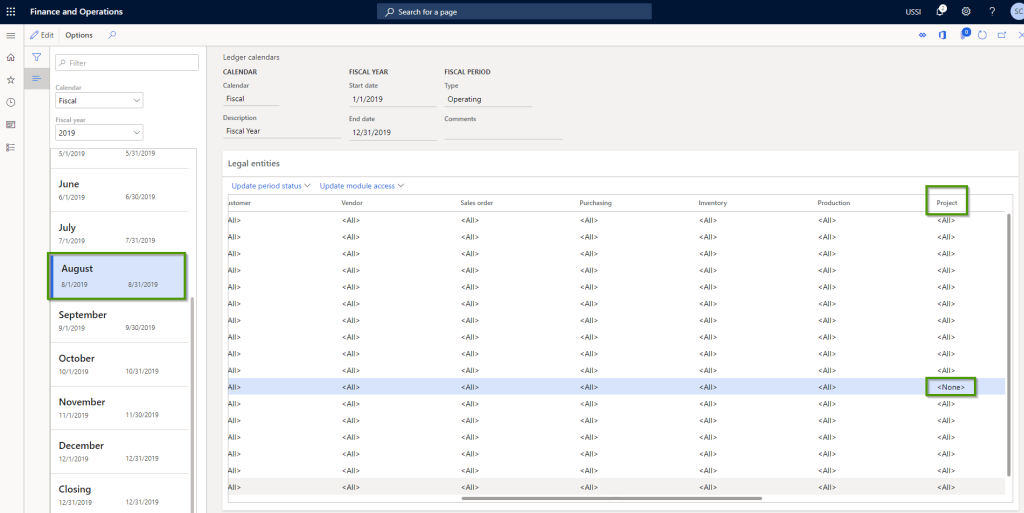
    For example, I have closed August 2019 for the Project module.

    .

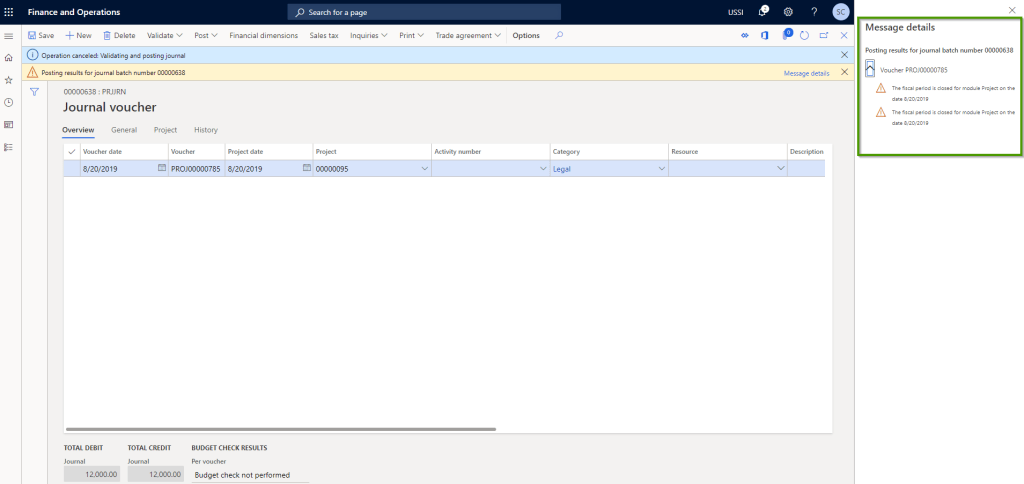
    If the parameter is not marked, then you will get an error message as shown in screen below and the journal won’t post.

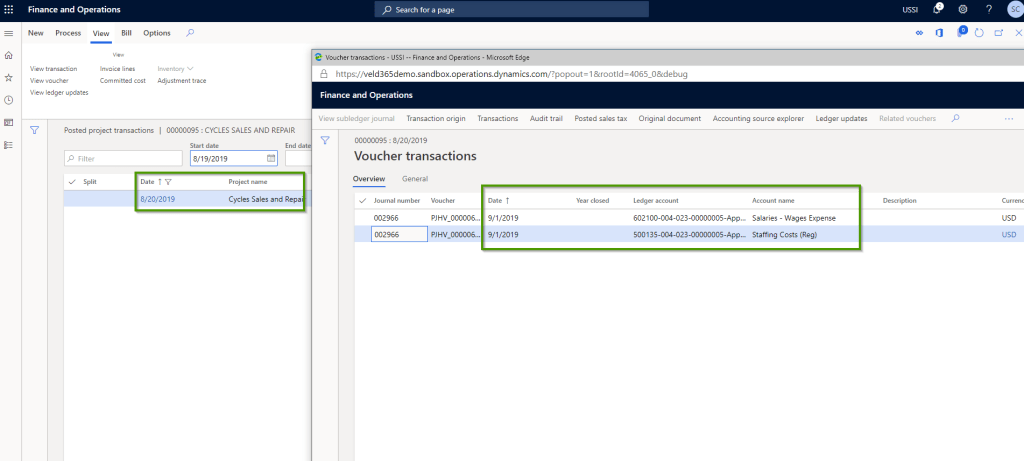
    With the new parameter marked, I now try to post a project hours journal for the month of August. When this is posted, you can see the GL voucher is posted to September 1st (Next open GL period) automatically .

    That’s it for this quick post!!

    Regards, Sandeep


  • How “Business Events” feature in Dynamics 365 for Finance and Operations enables you take optimum advantage of Microsoft power platform(Microsoft Flow)

    How “Business Events” feature in Dynamics 365 for Finance and Operations enables you take optimum advantage of Microsoft power platform(Microsoft Flow)

    One Version(Evergreen Application), Power Platform, AI, Mixed reality, Virtual agent (BOT), Machine learning, IoT. These are buzzwords that are not uncommon to hear these days, when you talk of any business application.

    The landscape of ERP and business applications has changed significantly, faster than we all expected. If you really think about it, the core fundamentals of business process requirements are not changing that much, but how you implement and accomplish those business process automation is certainly changing in a big way. No code, Low code app building service like Microsoft PowerApps, business process workflow automation service like Microsoft Flow and data insights building service like Microsoft Power BI are big components of it.

    These different services are part of the Microsoft Power Platform and these combined with features like AI builder, Portals and services like Common Data Service, Azure Data Lak etc. makes the overall Microsoft Business Applications platform one of the best business applications platform for companies of any size.

    Today in this post, I wanted to pick on one of the newest features in Dynamics 365 for F&O called “Business Events” and explain my experience with it with a very simple business scenario.

    So What are business events?

    Business Events in D365 F&O is a mechanism which lets external systems receive notifications from D365 F&O. The external systems can then perform additional business actions in response to the business events.

    When a business process such as a Purchase Order confirmation, Sales order invoice, payment posting or even a workflow approval is initiated, a business event automatically fires up and generates a data payload. Endpoint such as Microsoft Flow, Azure Service bus can subscribe to these business events and get the payload information to trigger additional automated actions, both within D365 F&O as well as in external systems.

    There are several business events that are shipped out of the box with the standard D365 F&O, and you can always customize and create custom business events that are suitable for you. The main objective is to notify service end points and there by external systems when a certain business process is completed within D365 F&O, so that you can carry out further tasks automatically. Screenshot below shows the business event catalog.

    To illustrate how this functionality works, I took a very simple requirement. I wanted to notify the requester of a purchase order when the items arrive at the warehouse, so that they can go and collect those.

    I built a Microsoft Flow which triggers when a “Purchase order received” business event gets fired up. My flow listens to this business event and gets additional information about the requester and purchase order from D365 F&O and then does the following things automatically.

    1. Sends the requester an email. I used outlook for this.
    2. Sends the requester a text message on phone. I used Twillo for this.
    3. Posts a IM message in Microsoft Teams as a Flow BOT.

    Screenshot below shows the Microsoft flow configuration.

    I will now go ahead and create a Purchase Request and Purchase Order with me as the Requester and will receive the items on the PO.

    Purchase Order Confirmed
    PO Requester on PO Header
    Requester Contact Info

    Let us now go ahead and receive the goods and post the goods receipt note/product receipt document.

    As as soon the Product receipt for posted, the business event was fired up in D365 F&O and Microsoft Flow was able to listen to those and automate the intended actions of notifying the requester via email, text and Teams IM message.

    Screenshot below shows my flow was run successfully and also the different notifications i got automatically on my email, cell phone text and IM on Microsoft Teams.

    Flow run
    Microsoft Team BOT notification
    Microsoft Team BOT notification
    Email Notification
    Text Notification

    Now, that illustration was a very simple business requirement and scenario. I could take this further and automate complex task automation such as,

    1. Update a data record in F&O.
    2. Create new data in F&O.
    3. Initiate Microsoft Flow approvals for all workflow item approvals of F&O for richer email approval experience.
    4. Connect to other business apps such as SharePoint, Common Data Service, Dynamics 365 for Sales and more to automate further business tasks.
    5. Notify customer when their order is shipped with Tracking info
    6. And more…

    I was able to do these without writing a single line of code. That is the Power of the Microsoft Power Platform. The amount of process and task automation you can do with the Power Platform are endless.

    That’s it for now and we will take a look at a more complex scenario next time involving a workflow approval. Till next time!!!
  • Dynamics 365 Project Timesheets Mobile app – Seamless Project timesheet entry and approvals on the Go in Dynamics 365 For Finance and Operations!

    Dynamics 365 Project Timesheets Mobile app – Seamless Project timesheet entry and approvals on the Go in Dynamics 365 For Finance and Operations!

    Last few months have been pretty busy with lot of our customers getting ready to move to Dynamics 365 for Finance and Operations “ONE Version. All of you should probably know already what “ONE Version” is and what are some of the key expectations around this. The objective is very simple. “All customers should run the latest version of Dynamics 365, Always“. This means, no more expenssive and extenssive upgrade projects and timelines.

    For common questions on ONE version, you can find more info here.

    With that said, I wanted to write about the ALL NEW Project timesheets mobile app in Dynamics 365 for Finance and Operations, that launched with the ONE version. (The app was released a few weeks ago alongside the ONE version release in the first week of April 2019). In the earlier releases of D365 F&O, there was the Project time entry mobile workspace, which did allow you to enter your project timesheet on a mobile device, but it had very limited functionality. Now, there is a new dedicated mobile app called “Microsoft Dynamics 365 Project Timesheet” in both Apple Appstore and Google playsytore. This new mobile app is fully redesigned and provides full functionality for timesheet management using a mobile devide. Some key highlights of this app,

    1. Standalone app that seamlessly connects to Dynamics 365 F&O.
    2. Modern responsive and fast user interface which is easy to use.
    3. Easy time recording and internal/external comments/description entry.
    4. Mobile timesheet entry submissions.
    5. Mobile Timesheet Approvals.
    6. Enter start and stop times.
    7. Configurable Data fields visbility

    To get started, you need to download and install the mobile app from App Store or Playstore. Once you have done that, the syustem admin of your organziation will need to enable this mobile time entry within Dynamics 365 for Finance and Operation.

    Navigate to Project Management and Accoutning > Setup > Project management and accounting parameters > Timesheet tab.


    You can also pick and chose which data fields to show on the mobile app and which ones not to show. That’s it!!
    Now launch the mobile app and the timesheet entry process is very startight forward. You can Copy timesheets from previous, favorites and assignments. More importantly, you will always see the list of most recent projects you worked on, so that it is easy to find and select. The user interface for entering the time and comments is clean and welcoming. Great job Microsoft on this one and I am sure this will get new features in future versions.

    Here are some screenshots from the testing I performed and it worked like a Charm!! Try it and provide your feedback to Microsoft directly in Appstores.