Category: Dynamics 365

  • Enhancements in the Project Planning Functionality in AX 2012 R2 CU7

    Enhancements in the Project Planning Functionality in AX 2012 R2 CU7

    Hello Friends,

    The scope for enhancements to an ERP solution(In fact any software solution) is always never-ending. And so is the case with Microsoft Dynamics AX. It has been witnessing continuous improvements over the last few releases.

    Better project planning is the key to ensure profitable project executions for professional services firms. Today, I will take time to explain the several enhancements which have come with the “Project Planning” functionality in the Cumulative Update 7 release of AX 2012 R2.

    In today’s post, let us start with setting up a new project and then setup the project work breakdown structure and then discuss about the enhancements in this area.

    In the screenshot below, I have already created a new project which is for a Website development for the CONTSO company.

    image

    The next step is to define the detailed breakdown of the project tasks. Go to Plan Tab and click “Work breakdown structure” button.

    Note that Microsoft Dynamics AX seamlessly integrates with Microsoft Project Server so that Managers can manage and schedule their projects in Project server. I will not explain this functionality in this post. Click Here to learn more about Project Server integration.

    You will notice that the WBS form now looks completely different and has several new functionalities. We will discuss each of those below in this post.

    image

    You can create tasks for the project work broken down to as detailed as possible. In the screenshot below, I have created the task breakdown for a simple project called “ Website Development”. You can use the options such as “Outdent”, “Indent”, “Move task up” and “Move task down” to create the complete hierarchy of the tasks.

    Also, you can set “Predecessors” for each of your tasks to setup necessary dependency of the tasks on each other.

    DIFFERENT VIEWS OF THE TASK BREAKDOWN TO HELP PROJECT MANAGERS:

    image

    The above screenshot shows the “Project planning view” of the project task breakdown. Note that there two other views which can help the Project Manager to track the cost and efforts in the project more effectively.

    To see the Cost tracking view, click View > Cost tracking view. This view shows a complete snapshot of the project cost tracking details such as “% Cost consumed”, “Actual cost”, “Complete to cost”, ‘Estimate at complete”, “Planned cost” and the “cost variance”.

    Cost Tracking View of the Project Plan:

    image

    Note: Since we have not posted any transactions on the project yet, the values for the % cost consumed and Actual cost are shown as Zero.

    To see the Effort tracking view, click View > Effort tracking view. This view shows a complete snapshot of the project effort tracking details such as “% progress of the project”, “Actual efforts in hours”, “Remaining efforts”, ‘Effort at complete”, “Planned effort” and the “effort variance”.

    Effort Tracking view of the Project Plan:

    image

    Note: Since we have not posted any transactions on the project yet, the values for the % progress and Actual efforts are shown as Zero.

    You also have the option of expanding or collapsing the task breakdown view to any level or see all levels with by clicking Expand to Level > Level 1 to 9.

    image

    AUTOMATIC SCHEDULING ASSISTANT:

    The options under the Task Scheduling helps the project managers to automatically correct any scheduling conflicts. You can optionally switch ON/OFF the “Automatic Scheduling Assistant”. Keep the Scheduling assistant ON and let us see how it can help to automatically scheduling discrepancies.

    Let us change the Effort for the “Planning”  task to 16 hours. You will notice that the Finish date automatically changes to 01/29/2014.

    image

    You can also use the Fix all scheduling discrepancies option to correct any discrepancies in the task breakdown automatically.

    image

    WBS Management:

    There are options to export and import the WBS templates.

    image

    Well, this is it for today’s post. In my next post, I will discuss the “enhancements in the “Project Resource Scheduling” functionality in the CU7 release of AX 2012 R2.

    Till then…Keep reading.

    Regards

    Sandeep

  • Missing Timesheets Report – Microsoft Dynamics AX 2012

    Missing Timesheets Report – Microsoft Dynamics AX 2012

    Hello Everyone,

    First of all, I would like to wish you all very happy and prosperous holidays and hope you all are enjoying with your families and relatives.

    And, So do I ! I took a long vacation from blog writing and work and had wonderful time with family and I am back again here.

    In today’s post, we will discuss a very small report/functionality of Microsoft Dynamics AX, which is the “Missing Timesheets Report”” under the Project Management and Accounting Module.

    Timesheets are critical for any service industry to be able to invoice their customers effectively on time, as they are the source for the invoices. Making sure that all the employees submit their timesheets on time is very important for the service industries in terms of project management, accountability, invoicing customer and getting paid.

    AX 2012 provides a a report called “Missing Timesheets” which tells which employees have not submitted their timesheets for a given period, so that you can communicate with them to make sure the timesheets are in.

    Let us take a look at how this is configured in AX and how does it look like.

    1. To begin with, I will need to ensure that all my configurations and setup for worker and timesheets are correct.
    2. Navigate to Workers > Project Management Tab and make sure there is a timesheet period attached to the worker.

    image

       3. The next step is to make sure that the “Worker timesheet periods are updated along with billable and efficiency hours data.

       4. Go to PMA > Setup > Timesheet > Periods, Select “EmplWeek” and Click Update worker periods.

     image

        5. Now, the worker “Alan Brewer” has not submitted his timesheets for the week 12/23 to 12/29. Let us generate the Missing Timesheets report and see how it looks like.

        6. Go to PMA > Reports > Timesheets > Missing Timesheets. Let me explain the options on this report.

    image

        Period Code: Select the timesheet period code for which you want to generate the missing timesheets.

       Start date: Select the start date of the Week/Bi-Week(Depending on what is your timesheet period).

        All Employees: Mark this check box if you want the report to list all the employee who have already registered their hours.

        Send e-mail: This check box misleads by its name. It does not really send email to the employees for whom the timesheets are     missing in the given period. For me, this is limitation and you could write custom code (Will not be complex) to send emails.      When you mark this check box, the “E-mail sent” column will show “YES” if the an email id is setup for the worker in the worker     master and will show “NO”, if there is not email ID.

       7. Finally, let us see how the final report looks like.

    image

       See that, Alan Brewer is listed in the report, as he has not submitted his timesheet for the week 12/23-12/29. Also, there is no email ID specified for Alan, so the “Email   Sent” column shows “No”.

    When you write the custom code to send emails, you could also set this report to run automatically at end of every timesheet period, so that the report can be automatically sent to the accounts receivable team for their action for follow ups and also an automatic email can be sent to the employees directly asking to submit timesheets.

    NOTE: Please see the conversation below between myself and KK, where he says the CU 7 now has the functionality of sending emails. This means that you will no more require to write custom code for this. Thank you KK for providing this information.

    Thats it for today’s post. Till next time !!!

  • Intercompany Expense Reporting and Management in Microsoft Dynamics AX 2012

    Intercompany Expense Reporting and Management in Microsoft Dynamics AX 2012

    Multinational Professional Services Firms always have employees working out of different office locations and it is a common practice in this industry to share resources(workers) between companies to execute project/non-project tasks. In such scenarios, it is pretty common that employees of one legal entity works on the Project/non-project tasks of other legal entities and might incur expenses which needs to charged to the project or ledger of the borrowing entity.

    Until AX 2012 R2, there was not a good option in AX to handle the accounting of intercompany expenses scenarios in an efficient manner.

    With the introduction of intercompany expense reporting feature in AX 2012 R2, it becomes a lot simplified for the users to manage the accounting of such scenarios. In today’s post we will take a look at this this new functionality in AX 2012 R2 and understand how this works.

    The enabling and disabling the intercompany expense management feature is centrally controlled by a new parameter introduced in the Travel and Expenses Parameters form.

    • Go to Travel and Expenses > Setup > Travel and expense parameters form.
    • Mark the “Allow intercompany expenses” checkbox to enable this feature.

    Travel & Expense Paramter AX 2012

    Note that prior to submitting an intercompany expense report, you need to make sure that the necessary intercompany accounting relationship is setup between the loaning and borrowing entities under the General Ledger Module.

    Refer to my post on intercompany timesheets earlier to understand the loaning and borrowing entities.

    Let us  now go to the enterprise portal and create an intercompany expense report. In this demonstration we will assume that,

    • USMF is the company where the worker is employed. (Loaning Legal Entity)
    • USSI is the contracting company where the worker does the work. (Borrowing Legal Entity)
    • Now, Navigate to EP > Employee Services > New Expenses Report.
    • Mark the Intercompany expense report check box.

    New Expense Report

    • Click New Expense line button
    • Select the Borrowing legal entity. In this case I will select USSI.
    • Select the Expense Category and click OK. This dropdown will show the categories which are validated for the worker.

    Select Expense Category and Legal entity

    • Key in the other required values such as transaction date, amount, payment method etc and save the expense line and then submit and approve the expense report.
    • Note that if you are entering a project related expense line, then you can select the project, line property, activity etc.
    • So with this, the accounting team do not need to worry about creating manual journal entries for these intercompany expenses as employees are able to enter the expenses directly in the borrowing legal entity.
    • Now, let us go ahead and post the approved expense report and analyze the financial voucher.
    • Navigate to Travel & Expense Module > Common > All Expense reports, Select the expense report and approve it.
    • Click the Sub ledger journal button to see the general ledger update which will happen when we post this expense report.

    Financial Voucher

    In the screenshot above, note that the intercompany ledger update in USMF and USSI are based on the intercompany accounting setup done under the GL module in both the entities and the other accounts gets automatically picked up based on the payment method setup and the ledger account setup for the expense category.

    Simple ! Microsoft Dynamics AX 2012..

    Till next time..keep exploring…

    Regards

    Sandeep

  • Another Cumulative Update 6 For Microsoft Dynamics AX 2012 R2

    Another Cumulative Update 6 For Microsoft Dynamics AX 2012 R2

    Microsoft continues its commitment to customers success through regular release of cumulative updates.

    CU 6 is now released which primarily introduces two types of enhancements and updates.

    1. Business Processes.

    2. Regulatory Updates.

    CU7 is slated to be released during end of OCT, 2013.

    Note: Note the change in numbering for the cumulative updates which will be released for AX 2012 R2 going forward.

    Read the complete details of the enhancements and updates here on Microsoft Dynamics AX Product Team Blog.

    Regards

    Sandeep

  • Human Resources – Automatic Benefits Eligibility Determination for Employees in Microsoft Dynamics AX 2012

    Employees of every organization are often entitled for several benefits such as cell phone, Parking, Dental, Vision insurance etc.. All the required data for the employee benefits are managed inside the Human resources management module of AX 2012. There are some sequence of steps involved to configure and manage all the elements of benefits such as,

    • Configure Benefit Types.
    • Configure Benefit plans for each benefit types
    • Configure Benefit options for the employees for each of the plans.

    image

    I will not explain the setup and configuration of benefit elements in this post. In this post, we will focus on discussing how AX 2012 makes it extremely simple for human resource managers/executives to automatically determine the eligibility of employees who can be enrolled on a given benefit. AX 2012 allows to configure simple benefit eligibility rules and HR executives can simply create and process benefits eligibility events. AX will then automatically determine which employees are eligible to be enrolled for the benefits. Let us now discuss the step by step guidelines to create and run a benefit eligibility event.

    Note: Before you run the benefits eligibility events in AX 2012, make sure you have setup all the benefit elements.

    1. Define benefit eligibility policy and rules:

      • The first thing to setup is the eligibility policy parameters which will be used by all the benefits eligibility policies.
      • Navigate to HR > Setup > Policies > Benefits eligibility.
      • Click Setup > Parameters on the action pane.
      • Select the organization types which can be used with benefits eligibility policies. Notice that the only organization type which you will have for the benefits eligibility policy will be Companies.
      • image
      • The next step is to create the benefits eligibility policy. Click New > Policy
      • Select the Company accounts for which this policy will be used.
      • image
      • The next step is to configure the benefit policy rules. Note that you need to configure the policy rule types prior to setting this up.
      • Let us say the HR assistant wants to process an eligibility event where he/she wants to find all eligible employees for a benefit and the eligibility criteria is that the “everyone who joined the company after 12/31/2012.
      • Navigate to HR > Setup > Benefits > Benefits eligibility policy rule types.
      • Create a new record, give it a name (Batch 2013 in this case) and select the Query as “Benefit eligibility”.
      • image
      • Now, go back to the benefits eligibility policy created above. You will notice that the policy rule type now appears on the policy.
      • Select the Batch2013 and click “Create policy rule”.
      • image
      • Key in the effective date, expiration date and the condition for the policy as shown in screen below and click OK button.
      • image
      • With this, we are done setting up the benefits eligibility policy rule.

    2. Create Benefit(s):

      • The next step is to create a new benefit. Let us create a benefit for Company transportation such as Company car.
      • Navigate to HR > Common > Benefits > Benefits.
      • Click New > Benefit to create a new benefit and key in the details as shown in the screenshot below and click “Create Benefit button”.
      • image
      • Expand the Eligibility rules fast tab and setup Eligibility =  “Rule based” and Select the Rule type = Batch2013. Please note that AX 2012 allows you to configure the Eligibility to ‘All workers are eligible” and “By pass eligibility process”. The “By pass eligibility process” will cause the benefit to be ignored when eligibility event is run.
      • Optionally, you can also setup Eligibility overrides with a date range for specific workers. If you setup eligibility overrides, then you can enroll a worker even if they are not found as eligible for a benefit.
      • image

    3. Create and Process the Benefit eligibility event:

      • Let us now create a benefit eligibility event and process the same. Follow the below steps to process an eligibility event.
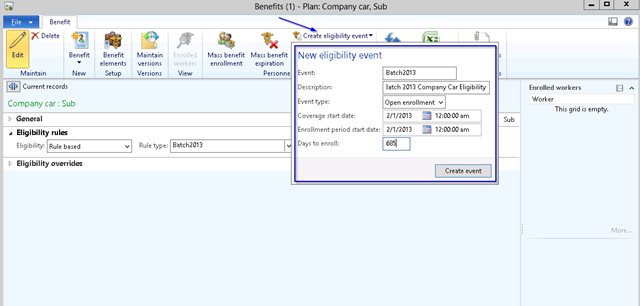
      • On the Benefit created above, click Personnel Actions > Create Eligibility Event and key in the required details as shown in screen below and click OK button.
      • image
      • On the Eligibility event form, expand the Workers fast tab.
      • You can add selected worker records or click Add all worker button to add all the workers for this event. Note that, the eligibility event will be ideally run from the HR > Periodic area.
      • image
      • Click Process button on the Action pane and hit OK button.
      • Note that the processing may take a few seconds and wait until you get an info confirming the completion of the process.
      • Click Refresh button and then click Show results
      • Notice that system will show all the worker records and their individual eligibility for the benefit. System also shows description of the reason why a specific worker was not eligible for a benefit.
      • image

    Once the eligibility event is run and all the employees are determined, the HR assistant can enroll employees on the required benefits from the Mass benefits enrollment screen as shown in screen below.

    That’s it for today’s post. Keep reading…

    Thanks

    Sandeep

  • Integration of Microsoft Dynamics AX with Microsoft Office Word

    Integration of Microsoft Dynamics AX with Microsoft Office Word

    Microsoft Office , especially the excel, word and PowerPoint are the most popular office productivity  applications which everyone knows and works with today.

    Imagine what if a Simple, scalable yet powerful ERP system integrates seamlessly with such  popular applications to exchange data so that users can spend more time on their favorite office applications and then easily push or pull data to or from the ERP without requiring any development effort.

    As most of us know, with Microsoft Dynamics AX 2012, these all come Out-of-the-box.

    There has been a lot of great posts and discussions about the Office excel add-in functionality which is heavily used by most of the implementation teams up to some extent.

    In today’s post, I wanted to uncover and discuss the integration of Microsoft Dynamics AX 2012 with Microsoft Office Word and demonstrate how these two applications share and exchange data effortlessly making the life of the end users a lot simpler and better.

    Let us take an example where the sales manager of an organization has challenges in preparing different quotation/business proposal formats for different customers and still maintaining all the data inside the ERP system.

    With Microsoft Dynamics AX  2012 and Microsoft Office, they can prepare as many number of proposal templates in MS word in any format they want for different customers/prospect, and then just upload them in the organization’s shared document library in the enterprise portal. AX 2012 can then sync those automatically within it to generate project proposals with data on to the templates without needing multiple development efforts. Let us now take look at the steps involved in accomplishing this in AX 2012.

    Prepare the required project proposal templates and do the necessary data mapping within AX:

    • Open a Microsoft Word document and click on the Dynamics AX tab.
    • Connect to the Dynamics AX AOS server in the similar by which you connect the excel add in function.
    • Now, once you have your document source types configured in AX, you would see the table and data fields in the Add fields pane. In this case, I have already done the necessary configuration.

    image

    Upload all your template documents on the shared document library of the enterprise:

    • After you have prepared all your required proposal templates, you can upload them in the shared document library in the portal.
    • This document can be shared, reviewed and managed as in normal SharePoint functionality.
    • Once these are finalized and ready, AX has in-built functionality to sync with these.

    image

    Complete necessary setup in AX to automatically synchronize the documents into AX document types:

    • AX 2012 now automatically synchronizes with the share point portal and gets the document templates to create new document types in AX.

    image

    Generate project proposals from proposal templates:

    • In Dynamics AX, you can create and store proposal templates for various customers or price groups.
    • Once you generate your new proposal either newly, or by copying from a template, the proposal is all set to be generated in the MS word formats which were created and designed outside AX, without needing any specific connection methodology. Thanks to the seamless integration of Microsoft Dynamics AX 2012 and MS Office.

    image

    Generate proposal templates in your desired format with just click of a button:

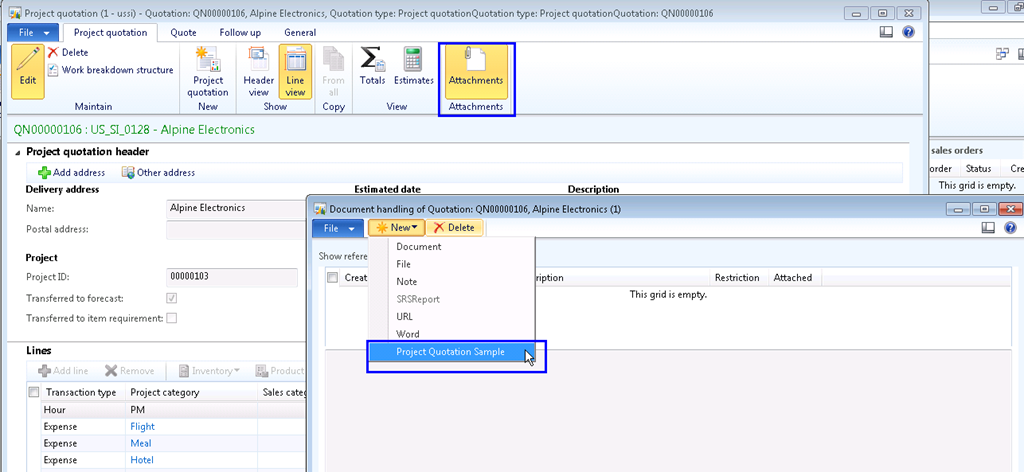
    • When you click on the Attachments button and create a new document, you will notice that the document template which we created and synced in AX appears automatically on the document handling options.

    image

    • Click New > Project Quotation Sample menu button. This will automatically attach the word document for the project proposal on to the proposal record and then generates and launches the document which the data automatically filled in from Dynamics AX which is ready for review and sending to Customers or prospects.

    image

    Powerful, Simple and Agile ! Microsoft Dynamics AX.

  • Effective Labor rate in Microsoft Dynamics AX 2012

    Effective Labor rate in Microsoft Dynamics AX 2012

    Hello Everyone,

    It has been very long spending time in my blog. Have been very busy at work since last few months. Today, I wanted to write about another new functionality which Microsoft Dynamics AX 2012 R 2 has introduced. It is the ability to designate the project cost as an Effective Labor Rate (ELR).

    The ELR – Effective Labor Rate is actually the dollar value income per hour of an employee after calculating productivity. Alternatively, the ELR defines the hourly cost of a worker, if they work all the available hours in a work week.

    AX 2012 R2 enables us to indicate the cost price of a worker as ELR. In the following few steps we will see how do we setup ELR in AX 2012 and then we will see how the ELR calculation happens when we post labor transactions/timesheets for them.

    • To define the ELR for an employee, go to Project Management and Accounting > Setup > Prices > Cost prices (Hour).
    • Setup the cost price for the employee and then check the Effective labor rate check box.

    image

    • Go to HRM > Workers > Select the worker and then click Project Management > Project Setup and mark Use ELR.

    image

    • In the above screens, I have setup the cost of the worker as $100 and marked it as ELR. Also, this worker is setup to work 8 hours each day (Monday to Friday) in the resource calendar)
    • Now, lets go record a project hour journal to see the impact of ELR and see how the calculation happens.
    • Notice that system does not populate the cost price field.

    image

    • Let us say the employee worked for 24 hours in a given week. Enter Hours = 24 and post the hour journal.
    • Now let us go to Posted project transactions and verify how system has automatically ELR.

    image

    • As we can see in screen above, system has automatically calculated the cost price based if the worker would have worked for full productivity hours(40 hours ) for the week.
    • So the formula for ELR calculation is as given below.

    ELR  =  Effective labor rate price per hour($100)* Number of hours per week per the worker’s work calendar(40)/Number of hours worked/registered in the week(24).

    This is it for today’s post. Till next time !!


  • Managing recruitment and Posting Open jobs in Enterprise portal in Dynamics AX 2012

    Managing recruitment and Posting Open jobs in Enterprise portal in Dynamics AX 2012

    Hello Everyone,

    Managing recruitment processes, job applications and applicants is a key aspect of human resources management in any organization. The HRM module of Microsoft Dynamics AX 2012 provides a very efficient and effective way of managing open jobs in an organization and applications and applicants who are applying for the open jobs.

    image

    In today’s post I will highlight,

    • How to create open jobs and publish the Job ads to the enterprise portal.
    • How candidates/applicants( Both External and Internal) can view and apply for Open jobs.
    • How applicants/candidates can submit their resume to the organization for considerations to any open jobs.
    • How recruiters can view and manage all the incoming job applications at one central location and process them further.

    Create Jobs and Publish them on Organization portal:

    1. Go to HRM > Common > Organizations > Jobs.
    2. Create a new job. In this case let us say it is for a DAX Technical Consultant.

    image

    3. Create the required positions under the HRM > Organizations > Positions.

    4. The next step is to create the recruitment project and create the job ads for that.

    5. Go to HRM > Recruitment > Recruitment Projects and create a new recruitment project.

    image

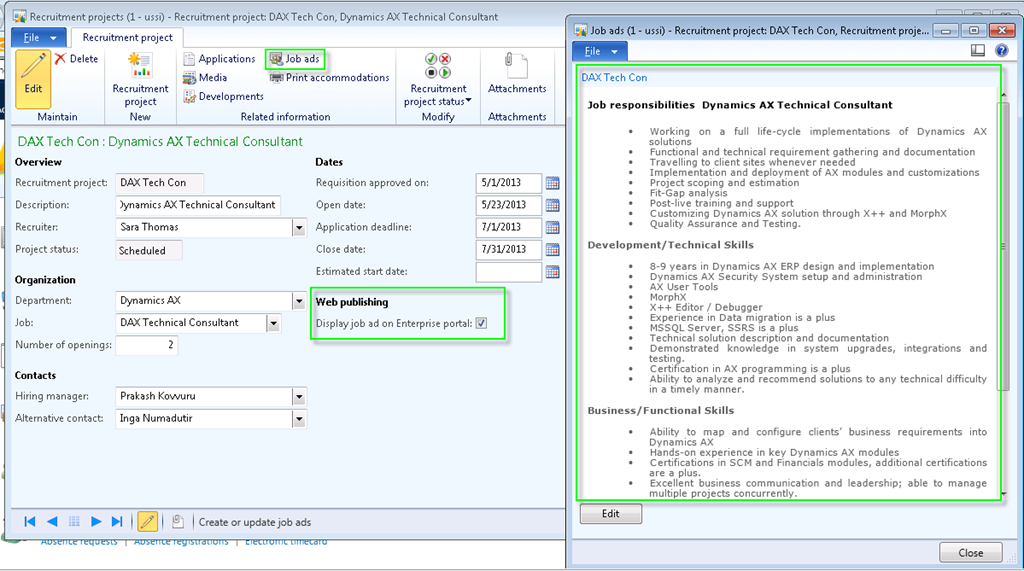
    6. Create the Job ad for this recruitment project and enable this to be published on the enterprise portal.

    image

    With this, we are done creating the open jobs and publishing them to the portal.

    Candidates viewing and applying for jobs on the portal:

    AX allows both internal employees/existing employees and external applicants to apply for open job. The site services feature can be used to integrate the external job portals and company websites to AX. External candidates can apply directly from portals and company websites with this integration. (Note: These tasks will need some technical works and some development as well and it is not fully functional out of the box.

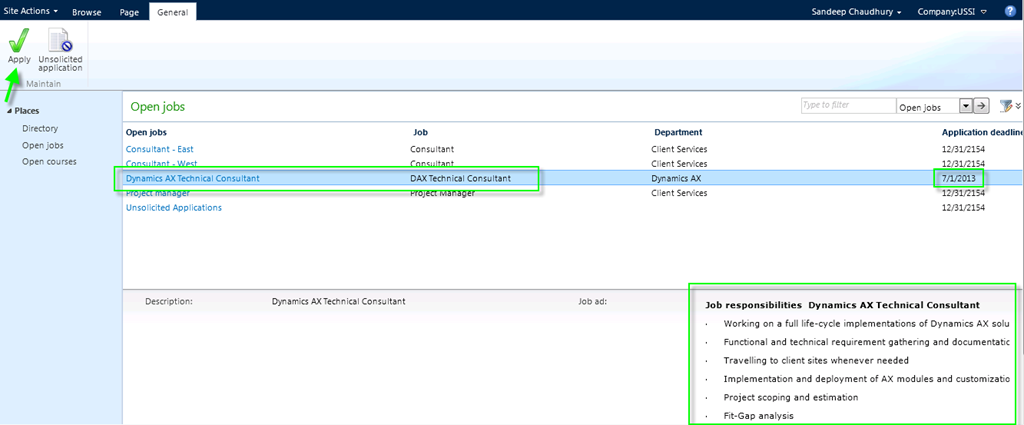
    1. When candidates log on to the portal of AX 2012, they get to see a direct link to all the open jobs in the organization.

    image

    2. Notice that the job we just created is now appearing on the portal. Candidates can select the job and click Apply to apply for the job.

    image

    3. Copy paste your resume and click Apply. Note: You can customize this to have a direct link for resume attachment/uploading.

    image

    Note that, candidates can also apply and submit their resumes without any open job also. All of these applications will be gathered against a Unsolicited recruitment project.

    Recruiters viewing and processing received applications:

    The Application Basket in AX is the central location for all the received applications both from enterprise portal and external sites(job portals , company websites if integrated). The recruiters finds all the key information about the applications such as candidate contact information , resume attachments, address etc.

    1. Go to HRM > Periodic > Recruitment > Application Basket.

    image

    2. Notice that Sandeep Chaudhury, who applied for the DAX Technical consultant job is appearing in this form now. The system also shows various other information about the applicant on this form required for the recruiters.

    3. Click Attachments button to view their resumes.

    image

    4. If everything looks okay about the candidate and the resume looks goof to be processed further, then select it for Approval and Click Approve button. You will notice that the application record will disappear from the application basket as it has been processed further now.

    image

    5. Now, when the recruiter goes to the recruitment project again, they get to see all the received applications against the recruitment project and can process it further from there.

    image

    Refer to my earlier post on employee life cycle management in AX 2012 to know further about this.

    The focus of this post was to highlight the job posting capabilities within AX and to show how it eases the job of recruiters on a day to day basis. Please reach out to me in case of any questions on this.

    Till next time!!

    Sandeep

  • Absence/Leave Management in Human Resources Management–Microsoft Dynamics AX 2012

    Absence/Leave Management in Human Resources Management–Microsoft Dynamics AX 2012

    I have been contacted by many of the readers requesting a post regarding the absence management functionality of AX 2012. In today’s post I will cover the key features and benefits of the absence management functionality along with the setups and processes involved in it.

    Workers are the key assets for every professionals services firms and gaining control over the workers capacity cost and workers availability is always a key to success. Moreover managing employee leaves/absences is always a key aspect of Human resources operations for every organization. Organizations always looks for a flexible and effective leave management system, when they choose an ERP to implement.

    The Human Resources Management module of AX 2012 provides a very effective absence management functionality which is simple to setup and use and also enables organizations to have their employees to use enterprise portal to submit and approve leave/absence requests.

    Microsoft Dynamics AX-Powerfully Simple

    Key features and Benefits:

    Below few points represents the key features and benefits of Absence management functionality of AX 2012.

    • Simple to configure and easy to use.
    • Easily group absences and associate absence codes with them.
    • Register past absences.
    • Request for future absences.
    • Setup validation rules for absence types such as, employee’s cannot avail more than 3 casual leaves consecutively.
    • Option for absence administrators to register absence for multiple workers acting like a delegate.
    • Option for workers to request absences  and approvers to approve them in the Enterprise portal, when away from office/work.

    Configuration and Absence management Process:

    This section of the post will explain the necessary setup required to enable absence recording in AX 2012.

    1. Absence Groups: The first step is to create Absence Groups. The absence groups are used to group various absence types such Holidays, Sickness, Jury duty etc. Absence groups are mandatory information for setting up absence codes.
      • Navigate to HRM > Setup > Absence > Absence Groups.
      • Create new record and enter absence group id and a description.
      • Additionally enable Registration to enable absence recording in Time and Attendance process.

    image

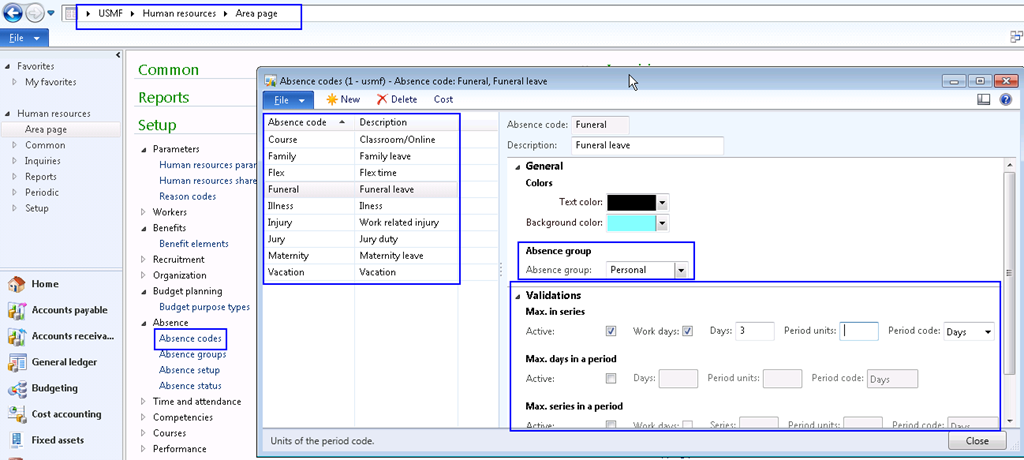
    2. Absence Codes: The absences codes represents the reasons for the employee absences. These are are the codes against which employees will register absences. Additionally several validation rules can be setup on the absence codes as per requirements. Example of absence codes are Sick, Injury, Jury, Vacation, Leave etc.

      • Navigate to HRM > Setup > Absence > Absence Codes.
      • Create new absence codes such as Jury, Sick, Illness etc.
      • You can also setup validation rules which will enable validation such as an employee can take only 3 days Funeral leave in a series etc..

    image

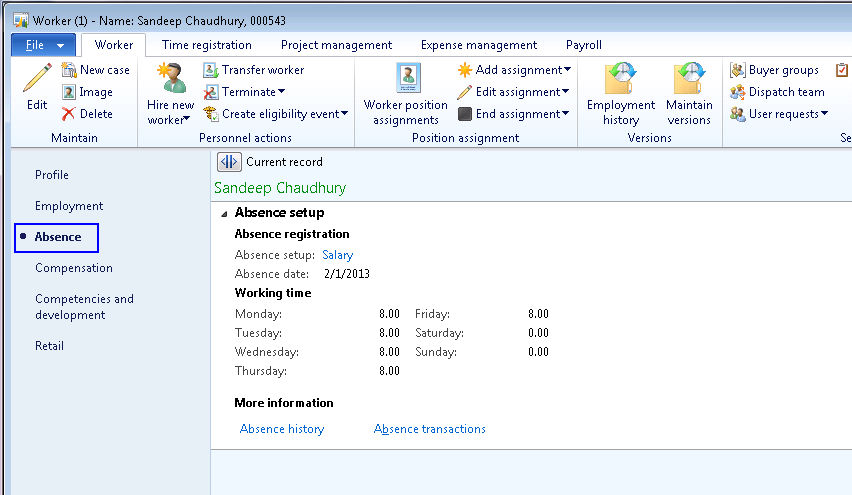
    3. Absence Setup: It is required sometimes to have multiple absence administrators, multiple absence period frequencies, multiple working times(Hours, Days) for different groups of workers. The absence setup allows to accomplish this. The Person in charge is the Absence administrator who will review and approve/reject/cancel the absences.

      • Navigate to HRM > Setup > Absence > Absence Setup.
      • Create new records and setup Person In charge, Period unit( Month, Week, Month-Fixed and No Period), and Working time.
      • Absence setups are attached to workers to enable them for absence registrations.

    4. Absence Setup for Worker: The Absence related parameters needs to be setup in the Worker details form as shown in screen below.

    image

    We are now done with all the setups necessary for absence registrations. Let us not take quick look at how employees can register absences. In AX, employees can register absences both in rich client and Enterprise portal.

    Recording Absences In AX Rich Client:

    • Before employees can register absences in a given absence period, the absence journals must be created by the absence administrators for that period. Absence journals can also be setup to be created in batch.
    • Navigate to HRM > Periodic > Absences > Create absence Journals to create the absence journals for workers.

    image

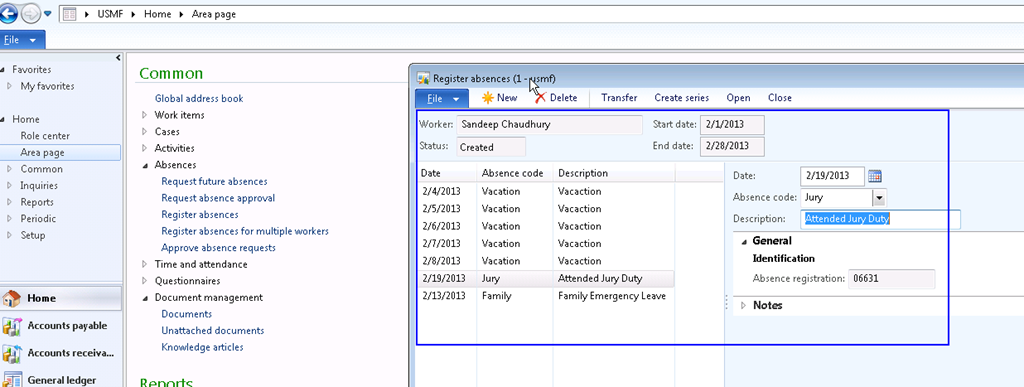
    • To register absences, go to Home > Absences > Register Absences.
    • Create new records and enter dates and absence code for each day.
    • You can also create a absence series such as Vacation for 5 days/10 days etc..
    • The Notes section will contain the notes from the absence registrar and absence approver if any.

    image

    • After creating the absences, Click Transfer to transfer the absences for approval. This will transfer the absence details to the approver for review and approval.
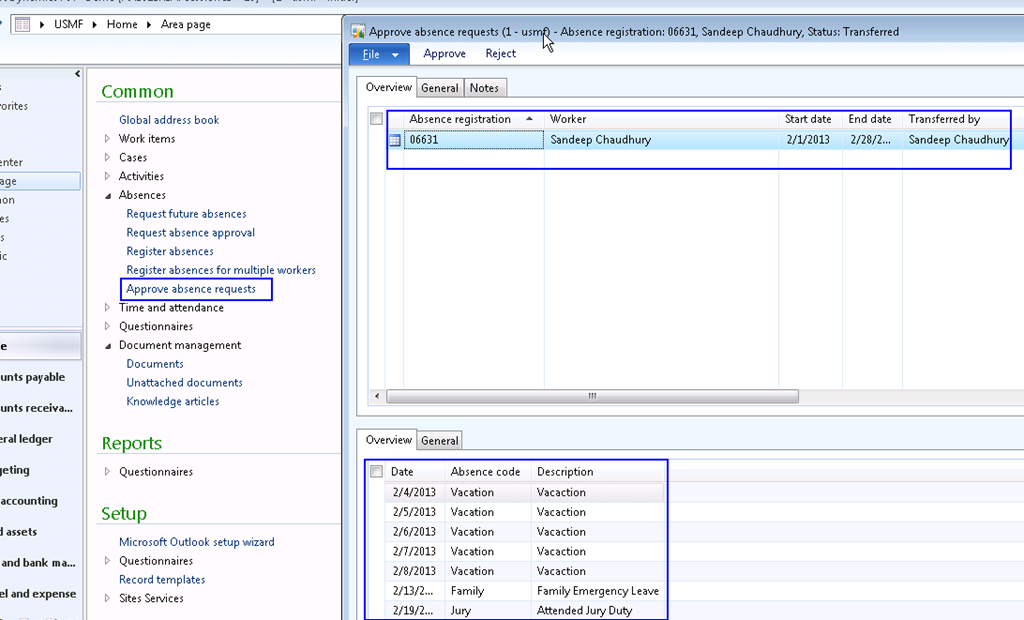
    • The Approver can go to Home > Absences > Approve Absence Requests.
    • Approver can click Approve/Reject button to approve or reject the absences.

    image

    Using the absence management function, employees can also can request for future absences, and one absence admin can register absences for multiple workers as a delegate. I will not explain those all here in this post.

    Recording Absences In AX 2012 Enterprise Portal:

    Below is a quick video which I have prepared for the employee absence management in the enterprise portal of AX 2012.

    That is it for this post. Please contact me in case you have any queries with regards to absences management in Microsoft Dynamics AX 2012.

    Regards

    Sandeep

  • Accrual of Revenues for timesheet transactions is happening on the timesheet posting date instead of the timesheet transaction date in CU3

    Accrual of Revenues for timesheet transactions is happening on the timesheet posting date instead of the timesheet transaction date in CU3

    Hi Everyone,

    Here is a quick information about a hotfix in the Project accounting area.

    If you are using the CU3 version of AX 2012, you will notice that when you post employee timesheets, the revenue accrual transactions will get posted on the timesheet posting date in the General ledger.

    The revenue should actually get posted on the timesheet transaction date/ timesheet line date.

    This is a bug in AX 2012, CU3 version and a hot fix is available by MS for this. You can download the hotfix at the link below.

    Hotfix for Revenue accrual date issue.

    Regards

    Sandeep