Category: Troubleshoot

  • Troubleshoot–Hot fix available for a critical issue during financial consolidation process in Microsoft Dynamics AX 2012

    We ran into a critical issue when running the financial consolidation using financial dimension combination in AX 2012.

    ISSUE: System was summing up the transaction amounts by date and was updating data into wrong financial dimensions in the consolidation entity.

    SOLUTION: A hot fix was available for this and this worked fine after we applied the hot fix. (Please ignore if you already have come across this).

    NOTE : This hot fix is not part of the CU2 update yet but may be included in the CU3 which is slated to release somewhere during JUNE/JULY this year.

    Link to hot fix:

    http://support.microsoft.com/hotfix/KBHotfix.aspx?kbnum=2623873&kbln=en-us&sd=mbs

    Thanks

    Sandeep
  • [Troubleshoot] -Timesheet Periods have not been created for: Employee – Error when creating Time sheets in Microsoft dynamics AX 2012

    Hi Friends,

    In one of my earlier posts, i gave a resolution for the error which users face normally when creating time sheets in AX 2009 PSA module.

    Just wanted to update the resolution for AX 2012 as the navigations are all changed in AX 2012.

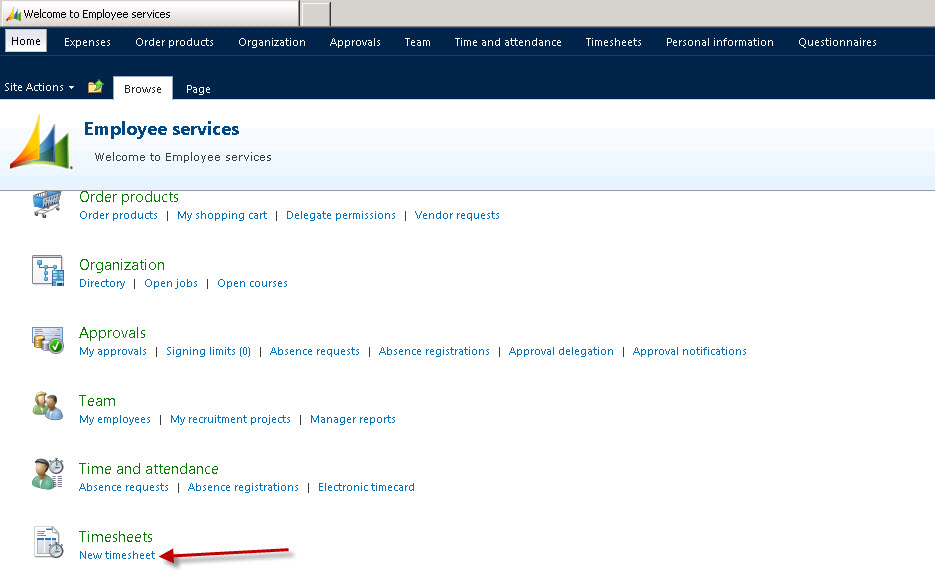
    As we all might be knowing that in AX 2012 users now will have to enter the timesheets in the Employee services portal(Enterprise portal).

    Launch the EP in AX 2012 and navigate to New timesheets( as shown in screen below ) .

    Click on the New Timesheet link. Now if you face an error as shown below then follow the steps mentioned below to fix it.

    Steps to Fix the above error:

    1. Navigate to Human Resources > Common > Workers > Workers.
    2. Select the employee/Worker which has this issue.
    3. Click Project Management tab.
    4. Click Setup > Project setup.
    5. Set a value for Period code ( For eg :EmplMonth). Refer to screenshot below.
    6. Save and close the form.
    7. Now to ensure that the timesheet periods are created for this period code, navigate to Project management and accounting > Setup >  Timesheets > Timesheet period types.
    8. Select the EmplMonth period code.

    Do let me know if you need further assistance on anything related to this post. ThanksKeep DAXING :)