Tag: EP

  • Managing recruitment and Posting Open jobs in Enterprise portal in Dynamics AX 2012

    Managing recruitment and Posting Open jobs in Enterprise portal in Dynamics AX 2012

    Hello Everyone,

    Managing recruitment processes, job applications and applicants is a key aspect of human resources management in any organization. The HRM module of Microsoft Dynamics AX 2012 provides a very efficient and effective way of managing open jobs in an organization and applications and applicants who are applying for the open jobs.

    image

    In today’s post I will highlight,

    • How to create open jobs and publish the Job ads to the enterprise portal.
    • How candidates/applicants( Both External and Internal) can view and apply for Open jobs.
    • How applicants/candidates can submit their resume to the organization for considerations to any open jobs.
    • How recruiters can view and manage all the incoming job applications at one central location and process them further.

    Create Jobs and Publish them on Organization portal:

    1. Go to HRM > Common > Organizations > Jobs.
    2. Create a new job. In this case let us say it is for a DAX Technical Consultant.

    image

    3. Create the required positions under the HRM > Organizations > Positions.

    4. The next step is to create the recruitment project and create the job ads for that.

    5. Go to HRM > Recruitment > Recruitment Projects and create a new recruitment project.

    image

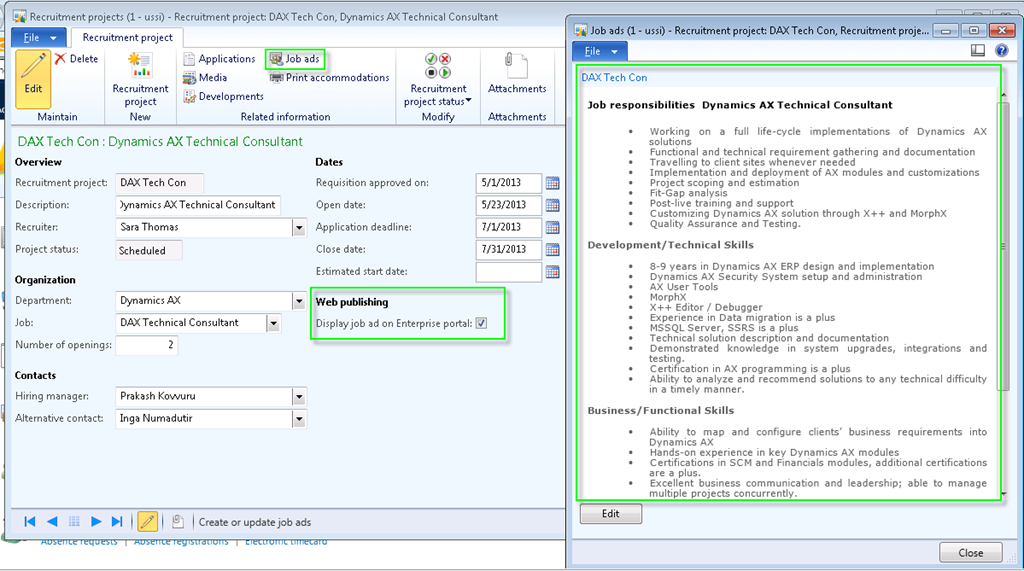
    6. Create the Job ad for this recruitment project and enable this to be published on the enterprise portal.
    image

    With this, we are done creating the open jobs and publishing them to the portal.

    Candidates viewing and applying for jobs on the portal:

    AX allows both internal employees/existing employees and external applicants to apply for open job. The site services feature can be used to integrate the external job portals and company websites to AX. External candidates can apply directly from portals and company websites with this integration. (Note: These tasks will need some technical works and some development as well and it is not fully functional out of the box.

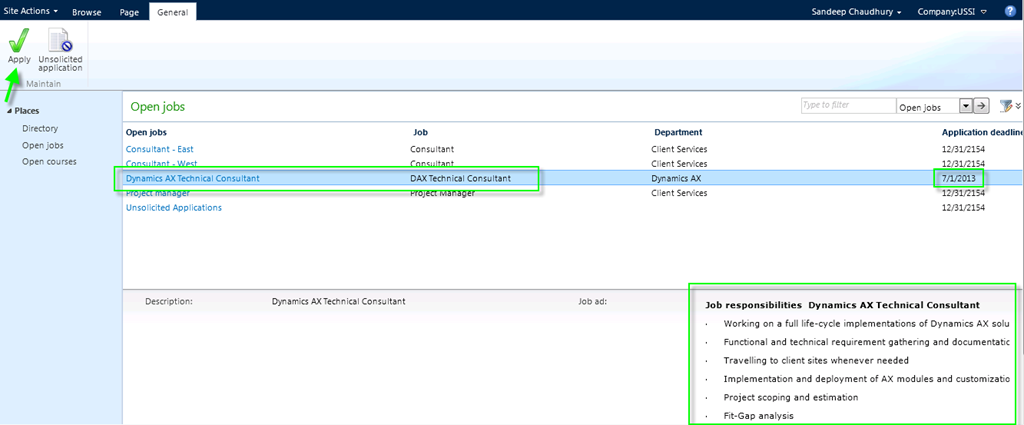
    1. When candidates log on to the portal of AX 2012, they get to see a direct link to all the open jobs in the organization.

    image

    2. Notice that the job we just created is now appearing on the portal. Candidates can select the job and click Apply to apply for the job.
    image

    3. Copy paste your resume and click Apply. Note: You can customize this to have a direct link for resume attachment/uploading.

    image

    Note that, candidates can also apply and submit their resumes without any open job also. All of these applications will be gathered against a Unsolicited recruitment project.

    Recruiters viewing and processing received applications:

    The Application Basket in AX is the central location for all the received applications both from enterprise portal and external sites(job portals , company websites if integrated). The recruiters finds all the key information about the applications such as candidate contact information , resume attachments, address etc.

    1. Go to HRM > Periodic > Recruitment > Application Basket.

    image

    2. Notice that Sandeep Chaudhury, who applied for the DAX Technical consultant job is appearing in this form now. The system also shows various other information about the applicant on this form required for the recruiters.

    3. Click Attachments button to view their resumes.

    image

    4. If everything looks okay about the candidate and the resume looks goof to be processed further, then select it for Approval and Click Approve button. You will notice that the application record will disappear from the application basket as it has been processed further now.

    image

    5. Now, when the recruiter goes to the recruitment project again, they get to see all the received applications against the recruitment project and can process it further from there.

    image

    Refer to my earlier post on employee life cycle management in AX 2012 to know further about this.

    The focus of this post was to highlight the job posting capabilities within AX and to show how it eases the job of recruiters on a day to day basis. Please reach out to me in case of any questions on this.

    Till next time!!

    Sandeep

  • Employee Cash advance management in Microsoft Dynamics AX 2012

    Hi Friends,

    Tracking the money that employees spend when incurring expenses for your business is a real key of Expenses management in an organization.

    In today’s post we will discuss about the employee cash advance management feature of AX 2012.

    We will start with the process of employee submitting a request for cash advance, the approver reviewing and approving it, paying the employee and then we will also see a little bit of process how the employee can return his cash advances.

    Employee Submits Cash advance request in Employee self-service portal :

    1. Navigate to the Manage Expenses > Cash advance request area in the Enterprise portal.

    image

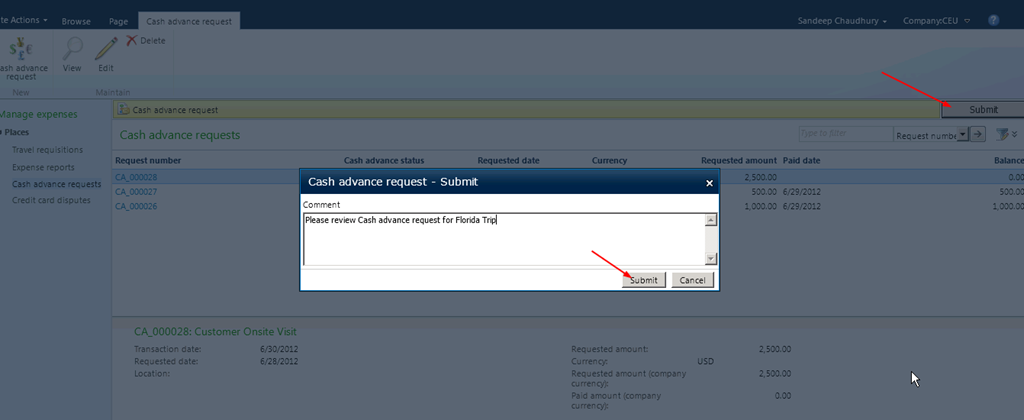
    2. Click New Cash advance request and key in required details for this request. Save and close after filling in the details. Then, submit the request for approval.

    image

    image

    Two easy to use steps for employees to submit cash advance request !!

    Approver reviews the Cash advance request:

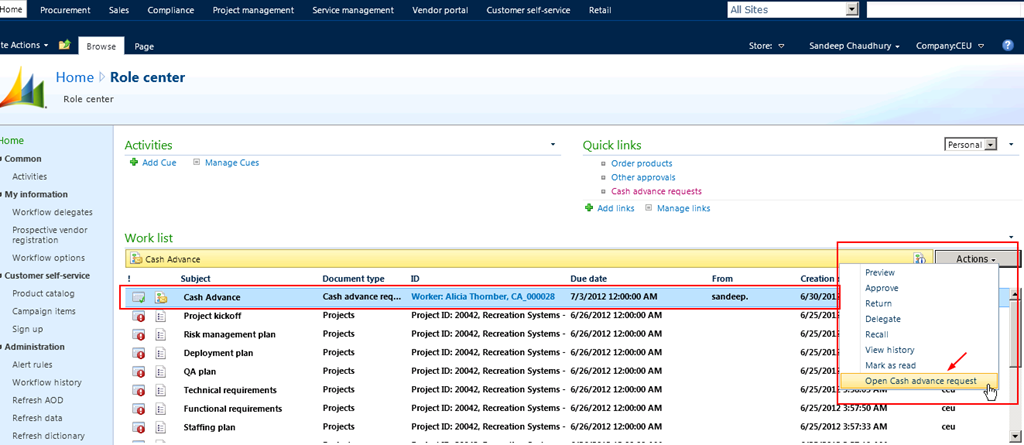
    1.  Approver logs into enterprise portal and finds the cash advance request assigned to him/her for review.

    image

    2. Approver opens the cash advance request and then reviews and approves it.

    image

    Just two clicks !! QUICK and Easy for the reviewer/approver.

    Finance team pays to the employee after the request got approved :

    1. The finance teams logs in to AX and navigates to view the approved cash advance requests.

    image

    2. One click PAY !! The finance team member/user just clicks the Pay and transfer button and AX 2012 does the rest. Employee gets PAID !! System automatically creates and posts the required financial voucher entry for this transaction based on the setups which are done.

    image

    See below the automatic financial journal created and posted in the system.

    image

    image

    The cash advance payment cycle for the employee is completed in few simple steps.

    Let us now take a quick look at how the employee can return the cash back or how an employee can expense his cash advances in AX 2012.

    1. Employee logs into the Enterprise portal and navigates to expense management area and create a new expense report and clicks Other > Return cash advance.

    image

    2. System automatically shows all your reconciled cash advances. Select the one you want to expense and select the expense category and submit the expense report.

    image

    DONE !!

    System creates the necessary financial journals after the expense report is approved and posted.

    Simply POWERFUL Smile

    Till next time !!! Keep reading

  • The Power of Customer Self-service portal in Microsoft Dynamics AX 2012

    Hi Readers,

    I could not spend time on my blog since last few weeks due to my extended vacation. I know i owe answers/responses to a few of you. I will start doing it from today again. Sorry about this.

    In today’s post we will take a look at all the important capabilities of the customer self-service portal.

    The customer self-service portal, which is an out of box feature of Microsoft Dynamics AX 2012 adds to the list of several other simple yet powerful list of features.

    This enables your customers to work with you in more efficient way without having the need to several manual interventions. Rather than having customers calling you and asking questions about their orders, placing new orders, asking about invoices, inquiring about products, you can just give then a log in for the customer self-service website and can do all of the above stuffs on their own.

    For customers to get started with using the portal for them, all you need to do is follow few simple steps to setup the customer contact and other required details and then they are ready to go. The various capabilities of CSS(Customer self-service portal) are explained in the points below.

    Customer Self Service Portal

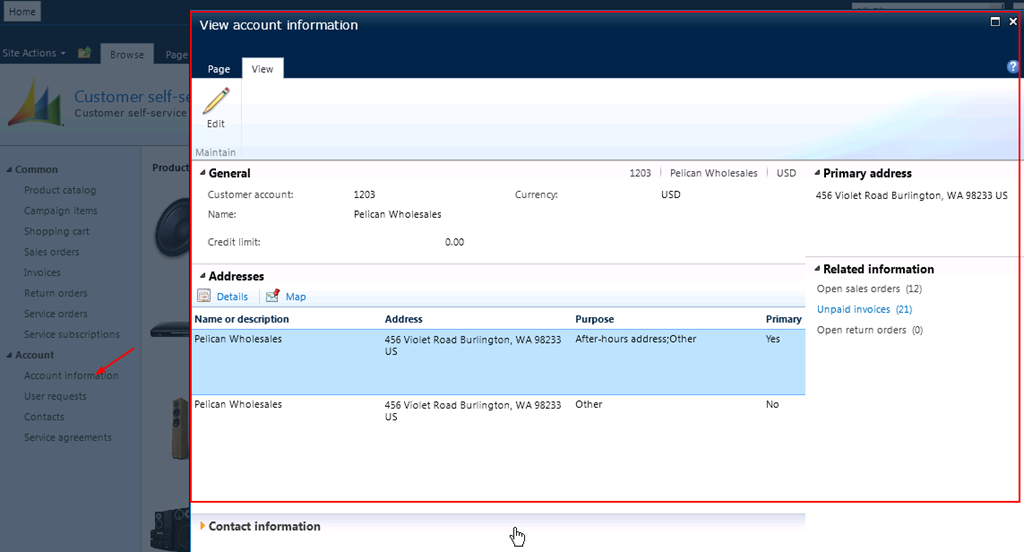
    View account information

    1. Configure Product Catalog and make it available on the web for customers to browse through your products:

    • Configure Product groups:

    Configure Product Groups

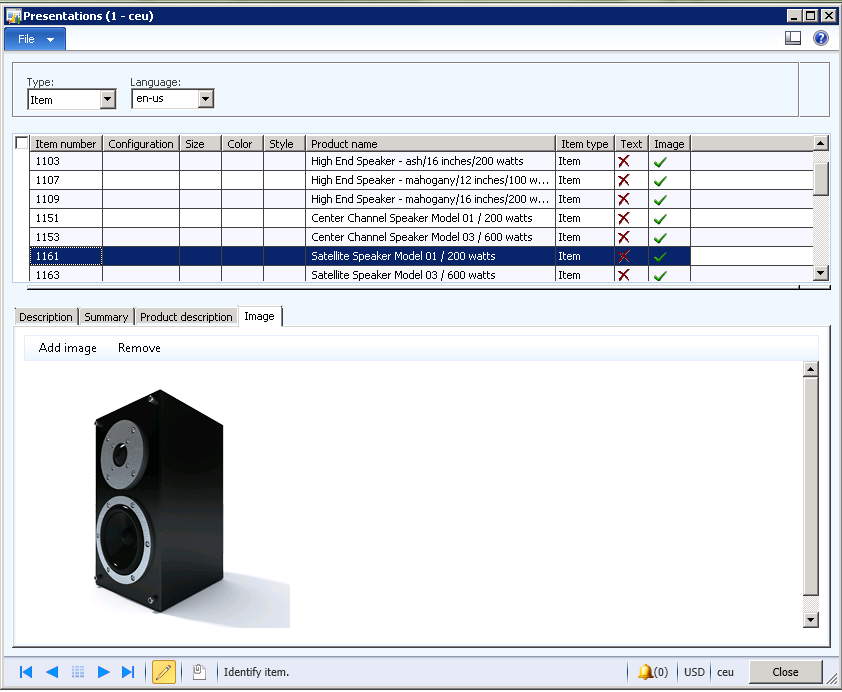
    • Prepare presentations:

    Catalog Presentation

    • Sync and publish images to the Web/SharePoint portal:

    Publish Images to Web

    2. You can prepare campaign items and few easy steps and make it available on the web for customers to browse through them and add to their carts.

    Campaign Items on the Web

    This makes it easy for the organizations and their customers to interact easily, without having to make several calls and exchange emails to find required information about your products.

    3. Customer can place Orders on the web in few simple steps:

    • Add items to shopping cart

    Add items to shopping cart

    Add items to shopping cart

    • Checkout items and initiate order

    Checkout items and initiate order

    • Confirm order

    Confirm Order

    And You have successfully placed your order.

    Order Placed Successfully

    4. Have customers inquire about all their orders at one place on the web without reaching out to you frequently for the status and other related information about their orders.

    Customers inquiring about their orders on the web

    Other inquiries about customer orders

    5. Have customers inquire about all their invoices and related information on the web.

    Inquiry about customer invoices

    View invoices

    View Invoice

    6. Customers can create , Manage and inquire about their item/order returns.

    Returns Mangement on the Web

    7. If your organization provided services on it’s products for customer and manage repairs for them, then you can have your customers/technicians create service orders on the web.

    View and perform actions on your service orders on the portal

    So, with these offerings on the web for making your customers work easily with you on several things on daily basis, AX 2012 can help you and customers interact everything efficiently at one place, getting most updated information about their orders and stuff etc.

    This post is aimed for customers who are looking for a customer self-service portal built inside and coupled strongly with their ERP application.

    Microsoft Dynamics AX 2012 – POWERFULLY SIMPLE !!! YET AGAIN !

    Microsoft Dynamics AX-Powerfully Simple

    Till next time… Keep DAXING Smile