
In AX 2012 release, the Excel Add-in feature introduced additional productivity options and made it easy for end users to interact with Dynamics AX data from within Excel. This feature worked great in many scenarios, but it did not provide that seamless productivity experience for the user, as they had to launch the Excel On Premise app (Win32 app) and then had to connect to the AOS to select tables and data fields to be able to interact with the data. This required the end users to have certain knowledge of the tables/database to complete data exchange tasks with Dynamics.
With the New Dynamics AX (AX 7), the Office Integration framework introduced significant changes in the underlying framework by launching the new ” Excel Data Connector App”. The Excel Data connector app interacts with your Excel workbooks with Dynamics AX OData Services (For publicly Exposed Data Entities) and this made it possible for Excel to become a seamless part of the user experience in Dynamics AX.
Most of us probably know by now how the “Open in Excel” experience works in the new Dynamics AX, where you can launch your data (For example a journal entry) into an Excel On Premise app (Win32 app) with just one click. Once the excel app launches, you can sync data, make updates, add or delete data. The screenshot below shows this experience in the new Dynamics AX.
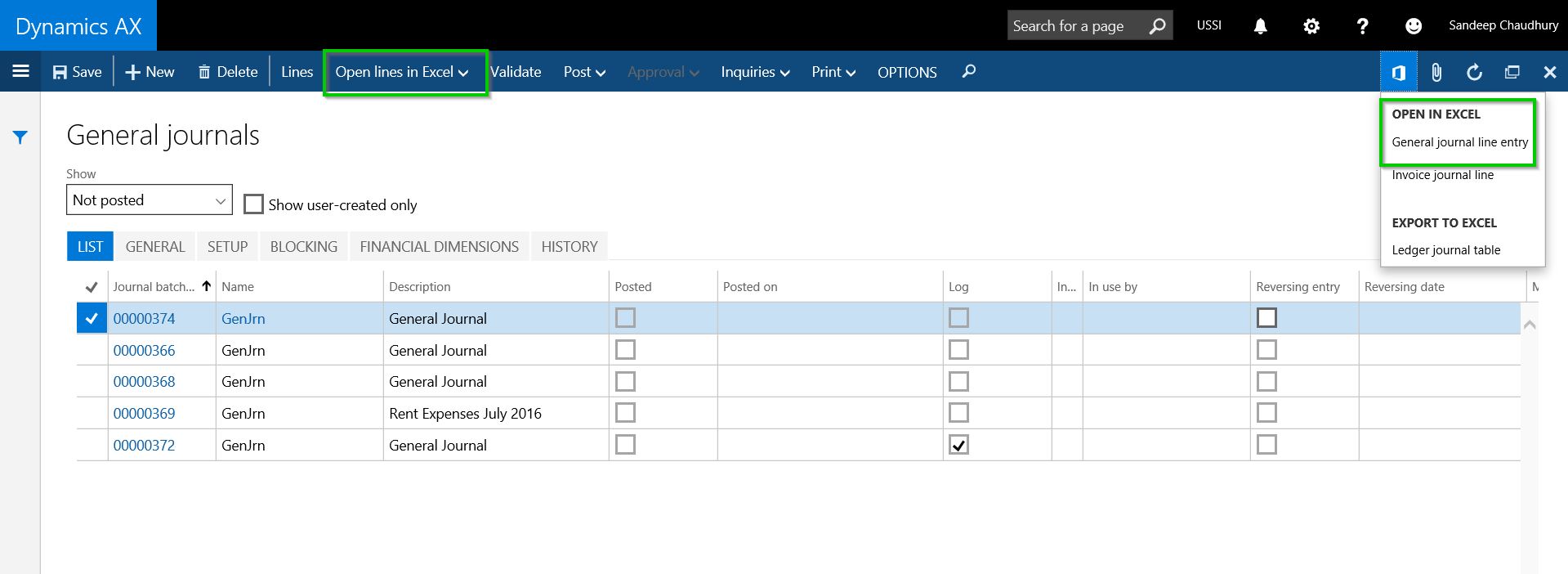
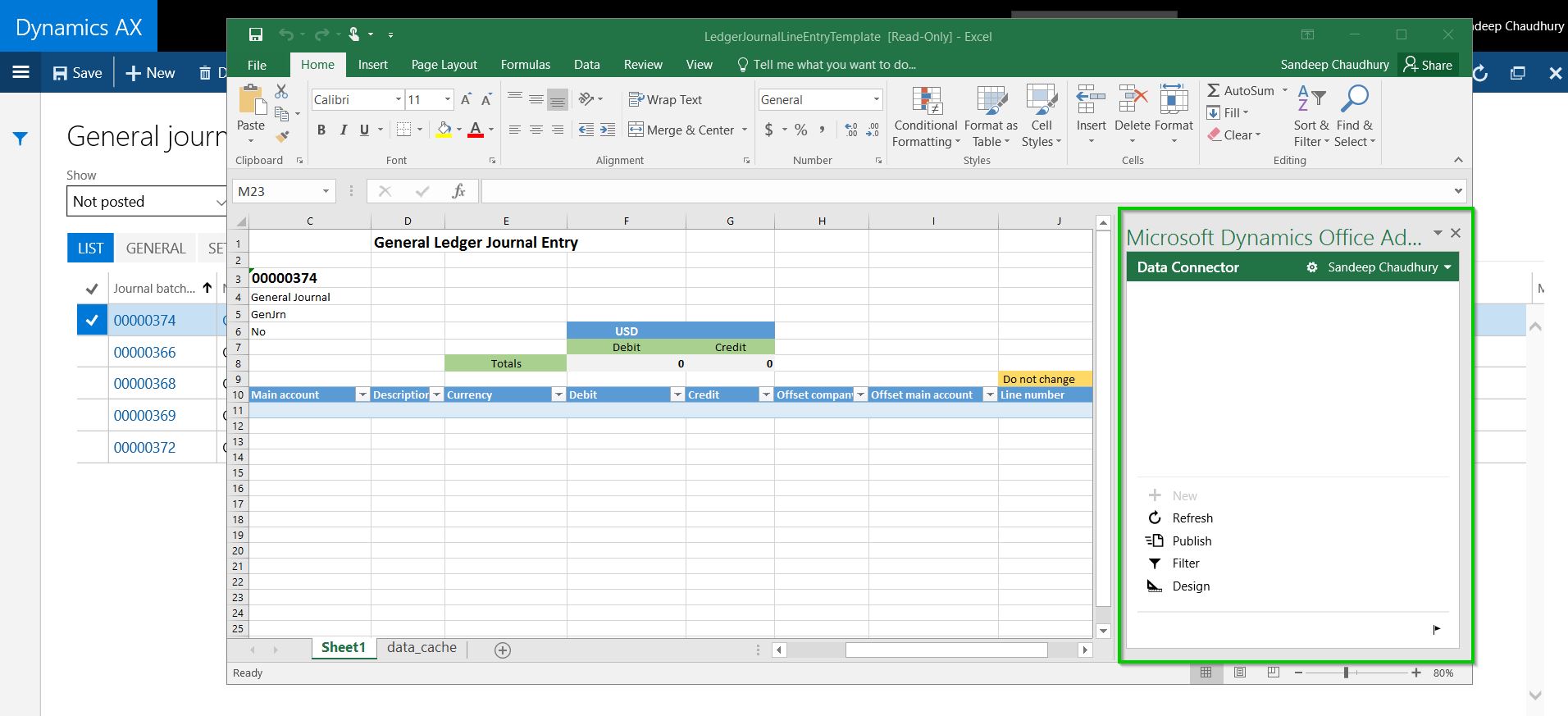
In the New Dynamics AX, it is also possible to open the Dynamics AX data in the Excel ONLINE version (Office 365) in case you do not have the Excel On premise(win32) app installed. The only thing you have to do differently is as follows.
After you click the Office Integration icon > Open in Excel, select Save To > SharePoint.

Then select the SharePoint location (Document library) and Mark the Open file after save option and click Save button.
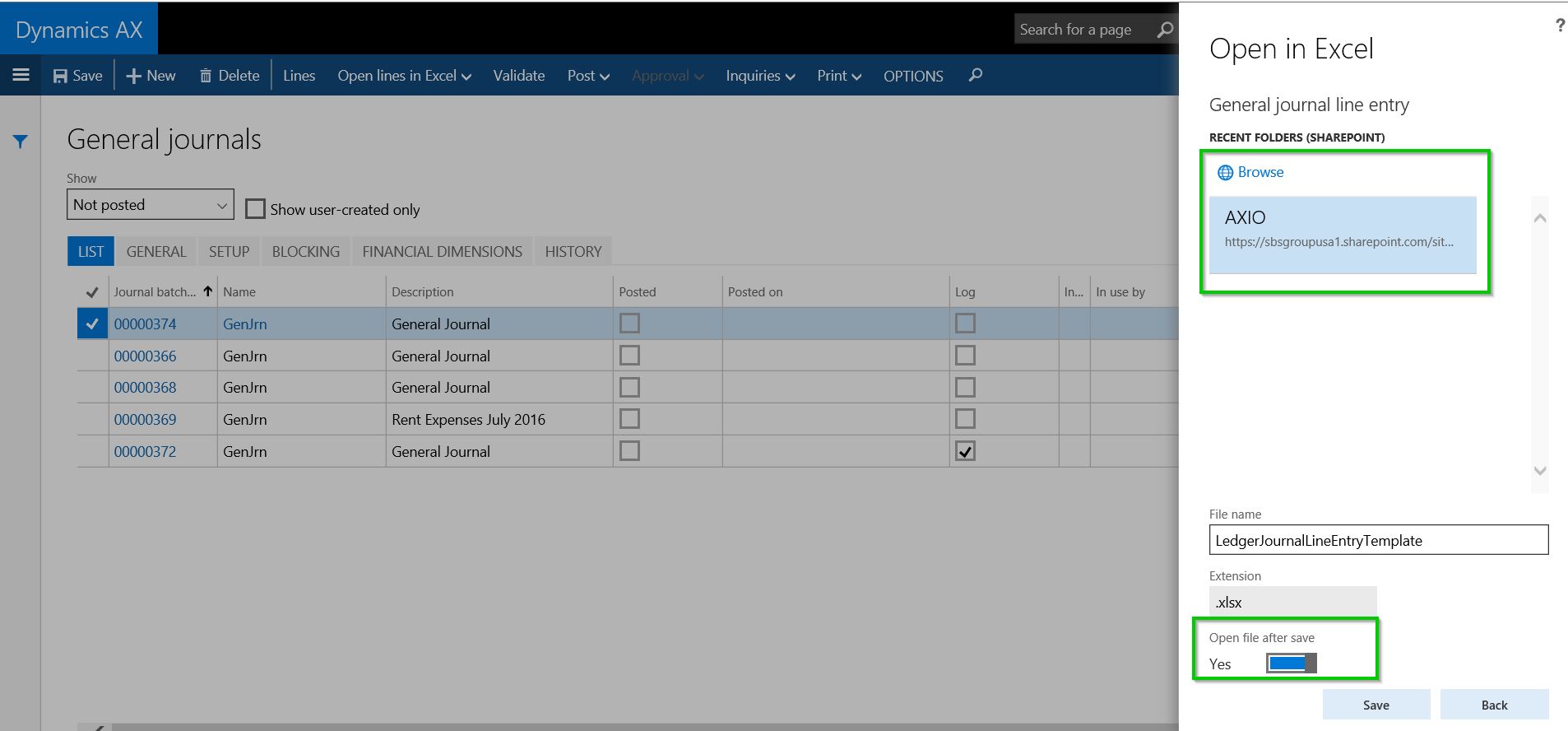
Notice that the Journal entry will now open in Microsoft Excel Online and the Excel data connector app will run in an embedded experience within your browser(Built using Office web add-in framework).

From here on you still have the same user experience as you would see when dong it in an Excel On premise app. This will come handy in cases where you are away from your desk and using a device that does not have the native Excel on premise app installed. You still have full power of Excel and exchange data with Dynamics AX.
That’s it for today’s quick tip.
Regards,
Sandeep



 Microsoft Dynamics 365 Blog