Category: Dynamics 365 Finance

  • Time & Expense Entry: The Task no one loves but is critical for all project/service-based organizations – Now Handled by AI Agents in Dynamics 365

    Time & Expense Entry: The Task no one loves but is critical for all project/service-based organizations – Now Handled by AI Agents in Dynamics 365

    Let’s dive into the new innovative Time Entry and Expense Entry AI Agents, which are now available in a production-ready preview within Dynamics 365 Project Operations and Dynamics 365 Finance & Operations! These are not just another feature; it’s a significant step forward in Agentic business applications that can truly transform how we handle project management.

    If you missed my last post about the AI Agentic T&E Approvals capability, you can read it here. That post mainly focused on simplifying and automating approval tasks for project managers.

    Why First Party Agents for Time & Expense Entry:

    Microsoft has released new AI agents in Dynamics 365 to make time and expense entry easier, a task often disliked in project work. These agents automate the process from capture to submission, cutting down on manual effort and mistakes. The integration with Dynamics 365 and Teams supports secure, efficient workflows. This is part of Microsoft’s effort to integrate AI into daily tasks, allowing employees to concentrate on more valuable work.

    The Benefits are aparent:

    • Reduced administrative overhead: Agents create Time and Expense Entries based on project bookings and receipts, saving time for employees. They review and submit these entries, allowing Finance teams and project leads to spend less time on follow-ups.
    • Accelerated billing cycles and cash flow: Real time and accurate capture of time and expenses ensure reduction is missed and incorrect T&E and faster invoice processing.
    • Improved Employee Experience: Employees interact with AI Agents within the flow of their work, i,e., Microsoft Teams. This reduces friction and improves adoption.

    Who this is for:

    If your organization uses Dynamics 365 Project Operations and/or Dynamics 365 Finance and Operations, you can use these new agents. If you only use Dynamics 365 F&O for expense reporting, you can deploy the Expense Entry agent.

    Let’s see the Agents in Action:

    The Time Entry Agent understands your project assignments and bookings and does automated time entry for you. It can check previous weeks’ timesheets and create current week entries based on that. It also generates smart comments for entries by looking at the project task details like the description and project name. Additionally, it can analyze your Outlook meeting invites to make comments based on meeting event titles.

    You can review time entries created by the agent directly in Microsoft Teams, make changes as necessary and submit for approval. The agent also tracks unsubmitted entries and notifies you for proactive submission.

    The Expense Entry agent on the other hand is even more powerful. All I need to do as an employee is capture my receipts on my phone and send the captured images or PDF files to the mailbox used by the Expense agent. The rest is done by the agent for you. Here is what does for you.

    • Process the receipts from your email or the ones you uploaded via the expense app.
    • Extracts receipt info and create expense lines automatically.
    • Not only that, it goes ahead and creates the expense report for you based on trip or by project (based on config) and sends a live summary of the expense reports in Teams for you to review and submit.
    • Additionally, it can intelligently identify active projects and assign those based on project location matching if you do project-based expense reporting. If you do your reporting by trip, it can create reports based on the location of travel and associate receipts. The agent can read your calendar events to look into details which may have key details such as location, project ID/name and use it identify project IDs that the expenses needs to be associated to.

    As an employee, you go from just sending receipts to the agent to just reviewing your fully prepared expense report within Microsoft Teams for corrections or submissions. Putting things into perspective, I can see saving an average of 20-30 mins per expense report. More than the amount of time it saves for you, it is the tedious manual work you don’t have to do.

    How can you deploy these for your employees today:

    To deploy the production ready(preview) agents today for your workforce, you will need to ensure the underlying features are enabled and the agentic automation infrastructure is setup correctly. This is more of an administrative one-time setup to get the agents up and running.

    For the Time Entry Agent:

    • Ensure you are on version 4.140.0.239 or late for Project Operations.
    • Enable the Feature for Time and Expense Agent in Project Operations.
    • Activate the power automate flows (used by the agent to complete actions on behalf of the employees, such as create time entries, expense reports etc.)
    • Finally, publish the agents in Microsoft Copilot Studio and optionally share in Teams channel/apps for your employees to get the full experience.
    • Follow Microsoft official guidelines here.

    For the Expense Entry Agent:

    • Ensure you are on D365 F&O version 10.0.44 or later
    • Enable the features for “Immersive home and Agent management in F&O.
    • Setup the Agent behavior under the Expense management parameters.
    • Setup a shared mailbox (This is where your employees can send their receipts to or just upload via the expense mobile app).
    • Activate the power automate flows (used by the agent to complete actions on behalf of the employees, such as create time entries, expense reports etc.)
    • Finally, publish the agents in Microsoft Copilot Studio and optionally share in Teams channel/apps for your employees to get the full experience.
    • Follow Microsoft official guidelines here.

    Under the hood

    The agent orchestration is managed by Copilot Studio along with a set of key Power Automate flows for both the agents. For the expense agent, these flows perform actions such as extracting expense details from receipts, identifying project IDs, reviewing calendar events when necessary, generating expense reports, and sending them to employees via Teams cards. The process begins with a Power Automate flow that runs periodically to process emails containing receipts and added to the unattached receipts entity. The agent subsequently parses these receipts to extract information, creates unattached expense lines, links the receipts, identifies project IDs, and assembles the final expense report.

    Config Parameters that control the behavior of the Expense agent for report creation:

    Take the agents for a spin today and encourage your employees to take advantage of these.

    Regards

    Sandeep

  • Bridging Stocked Inventory and Project Delivery in Dynamics 365 Project Operations Integrated ERP Deployment – A True Game Changer!

    Bridging Stocked Inventory and Project Delivery in Dynamics 365 Project Operations Integrated ERP Deployment – A True Game Changer!

    Microsoft has just closed a critical gap in Dynamics 365 Project Operations with the release of Manage Stocked Products for Integrated ERP Deployments. For leaders overseeing material-intensive projects in construction, engineering, field services, this is the missing link that finally aligns inventory control with project delivery in a unified ERP architecture.

    With this feature, organizations can now:

    • Gain real-time visibility into on-hand inventory via Dynamics 365 Finance & Supply Chain Management
    • Track material usage across the full project lifecycle—from estimation to invoicing
    • Automate cost and revenue recognition tied to stocked product consumption
    • Eliminate reliance on Project Management and Accounting module in F&O and start thinking about migrating to the modern architecture of Project Operations

    For project executives and operations leaders, this capability is more than a feature, it’s a strategic lever. It streamlines material tracking, strengthens cost control, and enables real-time inventory visibility, driving smarter decisions and faster execution across complex, resource and material intensive projects.

    I was finally able to get my hands on this preview feature, and I am excited to share some insights. I am not going to discuss the step by step of how to enable the new feature. You need to make sure you are on the latest versions of D365 Project Operations (4.1.142.0 or later) and F&O (10.0.44 or later) and work your way through the necessary dual-write setups.

    Let’s get to the crux of what this new feature offers.

    Viewing Inventory Products in Project Operations:

    Dynamics 365 F&SCM serves as the main source for managing inventory. Both stocked and non-stocked products are created and managed in D365 F&SCM. New products are immediately visible in Dynamics 365 Project Operations for project managers and stakeholders.

    When this new feature is enabled, you will see the new Products menu/site map where you can view all products that came in from D365 F&O SCM automatically. This leverages the “unified products management/integration” between F&O ERP and Microsoft Dataverse.

    Product Cost and Sales Prices:

    D365 F&SCM offers comprehensive pricing engine for products and is the source of truth for the cost and sales price data for products. The standard cost and sales prices specified for the product in D365 F&SCM automatically sync over to Project operations again using the “unified product integration architecture”, where they sync the prices into the cost and sales price lists within D365 Project Operations.

    For now, this feature uses the defaults prices for the products, however I am fully expecting this to mature into leveraging the “On demand D365 SCM pricing engine” at some point in the future.

    Viewing available on-hand for stocked inventory products:

    On the Products page within Project Operations, Project managers/stakeholders can view on-hand inventory products if required. This comes in handy where they get visibility into real time inventory without having to navigate to D365 F&O.

    Include stocked products in project estimates, quotes/contracts:

    Project Managers and stakeholders who are working on project quotations, estimations or project contracts can now include stocked inventory products.

    Buying stocked inventory for projects:

    Project managers or Procurement managers can now include stocked inventory materials on purchase orders they created for a project in the integrated ERP deployment.

    Important Note: Project Operations in the Integrated ERP deployment already supports non-stocked items/procurement category-based purchase orders, however with the introduction of the support for stocked inventory products, there is a difference in when the costs of the stocked materials are posted to the project and general ledger. As soon as the PO is confirmed, the necessary accounting distributions are created using the ledger posting profile for Items for projects. This accounting distribution is used to post the cost to the project and GL as soon as the vendor invoice associated with the PO for the stocked product is posted in F&O. This behavior is different than how it posts in case of a PO that has non-stocked products or procurement categories where the costs are posted to a temporary procurement integration account and synced later from Project Ops Dataverse using the actuals integration journal. Little technical details, but important for consultants!

    Posting vendor invoices for stocked products on projects:

    When vendor invoice for the purchase order for stocked products is recorded and posted, the project costs are posted in D365 F&O into the project sub-ledger. The vendor invoice information automatically syncs over to Dataverse to generate cost and unbilled sales actuals and unbilled sales actual details comes back into F&O using the actuals integration journal.

    Note: As products are received at the warehouse, the product receipt transactions are not recorded in the Project actuals in Dataverse and don’t post to project sub-ledger in F&O. As this feature matures and adds more capability, I am hoping we will see capability where we can consume the cost of stocked products immediately upon product receipt. It is not supported at this in this release at least.

    Viewing on-hand and Consuming stocked inventory into projects:

    For existing inventory in stock, project managers can not only view real time available on-hand information for stocked products but also consume them into projects using the materials usage log of Project Operations.

    Dynamics 365 Project Operations validates the available on-hand inventory in real time here. If a material usage request was submitted for a quantity that is more than the available quantity for the Site and Warehouse, then the system throws error message there by blocking the submission. Similar validation is done upon approvals of material usage logs.

    Note: You can also consume stocked materials using the journal entry option if required.

    Inventory Costing, Project Costing & Adjustments:

    When materials are consumed using the material usage log in project operations, it uses the default cost price available for the product/material that was last synced from F&O.

    However, for stocked products, the consumption of inventory always happens at the weighted average cost of the item regardless of the costing method for the material.

    If the costs of the material transactions that came in the integration actuals journals differs from the weighted average cost of the material, the difference is synchronized back to Dataverse. This value is stored in a distinct data field named “Adjustment value” and it updates the Extended amount accordingly. There is a new batch job as part of this new feature that needs to setup and run which will basically sync these adjustments if any after the “Inventory Closing and adjustments” have been run in D365 F&O.

    That’s it for this post!!

    Best,

    Sandeep

  • Improve your organization’s Cashflow and supercharge employee productivity with Copilot for Finance and Dynamics 365 Finance

    Improve your organization’s Cashflow and supercharge employee productivity with Copilot for Finance and Dynamics 365 Finance

    In the ever-evolving landscape of finance, AI has emerged as a game-changer. Organizations worldwide are harnessing the power of AI to streamline processes, enhance decision-making, and elevate customer experiences. At the forefront of this transformation lies Microsoft Dynamics 365 Finance & Operations, where cutting-edge technology converges with financial and operational insights. In this blog let’s discuss how AI empowers finance teams, drives efficiency, and paves the way for unprecedented efficiency gains and helps achieve customer satisfaction.

    Last week, Microsoft announced Copilot for Finance, a brand-new Copilot offering that is intended to change the way Finance teams of any organization work, by providing them the ultimate productivity gain right in the flow of their work every day. With this offering, Finance team members will have AI assisted data interaction, creation and automation experience in the productivity apps they use every day, i.e. Microsoft Outlook, Excel, Teams and more, without having to go into their ERP systems (Dynamics 365 Finance in this case).

    There are 2 primary experiences of Copilot for Finance in this release. One is in Outlook and the other one is in Excel. In this blog, I wanted to share my experience with the Finance copilot in Outlook.

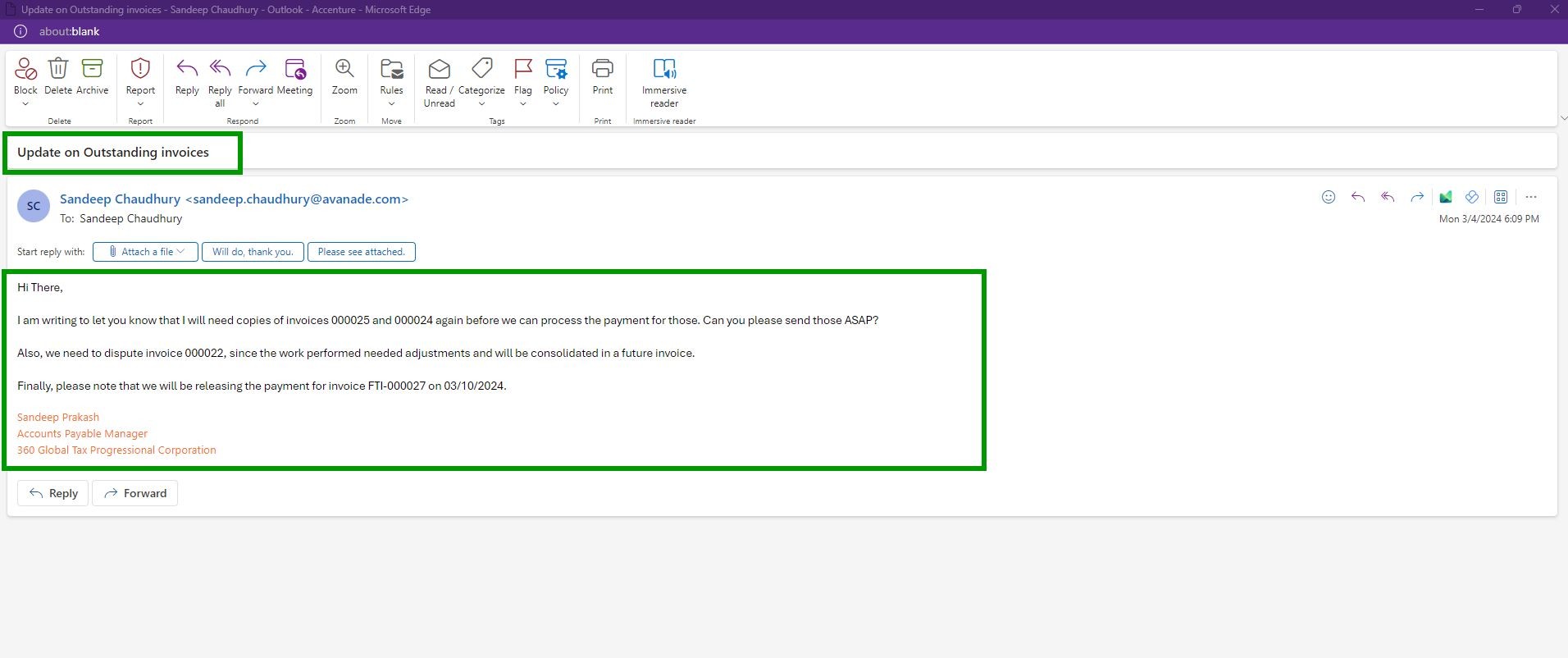
    Example Scenario: “360 Global Tax Professional Corporation” is one of the Premium customers of “Contoso Consulting USA” and they collaborate frequently with the Accounts receivable and Finance team at Contoso Consulting to query on outstanding invoices which includes things such as requesting copies of invoices, requesting disputing of invoices or even exchanges and notes and activities on existing invoices. Sandeep Prakash, AP Manager at “360 Global Tax Professional Corporation” has questions on some outstanding invoices and also wants to request copies of 2 previous invoices. He also wants to update on 2 other invoices to his counterpart at Contoso Consulting.

    The Accounts Receivable team at Contoso Consulting receives an email from Sandeep Prakash at “360 Global Tax Professional Corporation“, which looks like below.

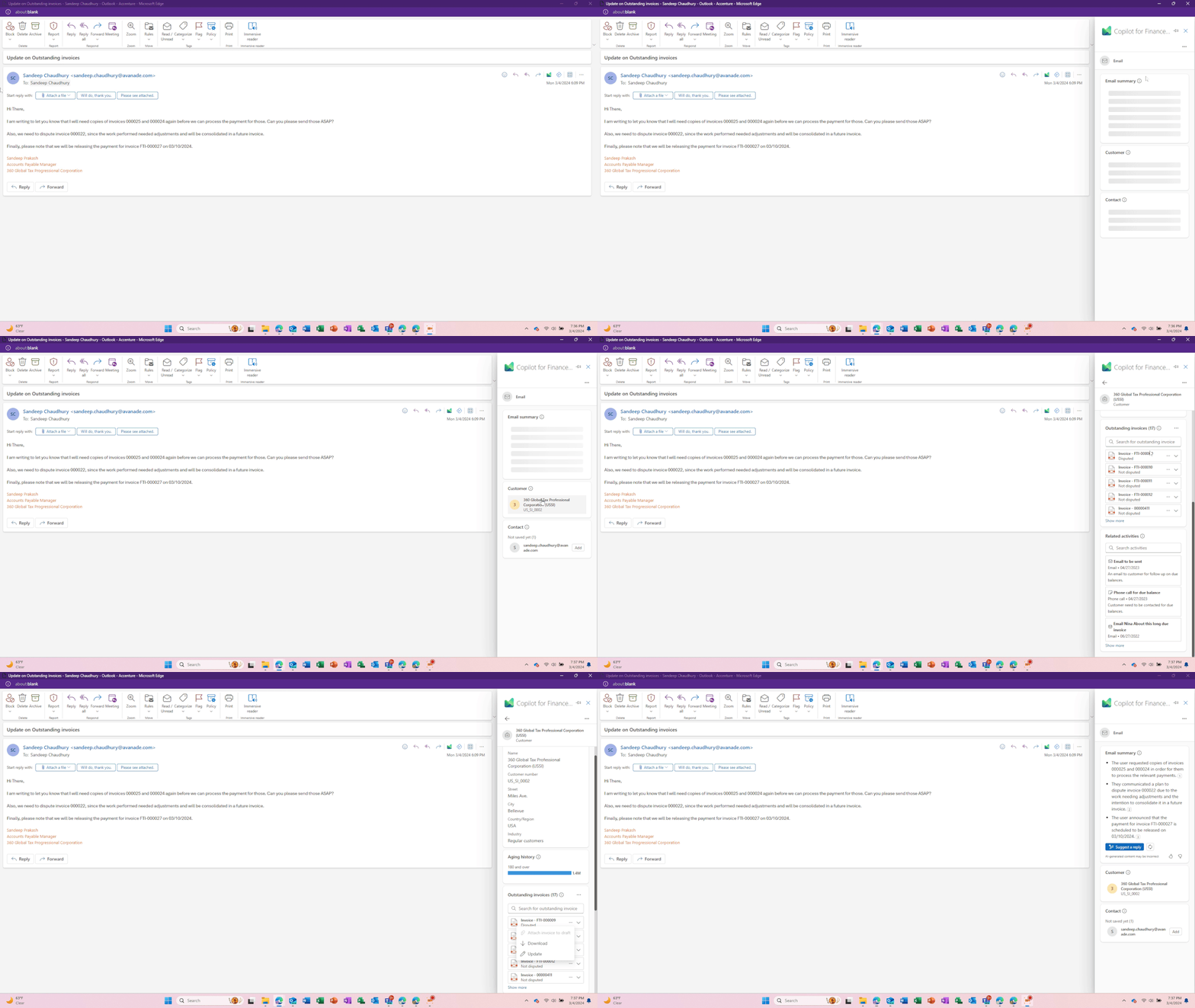
    The AR team at Contoso now has Copilot for Finance working for them. Right within the email they received, they can launch Copilot with one click and Copilot automatically does the following for them.

    1. Knows the who the customer is based on the email received.
    2. Copilot summarizes the email received and highlights the key asks and action items needed, so that AR team does not have to spend time reading the emails.
    3. Copilot also automatically pulls data in real time from Contoso’s ERP/Finance system, which is Dynamics365 Finance and shows outstanding invoices, invoice attachments/copies and also pulls the collection related notes and activities related for the customer.
    4. Copilot also detects that the Contact is not yet saved in the Dynamics 365 Finance and prompts to Add them to ERP directly from Outlook.

    Image below shows the above.

    Without Copilot, the AR would have spent anywhere between 20 to 30 minutes doing all the 4 steps that Copilot did for them with just click of a button within Outlook and allowed them to stay in the flow of their work. That is some significant productivity gain for the team.

    Next, let’s see how Copilot takes this automation further. In this scenario, the AR team at Contoso need to do the following.

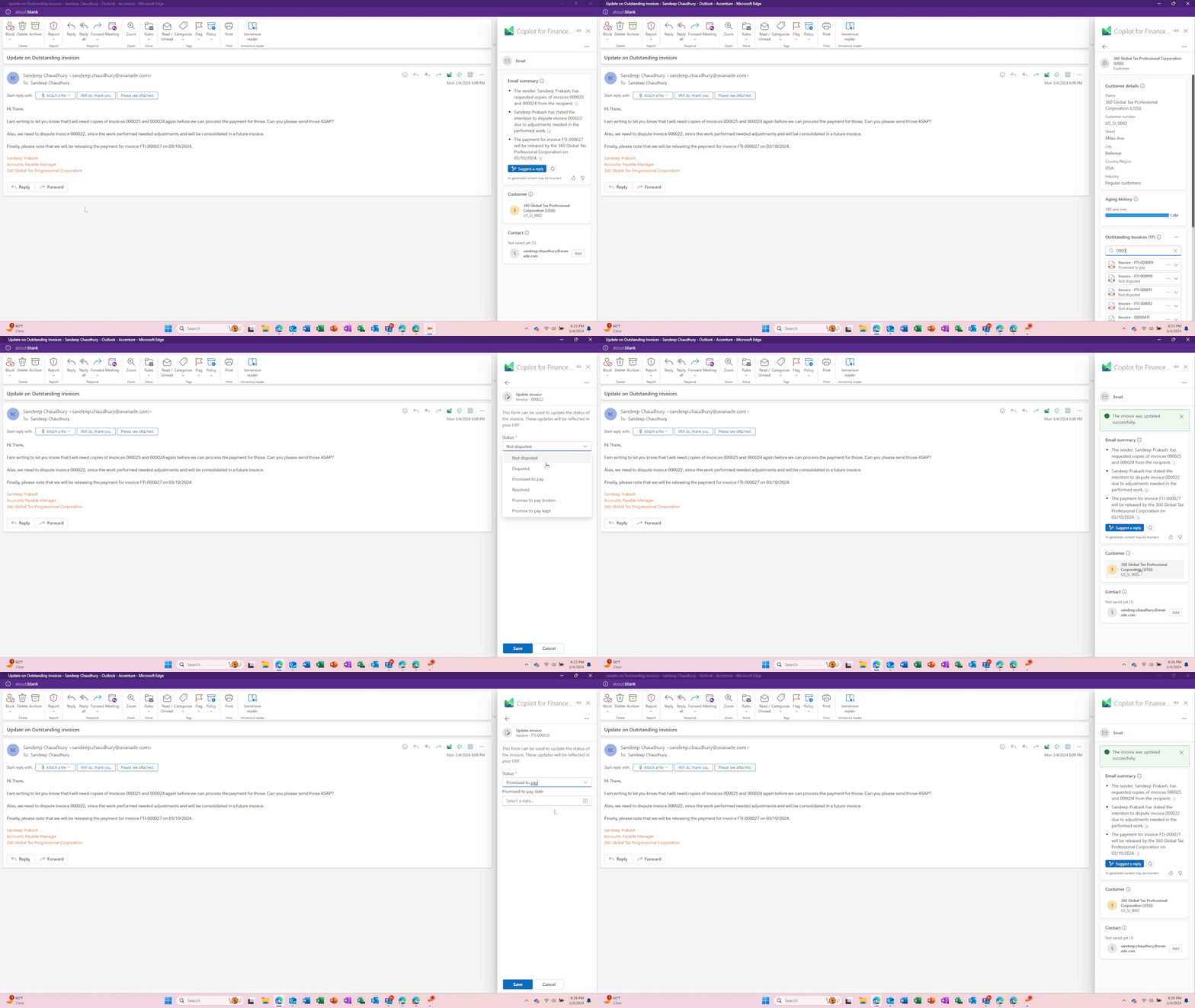
    • Dispute the invoice# 000022.
    • Update the status of invoice FTI-000027 indicating that the customer will pay it on 3/10/2024.
    • Draft an email back to the customer to provide them an update.
    • Finally, they will also need to send copies of invoices 000025 and 000024 that the customer has requested.

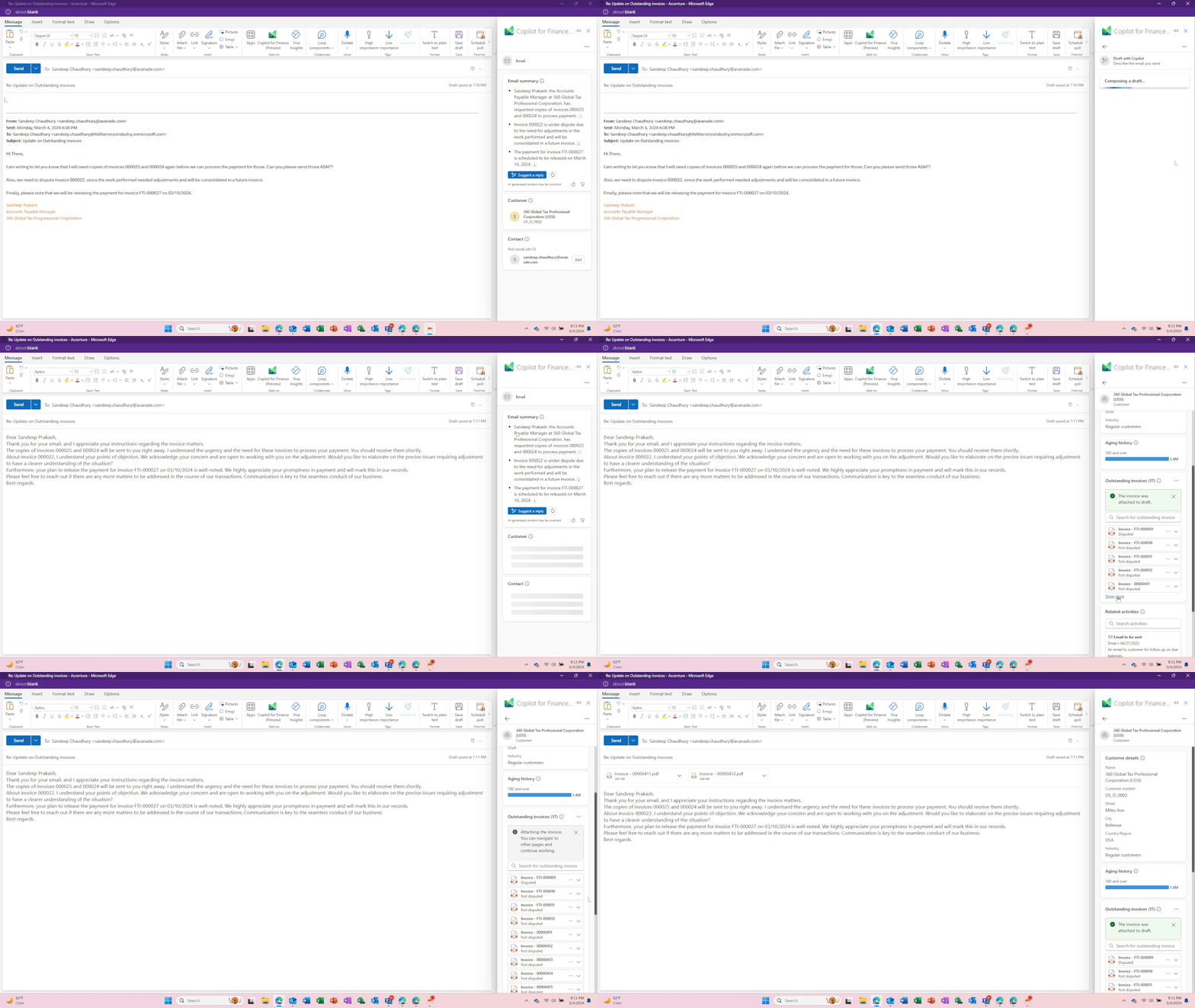
    With the help of Generative AI capabilities, Copilot detects the context of the conversation and suggests a fully composed draft email that the AR team can just review and send. The AR team just clicks Suggest a reply and asks to draft a response to the customer. They also attach the 2 invoices the customer requested within the Copilot experience without having to go into the ERP and when done, they send the email out.

    Images below shows the steps above.

    Without Copilot, the AR team would have spent at least another 20 to 30 minutes to do all the actions listed above in breaking their flow of work by moving out of Outlook, login to D365 Finance ERP, perform all the actions manually and come back and draft the email manually.

    What we just witnessed is Copilot (AI) not just saving time for your AR/Finance team members, but also making them dramatically efficient in their day at work, so that they can contribute to other import tasks for the organization. Copilot not only helps improve the experience of the users of Dynamics 365 Finance, but also helps improve end customer satisfaction, since your finance team is now able to respond time to queries from customers faster with better accuracy with the help of Copilot.

    I can’t wait to explore more on this and also try the Copilot for Finance in Microsoft Excel!!

    Best,

    Sandeep Chaudhury
  • Does your organization have the right business technology to thrive in the subscription economy? See how Dynamics 365 Finance can help.

    Does your organization have the right business technology to thrive in the subscription economy? See how Dynamics 365 Finance can help.

    In the mobile first cloud first era, B2B and B2C businesses of all sizes are continuously introducing innovative subscription based products and service offerings and are finding new ways to generate recurring revenue to stay relevant in the business. The end goal is get customers subscribed to their services, keep innovating at scale to retain customers and create more predictable revenue streams for their business.

    The subscription model of generating revenue is great for organizations for predictable revenue and cash flow, but it also introduces new challenges for them to keep up with the complex billing and revenue recognition requirements. Organizations are challenged to create unique pricing models and easy & affordable bundling of their subscription offerings for faster customer adoption. This certainly requires them to have sophisticated business technology to manage the complex pricing(flat, tiered, flat tiered etc.), billing, revenue recognition and renewal needs. And of course, they have to stay complaint with the ever evolving regulation requirements around revenue allocations down to item level(specifically comply with ASC 606 and IFRS 15) and also manage revenue expense deferrals to align with US GAAP.

    Here is an example. Company A sells their cloud based software apps and hardware in variety of bundled subscriptions. The pricing model of these bundled offerings can be complex with tiered pricing requirements, based on what the customer subscribes to. For the customer, it is just a convenient subscription for which they pay a fixed fee either upfront annually, or pay them quarterly or monthly and they continue to take advantage of all the innovation Company A does in it’s software and hardware and stay up to date. However, Company A as an organization internally has to have the right business technology/application in order to manage the complex tiered pricing for the bundled contracts and be able to to bill accurately. They also have to allocate revenues to multiple revenue streams and manage the financial obligations and performances.

    The Good news: Dynamics 365 Finance now has the Subscription billing and revenue management capabilities built in the base offerings as part of the Dynamics 365 Finance SKU/license. You no longer need to look for ISVs solutions or external 3rd party apps to manage your subscription business. This new module and the features under it are designed specifically to tackle the billing and revenue management complexities of any subscription business and helps you shorten the quote to cash cycle. It also comes prebuilt with analytics and insights that can help your business leaders to make informed decisions.

    Subscription Management Workspace

    Important Note: Microsoft introduced a standalone Revenue Recognition module back in 2020. The new Subscription management module is much more comprehensive, more capable and it does override the capabilities of the earlier Revenue recognition module. So you will first need to turn OFF the Revenue recognition module in the application before you can enable the new subscription management capabilities.

    The 3 main features of the new Subscription management module are as follows.

    Recurring Contract Billing: This is the heart of the module. This is where you define the structure of the contract and establish key billing parameters such as the customer account, terms, the line items, dates, terms, pricing, item billing type, billing frequency, schedule, requirements for deferrals, renewals , terminations and more. This part of the module lets you create billing schedules for contracts with customers and automate complex pricing and billing processes. It also let’s you produce consolidated invoices for customers with multiple items under their contracts.

    After you have setup the billing schedules, you can view the automatically created billing schedule and associated details at any time. You can setup advanced pricing options, manage escalations and discounts and deferral requirements, putting contract lines on hold and terminations.

    You can preview invoices by individual lines, or consolidated by item or period prior to creating them and you can also chose what type of transaction to use to create the invoice(Such as Sales order Vs a free text invoice) and you can also chose whether you want to create the invoice lines for additional review or directly post them.

    Revenue Allocation: This part of the module has the functionalities that allows your finance team automate pricing and revenue allocations across multiple items. This also helps organizations that have specifically have to comply with ASC 606 and IFRS 15 standards. This functionality also lets you setup multi element revenue arrangement on contracts and manage those on the billing schedules. We will discuss this topic is greater details in future posts.

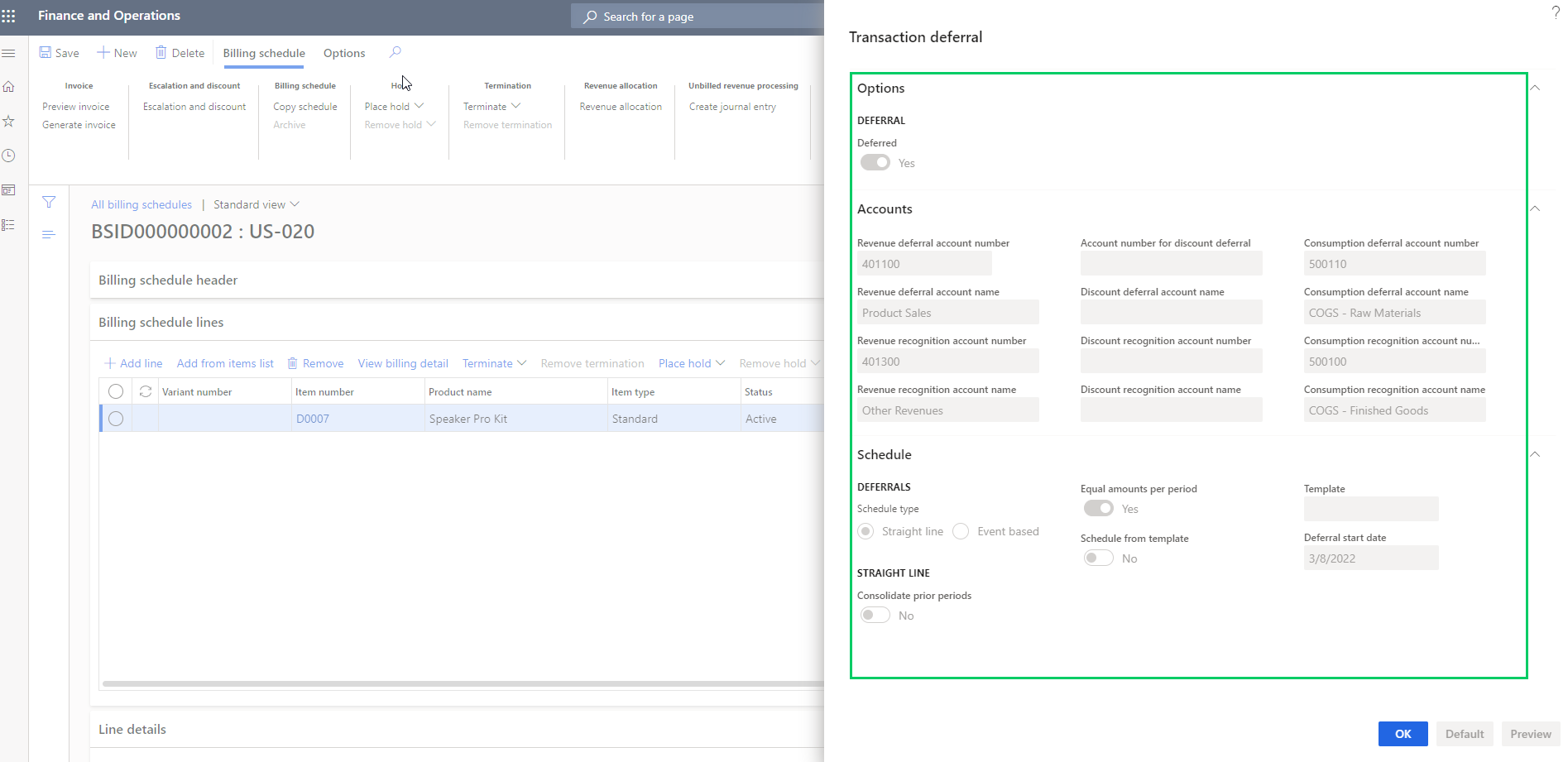
    Revenue and Expense deferrals: This functionality allows organizations to manage revenue and expense deferrals to stay compliant with US GAAP standards. In the ever evolving regulations in the subscription economy, this functionality will help your finance teams to use less manual spreadsheets and allows them to manage those directly in the system. You can setup the system to automate the deferrals on variety of source transactions such as Sales orders, purchase orders, general journals, FTI and manual invoice journals. You can chose deferral schedule types such as “Straight line or Event based” on your contract/billing schedule lines and also setup advanced deferral parameters on how you want to manage deferrals of discounts associated with revenues and expenses.

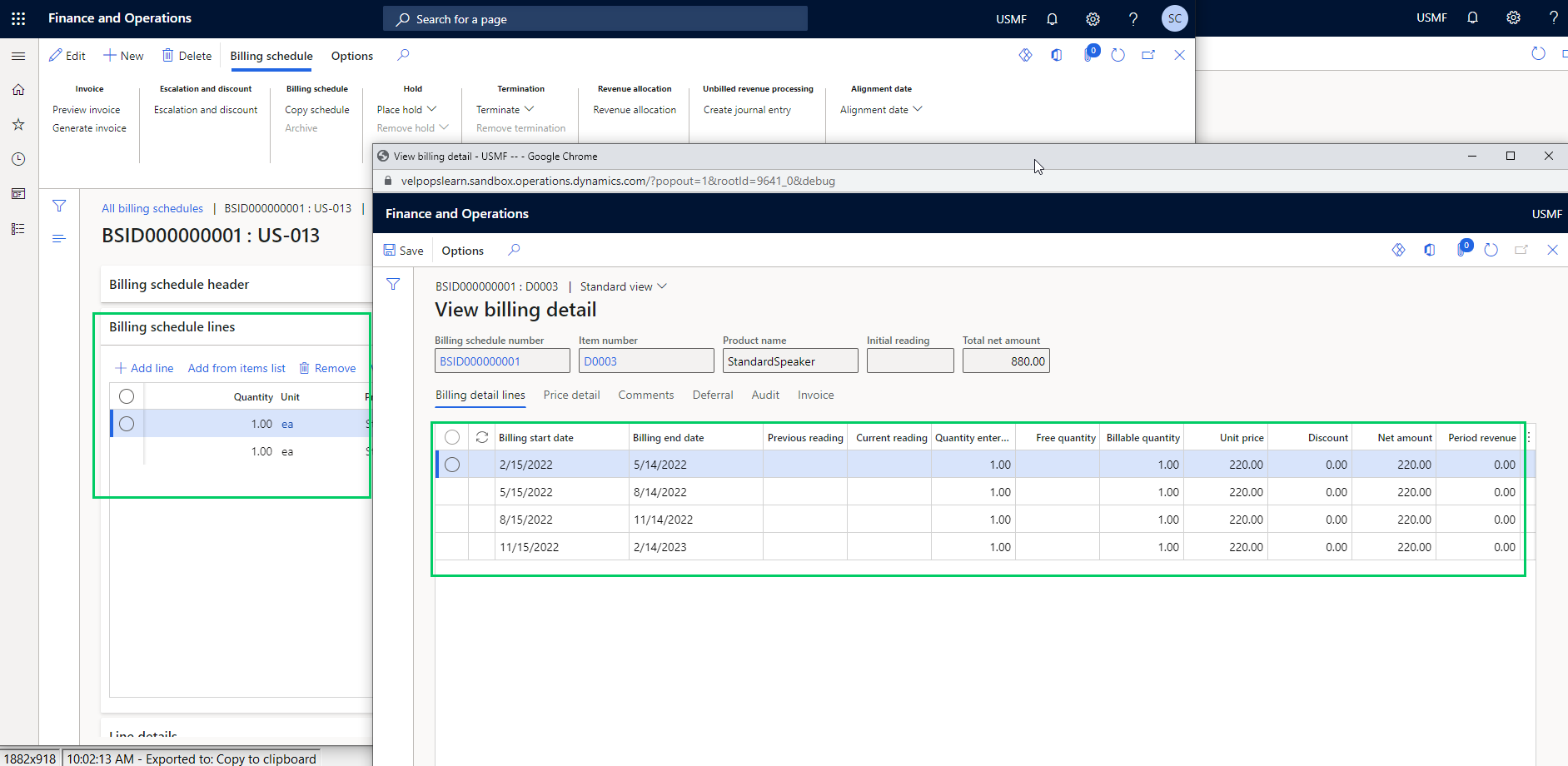
    When you generate the invoices for the billing schedules, the system will automatically create your deferral schedules . You can view the details of the invoice associated with the deferral schedule.

    You can manage deferrals from there on easily.

    That’s it for this post. I just wanted to highlight some of the key capabilities of the new Subscription Billing module in Dynamics 365 Finance and how it can help manage your complex subscription billing and revenue requirements. We will get into details of each of these functionalities, the setups and processes involved in upcoming posts.

    Till then, keep reading.

  • Workflow work item approvals in D365 F&O using Microsoft Power Automate/Flow

    Workflow work item approvals in D365 F&O using Microsoft Power Automate/Flow

    Possibilities of business processes automation and extension is limitless when you use Microsoft power platform. Use PowerApps to extend user interfaces and functionality of your CRM or ERP apps, use power automate to automate business process actions or use AI builder and RPA to reduce manual labor intensive work for your employees. Dynamics 365 and Power platform together provides the most comprehensive business applications and automation, analytics platform in the market today.

    One simple example use case is exposing workflow work items that originate in Dynamics 365 F&O for various business documents such as purchase orders, vendor invoices, budgets, timesheets and expense reports to Microsoft Power automate and then build the required automation flow to take advantage of the Microsoft flow Approvals solution. This gives your employees the flexibility of taking action on critical business documents quicker within Microsoft Teams, or within the Teams app when they are on the go.

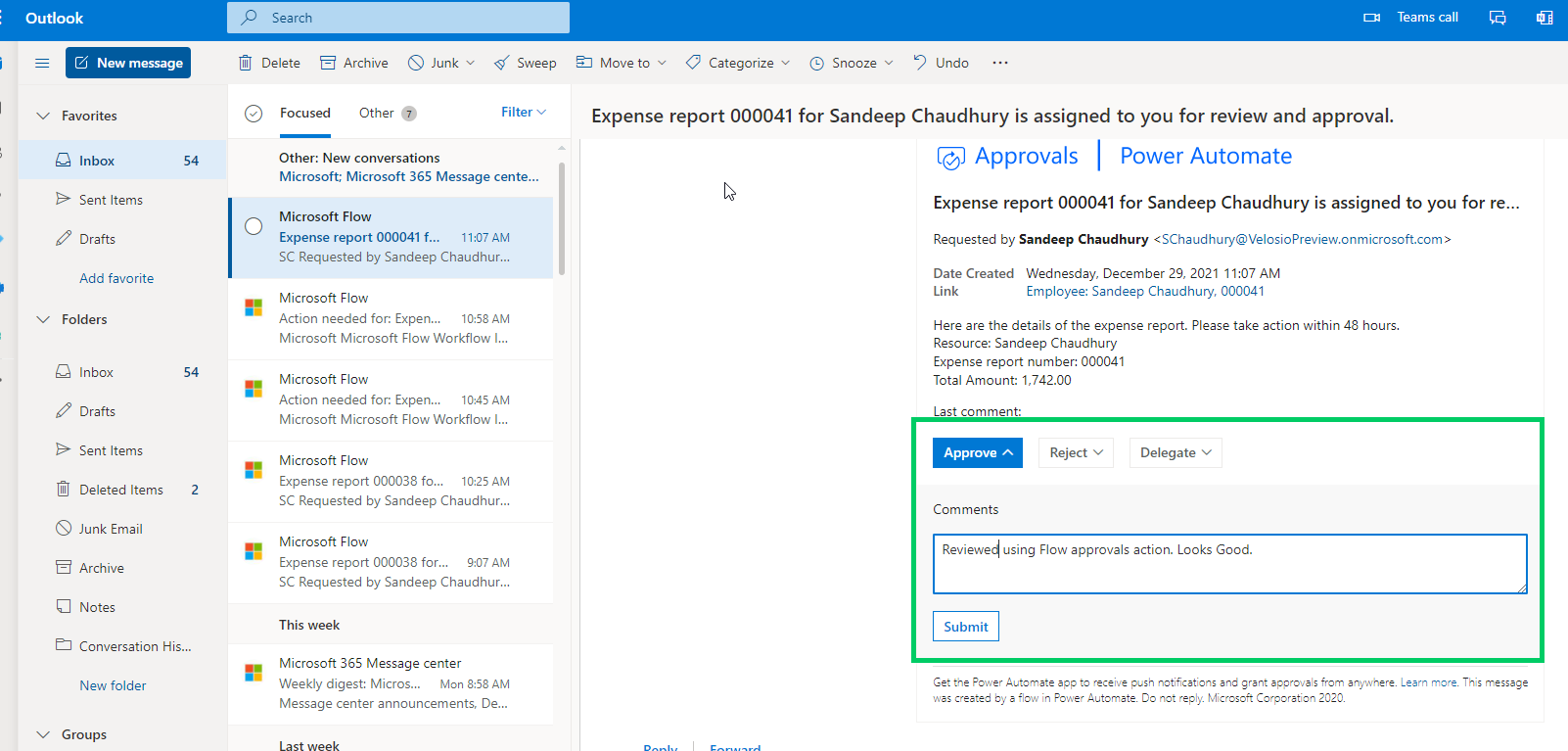
    I have a very simple flow in place, which is subscribed to the expense report approval business event in Dynamics 365 F&O. Every time an expense report is submitted in F&O and it is ready for the reviewer to take action, the flow will extract the required information from the expense report approval work item using the JSON schema of the business event and then sends an approval action within Microsoft Teams to the approver of the expense report. After the approver takes action on the work item within Teams or on their phone, the work item is completed in real time back in Dynamics 365 F&O.

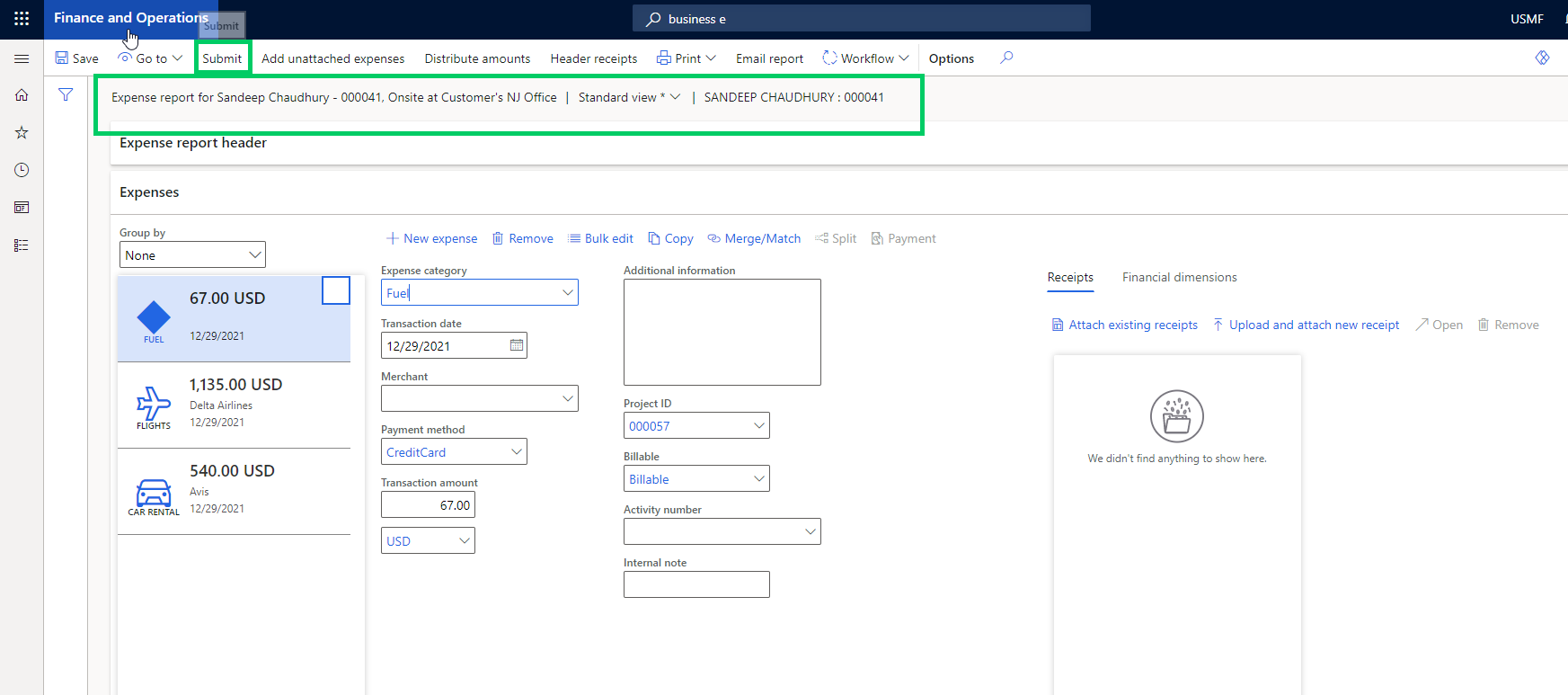
    With this flow actively running, let’s submit an expense report in D365 F&O. The expense report number in this case is 000041.

    As soon as the report is processed in the workflow engine of F&O and it gets assigned to the reviewer/approver, the business event is going to notify our Flow. The flow then runs and sends an approval notice to the approval using Flow approvals action.

    The approver then gets notified via email as well as in Microsoft Teams regarding the expense report submitted for their review.

    Nevertheless, if the approver is using either Power automate or Teams mobile app, they get notified within those apps as well.

    The approver can then take the required action (Approve, Reject, Delegate etc.). Let’s assume they approve the expense report in this case.

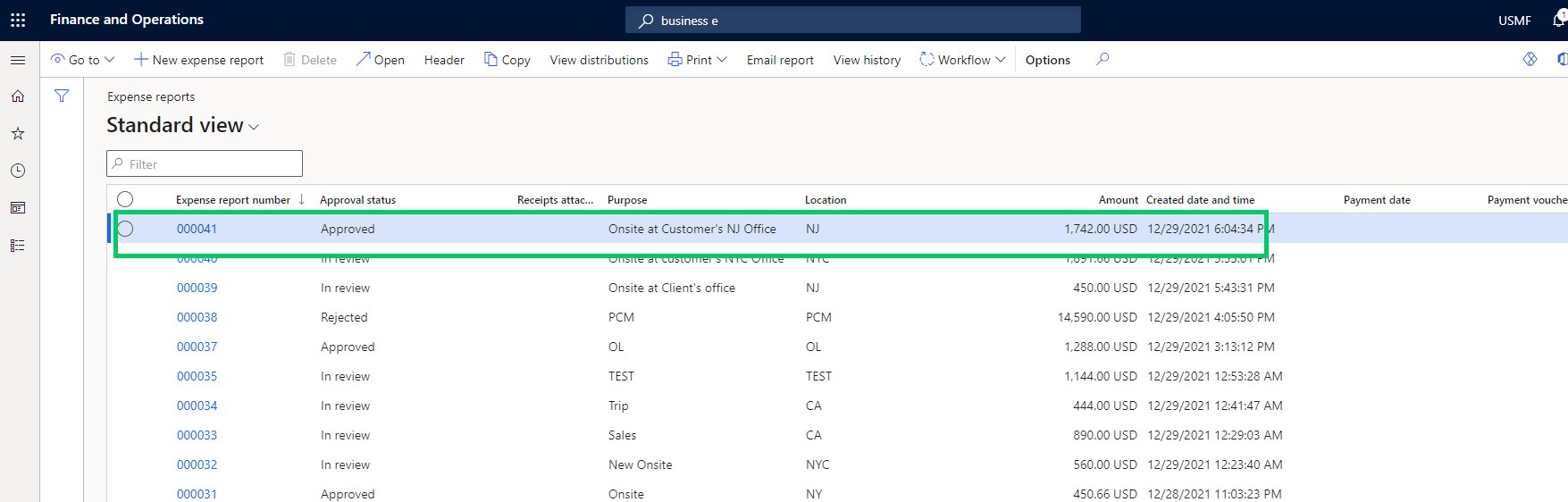
    Now if we go back to Dynamics 365 F&O and check the expense report status, it should be Approved. We can also view the history to validate that this was approved using Microsoft flow.

    That was just a very simple demonstration of what is possible . You can apply this to your situation and make more complex business process automation and extensions.

    Till next time!!!

  • Dynamics 365 Finance & SCM Tip: Setup an alternate email ID for workflow notifications for your users

    Dynamics 365 Finance & SCM Tip: Setup an alternate email ID for workflow notifications for your users

    There is a new feature under the Feature management area that you can enable to setup an email ID for your users dedicated for workflow related notifications in D365 Finance and Supply Chain.

    When you enable this new feature, you will see a new field named “Alternate email” on the User Options page under the Workflow tab. When you specify an email ID here for the user, all their workflow related notifications will be sent to this email ID.

    If you leave this field blank, the workflow emails will be sent to the email ID setup under the sender email field.

    How will this feature help you?: Let’s say you have setup D365 Finance to send Payment advices to vendors for ACH payments and users in the Accounts Payable team would like these payment advices to be sent from the Accounts Payable email alias, instead of their specific email ID. These users in the AP team also receive workflow notifications for various workflow that they are a part of. For a situation like this, you can set the “Sender email” to be the Accounts Payable email alias and setup their user email ID under the Alternate email data field.

  • Dynamics 365 Finance Tip: Did you know you can now apply cash advances to individual expense report lines?

    Dynamics 365 Finance Tip: Did you know you can now apply cash advances to individual expense report lines?

    Here is a quick tip on a new feature in the Expense Management module of Dynamics 365 Finance introduced in version 10.0.17.

    If you give cash advances to your employees for expenses they might incur(Office or travel related expenses), they now have better control over applying specific cash advances(s) against each line of their expense reports.

    Before the 10.0.17 release, cash advance application/reconciliation was automatically controlled by the system and the balance was tracked behind the scenes. This worked, but was lacking control and traceability/troubleshooting as such.

    With this new feature, employees can submit cash advance requests using the Cash advance feature. Once the request is approved and paid, they become available for application/reconciliation against specific expense report lines.

    When you go to enter your expense report, you will see the option to select one or more cash advances against the expense repot line. The system will automatically bring in unapplied cash advances on the screen.

    Till the next one..

  • Azure Data Lake(Gen2) integration with Dynamics 365 for Finance and Operations

    Azure Data Lake(Gen2) integration with Dynamics 365 for Finance and Operations

    Business Intelligence and Reporting has evolved in Dynamics 365 Finance and Operations since it’s launch. Entity store is the default relational database for dynamics 365 for finance and operations containing several aggregate measures and customers rely on it for near real time dashboarding on data from the Production database of D365 F&O. Entity store DB is included in the D365 F&O subscription and Microsoft ships quite a few embedded Power BI content packs that does direct query into the entity store to produce stunning dashboards and reports across various modules.

    It is also possible to make the entity store available in Azure Data Lake (Gen2). This gives flexibility for customers to have the aggregate measures of entity store directly in their Azure data lake and allows them to do reporting and dashboarding by mashing up data from external sources also.

    Another popular option used by many customers is BYOD. Customers can export out of the standard data entities and custom data entities and export them in a predefined schedule to their own Azure SQL DB and then use Power BI or other tools to create reports and dashboards and mash-up the data with external systems data as well if needed. While BYOD offers a good solution for reporting and dashboarding by mashing up data from systems other than just D365, F&O, it comes with it’s own limitations and often requires you to manage and maintain the recurring data exports. The Azure SQL storage is also comes at a cost, depending on what volume of data you want to export and store.

    With the version 10.0.12 launch, Microsoft is now making it possible to replicate you D365 F&O production data into Azure Data Lake (Gen2) storage. This new feature and framework allows you chose the data tables and entities you want to export and will keep the F&O data up to date in Azure Data Lake in almost real time.

    After you setup your Azure data lake storage account, application ID and authorization for D365 F&O to access the storage account you will first need to install the add-in within Lifecycle services(LCS). Then you can enable the new feature within the feature management area of D365 F&O and perform the remainder of the setup.

    Why you should plan the transition to Azure Data Lake: In my view, customers who are invested in BYOD or the analytical workspaces of D365 F&O entity store today should look at taking advantage of Azure Data Lake and should plan the transition for the following reasons.

    1. BYOD requires continuous monitoring and troubleshooting. ADL maintains the data automatically and is always up to date with no intervention needed.
    2. You don’t need to create data entities to expose data in any table that you want. You can literally expose all data tables and fields with ADL integration.
    3. Azure SQL data storage is comparatively expensive than ADL.
    4. ADL cloud storage is more efficient, better for analytics and provides additional capabilities such as AI, and additional programming to transform large volume of data.
    5. Data lakes in Azure are designed for big data and analytics and are capable of handeling big amount of data with less cost. It takes advantage of Azure blob storage behind the scenes.
    6. Data lakes not only allows you to do analytics on the data using Power BI, but also it allows you do additional things like apply machine learning, AI on the data to learn and take meaning and action out of your big data.

    That’s it for today’s post.

  • Useful new features under Project accounting module of Dynamics 365 Finance that you must checkout

    Useful new features under Project accounting module of Dynamics 365 Finance that you must checkout

    Hope everyone out there is keeping safe and healthy. We are living in unprecedented times and navigating this phase of the our lives certainly has been teaching us new thing every day!

    I finally took some time out from the schedule to review some of the new features under Project Accounting module in the most recent releases of Dynamics 365 Finance. These features range from version 10.0.9 through 10.0.12. Let’s get to the point and review the features.

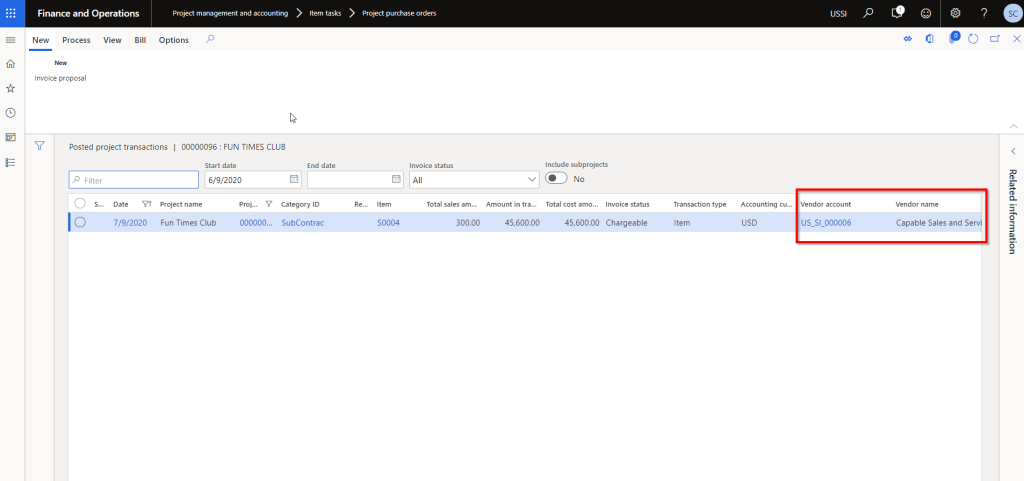
    Show Vendor ID and vendor name on the Posted projects list page:

    So this one is probably one of the most common asks I have heard from customers in all projects. Seeing the vendor name and account number certainly makes the life of the project accountants and billing analysts easier. We have been addressing this using a customization till now. These 2 additional data fields will make it easy for users to slice and dice project expenses by vendor and produce invoice supporting documents for customers when billing those expenses.

    When you enable this feature and post a vendor invoice to the project, you will see the Vendor ID and name on the posted transactions list page.

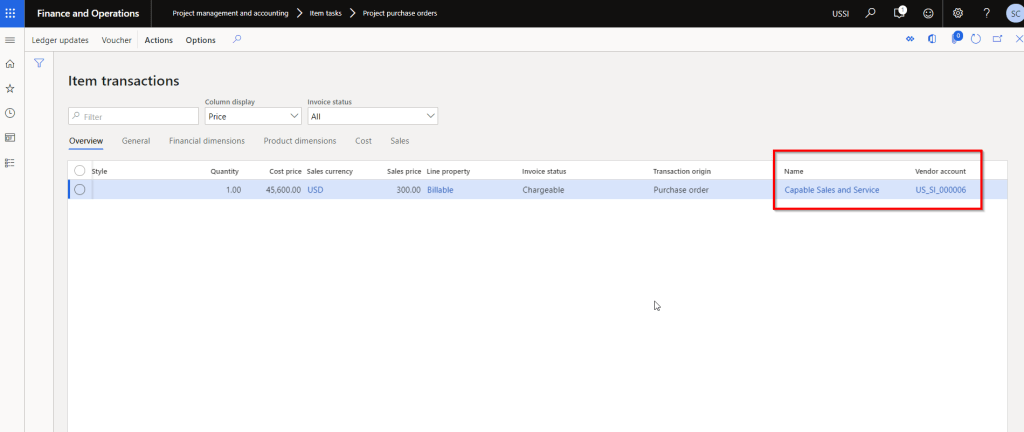
    You can also Personalize to the the Vendor ID and name fields to the Expense transactions inquiry page.

    Adjust accounting on a posted project transaction:

    This one is very interesting. Before this functionality, the only option to adjust accounting was to process a transaction adjustment. But that also required you to change data on the subledger transaction.

    With this new feature, accountign team will find it easier to adjust accoutning posting for posted transactions.

    It will basically reserve the original posting and recreate new ones.

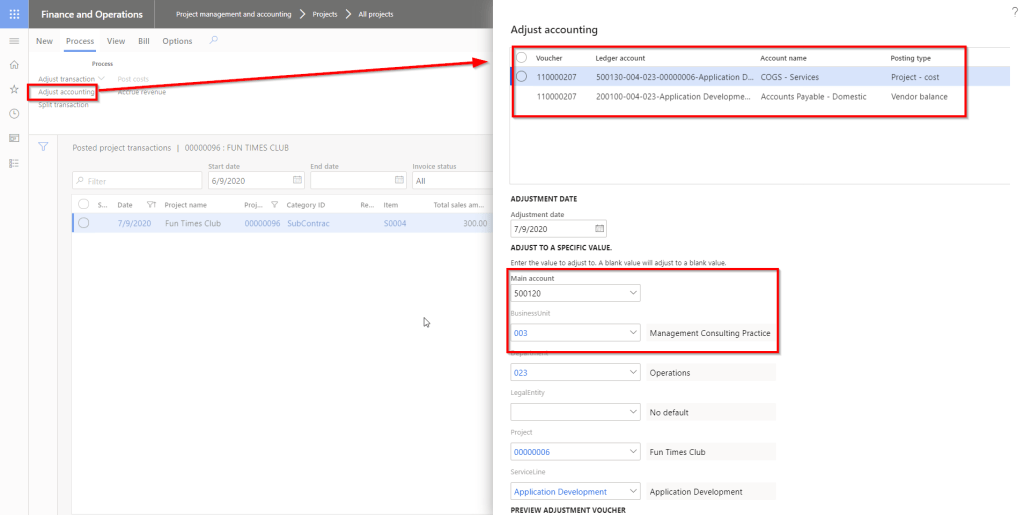
    For example, I have an expense transaction posted on one of my T&M projects. Let us say it posted to the wrong main account 500130 and wrong Business Unit dimension “004. I want it to post to 500120 and business unit 003.

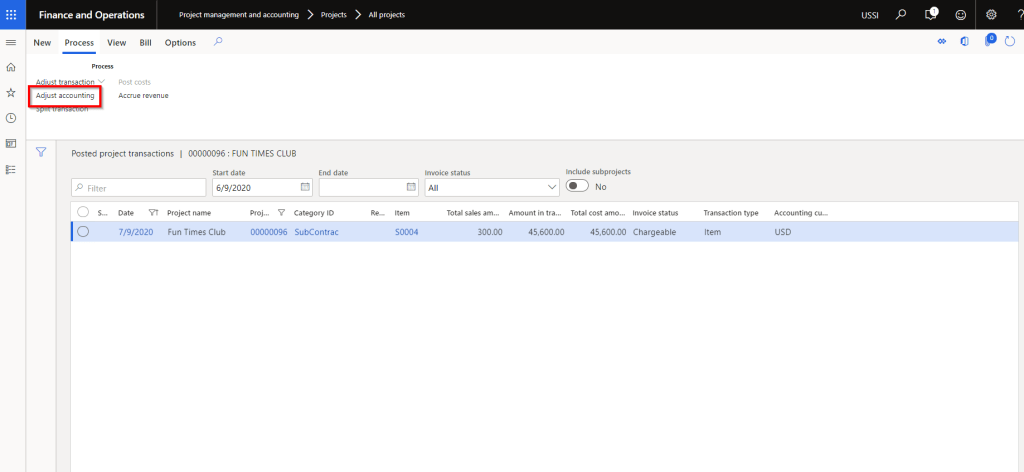
    Select the Posted project transaction and click Adjust accounting under Process tab.

    System will open up a dialog that will allow you to see the current accounting entry and will also let you select the new account and dimensions.

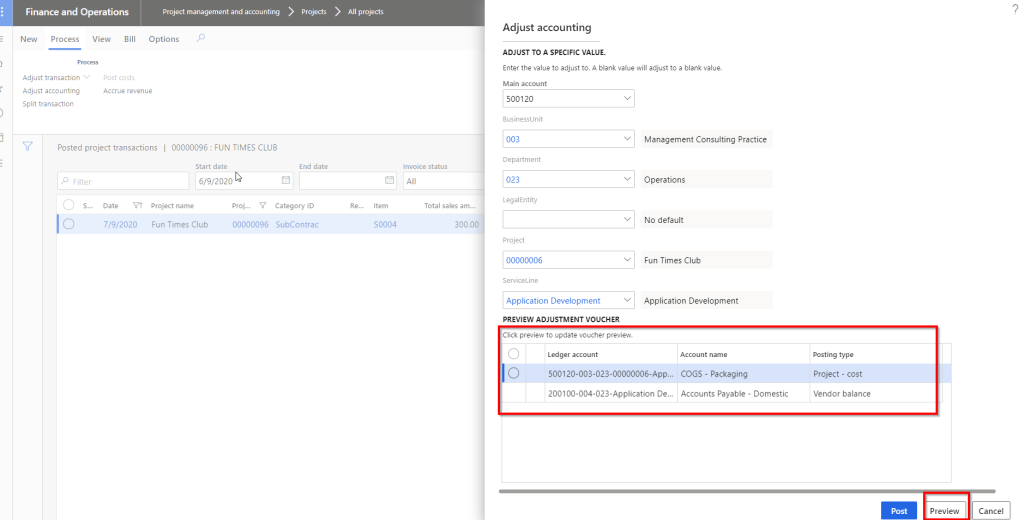
    You can also preview the new voucher to make sure everything is correct.

    When you post this adjustment, it will reverse the original voucher and create the new one. Pretty cool and damn good flexibility!!

    Note: I believe there might be a known issue here with the voucher, but when it is fixed, this feature is going to be extremely useful.

    Enable default accounting setup for project:

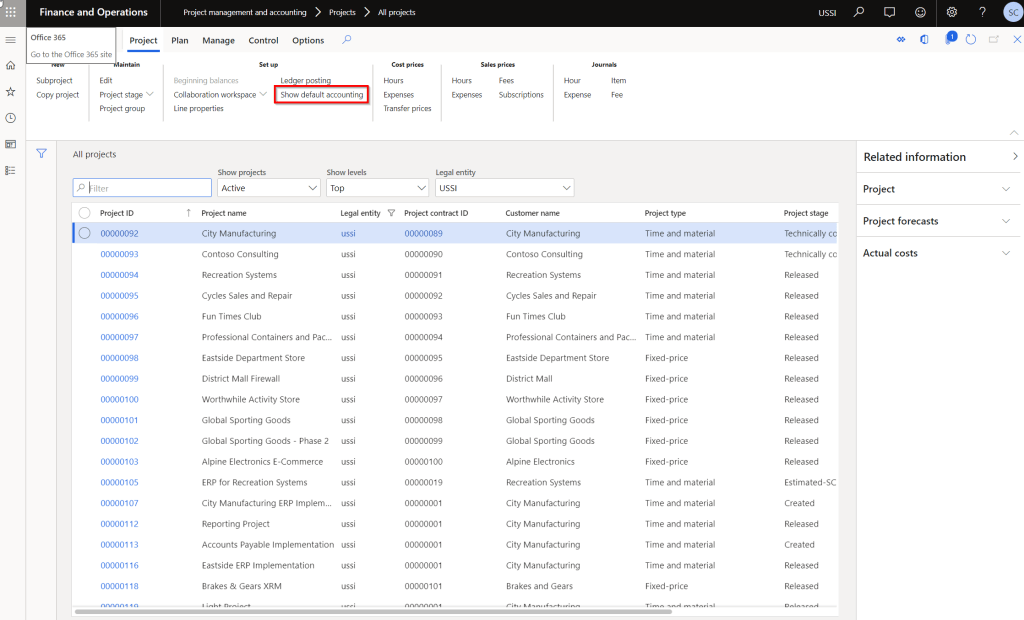
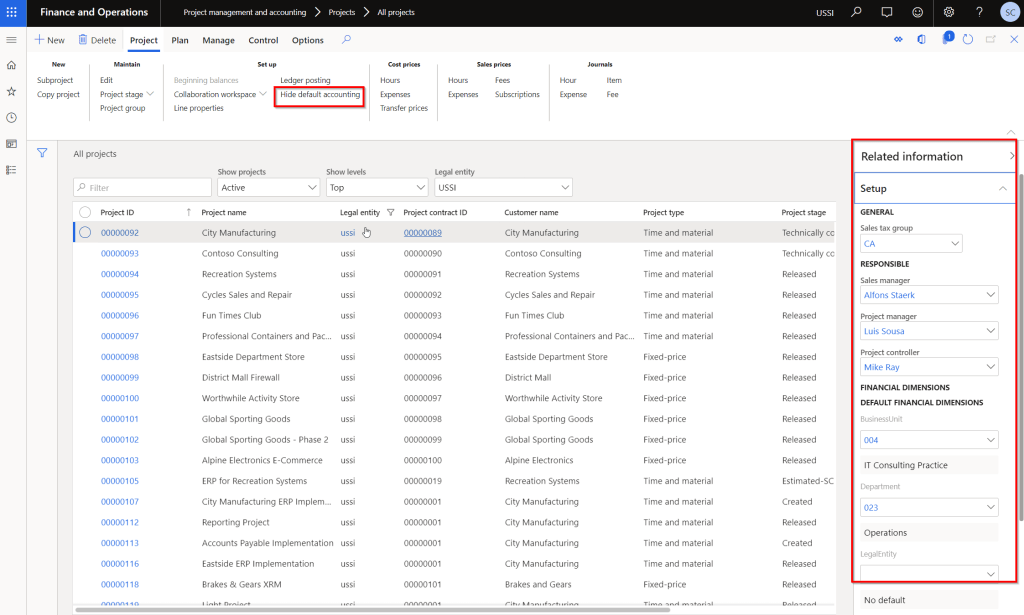
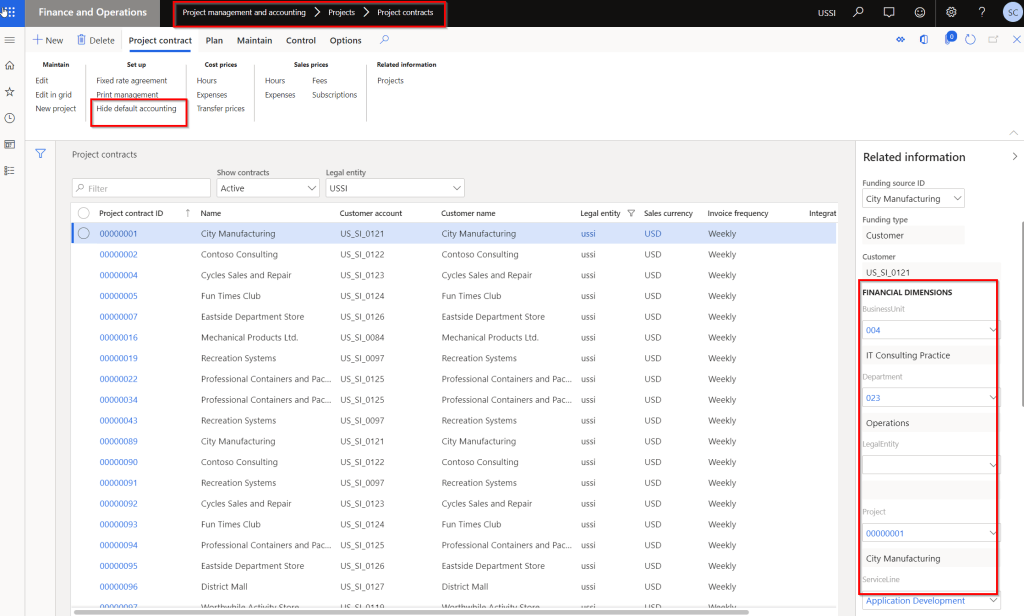
    This is again one of the most common asks from customers. We have actually customized the Projects and contract screen on many instances to view the financial dimensions and other associated data such as Project manager, Sales manager, Sales tax group and so on. With this new feature, you will see a new button named “Show default accounting” on the Projects and Project contracts list page.

    You can not only see the data, but you can edit then directly on the list pages under the fact boxes. Really neat!

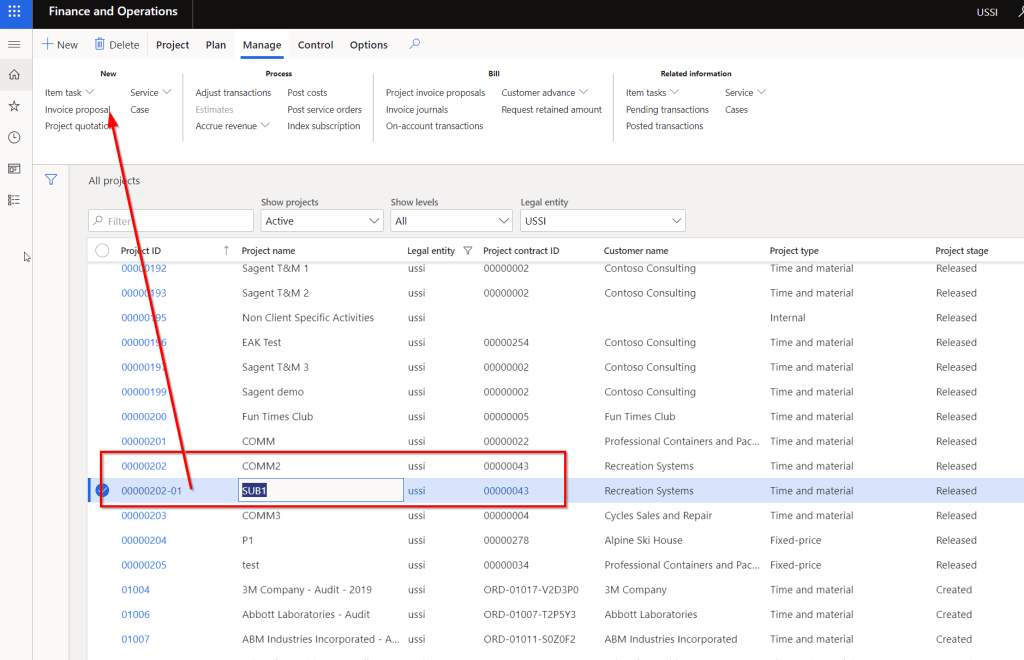
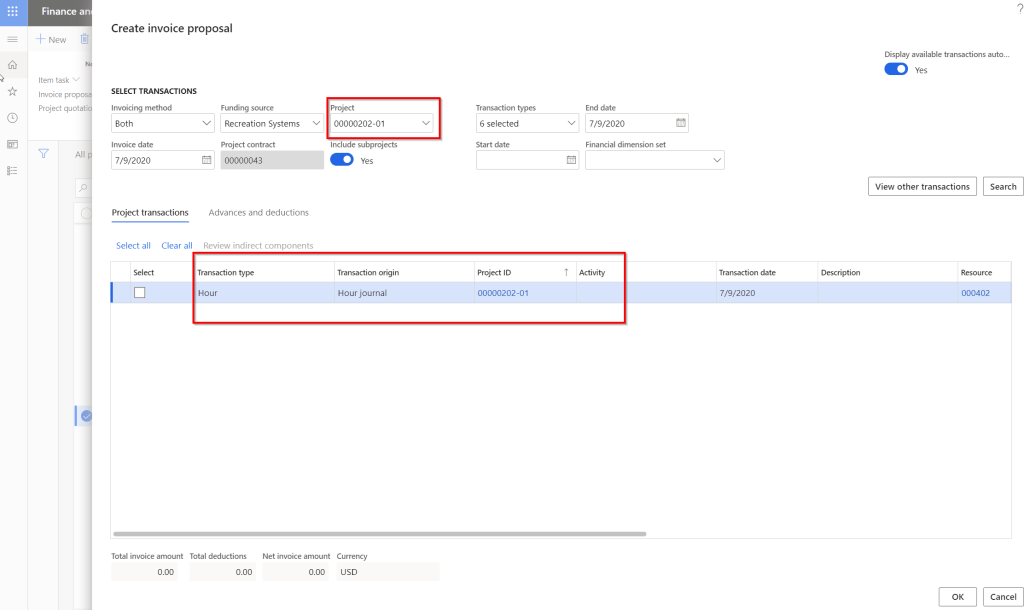
    Enable project invoice proposal creation specific to selected project:

    This one is small yet useful feature. Prior to this feature, when you have a Project setup heirarchy where there is a parent project and a bunch of sub projects underneath, then when you create the invoice for a sub project, system will always default to the parent project and try to create the invoice at the parent level.

    With this new feature enabled, you can create the invoices at each sub project levels directly.

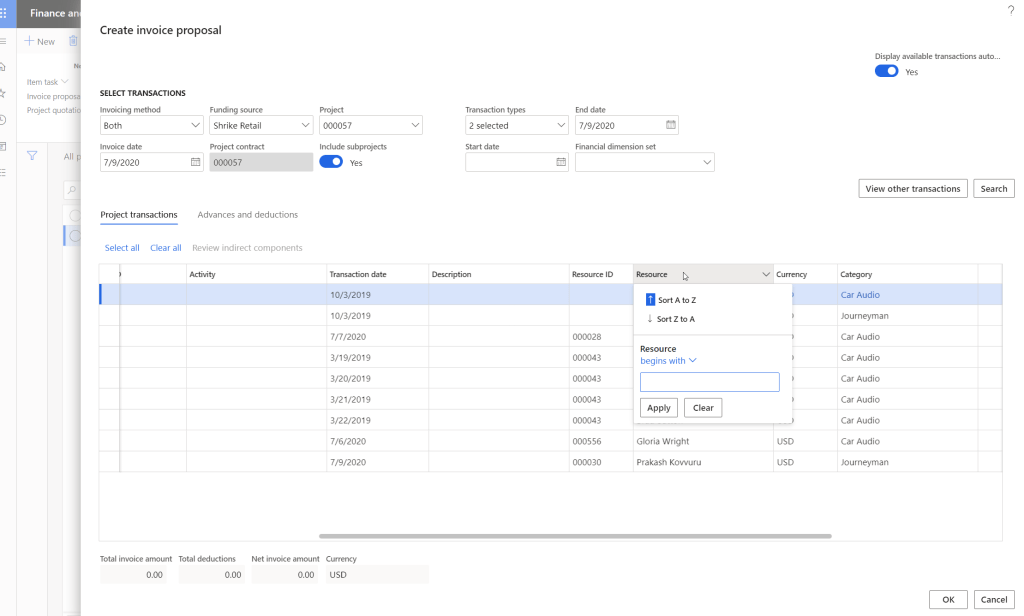
    Enable sorting by resource during project invoice proposal creation:

    When Billing analysts or finance managers create invoices for projects (Especially for Time and Material Projects), it is often desired to be able to sort the invoice line items by Resource, so that they can easily create the invoice. This is small usability enhancement, but has significant positive impact on the end users.

    Below screenshot shows the Resource column on the Create invoice proposal screen without this new feature.

    Below screenshot shows the Resource column on the Create invoice proposal screen with the new feature.

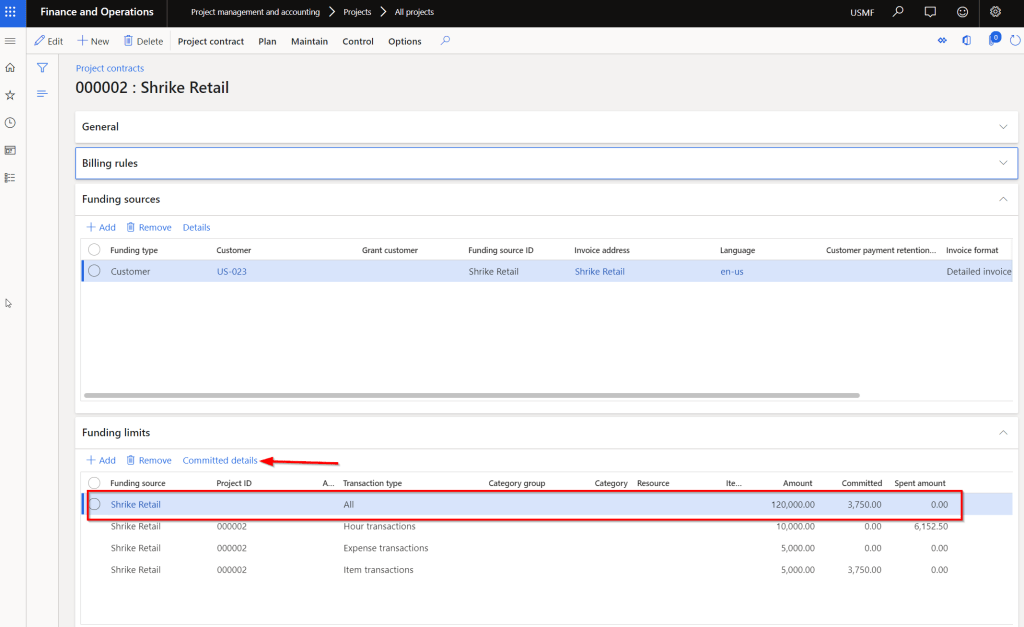
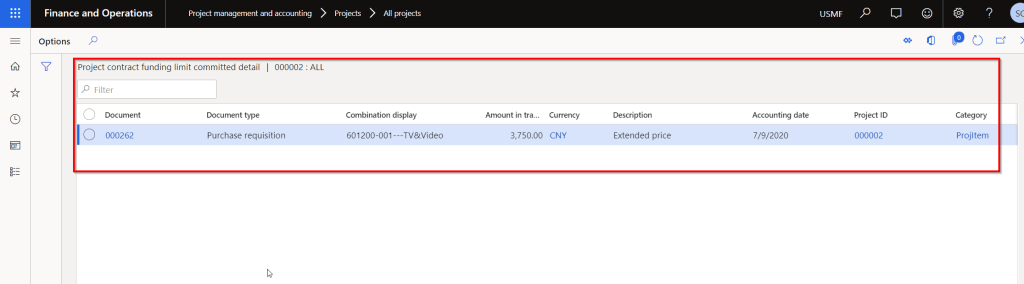
    Project contract committed amount detail:

    This has been released for a few months now, but I see a lot of value in this little feature. Under the Funding limit area of a project contract, there is no details available for any amount that is shown under the Committed or Spent amount columns. Being able to see the details under these will surely save significant amount of time for end users. I wish Microsoft will add the same functionality to see “Spent details” under the funding limits soon. (Candidate for an Idea in Ideas portal!!!)

    There are a few more new country/region specific features available. You might want to check those out if applicable to you.

    Till then….

  • Additional “Settlement” type transactions on Customer and Vendor transactions page in D365 Finance – Why do you see these and how to fix it?

    Additional “Settlement” type transactions on Customer and Vendor transactions page in D365 Finance – Why do you see these and how to fix it?

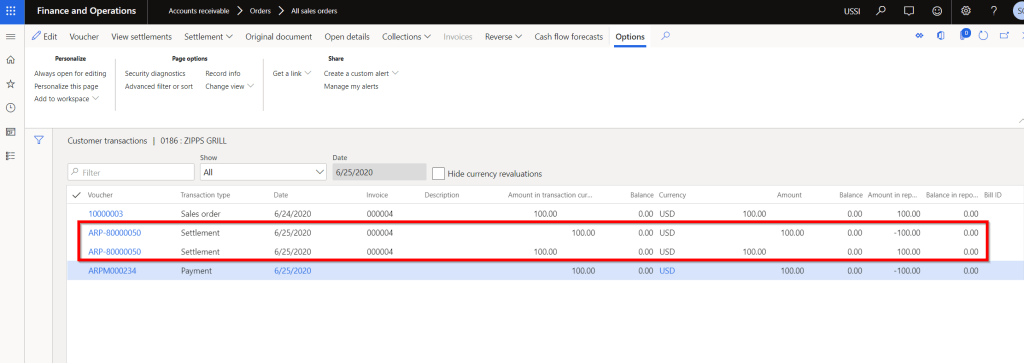
    Here is a quick tip for you all if you ever see additional transaction entries on the Customer or Vendor transaction page with Transaction type = Settlement offsetting each other, when you settle and post a customer payment for an invoice. These additional entries looks something like below.

    Let us understand why the system creates these additional transactions.

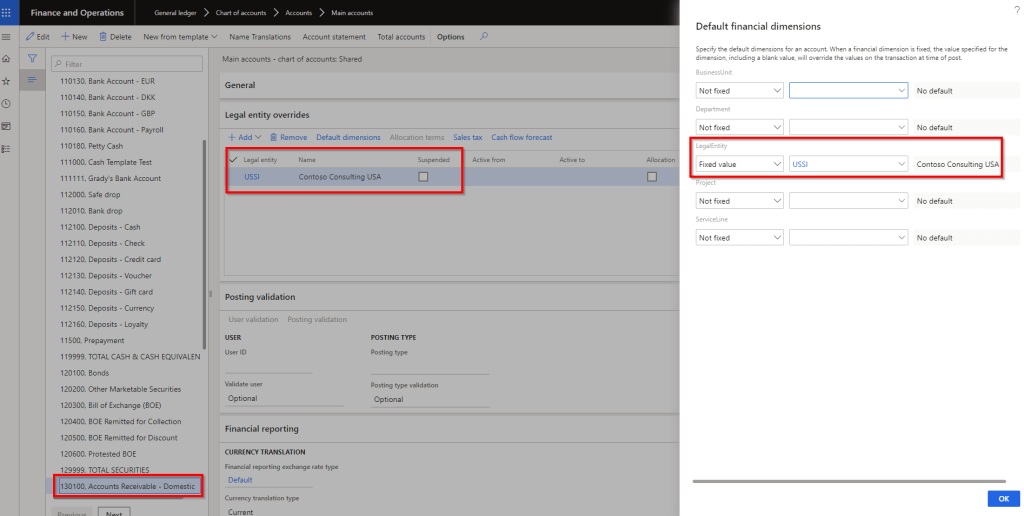
    I have seen in some cases, customers tend to set “Fixed value” for one or more of their financial dimensions, for the Trade AR or AP ledger accounts. They do this to zero-fill a dimension that is not required or in some cases they set it to a fixed value intentionally, for example if Legal entity is a financial dimension, they tend to set this to have a fixed value. Screenshot below shows an example.

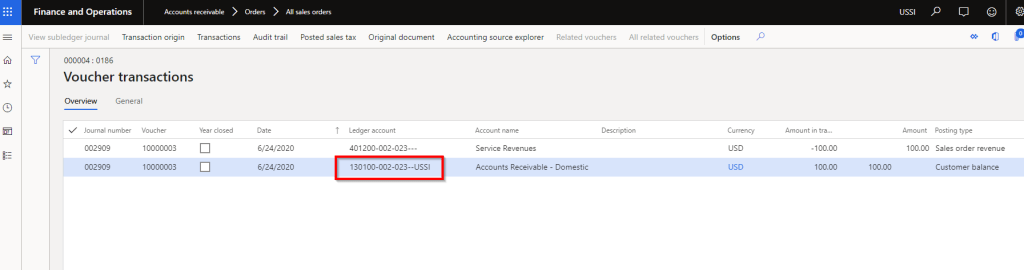
    With this configuration, when you post the customer invoice transaction, the Legal entity financial dimension uses the Fixed value “USSI” on the AR line of the invoice voucher. See screenshot below.

    When you go to settle and post the customer payment for this invoice, here is what the system will do. Since you are doing the cash application(Payment recording) and invoice settlement at the same time, the payment’s accounting entry is not created until the Settlement process is complete behind the scenes. Since the settlement happens first, it basically reconstructs the accounting entry of the payment. It finds the AR main account from the customer posting profile and dimensions are derived from the customer transaction (Payment journal). Since Legal entity is setup as Fixed value dimension and there is no source of this dimension when recording the payment, the system basically determines to create adjusting entries (Debit and credit the same account), since the invoice was posted with fixed legal entity dimension, but the reconstructed payment entry did not have any dimension due to fixed dimension setup(This part is a little technical :)) The settlement process creates this additional entry with the fixed dimension and does not roll back the accounting. This is a standard D365 F behavior.

    So, how do you setup the system so that it does not create those 2 additional settlement type entries? There 3 options.

    1. You can setup the dimension which is setup for Fixed value on the Customer record. In many cases this may not be well suited.
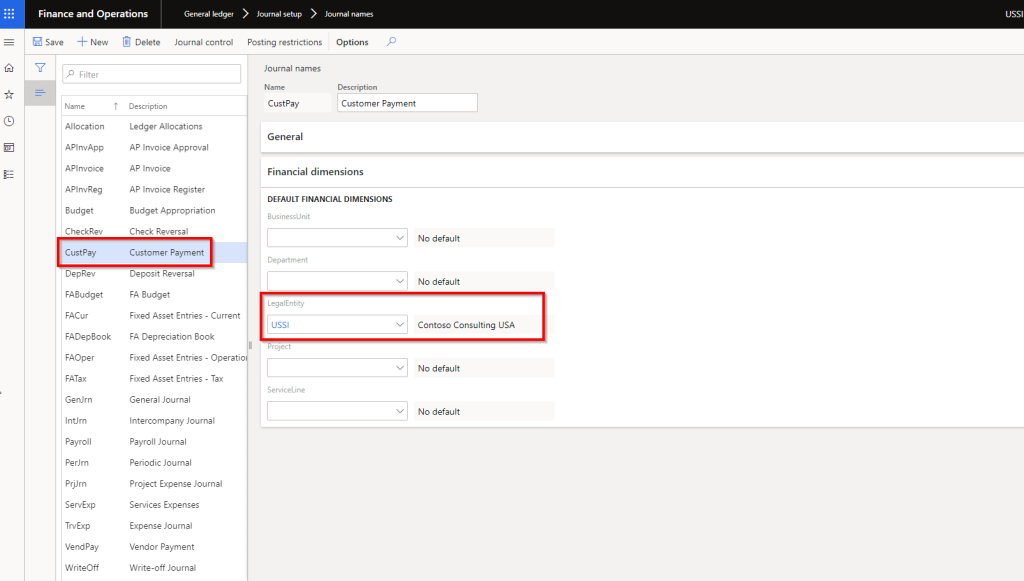
    2. You can setup the financial dimension on the payment journal configuration itself. This is the option I prefer.

    As a 3rd option, you can chose to enter the financial dimension manually on the payment journal line. Not very ideal option!

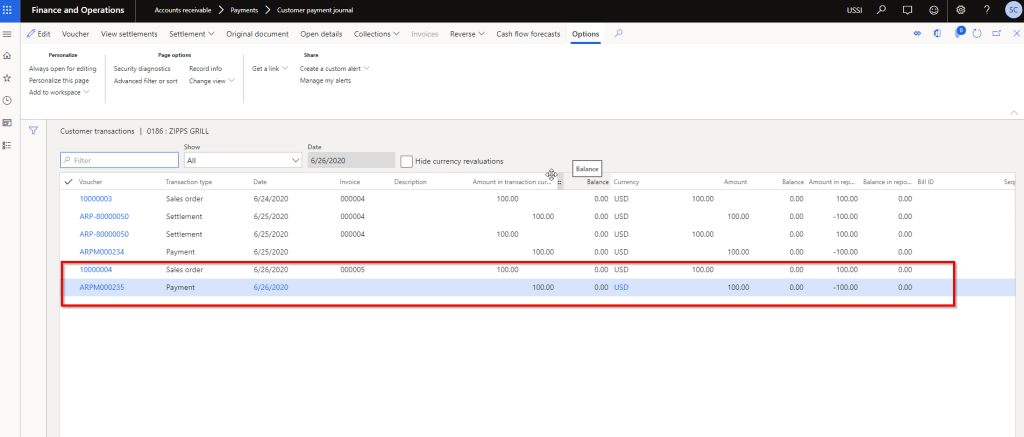
    With the option 2 setup above, if I post a customer payment with settlement of an invoice now, system will NOT create those additional entries on the customer transaction. See screenshot below.

    That’s it about this quick tip. Till next time!!!!