Category: Dynamics 365

  • The Export to excel feature in Project Management and Accounting module of Microsoft Dynamics AX

    Friends,

    Here is a quick post about another simple yet powerful functionality of Microsoft dynamics AX for service industries.

    Microsoft Dynamics AX-Powerfully Simple

    Most of us must be aware but I just thought I will bring it on here for those who may not be knowing this yet.

    The Export to excel feature allows project managers and other stakeholders of the project to export the project P&L and WIP statements into a pivot excel format without having the need of any manual intervention. This also allows to select data/fields from a range of various options to be presented in the excel workbook.

    Let us take an example project 10004 in the CONTOSO data and analyze.

    Project Statements Screen

    Choose from several data  field options to be presented in the excel workbook. Also arrange the column sequence by moving up or down the fields.

    Export to Excel

    Click Ok button and that’s it !!

    System makes it all for you. This is greatly different than the regular export to excel feature of AX as it directly presents the user all the data well formatted and arranged in pivot format. Please take a look at the excel workbook below which is generated by the system.

    Project P&L AX 2012

    Now you can utilize this workbook to prepare any kind of pie charts or bar graphs to analyze and present your project performances.

    Simple in few clicks !!!! Smile

    Till next time…….Keep DAXING..

  • Ledger Postings Management of Fixed Price projects in Microsoft Dynamics Ax 2012 – Scenario I

    Friends,

    Hope all is well your way. I Did not get chance to spend time on my blog this month.

    We keep hearing a lot of questions on the ledger posting scenarios, revenue recognition etc in case of fixed price projects in Microsoft dynamics AX. Well,I thought, I will explain the various ledger posting scenarios in the life cycle a fixed price project in few of my subsequent posts.

    The ledger postings in case of a fixed price project is controlled through the setup done in the Project groups. Based on the these setups, the ledger posting in a FP project can happen in 8 different ways.

    We will analyze each one of the setup options one by one and verify the ledger postings. I will name these 8 ways of ledger posting as Scenario 1 to 8. We will analyze the scenario 1 in today’s post.

    The 3 parameters in the project groups form which controls these ledger posting are as follows.

    • On-account invoicing.
    • Revenue recognition accounting rule.
    • Matching principle.

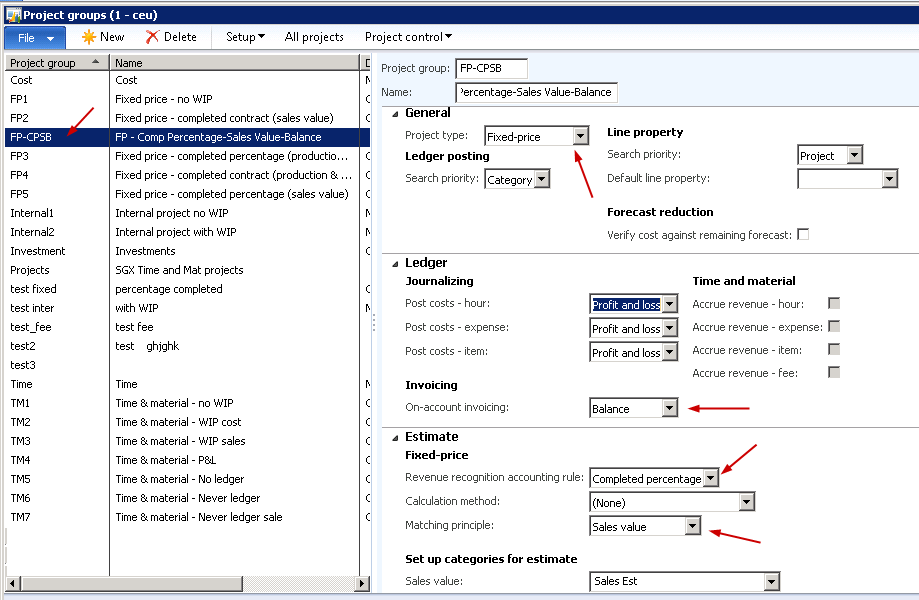
    Scenario 1 :

    On-account invoicing Balance
    Revenue recognition rule Completed percentage
    Matching principle Sales value

    Refer to screenshot below for the new project group which I have created.

    Project Group Setup

    I have created a new cost template and a fixed price project and attached this to the a new project group with above setup.

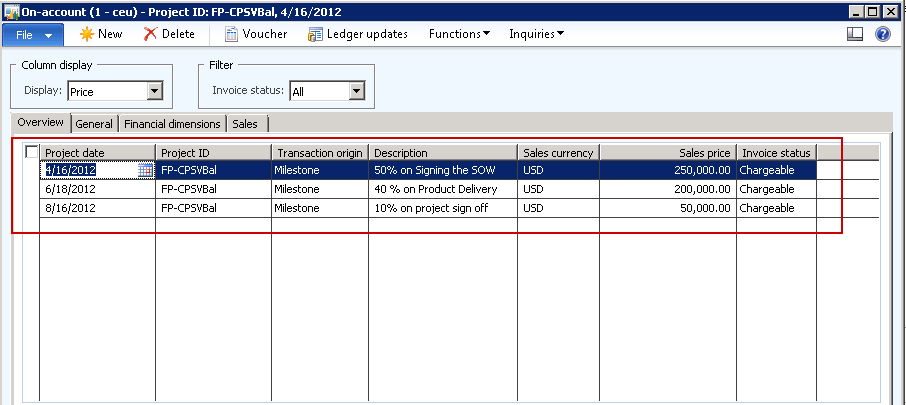
    Take an example where a company owns a fixed bid contract of $500000 and agreed upon with the customer for a milestone based invoicing plan as depicted below screenshot.

    On-account invoice schedule

    Costs are incurred in the project during its progress as indicated in the table below. We will post Estimates for the project at the end of every month and eliminate it in the month of SEP.

    Month Cost in project
    APR $20,000
    MAY $25,000
    JUN $40,000
    JUL $30,000
    AUG $55,000
    Total Cost $170,000

    Take a look at the tables below which shows the P&L and WIP statistics in the Project at each month before and after the estimates are posted.

    I am not able to provide the AX screenshots here as I have some issues in my AX environment.

    Project Profit & Loss Statement before posting estimates:

    Account Dr/Cr APR MAY JUN JUL AUG SEP TOTAL
    Accrued revenue – sales value Credit 0 0 0 0 0 0 0
    Revenue 0 0 0 0 0 0 0
    Cost Debit $20,000 $25,000 $40,000 $30,000 $55,000 0 $170,000
    Gross Margin -20,000 -25,000 -40,000 -30,000 -55,000 0 -170000

    Project WIP Statement before posting estimates:

    Account Dr/Cr APR MAY JUN JUL AUG SEP TOTAL
    WIP– sales value Debit 0 0 0 0 0 0 0
    Gross WIP 0 0 0 0 0 0 0
    WIP invoiced on account Credit $250,000 0 $200,000 $50,000 0 $500,000
    Net WIP -250000 -200000 -50000 0 -500000

    Note : The project on account invoices appear in the WIP-invoiced On account ledger.

    Project Profit & Loss Statement after posting estimates:

    Account Dr/Cr APR MAY JUN JUL AUG SEP TOTAL
    Accrued revenue – sales value Credit $58,800 $73,500 $117647 $88,236 $161765 0 ~500000
    Revenue $58,800 $73,500 $117647 $88,236 $161765 0 ~500000
    Cost Debit $20,000 $25,000 $40,000 $30,000 $55,000 0 $170,000
    Gross Margin $38,800 $48,500 $77,647 $58,236 $106765 $1,70,052

    The values for the accrued revenue are calculated based on the % complete/ Degree of completion in the project as the setup is done to be “Completed Percentage” rule.

    You may notice rounding issues in the values above as I have taken random examples.

    Project WIP Statement after posting estimates:

    Account Dr/Cr APR MAY JUN JUL AUG SEP TOTAL
    WIP – sales value Debit $58,800 $73,500 $117647 $88,236 $161765 -500000 0
    Gross WIP $58,800 $73,500 $117647 $88,236 $161765 0 ~500000
    WIP invoiced on account Credit $250,000 0 $200,000 $50,000 -500000
    Net WIP -191200 -73,500 -82,353 -88,236 -111765 0 0

    I hope my explanation of this scenario of posting in the fixed price project was clear. Please post your queries if any pertaining to this.

    Till next time !!!!

    Thanks

    Keep DAXING Smile

  • Customer payment retention functionality in Microsoft Dynamics AX 2012

    Customers always want to make sure that they get the best work/service done from their vendors successfully, in time with 100% quality ensured. In the professional services industries, most customers wants to retain/hold back certain amount/percentage of the payments, when they pay their vendors for a project work until the project completes.

    Vendors can then discuss and validate with the customer about the quality and completion of the project work and request all the retained amounts upon agreement.

    This functionality being fully automated in a simplified manner within the Project Management and Accounting module, empowers the list of several other capabilities of Microsoft Dynamics AX 2012 for services industries.

    Powerful, Simple, Agile

    Let us now understand, how this functionality works in dynamics AX 2012. The following are the setups required for the retention functionality to be working.

    Setups required:

    1. Define a new Main account in the “Chart of accounts” for the Customer payment retainage receivables. Ensure that the posting type for this account is “Customer Payment Retention Receivables”.
    2. Setup the Customer Payment Retention Receivables account in the “Accounts for automatic transactions” form under GL module.
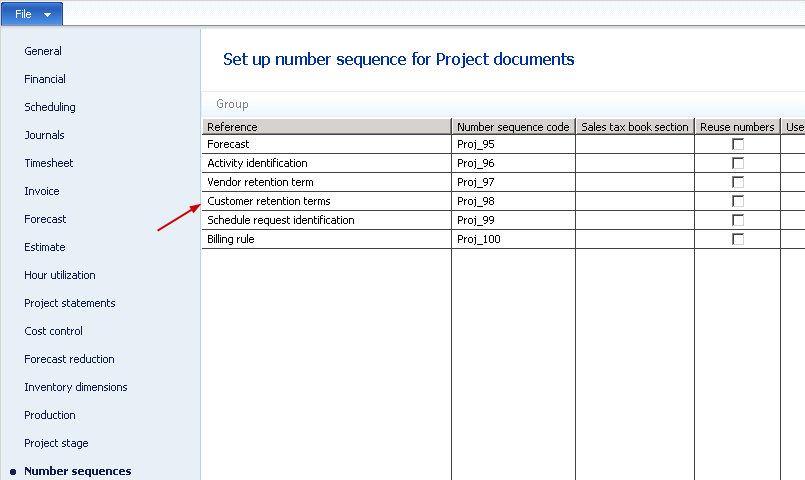
    3. Ensure that a number sequence is setup for the Customer payment retention term in Projects parameters form.

    Number Sequence

    4. Create and setup the new Fee project category for posting the customer payment retention amounts. Ensure that the Customer payment retention checkbox ins marked for this category.

    Let us define the customer payment retention terms under the project management and accounting module. The payment retention term specifies the schedule for the payment retention. The customer may want the payment to be retained in one of the following ways.

    – A certain percentage/amount on every invoice until the project completes.

    – A certain percentage/amount on the invoices until a certain percentage of the project work is completed.

    – Once you setup the retention terms, assign them to the Project Contracts, projects or the Billing rules(If you have implemented)

    Now, when you process the invoicing for a project/project contract with payment retention term attached to it, you will notice the retention details, i.e the % of retention and amount in the invoice proposal screen and validate before you submit for approval.

    The following shows the accounting entry when you post this invoice (Say $1000 with 10 % retention.

    Customer payment retention receivable $1000 (Debit)
    Project Invoiced revenue             $10000 (Credit)
    Customer Balance $9000 (Debit)

    When you request the retained amount after agreement with the customer, system will reverse the Customer payment retention receivable entry and debit the customer balance automatically.

    Customer payment retention receivable                   $1000 (Credit)
    Customer Balance $1000 ( Debit)

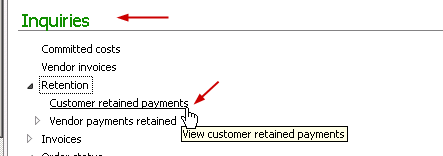
    Dynamics Ax 2012 also provides you options to perform several inquiries on the customer payment retention detail,s under the “Inquiries” and “Reports” sections as shown in few screen-shots below. These will help users in analyzing the customer payment retention data in projects being in a central location/screen.

    Inquiries

    Inquiries

    Inquiries

    Feel free to contact me if you need more information in terms of setup and processing the customer payment retention.

    Thanks

    Keep DAXING Smile

  • Preparing Financial Statements with financial dimensions getting printed in different Columns in the report in Microsoft Dynamics AX 2012

    Sometimes companies may want to generate their financial statements with one or more of their financial dimensions getting printed in different columns of the financial statement report for comparison and review purpose. For example, a company may want to generate the income statement with the data for each of its “Business Units” getting printed in separate columns in the report.

    Take a look at the dummy screenshot of such a report below.

    Sample Income Statement

    Here are the quick guide lines how to achieve this in Microsoft Dynamics AX.

    1. First of all, configure the financial statement by navigating to General Ledger > Setup > Financial Statement > Financial statement.

    2. Define the financial statement column structure as shown in sample screen below.

    Financial Statement Column Structure

    3. Now assuming that your row definition for the financial statement is ready, let us go and generate the financial statement.

    4. Navigate to General Ledger > Reports > Transactions > Financial Statement. Key in the values for financial statement, Row definition(If not already defaulted from financial statement) and click the Columns tab.

    Generate Financial Statement

    5. You will notice the 3 columns(Current) which we configured in the financial statement.

    6. Select the first record and click Select button.

    Select Business units/Financial dimensions during report generation

    7. Click Add button and select the business unit financial dimension in the “Field” and provide the criteria value(For example BU-001)

    Select the financial dimensions

    8. Repeat steps 6 and 7 to complete this for business unit 2 and 3.

    9. Click Ok button and we are done. This will print the financial statement as depicted in the sample screenshot above in this post.

    Companies may also have different financial dimensions like Territory/Region, Product Line etc. They may also report based on these financial dimensions with having these printed in separate columns in the report.

    Complex Reporting !!! Made Powerfully simple. Smile

    Microsoft Dynamics AX 2012 - Powerfully Simple

  • An insight to the new and improved Timesheets Management Functionality in Microsoft Dynamics AX 2012

    Microsoft Dynamics AX 2012 - Powerful, Simple, Agile

    Hi Friends,

    I thought of writing about one of the most talked about enhancements in Microsoft Dynamics AX 2012 which is the employee timesheets functionality in Project Management and Accounting module.

    Recording the employee’s times(hours) and expenses is one of the key processes in any services industry today, especially the IT consulting and Management services firms. These firms always look for a timesheet management system in the ERP system which they evaluate for their organization which can make it efficient and easy for their employees to enter their timesheets and expenses.

    Microsoft Dynamics AX 2012 empowers the professional services industries with a powerfully simple employee services portal refered to as the Enterprise portal which is based on the Microsoft SharePoint 2010 foundation server, one of the most successful products that MS has released ever.

    Now let us discuss about the various capabilities and improvements of the Timesheet system in AX 2012.

    Few of the pre requisites for the timesheet functionality to be working are as below.

    • Setup timesheet periods. ( Ax 2012 supports Daily, Weekly, Bi-weekly, Semi-monthly and Monthly etc. periods for registering hours/times).
    • Setup the project management setup for the workers. ( Employees and Contractors).
    • Create required user relations.
    • The project management and accounting module setup. (Projects, activities, categories, line properties etc.).

    Assuming that all of the above required setups are done, employees of the organization can log into the employee services portal and start entering timesheets.

    The Home page of the employee services portal displays role tailored information depending on the user profile/role which is assigned to the employee.

    When an employee/contractor who has system administrator role logs into the enterprise portal, the screen looks as shown below. This shows all the various capabilities and functionalities present on the enterprise portal of AX 2012.

    Employee Services Portal

    However, assuming the case of a typical service industry/IT consulting services industry, where employees (both salaried and hourly based) deal mostly with timesheets, expenses and their approvals, I have customized a role to prepare the employee services portal to look as below. Ax 2012 provides the flexibility of customizing the enterprise portal content the way you want it.

    Role customized Employee services screen - AX 2012

    Timesheet Management functionality Highlights in AX 2012:

    1. Provides flexibility for defining different timesheet periods depending on need.

    Timesheet Periods

    2. Timesheets overview screen displaying details of exiting timesheets.

    Timesheets Overview Screen - AX 2012

    3. Option to set timesheet favorites/favorite lines and functionality to load timesheet lines

    these from favorites.

    Timesheets Favorites Management

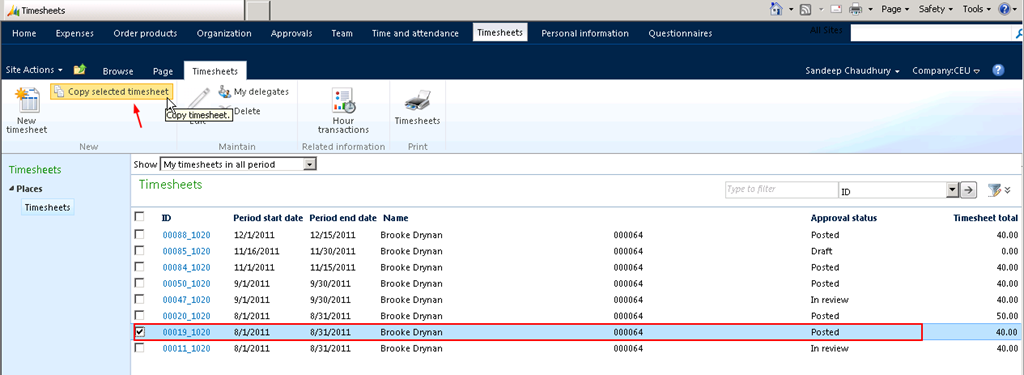
    4. Option to create new timesheet by copying an existing timesheet (Previous).

    Copy timesheets Function

    5. Setup delegates for timesheet submission, who can enter timesheets on your behalf in

    your absence and manage your timesheet delegates and timesheet favorites right on the

    web enterprise portal.

    Manage Timesheet Delegates

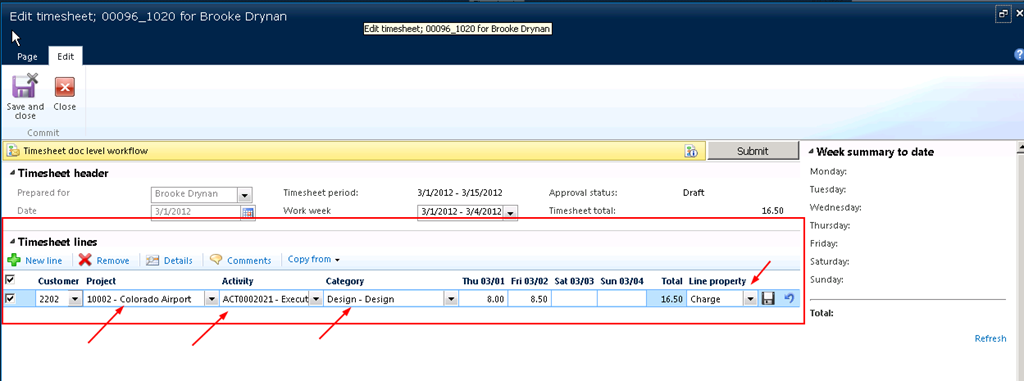
    6. Record time on each individual task/activity or the project by entering suitable internal

    and external comments for the description of the work. Week summary to date fact box

    which displays the total number of hours entered in the week.

    Timesheet Entry Screen AX 2012

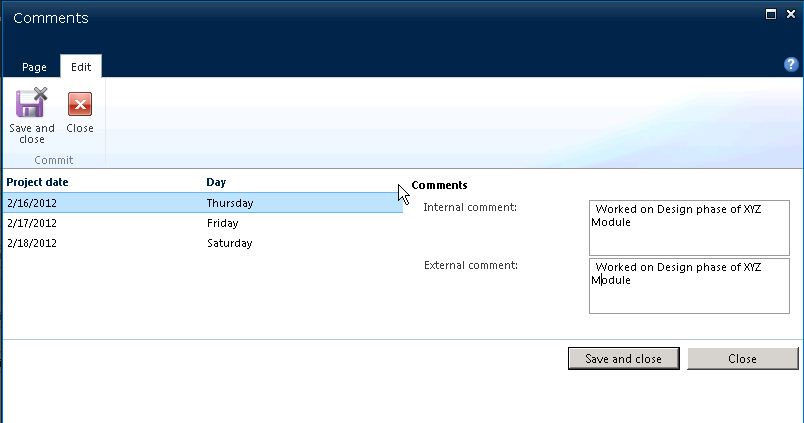
    7. Employees will have to spend less time in entering comments for each line with the consolidated comments entry screen.

    Consolidated Timesheet Comments

    8. Automatic workflow can be setup for timesheet approval/review. When timesheets are

    submitted, they  get automatically assigned to the respective reporting manager’s queue

    for review.

    9. Print your timesheets right from the enterprise portal.

    Print Employee Timesheets

    image

    Apart from the timesheets management functionality, the enterprise portal  in AX 2012 provided several other powerful business process capabilities and this will definitely help every organization in a very great deal.

    Till next time !! Keep exploring. :)

  • Project Quotations Management in Microsoft Dynamics AX 2012: Highlights of it’s Capabilities, Benefits and Usage

    Microsoft Dynamics AX 2012 - Powerful, Simple, Agile

    Bidding for attractive projects and winning them is a critical process for professional services firms today. As an initial phase of every project, project managers of the organizations use project quotations to approach customers for bidding projects easily and accurately. A typical project quotation will contain all possible details of item and services that are quoted for a project.

    With MS Dynamics AX 2012, you can create quotations, create activities in quotations, schedule the activities, soft/hard commit resources, submit and approve quotations and finally convert the quotation to project. You can do all this all few setups and clicks without having the need to doing much of manual works.

    In today’s post we will discuss the various capabilities of project quotations and the benefits that project managers can obtain using the project quotations functionality in dynamics AX. These are as described below.

    1. You can create project quotations for exiting customers and potential prospects also. Also you can make use of quotation templates to spend less time when creating multiple new similar quotations which you have worked in the past.

    image

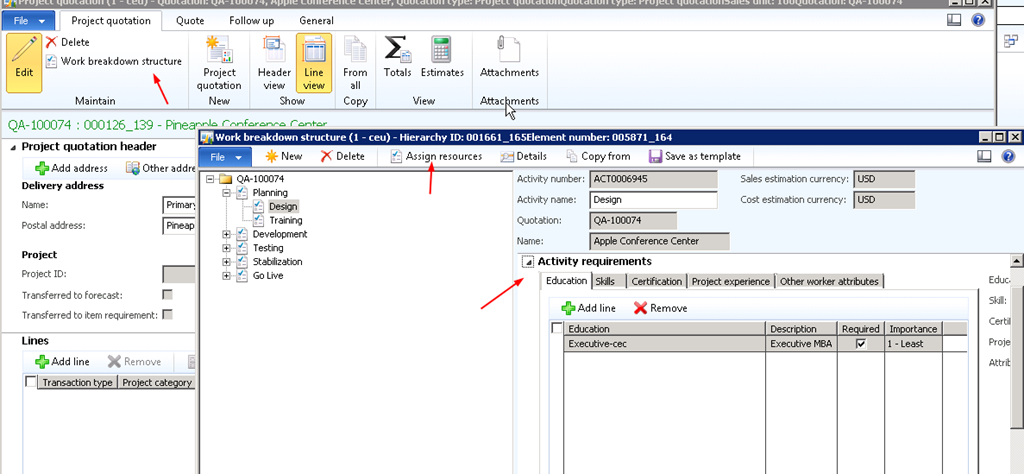
    2. Create and setup the work break down structure of the project activities right at the project quotation stage. You can make use of the Copy functionality of WBS to make it easier to create and define the WBS or you can also define a all new WBS for the current quotation.

    image

    3. You can generate the project quotation lines automatically from the work breakdown structure without having the need to create each line separately for the quotation. With AX 2012, you can also copy the lines of quotation from an existing quotation.

    image

    4. Setup all the various required information on/about the quotation staying in one single screen.

    image

    5. Review the estimated profitability of the quotation by just clicking one button.

    image

    6. Match and schedule/soft or hard commit resources for activity requirements of the project.

    image

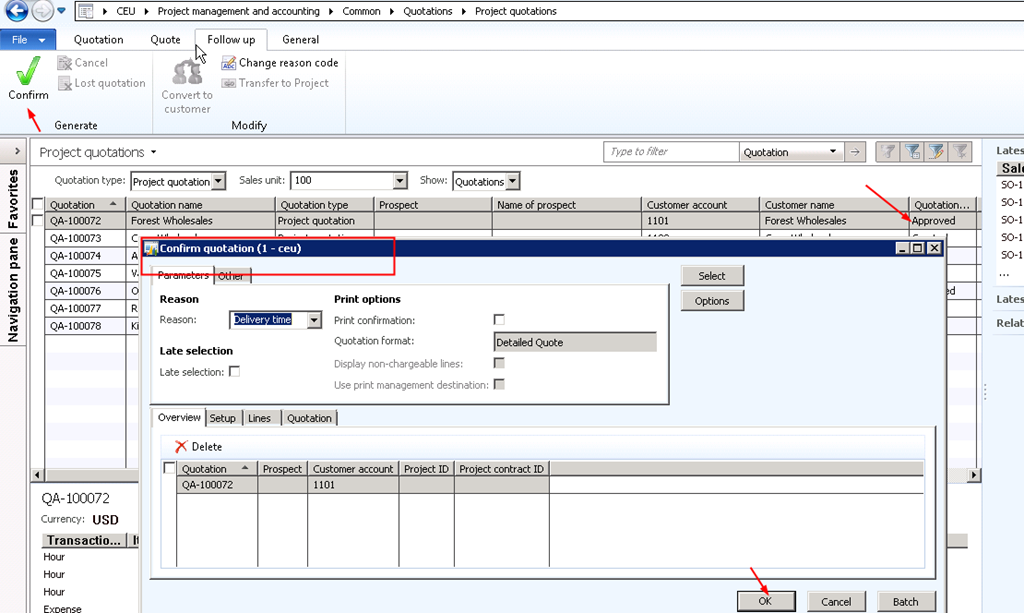
    7. Submit detailed quotation for approval to the workflow and confirm quote after approval.

    image

    8. Transfer the Confirmed project quotation into an actual project(New or existing) and then run a wizard to create project WBS, forecasts, project budgets etc. automatically right from the quotation.

    image

    image

    Above were few of the highlights of the various capabilities of project quotations in Microsoft Dynamics AX 2012. Please feel free to reach me if you need more information regarding quotations in dynamics AX.

    Thanks

    Keep DAXING Smile

  • The Work breakdown Structure(WBS) functionality for Projects in Microsoft Dynamics AX 2012:

    Dear Readers,

    In today’s post, let us explore the new work breakdown structure functionality for Projects in Microsoft dynamics AX 2012.

    Looking for a better ERP for your organization ? Click here

    Every professional services organization in today’s competitive world of business, wants to be more accurate in terms of managing each descending level of activities/tasks in the projects they carry out, to manage the costs and revenue efficiently and become more profitable. Breaking down the individual tasks and activities on projects and tracking costs, revenues, managing resources at each task level etc. helps in this.

    The work breakdown structure of dynamics AX 2012 is a hierarchical representation of the activities  and child activities in a project and helps the project managers to do the following.

    • Define the overall work scope of the projects.
    • Each descending level of the hierarchy represents increasingly detailed information about the project work.
    • It helps identifying and creating milestones in the project.
    • It also helps managers to soft/hard commit resources to the activities/tasks.
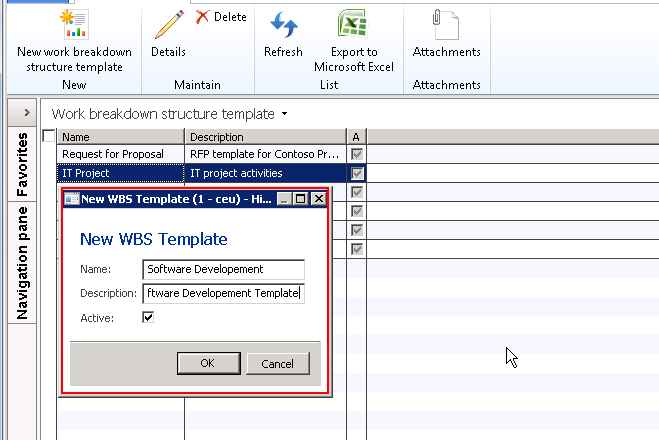
    • Project managers can create WBS templates and use them any time they want to plan a new project. They can also create the WBS directly on a project.

    Let us first learn how we can view and create the work breakdown structure template for our organization. The following steps will depict the steps to create new WBS template.

    1. Navigate to Project Management and Accounting > Common > Activities > Work breakdown structure template.
    2. Click New > New work breakdown structure template.

    image

    image

    3. On the Work breakdown structure details screen, click “New” button to create the hierarchy of activities/tasks in the project.

    4. Create Planning as the new activity and click New button again by keeping the focus on this activity. Provide activity name, it’s priority and a brief description about it in the designated fields.

    image

    5. On the right hand side, expand the various fast tabs to fill in information about this activity. Expand  the Schedule tab and key in the Duration in days, effort in hours, a default category etc. as shown as an example in the screen above.

    6. Expand the Activity requirements tab and setup the resource requirements for this activity in terms of Education, skills, certification, experience etc. This information can be used if you want to make use of the resource scheduling functionality of AX 2012.

    7. Setup the estimated costs and revenues for this activity by creating new records under this tab.

    image

    8. Similarly, complete the end to end hierarchy for this WBS template and setup the above explained parameters for each of the activities/tasks.

    9. Now that we have created and setup a template for a software development project, let us create a new project and try to use this template in the project to define the task hierarchy for this.

    10. For this, create the new project and click Plan tab > Work breakdown structure. Click Copy from button. System will show all the available templates in the system. Select the template and click Ok button.

    image

    11. System will then load the activity hierarchy structure for the project which you can modify as the current project needs. For example you may wish to assign different resources to the activities and the cost and revenue estimates may be different for this project.

    The project manager can also carry out the resource assignment task from the WBS screen and by clicking the Assign resources button.

    The project managers can also make use of the WBS right from the project quotations level which will help them in automating most of the project planning tasks such as WBS management, budgeting, resource assignments etc.

    Please feel free to ask any queries you have regarding the WBS management for projects in AX 2012 and I will be happy to answer.

    Thanks

    Keep DAXING Smile

  • Track Project Revenues from Free Text Invoices in Microsoft Dynamics AX 2012

    Readers,

    In one of my earlier post, I mentioned that AX 2012 now makes it possible to track revenues in Projects that are billed through the free text invoices.

    Let us take a look at this functionality today to understand, how it works in reality. This is a very simple functionality but was a much needed one as per me.

    First thing we must check when we want ensure to track revenues in projects which are billed through free text invoices is the required parameter setup.

    Parameter Setup:

    • Navigate to Accounts Receivables > Setup > AR Parameters.
    • Click Project link/tab.

    image

    • Check mark the “Display project-related fields on free text invoices” check box.
    • Check mark the “Allow ledger account number to be edited” check box if you want to be able to change the revenue ledger account, which gets defaulted when you choose the project and category in the free text invoice.
      Having done that required parameter setup, let us now go and post a free text invoice.

    Create and Post a Free Text Invoice:

    • Navigate to Accounts Receivables > Common > Free Text Invoices > All free text invoices and create a new FTI.

    image

    • Enter Customer account = 1102. Rest all customer related data will get loaded automatically.
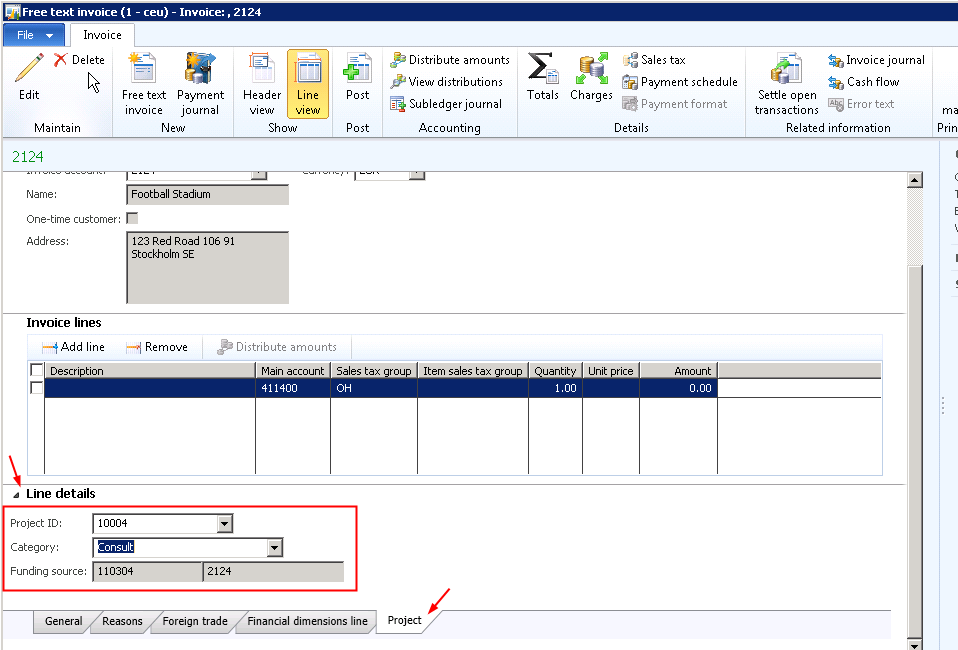
    • Click Line details fast tab and click the Project tab.
    • Enter the required project and category.

    image

    • Notice that, as soon as you enter the project and category, the main account field gets populated with the main account which is setup in the project posting profile.
    • If you want to change the account, you can do so, as we have marked the check box in AR parameters forms.
    • Now, fill in the invoice description, Quantity and the unit price and finally post the FTI.
    • You can then verify the project revenue and see that this gets recorded in the project.

    We are done !

    Thanks

    Keep DAXING Smile

  • About the Employee/Project Hour utilization rates in Microsoft Dynamics AX 2012

    Monitoring the utilization rates of the resources in projects in a very important aspect of every service based organization today. The more the resource is utilized, the more are the number of billable hours to the customers.

    Every organization today wants each of its project resources to be utilized optimally.

    With Microsoft dynamics AX 2012, you can track it all with few simple and easy steps.

    Let us learn today what are the setups and processes involved in arriving at the utilization rates of resources in AX 2012.

    Utilization rate signifies the % of time that a workers engages in a billable/productive assignment in a given working period. Ideally the workers utilization rate is calculated by dividing the number of billable hours by the total working hours in that working period.

    In dynamics AX, we can calculate both billable and efficiency rates when calculating the utilization rate.

    Billable rate – The billable rate is the difference between billable hours and non-billable hours.

    Efficiency rate – The efficiency rate is the difference between productive hours vs. non-productive hours or norm hours. Non-productive hours are never chargeable to a customer.

    Setup to calculate the billable and efficiency rates for projects:

    We can setup the required parameters in the Project accounting parameters form as shown below.

    image

    We can setup the definition of billable rate as per our business requirement for each of the project types. The different definitions are as below.

    Utilization – Hours registered on the selected project type are always billable or efficient utilization.

    Burden – Hours registered on the selected project type are always non billable or non-efficient utilization.

    According to line property : Line property of each transaction registered on the selected project type decides if the hours are billable/efficient.

    Not included – Hours are never considered in billable / efficiency utilization.

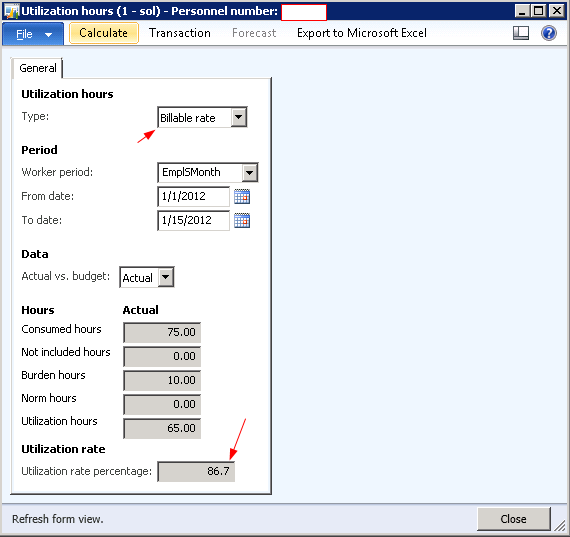
    In the screenshot above, I have setup the values as per my requirements. Assume that for the period of 01/01/2012 to 01/15/2012, I have worked on an internal project for 10 hours and 65 hours on a time and material project.

    Let us now take a look at the billable rate report and the form and analyze the data in them.

    Go to Reports > Hours > Billable rate > Worker Hour utilization.

    image

    The utilization rate for the employee is 86.67% which as 65(total billable hours) is 86.67 % of 75 which is the total consumed hours by the employee.

    Also, you can verify the hour utilization details can be viewed from  Worker > Select the worker > Project Management tab > Hour utilization button.

    image

    Simple, yet good !

    Thanks

    Keep DAXING Smile

  • The Case Management feature of Microsoft Dynamics AX 2012

    Friends,

    Hope all is well with everyone. It’s been a very long time, I came in here. Was completely occupied with work.

    Today, let’s discuss one of the simple yet very powerful features of Microsoft Dynamics AX 2012 called as the Case management.

    A “Case”  in AX 2012 can be treated as an issue that requires a resolution. A case can be originated from various sources few of which could be as below.

    • An helpdesk support ticket(Internal or External).
    • Audit cases.
    • Human resource cases such as resource onboarding, discipline etc.
    • Quality control.
    • Product inquiry by customers/parties etc.

    Using this most of the members/stake holders of the organization can benefit in one or the other way.

    Cases in dynamics AX 2012 can be used to record, update, track, follow up, and close issues that are raised by your customers, vendors, or employees, or that are created through your audit processes.

    Once a case is created/registered, a service level agreement (SLA) can be created and assigned to it. The case owner can always find through a list of existing knowledge articles to see if a similar case has already occurred is the past and see for an existing possible solution. For example, when a customer service representatives or an employee create cases, they can find information in knowledge articles about how to work with or resolve a case more efficiently.

    Let us now go through overview/high level steps which we can use to create and manage  cases in AX 2012.

    • The first step in case management will be to define the case processes and the case categories. These are used to group the various issues in cases. Every case in AX 2012 must be attached to a case category. Create the case categories at Sales and Marketing > Setup > Cases > Case categories.
    • You can define hierarchical process structure to manage the cases in the case processed form at Sales and Marketing > Setup > Cases > Case Processes. This can help in defining  the responsibilities for each activity in the case process, define exit criteria for closing the case.
    • After you have done these required setups for the case management, cases can be raised in your system.
    • Let us take a look at quick steps in creating a new case.
    • Go to Home > Cases > All Cases

    image

    • Create the new case by filling the details as shown in the screenshot below.

    image

    This was a very high level introduction about the new exciting feature of dynamics AX 2012. I know you will have questions when you read through this.

    Do let me know and I will be glad to answer.

    Thanks

    Keep DAXING Smile