Category: Dynamics 365

  • Case Management Tip: Case Category Security Setup in Microsoft Dynamics AX 2012

    Case Management Tip: Case Category Security Setup in Microsoft Dynamics AX 2012

    Hello Readers,

    It has been really long writing here due to a pretty packed last year and initial months of this year, and now the wonderful vacation with family and friends. Smile Hope you all are continuing to grow your learning curve of AX.

    Here is a quick tip about one of the security related features of the Case Management functionality in Microsoft Dynamics AX 2012 R2/R3.

    If you are a customer of AX and using the Case Management functionality of AX 2012 and have the AX security roles (Standard or Customized) implemented, then you might find this post useful.

    The building blocks of Cases in AX 2012 is the Case Category Types, which identifies which area of AX (Module/Entity) the case belongs to. You will notice that unless a user has the System Administrator role of AX, they will NOT be able to see the case categories in the drop downs when creating new cases in AX.

    You will need to specifically define which role of AX needs to have access to which Case category types. Users will be able to see the categories after you have done this setup. Follow the steps below to assign permissions to roles for different case category types.

    • Navigate to Organization Administration > Setup > Case Category Type Security.

    image

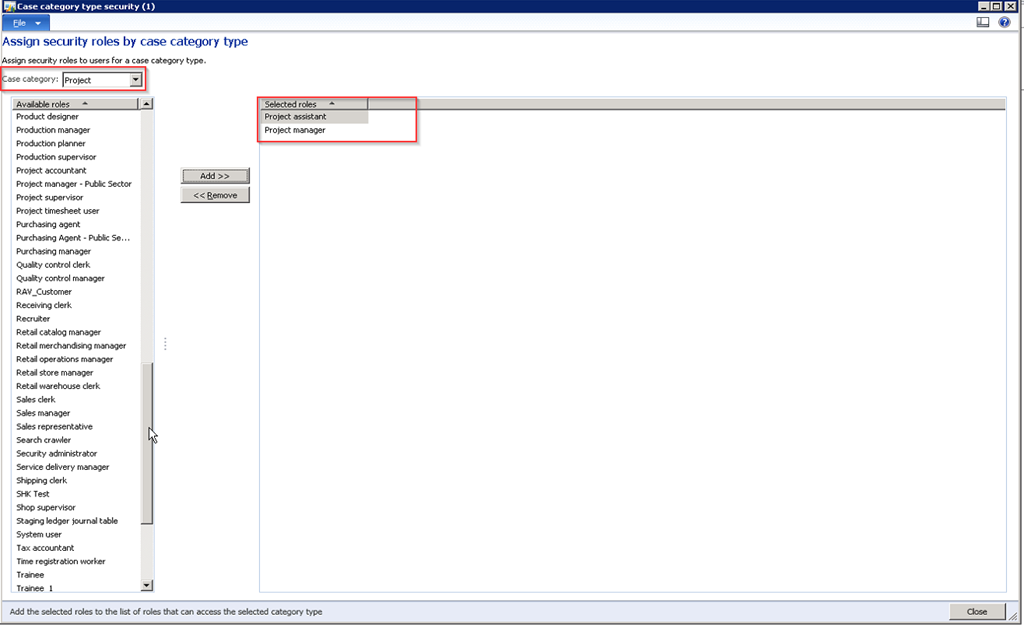
    • Select the Case Category type from the drop down and select the Role (s) you want to have access to this case type. Then click Add >> button.

    image

    • As an example, you can setup that only Project Manager and Project Assistant roles can create cases belonging to category type Project.

    image

    • With this setup, only users who has System Administrator/Project Manager/Project Assistant roles, will have access to the cases of type Project.

    Hope you find this tip helpful. Till next time…..

  • Dynamics AX Tip: Securing Private Addresses and Contact Information for Parties by using security roles in Microsoft Dynamics AX 2012

    Dynamics AX Tip: Securing Private Addresses and Contact Information for Parties by using security roles in Microsoft Dynamics AX 2012

    Hello Everyone,

    Well, this is the last post of year 2014. What a magnificent year this has been. Lots of excitement, fun and joy.

    Hope you all are having a wonderful time with your families this holidays and gearing up for the new year.

    It’s been long getting to here to write. Here I am today with a quick AX tip about a security setup in Microsoft Dynamics AX 2012.  I will not go deep into topics and discussions in this post.

    Securing the Private contact information and Private address information for parties such as Customers, Vendors, Employees, Contractors, Contacts etc. in the ERP system is a big deal and is a very crucial requirement for most organizations. Organizations often needs store these private address details and contact information about the parities and wants only a certain roles in the organization to view and manage those information in the ERP system.

    You can do this in Microsoft Dynamics AX by configuring the Global Address Book Parameters and by assigning which roles can view the the private information.

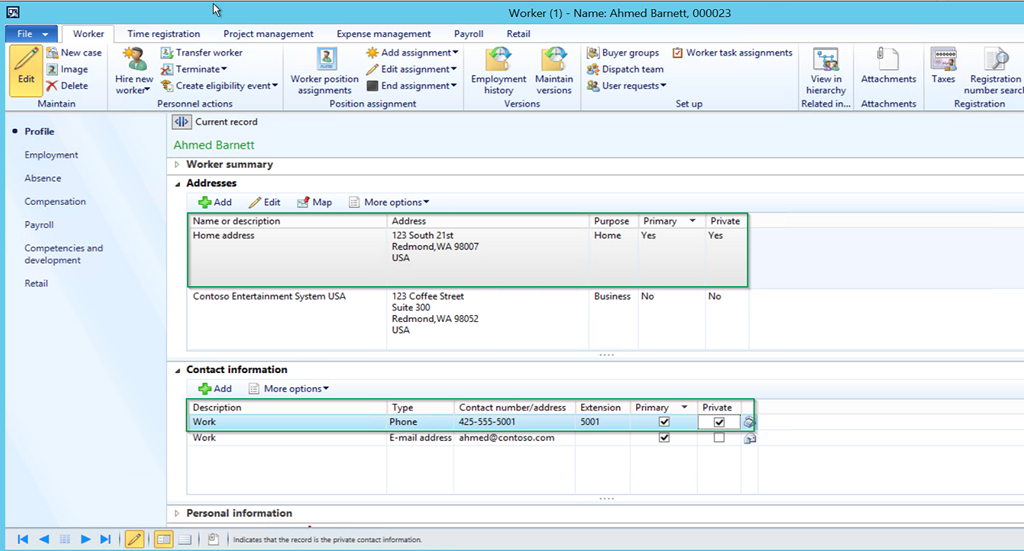
    When you create an address for a global address book party such as a Customer/Vendor/Worker etc., you can mark the address as Private. Similarly you can do the same for their contact information. See screenshot below.

    image

    Now under Organization Administration > Setup > Global Address Book > GAB Parameters form, you can specify/select which security roles within the organization can view this private location and contact information.

    Only users assigned with these roles will be able to access Private address and contact information.

    image

    Watch out for some exciting posts in 2015 ..Hopefully time will permit writing here soon…Keep Daxing…Again wishing all you a very happy new year!!!

    Regards,

    Sandeep

  • Understanding Basics of Payroll Management and Processing in Microsoft Dynamics AX 2012 R3 – Part I

    Understanding Basics of Payroll Management and Processing in Microsoft Dynamics AX 2012 R3 – Part I

    With the release of AX 2012 R2 CU6 and R3, The Payroll Management and Processing functionality has been introduced in AX supporting the payroll for United States.

    In one of my earlier posts I mentioned to come up with a post to explain how the Time & Attendance Module integrates with the Payroll module. We will initiate that discussion starting with this post and I will break the overall payroll management and process into multiple posts and try to have the full functionality covered in a few posts.

    In today’s post, let us start with understanding the basic building blocks of payroll processing and go through the high level process from setups through generating a pay statement. In the few subsequent posts we will discuss the individual components of the configurations and processes in greater details.

    The following are the key components of a typical Paycheck of a regular salaried employee.

    • Pay cycle /Pay period – How frequently the employee is paid
    • Earning Codes – Components of the pay such as Regular salary, double time, overtime etc.
    • Benefits and Tax Deductions – Such as 401k plan, Medical Insurance, Vision insurance etc.
    • Employer’s contribution for the benefits – How much employer contributes on the benefit deductions
    • Benefit Accruals – Paid Time Off, Sick Time Off etc..

    For this demonstration, I have configured a worker “Sandeep Chaudhury” in the CONTOSO demo company USMF.

    The Job and Position to which the worker will be assigned:

    The Position to which the employee is assigned holds key component of the payroll, which is the Earning code, worker’s work schedule, pay cycle, the entity which pays etc. The screenshot below shows a position which the “Dynamics AX Solutions Architect”. This position is ultimately linked to a Job which holds the data such as the grade and ranges for classifying the compensation range for this position.

    image

    image

    The worker, worker’s benefits and deductions, benefit accruals and the fixed and variable compensation components:

    Payroll information such as worker’s fixed and variable compensations, benefit deductions, worker’s tax region(where the worker resides) and hence the corresponding tax codes for deductions, benefit accruals etc..

    Worker’s Fixed Compensation Setup:

    image

    Worker’s Payroll TAX region and code setup:

    image

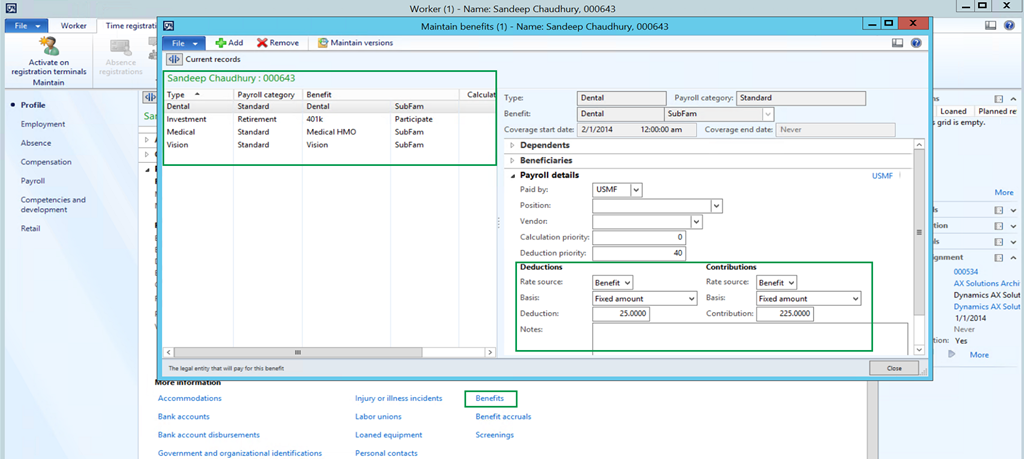
    Worker’s benefits and benefit deduction setup:

    image

    Worker’s Benefit Accruals Setup:

    image

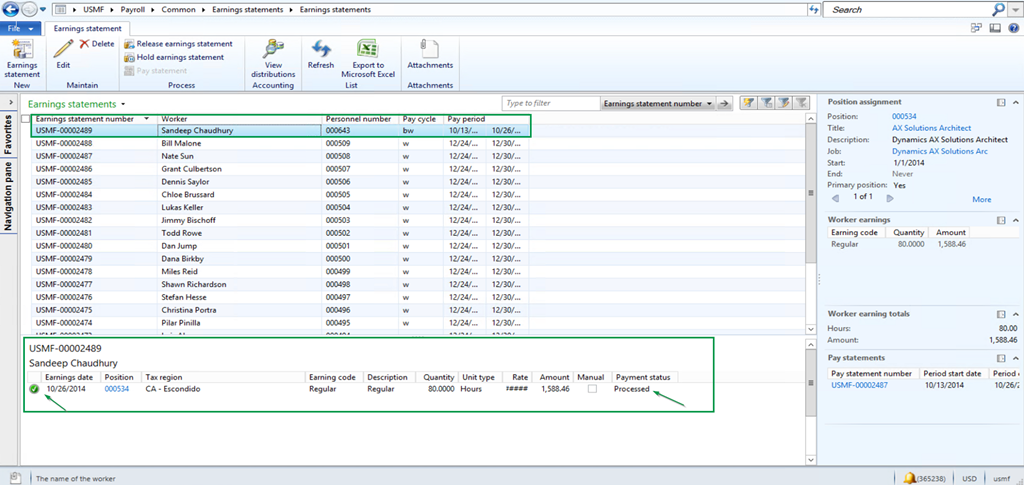
    Generate earning statement and validate:

    Once you have setup all the configurations and ready to pay the worker, the payroll is run in two processes. The first step is to generate the earnings for the worker. The earning statement lines can be automatically generated by the system based on the schedule and earning code associated with the worker or it can also be added manually on the earning statement while generating the earnings. Once the earnings are generated and reviewed, it is released for generating the pay statements and calculating benefits, deductions and net payments. The earning statement for the worker can be generated from both Payroll module and Human Resources Module.

    image

    Once you have reviewed the earning statement, you can Release the earning statement for payment or you can also hold earning statements for further review and actions. You can also see the Accounting distributions and verify the details of the ledger posting prior to releasing the statement for payment.

    image

    Notice that the Payment status changes to Processed after releasing the earning statement.

    image

    The next step is to generate the Pay statement and and Pay the worker.

    Release Earning statement for generating Pay statements and Process the Payment:

    Navigate to Payroll Module > Common > Pay Statements > Calculated Pay Statements and notice that the calculated pay statement appears automatically from the earning statement that we released in the previous step.

    The benefits and deductions and contributions are automatically calculated as soon as system creates the Pay Statement.

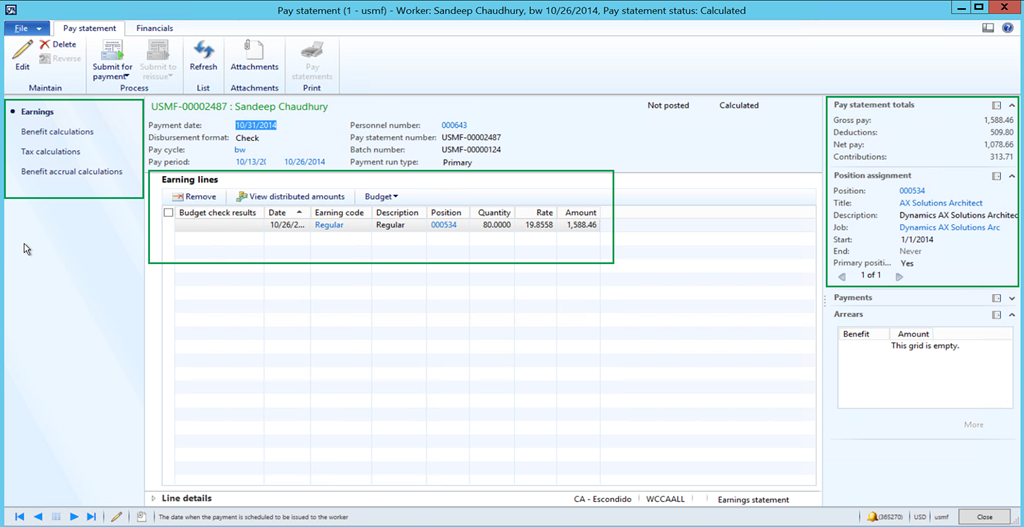
    Pay Statement Overview:

    image

    Pay Statement Details page:

    image

    Review Benefit calculations:

    image

    Tax Calculation Details:

    image

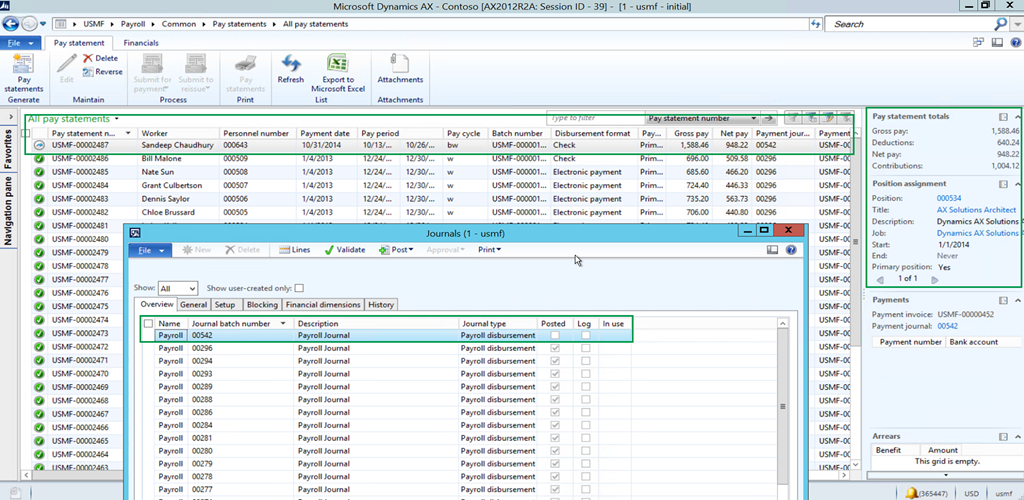
    After you have reviewed the Pay statement, you can Submit it for Payment. At this point , system checks the GL budgets and then automatically creates the financial journal(Payroll Disbursement Journal/Payment Journal). I will discuss the technical details of the financial journal (Payment Journal) creation such as ledger accounts, journal names, financial dimensions, accounting of the benefits and tax deductions, payment invoice etc., in the next posts on this topic. This post will get pretty long if explained here.

    image

    Payment journal auto-created by system:

    image

    image

    The next step is to generate the Payment by clicking Functions > Generate Payment and, print and send the check and then post the payment journal.

    Check Printed from Payment Journal:

    image

    After the Payment is processed and posted, you can navigate to Payroll > Common > Issued Pay Statements and see the details of it.

    image

    Post Payroll to General Ledger and create vendor invoices for Benefits and Taxes:

    The last step in the payroll process is to post the payroll to GL and then generate the required vendor invoices for the payables which were created from the pay statement to pay the benefits vendors and tax authorities.

    We will discuss the mechanism and the technical details of this in the subsequent posts on this topic, in greater details.

    Employees can View and download their pay statements on the Employee Self-Services portal:

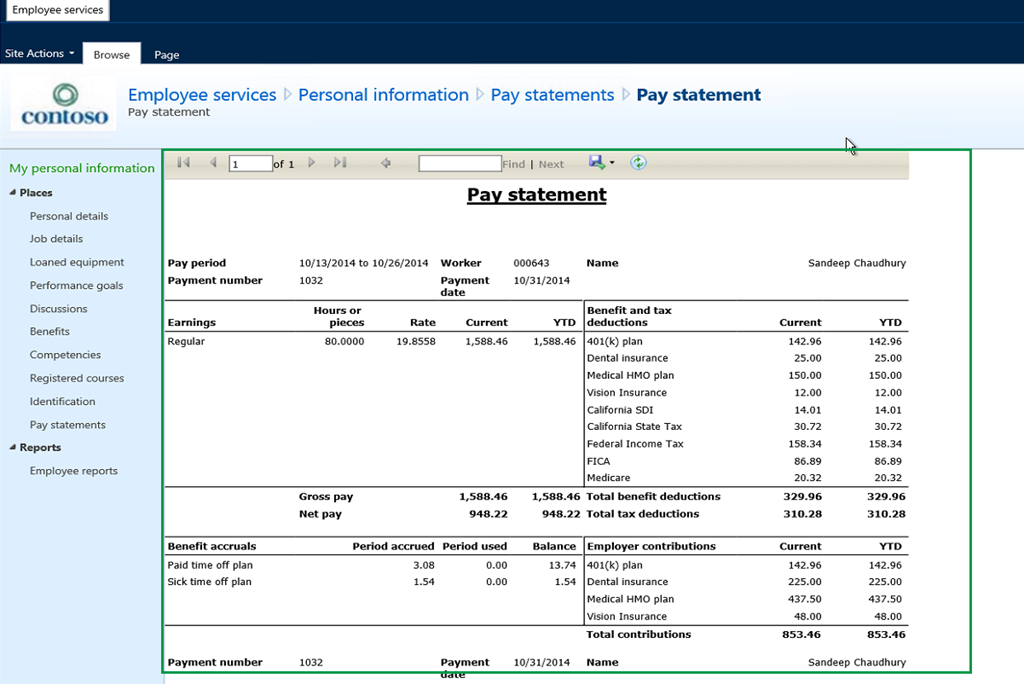
    Navigate to Enterprise Portal > Employee Self Services to see all your Pay Statements. You can then print the Pay statement and export it to PDF.

    image

    Pay Statements Overview:

    image

    Print Pay Statement:

    image

    Well, long enough post. That’s it for today.

    In the next couple of posts on this topic(Part II and Part III, Hopefully I will find some time soon Smile), we will discuss the individual setups and components in greater details and also explore additional functionalities in this area. Stay tuned !!
  • AX Tip: Independent Budgeting for Sub-Projects in the Project Hierarchy in Microsoft Dynamics AX 2012 R3

    AX Tip: Independent Budgeting for Sub-Projects in the Project Hierarchy in Microsoft Dynamics AX 2012 R3

    Here is small enhancement to the project budgeting feature in AX 2012 R3 release, which most of us are probably aware by now. I still wanted to publish it here for awareness in case you have not explored this yet.

    Till the AX 2012 CU7 release, it was not possible to have an original budget to be tracked for sub-projects which is created after the original budget for a parent project is committed. The only way to enable budgeting for the newly added sub-project, was to create a revision for the original budget of the parent project which was committed earlier which allowed to track the budget as a revised budget on the new sub-project.

    In the R3 release of Dynamics AX 2012, it is now possible to create and manage budgets for sub-projects independently.

    Let us try to understand how this functionality works in AX 2012 R3. For this demonstration, let us create a Parent project and create two sub-projects under it and call them as Phase I and Phase II.

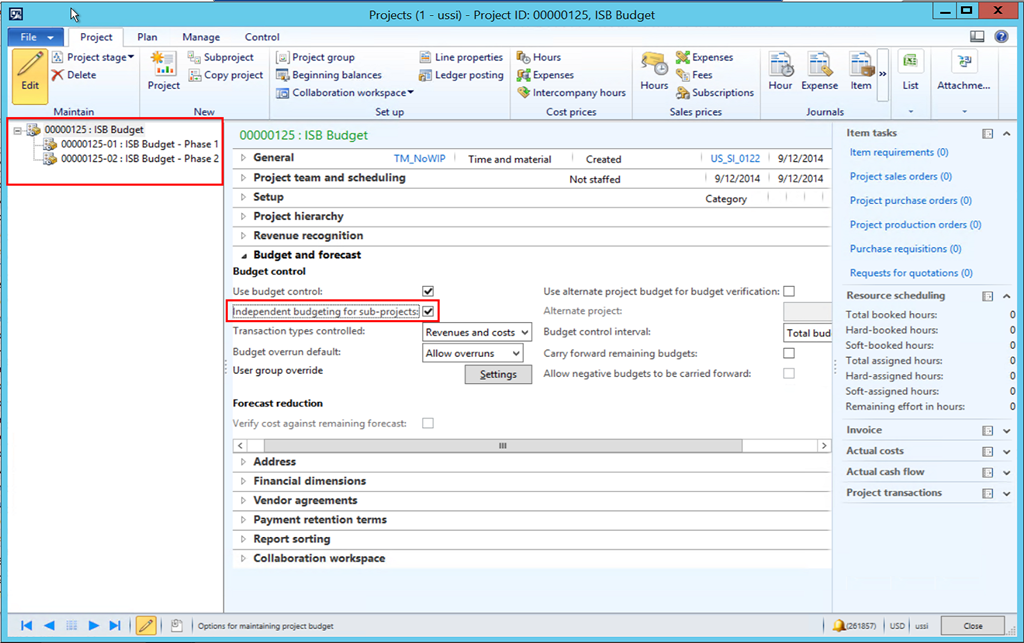
    • Create the parent project and create two sub-projects under it and enable the  “Independent budgeting for sub-projects” check box on the parent project.

    image

    • Select the parent project, click Plan Tab > Budget > Project Budget action button.
    • Under the Costs fast tab, create a new budget line and open the dropdown for the project field. Notice that, system shows only the Parent project as a selectable option and you will not see the project hierarchy tree on the left hand side of the project budget screen.

    image

    • This allows to create and manage Original budgets for each project in the hierarchy. So, whenever new projects are added to the hierarchy in the future, original budgets can be created for those without the need of revising the original budget for the whole hierarchy.
    • This new functionality will also let you allocate the budgets across periods as you want for each sub-projects in the project hierarchy. Before this functionality, you will always need to allocate the budgets of a new sub-project using the same period which you would have done for the original budget.

    image

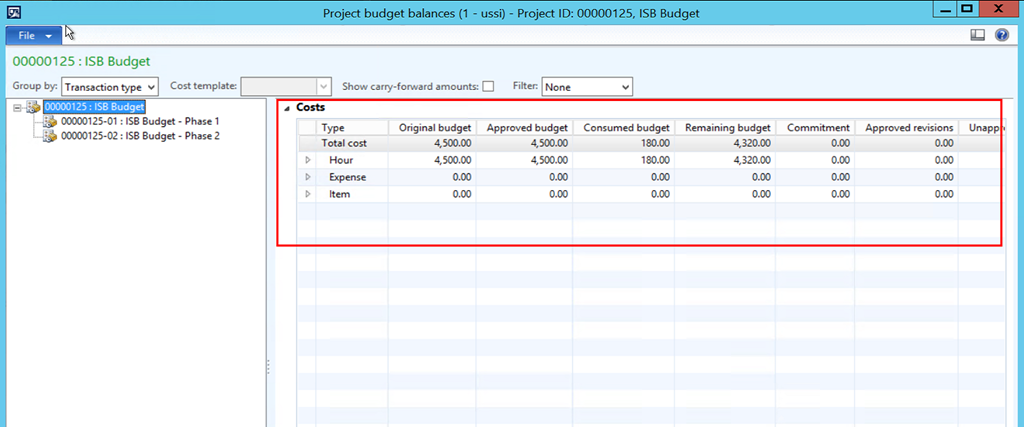
    • You can still view the project budget balances and system still rolls up the values in the hierarchy and shows the remaining budget balances and you can also view the breakdown by each category.

    image

    Till next time !!

    -Sandeep

  • Track Revisions on a Project Quotation during the negotiation with Prospects/Customer in AX 2012 R3

    Track Revisions on a Project Quotation during the negotiation with Prospects/Customer in AX 2012 R3

    Hello Everyone,

    Here is a quick tip for the day about one of the “Small, yet very Useful” functionality which is introduced in Microsoft Dynamics AX 2012 R3 release.

    Until the CU6 release of AX 2012, there was no efficient option track various revisions of project quotation once it was approved internally for the first time, and sent to Customers or Prospects. It was not possible to submit the “Quotation revisions” to a workflow for internal approvals.

    Now, in the R3 release, AX allows to revise and track details of the revisions effectively on project quotations, by allowing to submit the revisions to the internal approval workflow.

    1. Navigate to PMA > Common > Project Quotations, create, submit and approve a new project quotation

    image

    image

    2. Now, Generate and send the Project quotation.

    image

    3. After sending the quotation to the prospect/customer, you can revise based on the feedback received from the customers and maintain revisions of the quote throughout the negotiation cycle.

    4. Click Quote > Revise button on the action pane to revise the quote. With this, you add, modify or review lines from the quote and change any other details as needed. See the screenshot below where I have added 2 additional lines to the original quote.

    image

    image

    5. After revising the quote details, you can submit the revised quotation for internal approval. After internal approval is complete, you can send the Revised Quote.

    6. After sending revised quote, click the Quotation journal button to see how system maintains the audit trial of the revisions.

    imageimage

    Quick and easy..:) Keep DAXING till next time.

    Regards, Sandeep

  • Managing After-Sales Services of your organization as a Profitable business in Microsoft Dynamics AX 2012

    Manufacturing and Services Industries (Especially the Architecture, Engineering and Construction, and Large scale AV Integrators) often perform after-sales services, to retain maximum Customer satisfaction on the products and services they manufacture and sale. These after-sales services are basically classified as “Business to Business services”, rather than business to consumer servicers. It is very important that the Service Managers of these organization keep track of the exact costs and revenues on the hours, expenses and items consumed in a service function, to make sure the Service operations of the organization can run as profitable business.

    Are you a Customer already implementing Microsoft Dynamics AX  ERP or actively looking for an all  inclusive ERP application to manage  the various aspects of after-sales services ? Look no further and explore how the Service Management Module of Microsoft Dynamics AX ERP can add value proposition to your business.

    In today’s post, I will initiate an introduction to the overall architecture of the Service Management Module and then will discuss all the important functionalities  and the “How-To” to manage those in few of the subsequent posts.

    image

    Let us now understand the various building blocks and important functionalities of the Service Management Module in AX 2012 R3.

    A. SERVICE AGREEMENTS: Service agreements acts as the central element in the architecture of the service management module and holds the contractual details with the customer.

      • Defines what objects will be serviced(Service Objects), the tasks(Service Tasks) that will be performed and how these will be charged to the customers.
      • Defines when the services will be performed(Service Interval), Service Level Agreement(SLA), who will perform the service, how the costs and revenues will be managed.
      • Defines how service orders will be created (Automatically, Planned Service Orders/Manually).
      • The Service Management module in AX is integrated with the Project Management and Accounting module for posting the service orders back to Projects, to track the costs, revenues and also invoice the customer for the services performed.
      • This integration also takes advantage of the validations, ledger posting, pricing and other functionalities of the PMA module.

    image

    B. SERVICE ORDERS: A Service Order in AX represents one instance of a scheduled/unscheduled service activity performed by service technician, at a customer site on the day of the visit.

    • Service orders can be automatically created based on the Tenure, Service interval, Time window and the “Line Combining options” specified on the Service agreement and service agreement lines. For example if the tenure of a service agreement is from 01/01/2014 to 12/31/2014 and Service Interval is “Monthly”, then, 12 planned Service orders, one for each month, can be automatically created directly from the Agreement.
    • AX also provides the option to create the planned service orders more efficiently by combining the orders “By Technician”, “By Service task and By service objects (What is being serviced) so that they can better planned and scheduled.
    • You can also utilize the “Time Window” functionality on the service agreement to optimize the scheduling of service orders.
    • Service orders can be created without a service agreement as well, and these can be used to perform One time , unscheduled service visits which might be requested by the customer on demand basis.
    • Service Orders typically consists of service order lines, which represents the details such as the “Hours of work performed by a service technician, related expenses, item consumptions, replacements, or repairs and any service fees, for the tasks performed on the various service objects.
    • Service orders can be created by the Services team of the organization or it can also be initiated by the Customer using the Customer Self service portal.
    • Once the Service orders are created and setup, they are processed through various service stages and the progress, performance, costs and revenues are tracked till the completion of the service.

    image

    C. SERVICE LEVEL AGREEMENTS (SLA): Service Level Agreement allows the service organizations to record time to identify WHEN the service must be performed at the latest, from the time when the Service order was initiated by a Customer and it also allows the organizations to track the timing of the services given to the customers through out the Service Delivery process.

      • You can create as many SLAs you want based on your business needs. If you have grouped your service agreements by
      • When a SLA is attached to a Service Order and the service order is initiated, the TIME RECORDING starts automatically which can be Stopped, Restarted or even Cancelled at any time depending on the situation through out the duration of the service activity.
      • SLA can be associated with a Calendar in AX, which allows to control the automatic time recording to start. If the Service order was initiated on a non working day, then the Time recording will not start until the next working day.
      • You can link the SLA with Service Agreement groups, which allows to assign the SLA to the Service Orders automatically when you create a new Service Order belonging to that Service Agreement.

    image

    D: SERVICE DISPATCH BOARD FOR DISPATCHERS: The Service dispatch board functionality enables the Service companies and their Service Customers to stay on top of their priories with regards to the on-going services. It Helps the Service dispatcher to schedule the work for the Service engineers and the service tasks/activities they will perform at the customer’s site.

    • Service Dispatcher gets to see an overview of the Service Operations using the Dispatch Board can make efficient and informed decisions about the actions needed at the right time to ensure high customer satisfaction.
    • Graphical display support for the Service Dispatch board.
    • Service dispatchers can view and manage on going service tasks by seeing COLOR coded overview details about the service orders.
    • The dispatcher can see daily activity logs on each Service orders which are entered by the service engineers/technicians.
    • Can create service dispatch teams and manage the service resources more effectively.

    image

    The screenshot above does not show any data, as I have not created the data in the system. We will discuss more about the details of the Service dispatcher and other daily processes of the Service orders in the few subsequent posts and will learn how to use this module in greater detail and see the Dispatch board in action.

    E. REPAIR & RETURNS: Service Companies often get the items or equipment back at their location for repair. Dynamics AX supports a decent level of repair management capabilities within the Service Management Module which can be used by companies for better repair management and optimize their efficiency of handling equipment returns and repairs.

    • Manage repair from the time it is initiated from the Customer till the resolution using repair stages, which you can configure the way your business needs it.
    • Track the resource consumptions on various repair tasks such as hours spent by the technician, Item replaced etc. and tie those back to the Service order which can be then accounted and billed to the Customer.
    • Create and Manage Symptom areas, diagnosis areas, repair conditions, resolutions for better reuse to optimize the repair process.
    • Do necessary reporting such as which items (objects) are repaired most frequently and how efficiently your technicians are able to finish the repairs etc.

    image

    F: Service BOMs: Dynamics AX provide the functionality of creating and managing Service BOMs, which enables the service companies to track and store the changes performed to an object during the service. This can be specifically helpful for service organization who engineers their products/services by combining a set of different items on it.

    • It allows you to continuously track the service objects which are serviced a customer’s site  and then it allows to generate the complete audit trial of the object changes over a period of time and also the replacement history of the object.
    • All the changes to the Service BOM during the course of Service, are stored as a separate version as a history for future tracking.
    • Helps service companies to identify required parts on the service visits, so that they can arrange the availability of the parts at inventory and reserve to be consumed in the Service order.
    • It can help you determine any potential changes you might have to do to your Service BOM (Service Product) to manage reduce the number of services required in the future.

    image

    G. SERVICE SUBSCRIPTIONS: If you are a Service company and provide services to clients at a fixed rate for a period, then you can make use the Service Subscriptions functionality of AX 2012 to manage all the accounting and financials management needs of the service subscription process. We will discuss in detail about each of the above processes in the next few subsequent posts.

    image

    H. SELF-SERVICES PORTAL: Dynamics AX supports various Service Management processes on the enterprise portal. The Service customers and the Service team can collaborate effectively using the enterprise portal and the Customer self-service portal.

    • Customers can initiate the Service Orders using the Self- Services portal on enterprise portal which then can be reviewed  and processed further.
    • Customers can access readily available LIVE information about their past and current and future service orders, agreements anytime using the Self-service portal.
    • Technicians can access details such as her necessary information  such as service objects, tasks, repair etc. about the service calls/orders and even update the service orders at anytime.

    image

    Well, stopping here todaySmile. In the next few posts, we will explore the above mentioned processes and functions individually, in greater details.

    Till next time..!!

    -Sandeep

  • Intercompany Customer Invoicing for Project resources sharing in CU7 and AX 2012 R3

    Intercompany Customer Invoicing for Project resources sharing in CU7 and AX 2012 R3

    Hello,

    Multinational Professional Services firms often share workers between their legal entities to staff the projects with the right skill sets. When the workers of one entity works on the projects of another entity of the same organization, they bill their time and expenses to those legal entities for which they work on the projects.
    Microsoft Dynamics AX has introduced several enhancements to this area over the last few releases to facilitate how these business scenarios can be easily accomplished in the ERP solution.

    In one of my earlier posts, I explained how the intercompany timesheets and expenses works in AX 2012 R2 CU6. With the release of CU7 and the R3, AX has taken a step forward by enhancing this feature and adding the capability for the legal entities to be able to invoice each other for the resources they share for projects and also allow them to stay true to the compliance and the legal requirements of tax liabilities etc. Until the CU6 release, the intercompany transaction was directly handled in the ledger transactions only and the ledger accounts were updated as soon as the timesheets were posted. In the R3 release with the introduction of this new functionality, the companies can adjust the amount which are charged between them.

    In today’s post let us take a look at this new enhancement which has been introduced in the CU7 and the R3 release.

    Throughout the demonstration in this post we will consider “USMF” as the Resourcing entity(Lending company) and “USSI” as the Contracting entity(Borrowing entity). Sandeep Chaudhury is a full time employee of USMF, and works on the project of USSI as he has the desired skill set required for the project.

    Setup and Configurations:

    • The first thing to notice is the necessary setups which are needed for this new functionality to work. Go to PMA > Setup > Project Management and Accounting Parameters form.
    • Notice the new “Intercompany” tab link which contains the required setup parameters for this new functionality.
    • You can setup the option of ‘Accruing the revenue’ in the resourcing entity for each of the entities to which the resources are lend. When the ‘Accrue revenue’ check box is marked, the revenues in the resourcing company will be accrued immediately when the intercompany timesheet is posted and these revenues will reverse automatically when the intercompany project invoice is posted.

    image

    • The next setup is to establish the trading relationship between the resourcing and contracting company. This means that the Contracting company needs to be a Customer in the resourcing entity and the resourcing entity needs to be setup as a Vendor in the Contracting company.

    image

    • The other miscellaneous setup are to setup the Transfer prices and the necessary ledger posting profile for the Intercompany accounts in the resourcing company. You will notice here that there are several sales price models which you can now specify for the transfer pricing between the entities.

    Timesheet Submissions and Ledger Posting:

    • Sandeep Chaudhry submits the intercompany timesheet as shown in screenshot below.

    image

    • Below screenshot shows the voucher transactions and ledger account postings when the above timesheet is approved and posted. Notice that system has updated the “Intercompany cost” and the “Payroll allocation” amounts for each of the timesheets lines and also notice that the “revenue is accrued in the designated ledger account” (marked in screen below) and intercompany revenue is not yet updated. This will get updated when the intercompany invoice is posted.

    image

    • At this point you will also  notice that there are no transaction created in the “Contracting legal entity” for the Project and the general ledger. The timesheet transactions will appear as Pending Transactions and are not yet posted.

    image

    Intercompany Project Invoicing and End Customer Invoicing:

    • When it is time to bill the end customer, the resourcing company will generate the intercompany invoice to the contracting legal entity and this will automatically create a Vendor Invoice in the Contracting entity. Let us now see how the Intercompany project invoice is initiated.
    • In the ‘Resourcing Company”, go to Project Management and Accounting > Common > Project Invoices > Intercompany Customer invoices.

    image

    • Click New > Intercompany Customer Invoice to launch the “Create Invoice Proposal” form. Note that this is not the typical project invoice proposal form of the standard Project invoicing process. This is specifically designed for the Intercompany customer invoicing. (This works like a Free Text Invoice)
    • Select the Legal entity and other applicable filters such as Project Contact, Project, Start and End dates and also Select the transaction types which you want to include in this invoice (Hour/Expense/Vendor Invoices) and click the Search button. The below screenshot shows the transactions which for the timesheet for Sandeep Chaudhury which was posted above.

    image

    • Select the transactions which you want to include in the invoice and click OK button. The system will generate the “Intercompany Customer Invoice” open the invoice details screen. Notice that Customer details are auto populated from the trading relationship which we have setup above.

    image

    • Notice here that you can Add or remove the lines from the invoice. You can also adjust the amounts (Prices) which are charged between the companies. After verifying all the details of the invoice, Click Post and print the invoice and send it to the Contracting company.

    image

    • After the invoice is posted, notice that the revenue which was accrued in the resourcing company has now been reversed and the Actual intercompany revenue is updated.

    image

    • The next step is to verify that system has now automatically created. Navigate to the USSI legal entity > Accounts Payable >  Vendor Invoices > Pending Vendor Invoices.
    • Notice that the vendor invoice for the Resourcing company is automatically created and ready for validation and posting.

    image

    • Once you validate and post the vendor invoice, the system will also post the Project transactions updating the Project Cost in the Contracting entity and also creating the transactions which can be ultimately billed to the end customers.

    Well, this is it for today. Stay tuned and keep learning…Till next time..

    -Sandeep

  • Audit Trial on Project Timesheets Entry and Reporting in CU7 For AX 2012 R2

    Audit Trial on Project Timesheets Entry and Reporting in CU7 For AX 2012 R2

    Hello Friends,

    It has been hectic two months and I have not been able to spend time to write here. Hope you all are up and running on your AX learning curves.

    Here I am back today ! and in today’s post, we will discuss about the new audit trial features, which are introduced for the Project Timesheets functionality in the CU7 release for AX 2012 R2.

    This new feature allows you to setup audit trials on all the timesheets which are submitted by the workers of your organization by which you can record all the changes which are made by the workers to the timesheets. This new feature also includes the option of blocking future timesheet entries, except for the planned absences of the employee.

    Let us now see each of these new enhancements in action.

    1. Parameter Controlled: The first step in this is to enable the necessary controls in the Project Management and Accounting Parameters form. You can always choose whether to enable the audit trials or not.

        Notice the various check boxes you have under the “Validation” group highlighted in screenshot below.

    image

    2. Block Future Timesheet Entries: In CU7 and later versions of AX 2012, you can now “Block the entry of timesheets for the future period”. This is a very useful enhancement to have good control over the employee timesheet entries. However, you employees can enter planned absences for the future with this parameter enabled.

    • Go to PMA > Common > My Timesheets and create a new Timesheet for a future period which is 04/21 – 04/27 and then create a new timesheet line for a project except for the planned absences.

    image

    • Notice that, system will block this with a warning message as shown below.

    image

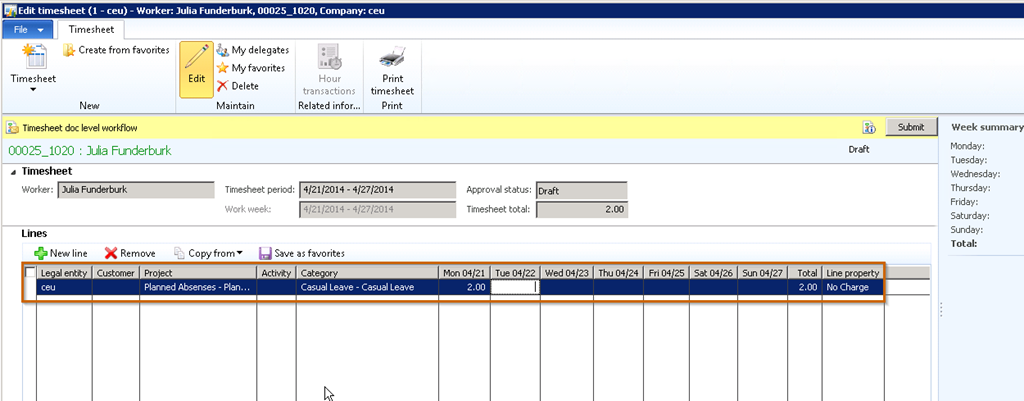
    3. Validate Absence Categories and Validate Absence: With the “Block future timesheets” enabled, if you do not select the “Validate Absence Categories” check box, then the workers cannot enter future absences in a timesheet for a future period. Notice in screenshot below that with these checkbox marked and worker is able to enter a future absence  for a future period.

    image image

    4. Require Timesheet Audit Trial: When you enable only this checkbox, your workers will not forced to enter a Reason for timesheet changes such as Deletion, or editing after Submitting. But, the Timesheet Audit trial will be maintained. This means that if workers update anything in an original timesheet, the audit trial will be stored for future references.

    • In the example below, Julia submitted the timesheet for period 04/13.

    image

    • The reviewer of the timesheet has rejected the timesheet asking for additional comments on the timesheet lines. Julia then adds  more comments and resubmits the TS.

    image

    • The Project Accounting Team or the Timesheet Reviewers can see the complete audit trials history of the timesheets by clicking the Manage Versions button on the ‘All Timesheets” list page. System maintains a complete audit trial of the timesheet to track what happened to it since creation.

    image

    • Additionally, you can also compare the various updates by clicking the “Compare” button to know what exactly was changed in the TS version.

    image

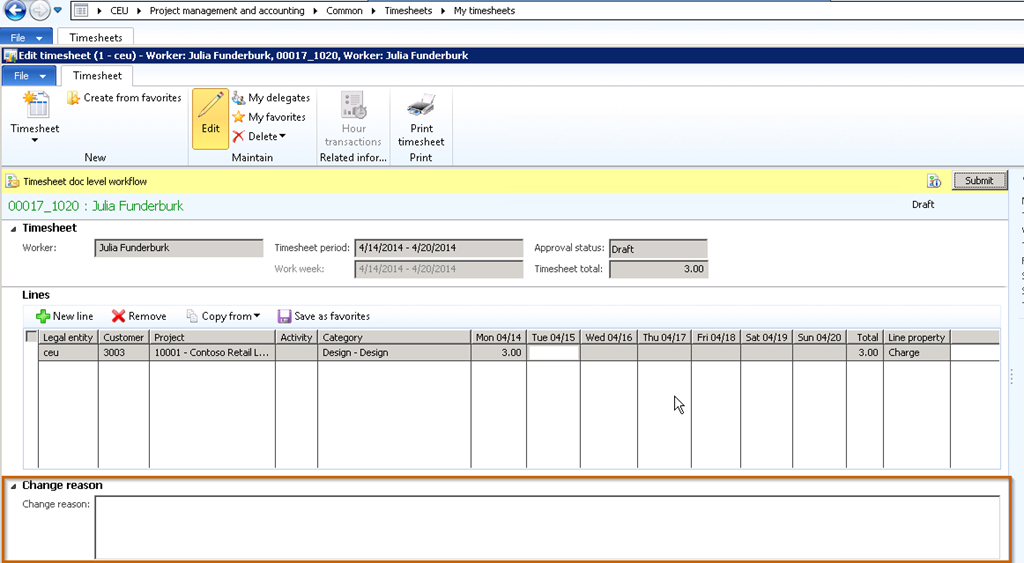
    5. Allow Timesheet Change Reason: When you select the Require timesheet audit trial check box, then you can also select to tell the system if the worker can enter a reason for change when they change timesheet.

    • In the screenshot below, notice that, a new field is shown the timesheet line for entering change reasons, when you enable the “Allow Timesheet Change Reason” parameter.

    image

    • Workers can enter reasons for changes, but it is not mandatory to enter the reason for change, unless you mark the “ Require Timesheet Change Reason” checkbox.

    image

    6. Require Timesheet change reason: When you mark this, workers are needed to enter change reasons for every change they make to the timesheets.

    • If we Reject the timesheet which Julia submitted above with this parameter enabled, Julia will need to enter a reason to be entered before resubmitting the TS.
    • Notice that when Julia changes the #hours to 4 from 3 and tries to save or submit the timesheet, system gives a warning message asking for the reason to be entered.
    • When the workers enter the change reasons and resubmit, then complete TS history along with the change reasons can be seen in the Timesheet versions form.

    image

    7. Deleted Timesheet History: This new feature also allows to keep complete track of all your deleted timesheets. You can track the reasons why workers deleted the timesheets.

    • In Screenshot below Julia deletes the timesheet as she created it for a future period by mistake. When Julia clicks Delete, notice that she needs to enter a reason.

    image

    • Navigate to PMA > Common > Timesheets > Deleted Timesheets History list page to see the list of all the deleted timesheets along with the reasons. You can also trace the versions of the timesheet from this screen.

    image

    8. Submitting Timesheets Into a Closed GL Period: Another great addition you will notice is the “Allow Date Corrections On Timesheet” functionality. This allows you to submitting timesheets into a GL period which is already closed or On-Hold.

    image

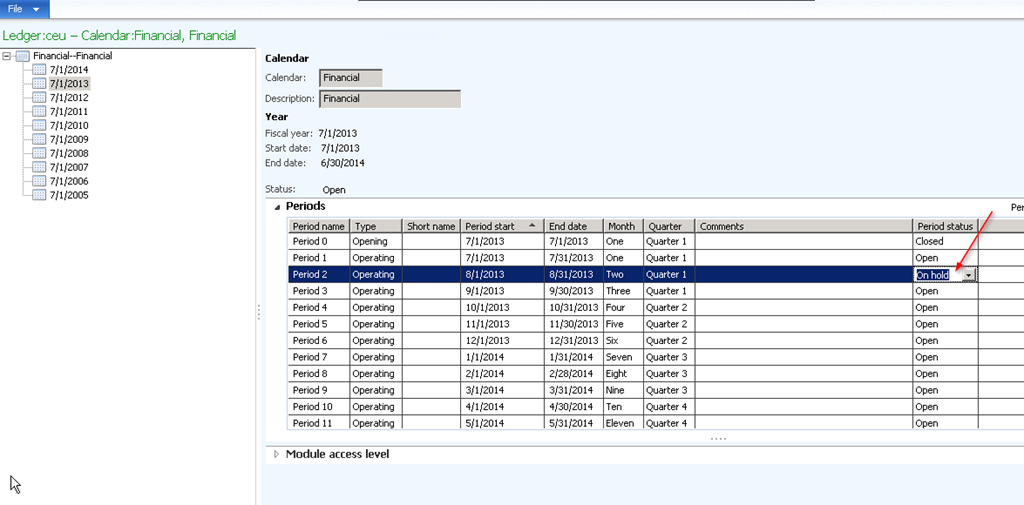
    • Screenshot below shows the ledger period 08/01 to 08/30/2013 is Kept “On-Hold”.

    image

    • When you submit a timesheet for this period and try to post the timesheet, system did not allow the posting earlier and system would block this saying the Period is not open.

    image

    • With the “Allow date corrections on Timesheets” checkbox marked, you can now post the timesheet, and system will automatically post the ledger transactions into an advanced period which is Open subsequently. However, the Project transaction dates will remain as the original timesheet line dates.

    image

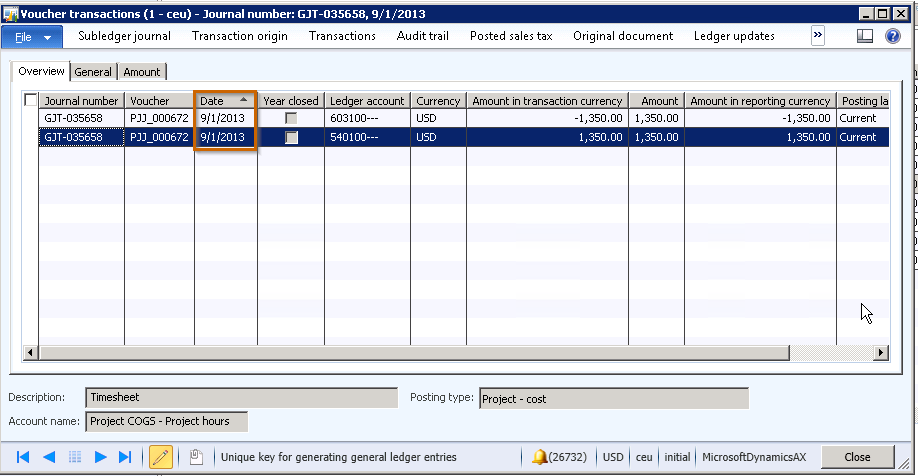
    • Notice that system posted the ledger transactions automatically to the next period which is Open, i.e. 09/01/2013.

    image IMPORTANT NOTE: You might find that the “Project Transaction date” also gets populated with the next open date which is “9/01/2013”. This was an issue in the CU7 release and a HOTFIX  KB 2922713 was released around January of this year. Please make sure you install the hotfix to see the correct results. Well, that’s it for today! Stay tuned.. Keep Reading…

  • Enhancements to the Project Resource Scheduling Functionality in AX 2012 R2 Cumulative Update 7

    Hello Everyone,

    I hope all of you found my earlier post on “Enhancements to the project management functionality in CU7” useful. As mentioned in that post, today I will take some time to explain the new enhancements to the “Project Resource Scheduling” functionality in the latest release of AX 2012 R2, which is the CU7 release.

    For a professional services firm, the workers of the organizations are the key assets and are also the key sources of revenue generation. When your organization grows in size and number of Projects you manage grows, you ill need effective tools to manage and schedule the workers on projects to ensure that the skilled and most available people are assigned to the project tasks, to ensure optimized cost management and realize better profits.

    Microsoft Dynamics AX 2012 R2 provides you with such functionalities under the Project Management & Accounting Module. Let us take look how this functionality has evolved over the last few releases of AX.

    1. Project Roles: The Project Managers can now create “Project Teams” for each project and include appropriate project roles to the team. The project roles/project role templates basically act as pre-defined roles, where you can specify the required competencies such as “Skills”, “Certifications” and ‘Education” for that role, which ultimately will help in the resource search operation for the project.image
    2. Create Project Teams: For today’s demonstration, I have created a sample Time and Material project for a Website development project. Let us now see how the project managers can create the project team by adding project roles. For this project, I will need one software architect,  one Java developer and a QA engineer.
      • Go to the project details screen and expand the Project team and scheduling fast tab.Specify the project start and end dates.
      • Note that these days might not be always accurate, but the PM can specify the approximate start and end dates.
      • Click Add roles button and select all the roles you will need in the project by creating new records. Note that you can specify how many workers you will need in each project role.
      • Reserve workers immediately : If you mark this check box, then system will open the resource reservation form as soon as you click OK button.image
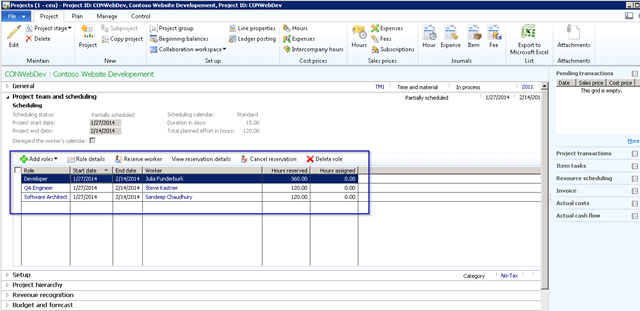
      • See the screenshot below where I have added all the three roles I need in the sample project.image
    3. Reserve the workers for the project: The next step is to find, identify and reserve the most suitable workers for this project.
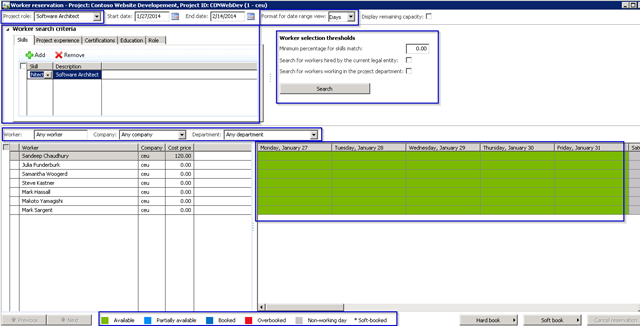
      • Click the “Reserve worker” button to open the Worker reservations main form.Note that the project manager has several options on this form such as editing the worker competency criteria, search workers by role, by name, department, legal entity.
      • Also they can view the worker’s availability in the specified duration of the project by Days, Weeks and Months. Additionally they get to see the worker’s availability statuses such as ‘Available’, ‘Partial available’, ‘Booked’, ‘Overbooked’, ‘Non-working day’ and ‘Soft booked’ in different colors, with an indicator of what each color means. Screenshot below highlights each of these options.
      • The worker search criteria (Competency) automatically populates from the roles selected, but the manager can always override them on this form.
      • image
      • The ‘Display remaining capacity’ checkbox allows the project manager to see the available capacity of the worker in terms of Hours for each Day/Week/Month.
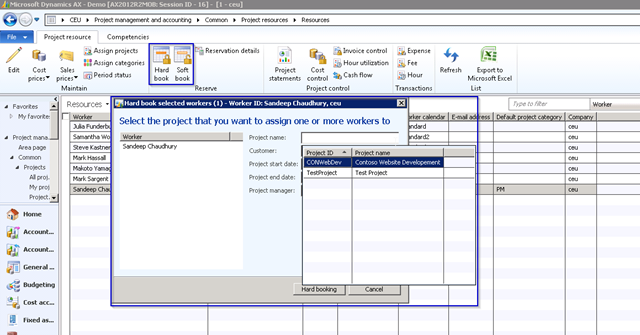
      • The PM can either hard book or soft book the appropriate workers for the project by selecting the required options on the Hard book > and Soft book > buttons.
      • image
      • In my example I have reserved the software architect, java developer and the QA engineer to their full capacity in the full duration of the project. Below screenshot shows the results after the reservation. The #hours the workers are reserved for the project is now update in the Hours reserved column. Also, notice the color code of availability for the workers now have changed on the Worker reservations form.
      • image
      • image
      • Notice that the Hours assigned column still shows ZERO as the PM has not yet assigned these workers to the project tasks or activities (WBS).
    4. Assign workers to the Individual tasks of the Project: The next step for the PM is to do the detailed assignment of the workers (Project team) to the individual tasks or activities of the project on the work breakdown structure form.
      • Go to Plan tab of the project detail screen and click Work breakdown structure button.
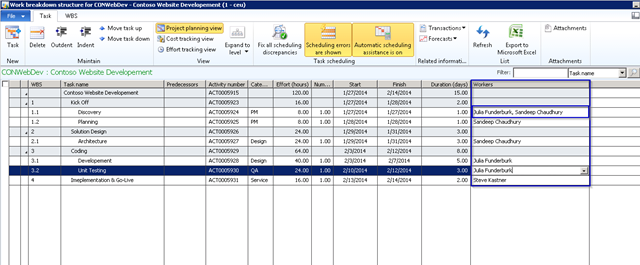
      • Select the workers for each of the tasks under the Worker column. The PM can select one or more worker for each of the tasks and assign them.image
      • Notice the Hours assigned column of the project details screen now. It automatically shows the #hours the worker is booked for the project by calculating it from the assignments done in the WBS screen.
      • image
    5. New forms to show project resources and availability: Two new list pages are now available to help the project resource management function.
      • Project resources – This new form under now allows the project managers to see the project resources quickly without having the need to navigate to the HRM module.
      • image
      • This form also allows to view/edit several worker related data such as cost price, sales price, assigned projects, categories, competencies etc.
      • The PMs can also initiate the hard/soft booking of the workers to projects by clicking Hard book or Soft book buttons.
      • image
      • Resource availability: This list page shows one stop snapshot of the worker’s availability, everything at once :). This form also lets the PM to initiate the Hard/bookings for the resources.
      • image
    6. Inquiries: At any time in the duration of the project, the PMs can see the detailed analysis of the resource assignments. Let us see it for one of the workers “Sandeep Chaudhury” whom we booked in the example above.
      • Navigate to PMA > Inquiries > Resource Scheduling > Resource assignment analysis –by worker.
      • image

    Well ! That was a pretty long write up !!! But it deserved it :) In my next post, I will explain all the new enhancements in the Project Timesheets functionality in the CU7 release.

    I hope you all will find this post useful. keep reading !!

    Regards,

    Sandeep

  • Enhancements in the Project Planning Functionality in AX 2012 R2 CU7

    Enhancements in the Project Planning Functionality in AX 2012 R2 CU7

    Hello Friends,

    The scope for enhancements to an ERP solution(In fact any software solution) is always never-ending. And so is the case with Microsoft Dynamics AX. It has been witnessing continuous improvements over the last few releases.

    Better project planning is the key to ensure profitable project executions for professional services firms. Today, I will take time to explain the several enhancements which have come with the “Project Planning” functionality in the Cumulative Update 7 release of AX 2012 R2.

    In today’s post, let us start with setting up a new project and then setup the project work breakdown structure and then discuss about the enhancements in this area.

    In the screenshot below, I have already created a new project which is for a Website development for the CONTSO company.

    image

    The next step is to define the detailed breakdown of the project tasks. Go to Plan Tab and click “Work breakdown structure” button.

    Note that Microsoft Dynamics AX seamlessly integrates with Microsoft Project Server so that Managers can manage and schedule their projects in Project server. I will not explain this functionality in this post. Click Here to learn more about Project Server integration.

    You will notice that the WBS form now looks completely different and has several new functionalities. We will discuss each of those below in this post.

    image

    You can create tasks for the project work broken down to as detailed as possible. In the screenshot below, I have created the task breakdown for a simple project called “ Website Development”. You can use the options such as “Outdent”, “Indent”, “Move task up” and “Move task down” to create the complete hierarchy of the tasks.

    Also, you can set “Predecessors” for each of your tasks to setup necessary dependency of the tasks on each other.

    DIFFERENT VIEWS OF THE TASK BREAKDOWN TO HELP PROJECT MANAGERS:

    image

    The above screenshot shows the “Project planning view” of the project task breakdown. Note that there two other views which can help the Project Manager to track the cost and efforts in the project more effectively.

    To see the Cost tracking view, click View > Cost tracking view. This view shows a complete snapshot of the project cost tracking details such as “% Cost consumed”, “Actual cost”, “Complete to cost”, ‘Estimate at complete”, “Planned cost” and the “cost variance”.

    Cost Tracking View of the Project Plan:

    image

    Note: Since we have not posted any transactions on the project yet, the values for the % cost consumed and Actual cost are shown as Zero.

    To see the Effort tracking view, click View > Effort tracking view. This view shows a complete snapshot of the project effort tracking details such as “% progress of the project”, “Actual efforts in hours”, “Remaining efforts”, ‘Effort at complete”, “Planned effort” and the “effort variance”.

    Effort Tracking view of the Project Plan:

    image

    Note: Since we have not posted any transactions on the project yet, the values for the % progress and Actual efforts are shown as Zero.

    You also have the option of expanding or collapsing the task breakdown view to any level or see all levels with by clicking Expand to Level > Level 1 to 9.

    image

    AUTOMATIC SCHEDULING ASSISTANT:

    The options under the Task Scheduling helps the project managers to automatically correct any scheduling conflicts. You can optionally switch ON/OFF the “Automatic Scheduling Assistant”. Keep the Scheduling assistant ON and let us see how it can help to automatically scheduling discrepancies.

    Let us change the Effort for the “Planning”  task to 16 hours. You will notice that the Finish date automatically changes to 01/29/2014.

    image

    You can also use the Fix all scheduling discrepancies option to correct any discrepancies in the task breakdown automatically.

    image

    WBS Management:

    There are options to export and import the WBS templates.

    image

    Well, this is it for today’s post. In my next post, I will discuss the “enhancements in the “Project Resource Scheduling” functionality in the CU7 release of AX 2012 R2.

    Till then…Keep reading.

    Regards

    Sandeep