Unlock the world of new possibilities with AX 2012 R3.
Microsoft Dynamics AX 2012 R3 is now Launched. Click here to learn how you can deliver amazing Customer Experiences.

Unlock the world of new possibilities with AX 2012 R3.
Microsoft Dynamics AX 2012 R3 is now Launched. Click here to learn how you can deliver amazing Customer Experiences.
Microsoft Dynamics Lifecycle Services provides a cloud-based collaborative work space that customers and their partners can use to manage Microsoft Dynamics AX projects from pre-sales to implementation and operations.
Based on the phase of your project and the industry you are working in, the site provides checklists and tools that help you manage the project. It also provides a dashboard so that you have a single place to get up-to-date project information.
Click HERE to get started.

Microsoft continues its commitment to customers success through regular release of cumulative updates.
CU 6 is now released which primarily introduces two types of enhancements and updates.
1. Business Processes.
2. Regulatory Updates.
CU7 is slated to be released during end of OCT, 2013.
Note: Note the change in numbering for the cumulative updates which will be released for AX 2012 R2 going forward.
Read the complete details of the enhancements and updates here on Microsoft Dynamics AX Product Team Blog.
Regards
Sandeep

Do not get surprised when you get to see “Microsoft Dynamics for retail” in ACTION in a Windows phone mobile device(Nokia Lumia 820) by the Customer service crew of Delta Airlines on the flight.
It is great to see the major technologies coming together to offer simple and high end platform for customers.
I am glad to be aware of this news and I am sure everyone in the Dynamics community will like this. Thanks to all the technology partners who worked together to make Microsoft Dynamics “LIVE” in the sky. :)
Read the complete news here on the Dynamics Community blog.
Hello,
Today, I wanted to discuss few of the enhancements which have been introduced in AX 2012 in the Cash and Bank Management module. Most of us must be already aware of these, but I just want to discuss these in this forum as I found these enhancements very useful.

Follow the points below which describes the major enhancements.
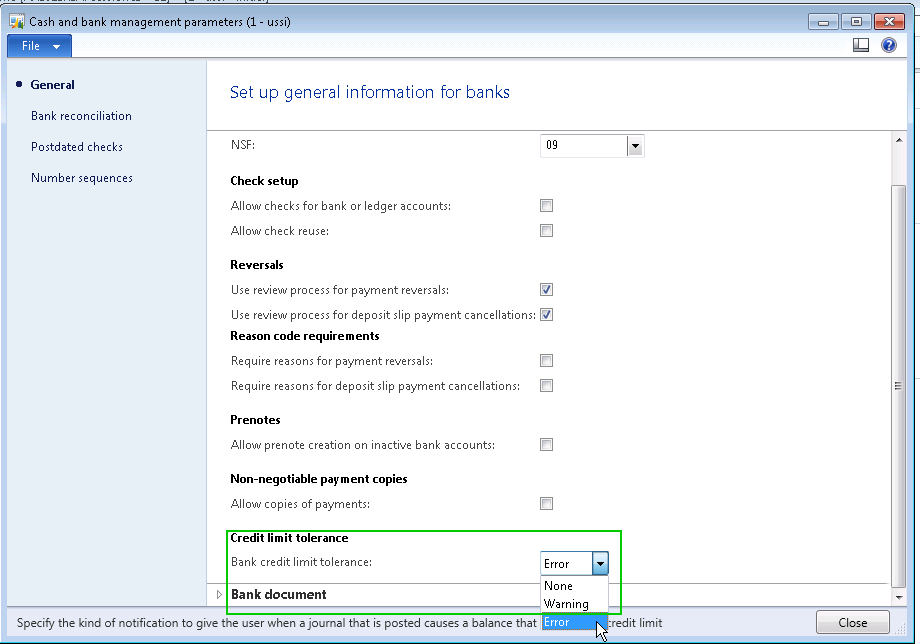
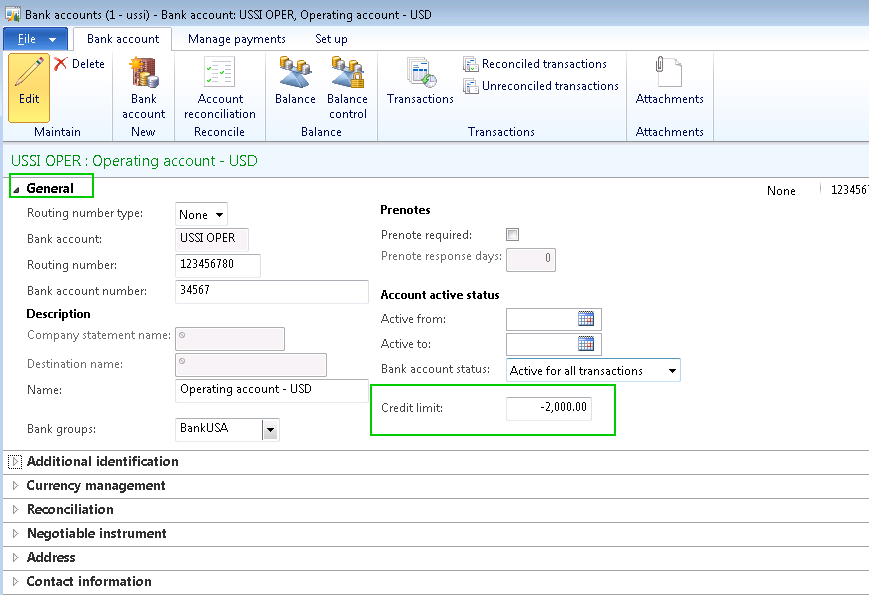
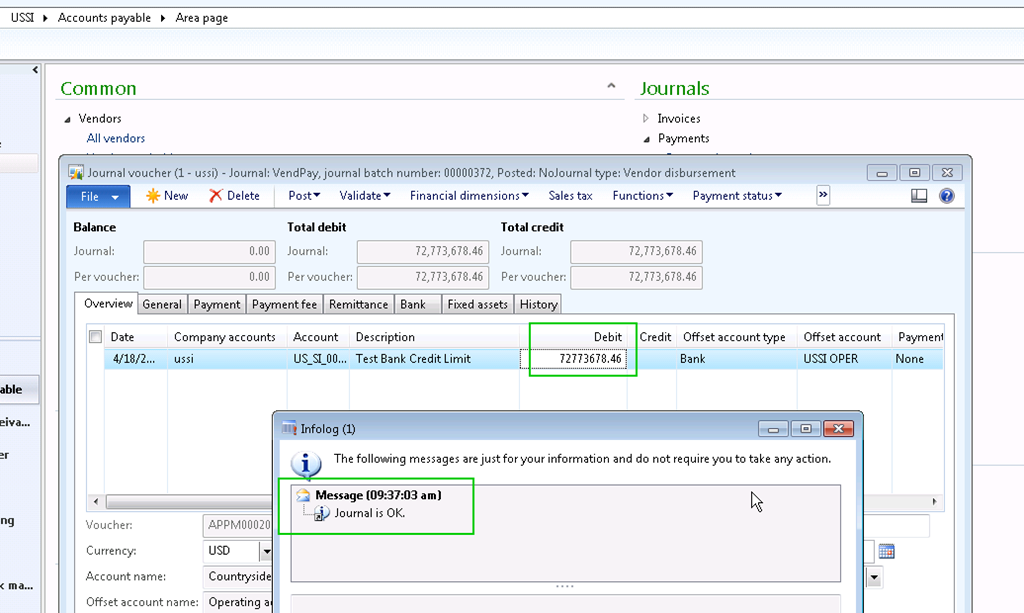
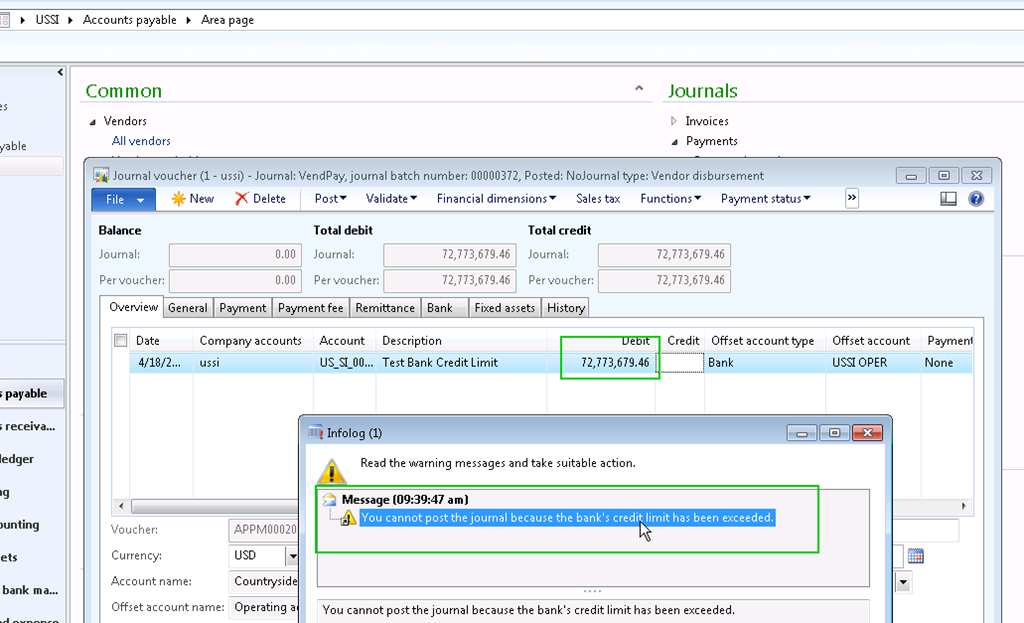
2. Bank Credit Limit check during vendor payments with bank as the offset:
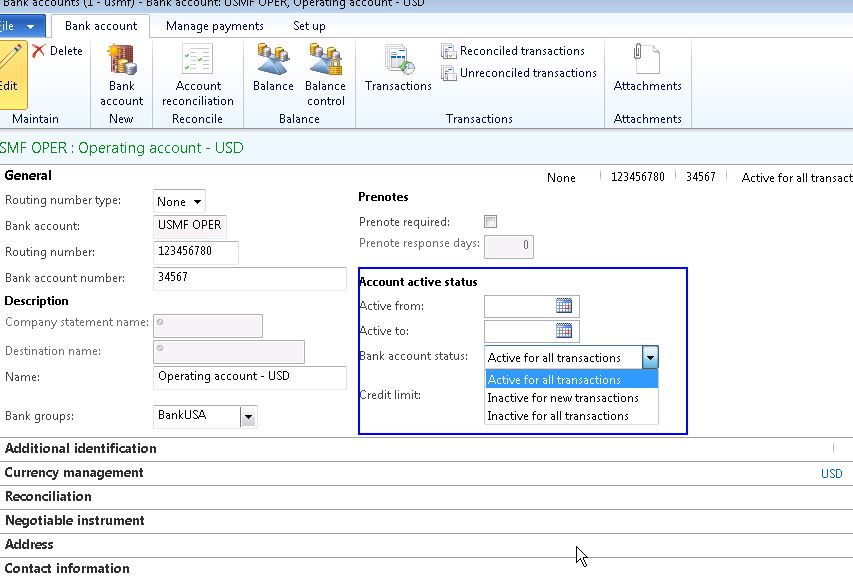
3. Inactivate a Bank account:
Active for all transactions – Bank account is active and transactions are allowed.
Inactivate for new transactions – Bank account is inactive and no new transactions are allowed.
Inactivate for all transactions – Bank account is inactive and no transactions are allowed
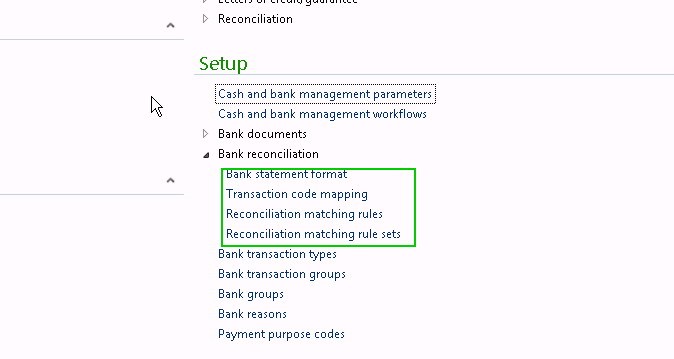
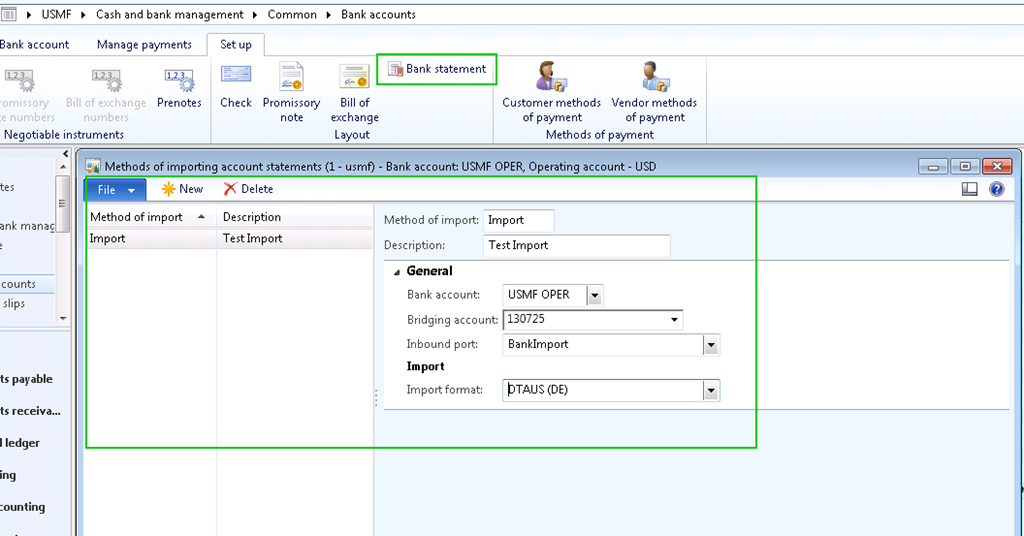
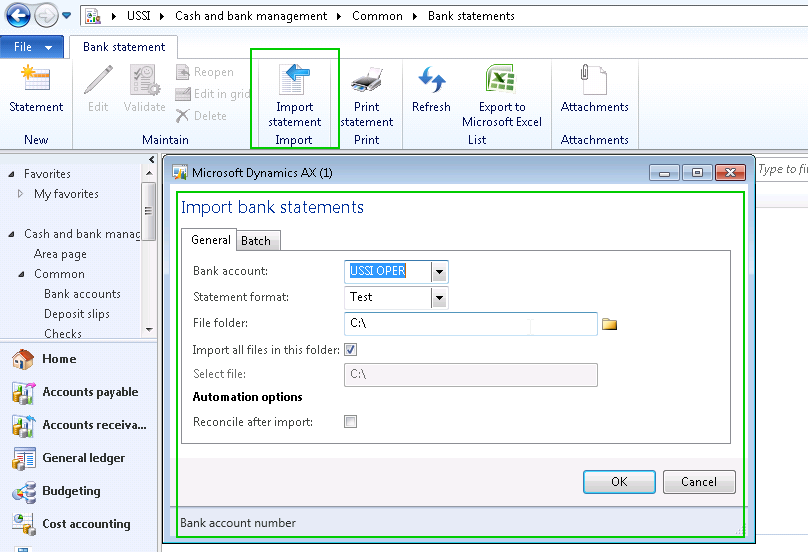
4. Bank Account Statement Import and advanced reconciliation
In my next post, I will explain in detail the step by step procedure for setting up bank accounts for statement import and advanced reconciliation procedure.
Till next time !! keep exploring.
Regards
Sandeep
Hello Everyone,
I had been away from my blog since over a month time because of my work and long vacation. It feels nice again to write here and share knowledge with you all. We all thrive to learn new things always and so do I. Today, I decided to get my hands dirty on the new “Time and Attendance registration” functionality which is introduced in Microsoft Dynamics AX 2012 and share what I have learnt so far. Hope everyone finds this post useful.
Dynamics AX 2012 has been amazing with its all new exciting range of features. I found the Time and Attendance registration feature pretty useful and decent and I am sure Microsoft will make it more powerful in the coming versions. Let me first explain you what this functionality is and how it can benefit organizations.
Organizations of all sizes use Time and attendance systems to record when their employees start and stop work, and the department where the work is performed. It’s also a common practice to track meals and breaks, the type of work performed, and the number of items produced. The Time and attendance functionality of AX 2012 enables organizations to track the time and attendance including the jobs on which the workers are working on a given day. Using this functionality the workers can register various types of times such as Clock in, Clock out, Absence, Breaks, Flex time, Overtime etc. This functionality will find a lot of traction in the manufacturing industries where lot of the workers are paid based on their working profiles and make time registrations.
The below diagram depicts the overall flow of the worker’s time registration process in Dynamics AX 2012.

Now that we know an overview of the Time and attendance functionality, let us look at the setups which we need to make in order to use this functionality.
Basic setup for T&A:
There are a bunch of setups present under the Time and attendance form in the human resource module. Each of these setups as a significance and I will not explain those here as I will primarily highlight the process of the time and attendance recording in this post.

Calculation and Approval groups:


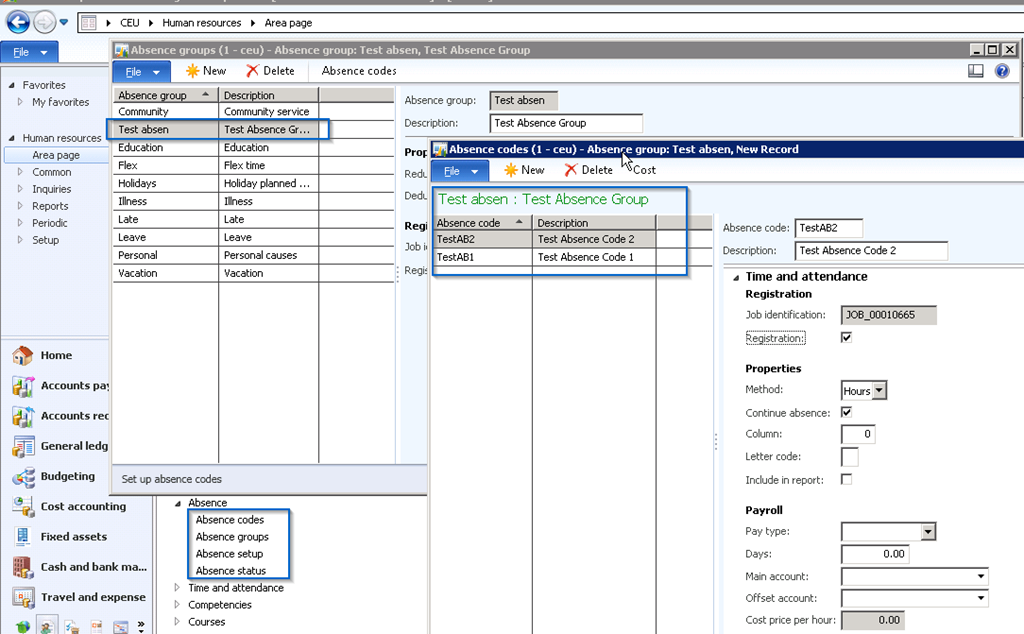
Indirect activities and Absence codes:


Setup Worker/Employee for Time Registration:

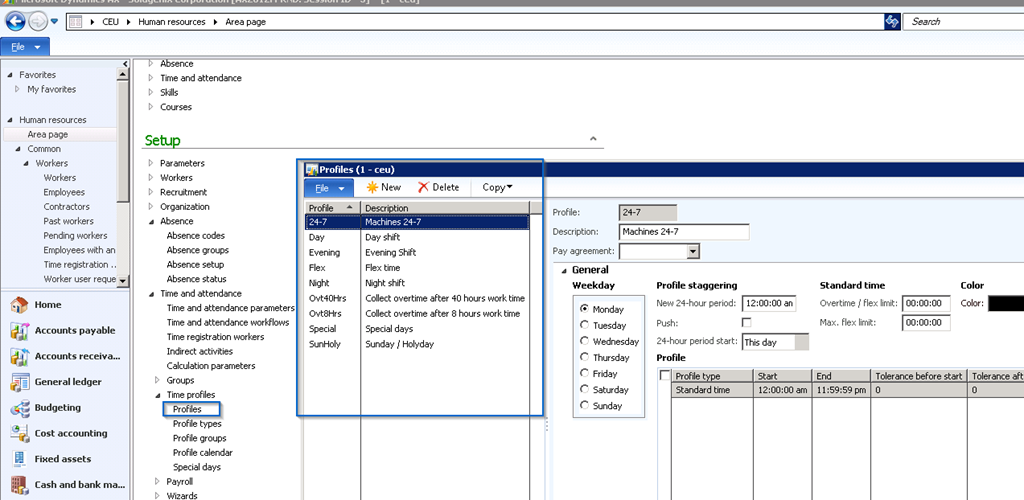
Setup Work Time Profiles:
Time and Attendance Registration Process in AX 2012:
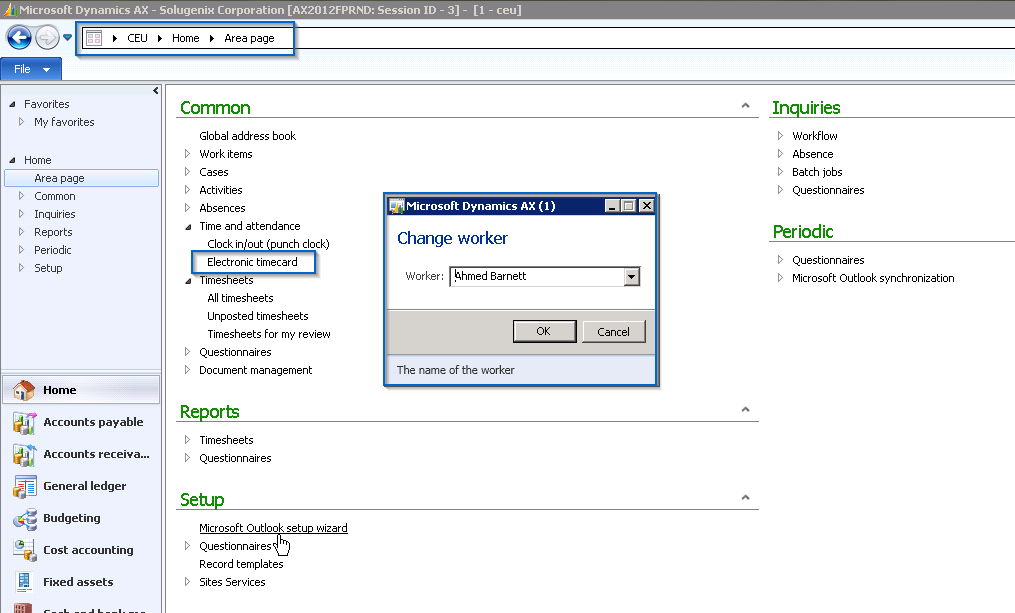

Calculate and Approve Time & Attendance Registrations:

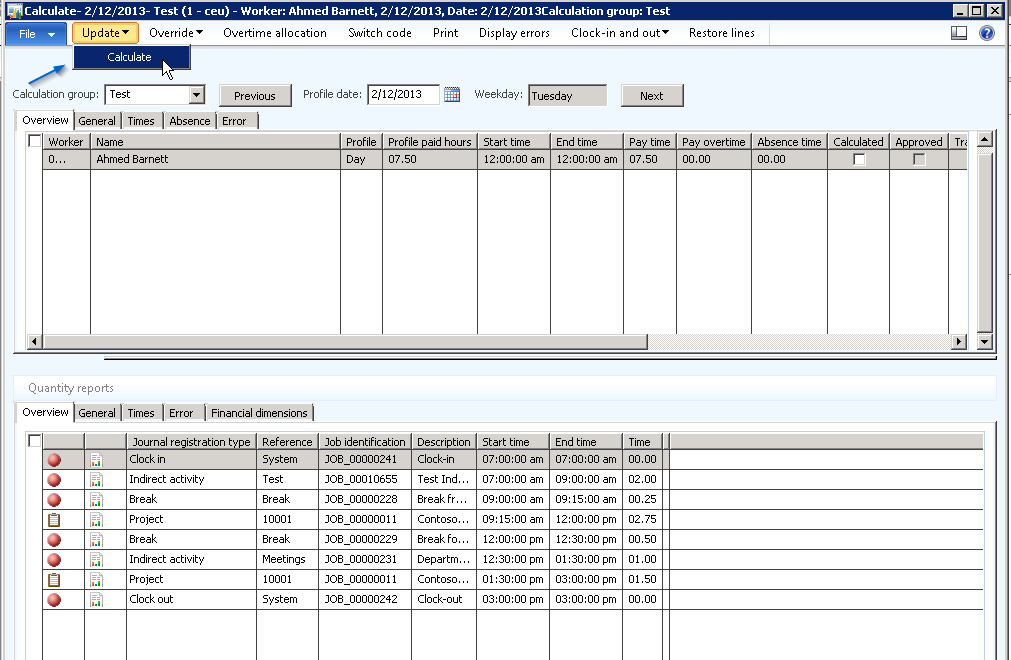


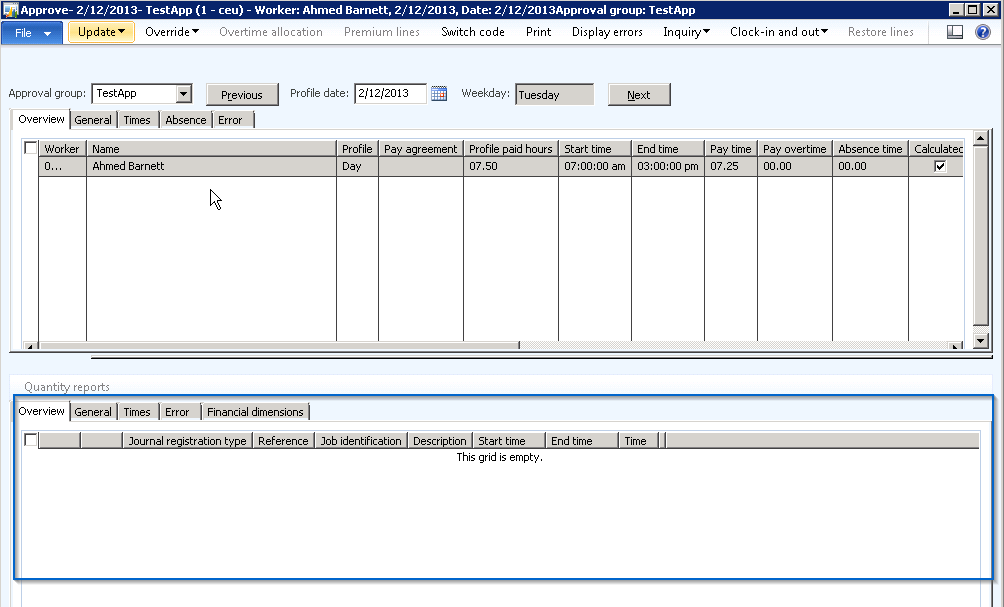

In this post , I covered,

In my next post, I will cover the remaining part of this functionality.
Well ! That is it for now.
Till next time…Keep exploring.
Thanks
Sandeep

Friends,
I have been busy in work after my long vacation and break from blogging.
Today, I just wanted to write a quick post about troubleshooting an error which you might face while submitting invoice proposals which has retention enabled in it in Microsoft Dynamics AX 2012.
If you come across the error with message“The value “ FeeRet“ in the Category field is not valid according to the Category setup” , where “FeeRet” is the customer payment retention category, then make sure that The “Active in journal” and “Customer payment retention” check boxes are marked in the Category setup under Project Management and Accounting > Setup > Categories > Project Categories.
Refer to screenshot below.
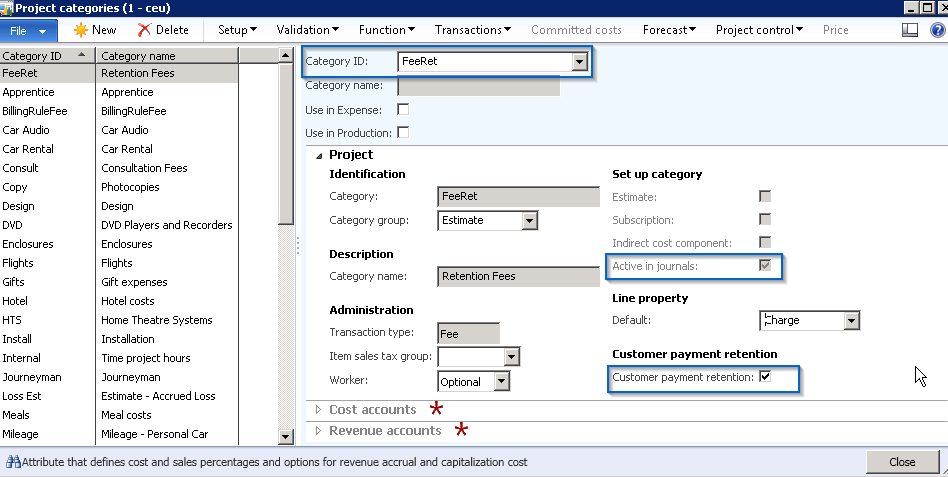
Note : Please note that, if you select the ‘Customer payment retention’ check box prior to the ‘Active in journal’ check box, then you cannot mark the ‘Active in journal’ check box anymore, as it will be disabled.
Hope this will help. Lot of new exciting posts coming soon. Stay tuned.
Keep DAXING 
Sandeep

Efficient cost management in Projects is always one of the key aspects to ensure that the project remains optimally profitable, especially in cases of fixed price contracts where revenue remains fixed. A clear visibility of all aspects of the cost data in the project helps the Project Budget Manager or Project Controller to ensure that the expenses in the project are well controlled and the project is adequately funded on time.
The common practice followed widely by most of the Project organizations is to establish a project budget for the costs and then track the actual project costs(Realized costs) against it, to arrive at the remaining budget balances, % of work complete in the project etc., for the managers to take suitable actions on funding effectively.
While the actual costs/realized costs gives the required visibility to the remaining budget balances of a project, there is one other cost component which should be considered. This is called the “Committed costs”.
The “Committed costs” are the project expenses that are used over a period longer than the cost reporting period. An example of this is the materials and services(Subcontractors and Consultants) getting used in a project. Once a purchase order has been issued to a supplier or subcontractor, then the funds for that purchase order are “Committed” by the organization.
In today’s post we will take a look the “Committed costs” functionality for Projects in AX 2012 and discuss how this could be helpful for service industries such as the Construction, advertising and media where the subcontracting services are usually used for a longer time period.
The first thing to understand is the parameter setup under the project module. Notice that Dynamics AX 2012 makes it flexible and allows users to designate all the types of transactions which could form a cost component in a project, in stead of just limiting this to just Purchase orders and Vendor invoices. Users can select or deselect these transaction types to decide if they want those to be reflected as “committed costs” in the projects. Take a look at the screen below.
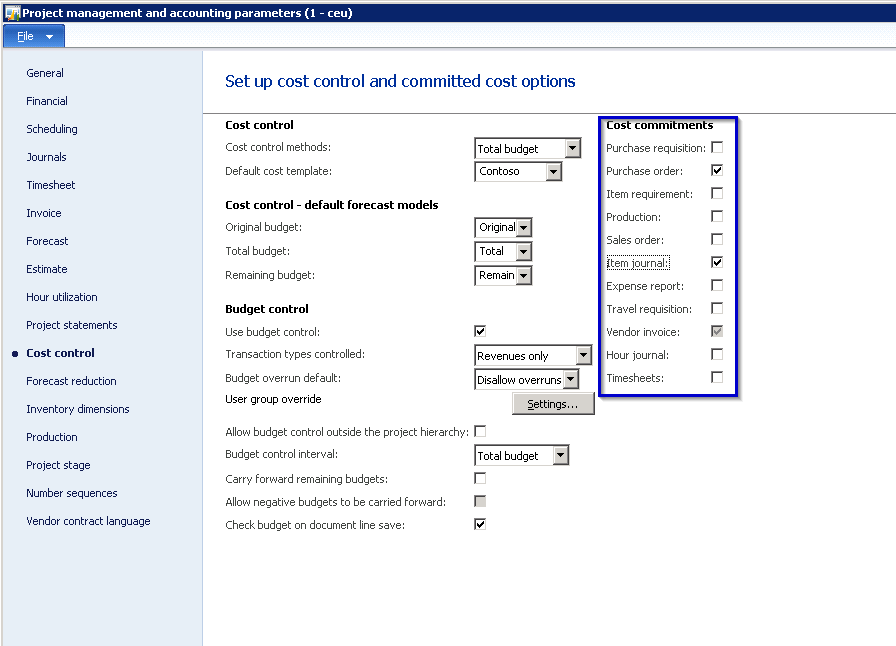
In this case, I will consider the purchase order, Item journals and vendor invoices as committed costs. I will also create a Fixed price project and then allocate budget to it and finally post some purchase orders, item journals and vendor invoices for this project to see how the “committed costs” work.
Below screenshot shows the total budget which I have defined for this project for the items and the subcontracted labors.

We will now post some costs on this project by booking few hour journals to record some actual costs on the project. See the screenshot below which shows all the details in the Project budget balances screen. This shows that there are no commitment costs/committed costs.
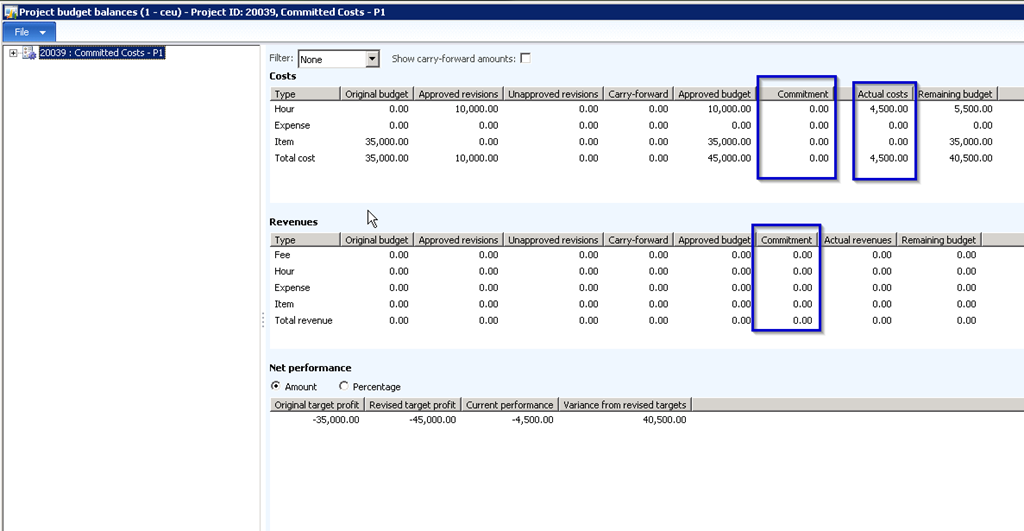
Now let us create a purchase order(Do not post) and book a vendor invoice and see the impact on the committed costs. After creating the purchase order and vendor invoice for the project, navigate to Project Management and accounting > Periodic > Committed costs > Generate committed costs and click OK button. (Ideally this could be set to run in batch automatically).
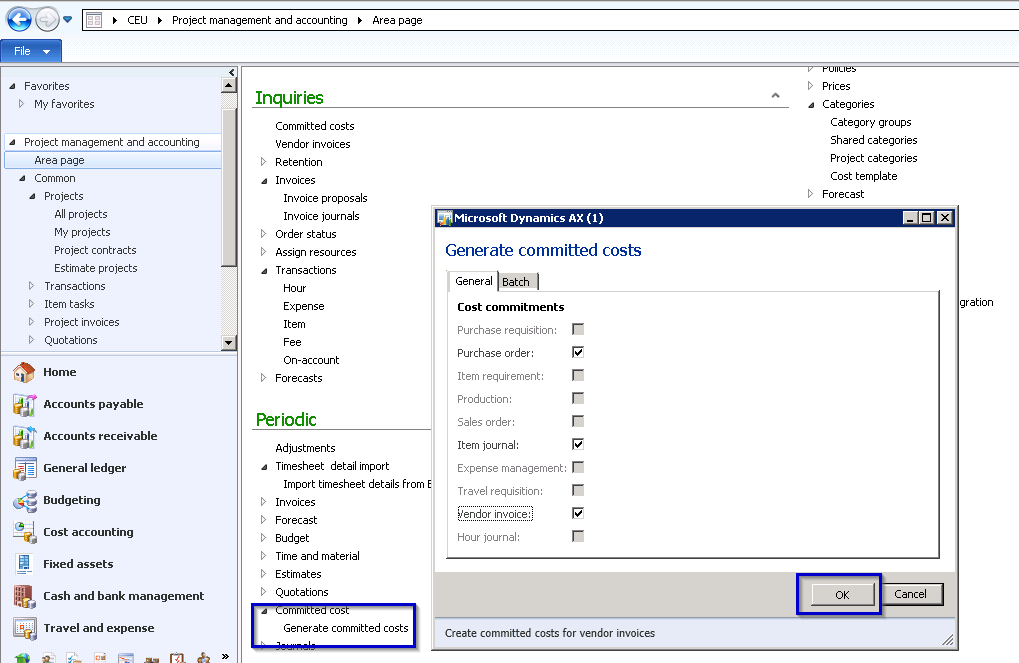
Now let us enquire the project budget balances and see how system automatically shows these as committed cost so that project budget manager or project controller gets a better visibility of the costs for this project.

Also, you can navigate to Project > Control Tab > Costs > Committed costs button and system will show the details for all the committed costs on the project in this screen and users can click the Item tasks button to go to the source document which forms the basis of the committed cost and then take suitable actions.

Hope this post was helpful.
Thanks
Sandeep

The wait is finally over !!!
Microsoft Dynamics AX 2012 is now launched in India. India has been one of the key emerging market segment for Microsoft Dynamics AX ERP over the years and the launch of Dynamics AX 2012 in India will definitely gain attention with its new improved and powerful purpose-built solutions for Manufacturing, Distribution, Retail, Public sector and Service Organizations. Stay tuned.
Read more http://gadgets.ndtv.com/laptops/news/microsoft-launches-dynamics-ax-2012-in-india-300731

The workflow engine of Microsoft Dynamics AX ERP has been one of the very important and capable tool over the different versions. It helps users to automate and streamline several business processes in the organization across several departments. Now, with Microsoft Dynamics AX 2012, the workflow engine gets even more stronger with the introduction of additional capabilities such as,

Recently I got chance to learn the automated tasks in AX and in today’s post, I will explain how we can configure automated tasks in a workflow and how it can help business in real time.
Tasks such as posting transactions and generating reports or verifying results can run automatically or require an user intervention in Dynamics AX. In AX 2012, a workflow can contain both manual tasks(Requires user intervention) and automated tasks(Does not require user intervention).
AX 2012 provides few automated tasks out of the box in some the workflows such as expense reports, budget entry workflow etc. However, you can create automated tasks as per your requirements, with a little help from your technical team.
Let us assume a scenario, where we want to automate the “Credit limit check” for customers while approving Sales orders or Free text invoices, so that the automated task will complete the credit check and send the result to the workflow owner/user for them to take further actions.
Below are the high level steps which you can follow to create a new automated task.

For this demonstration in the post, I have not created the Event handler class for customer credit limit check. So, I will use an existing automated task (Automatic posting of expense reports) and demonstrate how it can be used in workflows.
Follow the steps below to configure an automated task in a workflow.
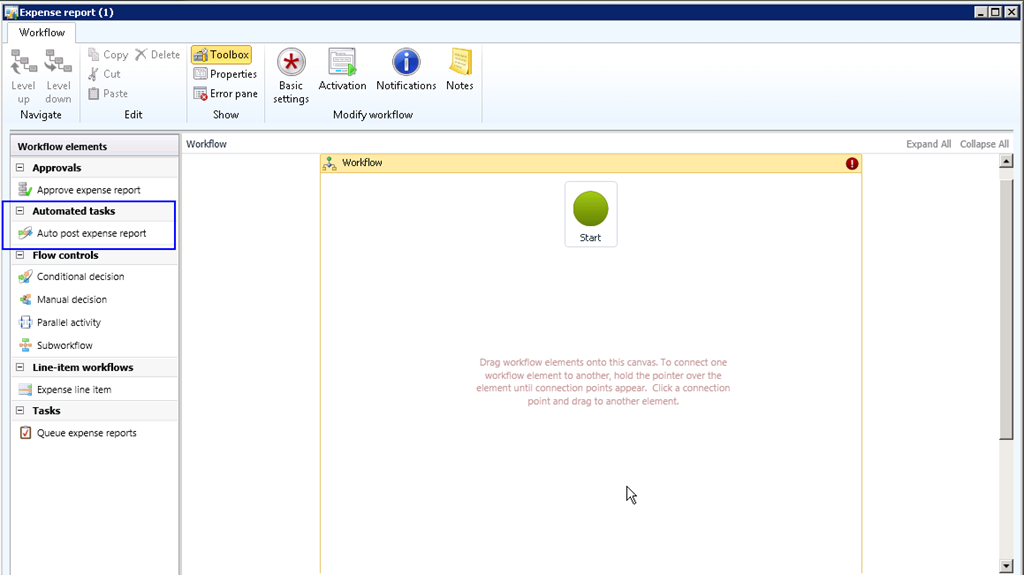
7. Now, see the screen below which shows one very simple workflow which I have configured with the automated task is it.
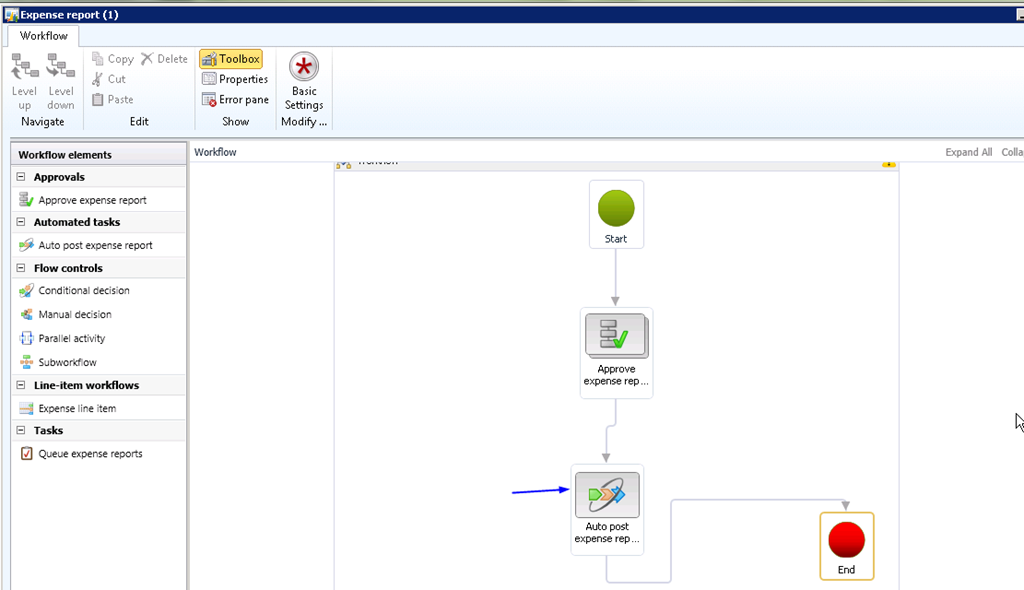
8. When the workflow is run and it gets reviewed and approved, the workflow will be able to post the expense report automatically without requiring user intervention.
9. Also, note that there will be no outcome after an automated task in run inside the workflow. The status will just changed to “Completed”. If you need outcomes for automated tasks, then you can write custom code with help from technical team.
So, with few easy steps and custom code, Microsoft Dynamics AX 2012 makes it easy to automate lot of tasks in the business process which may not require an intervention.
Hope this post will be helpful. Do not hesitate to contact if you need help on this.
Thanks
Sandeep
 Microsoft Dynamics 365 Blog