Author: Sandeep Chaudhury

  • Adjusting invoiced project transactions in Microsoft Dynamics AX 2012

    Hi Guys,

    Just another quick post here on the functionality of adjusting project transactions even after they are invoiced. Most of us must be aware of this.

    In Ax 2009 never allowed adjusting or correcting a project transactions which was already invoiced. This can be a very useful requirement across many industries as chances of errors during invoicing is very likely in services organizations.

    In AX 2012, system now allows to edit invoiced project transactions. Make sure the following to be able to do adjust invoiced project transactions.

    • Go to Project management and accounting > Setup > Parameters.
    • Mark the Invoiced check box as shown below.

    image

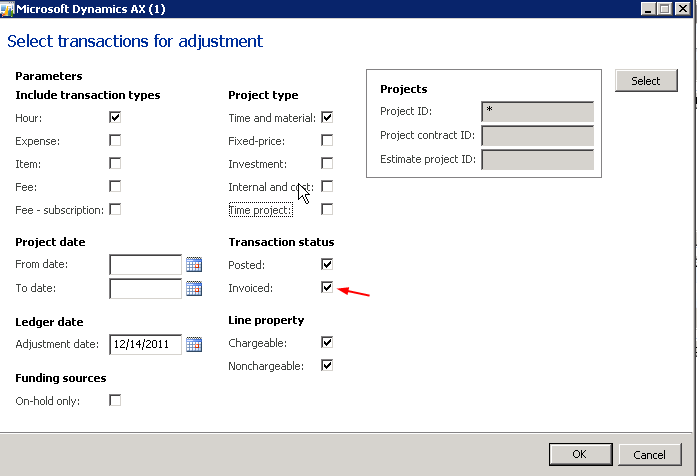
    • Now, when you perform adjustment from Periodic > Adjustments form, you will notice the “Invoiced” option.

    image

    • With that selected, if you select the records for adjustments by providing the filtration criteria, system will fetch the invoiced transactions also where you can make the necessary adjustments.

    Stay tuned for some very interesting posts in coming few days.

    Thanks

    Keep DAXING Smile

  • Quick Tip : About shared categories in Microsoft Dynamics AX 2012

    Friends,

    Most of us must be aware of this functionality getting introduced in AX 2012. I will just provide a high level overview of it in this post.

    In AX 2009, the expense categories were never shared between legal entities which was clearly a deficiency of AX 09. This functionality will help in may scenarios where in employees of the organization work on requirements of subsidiaries/other legal entities. This will allow them to incur expenses on behalf of the companies which they do not work for.

    Let us see the step to setup a shared category in AX 2012 and verify how it can be used across any entity of the enterprise.

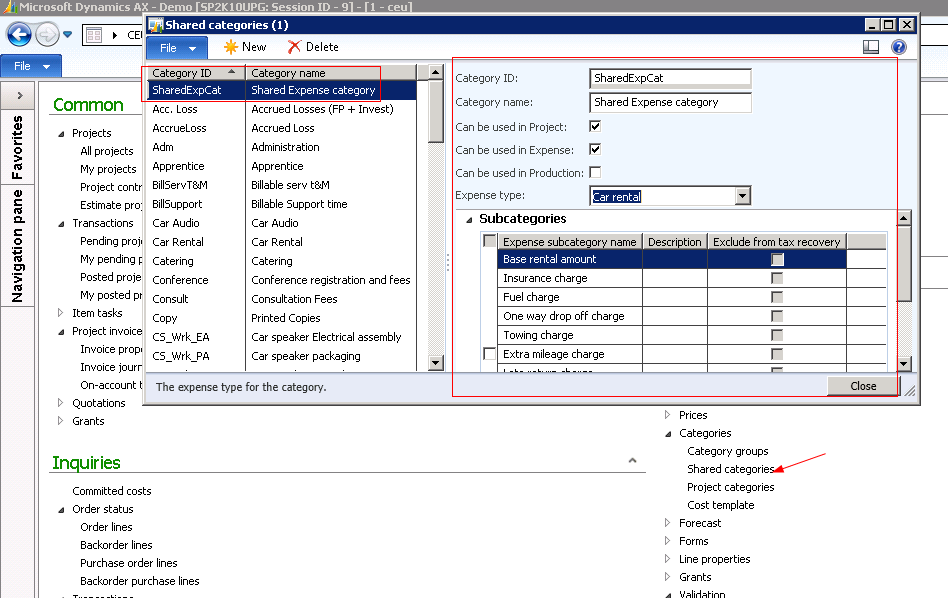
    • Navigate to Legal entity CEU > Project Management and accounting > Setup > Categories > Shared Categories.
    • Create a new record with ID = SharedExpCat and name = Shared expense category.
    • Select the “Can be used in Projects”, “Can be used in production”, “Can be used in expense” check boxes to be able to use this shared expense categories in Projects, production and expense respectively.
    • Let us select the Expense type as Car rental.

    image

    • In AX 2012, we need to define categories in the shared category form before we can create those in the project categories. Once we have the categories defined in the Shared categories screen, they will be available in all the legal entities for use.
      Let me know if you need more information about the shared categories and their usage in AX 2012.
      Thanks
        Keep DAXING

    Smile

  • Intercompany accounting setup and process in Microsoft dynamics AX 2012

    Friends,

    In this post, I will take you through a very simple functionality called  the intercompany accounting in dynamics AX 2012. This is a simple walk through of the setup required to be able to do intercompany transactions and also we will post and verify the ledger updates for an actual intercompany transaction in both the source and destination legal entities.

    We will do this in the CONTOSO dataset. Let us say that the CEU is the source company and CEE in the destination legal entity and CEE ordered some stationary for promotional events, for which the finance controller of CEU received the invoice. Now the controller needs to post and intercompany entry to record the transaction in CEE.

    Let us now look at the setup we need to do in CEU  and CEE for these to be able to intercompany transactions with each other.

    In CEU company, navigate to GL > Setup > Posting > Intercompany accounting and see that its required IC setups.

    image

    Credit account: The ledger account that contain the intercompany credit transactions.

    Debit account: The ledger account that contain the intercompany debit transactions.

    Journal : It is the name of the journal to which the transactions are transferred.

    Now, in the CEE company, navigate to GL > Setup > Posting > Intercompany accounting and see that its required IC setups.

    image

    We have now done/verified the necessary setups for the intercompany transactions. Let us now go and post and actual transaction and verify the impacts.

    Say that the CEU and CEE ordered some stationaries for which CEU finance controller of CEU received the invoice. Now the controller needs to post and intercompany entry

    For this do the following.

    1. In CEU go to GL >  General Journal and create a new intercompany journal.

    image

    2. Click lines and enter account type = ledger , Main account = 110180(Petty cash account) and credit amount of $1000.

    image

    3. Click General tab and select offset account company  = CEE, account type = Ledger and account = 6300

    image

    4. Click post and notice the info log. (One in CEE and another in CEU)

    image

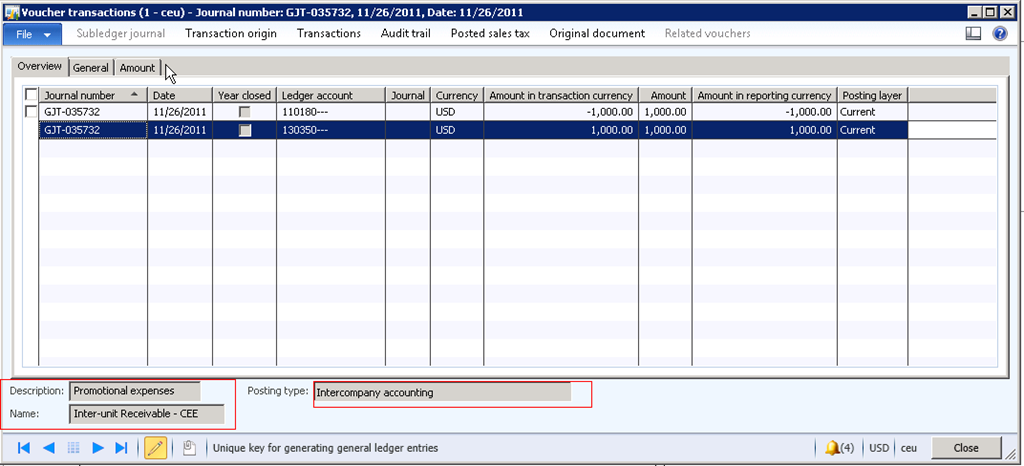
    5. Let us now verify the voucher postings. In CEU, navigate to GL > Inquiries > Voucher transactions and fetch the required voucher. Please see the screen below and verify that the petty cash account is credited and the Inter unit receivable – CEE account is debited. ( This is the debit account which we did set in the inter company accounting setup form earlier).

    image

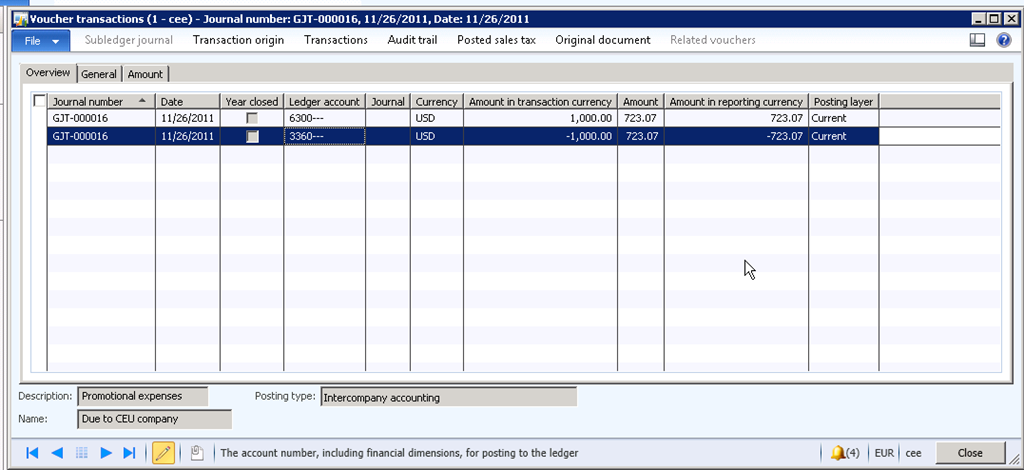
    6. Now go to entity CEE and notice the voucher. The Due to CEU account(3360 is the credit account which set in the intercompany accounting setup parameters of CEE entity.

    image

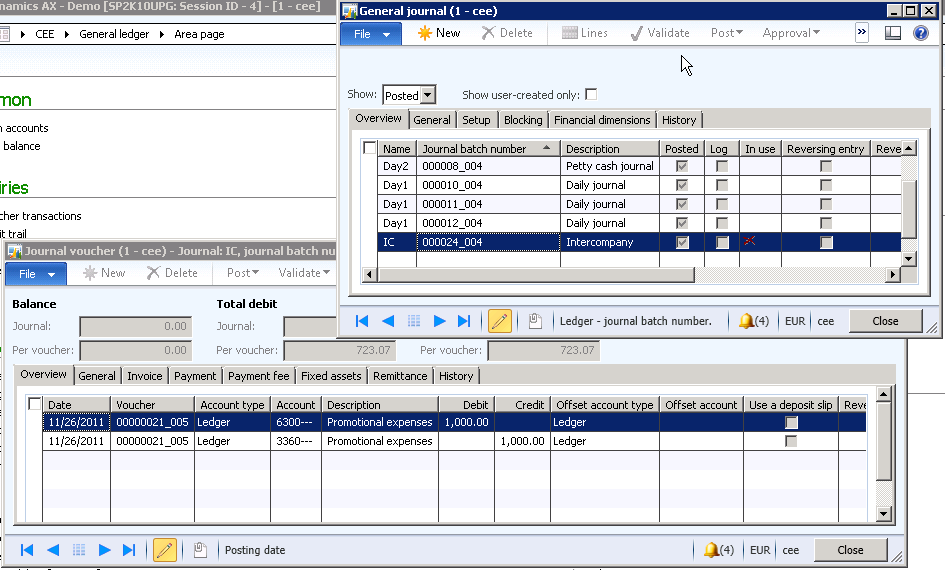
    7. You may also wish the see the IC journal which got created in the CEE company as shown below.

    image

    Simple !!!!!!! That’s it for today.

    Thanks

    Keep DAXING Smile
  • The item requirement functionality in projects management – Microsoft dynamics AX

    Here is quick post on the item requirement functionality of the project management and accounting module of Microsoft dynamics AX.

    The item requirement functionality plays a very important role for the project based organizations who have their own inventory, or have their own production unit for items/sub items which they consume, and don’t want to consume them immediately in the projects.

    In today’s post i will give an insight and step by step guide lines to handle item requirements in projects.

    The item requirement functionality is basically used for reserving items in the company’s own inventory(a certain amount or unit of items) for a project and then consume when it is needed. Dynamics AX system will then create separate deliveries on each packing slips. This also means that an item requirement can be consumed partially.

    It is created and managed as a sales order line on single sales order that is associated with that specific project. It also allows creating purchase orders and production orders from an item requirement.

    Follow the steps below to create and process an item requirement in dynamics AX.

    • Navigate to Project management and accounting > Common > Projects > All projects
    • Select the project.
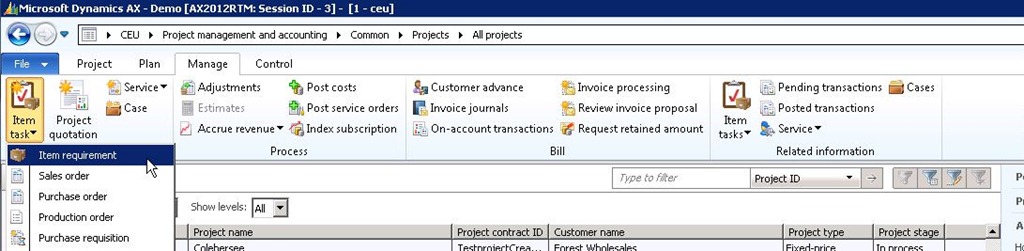
    • Click Manage > New > Item task > Item requirement.

    Navigation path

    • Create new record and create a line with Item number 1201(Home theater system 2.1) for a quantity of 20.00. If you want to charge this item to the customer in the project,select the line property accordingly.

    New Item Requirement

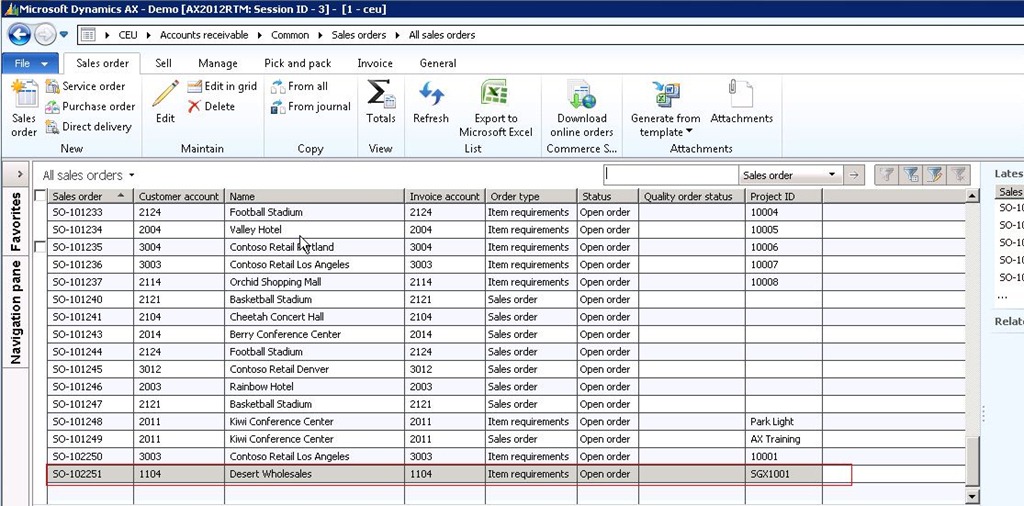
    • Now Notice that it will create a sales order with one line automatically. Screenshot below. Also look the inventory transaction snapshot at this point.

    Automatic Sales order creation

    Inventory Transaction snapshot

    • Now let us pick 20.00 quantities in two iterations(5.00 and 15.00) of the item in the project and post the packing slip. To do this,
    • Click Posting > Picking list. Update the same.
    • Click Posting > Picking list registration. Update the same.
    • Click Posting > Packing slip.
    • Now notice that the sales order status is changed to Invoiced.
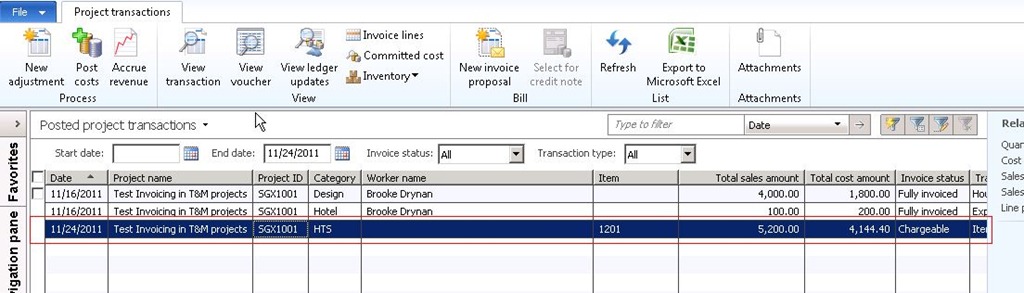
    • Also take a look at the inventory transaction and posted project transaction snapshots.

    Intventory Transactions snapshot after posting item requirement

    Posted Project transactions

      • Finally, if you would like create one more item requirement in the project using the above steps only, you will notice that a new line gets created in the same sales order.

    Sales order line with second item requirement

    The difference between an inventory item journal and an item requirement in a project is that, an item requirement will be useful when the purpose is not consume items in the project immediately, and rather reserve them in the inventory and consume them partially when needed. Where as an item journal will be preferable to enter and post and quick item consumption in a project.

    There are several advantages that users can take when using the item requirements functionality such as the BOM explosion, Net requirements analysis etc.

    Please let me know if you need more clarification on this functionality.

  • Having troubles in migrating your projects from legacy/old ERP systems to microsoft dynamics AX 2012 ?

    Are you facing issues when migrating your projects from your legacy ERP system to Microsoft dynamics AX 2012?

    1. Want to retain all the project details ?
    2. Want to record the accumulated or progress invoices from project start date to the date of migration?
    3. Want to record costs and accrue revenue or want to post the costs to profit and loss ?
    4. Finally want to do all these without affecting the general ledger ?

    You can do all these easily in Microsoft dynamics AX 2012. Learn how which i posted in one of my earlier posts.

    https://sandeepchaudhury.wordpress.com/2011/07/24/what-is-new-in-ax-2012-the-project-begining-balances/

    Let me know if you need more detailed help on these.

    Thanks

    Sandeep, Keep DAXING :)

  • Invoice frequency of a project contract and the general buffer days for sales payment in a project in dynamics AX 2012

    Hi Folks,

    Did you all know about the Invoice frequency option in project contracts and the buffer days for sales payment for time & material projects. Here is a quick post to get to know these.

    Invoice frequency of a project contract is a factor which decides the sales payment date on a project forecast line along with the buffer days for sales payment which is specified on the project parameters. The invoice frequency for a project contract is setup under General fast tab of the project contract details form  and it can be one of the options as shown below.

    Invoice frequency Invoice date/day of project forecast
    Daily Same as the project date
    Weekly First Sunday after project date
    Monthly End of current month as per project date
    Quarterly End of current quarter as per project date
    yearly End of current year as per project date
    End of project End date of project

    Buffer days for sales payment : Indicates how many days are allowed as a grace period before a sales payment is due on a project. This can only be specified on a T&M project. This field can be found at Project Parameters > Forecast tab > General buffer days field.

    An Example:

    Let us say that the Invoice frequency for the project contract is set to Monthly and the project date is set to 10th OCT, 2011. Now the invoice date will be set to 31st OCT, 2011 as the frequency is monthly and it is the end of current month.

    Let us say 6 is entered in the General buffer days field in project parameters form.

    So, the payment now is due on 6th Nov, 2011 which is nothing but 31st OCT + 6 days.

    Easyyy right !!!! :)

    Thanks

    Keep DAXING :)

  • Create customer advance for projects in microsoft dynamics AX 2012

    Friends,

    In today’s post, I will discuss a small but important functionality called the customer advance also referred as pre-bill for projects in Microsoft dynamics AX 2012.

    Sometimes projects require a significant financial investment and may need some amount to be requested from the customer.The  Customer advance is an option using which customer advance payments can be requested on account of the projects. This can be done for both fixed price and time and material projects in dynamics AX 2012.

    The advance payment can be requested to the customer as a percentage of the total project original budget at any time during the project. It can also be requested as a flat amount. The project category and the activity also can be specified during raising the customer advance.

    When user creates a pre-bill transaction, system automatically creates an invoice proposal, which is then submitted for necessary approval. Once approved, this becomes an On account amount with transaction origin as a Prepayment.
    With a prepayment existing in a project, say $10,000.00 in Sep, 2011, when you process an invoice of $20,000.00 later in Oct, 2011, you will notice an additional invoice proposal line showing up the prepayment amount causing the total invoice header
    amount to be $10,000.00(20,000-10,000).

    Let us now go through the steps to see how it works is dynamics AX 2012.

    • Let us say we have a project 90001 in CONTOSO data set.
    • Select the project and click Manage > Bill > Customer advance on the action pane.

    • Click New.
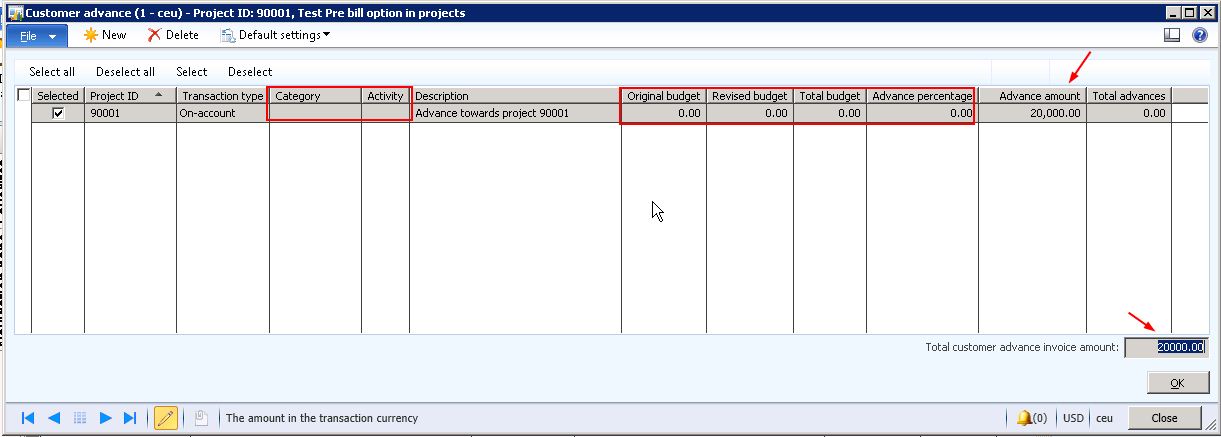
    • Enter category and activity if you have/want any. I will just go with requesting the advance for the project as a whole.
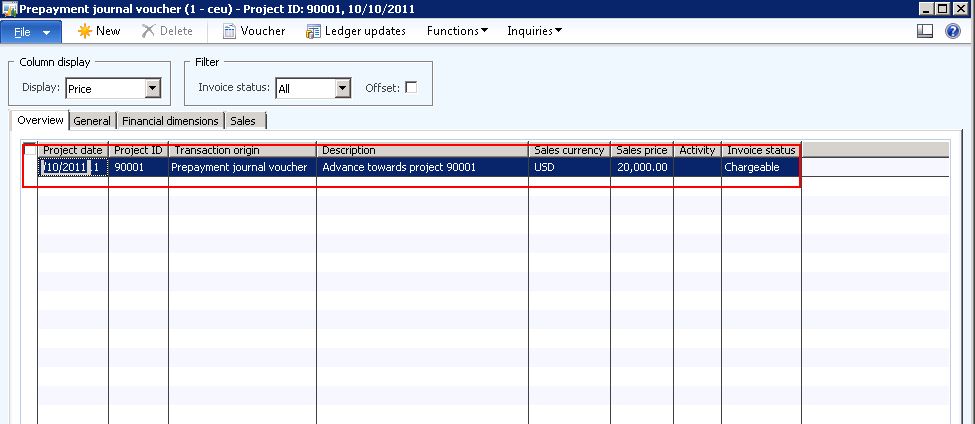
    • Enter Description = Advance towards project 90001.
    • Now, as I depicted above, the amount can be requested as a flat amount or even as a % of the total project budget. If you have set up a project original budget, you can just specify a % value and system will calculate the total advances amount which is to be requested.
    • In this scenario, I will just proceed by specifying a flat amount, say $20,000.00.
    • Verify that Total customer advance invoice amount = $20,000.
    • Click OK button.

    • Notice that, an infolog shows up  and Invoice proposals screen opens up as shown in screen below.

    • Verify the details of the invoice proposal and then submit it for approval.
    • Now the approver will verify the customer advance request and once it is approved, on account transaction will be created for the project 90001 by the system.
    • Let us verify this by going to projects  and selecting 90001.
    • Click Manage > Bill > On Account Transactions and verify that the on account record is created.

    • Let us now post and simple hour journal of total amount of $25000 and try to process the invoice for the project and analyze the impact of the customer advance.
    • In my scenario, I posted an hour journal with total amount = $25,000.00.
    • Now select the project and click Manage > Bill > Invoice processing.
    • Verify that the total amount available to invoice is (25,000-20,000) = $5,000. This indicates that, the invoice processing automatically takes the advance amount into consideration and deduct it from the current invoice amount to present the total amount that will be invoiced.

    That is it about pre-billing functionality for projects in Microsoft dynamics AX 2012. Do let me know questions and clarifications on this.

    Thanks

    Keep DAXING :)

  • Manage Invoice Presentment during Invoice processing of projects in microsoft dynamics AX 2012

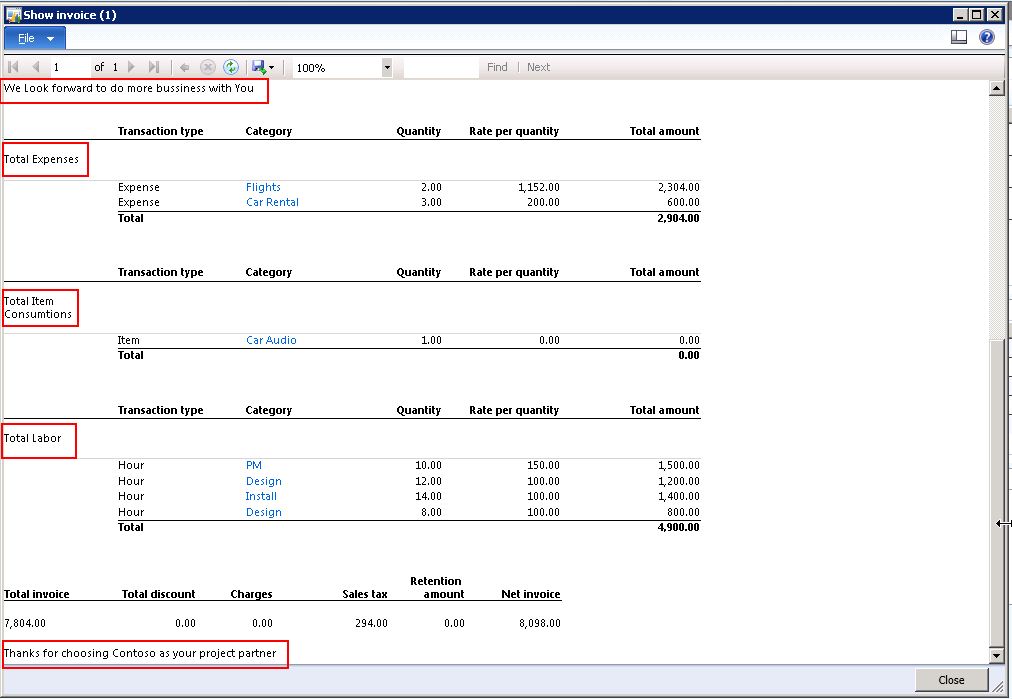
    Sometimes in business, customers need their invoices to be presented in a specific format different from the regular project invoices. For example , customers may need all the billable transactions to be grouped separately (e.g., Item, Labor, Expenses etc.) and presented in the invoice.

    Companies also sometimes wants to mention ad-hoc texts (Courtesy texts etc.) before and after the invoice document to be printed.

    All of these additional formating(ad-hoc formatting) of project invoices can be can be done in AX 2012 at run time during invoice processing very easily without having the need to customize the reports and involve additional development costs.

    In today’s post I will explain this functionality in AX 2012 and take you through the steps.

    • Assume that the project and project contract are ready and we have some transactions already posted on them which are pending for invoicing. Say that the project 10001 in CONTOSO data has some hour, expense and item transactions to be invoiced.
    • Let us start from the invoice processing for this project.
    • Navigate to Project management and accounting > All Projects.
    • Select project 10001 and click Manage tab > Bill > invoice processing. Refer to screen below.

    • See the invoice processing screen that opens and shows all the available transactions for billing. I have selected few of then in the lower grid for billing Screen below.

    • Now click the New Invoice proposal button. Verify that info log shows up and the invoice proposal screen opens up as shown in screen below.

    • Click the Manage Invoice presentment button on the action pane.
    • In the manage invoice screen, notice 4 sections Invoice line summary, Selected transactions, Available transactions and Invoice header and footer text.
    • Create a new line under the invoice line summary section by clicking Add line button.
    • Select Detail/Summary option, give a description ( this will appear on the invoice) and then keep focus on this line and select all the Hour transactions and click Include transactions button under the Available transactions section.
    • See the screen below to view how it looks like after doing above steps. We are now done doing the invoice presentment.

    • Lets click on the print preview button to analyze how the project invoice report will look different from the regular project invoice after presentment
    • See the 2 screen shots below for the reports.

    Thats all for today’s post guys. Do let me know if you have any questions regarding this and hang on to my blog for forthcoming interesting stuffs..

    Thanks

    Happy DAXING :)

  • Microsoft dynamics AX 2012 introduces Grants as funding option in Project management and accounting

    Hi Friends,

    Its been a long time coming here. Work keeps all of us busy. :)

    In today’s post , I will take you through a new functionality and it’s concept called Grants in the Project accounting and management module of dynamics AX 2012. In one of my earlier posts, I introduced and explained about the new advanced funding functionality in dynamics AX 2012 where in customers/users can set up split funding of projects/contracts. They can attach more than one funding source which can be of different types such as Customers, On Hold, Grants, Organization etc.

    Let us discuss the Grant funding source type out of these different funding sources in this post. We will also discuss the significance of introducing the Grants in AX 2012, how to create and manage grants  and their billing or utilization related stuff in projects.

    A grant in dynamics AX 2012 represents a fund designated by federal government or local government authorities for a specific purpose/project and usually there are restrictions imposed on how the grant can be spent. This type of funding source gains attention in the public sector and research firms. They may also apply for a grant to do undertake a sponsored project and will request a grant amount when applying the grant. The awarded grant amount could be equal or less than the applied amount.

    Now let us assume that we as a construction company will apply for a sponsorship grant to install high-end security features at the Basketball stadium and we will apply this to the Basket ball stadium customer in CONTOSO data. Let us go through the steps to create and maintain grants in AX 2012.

    1. Navigate to Project Accounting and Management > Common > Grants > Grants.
    2. Click New > Grant on the action pane.
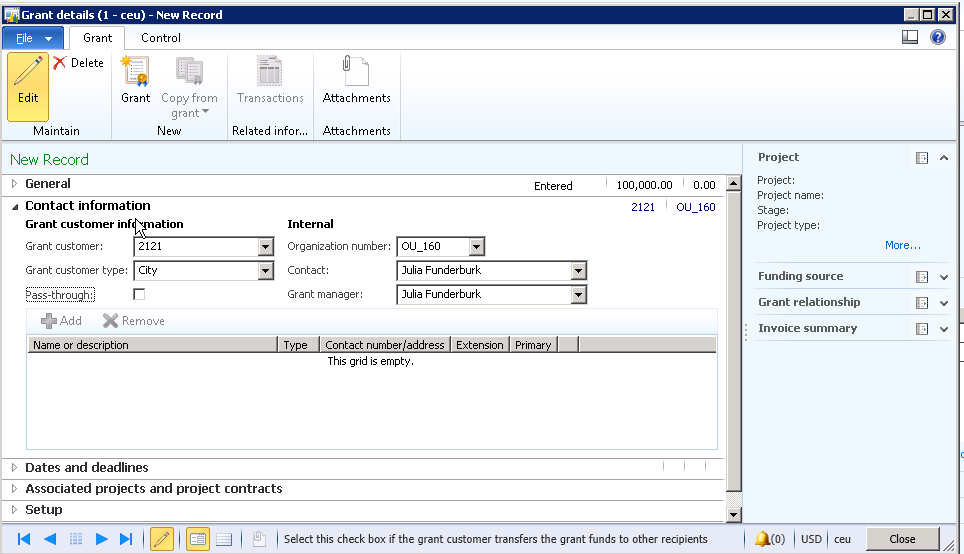
    3. Fill in the required details to complete the grant. See the screens below for the sequence of data.

    Now let us discuss some of the key terms while setting up the grant.

    The Contact Information section includes all contact information about the organization that provided the grant and your staff members which are responsible for managing the grant.

    Under the Dates and Deadlines section, define all the important dates which are required for the grant such as the requested, approved, awarded, expiry, renewal date etc.

    Under the Setup section there are few important parameters which needs to be setup.

    Matching Type : This field is required when matching of funds are required in a particular grant. Matching funds are the money/resource that the company which is awarded the grant needs to spend to match the amount which is awarded. The matching percent and matching amount gets calculated from the selection of matching type. This signifies that the grant terms requires that the awarded company will spend certain amount from its budget.

    The State mandate, Federal mandate and CFDA are all country specific fields(for United states) and are required and when the primary address of the organization is USA.

    This is it in today’s post. There are several fields for which data can be setup for the grants and explaining all of them here will get me writing and writing and writing. Please feel free to ask me back if you do not understand the significance of any of the fields in setting up a grant and any other generic questions about grants in AX 2012 and their usage.

    keep watching for my next post which will explain How to use a grant and a customer as funding sources in a project and how the billing for the grant will be carried out. I will explain all of it in detail.

    Have a nice day.

    Thanks

    Keep DAXING :)
  • Differences between the project forecasts and budgets in microsoft dynamics AX 2012:

    In Microsoft dynamics AX , people always have questions on interpretation of the project budgets and forecasts. They often interpret these two as the same at times. But the budgeting and forecasting are two completely different project management tools(I would say cost and revenue management tools) which have their own advantages and requirements.

    In today’s post, let us get to know what are the major differences between these two functionalities in AX 2012. First let us get to know a quick overview about these two terms.

    The budget plan of a project works as a baseline for performance management of the project.  It can be called as a rigid plan of spending in the project, which is established, approved and committed prior to the start of the project work.

    On the other hand, the forecasting(Hours, expenses, items, Fee etc.) is a separate mechanism for predicting the actual transactions (Costs and revenues) which may be incurred in the project. (Usually it is setting expectations what is likely to happen).

    If your organization focuses deeply on revenues and costs derived from specific transactions in the projects, then they can consider forecasting as a stronger cost and revenue management tool for their projects. Where as if they focus primarily on the financial amounts irrespective of transactional details, they can find budgeting as a very good cost and revenue management tool.

    Below are few of the differences between these two.

    1. Forecasting cannot be done based on a period of time and are always date specific where as project budgets and allocated over a fiscal period or the span of a project.
    2. Forecasting can be done using every attribute that are entered on a project where as budgeting can be done at project, activity and category level.
    3. The forecast transactions can be inquired and viewed in the forecast forms and you can see the forecast for all the projects in the whole company where as the budget transactions can be viewed in the budget balances screen and is project specific.
    4. No formal approval process or agreement in involved in creating and maintaining the forecast where the budgets require a formal approval process and sometimes may require baseline paper work. For forecasting the user just needs access to the forecasts forms.
    5. Forecasting can be based on quantities where as the budgets will primarily based on the financial amounts.
    6. In Forecasting , only allow or disallowing of cost overrun is possible where as ib budgeting user can be promoted with a warning when the cost overruns.
    7. Automatic forecast controlling in done by the forecast reduction functionality and the actual transaction amounts are subtracted from the forecasted amounts without any audit trial. This make is difficult to trace the actual transactions where as in budgets, actual transaction amounts are subtracted from the remaining budgets and this facilitates a transparent audit trial.

    Finally, the forecasts and budgets of a project are always closely related. AX 2012 provides option of automating the budget creation process from project forecasts. Also behind the scenes, AX 2012 maintains the budgets and its revisions related data  in 2 separate forecast models(Original and Remaining) which are used by the system for budget control and future reporting purposes. (Basically the budget control which is present in AX 2012 uses the Automatic forecast reduction functionality which was present in AX 2009 also in the back end).

    Please let me know if you need further clarifications on the budgeting and forecasting of the projects.

    Thanks

    Keep DAXING :)