
The workflow engine of Microsoft Dynamics AX ERP has been one of the very important and capable tool over the different versions. It helps users to automate and streamline several business processes in the organization across several departments. Now, with Microsoft Dynamics AX 2012, the workflow engine gets even more stronger with the introduction of additional capabilities such as,
- Easy-to-use graphical workflow components which allows users to create new workflows with easy drag and drops.
- Parallel activities enables multiple users to take action on an workflow item simultaneously.
- Sub-workflows works seamlessly under the main workflow.
- Automated tasks, which if used properly, can prove to be very useful and efficient.

Recently I got chance to learn the automated tasks in AX and in today’s post, I will explain how we can configure automated tasks in a workflow and how it can help business in real time.
Tasks such as posting transactions and generating reports or verifying results can run automatically or require an user intervention in Dynamics AX. In AX 2012, a workflow can contain both manual tasks(Requires user intervention) and automated tasks(Does not require user intervention).
AX 2012 provides few automated tasks out of the box in some the workflows such as expense reports, budget entry workflow etc. However, you can create automated tasks as per your requirements, with a little help from your technical team.
Let us assume a scenario, where we want to automate the “Credit limit check” for customers while approving Sales orders or Free text invoices, so that the automated task will complete the credit check and send the result to the workflow owner/user for them to take further actions.
Below are the high level steps which you can follow to create a new automated task.
- Open AOT.
- Expand the Workflow node and go to Automated tasks node.
- Right click the automated tasks node and click New automated task.
- Now, right click the newly created automated task and go to properties.
- Set Name, Label , configuration keys.
- For the Document property, select the workflow document for which you need this automated task.
- In the Execution event handler property, select the event handler class which will actually run the Customer Credit Limit check. Here you can have your technical team’s help to create the Execution event handler class for you. Once you have the event handler class ready, select the same, in this property.
- And you are done.

For this demonstration in the post, I have not created the Event handler class for customer credit limit check. So, I will use an existing automated task (Automatic posting of expense reports) and demonstrate how it can be used in workflows.
Follow the steps below to configure an automated task in a workflow.
- Go to Travel and Expense Management > Setup > Travel and Expense Management workflows.
- Create new Expense report workflow.
- Notice that the expense report workflow which comes out of the box, does not have the automated task, but you can configure it in the Workflow type.
- To do this, go the AOT > Workflow > Workflow Types and select the TrvDocumentTemplate.
- Expand the Supported elements node and drag and drop the automated task here.
- See the screen below where I have configured the automated task of Posting the expense report.
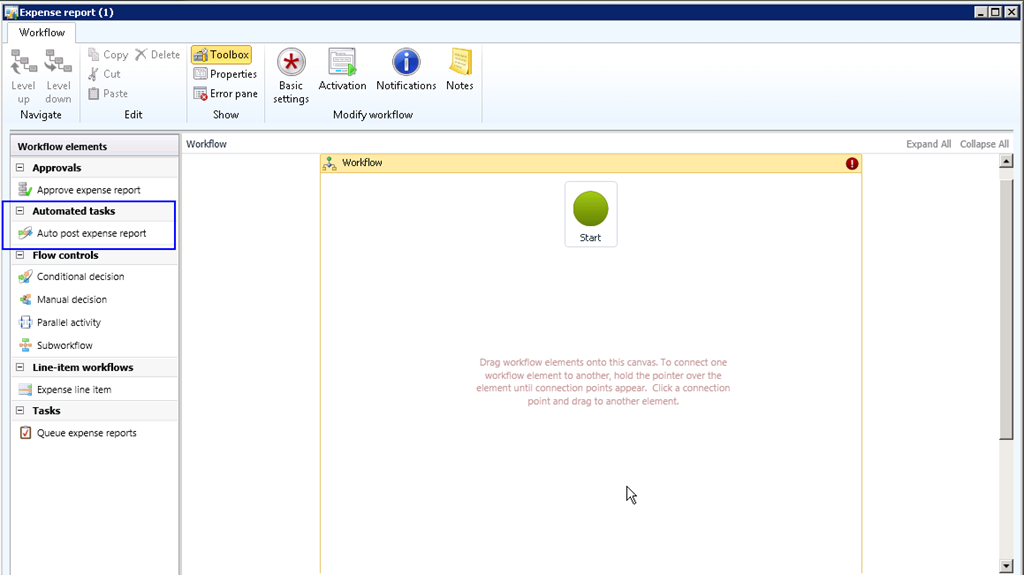
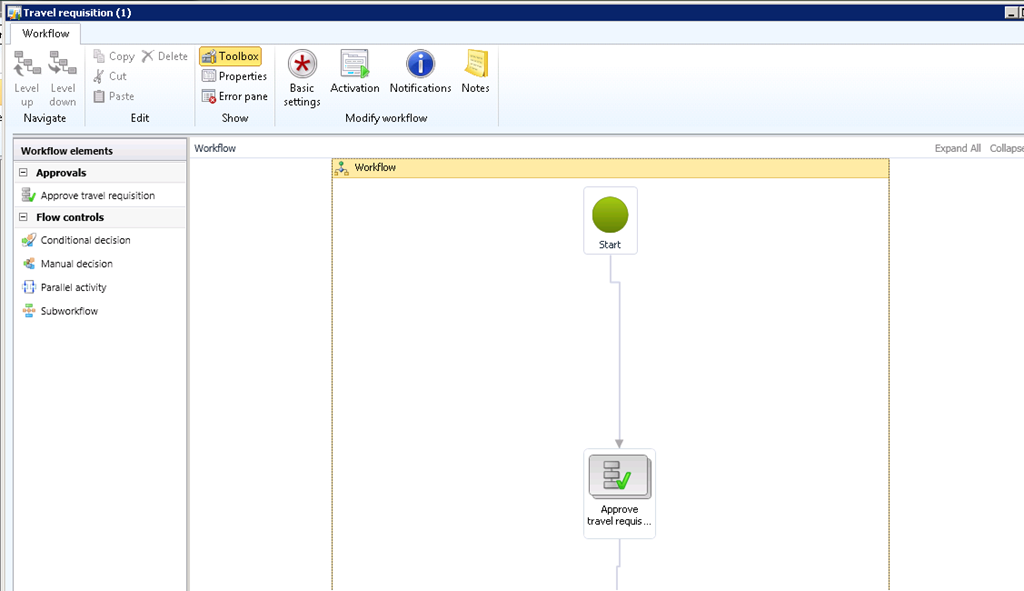
7. Now, see the screen below which shows one very simple workflow which I have configured with the automated task is it.
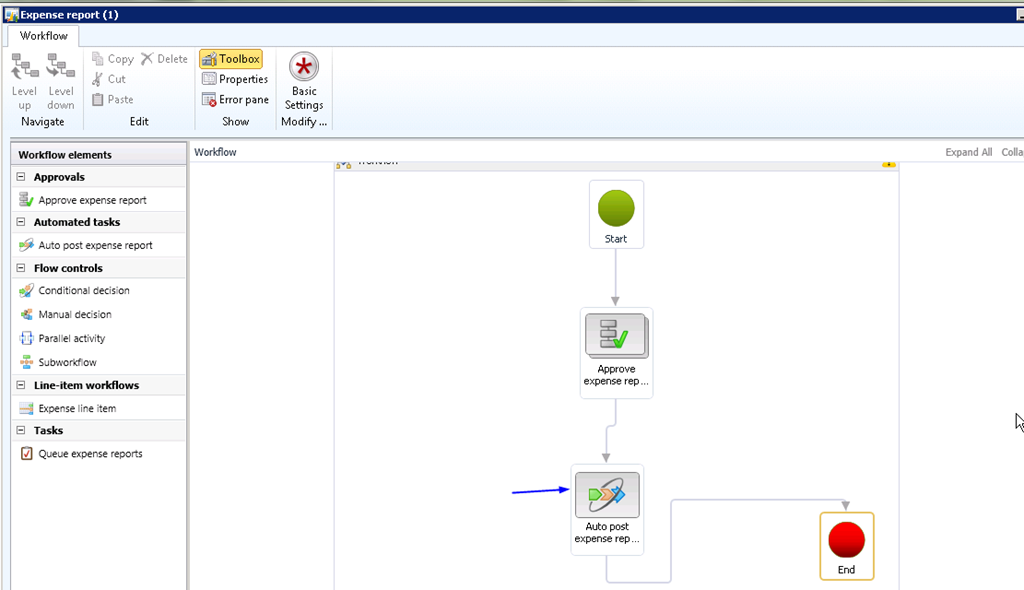
8. When the workflow is run and it gets reviewed and approved, the workflow will be able to post the expense report automatically without requiring user intervention.
9. Also, note that there will be no outcome after an automated task in run inside the workflow. The status will just changed to “Completed”. If you need outcomes for automated tasks, then you can write custom code with help from technical team.
So, with few easy steps and custom code, Microsoft Dynamics AX 2012 makes it easy to automate lot of tasks in the business process which may not require an intervention.
Hope this post will be helpful. Do not hesitate to contact if you need help on this.
Thanks
Sandeep
































 Microsoft Dynamics 365 Blog