Category: Dynamics AX 2012

  • Differences between the project forecasts and budgets in microsoft dynamics AX 2012:

    In Microsoft dynamics AX , people always have questions on interpretation of the project budgets and forecasts. They often interpret these two as the same at times. But the budgeting and forecasting are two completely different project management tools(I would say cost and revenue management tools) which have their own advantages and requirements.

    In today’s post, let us get to know what are the major differences between these two functionalities in AX 2012. First let us get to know a quick overview about these two terms.

    The budget plan of a project works as a baseline for performance management of the project.  It can be called as a rigid plan of spending in the project, which is established, approved and committed prior to the start of the project work.

    On the other hand, the forecasting(Hours, expenses, items, Fee etc.) is a separate mechanism for predicting the actual transactions (Costs and revenues) which may be incurred in the project. (Usually it is setting expectations what is likely to happen).

    If your organization focuses deeply on revenues and costs derived from specific transactions in the projects, then they can consider forecasting as a stronger cost and revenue management tool for their projects. Where as if they focus primarily on the financial amounts irrespective of transactional details, they can find budgeting as a very good cost and revenue management tool.

    Below are few of the differences between these two.

    1. Forecasting cannot be done based on a period of time and are always date specific where as project budgets and allocated over a fiscal period or the span of a project.
    2. Forecasting can be done using every attribute that are entered on a project where as budgeting can be done at project, activity and category level.
    3. The forecast transactions can be inquired and viewed in the forecast forms and you can see the forecast for all the projects in the whole company where as the budget transactions can be viewed in the budget balances screen and is project specific.
    4. No formal approval process or agreement in involved in creating and maintaining the forecast where the budgets require a formal approval process and sometimes may require baseline paper work. For forecasting the user just needs access to the forecasts forms.
    5. Forecasting can be based on quantities where as the budgets will primarily based on the financial amounts.
    6. In Forecasting , only allow or disallowing of cost overrun is possible where as ib budgeting user can be promoted with a warning when the cost overruns.
    7. Automatic forecast controlling in done by the forecast reduction functionality and the actual transaction amounts are subtracted from the forecasted amounts without any audit trial. This make is difficult to trace the actual transactions where as in budgets, actual transaction amounts are subtracted from the remaining budgets and this facilitates a transparent audit trial.

    Finally, the forecasts and budgets of a project are always closely related. AX 2012 provides option of automating the budget creation process from project forecasts. Also behind the scenes, AX 2012 maintains the budgets and its revisions related data  in 2 separate forecast models(Original and Remaining) which are used by the system for budget control and future reporting purposes. (Basically the budget control which is present in AX 2012 uses the Automatic forecast reduction functionality which was present in AX 2009 also in the back end).

    Please let me know if you need further clarifications on the budgeting and forecasting of the projects.

    Thanks

    Keep DAXING :)

  • Collaboration workspaces in Microsoft dynamics AX 2012 for Projects, Campaigns and Opportunities

    Hi Friends,

    Dynamics AX 2012 has introduced a new functionality called Collaboration workspace across the projects, Campaigns and opportunities.

    Using this users can now share and collaborate all the related information together about projects, opportunities and Campaigns at one place inside AX without having the need to create and maintain separate sharepoint sites.

    This is simple yet powerful feature that can be widely used by users. In this post of mine i will demonstrate how to setup and create the collaboration workspace for projects in AX 2012. Please follow the steps below.

    Steps to setup Collaboration workspace in AX 2012:

    • Navigate to System Administration Module > Setup > Enterprise portal > Collaboration workspace settings.
    • Click New button.
    • Select One of the 4 business areas. If you want to create collaboration work space for all the areas(Projects, campaigns …) select All. In our case we will select Project.
    • Notice that after selecting the business area, the work space home page and template gets filled in automatically.
    • The template is the default template for the site layout and the user creates and links the collaboration workspace for a project. You can select one from the look up depending on your need.
    • There are other additional options for the user such as Creating the workspace automatically for selected project types, prompting for creation of work space for projects etc. These can be accomplished by marking the required check boxes.
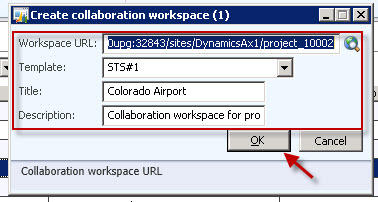
    • Now, navigate to Project management and accounting > All projects.
    • Select the project you want to create collaboration workspace for.
  • Hands on AX 2012- All about budgeting functionality for projects in Microsoft dynamics AX 2012

    Hello friends,

    In this post of mine, I will explain all about the new budgeting functionality for projects in AX 2012.

    In AX 2009, we could do only forecasting of projects and then consider that as the project budget. There was not a well defined procedure for end to end budgeting of projects ( When i say end to end, it involves forecasting the project costs and revenues, creating budgets based on the forecasts, submitting the budget for approval, automatic budget overrun control, budget revisions etc).

    Now in AX 2012, MS has done a tremendous job in the project budgeting functionality and i must say, this can be used out of box for implementations without requiring any(Major) customizations.

    Let us now look at all the aspects of this one by one below.

    Let us assume that we have a fixed price project TEST_BUD_01.

    1. Setup the project budget parameters:

    • The budget control parameters can be set both at a global level and at the project level. To enable the budget control functionality for all the projects at a common place, go to Project Management  and Accounting > Setup > Project management and accounting parameters > Cost control link(On left pane).
    • Please see the screenshot below for the various fields for the budget control. Check mark the “Use budget control” check box
    • Set Transaction type to be controlled = Revenue and costs.
    • Budget overrun default = disallow overruns. Please refer to screenshot below.

    2. Create and submit the project budget:

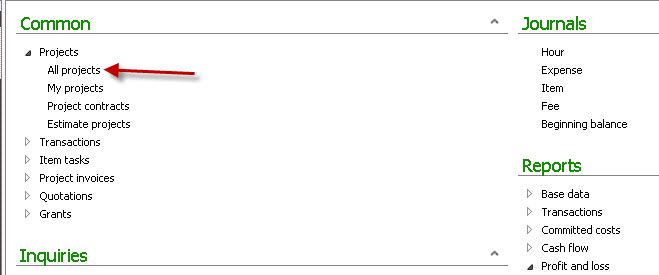
    • Go to Project Management  and Accounting > Common > All Projects.
    • Select the project for which we will create the budget. (TEST_BUD_01).
    • Click on tab Plan and click Budget > Project budget. Please see the screenshot below.
    • Now on the Project budget form, select forecast models Original budget = OrigCash and Remaining budget = RemCash.
    • Now select a budget basis from the 3 options which are ,
      Entry – Enter the Cost and revenue budgets manually. Forecast – Select a forecast model and the project forecasts will be converted to budget. Project transactions – Select this if your want to budget your current project based on the transactions of any existing project.
    • Depending on the selection of the basis of the budget, the budget lines budget lines will be entered.
    • In our case we will create the project forecasts and select the budget basis as Forecast. Below screenshot shows the project budgets which are created from the forecasts when clicked on the Load Values button.
    • Click on the Submit button(Workflow Yellow bar) to submit the budget for required approval.
    • Run the workflow tutorial form to kick off the workflow and after the record is processed in workflow, come back to the project budgets form and approve it making yourself as the approver for TEST purpose.
    • Now notice the work flowinfolog which says the budget is committed to the project.

    4. Post project transactions:

    • I will not list out the steps to post the project transactions here as we all know about it. Let us say i will post 155  hours against category Design. With this let us verify the project budget balances.
    • Go to Project TEST_BUD_01 and click on Plan > Project budget.
    • Now on the Project budgets form, click Related information > Project budget balances.

    Please see the screen below which shows the actual costs incurred and the remaining balances in the project budget.

    6. Create and submit/Approve budget revisions:

    • The project budgets can be revised(+/-) as the project progresses depending on the project requirements.
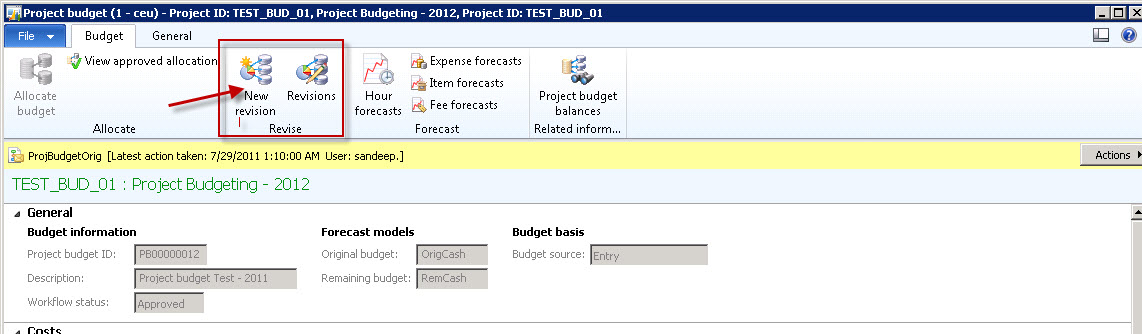
    • To revise the project budget, Go to the Project budgets form of the project and click on Revise > New Revision.
    • On the Project budget revision form, enter values in revision amount field. This Value can be +ve or -ve. If you want to increase the budget, give a +ve amount and the budget will be increased by that amount and you can see the updated value in New budget field. Provide a -ve value if you want to reduce the budget.
    • Enter the reviosn amounts as below.

    • Now after making necessary revisions, click Submit button to submit the budget for approval.
    • Once the revised budget is approved, the new values will be committed as the project budget.

    7. View revision history:

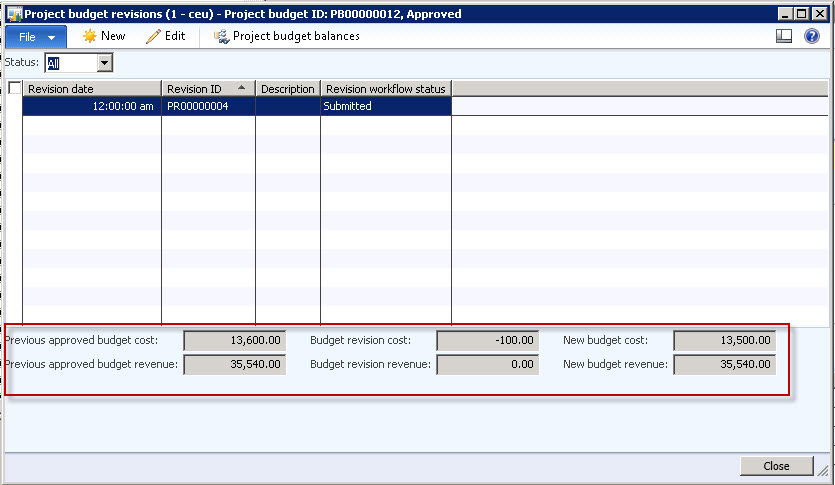
    • A complete history of all the budget revisions can be viewed at Revision > Revisions on the Project budget form.
    • Please see the screen below which depicts that he original budget and the revised amount and the new budget for both cost and revenues.

    Well, this is all about project budgets from my side. Let me know your questions and comments and i will be glad to answer you.

    Thanks

    Keep DAXING :)

  • What is new in AX 2012 : The Advanced funding functionality in project manngement accounting in dynamics AX 2012

    In AX 2009, we could invoice only one customer per project per contract. Now the funding for a project /project contract can be shared by any number of internal or external parties.

    User can configure a funding scheme which helps is setting up funding limits for one or more customers per category, category group or transaction type.

    In this post, i will walk you through the process of setting up the multiple funding sources for a project contract and we will also verify the impact of this when will generate the invoice for the projects. Also we will take Customer as the funding type while setting up the funding details.

    Note : Please note that the advanced/multiple funding can be setup among Grants/Organizations also.

    Please follow the steps below.

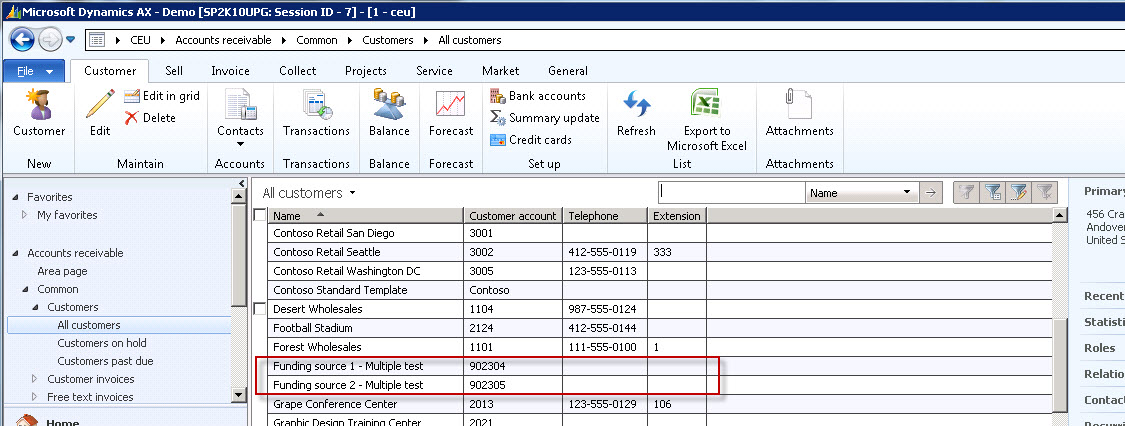
    • For better and clean understanding, let us create two new customers by navigating to Accounts Receivable > Common > All customers. Please see the 2 new customers whichi created for this demo purpose.
    • Go to Project Management Accounting > Project Contracts.
    • Click on the New > Project Contract on the actionpane and fill the required details  and click OK button to create the new project contract. Also create a new project and associate that to this project contract. Please see screen below.
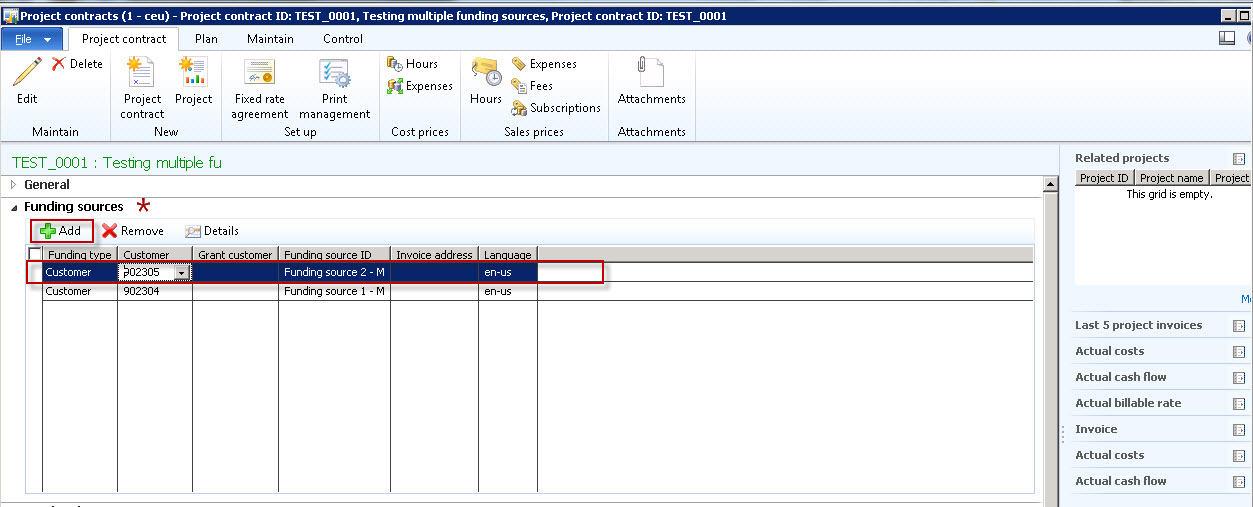
    • Now , on the Project contract edit screen, expand the funding sources fast tab and see that there is one funding source which we attached while creating the contract.
    • Click on the Add action pane button and add a new record with funding type = Customer, Customer = 902305(The second customer which we created). Please see screen below.
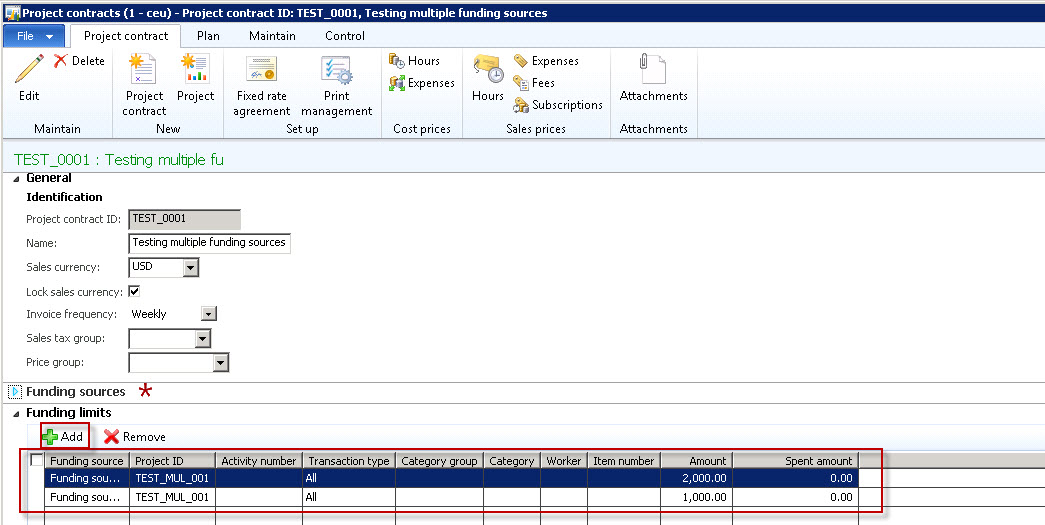
    • Now collapse the funding sources fast tab and expand the funding limits tab.
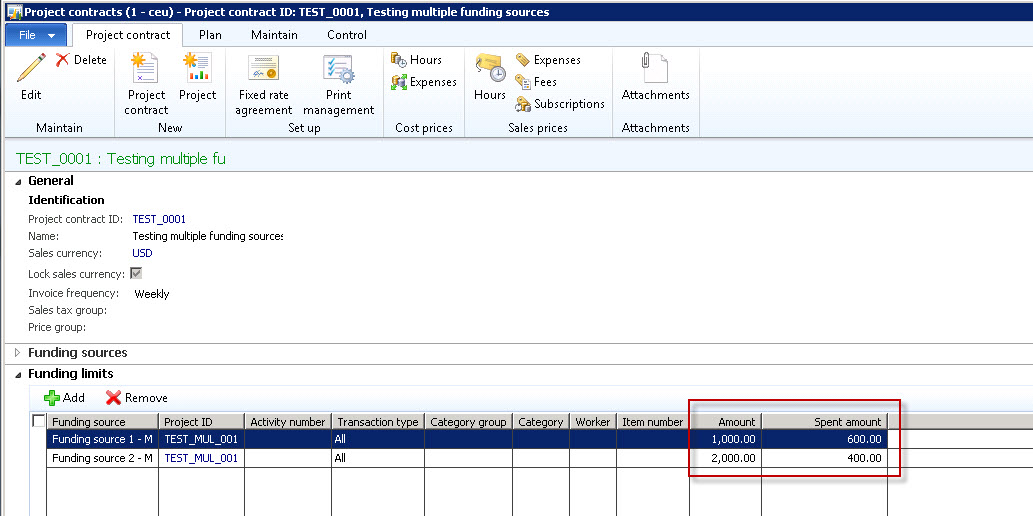
    • Create new line by clicking Add action pane button. Please see screen below for the demo purpose. Please note that these funding limit criteria can be made more specific my selecting different transaction types, category groups/categories etc but for this demo purpose we will go with a generic funding limit setup as shown below.

    • Click on New > Invoice proposals action pane button on the Invoice proposals screen and the click OK button on the next dialog by selecting the fields marked in screen below.

  • What is new in AX 2012 : The beginning balances for projects in microsoft dynamics AX 2012

    Hi Friends,

    In one of my earlier posts, i explained all the new exciting features that are added in the project management and accounting module in Microsoft dynamics AX 2012.

    Here, in this post I will explain one of the features which is the project beginning balances.

    This new feature will help organizations in transferring projects to Microsoft dynamics AX 2012 from legacy project management systems without affecting the general ledger.

    For e.g. , if you have been tracking a project in an outside application but managing costs and revenue in AX , you can transfer the project to AX , specify a beginning balance and then track all information at once place only.

    Let us learn how to  create and post a beginning balance on a project. Below are the steps.

    • The creation and posting of beginning balance transaction is allowed even when the project is in the Created state.
    • Navigate to Project management and Accounting > Common > Projects > All Projects.

    • Click on the New > Projects on the action pane to create the new project.
    • Click Setup > beginning balances menu button on the action pane.
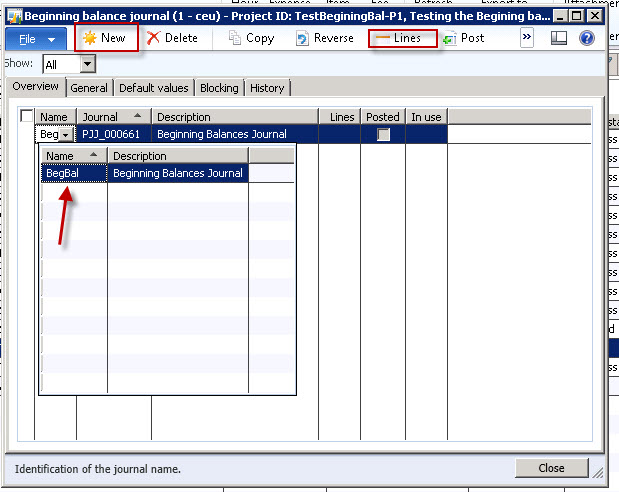
    • Click New button the action pane.
    • Select Begbal as the journal name for the newly created record.
    • Click on Lines action pane button.
    • Create the beginning balance journal lines which can be either Hour/Expense/Item/On Account and Fee type.
    • Click the Post button on the action pane. This will post the beginning balances for the project.

    Now verify that this posting of the beginning balance has affected the project statements where as the ledger remains unaffected.

    Please let me know if you have any questions on this and i will be glad to answer further. ThanksSandeepKeep DAXING :)

  • New and Changed features of Project accounting module in Microsoft dynamics AX 2012

    Friends,

    We have been hearing a lot about AX 21012 since last couple of months and i just got a chance to get into few details of the functionality which are added , changed and deprecated under the Project management accounting module of AX 2012.

    It promises to be giving us most if not all. Yes! Microsoft Dynamics AX 2012 is here with a very new face. In this post i will just put in the various features which have been added , removed and changed in AX 2012 and we will of course get into details of them when we have the product in hand.

    New Features in dynamics AX 2012 under Project management accounting module: What is New ?

    First and the most basic change is the module name itself. It is now called Project Management Accounting. Below are the list of new changes and add-on functionalities.

    1. Project budgeting:

    • Project budgeting is now possible at activity level.
    • Original budget can be created to define a budget at various level in the project hierarchy and it can be submitted for approval. It can also be allocated over a period of time.
    • Project budget revisions can be created at various levels of the project and they can be submitted for review and approval. These can also be allocated over a period of time.
    • When budget revision is approved , it causes and immediate change to the over all project budget.
    • A complete history or audit trial of the proposed, original, accepted(approved) and rejected budget is available for review at any point of time.
    • The project financial inquiry and the project financial status reports now presents a details of the project budget also.
    • If you are working on a multi-year project , you can carry forward project budget at the end of the year to the future year and make necessary change to the general ledger accounts associated with them

    Well , now this is complete budgeting. Seems like massive enhancements in project budgeting has been done by MS.:)

    2. Processing of item charges/costs in PO,SO and invoice lines:

    • Item charges/costs in the PO,SO and invoice lines are now recognized in projects.
    • Any taxes for the item charges will now be going to an expense account.
    • Item charges will now be recorded in project budgets and commitments.

    3. Project time sheets:

    • Over all UI experience will now be more user-friendly.
    • The way the time sheet comments and start and end dates are used are now much better.
    • Most importantly , user can now create and manage favorites in Enter Portal to be able to create time sheets in  a much quicker fashion.

    4. Advanced funding:

    • Well, this seems interesting. Customers have been looking for this one. In AX 2009, we could invoice only one customer per project per contract. Now the funding for a project /project contract can be shared by any number of internal or external parties.
    • User can configure a funding scheme which helps is setting up funding limits for one or more customers per category, category group or transaction type.

    This enhancement will definitely gain attention.

    5.Collaboration workspace:

    Even though not a widely used feature , if used properly, it can prove to be very beneficial.

    • You can create and add collaboration workspace in projects , campaigns and opportunities where project team members can quickly organize and share information within AX.
    • MS dynamics options can be setup and default the collaboration work spaces for users.

    6.Create and manage projects in EP:

    • Unlike AX 2009 , where only time and expense entries were possible in EP for projects , project managers can now create and manage their projects in EP itself.
    • Workers can enter daily working hours in a much improved manner and project managers can approve it on EP.

    7.Beginning balances:

    • This is another good feature. Users can now enter a beginning balance for a project which will help in transferring projects to Microsoft dynamics AX 2012 from legacy project management systems without affecting the general ledger.
    • For e.g. , if you have been tracking a project in an outside application but managing costs and revenue in AX , you can transfer the project to AX , specify a beginning balance and then track all information at once place only.

    8. Track project revenue from Free text invoice :

    • Ax 2012 now makes it possible for tracking revenues which are billed though free text invoicing. Cool it is !

    9. Transaction adjustments:

    One more !!This feature will make correction of wrong project entries easier which will allow adjustments even after invoicing.

    • Invoiced and estimated transactions can now be adjusted.
    • Adjustment dates can be used as project dates for adjustment transactions. Earlier it used to be the transaction date only.
    • The relationship between the original , reversed and the replacing transaction can be well traced now with information of what exactly the user adjusted.

    10. Progress billing , estimates and revenue recognition:

    • When migrating from one ERP system to another , the data migration is a big pain issue . Bringing in the existing data into the new system is most important where we face hurdles. This is to ensure that the revenue can continue to be recognized for the fixed price projects that are already underway.
    • Since revenue recognition depends on the completion % of the project , the data must be migrated so that both % of work completed(actual cost) and the remaining work(cost to complete) are reflected in proper accounts.
    • So the introduction of features such as beginning balance , progress billing and revenue recognition provide adequate support to these issues.

    Well , apart from these bunch of significant functionality, AX 2012 also promises to give a significantly improved UI experience across the modules with the introduction of new form controls such as , action panes , Fact boxes , Fast tabs etc.

    Fast tabs : The legacy tabs on the AX 2009 forms are getting replaced by fast tabs which the user can expand ans collapse to view and edit information.

    Fact boxes : Every module will now have fact boxes in all the important forms such as Customers, vendors , Items , Projects etc. These fact boxes will display 5-10 facts about each of the entities. For example , in the Project details form we will have fact boxes that will show related information. Please refer to the screenshot below for few fact boxes in Project quotations form in AX 2012.

    There are 3 Out of box fact boxes present in the project quotations form in AX 2012 as seen above. They are, Latest sales orders, Latest sales quotations and the Related information. These fact boxes displays important data related to the selected quotation record in the form. So user can have access to these critical data without having to navigate to the related forms.

    With these , the user can have access to critical project data staying in a single form without having to navigate to related forms and calculating values. Moreover , user can also customize the information in the fact boxes. Is it not interesting !

    We will realize all of these soon in the application.

    Hope you all will find this information helpful.

    Thanks, Keep DAXING :)

  • Integration of microsoft project server 2010 with Microsoft dynamics AX 2012 : What’s new , Benefits and Improvements

    Friends,

    Today’s post will talk about the functionality of integration of Microsoft project server 2010 with Microsoft dynamics AX 2012. We will just discuss all the new features that have been introduced in AX 2012 as we all must be knowing about the standard integration between these two application has been a functionality from AX 2009.

    Benefit of integration between Microsoft dynamics AX 2012 and Microsoft project server 2010 :

    • Project manager can create projects and other related data in either of the products(AX or project server) and then can synchronize data between them.
    • This will help in getting both the core project management capabilities of project server and the financial management services of dynamics AX 2012.

    New features of integration between AX 2012 and Project server 2010:

    Well , apart from the existing integration features between the two applications , the following are added newly in the AX 2012 version of AX.

    1. Now, the project hierarchies created in project server 2010 can be synchronized with Microsoft dynamics AX 2012.
    2. Also, the resource assignments in project server 2010 can be synchronized with Microsoft dynamics AX 2012.
    3. When the integration between these two is enabled , the activity breakdown structure can be maintained in the project server only and it will be read only in AX 2012.
    4. Now , any customized fields in AX 2012 by ISV can be synchronized with project server 2010 by defining the mapping in SyncIntegratedFields table in AX 2012.

    Entities that can be integrated:

    The following elements in the Microsoft dynamics AX 2012 can be integrated with project server now.

    • Workers (The integrated resource pool in project server).
    • Projects
    • WBS (The activities which are of type Task)

    How do I troubleshoot integration errors:

    It is common that users encounter errors when trying to integrate the project server with Dynamics AX. In order to be able to resolve the integration issues in an efficient manner, Microsoft dynamics AX 2012 provides integration logs which can provide significant information required to troubleshoot the issues. It can be found at System Administration > Inquiries > Microsoft project server integration > Integration log.

    Hope you will find this information helpful.

    Thanks, Keep DAXING :)