Tag: AX 2012

  • Prepaid Purchase Orders Management in Microsoft Dynamics AX 2012 – [Vendor Prepayments]

    Vendors asking prepayment for their orders could be a very common scenario as part of their business policies. When this scenario arises, your business/finance team should be able to create a purchase order and create and track a prepayment against this.

    image

    In Microsoft Dynamics AX 2009, it was not possible to make a prepayment related to a purchase order and these were always two separate manual processes. There was no transaction link between the prepayment for a purchase order and the actual purchase order.

    AX 2012 brings in this small yet very useful functionality. In today’s I will explain about this functionality of AX 2012 and how can be used by an organization.

    We will analyze an example where an organization orders 500 items from a vendor and vendor asks for a prepayment as this is a business policy for them. The purchase order prepayment process will basically flow through the below high level steps.

    1. Purchasing agent creates the purchase order and submits a request to AP coordinator to process prepayment.
    2. AP Coordinator/Manager sets up and processes the required prepayment.
    3. Settle the payment against the final invoice.

    Purchasing agent creates the purchase order and submits a request to AP coordinator to process prepayment:

    • Create a new purchase order under Accounts Payable module for vendor 3107, Alpine Electronics. Let us make a note of their balance before we proceed with a prepaid PO processing for them.

    image

    • Create purchase order header and PO line for item(1001) for 600 quantity.

    image

    • Click the Purchase tab and click Prepay > Prepayment button.
    • Enter a suitable description for the prepayment for purchase order and enter the prepayment value. In our case, let us assume that vendor has requested 10% prepayment.
    • Enter 10% and verify that the prepayment remaining value which will be 10% of the total PO value. Note that you can also specify a fixed prepayment amount if vendors requests so.

    image

    Prepayments can be removed after it has been setup on a PO by clicking the Remove prepayment button. if business later cancels the prepayment.

    image

    *Note: The prepayment category ID is the procurement category against which the prepayment will be tracked

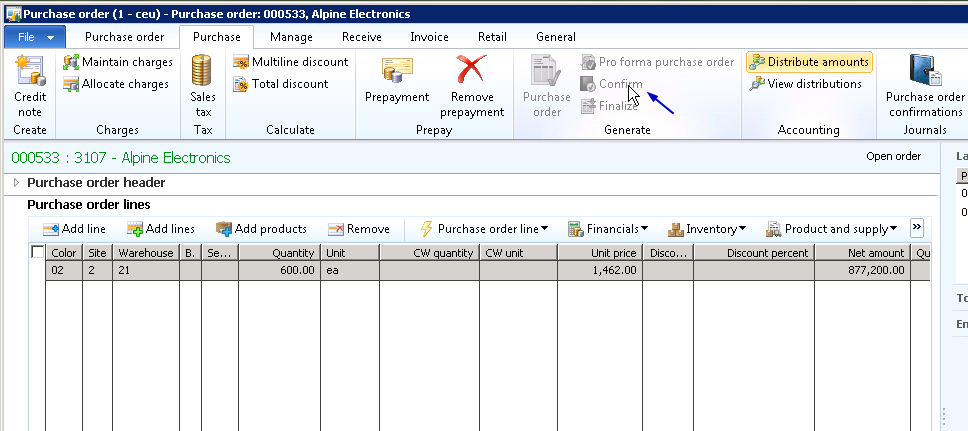
    • Now, Confirm the purchase order after saving the prepayment details.
    image

    Posting the Prepayment Invoice:

    • To do this, click the Invoice tab in the purchase order form and click Prepayment invoice button.

    image

    • Now enter invoice number and click Post > post button to post the prepayment invoice.

    image

    • Note the newly created vendor transaction and also take a note of the affected vendor balance. Recording of the prepayment invoice increases the vendor balance. In this scenario it is $4100.25(Vendor balance before prepayment invoice) + $87,720(Prepayment invoice amount).

    image

    image

    AP Coordinator/Manager processes the required prepayment:

    • It’s now AP Manager’s task to make the payment for the prepayment which was requested for the purchase order.
    • Navigate to AP > Journals > create a new payment journal.
    • Click payment journal line and click Functions > Settlement button and select the prepayment invoice.

    image

    • Print the check for vendor and post the payment. Make a note of the vendor transactions and the affected vendor balance also after this step. Vendor balance decreases after the payment has been made.

    Settle the payment against the final invoice:

    • When the goods arrive and you receive the final invoice from vendor, settle the prepayment with it.
    • Navigate to Purchase order screen > Invoice tab and generate an invoice.
    • Click Apply prepayment button.

    image

    • You will notice the prepayment record appearing here in this form. The “Select prepayments to apply” grid displays all the prepayments which could exist for the PO.
    • Also notice the invoice amount is $877200 and available application amount is $87,720 which is 10% of the invoice which was paid as a prepayment to the vendor.

    image

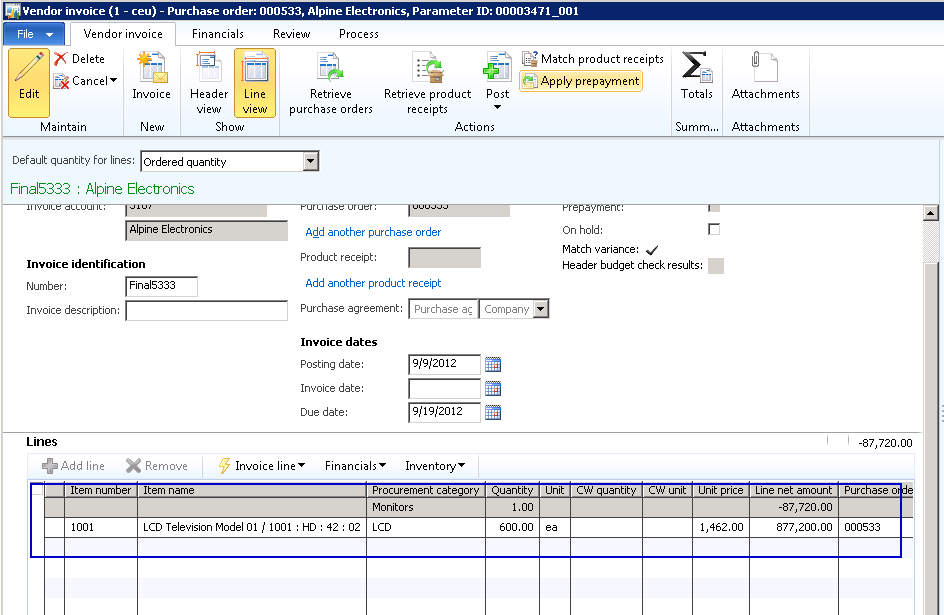
    • Finally Select the prepayment and click Apply prepayment button. You will see that the “’Total amount of the prepayment that will be applied to the invoice will be 87720.$.
    • Make a note that one line gets added in the vendor invoice line.
    image

    • Now, Post the purchase order invoice by clicking Post.
    • With the PO invoice posted, let us now analyze the financial voucher and the impact on vendor balance.

    image

    image

    End to end linking of all related transactions and their tracking in an ERP system helps finance and accounting team in a great deal during transaction reconciliations. This also ensures reduction in accounting team’s efforts and time needed to spend in the ERP system.

    Microsoft Dynamics AX 2012 ensures this.

    Pretty straight forward and neat. Smile

    Microsoft Dynamics AX-Powerfully Simple

    Do not hesitate to contact me in case you need any clarifications regarding this.

    Till next time!

    Thanks

    Sandeep

  • Organization Modeling made easy in Microsoft Dynamics AX 2012

    Hi Friends,

    By this time most of us must be already aware of Organization modeling in Dynamics AX 2012. I just wanted to bring in perception of this functionality.

    Microsoft Dynamics AX 2012 brings in another exciting capability which now makes it possible for organizations to manage their organizational structure in more efficient, easy and accurate manner. In AX 2009, it was not possible to define a structure of organizations, as it was possible only to define different company accounts which were pretty much separated from each other.

    In reality, different parts of an organization such as legal entities, departments, business units, cost centers, teams etc. work together and are always dependent on each other in some way. Microsoft Dynamics AX 2012 makes it all possible by introducing a very flexible Organization Model functionality.

    In today’s post we will take a look at the important aspects of this organization modeling and try to understand how this can help organizations in real-time. To begin with, let us first discuss about the different types of organizations which we can create in AX 2012.

    Microsoft Dynamics AX-Powerfully Simple

    Organizations:

    An organization basically signifies a group of people and resources who work together to carry out a defined business process with a mission. We can create two types of organizations in AX 2012.

    • Legal entities : This is an organization which has a registration with a legal authority and can enter into contracts with customers and are required to produce statements that reports their performance. This is similar to a company account which we used in AX 2009.
    • Operating units: An operating unit is a type of organization that is used to distribute economic resources and business processes of the organization. We can create the following types of operating units in AX 2012 out of box.
    1. Business unit
    2. Cost center
    3. Department
    4. Value stream

    Along with these 4 types of operating units, organizations can also create Teams and make it a part of the Organization structure. A team could be referred to group of people who share common responsibilities such as Collections team, AR team, AR team etc..

    Organizational Hierarchies:

    In AX 2012, we can set up a hierarchy of all the organization types. For example we can create a hierarchy of legal entities for tax and statutory reporting.

    We can also create a hierarchy of operating units to report financial information which are required internally within the organization. For example we can create organization purchases to control purchasing policies, budgets and business processes.

    An important point to note here is, all the organizations in a hierarchy can share parameters, policies and transactions. The child organizations can inherit and override the parameters of its parent. Also note that, in AX 2012, the globally master data such as address books, currencies etc. cannot be overridden for individual organizations.

    To be able to create a hierarchy of organizations in AX 2012, we must first define a purpose of this hierarchy. This purpose would define which types of organizations can be included in the hierarchy. There are various hierarchy purposes available out of box in AX 2012 few of which are procurement control, expenditure control, audit internal control etc. You can find more information when you get hands dirty in the system. I would demonstrate a hierarchy by taking the expenditure control purpose into account.

    image

    To create a new organization hierarchy, navigate to Organization administration >  Common > Organizations > Organization Hierarchies.

    Organization Hierarchy

    Configure the organization structure with easy steps by selecting organizations and doing drag and drop.

    Add organizations to Hierarchy

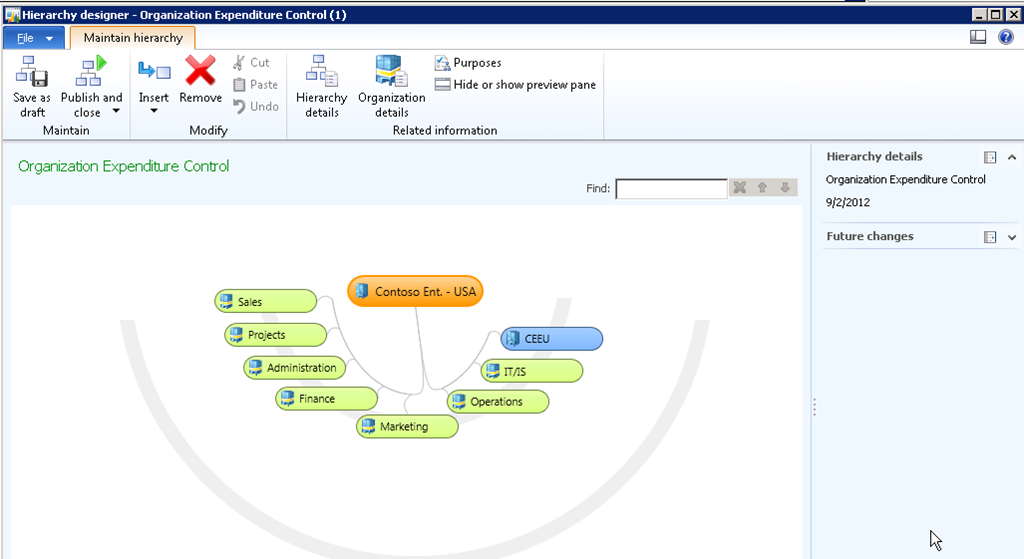
    Please take a look at the screenshot below which shows a sample organization that I have configured.

    image

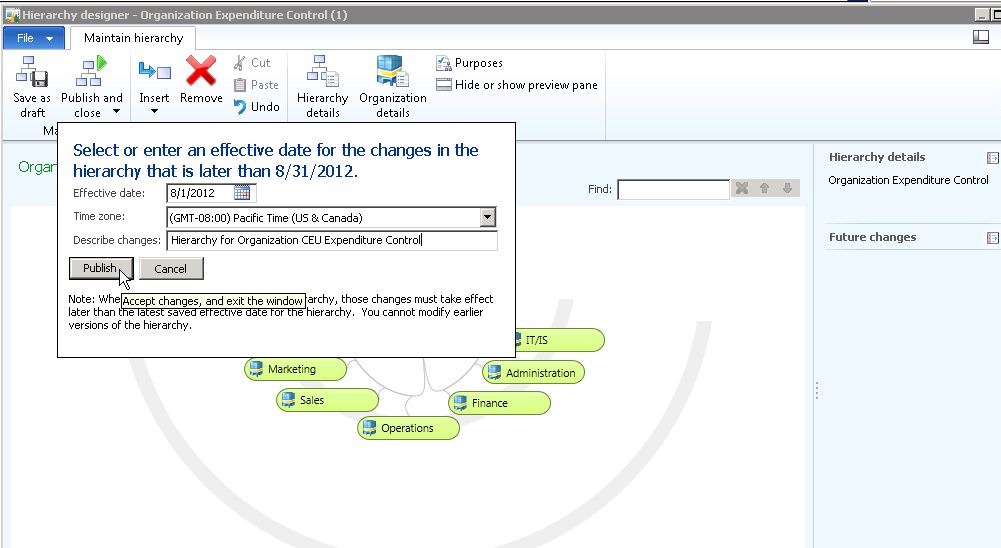
    Publish the organizational structure changes with tracking dates and complete audit histories. You can also publish the hierarchy for a future date.

    Publish Organization Hierarchy

    Now that the organization hierarchy has been published and in effect, you can use it for

    • Defining expense, audit and procurement policies using this hierarchy. This will cause the policy to be effective across this hierarchy.

    image

    • Configure accounting structures and specify organization hierarchy relationships. This will cause to have more control in transaction entry where system will have automatic validations in place for selection of financial dimensions in the transaction line.

    image

    • Helps in organizational data security by configuring legal entities for user rules.

    image

    The new organization model functionality of AX 2012 allows configuring complex organization models without writing additional code and also allows users to easily restructure, as organizational structure needs changes. Microsoft Dynamics AX 2012 grows as your business grow and needs complex organizational structuring for better and tight financial controlling. This makes AX 2012 simply more powerful.

    Let me know if you have any questions regarding the organization modeling in AX 2012. Till next time !!

    Sandeep

  • Tracking and Managing Accounts Receivable Collections made easy with the all new Collections Management module of Microsoft Dynamics AX 2012

    Thanks to Microsoft Dynamics AX 2012 !!!

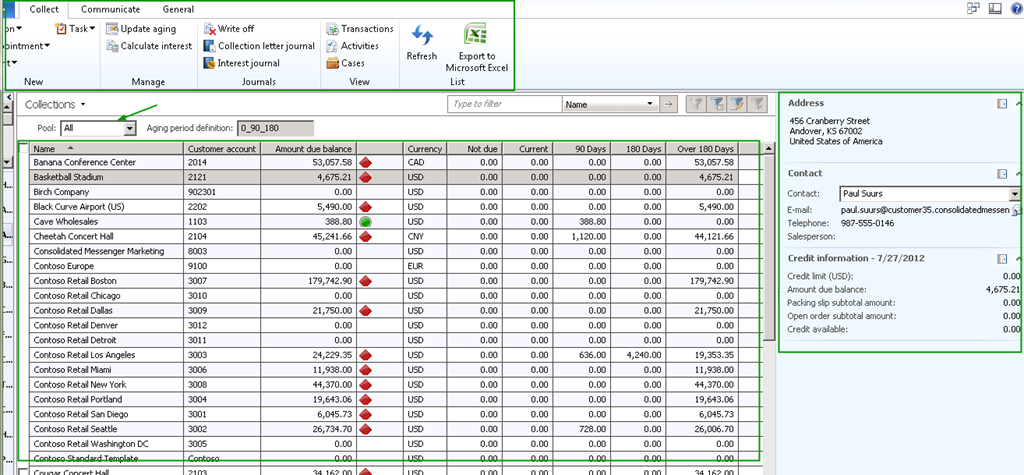
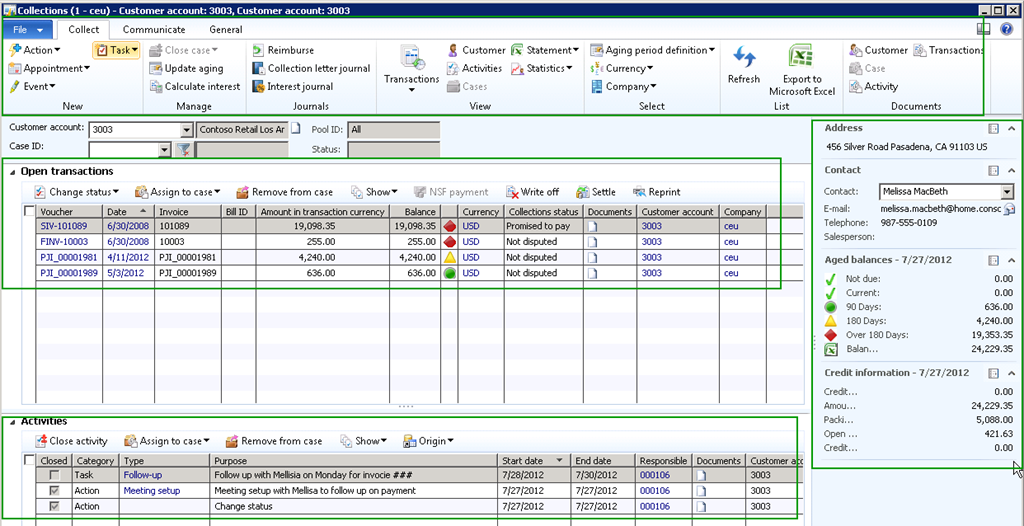
    The AR Collections team of your organization now has one single interface/screen, where they can see, do everything they need to see and do for their day-to-day work, in collections management.

    image

    Just imagine if you, as a Collections agent/Manager of an organization, doing all the below tasks staying in one single screen with few clicks.

    • Manage collection pools
    • View aging balances for customers.
    • View customer address, contact details and credit rating details.
    • Create Actions, Appointments, Events and Tasks at the open transaction level.
    • Contact and follow-up on payments with customer and add actions/notes for tracking.
    • Trigger interest calculations on pending invoices.
    • Create and process Collection letter journals and interest journals.
    • Reimburse customer over payments.
    • Inquire all transactions of the customer (Open and closed).
    • Maintain collection statuses for individual open invoices such as Not disputed, Disputed, Promised pay, Resolved etc. and maintain suitable reason codes when you change the collection status of a payment.
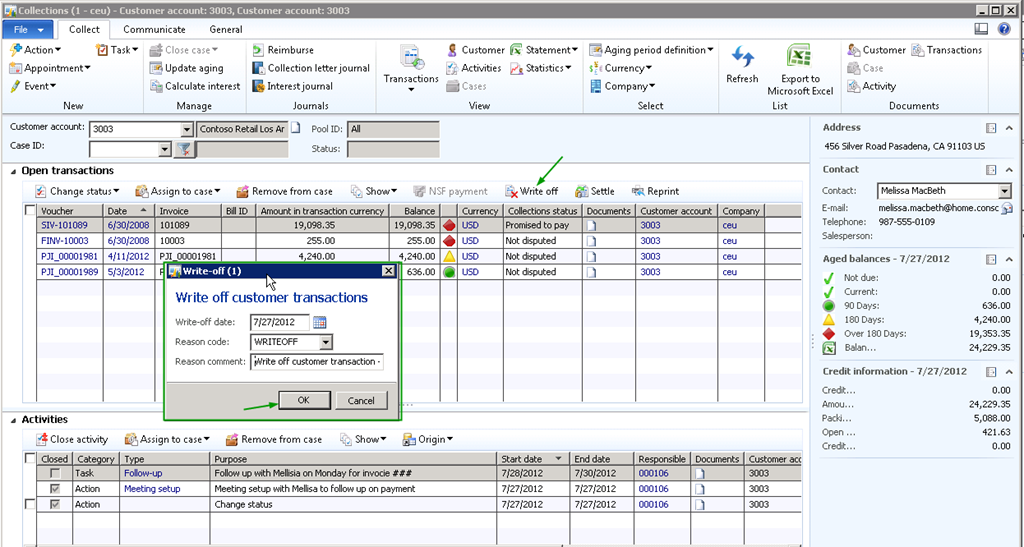
    • Write off open transactions with just one click providing appropriate reason.
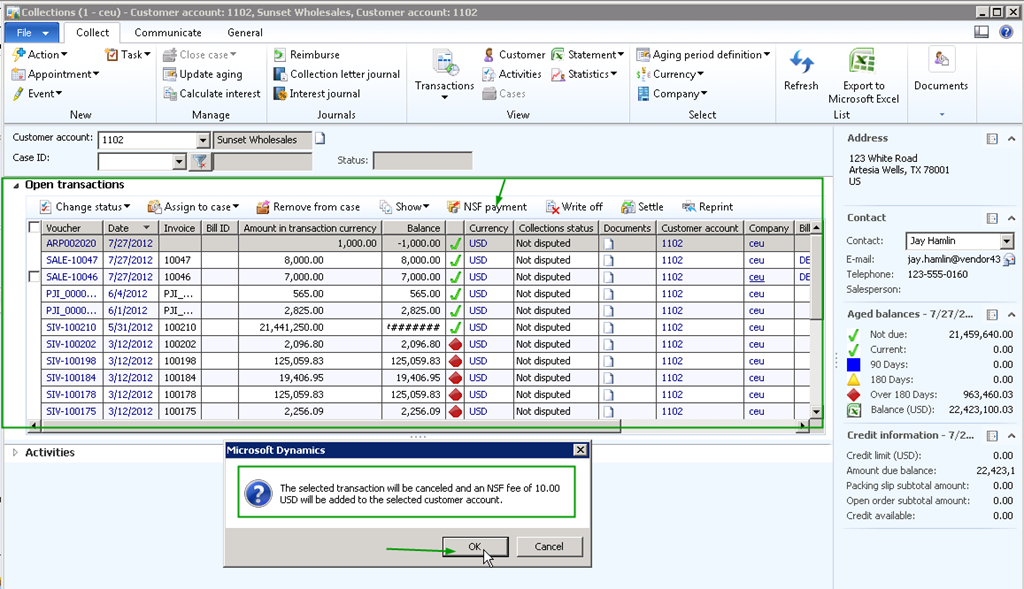
    • Manage NSF payments scenarios with one click.
    • Settle transactions.
    • Reprint invoices and send when talking to customer over phone regarding lost/missing invoices.
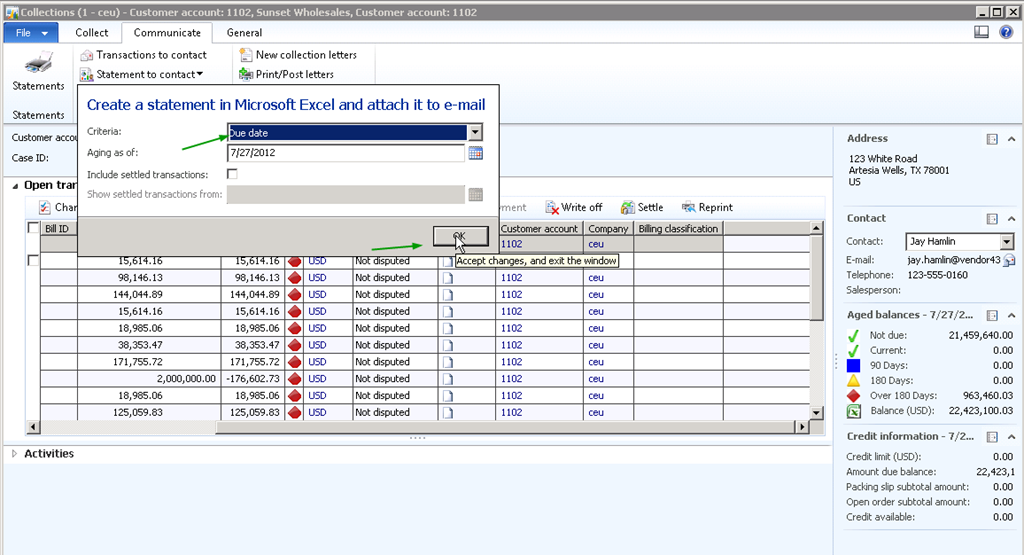
    • Send customer balance details and customer statements by email with just one click.
    • Generate/Print/Post periodic collection letters.
    • Attach appropriate documents such as email confirmation of payments etc., to open transactions when following up on collections.
    • Last but not the least, create and attach cases for the collections with the integrated case management feature of AX 2012.

    POWERFUL ! SIMPLE ! SIMPLE !

    Solutions from Solugenix for Microsoft Dynamics AXimage

    With such exciting new features and functionality getting added over its versions, Microsoft Dynamics AX is betting high in the ERP market.

    In today’s post, I will highlight some of the key functionality and related screens under the Collection Management module of AX 2012. This post will be mainly aimed for customers hunting for the best fit ERP for their organizations and hence will have the overview screens of the overall functionality.

    Collections Management master screen showing the list of customers for the Collection Manager is responsible for, their aging balances, contact and address details and the credit rating details.

    image

    Collection Manager viewing and doing all open(and Closed) transactions in one screens and having all details required to perform collection activities. Create actions, appointments, Events and tasks:

    image

    Writing off transactions in just a click:

    image

    Settle Transactions:

    image

    Reprint invoices quickly while customers ask a duplicate copy of it, while on a call with Customer,staying in the same screen and just few clicks:

    image

    Manage NSF Payments (Non sufficient Funds):

    image

    image

    Create Collection letters and interest notes and Calculate interests automatically on invoices:

    image

    E-mail customer statements  and balance details to customer contact person with few clicks with seamless integration with outlook:

    image

    image

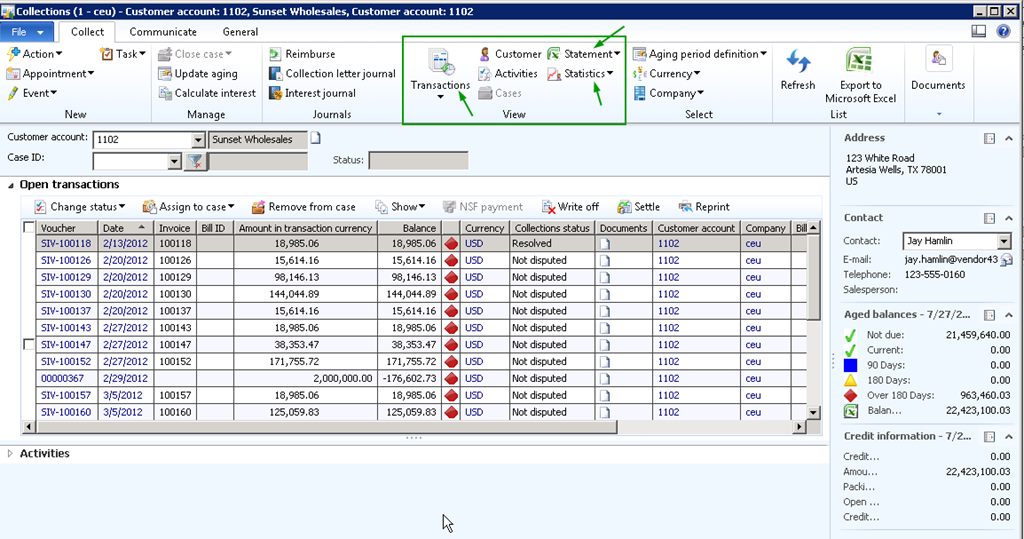
    View transactions, statistics and statements with one click:

    image

    Create and Manage support cases and assign to people directly from collections master with integration to the case management feature:

    image

    With Microsoft Dynamics AX 2012, you can take your business to a whole new level with simplicity. Stay tuned for more such new features.

    If anyone needs more information regarding this, feel free to Contact me.

    Till next time !!!

    Sandeep

  • Employee Cash advance management in Microsoft Dynamics AX 2012

    Hi Friends,

    Tracking the money that employees spend when incurring expenses for your business is a real key of Expenses management in an organization.

    In today’s post we will discuss about the employee cash advance management feature of AX 2012.

    We will start with the process of employee submitting a request for cash advance, the approver reviewing and approving it, paying the employee and then we will also see a little bit of process how the employee can return his cash advances.

    Employee Submits Cash advance request in Employee self-service portal :

    1. Navigate to the Manage Expenses > Cash advance request area in the Enterprise portal.

    image

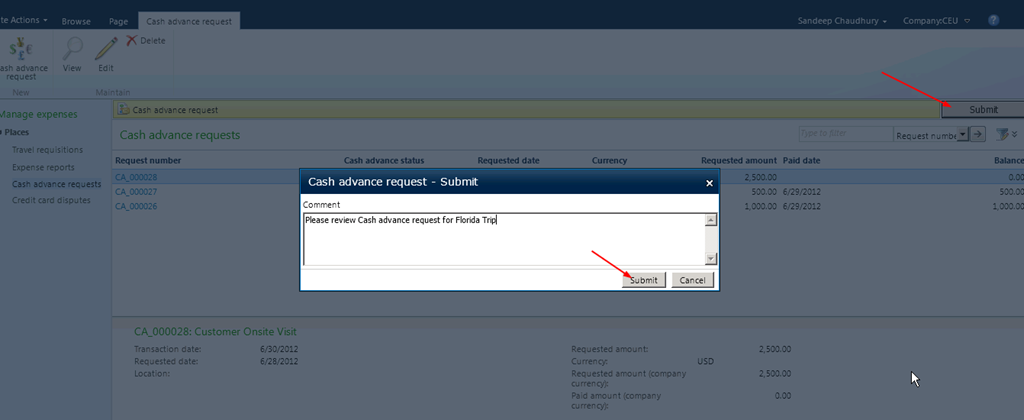
    2. Click New Cash advance request and key in required details for this request. Save and close after filling in the details. Then, submit the request for approval.

    image

    image

    Two easy to use steps for employees to submit cash advance request !!

    Approver reviews the Cash advance request:

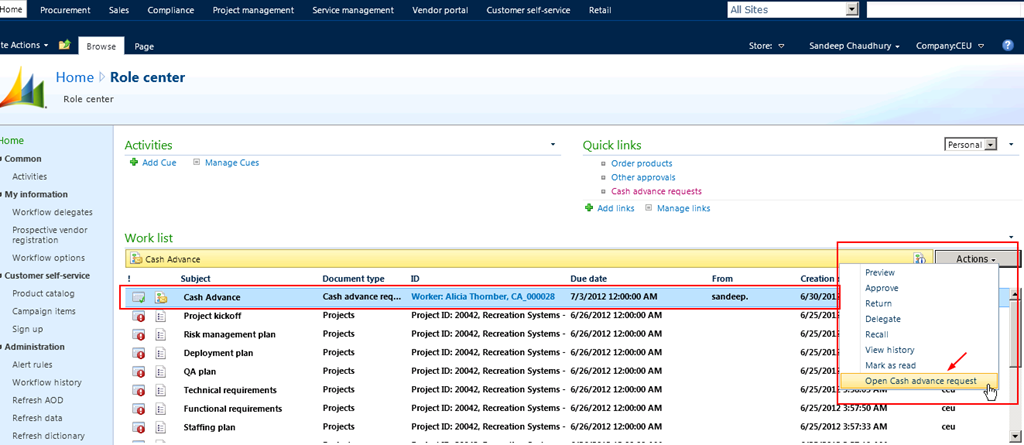
    1.  Approver logs into enterprise portal and finds the cash advance request assigned to him/her for review.

    image

    2. Approver opens the cash advance request and then reviews and approves it.

    image

    Just two clicks !! QUICK and Easy for the reviewer/approver.

    Finance team pays to the employee after the request got approved :

    1. The finance teams logs in to AX and navigates to view the approved cash advance requests.

    image

    2. One click PAY !! The finance team member/user just clicks the Pay and transfer button and AX 2012 does the rest. Employee gets PAID !! System automatically creates and posts the required financial voucher entry for this transaction based on the setups which are done.

    image

    See below the automatic financial journal created and posted in the system.

    image

    image

    The cash advance payment cycle for the employee is completed in few simple steps.

    Let us now take a quick look at how the employee can return the cash back or how an employee can expense his cash advances in AX 2012.

    1. Employee logs into the Enterprise portal and navigates to expense management area and create a new expense report and clicks Other > Return cash advance.

    image

    2. System automatically shows all your reconciled cash advances. Select the one you want to expense and select the expense category and submit the expense report.

    image

    DONE !!

    System creates the necessary financial journals after the expense report is approved and posted.

    Simply POWERFUL Smile

    Till next time !!! Keep reading

  • Accelerated billing/invoicing for Projects in Microsoft Dynamics AX 2012–(Progress based billing)

    Automated, accurate and faster billing in Projects is one aspect, which every professional service organization look as one of the winning factors, when they choose an ERP application for their organization.

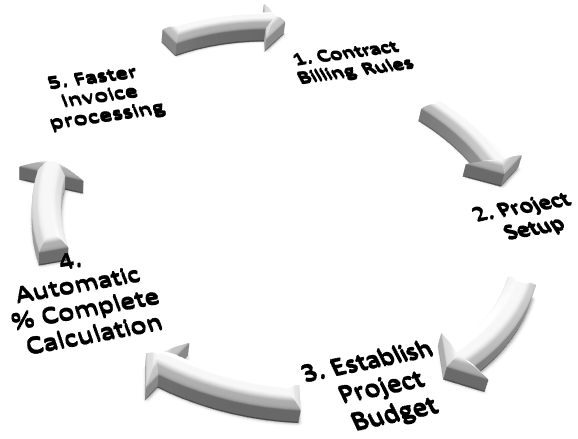
    Microsoft Dynamics AX 2012 ERP is equipped with a powerful project billing engine, which helps in faster invoice processing by providing the various capabilities.

    1. Transactions to be billed in a given time period are recommended automatically.
    2. Automated workflow for invoice and submission and approval.
    3. Automated and accurate progress based billing based on % of work complete in the project.
    4. Support for complex billing scenarios such as T&M based, Milestone based, unit based billing etc.
    5. Option to specify complex billing scenarios such as T&M based, Milestone based, Per unit billing etc.

    image

    In today’s post I will highlight one of the billing/invoicing features of AX 2012 which is the billing based on the progress of work in the project. This feature of AX 2012 allows professional services firms to automate the billing process without having the need of their project accounting staff spending days and weeks to determine the accurate completion stage of the project.

    In Microsoft dynamics AX 2012, the project managers can set up the project in the system and define a budget for the project and then, the system can calculate the progress based periodic billable amounts automatically.

    This can just be accomplished by executing the below simple steps.

    1. Setup the Project and required basic details for it.

    image

    2. Setup the appropriate billing rule in the Project Contract.

    image

    3. Estimate the Project and establish a project level budget.

    image

    With the above minimal setup done, when project transactions are posted, AX 2012 system can calculate the current completion stage/percentage of the project automatically without having you the need of the project accounting staff doing to manually which will take a considerably longer time.

    Based on the % complete for the project, system will automatically calculate the amount to be billed at the current state of the project.

    This was just one method in the billing engine of AX 2012 and there are several others, which supports more complex billing scenarios.

    Simple, Powerful !! This is it for today. Please contact me if you need further detailed and expert advise on billing capabilities of Microsoft dynamics AX 2012.

    Keep DAXING Smile

    Sandeep

  • Intercompany Timesheets Management in Microsoft Dynamics AX 2012

    Hi All,

    I had been very busy with several things on my plate at work. Work keeps all of us busy.

    It feels bad for not being able to spend time on my blog and finally decided to take out some time and write here.

    In today’s post, we will explore and discuss about one of the important functionality in the Project Management area which is “Intercompany timesheets functionality”.

    Intercompany Timesheets

    In every mid sized to a large-sized professional service industry, it is a common practice that employees/workers of the organization keep working on the projects of different legal entities where as they will be employed in only one legal entity.

    The loaning and borrowing activity of employees between the legal entities is essential to make efficient utilization and putting right people if the right job possible. When working on the projects of legal entities other than their employing legal entity, Microsoft Dynamics AX 2012 make it simple for the employees to register their times/hours directly on the projects of the contracting company/resource borrowing company, without having the need for the employee to enter times at multiple places and multiple times.

    NOTE : Intercompany Timesheets Management functionality will be available only if the AX 2012 feature pack is installed.

    In the subsequent steps and paragraphs of this post, we will explore the various setups and the overall intercompany timesheets operation in AX2012.

    Let us refer the two legal entities which exchange the employees as the Loaning entity/Resourcing and the Borrowing/Contracting entity.

    The following setups needs to be completed in AX 2012 in the Loaning legal entity.

    1. Enable the intercompany timesheets management in the project parameters screen.

    Project Parameters

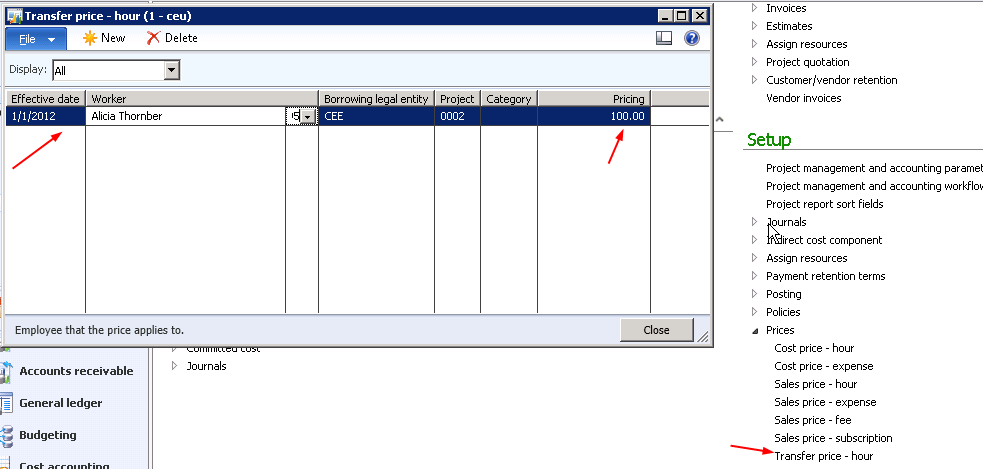
    2. Setup pricing details for the employees who are to be loaned. This includes setting up the cost price and the transfer price. The cost price however is ideally setup for all employees weather they will be loaned or not. The transfer price represents the price which the loaning legal entity charges to the borrowing legal entity.

    Transfer price setup:

    Price setup

    Cost price setup:

    Price setup

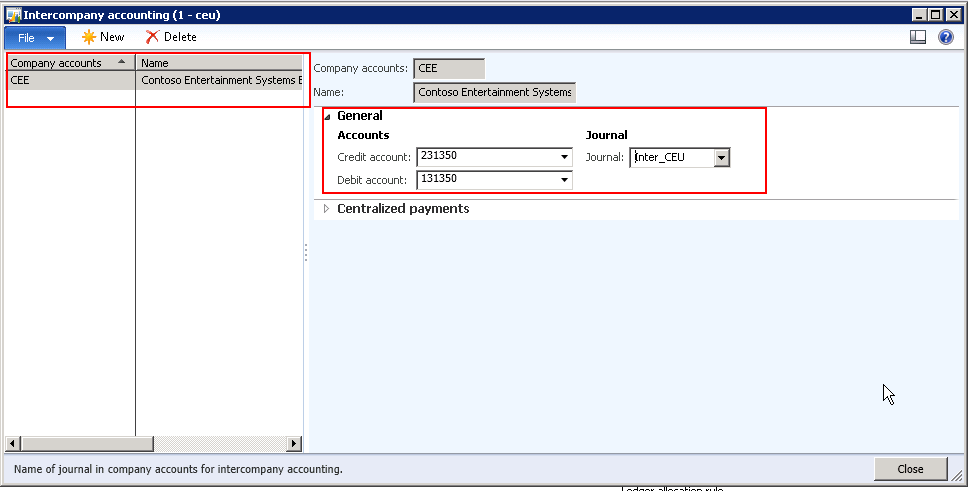
    3. Setup the ledger accounts for the inter company cost and revenue.

    Intercompany Ledger Accounts setup

    4. Make sure that the debit and credit accounts for the intercompany transactions are setup.

    Intercompany accounts mapping

    This completes the setup required in the loaning/resourcing company.

    Now, let us complete the setup needed to be done in AX 2012 in the borrowing legal entity.

    1. Setup sales prices for the borrowed resources which the the actual selling price in the project.

    Sales price setup

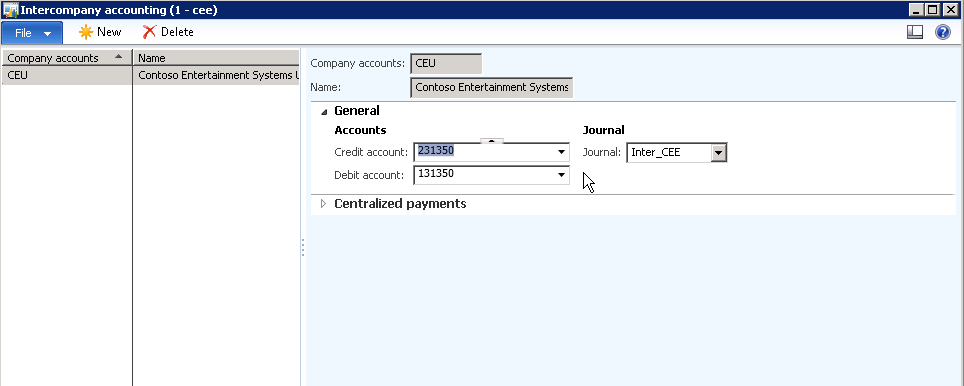
    2. Setup the debit and the credit accounts for the legal entity the worker will be borrowed from.

    image

    3. Further additional setups can be done, like assigning projects and categories to the borrowed worker if the validation functionality is implemented.

    Now that we are done with the minimum setups required for the intercompany timesheet functionality to be operational, let us take a look at the steps/process by which the borrowed employee can submit this timesheets in the borrowing/contracting company.

    • Employee logs into AX 2012 enterprise portal and navigates to the new timesheets screen.
    • Notice the new Legal entity field in the timesheet line which gets enabled when we enable the intercompany timesheets in AX2012.

    New Timesheet

    • Also notice that the loaning and the borrowing/contracting companies are displayed in the look up of the legal entity field. The worker will select CEE as the legal entity and enter their times in.

    New Timesheet - Legal entities

    So the employee will be able to submit his/her times in the project of the other legal entity without having to be an employee of that legal entity.

    The back end accounting is then done automatically based on the setups done.

    For any queries regarding the inter company timesheets functionality, please do not hesitate to contact me.

    Till next time !!!

    image

  • Troubleshoot–Hot fix available for a critical issue during financial consolidation process in Microsoft Dynamics AX 2012

    We ran into a critical issue when running the financial consolidation using financial dimension combination in AX 2012.

    ISSUE: System was summing up the transaction amounts by date and was updating data into wrong financial dimensions in the consolidation entity.

    SOLUTION: A hot fix was available for this and this worked fine after we applied the hot fix. (Please ignore if you already have come across this).

    NOTE : This hot fix is not part of the CU2 update yet but may be included in the CU3 which is slated to release somewhere during JUNE/JULY this year.

    Link to hot fix:

    http://support.microsoft.com/hotfix/KBHotfix.aspx?kbnum=2623873&kbln=en-us&sd=mbs

    Thanks

    Sandeep

  • The Power of Customer Self-service portal in Microsoft Dynamics AX 2012

    Hi Readers,

    I could not spend time on my blog since last few weeks due to my extended vacation. I know i owe answers/responses to a few of you. I will start doing it from today again. Sorry about this.

    In today’s post we will take a look at all the important capabilities of the customer self-service portal.

    The customer self-service portal, which is an out of box feature of Microsoft Dynamics AX 2012 adds to the list of several other simple yet powerful list of features.

    This enables your customers to work with you in more efficient way without having the need to several manual interventions. Rather than having customers calling you and asking questions about their orders, placing new orders, asking about invoices, inquiring about products, you can just give then a log in for the customer self-service website and can do all of the above stuffs on their own.

    For customers to get started with using the portal for them, all you need to do is follow few simple steps to setup the customer contact and other required details and then they are ready to go. The various capabilities of CSS(Customer self-service portal) are explained in the points below.

    Customer Self Service Portal

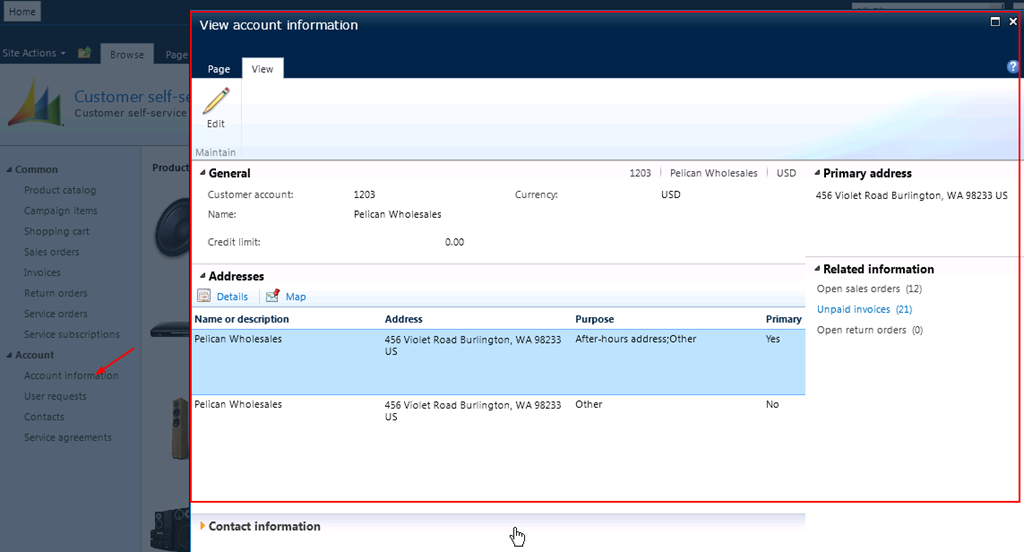
    View account information

    1. Configure Product Catalog and make it available on the web for customers to browse through your products:

    • Configure Product groups:

    Configure Product Groups

    • Prepare presentations:

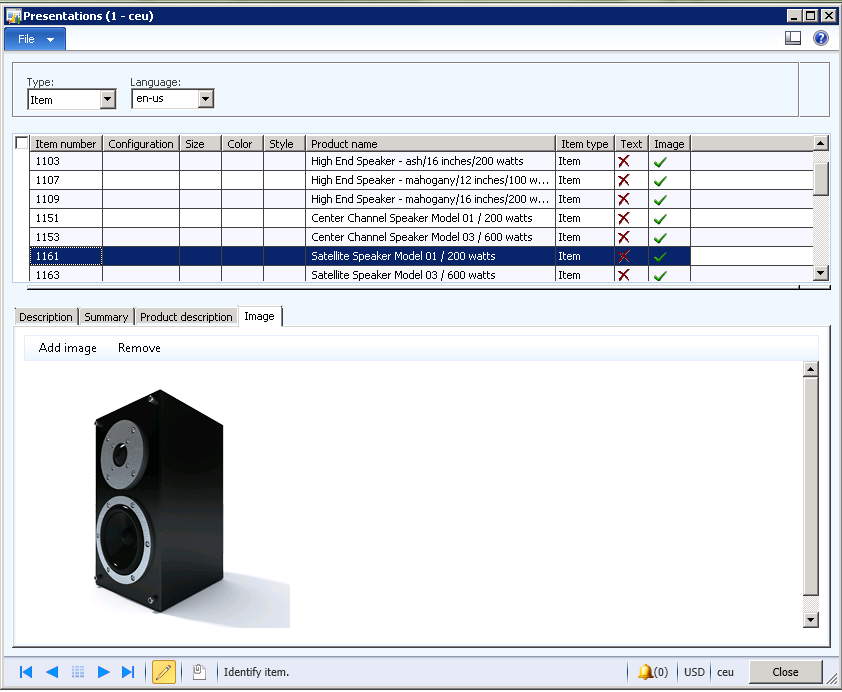
    Catalog Presentation

    • Sync and publish images to the Web/SharePoint portal:

    Publish Images to Web

    2. You can prepare campaign items and few easy steps and make it available on the web for customers to browse through them and add to their carts.

    Campaign Items on the Web

    This makes it easy for the organizations and their customers to interact easily, without having to make several calls and exchange emails to find required information about your products.

    3. Customer can place Orders on the web in few simple steps:

    • Add items to shopping cart

    Add items to shopping cart

    Add items to shopping cart

    • Checkout items and initiate order

    Checkout items and initiate order

    • Confirm order

    Confirm Order

    And You have successfully placed your order.

    Order Placed Successfully

    4. Have customers inquire about all their orders at one place on the web without reaching out to you frequently for the status and other related information about their orders.

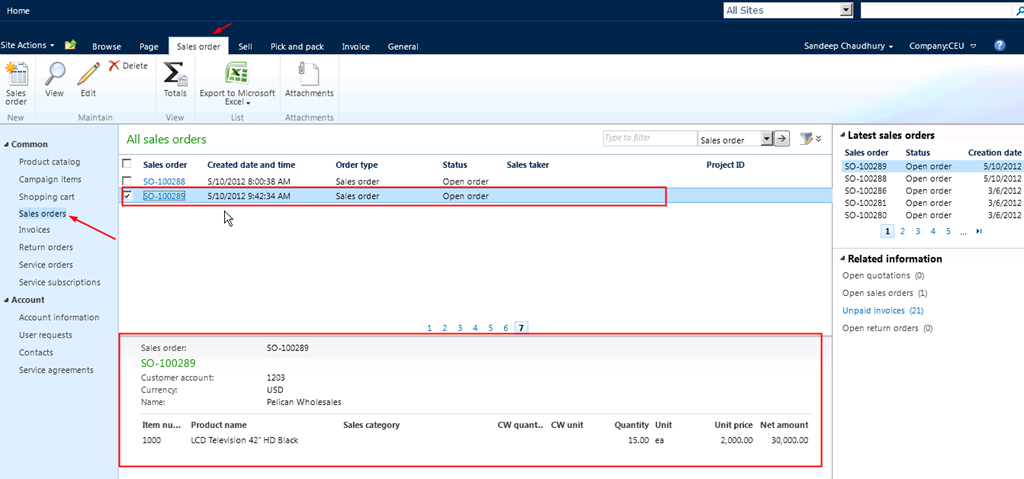
    Customers inquiring about their orders on the web

    Other inquiries about customer orders

    5. Have customers inquire about all their invoices and related information on the web.

    Inquiry about customer invoices

    View invoices

    View Invoice

    6. Customers can create , Manage and inquire about their item/order returns.

    Returns Mangement on the Web

    7. If your organization provided services on it’s products for customer and manage repairs for them, then you can have your customers/technicians create service orders on the web.

    View and perform actions on your service orders on the portal

    So, with these offerings on the web for making your customers work easily with you on several things on daily basis, AX 2012 can help you and customers interact everything efficiently at one place, getting most updated information about their orders and stuff etc.

    This post is aimed for customers who are looking for a customer self-service portal built inside and coupled strongly with their ERP application.

    Microsoft Dynamics AX 2012 – POWERFULLY SIMPLE !!! YET AGAIN !

    Microsoft Dynamics AX-Powerfully Simple

    Till next time… Keep DAXING Smile
     

  • The Export to excel feature in Project Management and Accounting module of Microsoft Dynamics AX

    Friends,

    Here is a quick post about another simple yet powerful functionality of Microsoft dynamics AX for service industries.

    Microsoft Dynamics AX-Powerfully Simple

    Most of us must be aware but I just thought I will bring it on here for those who may not be knowing this yet.

    The Export to excel feature allows project managers and other stakeholders of the project to export the project P&L and WIP statements into a pivot excel format without having the need of any manual intervention. This also allows to select data/fields from a range of various options to be presented in the excel workbook.

    Let us take an example project 10004 in the CONTOSO data and analyze.

    Project Statements Screen

    Choose from several data  field options to be presented in the excel workbook. Also arrange the column sequence by moving up or down the fields.

    Export to Excel

    Click Ok button and that’s it !!

    System makes it all for you. This is greatly different than the regular export to excel feature of AX as it directly presents the user all the data well formatted and arranged in pivot format. Please take a look at the excel workbook below which is generated by the system.

    Project P&L AX 2012

    Now you can utilize this workbook to prepare any kind of pie charts or bar graphs to analyze and present your project performances.

    Simple in few clicks !!!! Smile

    Till next time…….Keep DAXING..

  • Ledger Postings Management of Fixed Price projects in Microsoft Dynamics Ax 2012 – Scenario I

    Friends,

    Hope all is well your way. I Did not get chance to spend time on my blog this month.

    We keep hearing a lot of questions on the ledger posting scenarios, revenue recognition etc in case of fixed price projects in Microsoft dynamics AX. Well,I thought, I will explain the various ledger posting scenarios in the life cycle a fixed price project in few of my subsequent posts.

    The ledger postings in case of a fixed price project is controlled through the setup done in the Project groups. Based on the these setups, the ledger posting in a FP project can happen in 8 different ways.

    We will analyze each one of the setup options one by one and verify the ledger postings. I will name these 8 ways of ledger posting as Scenario 1 to 8. We will analyze the scenario 1 in today’s post.

    The 3 parameters in the project groups form which controls these ledger posting are as follows.

    • On-account invoicing.
    • Revenue recognition accounting rule.
    • Matching principle.

    Scenario 1 :

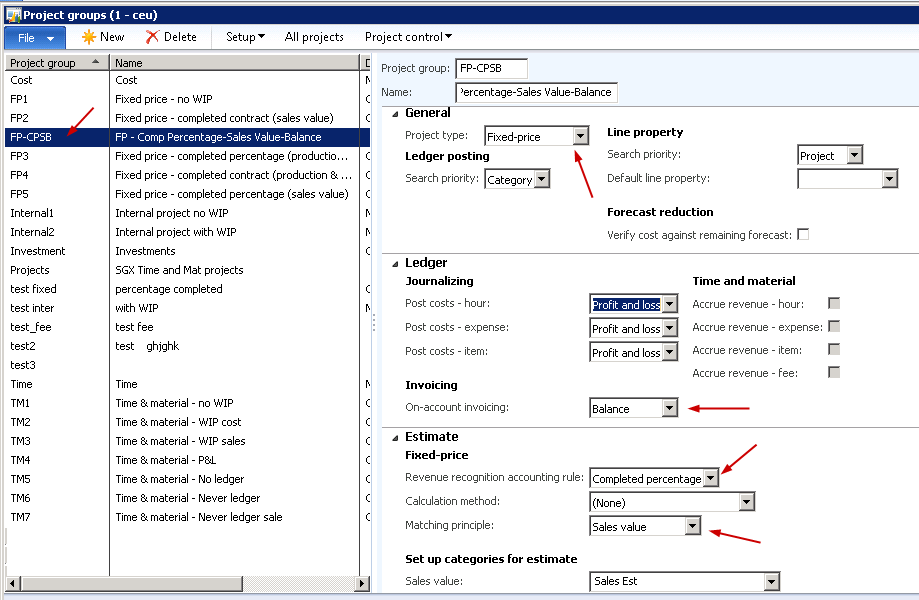
    On-account invoicing Balance
    Revenue recognition rule Completed percentage
    Matching principle Sales value

    Refer to screenshot below for the new project group which I have created.

    Project Group Setup

    I have created a new cost template and a fixed price project and attached this to the a new project group with above setup.

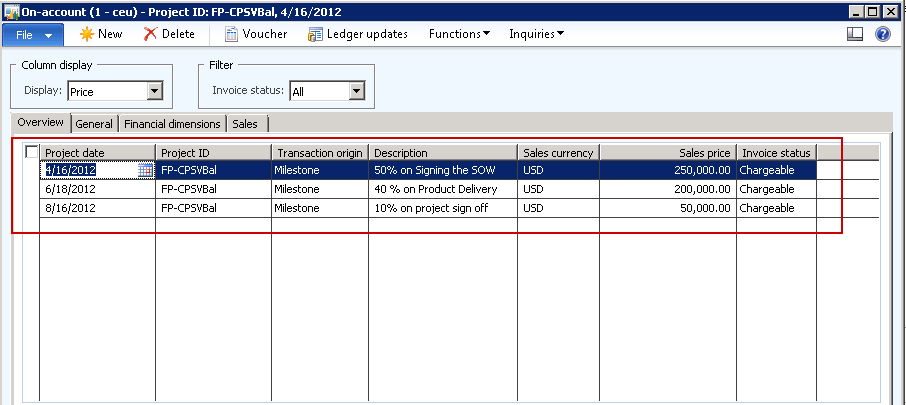
    Take an example where a company owns a fixed bid contract of $500000 and agreed upon with the customer for a milestone based invoicing plan as depicted below screenshot.

    On-account invoice schedule

    Costs are incurred in the project during its progress as indicated in the table below. We will post Estimates for the project at the end of every month and eliminate it in the month of SEP.

    Month Cost in project
    APR $20,000
    MAY $25,000
    JUN $40,000
    JUL $30,000
    AUG $55,000
    Total Cost $170,000

    Take a look at the tables below which shows the P&L and WIP statistics in the Project at each month before and after the estimates are posted.

    I am not able to provide the AX screenshots here as I have some issues in my AX environment.

    Project Profit & Loss Statement before posting estimates:

    Account Dr/Cr APR MAY JUN JUL AUG SEP TOTAL
    Accrued revenue – sales value Credit 0 0 0 0 0 0 0
    Revenue 0 0 0 0 0 0 0
    Cost Debit $20,000 $25,000 $40,000 $30,000 $55,000 0 $170,000
    Gross Margin -20,000 -25,000 -40,000 -30,000 -55,000 0 -170000

    Project WIP Statement before posting estimates:

    Account Dr/Cr APR MAY JUN JUL AUG SEP TOTAL
    WIP– sales value Debit 0 0 0 0 0 0 0
    Gross WIP 0 0 0 0 0 0 0
    WIP invoiced on account Credit $250,000 0 $200,000 $50,000 0 $500,000
    Net WIP -250000 -200000 -50000 0 -500000

    Note : The project on account invoices appear in the WIP-invoiced On account ledger.

    Project Profit & Loss Statement after posting estimates:

    Account Dr/Cr APR MAY JUN JUL AUG SEP TOTAL
    Accrued revenue – sales value Credit $58,800 $73,500 $117647 $88,236 $161765 0 ~500000
    Revenue $58,800 $73,500 $117647 $88,236 $161765 0 ~500000
    Cost Debit $20,000 $25,000 $40,000 $30,000 $55,000 0 $170,000
    Gross Margin $38,800 $48,500 $77,647 $58,236 $106765 $1,70,052

    The values for the accrued revenue are calculated based on the % complete/ Degree of completion in the project as the setup is done to be “Completed Percentage” rule.

    You may notice rounding issues in the values above as I have taken random examples.

    Project WIP Statement after posting estimates:

    Account Dr/Cr APR MAY JUN JUL AUG SEP TOTAL
    WIP – sales value Debit $58,800 $73,500 $117647 $88,236 $161765 -500000 0
    Gross WIP $58,800 $73,500 $117647 $88,236 $161765 0 ~500000
    WIP invoiced on account Credit $250,000 0 $200,000 $50,000 -500000
    Net WIP -191200 -73,500 -82,353 -88,236 -111765 0 0

    I hope my explanation of this scenario of posting in the fixed price project was clear. Please post your queries if any pertaining to this.

    Till next time !!!!

    Thanks

    Keep DAXING Smile