Month: April 2011

  • The “Pay when paid” functionality in Microsoft dynamics AX 2009 PSA

    Friends,

    I will explain the pay when paid functionality available in Microsoft dynamics AX 2009 PSA module in this post. As the name implies , payment to vendors is made only when payment is received from customers and this process is automated in PSA.

    This functionality of PSA gains more attention in the AEC and advertising industry as huge amount of money is paid to sub contractors / vendors with very low contract margin. The implementation of the this functionality not only ensures a positive cash flow in the organization but also verifies that the customers/clients are also satisfied with the performance of the vendors.

    In order to ensure that the pay when paid works as intended, make sure the below setups.

    • Ensure the PSA parameters are setup properly. This includes the flags for pay when paid section.
    • Ensure that the pay when paid check boxes are marked properly in vendor group and vendor level.
    • Ensure the flags for pay when paid are setup correctly in Project contract and project.
    • The flags at the PO header and line level will inherit from vendor master.
    • Check the PwP flag at the AP voucher record.

    How the Pay when paid works – Information flow in pay when paid functionality:

    The pay when paid works using the logic depicted below.

    1. PwP looks at the threshold amount or percentage which are setup in the PSA parameters. If the amount is set up , system subtracts this value from the total customer invoice amount and the calculated difference is compared to the customer payments till date.If the total payments till date is greater than the difference , the customer invoice is said to be “Fully” paid.
    2. If the threshold percentage is set up , then percent value is subtracted from 100 and the difference is multiplied with the total customer invoice. If customer payments till date exceeds this value, then customer invoice is assumed to be fully paid.
    3. The addition of two new fields, “Customer payment status” and “Customer invoice number” in vendor transactions form forms a relationship between the Vendor invoice and the Customer payment.
    4. When a new AP voucher is initiated for the vendor payment/invoice, the value for the customer payment status will be Blank and customer invoice number will be null in the related vendor transaction record.
    5. Once the customer/client invoice is processed, the invoice number for this  will be updated for the related vendor transaction.
    6. Once a full payment is received from customer , the customer transaction will be updated as settled and system will cause the “Customer payment status” field to be set to Paid and if a partial payment is received , it is updated to Partial.
    7. When the vendor payment is initiated by using payment proposal option , then only those vendor transactions are filtered where customer payment status is Paid.
    8. When the vendor payment is initiated through manual settlement (Functions > Settlement option), then only those vendor open transaction which pass the PwP criteria are listed to be chosen for payment.

    Let us understand the example below to get a better idea on the pay when paid functionality of PSA.

    Let’s say your company sells speakers and you enter into an agreement with your customer to provide 200 speakers for them . As you dont have the manufacturing facility for the speakers, you engage a vendor/sub contractor to manufacture those for you. Let us assume that the price that the customer agreed on for each speaker is $100.

    Your customer also makes an agreement like they will approve the quality of the speakers before the they pay you . Therefore, your organization can have an option of not paying the third-party vendor until you have been paid by the customer.

    Now you can set up the project with a PWP threshold  percentage of 100%. This means that you will withhold all payments to the vendor until you receive full payment for the customer invoice.

    When vendor sends the speakers , say they charge $60 for each speaker, so along with the goods they will send an invoice of amount 200*60 = $12000. But you will not pay now them as you have the PWP setup.

    When you send the speakers to the customer, you will send the customer an invoice of 200*100 = $20000. The customer will inspect all the speakers and then if approves the quality of the product , they will pay the amount for your invoice.

    After you receive the full payment from the customer, you will pay $12,000 to the vendor for the full amount of their vendor invoice. This will ensure satisfactory service from the third party vendors.

    Hope this post will help understanding the base concept of PwP and  troubleshooting issues if any. Will be glad to answer more on this.

    Thanks, Keep DAXING :)
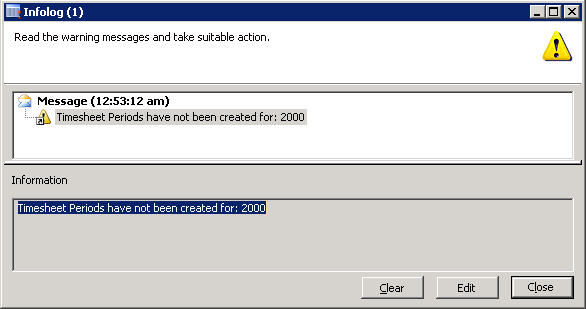
  • [Troubleshoot] -Timesheet Periods have not been created for: 2000 – Error when creating Time sheets in microsoft dynamics AX 2009 PSA

    Friends.

    Below is a very common error which users always wonder about when trying to create and submit their time sheets in Microsoft dynamics AX 2009 PSA module.

    Timesheet Periods have not been created for: 2000” , where 2000 is the logged in employee. The warning message is as shown below.

    Issue : This error comes when there are no time sheet periods defined for the employee.

    Solution : Follow the below steps to resolve this issue and be able to enter time sheets.

    1. Navigate to Basic > Employee details form.
    2. Select the employee record for which the error is thrown. ( Employee 2000 in this case).
    3. Click the Setup tab.
    4. Verify that a Period code is set up for this employee. If this is not setup already , you have to set a period code by selecting one from the look up.
    5. Then right-click on the period code , and click Go to the main form.
    6. Then, click the Update employee periods button.
    7. Give a suitable start and end date ( say 01/01/2011..06/30/2011) and click OK button.
    8. Click the Update time sheet periods button.
    9. Give a suitable start and end date ( say 01/01/2011..06/30/2011) and click OK button.
    10. Finally click the Show time sheet periods button and verify that there are records created for the time sheet periods for the period code attached to the Employee.

    This will fix the error above and the user will be able to enter time sheets then.I will be happy to recommend solution any other issues in PSA related to time sheets.

    Thanks, Keep DAXING :)

  • New and Changed features of Project accounting module in Microsoft dynamics AX 2012

    Friends,

    We have been hearing a lot about AX 21012 since last couple of months and i just got a chance to get into few details of the functionality which are added , changed and deprecated under the Project management accounting module of AX 2012.

    It promises to be giving us most if not all. Yes! Microsoft Dynamics AX 2012 is here with a very new face. In this post i will just put in the various features which have been added , removed and changed in AX 2012 and we will of course get into details of them when we have the product in hand.

    New Features in dynamics AX 2012 under Project management accounting module: What is New ?

    First and the most basic change is the module name itself. It is now called Project Management Accounting. Below are the list of new changes and add-on functionalities.

    1. Project budgeting:

    • Project budgeting is now possible at activity level.
    • Original budget can be created to define a budget at various level in the project hierarchy and it can be submitted for approval. It can also be allocated over a period of time.
    • Project budget revisions can be created at various levels of the project and they can be submitted for review and approval. These can also be allocated over a period of time.
    • When budget revision is approved , it causes and immediate change to the over all project budget.
    • A complete history or audit trial of the proposed, original, accepted(approved) and rejected budget is available for review at any point of time.
    • The project financial inquiry and the project financial status reports now presents a details of the project budget also.
    • If you are working on a multi-year project , you can carry forward project budget at the end of the year to the future year and make necessary change to the general ledger accounts associated with them

    Well , now this is complete budgeting. Seems like massive enhancements in project budgeting has been done by MS.:)

    2. Processing of item charges/costs in PO,SO and invoice lines:

    • Item charges/costs in the PO,SO and invoice lines are now recognized in projects.
    • Any taxes for the item charges will now be going to an expense account.
    • Item charges will now be recorded in project budgets and commitments.

    3. Project time sheets:

    • Over all UI experience will now be more user-friendly.
    • The way the time sheet comments and start and end dates are used are now much better.
    • Most importantly , user can now create and manage favorites in Enter Portal to be able to create time sheets in  a much quicker fashion.

    4. Advanced funding:

    • Well, this seems interesting. Customers have been looking for this one. In AX 2009, we could invoice only one customer per project per contract. Now the funding for a project /project contract can be shared by any number of internal or external parties.
    • User can configure a funding scheme which helps is setting up funding limits for one or more customers per category, category group or transaction type.

    This enhancement will definitely gain attention.

    5.Collaboration workspace:

    Even though not a widely used feature , if used properly, it can prove to be very beneficial.

    • You can create and add collaboration workspace in projects , campaigns and opportunities where project team members can quickly organize and share information within AX.
    • MS dynamics options can be setup and default the collaboration work spaces for users.

    6.Create and manage projects in EP:

    • Unlike AX 2009 , where only time and expense entries were possible in EP for projects , project managers can now create and manage their projects in EP itself.
    • Workers can enter daily working hours in a much improved manner and project managers can approve it on EP.

    7.Beginning balances:

    • This is another good feature. Users can now enter a beginning balance for a project which will help in transferring projects to Microsoft dynamics AX 2012 from legacy project management systems without affecting the general ledger.
    • For e.g. , if you have been tracking a project in an outside application but managing costs and revenue in AX , you can transfer the project to AX , specify a beginning balance and then track all information at once place only.

    8. Track project revenue from Free text invoice :

    • Ax 2012 now makes it possible for tracking revenues which are billed though free text invoicing. Cool it is !

    9. Transaction adjustments:

    One more !!This feature will make correction of wrong project entries easier which will allow adjustments even after invoicing.

    • Invoiced and estimated transactions can now be adjusted.
    • Adjustment dates can be used as project dates for adjustment transactions. Earlier it used to be the transaction date only.
    • The relationship between the original , reversed and the replacing transaction can be well traced now with information of what exactly the user adjusted.

    10. Progress billing , estimates and revenue recognition:

    • When migrating from one ERP system to another , the data migration is a big pain issue . Bringing in the existing data into the new system is most important where we face hurdles. This is to ensure that the revenue can continue to be recognized for the fixed price projects that are already underway.
    • Since revenue recognition depends on the completion % of the project , the data must be migrated so that both % of work completed(actual cost) and the remaining work(cost to complete) are reflected in proper accounts.
    • So the introduction of features such as beginning balance , progress billing and revenue recognition provide adequate support to these issues.

    Well , apart from these bunch of significant functionality, AX 2012 also promises to give a significantly improved UI experience across the modules with the introduction of new form controls such as , action panes , Fact boxes , Fast tabs etc.

    Fast tabs : The legacy tabs on the AX 2009 forms are getting replaced by fast tabs which the user can expand ans collapse to view and edit information.

    Fact boxes : Every module will now have fact boxes in all the important forms such as Customers, vendors , Items , Projects etc. These fact boxes will display 5-10 facts about each of the entities. For example , in the Project details form we will have fact boxes that will show related information. Please refer to the screenshot below for few fact boxes in Project quotations form in AX 2012.

    There are 3 Out of box fact boxes present in the project quotations form in AX 2012 as seen above. They are, Latest sales orders, Latest sales quotations and the Related information. These fact boxes displays important data related to the selected quotation record in the form. So user can have access to these critical data without having to navigate to the related forms.

    With these , the user can have access to critical project data staying in a single form without having to navigate to related forms and calculating values. Moreover , user can also customize the information in the fact boxes. Is it not interesting !

    We will realize all of these soon in the application.

    Hope you all will find this information helpful.

    Thanks, Keep DAXING :)

  • Integration of microsoft project server 2010 with Microsoft dynamics AX 2012 : What’s new , Benefits and Improvements

    Friends,

    Today’s post will talk about the functionality of integration of Microsoft project server 2010 with Microsoft dynamics AX 2012. We will just discuss all the new features that have been introduced in AX 2012 as we all must be knowing about the standard integration between these two application has been a functionality from AX 2009.

    Benefit of integration between Microsoft dynamics AX 2012 and Microsoft project server 2010 :

    • Project manager can create projects and other related data in either of the products(AX or project server) and then can synchronize data between them.
    • This will help in getting both the core project management capabilities of project server and the financial management services of dynamics AX 2012.

    New features of integration between AX 2012 and Project server 2010:

    Well , apart from the existing integration features between the two applications , the following are added newly in the AX 2012 version of AX.

    1. Now, the project hierarchies created in project server 2010 can be synchronized with Microsoft dynamics AX 2012.
    2. Also, the resource assignments in project server 2010 can be synchronized with Microsoft dynamics AX 2012.
    3. When the integration between these two is enabled , the activity breakdown structure can be maintained in the project server only and it will be read only in AX 2012.
    4. Now , any customized fields in AX 2012 by ISV can be synchronized with project server 2010 by defining the mapping in SyncIntegratedFields table in AX 2012.

    Entities that can be integrated:

    The following elements in the Microsoft dynamics AX 2012 can be integrated with project server now.

    • Workers (The integrated resource pool in project server).
    • Projects
    • WBS (The activities which are of type Task)

    How do I troubleshoot integration errors:

    It is common that users encounter errors when trying to integrate the project server with Dynamics AX. In order to be able to resolve the integration issues in an efficient manner, Microsoft dynamics AX 2012 provides integration logs which can provide significant information required to troubleshoot the issues. It can be found at System Administration > Inquiries > Microsoft project server integration > Integration log.

    Hope you will find this information helpful.

    Thanks, Keep DAXING :)

  • Use combination cost price option in microsoft dynamics AX : BOM calcluation for all available item dimension combinations

    Hello,

    Here is just a very quick information which i thought might be useful for people.

    When doing BOM calculations for a BOM item with multiple configurations , if you want to calculate and maintain separate prices for the different configurations in the item , then you can “Check” the “Use combination cost price” check box under General tab of the Item master.

    If you do periodic BOM calculations for items for which this check box is not marked , system will not calculate the prices for all the configurations.

    Thanks, Keep DAXING :)

  • How to cancel a Project Invoice in dynamics AX ?- Project Accounting

    Hello,

    I have been seeing questions in different blogs where people question about cancelling invoices for Projects in dynamics AX.

    Well, there exist a functionality for creating credit notes for posted invoices in dynamics AX Projects. I will explain the basic steps to cancel  a posted invoice and to update the credit note for it.

    Steps for cancelling a Project Invoice :

    1. Go to Project Accounting > Select the project for which you want to cancel the invoice.
    2. Click the Invoice > Invoice button.
    3. This will show all the invoices that are posted for the project.
    4. Filter the invoice you want to cancel/create the credit note for.
    5. Click Functions > Select for credit note.
    6. On the Select for credit note form , click select all button, and then click OK button.
    7. Now , go to the project transactions  and you can see that the transaction status for the project transactions will be “Selected for credit note”.

    Post the Credit note proposal:

    1. Go to Projects > Invoice > Invoice Proposal.
    2. Click the Create Invoice button and select Credit notes for the Invoicing method field.
    3. Also select the transactions (Check boxes)you want to include in the Credit note proposal.
    4. Click OK.
    5. This will create the credit note proposal line. See the info log message below.

    Now , post the credit note proposal by clicking the Post Invoice button.

    I will be happy to discuss questions on this if any.

    Thanks, Keep DAXING :)

  • There are no more budget left on forecast model “Test” for the cost- [Error] – Dynamics AX Project budgets

    Hi All,

    Here is a quick post which talks about a common error which you may receive from dynamics AX system when working with project transactions.(Posting project transactions).

    If you encounter the error with message “There are no more budget left on forecast model ” ” for the cost” , this indicates that the “automatic cost reduction” for forecast is enabled in the project forecast model and “Check remaining cost against budget” check boxes are marked for Hours/Expense/Item which causes the system to check for the remaining forecast amounts/qty and there by block the further posting of transactions in the project.

    The business scenario for this kind of setup:

    In a realtime business scenario , the original forecasts will be created using a Original forecast model which will remain untouched for future references of the original budget. So the automatic cost reduction check boxes will not be marked for this forecast model.

    To track the reduction of the original budgets and to have check on the budget control , Microsoft dynamics AX provides the “automatic cost reduction” and “Check cost against the remaining budget” check boxes. So a new Remaining forecast model will be created and these check boxes will be marked to have control over the budget.

    Refer to screenshot below.

    After the original budgets are created , these will be copied to the remaining forecast model by using the Copy budget periodic job.

    Steps to troubleshoot the above error :

    1. Find the forecasts for the project and the type of transactions you are working on. This can be found at Project Accounting > Inquiries > Forecasts > Hour/Item.Expense..
    2. Look for the reduced forecast transactions.
    3. Take a suitable action for the budget by editing it.(You can increase the Qty. / Amount).

    I would welcome any sort of questions on this.

    Thanks, Keep DAXING :)

  • No Ledger and Never ledger posting setup in Project Groups – Dynamics AX

    Hello,

    Going forward, I will start putting in contents under the AX Quick tips category also which basically will be quick/short references to some of the AX facts.

    Below are few of them for today’s post.

    • When we specify “No Ledger” for the Post hourly costs field under the ledger tab of the project group form , the hour costs are not posted to the ledger during posting of the journal. When the project is invoiced , the project cost account gets debited and the payroll allocation account gets credited. This kind of setup can be used in business requirements where the hour cost still needs to be charged in the project and will be used basically for time tracking purpose.
    • When we specify “Never ledger” for the Post hourly costs field under the ledger tab of the project group form, the hour costs are never posted to a ledger account and no ledger transactions are created both during journal posting and project invoicing. This kind of setup are needed in “Time” projects and is a mandatory setup in it.
    • However, there is a control under the statements tab of the Project parameter form which is the No/Never ledger – Hour cost/Hour Qty. check box which when checked, allows the posted hourly cost to be shown in Profit & loss and the project statistic reports.

    Note : No Ledger and Never ledger setups are not applicable for Item and expense recording in projects.

    Thanks

    Keep DAXING :)