Category: Dynamics 365

  • Use combination cost price option in microsoft dynamics AX : BOM calcluation for all available item dimension combinations

    Hello,

    Here is just a very quick information which i thought might be useful for people.

    When doing BOM calculations for a BOM item with multiple configurations , if you want to calculate and maintain separate prices for the different configurations in the item , then you can “Check” the “Use combination cost price” check box under General tab of the Item master.

    If you do periodic BOM calculations for items for which this check box is not marked , system will not calculate the prices for all the configurations.

    Thanks, Keep DAXING :)

  • How to cancel a Project Invoice in dynamics AX ?- Project Accounting

    Hello,

    I have been seeing questions in different blogs where people question about cancelling invoices for Projects in dynamics AX.

    Well, there exist a functionality for creating credit notes for posted invoices in dynamics AX Projects. I will explain the basic steps to cancel  a posted invoice and to update the credit note for it.

    Steps for cancelling a Project Invoice :

    1. Go to Project Accounting > Select the project for which you want to cancel the invoice.
    2. Click the Invoice > Invoice button.
    3. This will show all the invoices that are posted for the project.
    4. Filter the invoice you want to cancel/create the credit note for.
    5. Click Functions > Select for credit note.
    6. On the Select for credit note form , click select all button, and then click OK button.
    7. Now , go to the project transactions  and you can see that the transaction status for the project transactions will be “Selected for credit note”.

    Post the Credit note proposal:

    1. Go to Projects > Invoice > Invoice Proposal.
    2. Click the Create Invoice button and select Credit notes for the Invoicing method field.
    3. Also select the transactions (Check boxes)you want to include in the Credit note proposal.
    4. Click OK.
    5. This will create the credit note proposal line. See the info log message below.

    Now , post the credit note proposal by clicking the Post Invoice button.

    I will be happy to discuss questions on this if any.

    Thanks, Keep DAXING :)

  • There are no more budget left on forecast model “Test” for the cost- [Error] – Dynamics AX Project budgets

    Hi All,

    Here is a quick post which talks about a common error which you may receive from dynamics AX system when working with project transactions.(Posting project transactions).

    If you encounter the error with message “There are no more budget left on forecast model ” ” for the cost” , this indicates that the “automatic cost reduction” for forecast is enabled in the project forecast model and “Check remaining cost against budget” check boxes are marked for Hours/Expense/Item which causes the system to check for the remaining forecast amounts/qty and there by block the further posting of transactions in the project.

    The business scenario for this kind of setup:

    In a realtime business scenario , the original forecasts will be created using a Original forecast model which will remain untouched for future references of the original budget. So the automatic cost reduction check boxes will not be marked for this forecast model.

    To track the reduction of the original budgets and to have check on the budget control , Microsoft dynamics AX provides the “automatic cost reduction” and “Check cost against the remaining budget” check boxes. So a new Remaining forecast model will be created and these check boxes will be marked to have control over the budget.

    Refer to screenshot below.

    After the original budgets are created , these will be copied to the remaining forecast model by using the Copy budget periodic job.

    Steps to troubleshoot the above error :

    1. Find the forecasts for the project and the type of transactions you are working on. This can be found at Project Accounting > Inquiries > Forecasts > Hour/Item.Expense..
    2. Look for the reduced forecast transactions.
    3. Take a suitable action for the budget by editing it.(You can increase the Qty. / Amount).

    I would welcome any sort of questions on this.

    Thanks, Keep DAXING :)

  • No Ledger and Never ledger posting setup in Project Groups – Dynamics AX

    Hello,

    Going forward, I will start putting in contents under the AX Quick tips category also which basically will be quick/short references to some of the AX facts.

    Below are few of them for today’s post.

    • When we specify “No Ledger” for the Post hourly costs field under the ledger tab of the project group form , the hour costs are not posted to the ledger during posting of the journal. When the project is invoiced , the project cost account gets debited and the payroll allocation account gets credited. This kind of setup can be used in business requirements where the hour cost still needs to be charged in the project and will be used basically for time tracking purpose.
    • When we specify “Never ledger” for the Post hourly costs field under the ledger tab of the project group form, the hour costs are never posted to a ledger account and no ledger transactions are created both during journal posting and project invoicing. This kind of setup are needed in “Time” projects and is a mandatory setup in it.
    • However, there is a control under the statements tab of the Project parameter form which is the No/Never ledger – Hour cost/Hour Qty. check box which when checked, allows the posted hourly cost to be shown in Profit & loss and the project statistic reports.

    Note : No Ledger and Never ledger setups are not applicable for Item and expense recording in projects.

    Thanks

    Keep DAXING :)

  • Inventory Reconciliation in Microsoft Dynamics AX (Introduction, Process, Issues ,steps to troubleshoot and more…

    Hello everyone,Here is another learning from my side. Well , most of us might be well ware of the Inventory reconciliation issues and the approach to troubleshoot them in Microsoft dynamics Axapta , In my post below, i will try to explain the way i understood and worked on it.

    What is Inventory reconciliation ?

    In very simple words ,the process of identifying the discrepancies between sub-ledger(E.g – Inventory sub ledger AP/AR sub ledger..) and the general Ledger values and taking suitable actions to correct these discrepancies can be called as the inventory reconciliation. By the end of the fiscal year , the balances from the sub ledgers are reconciled with the general ledger values to ensure that the sub-ledger and the general ledger are in sync. It is one of  the painful issues for organizations on Dynamics Axapta.

    When we perform inventory reconciliation , we validate that the transactions from the inventory and the general ledger agree with the parameter settings in Accounts payable , Accounts receivable , Production and Inventory.

    What may cause the Inventory not to Reconcile ?

    There are several parameters that can cause the Inventory not to match with the GL. Below are some of the points.

    1. Incorrect setup of posting profiles.
    2. Improper setup of the item groups and ledger accounts in them.
    3. Service type item may have been setup to get posted to inventory accounts.
    4. Date of financial transaction update.
    5. Item groups may have been changed on items by users(May be by mistake)
    6. Posting of manual journals into inventory accounts.

    Steps for Inventory reconciliation  – An approach:

    You may perform the below steps to identify the possible discrepancies between the inventory sub ledger and the general ledger posting values and take suitable actions to correct them.

    • Perform inventory closing for the period you are reconciling your inventory.(If not already closed)
    • Run the trial balance report for Inventory accounts at GL > Reports > Transactions > Periodic > Trial balance. This can be helpful in ensuring that the opening value of the inventory should be in sync with GL.
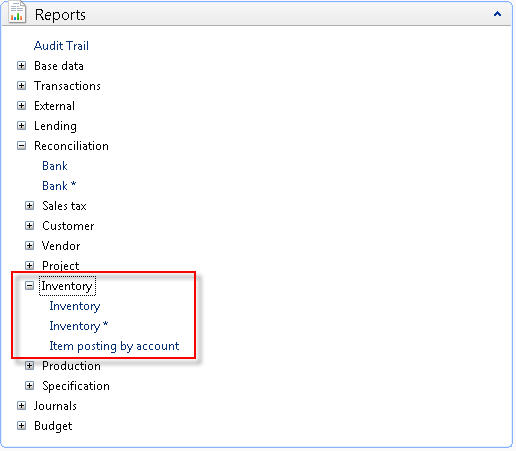
    •  Run the Posting by Account report at GL > Reports > Reconciliation > Inventory – Item posting by account and review the transaction by the posting types. This will help in determining the transaction types posted to the inventory accounts and you can ensure that wrong transactions got posted to inventory accounts if any.
    • You can also run the Ledger transaction list report at GL > Reports > Transactions > Ledger transactions list to get a list of all transactions that may not have been captured by the Item posting by account report. This will help in analyzing if any unwanted transactions(Service item transactions , manual entries etc) got posted to inventory accounts.
    • Run the Inventory value report by item group at Inventory management > Reports > Status > Inventory value report by item group and match the financial values of each item group with the trial balance report.
    • Analyze the variances and take suitable actions for the wrong transaction entires. If  incorrect ledger account setups are found , correct them. If manual transaction entires are found , create appropriate reversing entires for them.If service item transactions are found , double-check the setup for the service items.

    Other important reports in Dynamics AX that will hep in Inventory reconciliation :

    1. Inventory management > Setup > Inventory value reports
    2. Inventory management > Reports > Status > Inventory value > Inventory value report.
    3. Inventory management > Reports > Status > Inventory value > Potential conflicts – Inventory and General ledger
    4. General Ledger > Reports > All reports under Inventory folder. Please refer to the screenshots below.

    From the above mentioned reports , the Potential conflicts report can be found very useful in the inventory recon. process. and these set of inventory value reports are included in hotfix roll up 5 for dynamics AX 2009 service pack 1(Dynamics AX 2009 SP1 RU 5).

    So , above steps and information about inventory reconciliation are one of the approaches that one may follow to reconcile inventory and there may exist other better approaches.

    Thanks, Keep DAXING :)

  • Finanacial statements does not display the correct balance in a specified interval when running financial statements in Dynamics AX 2009/4.0

    Hello,In Microsoft Dynamics AX 2009/4.0, we set a financial statement to display data in a specified interval. However, when we run the financial statement, the financial statement does not display the balance in the specified interval. Instead, the financial statement displays the YTD (“Year To Date” ) balance.

    In this post , I will explain a resolution to get correct balances in financial statements when running it for a given interval in Microsoft dynamics AX 2009/4.0 .

    STEPS TO TROUBLESHOOT THIS ISSUE :

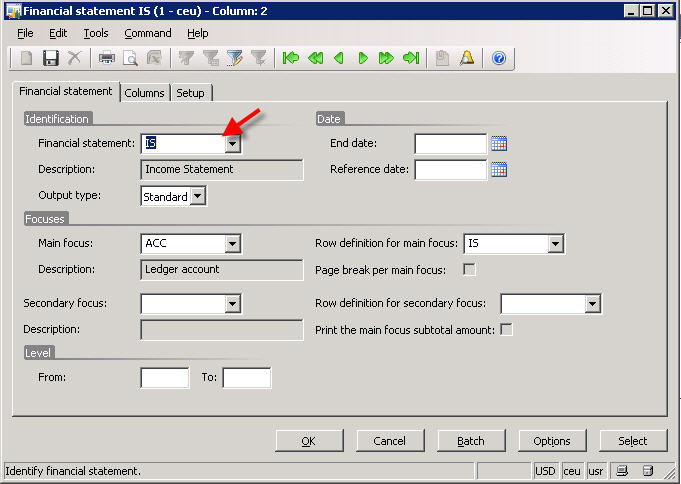
    Let us run the financial statement(Income statement) in standard CONTOSO data for the month of November , 2010. Please refer to screenshot below for the setup to run the statement.

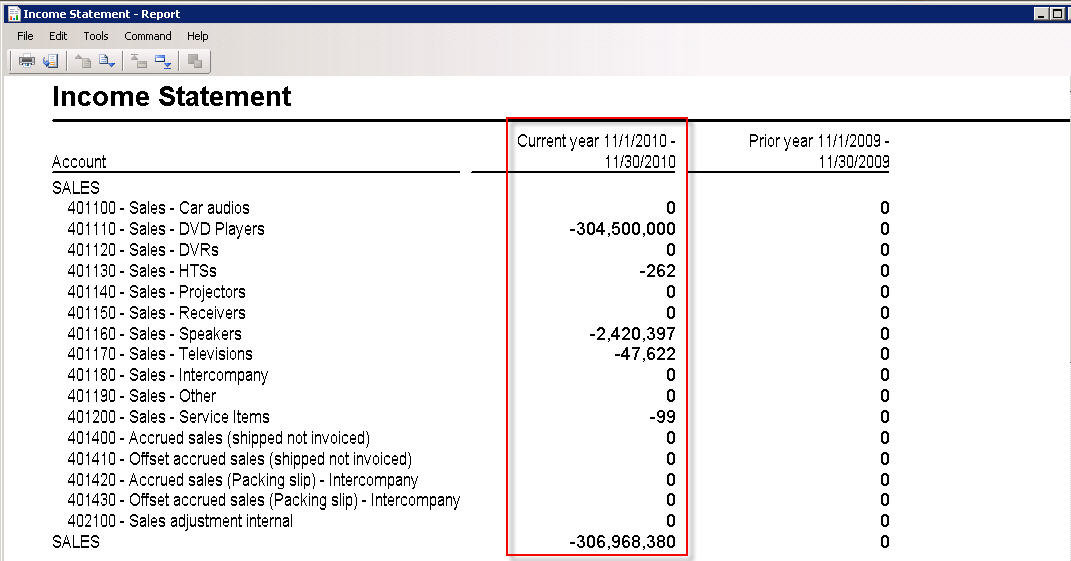
    Now , below is the financial statement report which we get, and the data in the report is “Year to date”, but not for the month of November, 2010.

    Below are the steps to get the data for this specific interval(NOV , 2010 ).

    1. Navigate to General Ledger > Setup > Financial Statement > Financial statement

    2. Select the desired financial statement (IS, the Income statement in CONTOSO data)

    3. Now, in the lower grid , select the current year record.

    4. Click the Transactions tab.

    5. Clear the “Include Opening” check box. Refer to screen below.


    After doing this , run the financial statement again for NOV, 2010. Below is the result which we get and the data in this is not YTD but it is only for the period of NOV, 2010.

    Hope , this information will be helpful .

    Thanks , Keep DAXING. :)

  • Controller profitability analysis Role center/KPI in Dynamics AX 2009 – Formulas for calculation of the Actaul and Goal values

    Hi There,

    In this post, i am going to explain the business logic and the setup behind the controller profitability role center/KPI in Microsoft Dynamics AX 2009.

    The Controller Profitability Analysis KPI report/role center displays management’s effectiveness in generating profits. The values displayed under the Actual column on the role center are always for the current month and the values for the GOAL, Trend and Status are calculated based on conditions in business logic.  These setups are done in the General ledger cubes.

    The screenshot below depicts how a standard controller profitability KPI looks like.
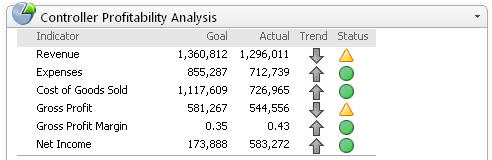
    Now, let us discuss these indicators and columns one by one.

    1. Revenue:

    Actual: It shows the sum of balances for all revenue accounts.

    Calculation: Sales (33) + Other Income (48) +Sales credits (34) + Gain/Loss on asset disposal (51). (33, 34, 48 and 51 above refers to the Ledger account categories which are setup at GL > Setup > Ledger Accnt. Categories.)

    Goal: The Goal is always set as a % of the Actual value. For e.g. if the total actual revenue is 100% in a month, then Goal can be set to 105%. The expression for the Goal value is set in the KPI for the role center. Once the user decided the Goal for a month, it can be setup in the KPI expression back in the cube which is accessible by opening visual studio.

    Default value for the Goal in KPI = Actual Value * 1.05(If the Goal % assumed is 105%).

    Trend: Upwards arrow if the actual revenue in current period (month) is greater than or equal to equal to the actual revenue in the previous period (month) else downwards.

    Status: Green (If Actual > Goal), Yellow (If Actual > 90% of Goal) and Red (Otherwise).

    2. Expenses:

    Actual: It shows the sum of balances for all expense accounts.

    Calculation: Cost of goods sold (35) +Selling expense (ref id = 36) + Admin exp (37) + Manu exp (38) +Travel and enter exp (39) + Project expenses (40) + Salaries exp (41) + Other Emp exp (42) + Interest exp (43) + Tax exp () + Depr exp (45) + Income tax exp (46) +Other expenses (= 47) + Amortization of intangible assets (ref id = 52) + Gain/loss on asset disposal (ref id = 51) .

    The numbers in brackets above refers to the ledger account categories .

    Goal: Default value for the Goal = Actual Value * 1.20

    Trend: Upwards arrow if the actual expenses in current period (month) are less the actual expenses in the previous period (month) else downwards.

    Status: Green (If Actual <= Goal), Yellow (If Actual <= 90% of Goal) and Red (Otherwise).

    3. Cost of Goods sold :

    Actual: It shows the total cost of goods sold.

    Calculation: The value from the Ledger account category 35 which represents COGS.

    Goal: Value for the goal of the COGS is set to 99% of the Actual COGS in previous period (Previous Month).

    Trend: Upwards arrow if the actual COGS in current period (month) are less the actual expenses in the previous period (month) else downwards.

    Status: Green (If Actual <= Goal), Yellow (If Actual <= 90% of Goal) and Red (Otherwise).

    4. Gross profit :

    Actual: It shows the value of the gross profit.

    Calculation: It is the value obtained by Sales (33) – Sales credits (34) – Cost of goods sold (35).(33,34 and 35 are the ledger account categories.)

    Goal: Value for the goal of the gross profit is set to 105% of the Actual Gross profit in previous period (Month).

    Trend: Upwards arrow if the actual gross profit in current period (month) are greater than or equal to the actual expenses in the previous period (month) else downwards.

    Status: Green (If Actual >= Goal), Yellow (If Actual >= 90% of Goal) and Red (Otherwise).

    5. Gross profit margin:

    Actual: It is the (Net Sales (33-34) – Cost of goods sold (35)) / Net sales (33-34). (Net Sales = Sales – Sales credits)(33, 34 and 35 refers to the ledger account categories.)

    Goal:  Value for the goal of the gross profit margin is set to 105% of the Actual Gross profit margin in previous period (Month).

    Trend: Upwards arrow if the actual gross profit margin in current period (month) are greater than or equal to the actual gross profit margin in the previous period (month) else downwards.

    Status: Green (If Actual >= Goal), Yellow (If Actual >= 90% of Goal) and Red (Otherwise).

    6. Net Income :

    Actual: It is the (Revenue – Cost of goods sold – sales credits – Expenses).

    Goal: Value for the goal of the net income is set to 105% of the Actual Gross profit in previous period (Month).

    Trend: Upwards arrow if the actual net income in current period (month) are greater than or equal to the actual net income in the previous period (month) else downwards.

    Status: Green (If Actual >= Goal), Yellow (If Actual >= 90% of Goal) and Red (Otherwise).

    Thanks , Keep DAXING. :)

  • List pages and their benefits in Dynamics AX 2009

    Hello everyone,In this post of mine, I will summarize a basic introduction to Microsoft Dynamics AX 2009 list pages and their benefits for the users on their daily business operations.

    Introduction:

    Dynamics AX list page is a navigation page that displays a list of related data records. They represent a primary means of displaying data, performing actions on specified records, and opening their other related forms. There are two types of list pages supported by Dynamics AX 2009 which are described as below.

    Primary list page : Displays all the records for a specific document type(for e.g. Customers/Vendors). These may also have a filter option in them which can be used to display more meaningful data.

    Secondary List page : Displays a subset of records from an existing primary list page. It appends filters to the list page  that restrict the records getting displayed.(For e.g. Display a list of vendors on Hold). The secondary list pages comes very helpful for users in their daily business needs.

    Below are descriptions for few of the list pages under the Accounts Payable and Accounts Receivable ares fo AX 2009 which the users will find extremely useful in daily business operations.

    Accounts Payable :

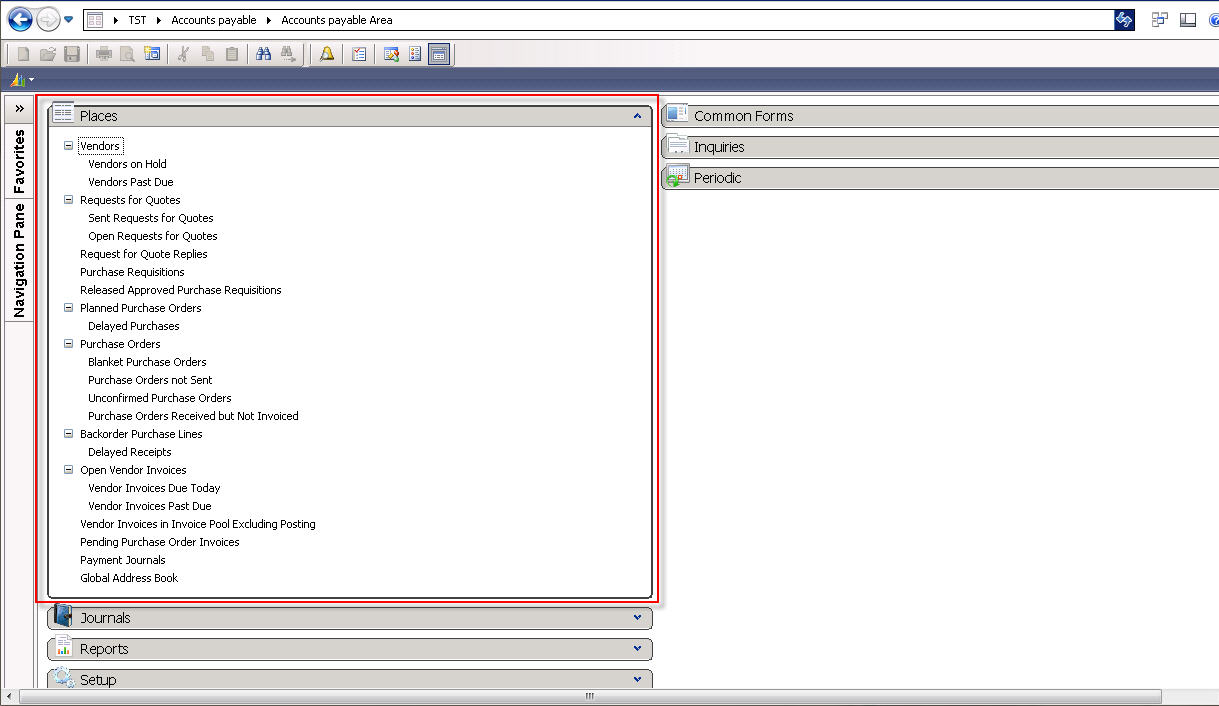
    Below image is an indication of all the out of box list pages available under Accounts payable area for a user with permissions of Admin group. However Dynamics AX security framework restricts the list pages to be out of box when the user belongs to limited user groups. Now when i say out of box , it means the list pages which are defaulted on the area page irrespective of user permissions.

    Each of these list pages are useful for different user profiles. For example , the Controller or the Accounts payable clerk can open the Vendor Invoices Due today(Secondary list page) to view all the invoices of vendors which are due on the current date and can process payments or take suitable actions for them right here from the list page.

    Another example of these is the Purchase Orders not Sent secondary list page. The Purchasing manager of the organization can take a look at all the POs that are not sent yet and can take necessary actions on them in the list page itself.

    Similarly users can get to know the  other information such as the vendors past due, sent RFQs , Open RFQs, RFQ replies, delayed purchases, delayed receipts pending PO invoices etc and can take suitable actions for them.

    Accounts Receivable:

    Below image is an indication of all the out of box list pages available under Accounts receivable area for a user with permissions of Admin group. However Dynamics AX security framework restricts the list pages to be out of box when the user belongs to limited user groups.

    List pages under Accounts Receivable – AX 2009

    Each of these list pages are useful for different user profiles in the AR team. For example , the Controller or the Accounts receivable clerk can open the customer Invoices Due today(Secondary list page) to view all the invoices of customers which are due on the current date and can process payments or take suitable actions for them right here from the list page.

    Another example of these is the Shipped but not invoiced Sales orders secondary list page. The Accounts receivable clerk of the organization can take a look at all the SOs that are not invoiced yet but are already shipped and can take necessary actions on them in the list page itself.

    similarly users can get to know the  other information such as the customers past due, customers on hold ,sent and open sales quotations, delayed shipments, open return orders etc and can take suitable actions for them.

    similarly AX 2009 has other list pages under almost all the modules of it which the users in various departments of the organization can find helpful in their daily operations.

    This post holds a very basic information which most of us already know. I just tried putting them together as i got chance to work on them on a great deal in one of my assignments.

    Thanks ,Keep DAXING. :)